steering MERCEDES-BENZ GL SUV 2009 Owner's Manual
[x] Cancel search | Manufacturer: MERCEDES-BENZ, Model Year: 2009, Model line: GL SUV, Model: MERCEDES-BENZ GL SUV 2009Pages: 309, PDF Size: 10.27 MB
Page 96 of 309
Changing gears
The automatic transmission shifts into indi-
vidual gears automatically. This automatic
gearshifting behaviour is determined by:
R
drive position D(Y page 93) with shift
ranges 6,5,4,3,2and 1(Y page 94)
R the selected drive program
(S/M) (Ypage 95)
R the position of the accelerator pedal
(Y page 94)
R the road speed
R select a possible shift range restriction
In drive position D, you can use the DIRECT
SELECT steering wheel gearshift paddle
(Y page 94) to influence the gearshifts
made by the automatic transmission and shift
gear yourself.
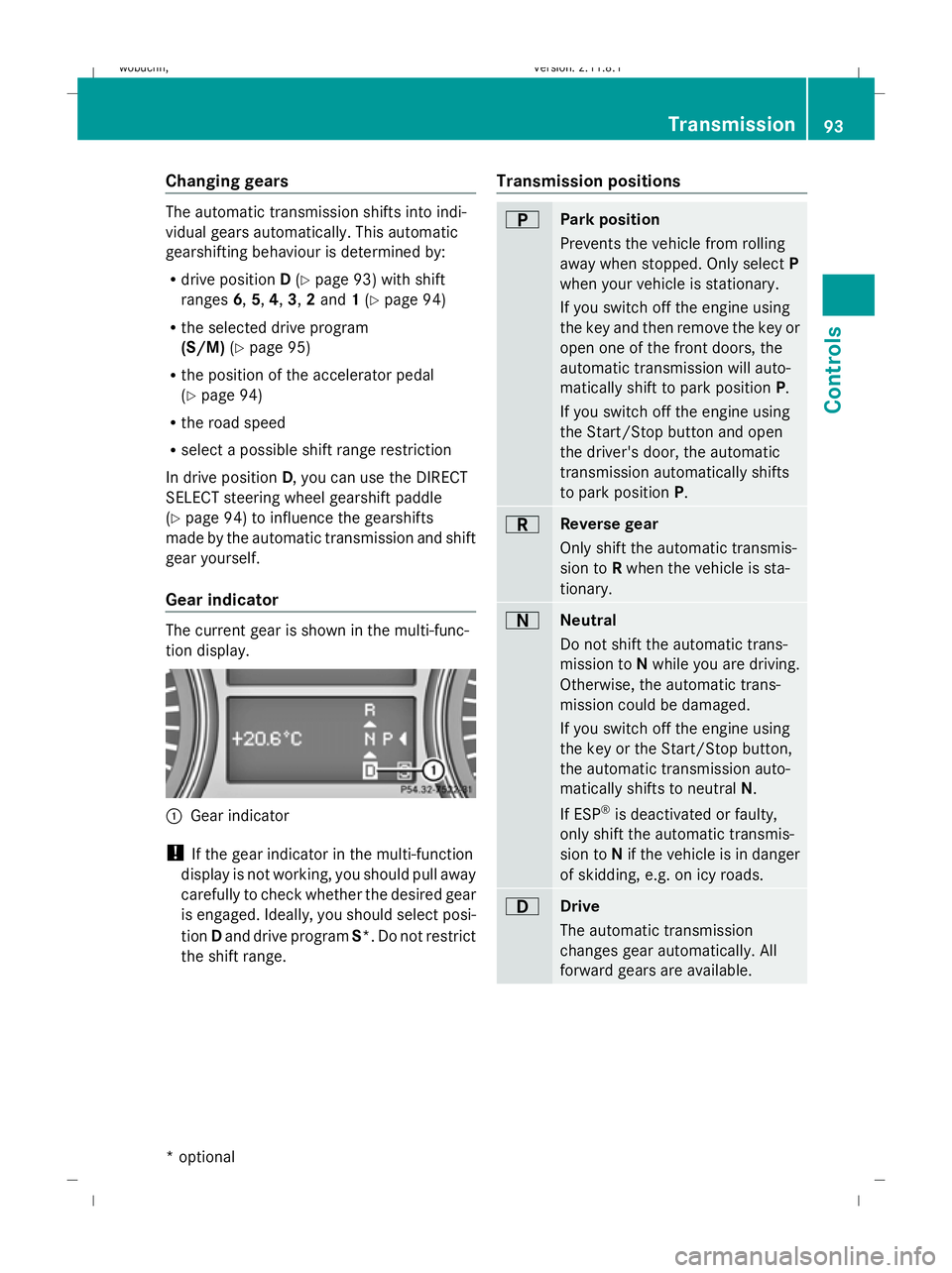
Gear indicator The current gear is shown in the multi-func-
tion display.
:
Gear indicator
! If the gear indicator in the multi-function
display is not working, you should pull away
carefully to check whether the desired gear
is engaged. Ideally, you should select posi-
tion Dand drive program S*. Do not restrict
the shift range. Transmission positions B
Park position
Prevents the vehicle from rolling
away when stopped. Only select
P
when your vehicle is stationary.
If you switch off the engine using
the key and then remove the key or
open one of the front doors, the
automatic transmission will auto-
matically shift to park position P.
If you switch off the engine using
the Start/Stop button and open
the driver's door, the automatic
transmission automatically shifts
to park position P. C
Reverse gear
Only shift the automatic transmis-
sion to
Rwhen the vehicle is sta-
tionary. A
Neutral
Do not shift the automatic trans-
mission to
Nwhile you are driving.
Otherwise, the automatic trans-
mission could be damaged.
If you switch off the engine using
the key or the Start/Stop button,
the automatic transmission auto-
matically shifts to neutral N.
If ESP ®
is deactivated or faulty,
only shift the automatic transmis-
sion to Nif the vehicle is in danger
of skidding, e.g. on icy roads. 7
Drive
The automatic transmission
changes gear automatically. All
forward gears are available. Transmission
93Controls
* optional
X164_AKB; 2; 3, en-GB
wobuchh,
Version: 2.11.8.1 2009-03-31T14:14:58+02:00 - Seite 93 Z
Dateiname: 6515431202_buchblock.pdf; erzeugt am 01. Apr 2009 00:17:12; WK
Page 97 of 309
Driving tips
Accelerator pedal position
Your style of driving influences how the auto-
matic transmission shifts gear:
R little throttle: early upshifts
R more throttle: late upshifts
Kickdown
Use kickdown for maximum acceleration.
X Depress the accelerator pedal beyond the
pressure point.
The transmission shifts to a lower gear
depending on the engine speed.
X Ease off the accelerator pedal once the
desired speed is reached.
The automatic transmission shifts back up.
Trailer towing
X Drive in the middle of the engine speed
range on uphill gradients.
X Shift down to shift range 3or 2depending
on the incline of the uphill or downhill gra-
dient (Y page 94), even if cruise control
is activated. Steering wheel gearshift paddles*
and manual drive program*
You can restrict or derestrict the shift range
by using the steering wheel gearshift paddle.
You can change gear yourself by using the
steering wheel gearshift paddle in the manual
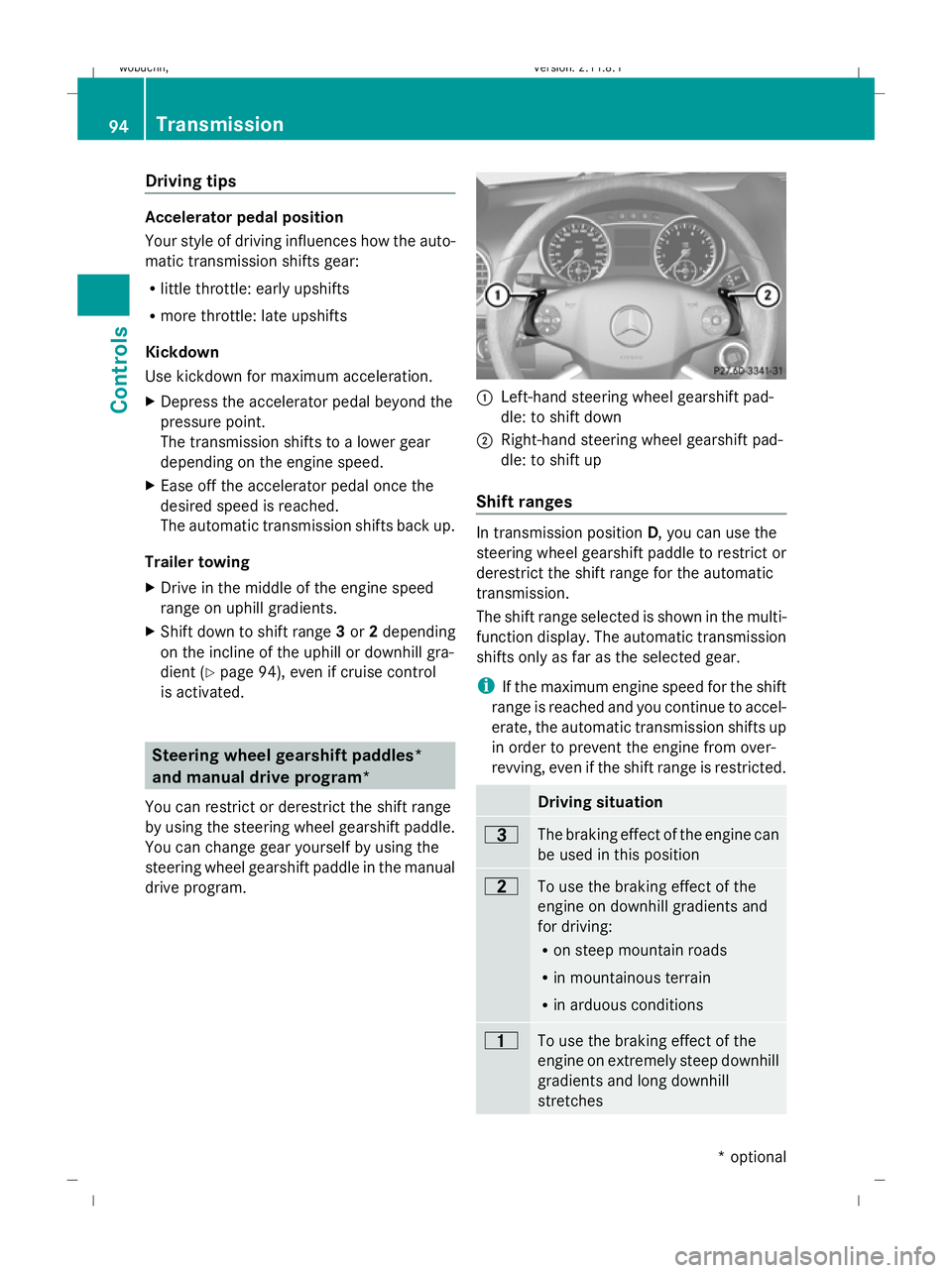
drive program. :
Left-hand steering wheel gearshift pad-
dle: to shift down
; Right-hand steering wheel gearshift pad-
dle: to shift up
Shift ranges In transmission position
D, you can use the
steering wheel gearshift paddle to restrict or
derestrict the shift range for the automatic
transmission.
The shift range selected is shown in the multi-
function display. The automatic transmission
shifts only as far as the selected gear.
i If the maximum engine speed for the shift
range is reached and you continue to accel-
erate, the automatic transmission shifts up
in order to prevent the engine from over-
revving, even if the shift range is restricted. Driving situation
=
The braking effect of the engine can
be used in this position
5
To use the braking effect of the
engine on downhill gradients and
for driving:
R on steep mountain roads
R in mountainous terrain
R in arduous conditions 4
To use the braking effect of the
engine on extremely steep downhill
gradients and long downhill
stretches 94
TransmissionCont
rols
* optional
X164_AKB; 2; 3, en-GB
wobuchh,
Version: 2.11.8.1
2009-03-31T14:14:58+02:00 - Seite 94
Dateiname: 6515431202_buchblock.pdf; erzeugt am 01. Apr 2009 00:17:12; WK
Page 98 of 309
Extending the shift range/shifting up
X
Pull right-hand steering wheel gearshift
paddle.
The shift range is derestricted. If you are
driving in manual drive program M, the
automatic transmission shifts up to the
next gear.
i If the maximum engine speed for the shift
range is reached and you continue to accel-
erate, the automatic transmission shifts up,
even if the shift range is restricted.
Restricting the shift range/shifting
down G
Risk of accident
Do not change down for additional engine
braking on a slippery road surface. This could
cause the drive wheels to lose their grip and
the vehicle could skid.
X Pull left-hand steering wheel gearshift pad-
dle.
The automatic transmission shifts down
one gear and restricts the shift range to this
gear.
If you are driving in manual drive program
M, the automatic transmission shifts down
to the next gear.
i In order to prevent the engine from over-
revving, the automatic transmission does
not shift down when the engine speed is
too high.
Derestricting the shift range X
Pull the right-hand steering wheel gearshift
paddle until the number for the gear disap-
pears from the multi-function display.
or
X Move the DIRECT SELECT lever to position
D.
The automatic transmission shifts from the
current shift range directly to D.Selecting the ideal shift range X
Pull the left-hand steering wheel gearshift
paddle repeatedly until the optimum gear
is reached.
The automatic transmission shifts to the
gear which allows ideal acceleration and
deceleration. To do this, the automatic
transmission shifts down one or more
gears.
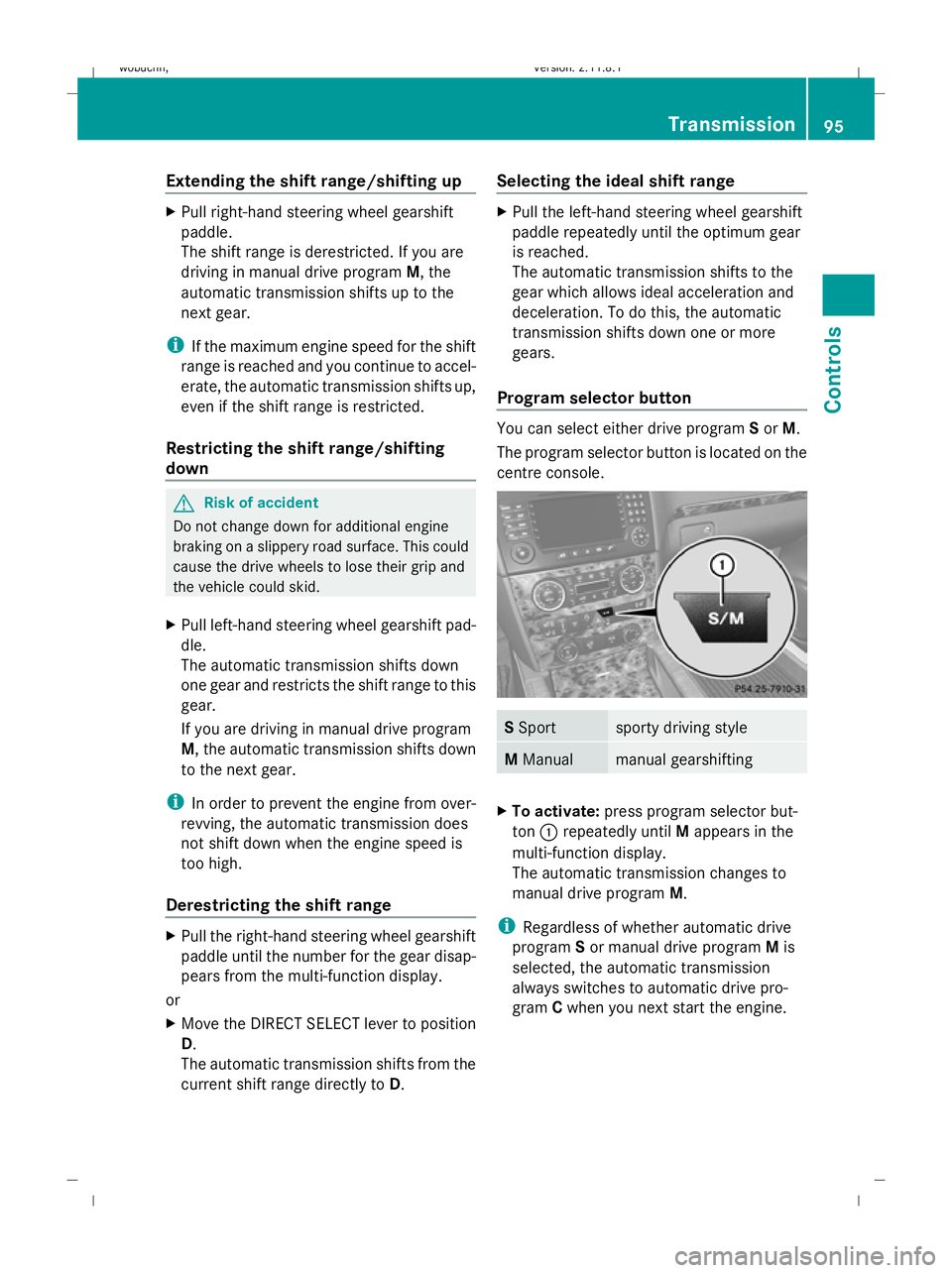
Program selector button You can select either drive program
Sor M.
The program selector button is located on the
centre console. S
Sport sporty driving style
M
Manual manual gearshifting
X
To activate: press program selector but-
ton :repeatedly until Mappears in the
multi-function display.
The automatic transmission changes to
manual drive program M.
i Regardless of whether automatic drive
program Sor manual drive program Mis
selected, the automatic transmission
always switches to automatic drive pro-
gram Cwhen you next start the engine. Transmission
95Controls
X164_AKB; 2; 3, en-GB
wobuchh, Version: 2.11.8.1 2009-03-31T14:14:58+02:00 - Seite 95 Z
Dateiname: 6515431202_buchblock.pdf; erzeugt am 01. Apr 2009 00:17:13; WK
Page 99 of 309
Drive program
Sis characterised by the fol-
lowing:
R sporty engine and suspension configura-
tion
R the vehicle pulling away in first gear
R the automatic transmission shifting up
later
R the late shift point of the automatic trans-
mission can lead to higher fuel consump-
tion
If you have selected transmission position D,
you can activate the manual drive program
and shift up or down through the individual
gears. The gear currently selected and
engaged is shown in the multi-function dis-
play.
X To deactivate: press program selector
button :repeatedly until Sor Mappears
in the multi-function display.
or
X Restart the engine.
The automatic transmission then switches
to the automatic drive program.
Upshifting
X Pull right-hand steering wheel gearshift
paddle (Y page 94).
The automatic transmission shifts up to the
next gear.
Downshifting G
Risk of accident
Do not change down for additional engine
braking on a slippery road surface. This could
cause the drive wheels to lose their grip and
the vehicle could skid.
X Pull left-hand steering wheel gearshift pad-
dle (Y page 95).
The automatic transmission shifts down to
the next gear.
i If you brake the vehicle or stop without
shifting down, the automatic transmission will shift down to a gear that will allow the
vehicle to accelerate or pull away again.
Kickdown
You can also use kickdown for maximum
acceleration in manual drive program M.
X Depress the accelerator pedal beyond the
pressure point.
The transmission shifts to a lower gear
depending on the engine speed.
X Shift back up once the desired speed is
reached.
i If you apply full throttle, the automatic
transmission shifts up to the next gear
when the maximum engine speed is
reached. This prevents the engine from
overrevving. Instrument cluster
Points to remember
You will find an illustration of the instrument
cluster in the "At a glance" section
(Y page 25). G
Risk of accident
No further messages can be displayed if the
instrument cluster and/or the multi-function
display fails.
This means that you will not see information
about the driving situation, such as the speed,
outside temperature, warning/indicator
lamps, display messages or system failures.
The vehicle's handling characteristics may be
affected. Adjust your driving style and speed
accordingly.
Immediately consult a qualified specialist
workshop which has the necessary specialist
knowledge and tools to carry out the work
required. Mercedes-Benz recommends that
you use a Mercedes-Benz Service Centre for
this purpose. In particular, work relevant to
safety or on safety-related systems must be
carried out at a qualified specialist workshop. 96
Instrument clusterControls
X164_AKB; 2; 3, en-GB
wobuchh
,V ersion: 2.11.8.1
2009-03-31T14:14:58+02:00 - Seite 96
Dateiname: 6515431202_buchblock.pdf; erzeugt am 01. Apr 2009 00:17:13; WK
Page 100 of 309
Speedometer with segments
The segments in the speedometer indicate
which speed range is available.
Distronic* mode:
One or two segments around the stored
speed light up. Rev counter
The red band in the rev counter indicates the
engine's overrevving range. The fuel supply is
interrupted to protect the engine when the
red band is reached.
! Do not drive in the overrevving range.
Doing so will damage the engine. Outside temperature display
G
Risk of accident
At temperatures just above freezing point, the
road could be icy, particularly in wooded areas
or on bridges. The vehicle could start skidding
if you fail to adapt your driving style. You
should therefore always adapt your driving
style and speed to suit the weather condi-
tions.
Changes in the outside temperature are dis-
played after a short delay. On-board computer
Points to remember
The on-board computer is activated as soon
as you turn the key to position 1in the ignition
lock. G
Risk of accident
Only use the on-board computer when road
and traffic conditions permit. You would oth-
erwise be distracted and unable to concen-
trate properly on driving, and could cause an
accident. Multi-function steering wheel
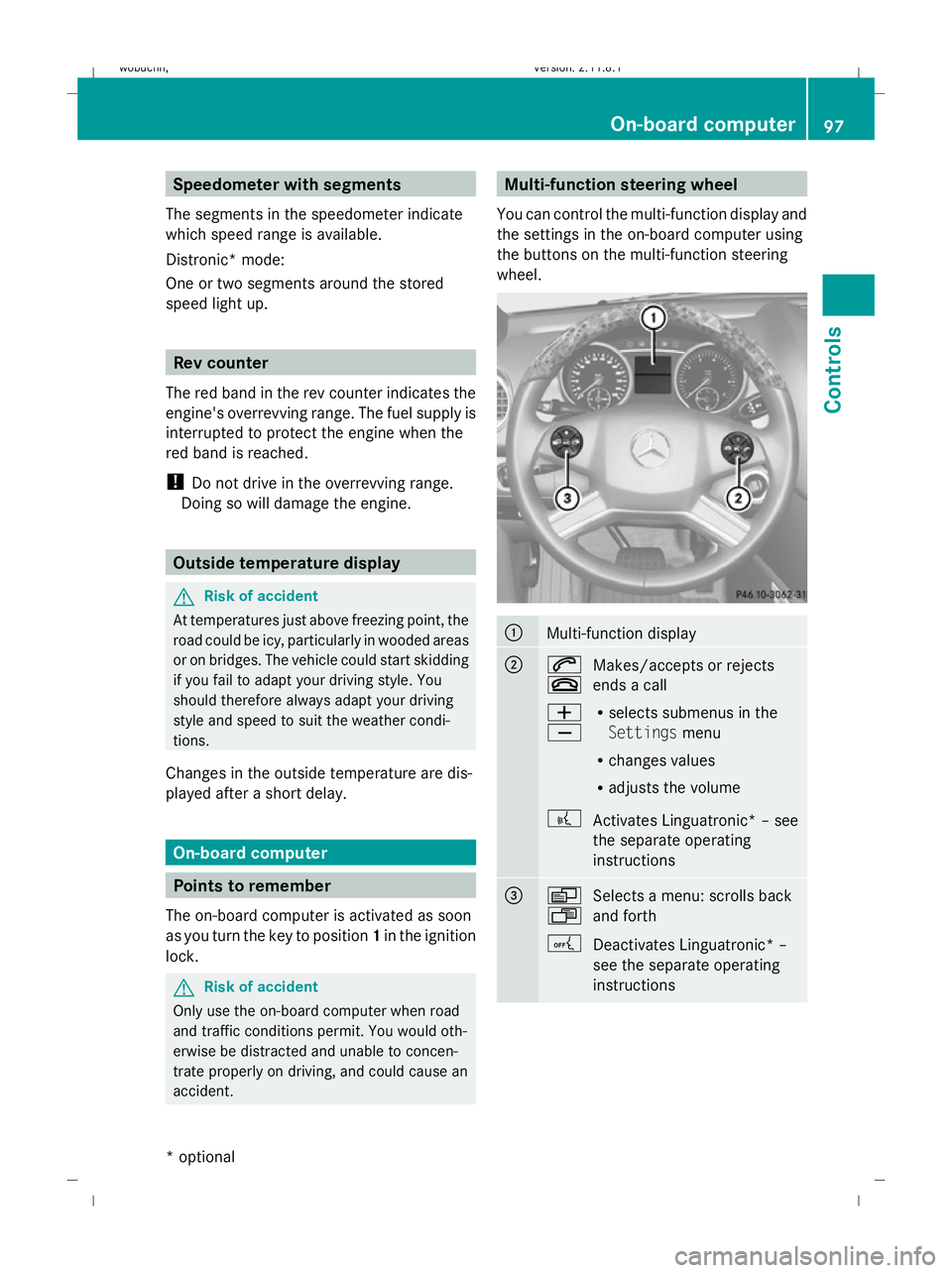
You can control the multi-function display and
the settings in the on-board computer using
the buttons on the multi-function steering
wheel. :
Multi-function display
;
6
~
Makes/accepts or rejects
ends a call
W
X R
selects submenus in the
Settings menu
R changes values
R adjusts the volume
? Activates Linguatronic* – see
the separate operating
instructions =
V
U
Selects a menu: scrolls back
and forth
A Deactivates Linguatronic* –
see the separate operating
instructions On-board computer
97Controls
* optional
X164_AKB; 2; 3, en-GB
wobuchh,
Version: 2.11.8.1 2009-03-31T14:14:58+02:00 - Seite 97 Z
Dateiname: 6515431202_buchblock.pdf; erzeugt am 01. Apr 2009 00:17:14; WK
Page 104 of 309
X
Switch on the audio system or COMAND
APS* and select the radio; see the separate
operating instructions.
X Press VorU on the steering wheel
to select the Audio/TV/DVD menu. :
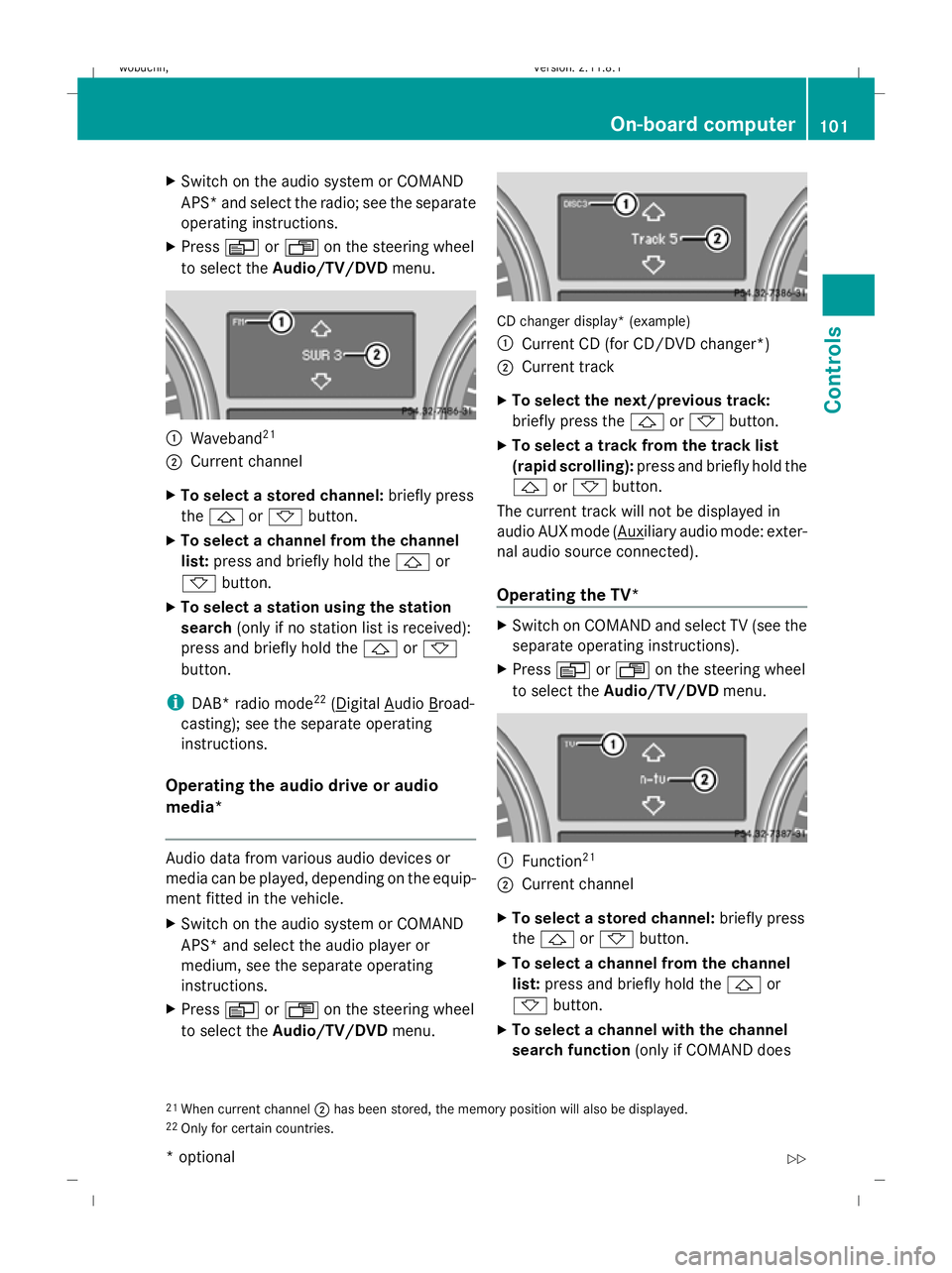
Waveband 21
; Current channel
X To select a stored channel: briefly press
the & or* button.
X To select a channel from the channel
list: press and briefly hold the &or
* button.
X To select a station using the station
search (only if no station list is received):
press and briefly hold the &or*
button.
i DAB* radio mode 22
( Digital Audio Broad-
casting); see the separate operating
instructions.
Operating the audio drive or audio
media* Audio data from various audio devices or
media can be played, depending on the equip-
ment fitted in the vehicle.
X Switch on the audio system or COMAND
APS* and select the audio player or
medium, see the separate operating
instructions.
X Press VorU on the steering wheel
to select the Audio/TV/DVD menu. CD changer display* (example)
:
Current CD (for CD/DVD changer *)
; Current track
X To select the next/previous track:
briefly press the &or* button.
X To select a track from the track list
(rapid scrolling): press and briefly hold the
& or* button.
The current track will not be displayed in
audio AUX mode ( Auxiliary audio mode: exter-
nal audio source connected).
Operating the TV* X
Switch on COMAND and select TV (see the
separate operating instructions).
X Press VorU on the steering wheel
to select the Audio/TV/DVD menu. :
Function 21
; Current channel
X To select a stored channel: briefly press
the & or* button.
X To select a channel from the channel
list: press and briefly hold the &or
* button.
X To select a channel with the channel
search function (only if COMAND does
21 When current channel ;has been stored, the memory position will also be displayed.
22 Only for certain countries. On-board computer
101Controls
* optional
X164_AKB; 2; 3, en-GB
wobuchh,
Version: 2.11.8.1 2009-03-31T14:14:58+02:00 - Seite 101 Z
Dateiname: 6515431202_buchblock.pdf; erzeugt am 01. Apr 2009 00:17:15; WK
Page 105 of 309
not receive channel lists): press and briefly
hold the &or* button.
Operating the DVD video* X
Switch on COMAND and select video DVD
(see the separate operating instructions).
X Press VorU on the steering wheel
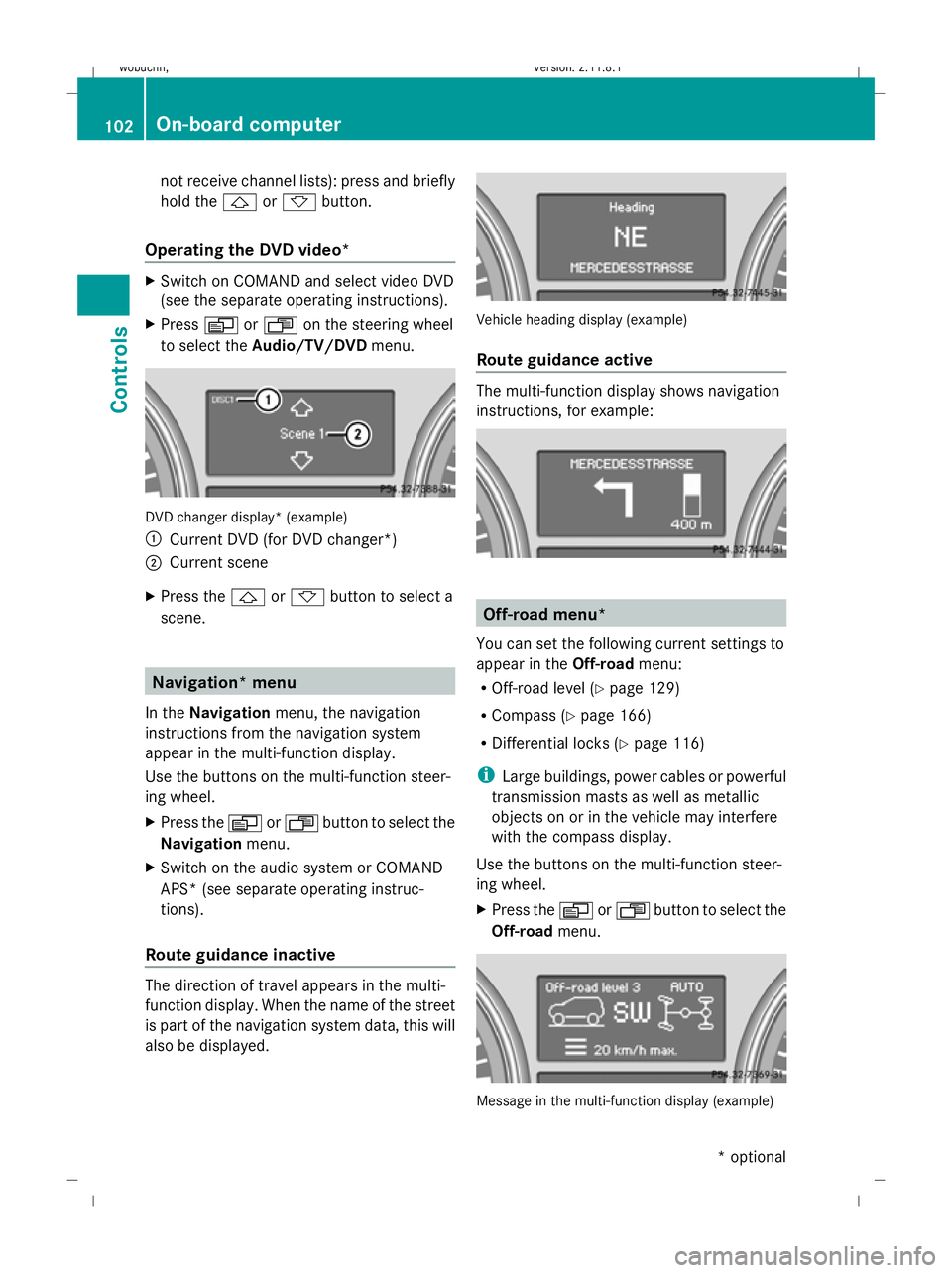
to select the Audio/TV/DVD menu. DVD changer display* (example)
:
Current DVD (for DVD changer*)
; Current scene
X Press the &or* button to select a
scene. Navigation* menu
In the Navigation menu, the navigation
instructions from the navigation system
appear in the multi-function display.
Use the buttons on the multi-function steer-
ing wheel.
X Press the VorU button to select the
Navigation menu.
X Switch on the audio system or COMAND
APS* (see separate operating instruc-
tions).
Route guidance inactive The direction of travel appears in the multi-
function display. When the name of the street
is part of the navigation system data, this will
also be displayed. Vehicle heading display (example)
Route guidance active
The multi-function display shows navigation
instructions, for example:
Off-road menu*
You can set the following current settings to
appear in the Off-roadmenu:
R Off-road level (Y page 129)
R Compass (Y page 166)
R Differential locks (Y page 116)
i Large buildings, power cables or powerful
transmission masts as well as metallic
objects on or in the vehicle may interfere
with the compass display.
Use the buttons on the multi-function steer-
ing wheel.
X Press the VorU button to select the
Off-road menu. Message in the multi-function display (example)102
On-board computerControls
* optional
X164_AKB; 2; 3, en-GB
wobuchh
,V ersion: 2.11.8.1
2009-03-31T14:14:58+02:00 - Seite 102
Dateiname: 6515431202_buchblock.pdf; erzeugt am 01. Apr 2009 00:17:16; WK
Page 106 of 309
Settings menu
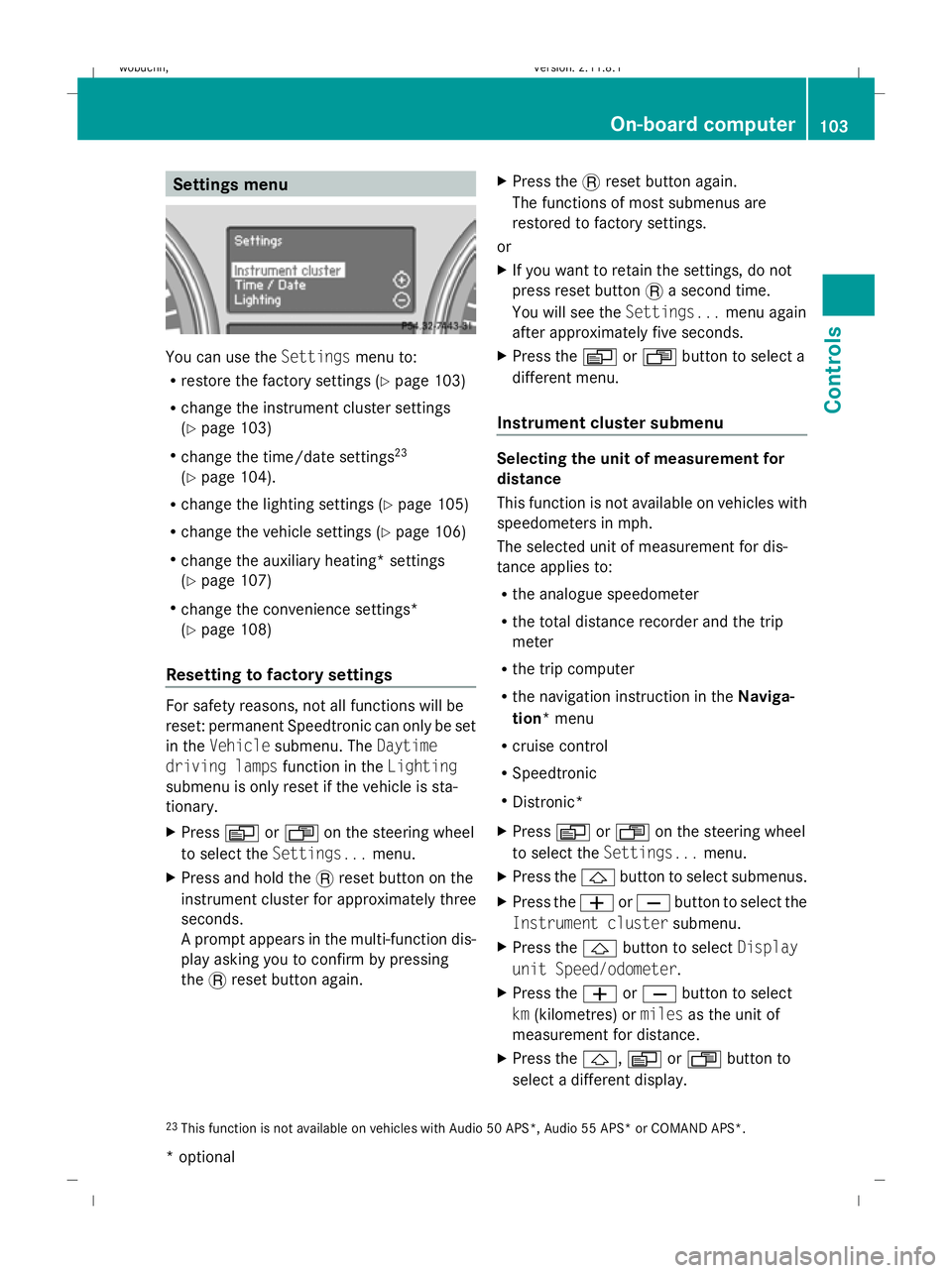
You can use the
Settingsmenu to:
R restore the factory settings (Y page 103)
R change the instrument cluster settings
(Y page 103)
R change the time/date settings 23
(Y page 104).
R change the lighting settings (Y page 105)
R change the vehicle settings (Y page 106)
R change the auxiliary heating* settings
(Y page 107)
R change the convenience settings*
(Y page 108)
Resetting to factory settings For safety reasons, not all functions will be
reset: permanent Speedtronic can only be set
in the Vehicle submenu. The Daytime
driving lamps function in theLighting
submenu is only reset if the vehicle is sta-
tionary.
X Press VorU on the steering wheel
to select the Settings... menu.
X Press and hold the .reset button on the
instrument cluster for approximately three
seconds.
A prompt appears in the multi-function dis-
play asking you to confirm by pressing
the .reset button again. X
Press the .reset button again.
The functions of most submenus are
restored to factory settings.
or
X If you want to retain the settings, do not
press reset button .a second time.
You will see the Settings...menu again
after approximately five seconds.
X Press the VorU button to select a
different menu.
Instrument cluster submenu Selecting the unit of measurement for
distance
This function is not available on vehicles with
speedometers in mph.
The selected unit of measurement for dis-
tance applies to:
R
the analogue speedometer
R the total distance recorder and the trip
meter
R the trip computer
R the navigation instruction in the Naviga-
tion* menu
R cruise control
R Speedtronic
R Distronic*
X Press VorU on the steering wheel
to select the Settings... menu.
X Press the &button to select submenus.
X Press the WorX button to select the
Instrument cluster submenu.
X Press the &button to select Display
unit Speed/odometer.
X Press the WorX button to select
km (kilometres) or milesas the unit of
measurement for distance.
X Press the &,VorU button to
select a different display.
23 This function is not available on vehicles with Audio 50 APS*, Audio 55 APS* or COMAND APS*. On-board computer
103Controls
* optional
X164_AKB; 2; 3, en-GB
wobuchh,
Version: 2.11.8.1 2009-03-31T14:14:58+02:00 - Seite 103 Z
Dateiname: 6515431202_buchblock.pdf; erzeugt am 01. Apr 2009 00:17:16; WK
Page 107 of 309
Selecting the distance units for the digital
speedometer
This function is not available on vehicles with
speedometers in mph.
X Press VorU on the steering wheel
to select the Settings... menu.
X Press the &button to select submenus.
X Press the WorX button to select the
Instrument cluster submenu.
X Press the &button to select Display
unit Digital speedometer.
X Press the WorX button to select
km (kilometres) or milesas the unit of
measurement for distance.
X Press the &,VorU button to
select a different display.
Selecting the language
X Press VorU on the steering wheel
to select the Settings... menu.
X Press the &button to select submenus.
X Press the WorX button to select the
Instrument cluster submenu.
X Press the &button to select Language.
X Press the WorX button to select the
desired language.
X Press the &,VorU button to
select a different display.
Selecting the status line display
Vehicles for the United Kingdom: this func-
tion is not available.
X Press VorU on the steering wheel
to select the Settings... menu.
X Press the &button to select submenus.
X Press the WorX button to select the
Instrument cluster submenu.
X Press the &button to select Status
line display. X
Press the WorX button to select the
status line display: vehicle speed ( Speed)
or outside temperature (Outside temp.).
The selected display now appears con-
stantly in the lower multi-function display.
When you scroll through the Standard dis-
play menu (Y page 99), you will see the
display you have not selected.
X Press the &,VorU button to
select a different display.
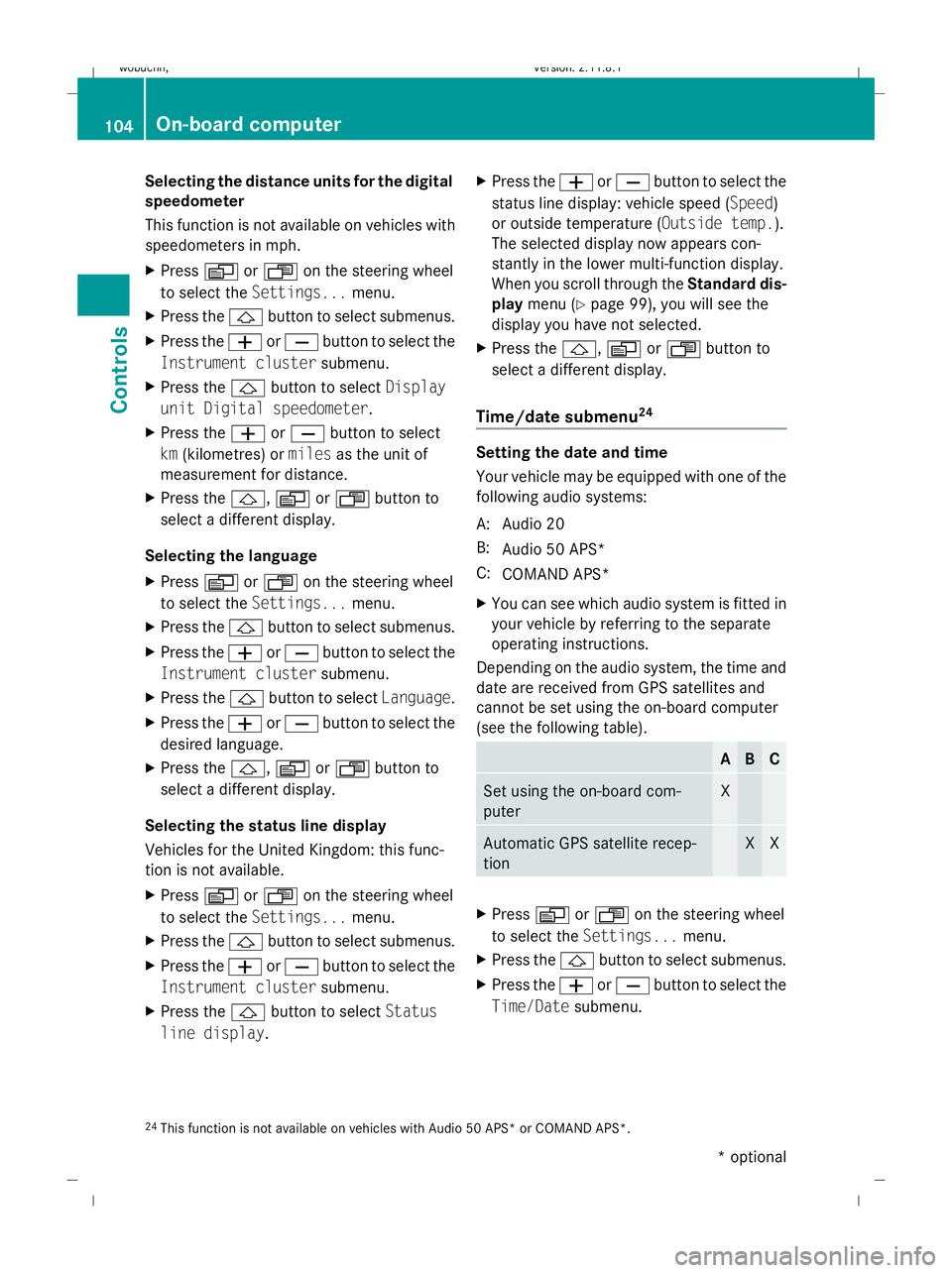
Time/date submenu 24 Setting the date and time
Your vehicle may be equipped with one of the
following audio systems:
A: Audio 20
B: Audio 50 APS*
C: COMAND APS*
X You can see which audio system is fitted in
your vehicle by referring to the separate
operating instructions.
Depending on the audio system, the time and
date are received from GPS satellites and
cannot be set using the on-board computer
(see the following table). A B C
Set using the on-board com-
puter X
Automatic GPS satellite recep-
tion X X
X
Press VorU on the steering wheel
to select the Settings... menu.
X Press the &button to select submenus.
X Press the WorX button to select the
Time/Date submenu.
24 This function is not available on vehicles with Audio 50 APS* or COMAND APS*. 104
On-board computerControls
* optional
X164_AKB; 2; 3, en-GB
wobuchh,
Version: 2.11.8.1 2009-03-31T14:14:58+02:00 - Seite 104
Dateiname: 6515431202_buchblock.pdf; erzeugt am 01. Apr 2009 00:17:16; WK
Page 108 of 309
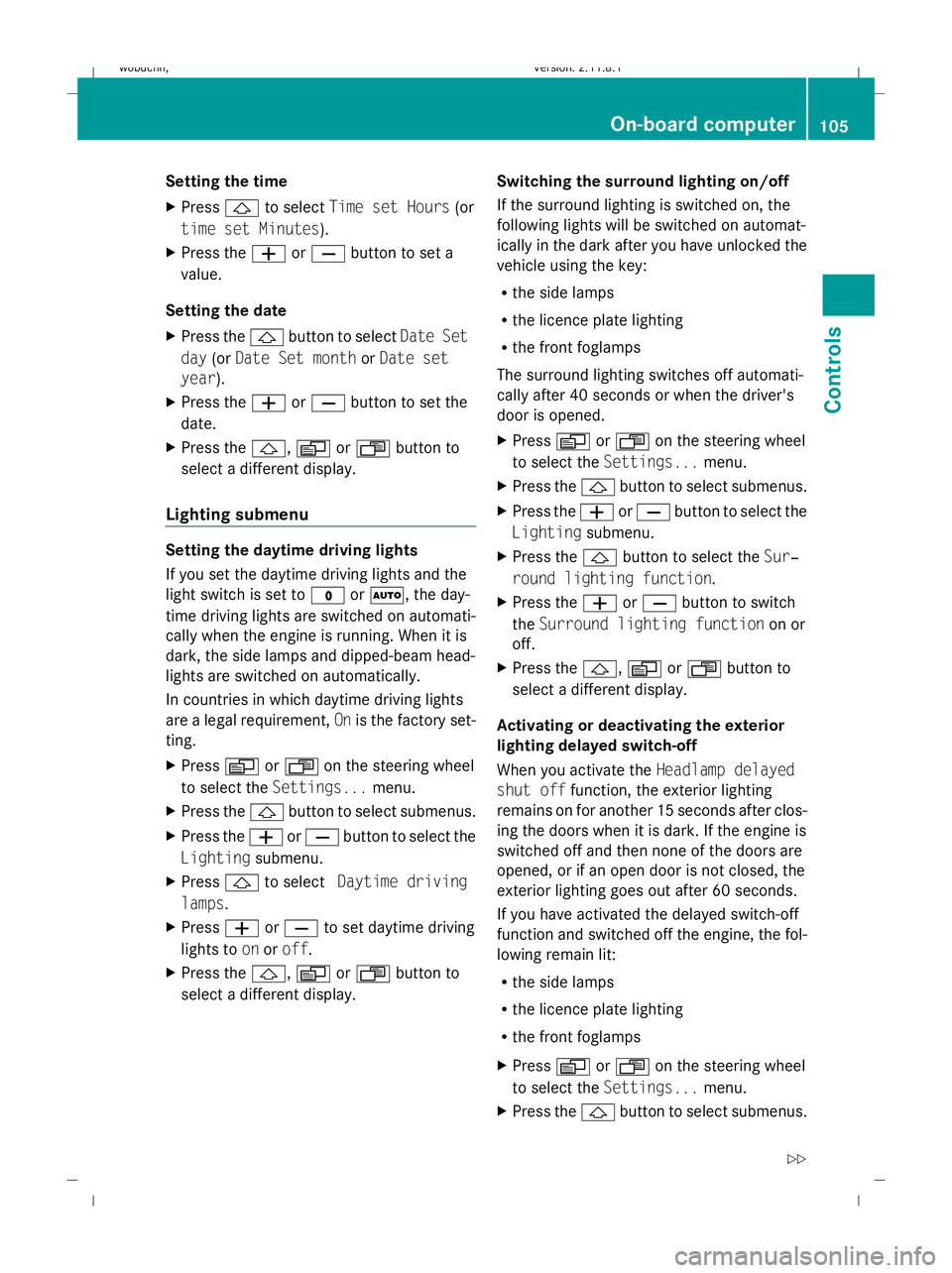
Setting the time
X
Press &to select Time set Hours (or
time set Minutes).
X Press the WorX button to set a
value.
Setting the date
X Press the &button to select Date Set
day (orDate Set month orDate set
year).
X Press the WorX button to set the
date.
X Press the &,VorU button to
select a different display.
Lighting submenu Setting the daytime driving lights
If you set the daytime driving lights and the
light switch is set to
$orÃ, the day-
time driving lights are switched on automati-
cally when the engine is running. When it is
dark, the side lamps and dipped-beam head-
lights are switched on automatically.
In countries in which daytime driving lights
are a legal requirement, Onis the factory set-
ting.
X Press VorU on the steering wheel
to select the Settings... menu.
X Press the &button to select submenus.
X Press the WorX button to select the
Lighting submenu.
X Press &to select Daytime driving
lamps.
X Press WorX to set daytime driving
lights to onoroff.
X Press the &,VorU button to
select a different display. Switching the surround lighting on/off
If the surround lighting is switched on, the
following lights will be switched on automat-
ically in the dark after you have unlocked the
vehicle using the key:
R
the side lamps
R the licence plate lighting
R the front foglamps
The surround lighting switches off automati-
cally after 40 seconds or when the driver's
door is opened.
X Press VorU on the steering wheel
to select the Settings... menu.
X Press the &button to select submenus.
X Press the WorX button to select the
Lighting submenu.
X Press the &button to select the Sur‐
round lighting function.
X Press the WorX button to switch
the Surround lighting function on or
off.
X Press the &,VorU button to
select a different display.
Activating or deactivating the exterior
lighting delayed switch-off
When you activate the Headlamp delayed
shut off function, the exterior lighting
remains on for another 15 seconds after clos-
ing the doors when it is dark. If the engine is
switched off and then none of the doors are
opened, or if an open door is not closed, the
exterior lighting goes out after 60 seconds.
If you have activated the delayed switch-off
function and switched off the engine, the fol-
lowing remain lit:
R the side lamps
R the licence plate lighting
R the front foglamps
X Press VorU on the steering wheel
to select the Settings... menu.
X Press the &button to select submenus. On-board computer
105Controls
X164_AKB; 2; 3, en-GB
wobuchh, Version: 2.11.8.1 2009-03-31T14:14:58+02:00 - Seite 105 Z
Dateiname: 6515431202_buchblock.pdf; erzeugt am 01. Apr 2009 00:17:17; WK