wheel MERCEDES-BENZ GLA SUV 2018 COMAND Manual
[x] Cancel search | Manufacturer: MERCEDES-BENZ, Model Year: 2018, Model line: GLA SUV, Model: MERCEDES-BENZ GLA SUV 2018Pages: 190, PDF Size: 4.48 MB
Page 100 of 190
Rejecting
XTo select=Reject: turn and press the
controller.
or
XPress ~on the multifunction steering
wheel.
The behavior after the call is rejected depends
on your mobile phone and mobile phone net-
work provider.
Option 1: The originally active call is ended
and the incoming call is accepted.
Option 2: Both calls are ended.
Ending an active call
XTo select =in the telephone menu: turn
and press the controller.
or
XPress ~on the multifunction steering
wheel.
The active call is ended.
Mobile phone voice recognition
You can start or end voice recognition on your
mobile phone with this function. Further infor-
mation on the voice recognition service (see the
manufacturer's operating instructions).
Starting the mobile phone voice recognition
XConnect the mobile phone to the multimedia
system (Ypage 90).
XPress and hold the óbutton on the multi-
function steering wheel for more than one
second.
You can now use the mobile phone voice rec-
ognition.
Ending the mobile phone voice recognition
XPress 8on the multifunction steering
wheel.
The mobile phone voice recognition is stop-
ped.
Phone book
Introduction
The phone book displays the contacts from the
address book which have a phone number. The phone book of the mobile phone is auto-
matically displayed in the multimedia system
after the connection is established (default set-
ting). You can deactivate automatic calling up
(
Ypage 106).
In the telephone book, you can:
RCreate new contacts (Ypage 100)
RAdd information to contacts (Ypage 100)
RSearch for contacts (Ypage 99)
RStore contacts (Ypage 101)
RDelete contacts (Ypage 101)
Further information on importing contacts
(
Ypage 106).
When you import, save, edit or add contacts,
they will be permanently saved in the multime-
dia system. These contacts will remain available
even when you connect the multimedia system
to a different mobile phone. You can view these contacts even without a mobile phone.
Calling up the phone book
XTo call up the telephone menu: press the
% button.
XTo select thesymbol in the telephone
menu: turn and press the controller.
If the phone book contains contacts, they will
be displayed in alphabetical order. The char-
acter bar at the bottom of the display is active.
You can now search for a contact
(
Ypage 99).
Further information on the symbols shown
(
Ypage 99).
iYou can also call up the phone book with the
multifunction steering wheel; see the vehicle
Operator's Manual.
98Phone book
Telephone
Page 101 of 190
Symbol overview
Sym-
bolExplanation
ÆContact that has been entered, edi-
ted or saved in the multimedia sys-
tem
\Contact with voice tag
These contacts have also been
assigned a voice tag. For more infor-
mation, see the separate operating
instructions.
ÃContact that was called up from a
mobile phone
¯Contact imported from the SD mem-
ory card or USB device
®Contact imported via the Bluetooth®
interface
Searching for a contact
Using the character bar
You determine the first letter of the contact you
are looking for with the first character you enter.
XTo select characters: turn the controller and
press to confirm.
The first contact with the selected first char-
acter is highlighted in the phone book. If there
are similar contacts, the next different char-
acter is shown. For example, with contacts
such as Jana
andJohn, the beginnings of the
names are identical. The next different char-
acter A
andOare offered for selection.
XSelect the characters of the contact you are
searching for one by one, pressing and con-
firming with the controller each time.
XTo end the search: select ¬.
The contacts in the phone book are displayed.
XTo highlight a contact: turn the controller.
XTo call the contact: press the controller. The
Gsymbol indicates that a contact contains
more than one phone number.
XTo select a contact with the Gsymbol: turn
the controller and press to confirm.
The phone numbers are displayed. The G
symbol changes to I.
XTo call a telephone number: turn and press
the controller.
Back to the character bar
XPress the %button repeatedly until the
character bar is displayed.
Further information about character entry
(
Ypage 28).
Using the number keypad
You determine the first letter of the contact you
are looking for with the first character you enter.
XFor example, to enter the letter C: press the
l number key briefly three times in suc-
cession.
The character appears the first time the key is
pressed and shows all the available charac-
ters. It switches to the next character each
time the key is pressed.
Using the touchpad
You determine the first letter of the contact you
are looking for with the first character you enter.
XPress the touchpad.
XDraw the letter on the touchpad surface.
The first contact with the selected first char-
acter is highlighted in the phone book.
Further information on handwriting recogni-
tion on the touchpad (
Ypage 24).
XDraw additional letters on the touchpad sur-
face one after another.
XTo complete the search and return to the
phone book: press the touchpad.
XTo select and call the contact: glide up or
down and press.
Using the multifunction steering wheel
XDial a number from the phone book; see the
vehicle Operator's Manual.
Phone book99
Telephone
Z
Page 119 of 190
Some mobile phones with the MAP Bluetooth®
profile:
Rdo not support the deleting or editing of text
messages
Rdo not support the drafts folder for text mes-sages
Rdo not support the sending of text messages
Rdo not support the e-mail function
Rdo not send messages when in a locked sta-
tus
iThe availability of the dictation function is
country-dependent.
Calling up text messages or e-mails in
the message menu
XTo call up the telephone menu: press the
% button.
XTo switch to the menu bar: slide 6the con-
troller.
XTo select 1: turn and press the controller.
The message menu is displayed.
XTo switch to the menu bar: slide 6the con-
troller.
XTo select New: turn and press the controller.
XTo selectText MessageorE-Mail: turn and
press the controller.
The input menu for the message is displayed.
Calling up and using the dictation
function
XSelect the omicrophone.
The app for the dictation function is loaded.
If there was no prior Internet connection, a
connection is now established.
XTo start the dictation function: press the
controller.
XSay your message.
The dictation ends automatically after you
have finished speaking.
After the spoken message has been pro-
cessed, it is shown as text on the display.
XTo select words: turn and press the control-
ler.
XIn the correction menu, you can:
Radjust capitalization of words (if supported
by the character set)
Radd words
Rdelete words
Rreplace the dictated message with a new
one
XTo exit the menu: selectDone.
Send message
The dictated text is displayed in the message
input window.
XEnter the telephone number or e-mail address
into the addressee line.
XTo send the message: select OK.
iThe availability of the dictation function may
vary according to the country and vehicle
equipment.
Apple CarPlay™
Introduction
iPhone®functions can be used via the multime-
dia system using Apple CarPlay™. Apple Car-
Play™ can be operated using the controller or
Siri
®voice-operated control system. Whether
selected buttons are supported in the vehicle
depends on the iOS version of the mobile phone
and the apps available. You will find an overview
of the multimedia system's control panel and
available buttons here (
Ypage 18).
To activate voice-operated control, press and
hold the óbutton on the multifunction steer-
ing wheel (
Ypage 98). Apple CarPlay™ is only
available for Apple®mobile phones (see the
manufacturer's operating instructions). The
availability of Apple CarPlay™ may vary by coun-
try and depending on vehicle equipment.
While using Apple CarPlay™, various multimedia
system functions, such as navigation, are not
available.
The respective provider is responsible for the
application and the associated services and
content.
Apple CarPlay™117
Telephone
Z
Page 122 of 190
XTo selectStart Android Auto Automati‐cally: turn and press the controller.
XAllow automatic connection O.
Android Auto starts automatically as soon as
the mobile phone is connected to the USB
port ç of the multimedia system.
Changing the sound settings
When Android Auto is active, you can change the
sound settings in the radio menu.
XTo call up the radio menu: press the $
button.
XTo show the main function bar: slide 5the
controller.
XTo select Radio: turn and press the controller.
XTo switch to the menu bar: slide 6the con-
troller.
XTo select à: turn and press the controller.
Change the sound settings.
Activating voice control
When Android Auto is active, you can start the
mobile phone's voice control.
XPress and hold the ?button on the multi-
function steering wheel.
Depending on the mobile phone a tone
sounds.
Ending Android Auto
Mercedes-Benz recommends that you only can-
cel Android Auto when your vehicle is stationary.
XTerminate the USB connection between the
mobile phone and the multimedia system.
The No
AndroidAutoDeviceConnectedPlease ensure that your device isconnected to the correct USB port.message appears in the multifunction display
Transmitted vehicle data
When using Android Auto, specific vehicle data
is transmitted to the mobile phone. This makes
it possible to use selected mobile phone serv-
ices efficiently. The mobile phone does not have
active access to vehicle data. The following system information is transmitted:
RMultimedia system software version
RSystem ID (anonymous)
These data are transmitted in order to optimize communication between the vehicle and mobile
phone.
A random vehicle code is generated for this pur-
pose and in order to assign multiple vehicles to
the mobile phone.
This code is not related to the vehicle identifi-
cation number (VIN) and is deleted if the multi-
media system is reset (
Ypage 42).
The following driving status data is transmitted:
RGear position engaged
RDifference between parked, stationary,
coasting and driving
RInstrument cluster day/night mode
These data are transmitted in order to adapt the
content displayed to the driving situation.
The following position data is transmitted:
RCoordinates
RSpeed
RCompass direction
RAcceleration direction
These data are transmitted only when naviga-
tion is active in order to improve navigation (e.g.
when driving through a tunnel).
120Android Auto
Telephone
Page 152 of 190
Starting playback if the Bluetooth®
audio device has been stopped
During the search for mobile phones
(
Ypage 91), the connection with the Bluetooth®
audio device is terminated. TheNoBluetoothAudioDeviceConnectedmessage appears in
the Bluetooth®audio menu (Ypage 148). When
the search is finished, the Bluetooth®audio
device can be reconnected.
XTo confirm the ConnectLastUsedPlayermessage: press the controller.
Depending on the Bluetooth®audio device
used, playback starts immediately or you
must start playback manually.
In this case, you will see the Bluetooth
Audio Device Pausedmessage.
XTo selectStart playback: Ì: slide6
and press the controller.
Playback resumes from the beginning.
Selecting a track
The function is not supported by all Bluetooth®
audio devices.
Some mobile phones impair function with
regard to the following criteria:
Rthe number of tracks that can be selected.
Rthe time period until the next or previous track is played.
XUse the multifunction steering wheel to
switch to the media menu in the on-board
computer; see the vehicle Operator's Manual.
XTo skip forward or back to a track: press
the 9 or: button on the multifunction
steering wheel.
XTo rapid scroll: press and hold the 9
or : button on the multifunction steering
wheel until the desired track is reached.
If you press and hold the 9or: but-
tons, the rapid scrolling speed increases after a short time.
Further ways to select tracks (
Ypage 144).
iIn rapid scroll, track names are not shown,
but instead only Track 1, Track 2 etc. The
playback times for the tracks played are not
displayed. This is available as an optional
function starting with AVRCP Version 1.3.
There is also no music search option available
with Bluetooth
®Audio.
Playback options
General information
If the Bluetooth®audio device supports the cor-
responding function, the following options are
available:
RNormal Track Sequence: the tracks are
played in the normal order (e.g. track 1, 2, 3
etc.).
Audio data playback is determined by the
order in which the tracks are written to the
data medium. Alphabetical order is the most
common. Once all the tracks in a folder have
been played, the tracks in the next folder are played.
RRandomTrackList: the current track list is
played in random order (e.g. 3, 8, 5 etc.).
RRandom Medium: all tracks on the data
medium are played in random order (e.g.
track 3, 8, 5 etc.).
Playback options are optional functions and
are not, or only partially, supported by Blue-
tooth
®audio devices.
Selecting the playback option
XSlide 6the controller.
XTo select Options: turn and press the con-
troller.
XSelect Playback Mode.
A # dot indicates the current setting.
XSelect the desired option.
Increasing the volume in the multime-
dia system
XIn the BluetoothAudiomenu (Ypage 148),
slide 6the controller.
XTo select Options: turn and press the con-
troller.
XTo select Volume: turn and press the control-
ler.
A menu appears. The #dot indicates the cur-
rent setting.
XSelect StandardorBoost.
iIf playback on the Bluetooth®audio player is
too quiet, the Boostfunction may be used. It
is recommended, however, that you increase
the volume on the Bluetooth
®audio device
directly.
150Bluetooth®audio mode
Media
Page 174 of 190
The same AUX jacks (AUX drive) can be found in the rear-compartment drive (Ypage 173).
Remote control
Overview
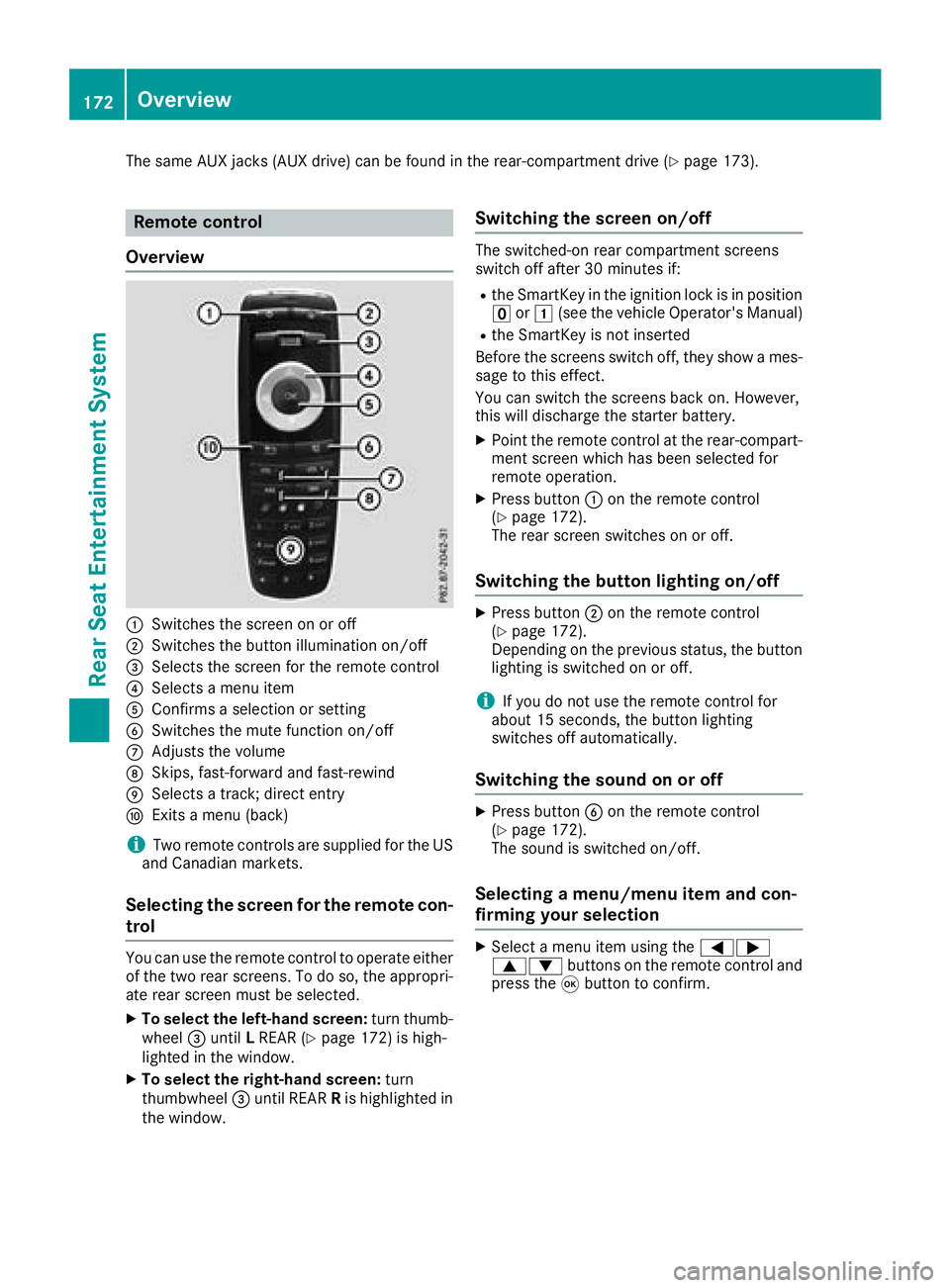
:Switches the screen on or off
;Switches the button illumination on/off
=Selects the screen for the remote control
?Selects a menu item
AConfirms a selection or setting
BSwitches the mute function on/off
CAdjusts the volume
DSkips, fast-forward and fast-rewind
ESelects a track; direct entry
FExits a menu (back)
iTwo remote controls are supplied for the US
and Canadian markets.
Selecting the screen for the remote con-
trol
You can use the remote control to operate either
of the two rear screens. To do so, the appropri-
ate rear screen must be selected.
XTo select the left-hand screen: turn thumb-
wheel =until LREAR (Ypage 172) is high-
lighted in the window.
XTo select the right-hand screen: turn
thumbwheel =until REAR Ris highlighted in
the window.
Switching the screen on/off
The switched-on rear compartment screens
switch off after 30 minutes if:
Rthe SmartKey in the ignition lock is in position u or1 (see the vehicle Operator's Manual)
Rthe SmartKey is not inserted
Before the screens switch off, they show a mes-
sage to this effect.
You can switch the screens back on. However,
this will discharge the starter battery.
XPoint the remote control at the rear-compart-
ment screen which has been selected for
remote operation.
XPress button :on the remote control
(Ypage 172).
The rear screen switches on or off.
Switching the button lighting on/off
XPress button ;on the remote control
(Ypage 172).
Depending on the previous status, the button
lighting is switched on or off.
iIf you do not use the remote control for
about 15 seconds, the button lighting
switches off automatically.
Switching the sound on or off
XPress button Bon the remote control
(Ypage 172).
The sound is switched on/off.
Selecting a menu/menu item and con-
firming your selection
XSelect a menu item using the =;
9: buttons on the remote control and
press the 9button to confirm.
172Overview
Rear Seat Entertainment System
Page 188 of 190
Additional setting option:
XAdjust the sound settings (Ypage 176).
MP3 mode functions
XTo select a track by skipping to a track:
press the=or; button on the remote
control.
or
XPress the EorF button.
The skip forward function skips to the next
track.
If the elapsed track time has exceeded 8 sec-
onds, the function skips back to the beginning
of the track.
If the elapsed track time is less than 8 sec-
onds, the function skips back to the beginning of the previous track.
Additional setting option:
XAdjust the sound settings (Ypage 176).
DVD video mode functions
Hiding the menu:
XPress the 9or: button on the remote
control.
or
XWait about eight seconds.
The menu is hidden.
Additional setting options:
XAdjust the brightness, contrast and color
(Ypage 176).
XChange the picture format (Ypage 177).
XAdjust the sound settings (Ypage 176).
AUX mode
Introduction
You can connect external video sources with a
sound and video signal to the Rear Seat Enter-
tainment System:
Rone external video source to each of the rear screens (AUX display)
Rone external video source to the rear-com-
partment disc drive (AUX drive) Operating the external video source; see the
manufacturer's operating instructions.
For further details about external video sources,
please consult an authorized Mercedes-Benz
Center.
Connecting AUX equipment
AUX drive jacks
The AUX drive jacks are located on the rear-
compartment drive to the right of the þ
(
Ypage 173) button.
AUX display jacks
The AUX display jacks are on the side of the two
rear screens (Ypage 171).
Connecting audio and video cables
XInsert the audio plugs for the left and right
signals into the corresponding Land Rjacks.
XInsert the video plug into the Vjack.
Activating AUX mode
AUX drive
Requirements: the external video source is con-
nected to the rear-compartment drive and play-
back is selected.
XSelect Auxin the menu using the
9=; buttons on the remote con-
trol and press the 9button to confirm.
The AUX menu appears.
XSelect Sourcefrom the AUX menu and press
the 9button to confirm.
XSelect Disc drive Auxand press the 9
button to confirm.
Playback starts. If an external video source
does not provide a video picture, an audio
menu appears.
Displaying AUX
Requirements: the external video source is con-
nected to the rear-compartment screen and
playback is selected.
XSelect a screen using the thumbwheel on the
remote control (Ypage 172) until " LREAR"
186AUX mode
Rear Seat Entertainment System