navigation system MERCEDES-BENZ GLA SUV 2018 Owner's Manual
[x] Cancel search | Manufacturer: MERCEDES-BENZ, Model Year: 2018, Model line: GLA SUV, Model: MERCEDES-BENZ GLA SUV 2018Pages: 338, PDF Size: 5.59 MB
Page 16 of 338
see Vanity mirror (in the sun visor)
Mobile phone
Connecting (Bluetooth
®inter-
face) ..............................................2 43
Connecting (device manager) ........2 44
Frequencies ................................... 326
Installation ..................................... 326
Menu (on-board computer) ............ 192
Transmission output (maximum) .... 326
Model type
see Vehicle identification plate
Modifying the programming
(SmartKey) ...........................................7 1
MOExtended tires .............................. 284
Mounting wheels
Lowering the vehicle ...................... 323
Mounting a new wheel ................... 322
Preparing the vehicle .....................3 20
Raising the vehicle ......................... 321
Removing a wheel .......................... 322
Securing the vehicle against roll-
ing away ........................................ 321
MP3
Operation ....................................... 192
see also Digital Operator's Man-
ual ..................................................2 39
Multifunction display
Function/notes .............................1 88
Permanent display ......................... 196
Multifunction steering wheel
Operating the on-board computer .. 186Overview .......................................... 33
Multimedia system
Switching on and off ......................2 40
Music files
see also Digital Operator's Man-
ual .................................................. 239
N
NavigationEntering a destination .................... 241
Menu (on-board computer) ............ 190
see also Digital Operator's Man-
ual .................................................. 239
Notes on breaking-in a new vehi-
cle ....................................................... 123
O
Occupant Classification System
(OCS)
Conditions ....................................... 47
Faults ............................................... 50
Operation ......................................... 47
System self-test ............................... 49
Occupant safety
Air bags ........................................... 44
Automatic measures after an acci-
dent ................................................. 53
Belt warning ..................................... 43
Children in the vehicle ..................... 53
Important safety notes .................... 39
Introduction to the restraint sys-
tem .................................................. 39
Occupant Classification System
(OCS) ............................................... 46
PASSENGER AIR BAG indicator
lamps ............................................... 40
Pets in the vehicle ........................... 59
Restraint system warning lamp ........ 40
Seat belt .......................................... 40
OCS
Conditions ....................................... 47
Faults ............................................... 50
Operation ......................................... 47
System self-test ............................... 49
Odometer ........................................... 189
Off-road driving
Approach/departure angle ............ 334
Checklist after driving off-road ...... 152
Checklist before driving off-road .... 152
General information ....................... 152
Important safety notes .................. 151
Maximum gradient climbing abil-
ity .................................................. 334
Traveling uphill ............................... 153
Off-road Program
Driving dynamics display ............... 168
General notes ................................ 167
Off-road system
DSR ............................................... 166
Off road drive program .................. 167
Off-road 4ETS .................................. 64
Off-road ABS .................................... 60
Off-road ESP
®.................................. 66
14Index
Page 17 of 338
On-board computerAMG menu .................................... .197
Assistance graphic menu ...............1 94
Assistance menu ........................... 193
Audio menu ................................... 191
Convenience submenu .................. 197
Display messages .......................... 200
Displaying a service message ........2 73
Factory settings .............................1 97
Important safety notes .................. 185
Instrument cluster submenu .......... 195
Lighting submenu .......................... 196
Menu overview .............................. 188
Message memory .......................... 200
Navigation menu ............................ 190
Operation ....................................... 186
RACETIMER ................................... 198
Service menu ................................. 195
Settings menu ............................... 195
Standard display ............................ 189
Telephone menu ............................ 192
Trip menu ...................................... 189
Vehicle submenu ........................... 196
Video DVD operation ..................... 192
On-board diagnostic interface
see Diagnostics connection
Opening and closing the side trim
panels ................................................. 107
Operating safety
Declaration of conformity ................ 27
Operating system
see On-board computer
Operation
Digital Operator's Manual ................ 24
Operator's Manual
Vehicle equipment ........................... 26
Outside temperature display ........... 185
Overhead control panel ...................... 38
Override feature
Rear side windows ........................... 59
P
Paint code number ............................ 327
Paintwork (cleaning instructions) ... 276
Panic alarm .......................................... 39 Panorama roof with power tilt/
sliding panel
Important safety notes .................... 87
Operating ......................................... 88
Operating the roller sunblinds for
the sliding sunroof ........................... 88
Problem (malfunction) ..................... 90
Reversing feature ............................. 87
Parcel shelf ........................................ 252
Parking
Important safety notes .................. 143
Parking brake ................................ 144
Parking position for the exterior
mirror on the front-passenger
side .................................................. 99
Rear view camera .......................... 175
Parking aid
see Exterior mirrors
see Rear view camera
Parking Assist PARKTRONIC
Deactivating/activating ................. 170
Driving system ............................... 168
Function/notes ............................. 168
Important safety notes .................. 168
Problems (malfunctions) ................ 171
Sensor range ................................. 169
Warning display ............................. 170
Parking assistance
see Parking Assist PARKTRONIC
Parking brake
Applying automatically ................... 145
Applying or releasing manually ...... 144
Display message ............................ 203
Electric parking brake .................... 144
Emergency braking ........................ 145
General notes ................................ 144
Releasing automatically ................. 145
Warning lamp ................................. 234
Parking lamps
Switching on/off ........................... 102
Parking Pilot
Canceling ....................................... 175
Detecting parking spaces .............. 172
Display Message ............................ 217
Exiting a parking space .................. 174
Function/notes ............................. 171
Important safety notes .................. 171
Parking .......................................... 173
Index15
Page 35 of 338
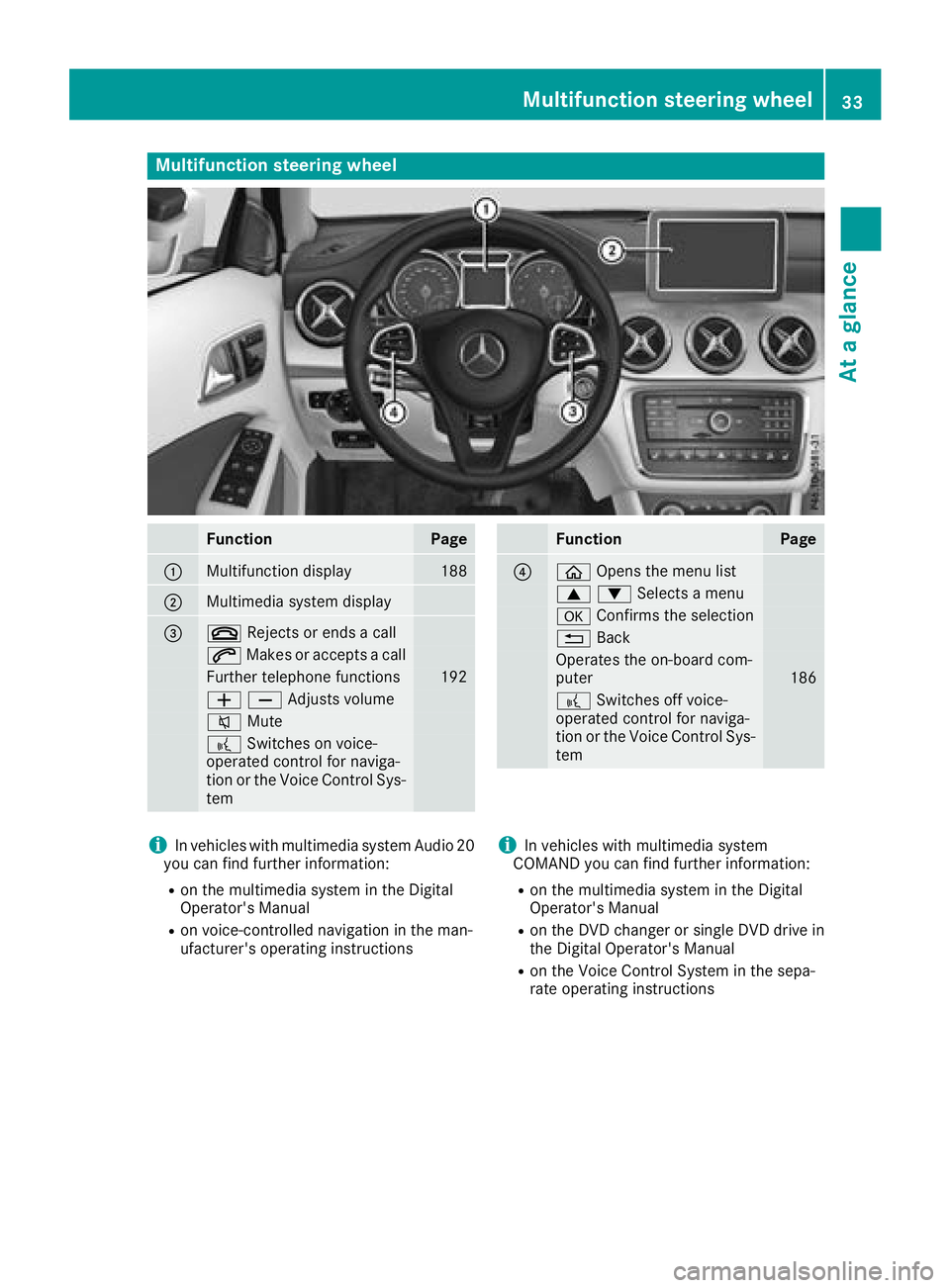
Multifunction steering wheel
FunctionPage
:Multifunction display188
;Multimedia system display
=~Rejects or ends a call
6Makes or accepts a call
Further telephone functions192
WXAdjusts volume
8 Mute
?Switches on voice-
operated control for naviga-
tion or the Voice Control Sys-
tem
FunctionPage
?ò Opens the menu list
9:Selects a menu
aConfirms the selection
%Back
Operates the on-board com-
puter186
?Switches off voice-
operated control for naviga-
tion or the Voice Control Sys-
tem
iIn vehicles with multimedia system Audio 20
you can find further information:
Ron the multimedia system in the Digital
Operator's Manual
Ron voice-controlled navigation in the man-
ufacturer's operating instructions
iIn vehicles with multimedia system
COMAND you can find further information:
Ron the multimedia system in the Digital
Operator's Manual
Ron the DVD changer or single DVD drive in
the Digital Operator's Manual
Ron the Voice Control System in the sepa-
rate operating instructions
Multifunction steering wheel33
At a glance
Page 183 of 338
The following information is displayed:
RThe length of the journey since the last break.
RTheAttentionLeveldetermined by ATTEN-
TION ASSIST, displayed in a bar display in five
levels from high to low.
RIf ATTENTION ASSIST is unable to calculate
the attention level and cannot output a warn-
ing, the System Suspended
message
appears. The bar display then changes the
display, such as when you are driving at a
speed below 37 mph (60 km/h) or above
125 mph (200 km/h) .
Activating ATTENTION ASSIST
XActivateATTENTION ASSIST usin gth eon -
boar dcomputer (Ypage 195).
The system determine sth eattention level of
th edriver depending on th esetting selected:
Standard
selected: th esensitivit ywit hwhic h
th esystem determine sth eattention level is set
to normal.
Sensitive
selected: th esensitivit yis set
higher. The attention level detecte dby Attention
Assis tis adapted accordingly and th edriver is
warned earlier .
When ATTENTION ASSIST is deactivated, th e
é symbol appear sin th emultifunction dis-
play in th eassistanc egraphic display.
When ATTENTION ASSIST has been deactivated,
it is automatically reactivated after th eengin e
has been stopped. The sensitivit yselected cor-
responds to th elast selection activated (stand -
ard/sensitive).
Warn ing in the multifunction display
If fatigue or increasing lapse sin concentration
are detected, awarning appear sin th emulti-
function display: ATTENTION ASSIST
Take aBreak!.
In addition to th emessage shown in th emulti-
function display, you will then hear awarning
tone .
XIf necessary, tak e abreak.
XConfir mthemessage by pressing th ea
butto non th esteering wheel.
On lon gjourneys, tak eregular breaks in goo d
time to allow yourself to res tproperly. If you do
no ttak e a break and ATTENTION ASSIST still
detects increasing lapse sin concentration ,you
will be warned again after 15 minute sat th e earliest
.This will only happe nif ATTEN-
TIO NASSIST still detects typical indicators of
fatigue or increasing lapse sin concentration .
Vehicles wit hth eCOMAND multimedi asys -
tem :if awarning is output in th emultifunction
display, aservic estation search is performed in
th emultimedia system. You can select aservic e
station and navigation to this servic estation will
then begin. This function can be activated or
deactivated in th emultimedia system; see th e
Digital Operator' sManual.
Lane Tracking package
Gene ral notes
The Lan eTracking packag econsist sof Blind
Spot Assis t (Ypage 181) and Lan eKeepin g
Assis t (Ypage 183).
Blind Spot Assist
Generalnotes
Blind Spot Assis tmonitors th eareas on either
side of th evehicl ethat are no tvisible to th e
driver wit htwo lateral ,rear-facin gradar sen -
sors. Awarning display in th eexterio rmirror s
draw syour attention to vehicles detecte din th e
monitore darea. If you then switch on th ecor-
respondin gtur nsignal to chang elane, you will
also receiv ean optical and audible warning .
Blind Spot Assis tsupport syou from aspee dof
approximately 20 mph (30 km/h).
Important safety notes
GWARNING
Blind Spot Assist does not react to:
Rvehicles overtaken too closely on the side,
placing them in the blind spot area
Rvehicles which approach with a large speed
differential and overtake your vehicle
As a result, Blind Spot Assist may not give
warnings in such situations. There is a risk of
an accident.
Always observe the traffic conditions care-
fully, and maintain a safe lateral distance.
Blin d Spot Assist is only an aid. It may fail to
detect some vehicles and is no substitute for
attentive driving. Always ensure that there is
Driving systems181
Driving and parking
Z
Page 189 of 338
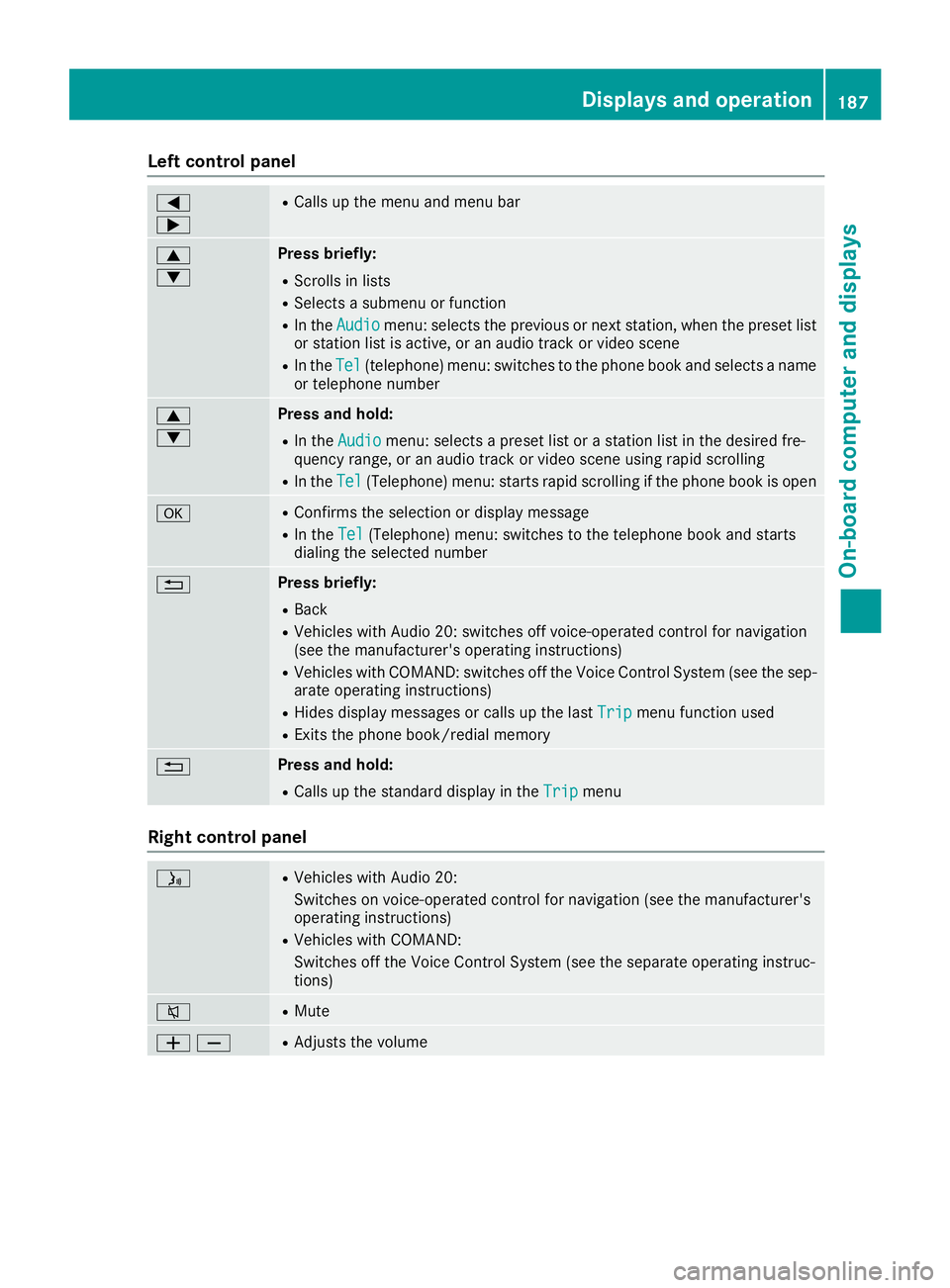
Left control panel
=
;RCalls up the menu and menu bar
9
:Press briefly:
RScrolls in lists
RSelects a submenu or function
RIn theAudiomenu: selects the previous or next station, when the preset list
or station list is active, or an audio track or video scene
RIn the Tel(telephone) menu: switches to the phone book and selects a name
or telephone number
9
:Press and hold:
RIn the Audiomenu: selects a preset list or a station list in the desired fre-
quency range, or an audio track or video scene using rapid scrolling
RIn the Tel(Telephone) menu: starts rapid scrolling if the phone book is open
aRConfirms the selection or display message
RIn the Tel(Telephone) menu: switches to the telephone book and starts
dialing the selected number
%Press briefly:
RBack
RVehicles with Audio 20: switches off voice-operated control for navigation
(see the manufacturer's operating instructions)
RVehicles with COMAND: switches off the Voice Control System (see the sep- arate operating instructions)
RHides display messages or calls up the last Tripmenu function used
RExits the phone book/redial memory
%Press and hold:
RCalls up the standard display in theTripmenu
Right control panel
óRVehicles with Audio 20:
Switches on voice-operated control for navigation (see the manufacturer's
operating instructions)
RVehicles with COMAND:
Switches off the Voice Control System (see the separate operating instruc-
tions)
8RMute
WXRAdjusts the volume
Displays and operation187
On-board computer and displays
Z
Page 190 of 338
~RRejects or endsacall
RExit sth ephon ebook/redial memory
6RMakes or accept s acall
RSwitches to th eredial memory
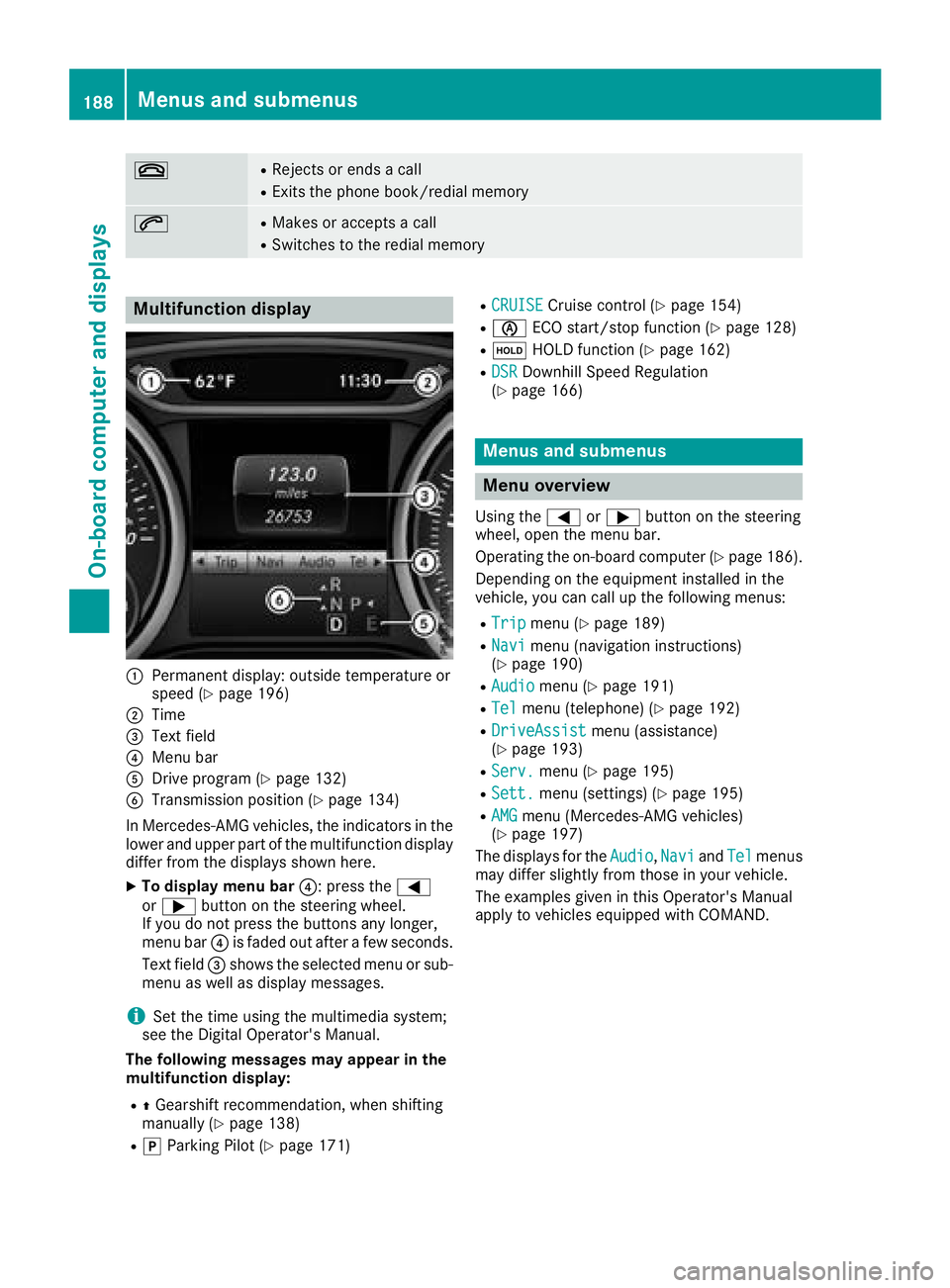
Multifunction display
:Permanen tdisplay: outside temperature or
spee d (Ypage 196)
;Time
=Textfield
?Men ubar
ADrive program (Ypage 132)
BTransmissionposition (Ypage 134)
In Mercedes-AM Gvehicles, th eindicators in th e
lower and upper part of th emultifunction display
differ from th edisplays shown here.
XTo displa ymen ubar ?:press th e=
or ; buttonon th esteering wheel.
If you do no tpress th ebuttons any longer ,
men ubar ?is fade dout after afew seconds.
Tex tfield =shows th eselected men uor sub-
men uas well as display messages.
iSe tth etime usin gth emultimedia system;
see th eDigital Operator's Manual.
Th efollowing messages ma yappea rin th e
multifunction display:
RZ Gearshif trecommendation ,when shifting
manually (Ypage 138)
RjParking Pilot (Ypage 171)
RCRUISECruisecontrol (Ypage 154)
RèECO start/sto pfunction (Ypage 128)
RëHOLD function (Ypage 162)
RDSRDownhill Speed Regulation
(Ypage 166)
Menus and submenus
Menu overview
Using th e= or; buttonon th esteering
wheel, open th emen ubar.
Operating th eon-board computer (
Ypage 186).
Dependin gon th eequipmen tinstalled in th e
vehicle, you can call up th efollowin gmenus:
RTri pmen u (Ypage 189)
RNavimen u(navigation instructions)
(Ypage 190)
RAudiomen u (Ypage 191)
RTelmenu(telephone) (Ypage 192)
RDriveAssistmenu(assistance)
(Ypage 193)
RServ.men u (Ypage 195)
RSett.menu(settings) (Ypage 195)
RAMGmenu(Mercedes-AM Gvehicles)
(Ypage 197)
The displays for th eAudio
,Nav iand Telmenus
may differ slightly from those in your vehicle.
The examples given in this Operator's Manual
apply to vehicles equipped wit hCOMAND .
188Menus and submenus
On-board computer and displays
Page 192 of 338
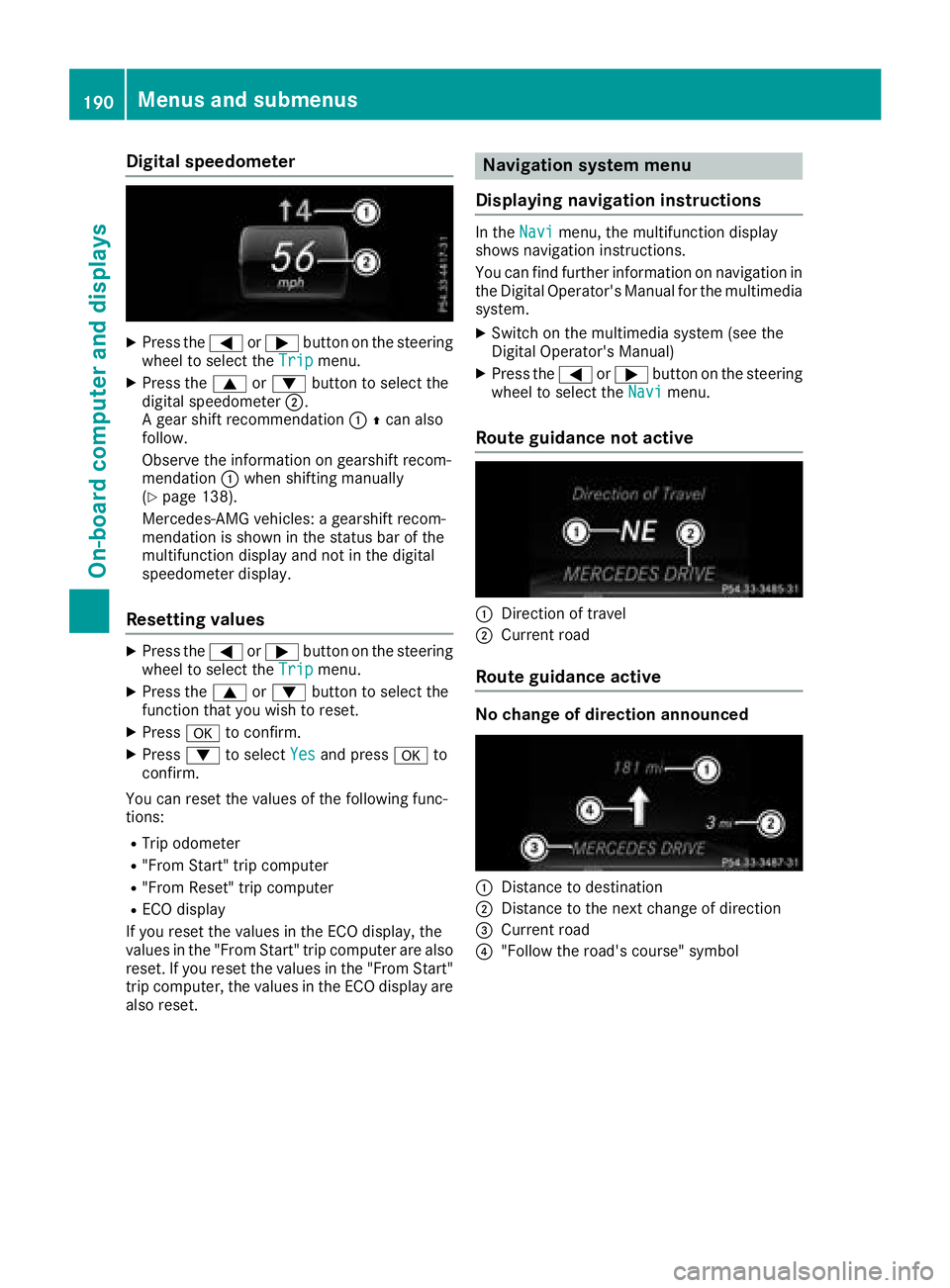
Digital speedometer
XPress the= or; buttonon th esteerin g
whee lto selec tth eTri pmenu.
XPress th e9 or: buttonto selec tth e
digita lspeedometer ;.
A gear shift recommendation :Zcan also
follow .
Observ eth einformation on gearshift recom -
mendation :when shiftin gmanually
(
Ypage 138).
Mercedes-AMG vehicles : agearshift recom -
mendation is shown in th estatus bar of th e
multifunction display and no tin th edigita l
speedometer display.
Resetting value s
XPress the= or; buttonon th esteerin g
whee lto selec tth eTri pmenu.
XPress th e9 or: buttonto selec tth e
function that you wish to reset .
XPressato confirm .
XPress:to selec tYesand press ato
confirm .
You can reset th evalues of th efollowin gfunc-
tions:
RTrip odometer
R"From Start "trip compute r
R"From Reset" trip compute r
RECOdisplay
If you reset th evalues in th eEC Odisplay, th e
values in th e"From Start "trip compute rare also
reset .If you reset th evalues in th e"From Start "
trip computer, th evalues in th eEC Odisplay are
also reset .
Navigation syste mmenu
Displaying navigation instructions
In th eNav imenu, th emultifunction display
shows navigation instructions.
You can fin dfurther information on navigation in
th eDigital Operator's Manual fo rth emultimedia
system.
XSwitc hon th emultimedia system (se eth e
Digital Operator's Manual)
XPress th e= or; buttonon th esteerin g
whee lto selec tth eNav imenu.
Route guidance not active
:Direction of trave l
;Currentroad
Route guidance active
No change of direction announced
:Distanc eto destination
;Distanc eto th enext chang eof direction
=Curren troad
?"Follow th eroad's course" symbol
190Menus and submenus
On-board computer and displays
Page 193 of 338
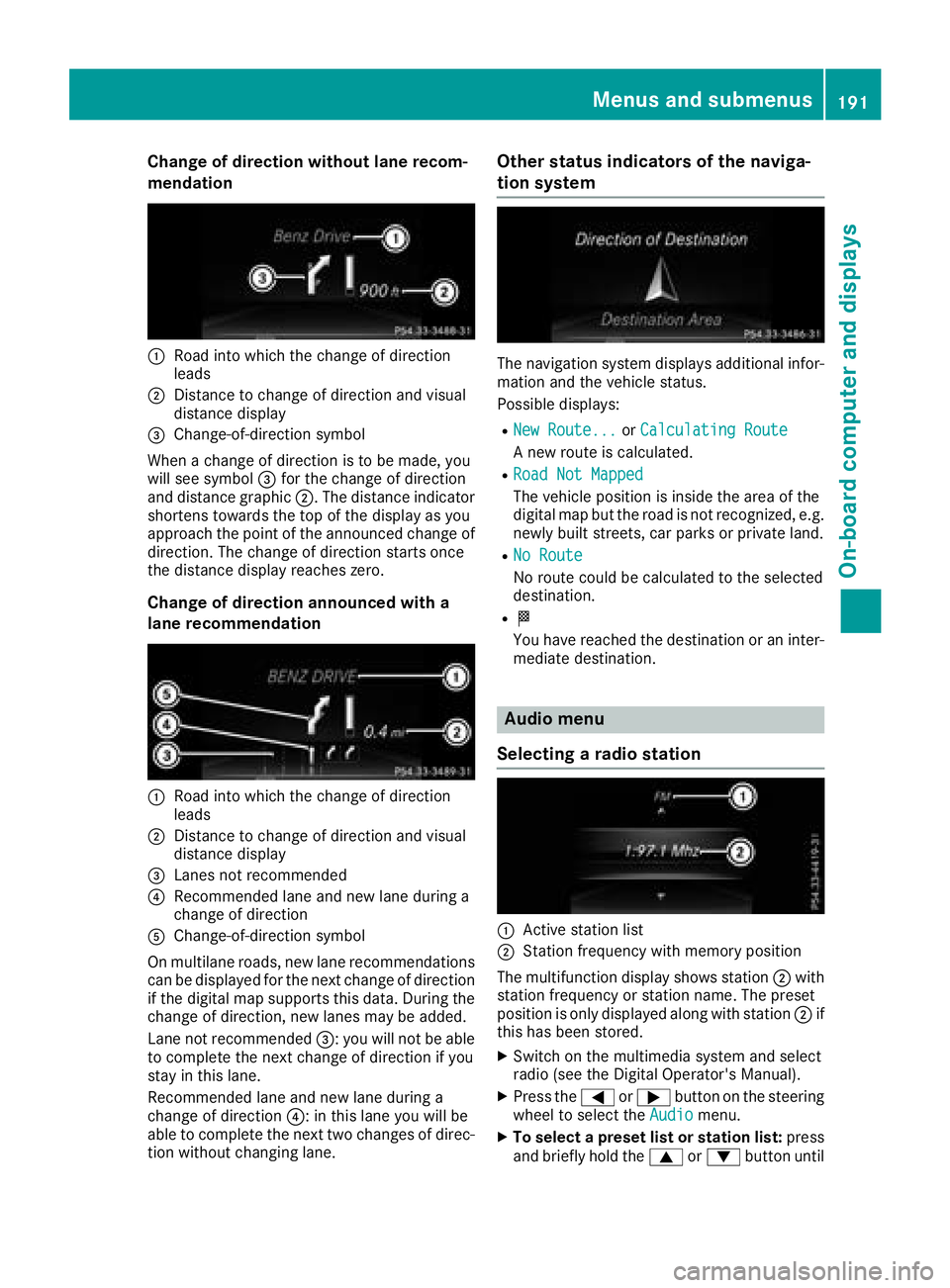
Change of direction without lane recom-
mendation
:Road into which the change of direction
leads
;Distance to change of direction and visual
distance display
=Change-of-direction symbol
When a change of direction is to be made, you
will see symbol =for the change of direction
and distance graphic ;. The distance indicator
shortens towards the top of the display as you
approach the point of the announced change of
direction. The change of direction starts once
the distance display reaches zero.
Change of direction announced with a
lane recommendation
:Road into which the change of direction
leads
;Distance to change of direction and visual
distance display
=Lanes not recommended
?Recommended lane and new lane during a
change of direction
AChange-of-direction symbol
On multilane roads, new lane recommendations can be displayed for the next change of direction
if the digital map supports this data. During the
change of direction, new lanes may be added.
Lane not recommended =: you will not be able
to complete the next change of direction if you
stay in this lane.
Recommended lane and new lane during a
change of direction ?: in this lane you will be
able to complete the next two changes of direc-
tion without changing lane.
Other status indicators of the naviga-
tion system
The navigation system displays additional infor-
mation and the vehicle status.
Possible displays:
RNew Route...or Calculating Route
A new route is calculated.
RRoad Not Mapped
The vehicle position is inside the area of the
digital map but the road is not recognized, e.g.
newly built streets, car parks or private land.
RNo Route
No route could be calculated to the selected
destination.
RO
You have reached the destination or an inter-
mediate destination.
Audio menu
Selecting a radio station
:Active station list
;Station frequency with memory position
The multifunction display shows station ;with
station frequency or station name. The preset
position is only displayed along with station ;if
this has been stored.
XSwitch on the multimedia system and select
radio (see the Digital Operator's Manual).
XPress the =or; button on the steering
wheel to select the Audiomenu.
XTo select a preset list or station list: press
and briefly hold the 9or: button until
Menus and submenus191
On-board computer and displays
Z
Page 232 of 338
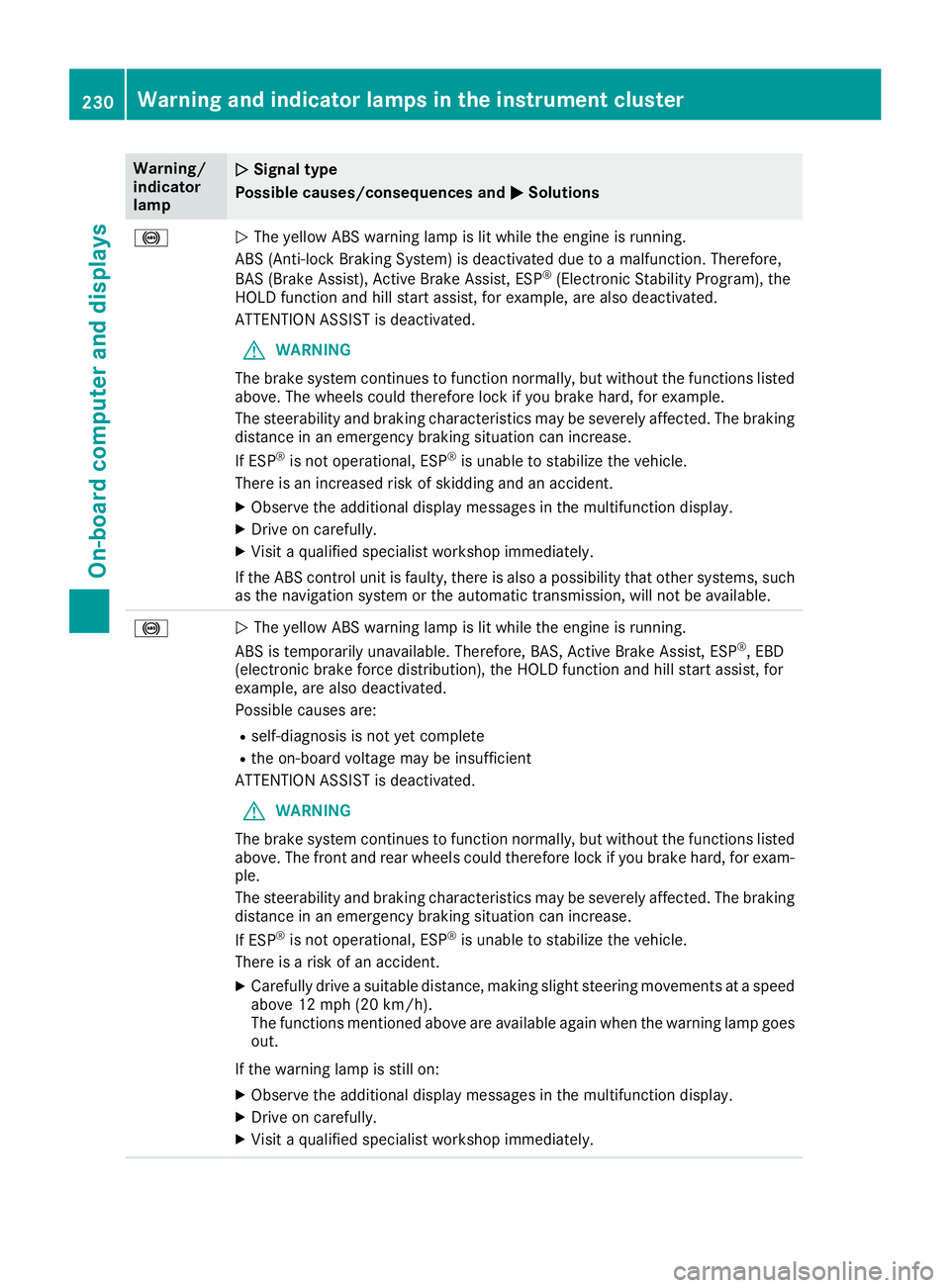
Warning/
indicator
lampNSignal type
Possible causes/consequences and M
Solutions
!NThe yellow ABS warning lamp is lit while the engine is running.
ABS (Anti-lock Braking System) is deactivated due to a malfunction. Therefore,
BAS (Brake Assist), Active Brake Assist, ESP
®(Electronic Stability Program), the
HOLD function and hill start assist, for example, are also deactivated.
ATTENTION ASSIST is deactivated.
GWARNING
The brake system continues to function normally, but without the functions listed
above. The wheels could therefore lock if you brake hard, for example.
The steerability and braking characteristics may be severely affected. The braking
distance in an emergency braking situation can increase.
If ESP
®is not operational, ESP®is unable to stabilize the vehicle.
There is an increased risk of skidding and an accident.
XObserve the additional display messages in the multifunction display.
XDrive on carefully.
XVisit a qualified specialist workshop immediately.
If the ABS control unit is faulty, there is also a possibility that other systems, such
as the navigation system or the automatic transmission, will not be available.
!N The yellow ABS warning lamp is lit while the engine is running.
ABS is temporarily unavailable. Therefore, BAS, Active Brake Assist, ESP®, EBD
(electronic brake force distribution), the HOLD function and hill start assist, for
example, are also deactivated.
Possible causes are:
Rself-diagnosis is not yet complete
Rthe on-board voltage may be insufficient
ATTENTION ASSIST is deactivated.
GWARNING
The brake system continues to function normally, but without the functions listed
above. The front and rear wheels could therefore lock if you brake hard, for exam-
ple.
The steerability and braking characteristics may be severely affected. The braking
distance in an emergency braking situation can increase.
If ESP
®is not operational, ESP®is unable to stabilize the vehicle.
There is a risk of an accident.
XCarefully drive a suitable distance, making slight steering movements at a speed
above 12 mph (20 km/h).
The functions mentioned above are available again when the warning lamp goes
out.
If the warning lamp is still on:
XObserve the additional display messages in the multifunction display.
XDrive on carefully.
XVisit a qualified specialist workshop immediately.
230Warning and indicator lamps in the instrument cluster
On-board computer and displays
Page 241 of 338
General notes
The multimedia system section in this Opera-
tor's Manual describes the basic principles for
operation. More information can be found in theDigital Operator's Manual.
Important safety notes
GWARNING
If you operate information systems and com-
munication equipment integrated in the vehi-
cle when driving, you may be distracted from
the traffic situation. You could also lose con-
trol of the vehicle. There is a risk of an acci-
dent.
Only operate this equipment when the traffic
situation permits. If you are not sure that this
is possible, park the vehicle paying attention
to traffic conditions and operate the equip-
ment when the vehicle is stationary.
You must observe the legal requirements for the
country in which you are currently driving when
operating the multimedia system.
The multimedia system calculates the route to
the destination without taking the following into
account, for example:
Rtraffic lights
Rstop and yield signs
Rparking or stopping restrictions
Rroad narrowing
Rother road and traffic rules and regulations
The multimedia system may give incorrect nav-
igation recommendations if the actual street/
traffic situation does not correspond with the
digital map's data.
For example:
Ra diverted route
Rthe road layout or the direction of a one-way
street has been changed
For this reason, you must always observe road
and traffic rules and regulations during your
journey. Road and traffic rules and regulations
always have priority over multimedia system
driving recommendations. Navigation announcements are intended to
direct you while driving without diverting your
attention from the road and driving.
Please always use this feature instead of con-
sulting the map display for directions. Looking
at the icons or map display can distract you from
traffic conditions and driving, and increase the
risk of an accident.
This equipment complies with FCC radiation
exposure limits set forth for uncontrolled equip-
ment and meets the FCC radio frequency (RF)
Exposure Guidelines in Supplement C to OET65.
This equipment has very low levels of RF energy
that is deemed to comply without maximum
permissive exposure evaluation (MPE). How-
ever, it is
recommended to insta
ll it at a distance
of at least 8 inches (approx. 20 cm) between the
radiation source and a person's body (not
including limbs such as hands, wrists, feet and
legs).
GWARNING
Modifications to electronic components, their software as well as wiring can impair their
function and/or the function of other net-
worked components. In particular, systems
relevant to safety could also be affected. As a
result, these may no longer function as inten-
ded and/or jeopardize the operating safety of
the vehicle. There is an increased risk of an
accident and injury.
Never tamper with the wiring as well as elec-
tronic components or their software. You
should have all work to electrical and elec-
tronic equipment carried out at a qualified
specialist workshop.
Function restrictions
For safety reasons, some functions are restric-
ted or unavailable while the vehicle is in motion.
You will notice this, for example, because either
you will not be able to select certain menu items
or a message will appear to this effect.
Function restrictions239
Multimedia system
Z