ECU MERCEDES-BENZ GLB SUV 2019 Repair Manual
[x] Cancel search | Manufacturer: MERCEDES-BENZ, Model Year: 2019, Model line: GLB SUV, Model: MERCEDES-BENZ GLB SUV 2019Pages: 689, PDF Size: 11.39 MB
Page 369 of 689
Blue
tooth ® Information about Blu
etoo th®
Bl ue tooth ®
tech nology is a standard for short-
ra nge wi reless data transfer up toappr oximately
10 m.
Yo u can use Blue tooth®
to connect your mobile
phone tothe multimedia sy stem and use thefo l‐
lowing functions, forex ample:
R Hands-free sy stem with access tothefo llow‐
ing options:
- con tacts (/ page 431)
- call lists (/ page 434)
- text messa ge (/page 435)
R Internet connection (/ page 459)
R Listening tomusic via Blue tooth®
audio
(/ page 472)
R Trans ferring business cards (vCards) into the
ve hicle
Blue tooth ®
is a regis tere d trademark of Blue‐
to oth Special Interest Group (SIG) Inc. %
Internet connection via Blue tooth®
is not
av ailable in all countries.
Ac tivating/deactivating Blue tooth ®
Multimedia sy stem:
4 © 5
Settings 5
System
5 Wi-Fi & Bluetooth #
Switch Bluetooth on or off. Wi
-Fi Wi
-Fi connection overview
Yo u can use Wi-Fi toestablish a connection with
a Wi -Fi network and toaccess the Internet or
ot her network devices.
The following connection options are available:
R Wi-Fi connection
The Wi-Fi connection toaWi -Fi-capable
device, e.g. the cus tomer's mobile phone or
a ta blet PC is es tablished.
R Multimedia sy stem as a Wi-Fi hotspot
Using this function, a tablet PC or no tebook
can be connec ted, forex ample. The connec‐
te d device can use the data tariff of theve hi‐ cle. A maximum of
thre e devices can be con‐
nected with the hotspot at the same time.
% The use of theve hicle data tariff by extern al
devices is not available in all countries.
To estab lish a connection, you can use thefo l‐
lowing me thods:
R WPS PIN
The connection toa secure Wi-Fi network is
made via a PIN.
R WPS PBC
The connection toa secure Wi-Fi network is
made bypressing a button (push button).
R Security key
The connection toa secure Wi-Fi network is
made via a secu rity key.
Setting up Wi-Fi
Requ irements:
R Toset up theWi -Fi connection of the mul‐
timedia sy stem with new devices: there is
no communication module ins talled.
R The device tobe connec ted supports one of
th eth re e means of connection described. 366
MBUX multimedia sy stem
Page 370 of 689
Multimedia sy
stem:
4 © 5
Settings 5
System
5 Wi-Fi & Bluetooth
Ac tivating/deactivating Wi-Fi #
Select Wi-Fi.
If Wi -Fi is switched on, you can connect the
multimedia sy stem with extern al hotspots. If
Wi -Fi is deacti vated, communication via Wi-Fi
to all devices is inter rupte d. This also means
th at a connection tothe communication
module cann otbe es tablished. Then some
functions such as dynamic route guidance
with Live Traf fic Information are not availa‐
ble.
Connecting the multimedia sy stem with a
new device via Wi-Fi
This function is available if a communication
module is not ins talled.
The type of connection es tablished must be
selected on the multimedia sy stem and on the
device tobe connec ted.
% The connection procedure may dif fer
depending on the device. Follow the instruc‐ tions
that are shown in the displa y.Fu rther
information (see the manufacturer's operat‐
ing instructions). #
Select Internet settings . #
Select Connect via Wi-Fi. #
Select Add hotspot.
Connecting using a security key #
Select the options rofthe desired Wi-Fi
networ k. #
Select Connect using security key . #
Have the security key displa yed on the device
to be connec ted (see the manufacturer's
operating instructions). #
Ente rth is security key on the multimedia sys‐
te m. #
Confirm the entry with¡.
% All devices support a security key as a
means of connection.
Connecting using a WPS PIN #
Select the options rofthe desired Wi-Fi
networ k. #
Select Connect using WPS PIN input .
The multimedia sy stem generates an eight-
digit PIN. #
Enter this PIN on the device tobe connec ted. #
Confirm the entry.
Connecting using a but ton #
Select the options rofthe desired Wi-Fi
networ k. #
Select Connect via WPS PBC . #
Select "Connect via WPS PBC" in the options
on the device tobe connec ted (see the man‐
ufacturer's operating instructions). #
Press the WPS button on the device tobe
connec ted. #
Select Continue inthe multimedia sy stem.
Ac tivating automatic connection #
Select Connect via Wi-Fi . #
Select the options rofthe desired Wi-Fi
networ k. #
Activate Permanent Internet connection . MBUX multimedia sy
stem 367
Page 371 of 689
Connecting with a known
Wi-Fi #
Select Connect via Wi-Fi .#
Select a Wi-Fi networ k.
The connection is es tablished again.
Setting up a Wi-Fi hotspot
Multimedia sy stem:
4 © 5
Settings 5
System
5 Wi-Fi & Bluetooth
Configuring the multimedia sy stem as a Wi-
Fi hotspot
The type of connection es tablished depends on
th e device tobe connec ted. The function must
be suppor tedby the multimedia sy stem and by
th e device tobe connec ted. The type of connec‐
tion es tablished must be selected on the multi‐
media sy stem and on the device tobe connec‐
te d. #
Select Vehicle hotspot. #
Select Connect device to vehicle hotspot .
Connecting using WPS PIN generation #
Select Connect using WPS PIN generation. #
Ente rth e PIN shown in the media display on
th e device tobe connec ted and con firm.
Connecting using WPS PIN entry #
Select Connect using WPS PIN input. #
Enterth e PIN that is shown on theex tern al
device's display on the multimedia sy stem.
Connecting using a button #
Select Connect via WPS PBC. #
Press the push button on the device tobe
connec ted (see the manufacturer's operating
instructions). #
Select Continue.
Connecting using a security key #
Select Connect device to vehicle hotspot .
A secu rity key is displa yed. #
Select theve hicle from the device tobe con‐
nec ted. The vehicle is displa yed with theMB
Hotspot XXXXX network name. #
Ente rth e security key which is shown in the
media display on the device tobe connec ted. #
Confirm the entry. Connecting using NFC #
Select Connect via NFC. #
Activate NFC on the mobile device (see the
manufacturer's operating instructions). #
Bring the mobile device into the NFC area of
th eve hicle (/ page 428). #
Select Finished.
The mobile device is now connected tothe
multimedia sy stem hotspot via NFC.
Generating a new security key #
Select Vehicle hotspot. #
Select Generate security key .
A connection will be es tablished with the
newly crea ted security key. #
Tosave a security key:select Save.
When a new security key is sa ved, all existing
Wi -Fi connections are then disconnected. If
th eWi -Fi connections are being re-es tab‐
lished, the new security key must be en tere d. 368
MBUX multimedia sy stem
Page 375 of 689
#
Select an upda tefrom the list and start the
update.
Ac tivating the so ftwa reupdate #
Restart the sy stem.
The modifications from the software update
will be active.
Fu nction of important sy stem upda tes
Impor tant sy stem updates may be necessary for
th e security of your multimedia sy stem's data.
Ins tallth ese updates, or else the security of your
multimedia sy stem cann otbe ensured.
% If automatic software updates are activated,
th e sy stem updates will be downloaded auto‐
matically (/ page371).
As soon as an update is available for download,
a cor responding message appears onthe media
displa y.
Yo u ha vethefo llowing selection options:
R Accept and install
The update will be downloaded in the back‐
ground.
R Information Information about
the pending sy stem
update is displa yed.
R Later
The update can be downloaded manually at a
later time (/ page371).
Dee p sy stem upda tes
Deep sy stem updates access vehicle or sy stem
settings and can therefore only be car ried out
when theve hicle is stationary and the ignition is
switched off.
If th e download of a deep sy stem update is com‐
ple ted and the update is ready for ins tallation,
yo u will be informed of this af terth e next igni‐
tion cycle, forex ample.
% Park theve hicle safely in a suitable location
before starting the ins tallation.
Re quirements forth e ins tallation:
R The ignition is switched off.
R Notes and warnings ha vebeen read and
accep ted.
R The elect ric pa rking brake is applied. If all
requirements are met, the update will be
ins talled. The multimedia sy stem cann otbe
operated while the update is being ins talled and
ve hicle functions are restricted.
If er rors should occur during the ins tallation, the
multimedia sy stem automatically attem ptsto
re store the pr evious version. If restoration of the
pr ev ious version is not possible, a symbol
appears on the media displa y.Please consult a
qu alified specialist workshop toresol vethe
problem. Re
setting the multimedia sy stem (reset func‐
tion) Multimedia sy
stem:
4 © 5
Settings 5
System 5
Reset
Pe rsonal data is dele ted, forex ample:
R Station presets
R Connec ted mobile phones
R individual user profiles
% The guest profile is reset when the settings
are restored tothefa ctory settings. 372
MBUX multimedia sy stem
Page 407 of 689
or
#
If a destination has been recei ved from an
app, select Details. #
Calculate thero ute. #
Aro ute has been received: selectYes. #
Select Start route guidance from the begin-
ning orStart route guidance from current
location.
Ro ute guidance starts from the selected
position. Ro
ute guidance with cur rent traf fic re ports Tr
af fic information overview
% The services are not available in everycoun‐
tr y.
Tr af fic re ports can be recei ved with thefo llowing
services:
R Live Traf fic Information
R FM RDS-TMC
It is not possible touse bo thservices simul‐
ta neously. Live
Traf fic Information or FM RDS-TMC is
displ ayed with a symbol.
% Hazard warnings can be recei ved using the
Car-to-X service.
% There may be dif fere nces between the traf fic
re ports recei ved and the actual road and
traf fic conditions.
Impor tant information on Live Traf fic Informa‐
tion:
R Current tra ffic reports are recei ved via the
Internet connection (for selected countries).
R The traf fic situation is upda ted at short, regu‐
lar inter vals.
R In selec ted count ries, the subscription
service is available free of charge for a period
of thre eye ars from the manufacturing date.
Information from the service pr ovider can be
shown (/ page 405).
Re gis tering Live Traf fic Information:
R The service must be regis tere d with
Mercedes me (/ page 405). This secures
the free-of- charge period of
th re eye ars.
In fo rm ation on theve hicle's position is regularly
sent toDaimler AG. The da tais immediately ren‐
de red anonymous byDaimler AGand forw arded
to the traf fic da taprov ider. Using this data, traf‐
fi c re ports releva nt totheve hicle's position are
sent totheve hicle. The vehicle acts as a sensor
fo rth eflow of traf fic and helps toimpr ovethe
qu ality of the tra ffic reports.
If yo u do not wanttotransmit theve hicle posi‐
tion, you ha vethefo llowing options:
R You deactivate the service in the Mercedes
me por tal.
R You ha vethe service deactivated at a
Mercedes-Benz service cent re.
Useful information on FM RDS-TMC: R A FM RDS-TMC radio station broadcasts traf‐
fi c re ports alongside thera dio programme.
R FM RDS-TMC is not available in all countries. 404
MBUX multimedia sy stem
Page 408 of 689
Showing information from
the service pro‐
vider for Li veTraf fic Information
Re quirements:
R The vehicle is equipped with Live Traf fic
Information.
Multimedia sy stem:
4 © 5
Navigation 5
¡ 5
Traffic #
Select Provider information.
The logo of the service pr ovider for Live Traf‐
fi c Information is shown.
When the subscription for Live Traf fic Infor‐
mation has expired then in selected coun‐
tries FM RDS-TMC is available.
% Further information on Live Traf fic Informa‐
tion can be called up on the home screen
using Mercedes me & Apps (/page 451).
Re gis tering Live Traf fic Information
Requ irements:
R The vehicle is equipped with Live Traf fic
Information.
R You ha vea user account on the Mercedes
me website. The Live
Traf fic Information service must be reg‐
is te re d. This secures the full period of three
ye ars. #
Create a user account at Mercedes me at:
http://www.mercedes.me. A valid email
address is requ ired forth is. #
Regis terth eve hicle using theve hicle identifi‐
cation number (VIN). #
Tocar ryout there gistration yourself: con‐
nect theve hicle with your Mercedes me user
account in the Mercedes me por tal.
A code is sent tothe multimedia sy stem. #
Ente rth e code into the multimedia sy stem. #
Accept thege neral and specific term s of use. #
Registration in the Mercedes-Benz
service centre: have the connection car ried
out at a Mercedes-Benz service cent re.
Extending a Live Traf fic Information sub‐
scription
Re quirements:
R The vehicle is equipped with Live Traf fic
Information. R
You ha vea user account on the Mercedes
me website. #
Call up the Mercedes me website. #
Call up the Mercedes me user account. #
Switch tothe Mercedes me connect online
st ore via the linked vehicle. #
Select the Live Traf fic Information service. #
Select there ne wa l period. #
Addth e product tothe shopping bask et. #
Accept thege neral and specific term s of use.
Live Traf fic Information remains activated for
th e selected extension pe riod. Activation
begins on the date of extension.
Showing traf fic information
Re quirements:
R The Traffic display is switched on
(/ page 407).
R The following traf fic displ ays are switched on
(/ page 407):
Traffic incidents
Free-flowing traffic MBUX multimedia sy
stem 405
Page 421 of 689
When
the lo werre ser vecapacity is reached then
th era nge displ ayon the map is switched off.
% The range displ ayon the map is not available
in all countries.
Displ aying weather information and other
map contents
Re quirements:
R Mercedes me connect is available.
R You ha vea user account forth e Mercedes
me por tal.
R The service is available.
R The service has been activated.
Multimedia sy stem:
4 © 5
Navigation 5
Z
5 Advanced #
Select View. #
Select Map elements. #
Scroll up and show theONLINE MAP CON-
TENTS categor y.
The available services are displa yed. The
services are pr ovided byMercedes me con‐
nect. #
Switch on a service, e.g. Weather.
Cur rent we ather information is displa yed on
th e navigation map, e.g. temp erature or
cloud co ver.The service information is not
shown in all map scales, e.g. weather sym‐
bols.
Fu rther information about available services and
about displaying information in the map scales
can be found in the Mercedes me Portal:
https://me.secure.mercedes-benz.com
% Weather information is not available in all
countries.
Showing map view in the multifunction dis‐
play of the instrument clus ter
Multimedia sy stem:
4 © 5
Navigation 5
Z
5 Advanced #
Select View. #
Select Map orientation. #
Scroll up and show theINSTRUMENT CLUS-
TER VIEW category. #
Toset the map scale automaticall y:switch
on Auto zoom.
The display button is activated. The map
scale is set automatically depending on your
driving speed and the type of road. #
Toselect map orientation: select an option.
The #dot indicates the cur rent selection.
The following options are available:
R 2D heading up option:the 2D map view is
aligned tothe direction of tra vel.
R 2D north up option:the 2D map view is
displa yed so that no rth is alw ays at the
to p.
R 3Doption: the 3D map view is aligned to
th e direction of tra vel. 41 8
MBUX multimedia sy stem
Page 427 of 689
&
WARNING Risk of an accident from
ope rating mobile communication equip‐
ment while theve hicle is in motion
Mobile communications devices distract the
driver from the traf fic situation. This could
also cause the driver tolose control of the
ve hicle. #
Asthe driver, only operate mobile com‐
munications devices when theve hicle is
st ationar y. #
As a vehicle occupant, only use mobile
communications devices in the areas
intended forth is purpose, e.g. in the
re ar passenger compartment. Yo
u must obse rveth e legal requirements forthe
country in whi chyou are cur rently driving when
operating mobile communication equipment in
th eve hicle. &
WARNING Risk of inju rydue toobjects
being stowed incor rectly
If objects in theve hicle interior are stowed
incor rectly, they can slide or be thrown
around and hit vehicle occupants. In addi‐
tion, cup holders, open stowage spaces and
mobile phone recep tacles cannot al ways
re tain all objects they contain.
The reis a risk of injur y,particularly in the
ev ent of sudden braking or a sudden change
in direction. #
Alw aysstow objects so that they can‐
not be throw n around in su chsitua‐
tions. #
Alw ays make sure that objects do not
pr otru de from stowage spaces, luggage
nets or stowage nets. #
Close the loc kable stow age spaces
before starting a journe y. #
Alw aysstow and secure heavy, hard,
poin ted, sharp-edged, fragile or bulky
objects in the boot/load compartment. Obser
vethe additional information on stowing
mobile communications devices cor rectly:
R Loading theve hicle (/ page126)
R Stow ing and securing the mobile phone
(/ page 152)
Fu rther information can be obtained from a
Mercedes-Benz service centre or at: https://
www.mercedes-benz-mobile.com/ 424
MBUX multimedia sy stem
Page 429 of 689
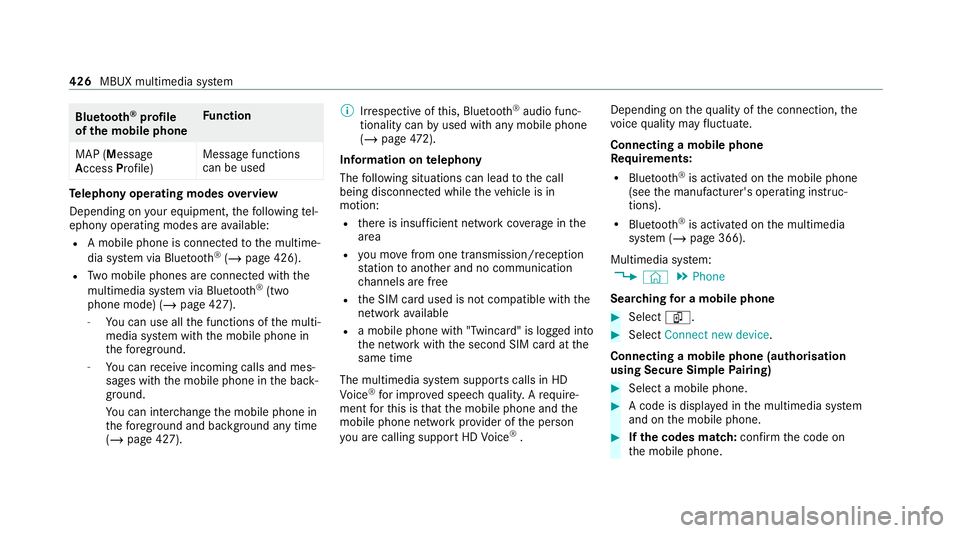
Blue
tooth ®
profile
of the mobile phone Fu
nction
MAP (Message
Access Profile) Message functions
can be used Te
lephony operating modes overview
Depending on your equipment, thefo llowing tel‐
ephony operating modes are available:
R A mobile phone is connec tedto the multime‐
dia sy stem via Blue tooth®
(/ page 426).
R Two mobile phones are connected with the
multimedia sy stem via Blue tooth®
(two
phone mode) (/ page 427).
- You can use all the functions of the multi‐
media sy stem with the mobile phone in
th efo re ground.
- You can recei veincoming calls and mes‐
sages with the mobile phone in the back‐
ground.
Yo u can inter change the mobile phone in
th efo re ground and bac kground any time
(/ page 427). %
Irre spective of this, Blue tooth®
audio func‐
tionality can byused with any mobile phone
(/ page 472).
Infor mation on telephony
The following situations can lead tothe call
being disconnected while theve hicle is in
motion:
R there is insuf ficient network co verage inthe
area
R you mo vefrom one transmission/reception
st ation toano ther and no communication
ch annels are free
R the SIM card used is not compatible with the
network available
R a mobile phone with "Twincard" is logged into
th e network with the second SIM card at the
same time
The multimedia sy stem supports calls in HD
Vo ice ®
for impr oved speech qualit y.Arequ ire‐
ment forth is is that the mobile phone and the
mobile phone network pr ovider of the person
yo u are calling suppo rtHD Voice ®
. Depending on
thequ ality of the connection, the
vo ice quality may fluctuate.
Connecting a mobile phone
Requ irements:
R Blue tooth ®
is activated on the mobile phone
(see the manufacturer's operating instruc‐
tions).
R Blue tooth ®
is activated on the multimedia
sy stem (/ page 366).
Multimedia sy stem:
4 © 5
Phone
Sear ching for a mobile phone #
Select í. #
Select Connect new device .
Connecting a mobile phone (authorisation
using Secu reSimple Pairing) #
Select a mobile phone. #
A code is displa yed in the multimedia sy stem
and on the mobile phone. #
Ifth e codes match: confirm the code on
th e mobile phone. 426
MBUX multimedia sy stem
Page 441 of 689
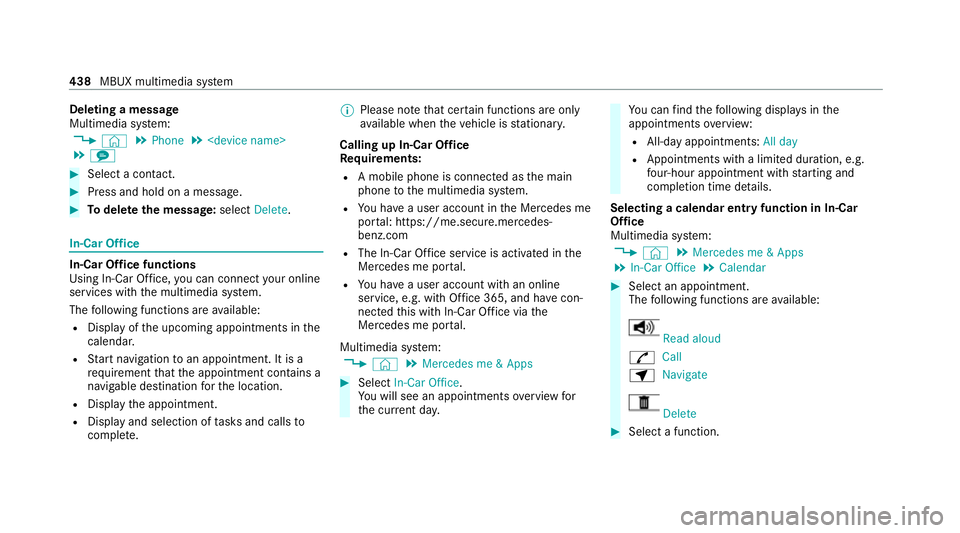
Deleting a message
Multimedia sy
stem:
4 © 5
Phone 5
5 l #
Select a conta ct.#
Press and hold on a message. #
Todel eteth e message: selectDelete. In-Car Of
fice In-Car Of
fice functions
Using In-Car Of fice, you can connect your online
services with the multimedia sy stem.
The following functions are available:
R Display of the upcoming appointments in the
calenda r.
R Start navigation toan appointment. It is a
re qu irement that the appointment conta ins a
navigable destination forth e location.
R Display the appointment.
R Display and selection of tasks and calls to
compl ete. %
Please no tethat cer tain functions are only
av ailable when theve hicle is stationar y.
Calling up In-Car Of fice
Re quirements:
R A mobile phone is connec ted as the main
phone tothe multimedia sy stem.
R You ha vea user account in the Mercedes me
por tal: https://me.secure.mercedes-
benz.com
R The In-Car Of fice service is acti vated in the
Mercedes me por tal.
R You ha vea user account with an online
service, e.g. with Of fice 365, and ha vecon‐
nected this with In-Car Of fice via the
Mercedes me por tal.
Multimedia sy stem:
4 © 5
Mercedes me & Apps #
Select In-Car Office.
Yo u will see an appointments overview for
th e cur rent da y. Yo
u can find thefo llowing displa ysinthe
appointments overview:
R All-day appointments: All day
R Appointments with a limited duration, e.g.
four-hour appointment with starting and
completion time de tails.
Selecting a calendar entry function in In-Car
Of fice
Multimedia sy stem:
4 © 5
Mercedes me & Apps
5 In-Car Office 5
Calendar #
Select an appointment.
The following functions are available: Read aloud
R Call
Z Navigate Delete
#
Select a function. 438
MBUX multimedia sy stem