navigation MERCEDES-BENZ GLB SUV 2019 Manual PDF
[x] Cancel search | Manufacturer: MERCEDES-BENZ, Model Year: 2019, Model line: GLB SUV, Model: MERCEDES-BENZ GLB SUV 2019Pages: 689, PDF Size: 11.39 MB
Page 424 of 689
#
Tocancel the booking: selectCancel when
yo ure cei vethe confi rmation message.
Minimum charge s may be incur red. #
Toend the booking: stop the active transac‐
tion via the Mercedes Me app.
Yo ure cei vea summary of the procedure and
th e costs.
If an active parking procedure foryo ur vehi‐
cle is de tected when you continue driving, a
message appears asking if you wish toend
th is parking procedure. #
Confirm the message.
When the parking procedure is stopped suc‐
cessfull y,ano ther message appears with the
de tails about your co mplete d parking proce‐
dure. Dashcam
Note
s onthe dashcam
* NO
TEBefore using the dashcam Before using any or all functions of
the Dash‐
cam, please read this Disclaimer carefull y.If
yo u do not accept, agree toor under stand
th is Disclaimer, please do not use the Dash‐
cam. By using the Dashcam, you are deemed
to have accep ted and agreed tothe conte nts
of this Disclaimer.
As manufacturer of theve hicle, weprov ide
yo u with the device and associated software
sy stem of the Dashcam toprov ide you with
th e functionalities that we consider you may
wish tohave while using the Dashcam. We
are unable topredict or verify whe ther any
image(s) or geographic information captured
or recorded du ring your use of the Dashcam
is legitimate. As such, weare unable totake
re sponsibility for any adverse consequences
th at may arise from the actual image(s) or
ge ographic information captured or recorded
du ring use of the Dashcam. Wa
rning: please comply with all applicable
la ws and regulations when you use the Dash‐
cam. Forex ample, please do not capture or
re cord ima ge(s) or geographic information
which may be considered as state sec ret
sensitive information (e.g. military areas). In
case of any violations of there leva nt la ws
and regulations, the actual user will be liable
fo rth e cor responding responsibilities and we
will not take responsibility for any misuse of
th e Dashcam. #
Obser vethe count ry-specific regula‐
tions. The dashcam is
available in the navigation sys‐
te m in combination with the augmented reality
function.
Selecting a USB device for a video recording
with the dashcam
Re quirements:
R Atleast one USB device is connec ted with
th e multimedia sy stem (/ page472). MBUX multimedia sy
stem 421
Page 434 of 689
Conducting a conference call
#
Select iCreate conferen. call.
The new participant is included in the confe r‐
ence call.
Ending an active call #
Select kEnd call .
% On some mobile phones, the call on hold is
activated as soon as the active call is ended.
Ac cepting/rejecting a waiting call
Re quirements:
R There is an active call (/ page 430).
If yo ure cei vea call while already in a call, a
message is displa yed.
Depending on the mobile phone and mobile net‐
wo rkoperator you will hear a call- waiting sound.
In addition, in two phone mode you will hear an
acoustic signal when the call goes thro ugh tothe
ot her (not yet acti ve) mobile phone. #
Select RAccept.
The incoming call is active. If only one mobile phone is connec
ted with
th e multimedia sy stem, the pr evious call will
be put on hold.
If during a call you accept a call with the
ot her mobile phone when in two phone mode
th en theex isting call is ended. #
Select kReject.
% This function and behaviour depends on your
mobile phone network pr ovider and the
mobile phone (see the manufacturer's oper‐
ating instructions). Contacts
Information about
the contacts menu
The con tacts menu contains all contacts from
ex isting data sources, e.g. mobile phone or data
st orage medium.
Depending on the data source, it is possible to
sa ve /load thefo llowing number of con tacts:
R Perm anently sa ved con tacts: 3,000 entries
R Contacts loaded from the mobile phone:
5,000 entri es per mobile phone Fr
om the conta cts menu, you can per form the
fo llowing actions:
R Make a call, forex ample call a con tact
(/ page 433)
R Navigation (/ page 385)
R Compose messa ges (/ page 436)
R Additional options (/ page 433)
If a mobile phone is connec tedto the multimedia
sy stem (/ page 426) and automatic calling up
(/ page 431) is activated, the mobile phone's
conta cts are displ ayed in the address book.
The multimedia sy stem can show suggestions
based on frequently used conta cts aswell as
incoming and outgoing calls (/ page 349).
These are shown at theto p of the conta ct list.
Downloading mobile phone contacts
Multimedia sy stem:
4 © 5
Phone 5
5 Z #
Select Contacts & call list. MBUX multimedia sy
stem 431
Page 435 of 689
Au
tomatically #
Ifth eSynchronise contacts automatically
function is not active: activate the function
by pressing once.
Manually #
Ifth eSynchronise contacts automatically
function is active: deactivate the function by
pressing once. #
Select Synchronise contacts .
Yo u can see from thest atus of controller tothe
ri ght of theSynchronise contacts automatically
display text wh ether the function is active.
Calling up contacts
Multimedia sy stem:
4 © 5
Phone 5
g
The following options can be used tosear chfor
contacts:
R searching byinitials
R sear ching byname
R searching byphone number #
Ente rch aracters into the sear chfield. #
Select the conta ct.
A contact can contain thefo llowing de tails:
R phone numbers
R navigation addresses
R geo-coordinates
R Internet address
R e-mail addresses
R voice tag (if set)
R relation (if set)
Editing thefo rm at of a contact's name
Multimedia sy stem:
4 © 5
Phone 5
Z #
Select General. #
Select Name format.
The following options are available:
R Surname, First name
R Surname First name
R First name Surname #
Select an option. Overview of importing contacts
Contacts from
various sources Source
Requirements:
ò USB device The USB device is
connected with the
USB port.
ñ Bluetooth ®
con‐
nection If
th e sending of
vCards via Blue tooth®
is suppor ted, vCards
can be recei ved on
mobile phones or net‐
books, forex ample.
Blue tooth ®
is activa‐
te d in the multimedia
sy stem and on the
re spective device
(see the manufactur‐
er's operating instruc‐
tions). 432
MBUX multimedia sy stem
Page 441 of 689
Deleting a message
Multimedia sy
stem:
4 © 5
Phone 5
5 l #
Select a conta ct.#
Press and hold on a message. #
Todel eteth e message: selectDelete. In-Car Of
fice In-Car Of
fice functions
Using In-Car Of fice, you can connect your online
services with the multimedia sy stem.
The following functions are available:
R Display of the upcoming appointments in the
calenda r.
R Start navigation toan appointment. It is a
re qu irement that the appointment conta ins a
navigable destination forth e location.
R Display the appointment.
R Display and selection of tasks and calls to
compl ete. %
Please no tethat cer tain functions are only
av ailable when theve hicle is stationar y.
Calling up In-Car Of fice
Re quirements:
R A mobile phone is connec ted as the main
phone tothe multimedia sy stem.
R You ha vea user account in the Mercedes me
por tal: https://me.secure.mercedes-
benz.com
R The In-Car Of fice service is acti vated in the
Mercedes me por tal.
R You ha vea user account with an online
service, e.g. with Of fice 365, and ha vecon‐
nected this with In-Car Of fice via the
Mercedes me por tal.
Multimedia sy stem:
4 © 5
Mercedes me & Apps #
Select In-Car Office.
Yo u will see an appointments overview for
th e cur rent da y. Yo
u can find thefo llowing displa ysinthe
appointments overview:
R All-day appointments: All day
R Appointments with a limited duration, e.g.
four-hour appointment with starting and
completion time de tails.
Selecting a calendar entry function in In-Car
Of fice
Multimedia sy stem:
4 © 5
Mercedes me & Apps
5 In-Car Office 5
Calendar #
Select an appointment.
The following functions are available: Read aloud
R Call
Z Navigate Delete
#
Select a function. 438
MBUX multimedia sy stem
Page 450 of 689
R
Distinction between pa rked, standstill, rolling
and driving
R Day/night mode of the instrument clus ter
The transfer of this data is used toalter how
con tent is displ ayed tocor respond tothe driving
situation.
The following position data is transmitte d:
R Coordinates
R Speed
R Compass direction
R Acceleration di rection
This da tais only transfer red while the navigation
sy stem is active, in order toimpr ove it (e.g. so it
can continue functioning when in a tunnel). Mercedes me calls
Making a call via
theove rhead control panel
% Mercedes me calls are not possible in every
count ry. Find out at a Mercedes-Benz
service centre if these functions are availa‐
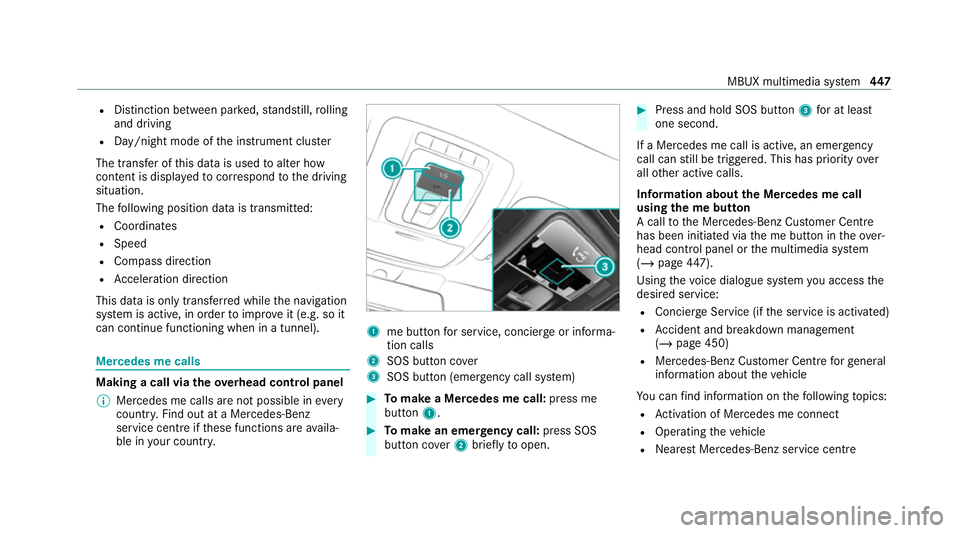
ble in your count ry. 1
me button for service, concier geor informa‐
tion calls
2 SOS button co ver
3 SOS button (emergency call sy stem) #
Tomake a Me rcedes me call: press me
button 1. #
Tomake an eme rgency call: press SOS
button co ver2 briefly toopen. #
Press and hold SOS button 3for at least
one second.
If a Mercedes me call is active, an emer gency
call can still be triggered. This has priority over
all other active calls.
Information about the Mercedes me call
using the me but ton
A call tothe Mercedes-Benz Cus tomer Centre
has been initia ted via the me button in theove r‐
head control panel or the multimedia sy stem
(/ page 447).
Using thevo ice dialogue sy stem you access the
desired service:
R Concier geService (if the service is activated)
R Accident and breakdown mana gement
(/ page 450)
R Mercedes-Benz Cust omer Centreforge neral
information about theve hicle
Yo u can find information on thefo llowing topics:
R Activation of Me rcedes me connect
R Operating theve hicle
R Nearest Mercedes-Benz service centre MBUX multimedia sy
stem 447
Page 483 of 689
Ac
tivating/deactivating traf fic announce‐
ments Multimedia sy
stem:
4 © 5
Radio 5
Z 5
General #
Switch Traffic announcements (TA) on or off.Setting
the traf fic information service vol‐
ume increase Multimedia sy
stem:
4 © 5
Settings 5
Audio #
Select Navigation and traffic announce-
ments. #
Select Traffic announc. vol. increase. #
Set a le vel between 0 and 10.#
Accept theva lue with q. Displaying
radio text Multimedia sy
stem:
4 © 5
Radio 5
Z 5
General #
Switch Radio text information on or off. Sound
To
ne settings Information about
the sound sy stem
The sound sy stem has a total output of 100 W
and is equipped with six spea kers. It is available
fo r all functions in thera dio and media modes.
Calling up the sound menu
Multimedia sy stem:
4 © 5
Media 5
Z 5
Sound
The following functions are available:
R Equaliser
R Balance and Fader
R Volume #
Select a function.
Ad justing treble, mid- range and bass set‐
tings
Multimedia sy stem:
4 © 5
Media 5
Z 5
Sound
5 Equaliser #
Set TREBLE, MIDorBASS . Ac
tivating/deactivating automatic volume
adjustment
Multimedia sy stem:
4 © 5
Media 5
Z 5
Sound
5 Volume
Au tomatic volume adjustment compensates for
dif fering volumes when changing between audio
sources and within an audio source. #
Swit chAutomatic adjustment on or off.
Ad justing the balance/ fader
Multimedia sy stem:
4 © 5
Media 5
Z 5
Sound
5 Balance and Fader
Ad justing the balance #
Movethevo lume distribution between the
ri ght and left sides of theve hicle in the grid
shown.
The volume is distributed between the speak‐
ers on the left and right sides in theve hicle. 480
MBUX multimedia sy stem