service MERCEDES-BENZ GLC-Class 2016 X253 Comand Manual
[x] Cancel search | Manufacturer: MERCEDES-BENZ, Model Year: 2016, Model line: GLC-Class, Model: MERCEDES-BENZ GLC-Class 2016 X253Pages: 222, PDF Size: 6.39 MB
Page 18 of 222
Declarations of conformity
Vehicl ecomponent swhich receive
and/o rtransmit radi owaves
USA only :The wireles sdevices of this vehicle
compl ywit hPar t15 of th eFCC Rules .Oper-
ation is subjec tto th efollowing tw ocondi-
tions:
1) These devices may no tcaus einterference,
and
2) These devices mus taccept any interfer-
ence ,includin ginterferenc ethat may caus e
undesired operation of th edevice.
Changes or modification sno texpressl y
approved by th eparty responsible fo rcom-
pliance could void th euser's authorit yto
operat eth eequipment.
Canad aonly :The wireles sdevices of this
vehicle compl ywit hIndustry Canada license-
exemp tRSS standard(s) .Operation is subjec t
to th efollowing tw oconditions:
1) These devices may no tcaus einterference,
and
2) These devices mus taccept any interfer-
ence ,includin ginterferenc ethat may caus e
undesired operation of th edevice.
Correct us e
GWARNING
Modification sto electronic components, their
software as well as wirin gcan impair their
function and/o rth efunction of other net-
worke dcomponents. In particular, systems
relevant to safet ycould also be affected. As a
result ,these may no longer function as inten-
ded and/o rjeopardiz eth eoperatin gsafet yof
th evehicle. There is an increase dris kof an
acciden tand injury.
Never tampe rwit hth ewirin gas well as elec -
tronic component sor their software .You
should hav eall wor kto electrical and elec -
tronic equipmen tcarrie dout at aqualified
specialis tworkshop .
Observeth efollowing information when usin g
COMAND:
Rth esafet ynote sin this manual
Rtraffic rule sand regulation s
Rlaws and safet ystandard spertainin gto
moto rvehicles
Attachin gmetalized retrofit fil mto th ewind-
shield may affec tradio reception and hav e a
negative impact on all other antennas (e.g.
emergency antenna) in th evehicle interior.
Protection against theft :this devic eis
equipped wit htechnical provision sto protect
it against theft. Further information on pro -
tection against thef tcan be obta
ined from an
authorized Mercedes-Ben zCenter.
Qualified specialist workshop
Read th einformation on qualified specialist
workshop sin th evehicle Operator's Manual.
Function restrictions
Fo rsafet yreasons, som efunction sare
restricte dor unavailable whil eth evehicle is in
motion .You will notice this, fo rexample,
because either you will no tbe able to selec t
certain men uitems or amessage will appear
to this effect .
Datastored in th evehicle
Dat arecording
Thi svehicle is capable of recordin gdiagnostic
information relatin gto vehicle operation ,mal-
functions, and user settings. Thi smay include
information about th eperformanc eor status
of various systems ,includin gbut no tlimited
to ,engine, throttle, steerin gor brake sys-
tems ,that is stored and can be rea dout wit h
suitable devices, particularly when th evehi-
cl e is serviced. The dat aobtained is used to
properly diagnose and servic eyour vehicle or
to further optimize and develop vehicle func-
tions.
16Introduction
Page 76 of 222
SelectionInstructions
Search By Name
Searches for all POIs on
the digital map or around
one of the three previ-
ously specified positions
XCall up the POI menu (Ypage 72).
XTo selectSearch By Name: turn and press the controller.
XSelectAll POIsor one of the three previously selected posi-
tions.
The POI list with character bar appears.
XEnter a name.
or
XTo select Mercedes-Benz Service: turn and press the con-
troller.
SearchByPhoneNum‐
ber
All POIs with a telephone number can be selected.
XCall up the POI menu (Ypage 72).
XTo select Search By Phone Number: turn and press the con-
troller.
You will see a list of phone numbers.
XEnter the telephone number.
The telephone number consists of:
Rthe country code (international dialing code)
Rthe area code
When entering the area code, omit the leading "0"
Rthe telephone number of the participating caller
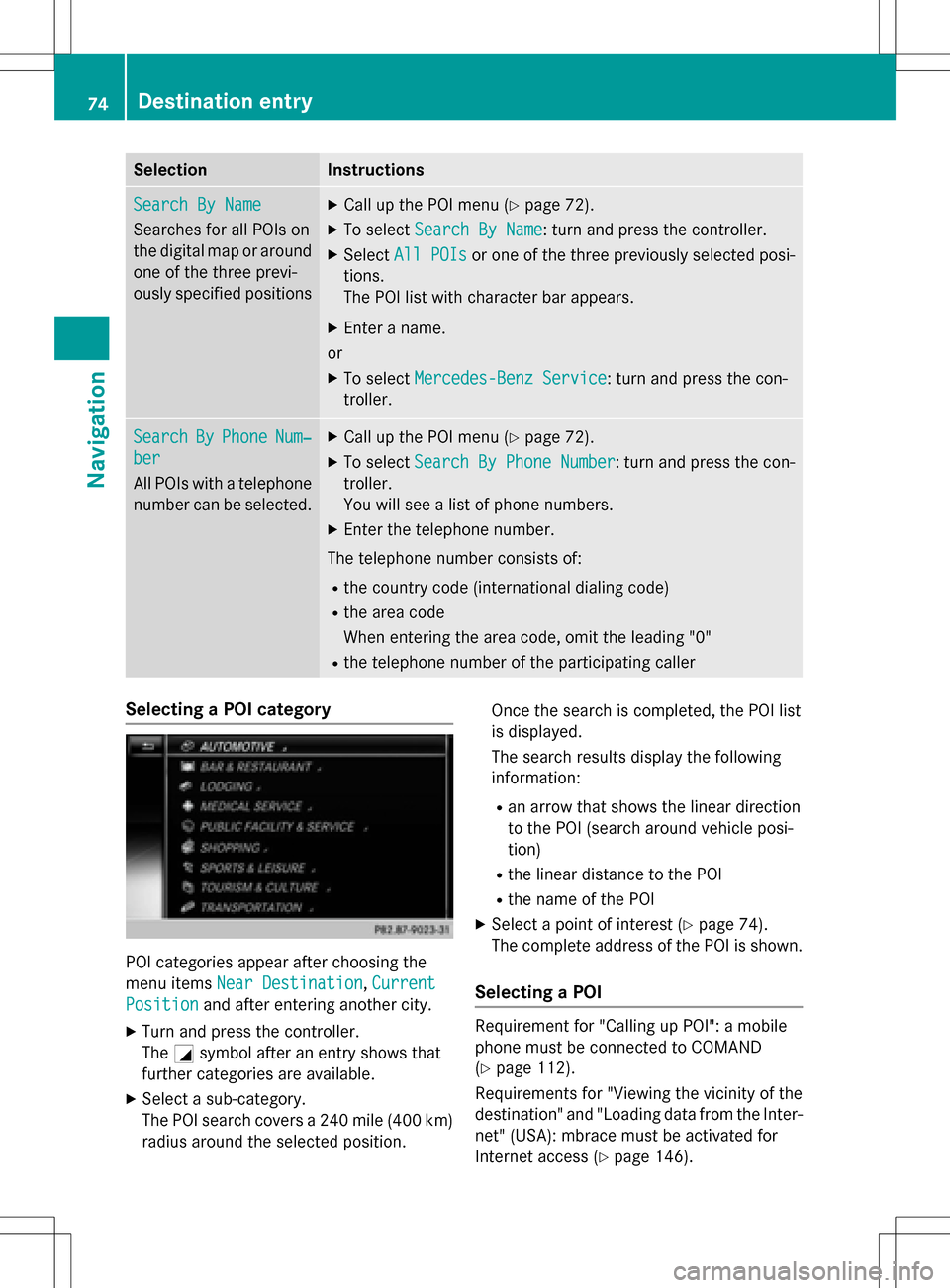
Selecting a POI category
POI categories appear after choosing the
menu items Near Destination
,Current
Positionand after entering another city.
XTurn and press the controller.
The Gsymbol after an entry shows that
further categories are available.
XSelect a sub-category.
The POI search covers a 240 mile (400 km)
radius around the selected position. Once the search is completed, the POI list
is displayed.
The search results display the following
information:
Ran arrow that shows the linear direction
to the POI (search around vehicle posi-
tion)
Rthe linear distance to the POI
Rthe name of the POI
XSelect a point of interest (Ypage 74).
The complete address of the POI is shown.
Selecting a POI
Requirement for "Calling up POI": a mobile
phone must be connected to COMAND
(
Ypage 112).
Requirements for "Viewing the vicinity of the
destination" and "Loading data from the Inter- net" (USA): mbrace must be activated for
Internet access (
Ypage 146).
74Destination entry
Navigation
Page 104 of 222
XSelectDelete All.
A prompt appears asking whether you wish
to delete all areas.
XSelect YesorNo.
After selecting Yes
, all areas are deleted.
SIRIUS XM service
Displaying SIRIUS XM service informa-
tion
You can display the SIRIUS XM service infor-
mation.
XTo switch to navigation mode: press the
Ø button.
XTo show the menu: slide6the control-
ler.
XTo select Traffic: turn and press the con-
troller.
XSelect SIRIUS Service.
The provider's phone number (SIRIUS XM)
and the serial number of your service mod-
ule are displayed.
iAlternatively you can call up this function
using the touchpad (
Ypage 25).
Registering for the SIRIUS XM traffic
report service
XCall the provider telephone number shown
on the COMAND display.
iYou can also have the satellite service
activated online. To do so, visit the SIRIUS
XM Radio website at
http://www.sirius.com (USA).
Once the connection has been established:
XFollow the service employee's instructions.
The activation process may take up to
10 minutes.
If registration is not included when purchas-
ing the system, your credit card details will be
required to activate your account.
Updating the digital map
Introduction
The digital maps generated by the map soft-
ware become outdated in the same way as
conventional road maps. Optimal route guid-
ance can only be provided by the navigation
system in conjunction with the most up-to-
date map software.
Information about new versions of the digital
map can be obtained from an authorized
Mercedes-Benz Center. You can have the dig-
ital map updated there using a data medium,
or you can update it yourself.
For North American countries, it is possible to
update the map data for COMAND free of
charge for a period of three years. Information
on the availability of this service for your vehi-
cle can be obtained from your authorized
Mercedes-Benz Center.
Entitlement to the free update
For the first three years after your vehicle is
registered, you are entitled to all available
updates to the map software for COMAND.
They are usually installed during a regular
vehicle service. After this period, you can pur-
chase further updates from your authorized
Mercedes-Benz Center.
The free updates relate to the vehicle and not
to an individual. If there is a change of own-
ership within the three years after first regis-
tration, the new owner is entitled to the map
software updates.
Updating at an authorized Mercedes-
Benz Center
If an update for your map software is availa-
ble, you will receive it free of charge at your
authorized Mercedes-Benz Center during
your vehicle's annual service. You can
arrange a separate appointment for this at
your authorized Mercedes-Benz Center on
request.
102Map functions
Navigation
Page 113 of 222
Call disconnection while the vehicle is
in motion
A call may be disconnected if:
Rthere is insufficient network coverage in
certain areas.
Ryou move from one transmitter/receiver
area (cell) into another and no channels are
free.
Ryou use a SIM card that is not compatible
with the network available.
Operating options
You can operate the telephone by:
Rusing the controller by turning, pressing,
sliding1 or4
Rusing the touchpad (Ypage 25)
Rusing the 6or~ button on the mul-
tifunction steering wheel
Rusing the Voice Control System (see the
separate operating instructions)
Unless stated otherwise, the descriptions and
illustrations in this section refer to COMAND.
Function restrictions
You may have to wait before using telephony via COMAND in the following situations:
Rwhen the mobile phone is switched off
Rif Bluetooth®is switched off on the mobile
phone
Rif the mobile phone has not logged on to a
mobile phone network
Rif the Bluetooth®function is switched off in
COMAND
The telephone automatically tries to log on to
a network. If no network is available, you may
not be able to make a " 911" emergency call.
If you attempt to make an outgoing call, the
No Service
message will appear for a short
while.
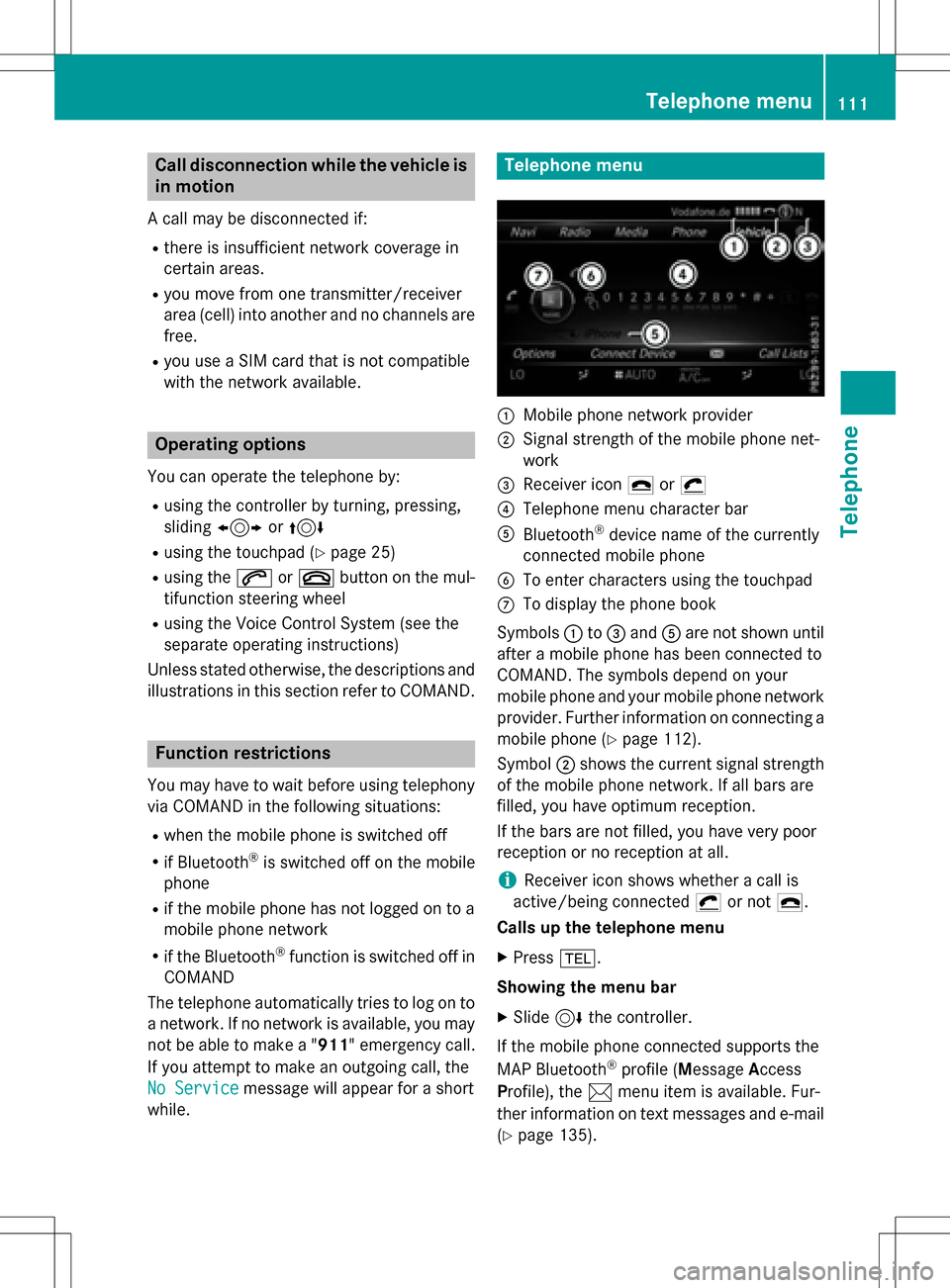
Telephone menu
:Mobile phone network provider
;Signal strength of the mobile phone net-
work
=Receiver icon ¢or¡
?Telephone menu character bar
ABluetooth®device name of the currently
connected mobile phone
BTo enter characters using the touchpad
CTo display the phone book
Symbols :to= and Aare not shown until
after a mobile phone has been connected to
COMAND. The symbols depend on your
mobile phone and your mobile phone network
provider. Further information on connecting a
mobile phone (
Ypage 112).
Symbol ;shows the current signal strength
of the mobile phone network. If all bars are
filled, you have optimum reception.
If the bars are not filled, you have very poor
reception or no reception at all.
iReceiver icon shows whether a call is
active/being connected ¡or not ¢.
Calls up the telephone menu
XPress %.
Showing the menu bar
XSlide 6the controller.
If the mobile phone connected supports the
MAP Bluetooth
®profile ( Message Access
P rofile), the 1menu item is available. Fur-
ther information on text messages and e-mail
(
Ypage 135).
Telephone menu111
Telephone
Z
Page 123 of 222
Rejecting:
XTo select=Reject: turn and press the
controller.
or
XPress ~on the multifunction steering
wheel.
The behavior after the call is rejected
depends on your mobile phone and mobile
phone network provider.
Option 1: The originally active call is con-
tinued and the incoming call is rejected.
Option 2: The originally active call is ended
and the incoming call is accepted.
Option 3: Both calls are ended.
Ending an active call
XTo select =in the telephone menu: turn
and press the controller.
or
XPress ~on the multifunction steering
wheel.
The active call is ended.
Mobile phone voice recognition
You can start or end voice recognition on your mobile phone with this function. Further infor-
mation on the voice recognition service; see
the manufacturer's operating instructions.
To start the mobile phone voice recogni-
tion:
XConnect the mobile phone to COMAND
(
Ypage 112).
XPress and hold the óbutton on the mul-
tifunction steering wheel for more than one second.
You can now use the mobile phone voice
recognition.
To end the mobile phone voice recogni-
tion:
XPress ñon the multifunction steering
wheel.
The mobile phone voice recognition is stop-
ped.
Phone book
Introduction
The telephone book displays the contacts
from the address book which have a phone
number.
The mobile phone's telephone book is auto-
matically displayed in COMAND after connec-
tion (default setting). You can deactivate
automatic calling up (
Ypage 130).
In the telephone book, you can:
RCreate new contacts (Ypage 123)
RAdd information to contacts (Ypage 123)
RSearch for contacts (Ypage 122)
RStore contacts (Ypage 124)
RDelete contacts (Ypage 124)
Further information on importing contacts
(
Ypage 130).
When you import, save, edit or add contacts,
they will be permanently saved in COMAND.
These contacts will remain there even when
you connect COMAND to a different mobile
phone. You can view these contacts even
without a mobile phone.
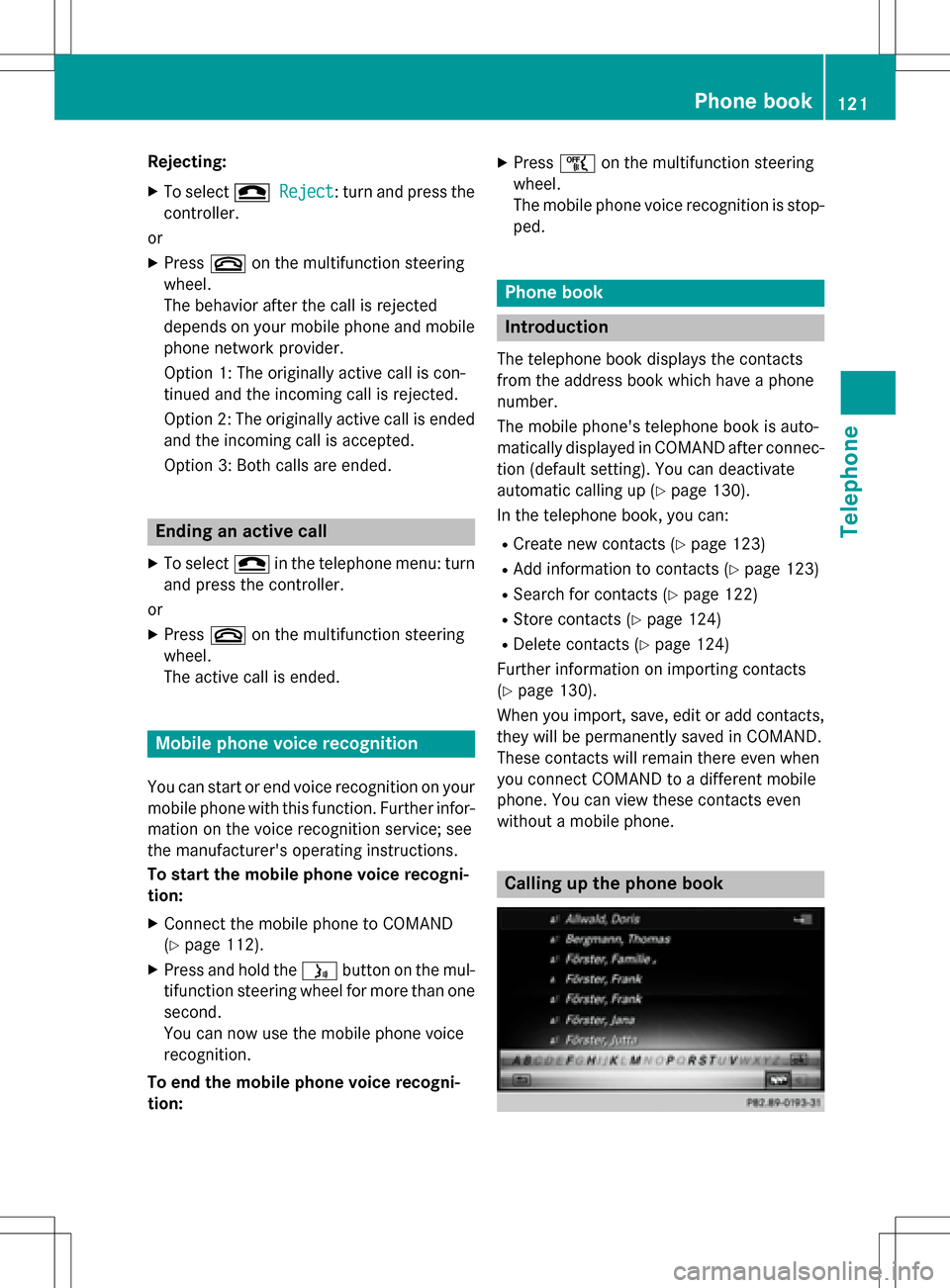
Calling up the phone book
Phone book121
Telephone
Z
Page 149 of 222
current Internet connection. Therefore, you
cannot establish an Internet connection dur-
ing a service call.
Canada:a mobile phone must be connected
via Bluetooth
®(Ypage 112) or USB
(
Ypage 198) with COMAND. Furthermore,
you need a valid mobile service contract with
a data option, which is used to calculate the
associated connection costs.
Conditions for a Bluetooth
®connection
RThe mobile phone supports at least one of
the Bluetooth®profiles DUN ( Dial-U p
Networking) or PAN ( PersonalArea
Network).
The Bluetooth
®profiles DUN and PAN ena-
ble the Internet connection of the mobile
phone to be made available to the system.
Conditions for a USB connection
RThe mobile phone supports at least one of
the USB classes:
-RNDIS ( Remote Network Driver Inter-
face Specification)
-CDC/NCM ( NetworkControl Model)
-CDC/ECM ( Ethernet Control Model)
-CDC/ACM ( Access Control Model)
The USB classes enable the mobile phone
Internet connection to be made available to
the system.
The terms of use are shown when the system
is used for the first time and then once a year
thereafter. Only read and accept the terms of
use when the vehicle is stationary.
The driver is not permitted to call up websites
while driving and use of the Me
rcedes-Benz
Apps is restricted.
iThe availability of individual Mercedes-
Benz Apps may vary depending on the
country.
Setting up an Internet connection
(Canada)
Procedure and general information
If you are using Internet access for the first
time, you must enable the connected mobile
phone for Internet access (
Ypage 147). If the
connected mobile phone supports the Blue-
tooth
®PAN profile or the USB classes RNDIS,
CDC/NCM or CDC/ECM, you do not need to
make additional settings. The Internet con-
nection is established. If the connected
mobile phone does not support the named
Bluetooth
®profile or the named USB classes,
predefined (
Ypage 148) or manual access
data (
Ypage 148) must be set.
While initializing the mobile phone for the
Internet connection, access data which is
already on the mobile phone may be over-
written. You should therefore check the set-
tings on the mobile phone (see the manufac-
turer's operating instructions).
Enabling the mobile phone for Inter-
net access
XTo call up Internet functions (Ypage 151).
XTo switch to the menu bar: slide 6the
controller.
XTo select Settings: turn and press the
controller.
XTo select Configure Internet Set‐
tings: turn and press the controller.
A message is displayed telling you that the
settings for the Internet functions depend
on your mobile phone network provider and
your mobile phone.
If a mobile phone has already been ena-
bled, the device list is displayed.
XTo select Start Search: turn and press
the controller.
Mobile phones are displayed that:
Setting up an Internet connection (Canada)147
Online and Internet functions
Z
Page 152 of 222

Input fieldMeaning
Auto DNS:Automatic allocation of
DNS servers is activated.
If the function is deactiva-
ted, the DNS server
addresses must be
entered manually.
DNS (DomainName
Service)
DNS1:
DNS2:
Fields for entering the
DNS server addresses
manually. The address
can be obtained from your
mobile phone network
provider.
Managing existing access data
Calling up the device list
XTo call up Internet functions (Ypage 151).
XTo switch to the menu bar: slide 6the
controller.
XTo select Settings: turn and press the
controller.
XTo select Configure Internet Set‐
tings: turn and press the controller.
The device list is displayed.
Editing the access data
The mobile phone must be connected with
the system for the access data to be changed.
When the Internet connection is active, you
cannot edit or delete the access data of the
currently set mobile phone network provider.
XCall up the device list (Ypage 150).
XTo highlight the desired mobile phone in the
device list: turn the controller.
XTo select G: slide 9the controller.
XTo select Change Configuration: turn
and press the controller.
XSelect Predefined SettingsorManual
Settings.
The provider settings are displayed.
In order to edit the access data of the mobile
phone network provider you have two
options:
ROption 1: select the predefined access data
of the mobile phone network provider
(
Ypage 148).
ROption 2: manually set the access data of
the mobile phone network provider
(
Ypage 148).
Canceling Internet access permissions
for a mobile phone
XCall up the device list (Ypage 150).
XTo highlight the desired mobile phone in the
device list: turn the controller.
150Setting up an Internet connection (Canada)
Online and Internet functions
Page 157 of 222

Destination/routedownloa d
Prerequisites
To download navigation location syou need a
Google™ accoun tand your vehicle identifica-
tion number .Further information about th e
vehicle identification number (VIN)
(
Ypage 157).
To downloa dnavigation locations, th e
mbrace syste mmust be:
Ractivated
Roperational
Ractivated fo rth eservices of th esystem and
fo rInternet access
Fo rinformation on th embrace system, see
th eseparat evehicle Operator's Manual.
Procedur ean dgeneral information
Sign into your Google™ accoun ton th eInter-
net. Use th eGoogle Maps ™websit eto sen d
th edestination to aserver (
Ypage 155).
Using th eDownload
POIApp, th edestination
is displayed in th evehicle (
Ypage 155).
The destination can be:
Rimporte d (Ypage 156)
Rused forrout eguidanc e (Ypage 156)
Rcalled up (Ypage 156)
Rdeletedfrom th eserver (Ypage 156)
Sending destinations to th eserver
XSign into your Google™ account.
XCall up th eGoogle Maps ™website.
XEnte r adestination .
XClick"More" at th edestination .
XClick"Send".
XEnte rth ecorrespondin ginformation in th e
boxes shown .
XSelect"Send to car".
XSelec tMercedes-Ben zas th evehicle
brand .
XEnterth embrace e-mail address or th e
vehicle identification number .
Further information about th evehicle iden -
tification number (
Ypage 157).
XClick"Send".
The destination is sen tto th eserver .
The availabilit yof th edestination/rout e
download function is country-dependent.
Displaying destinations in th evehicle
XTo cal lup Internet function s (Ypage 151).
XTo selectMercedes-Ben zApp s:turn and
press th econtroller .
XTo selectDownload POI:turn and press
th econtroller .
Availabl edestination sare shown in th elist .
XTo selec tand download adestination :turn
and press th econtroller .
XTo exit destination download :selec tExi t.
Further information on how to use th edesti -
nation fo rrout eguidanc e (
Ypage 156).
Further information on importing th edesti -
nation (
Ypage 156).
Further information on deleting th edestina-
tion (
Ypage 156).
You can sav eup to 50 destination sfo ryour
vehicle on th eserver and display these in th e
list .If you sen dfurther destination sto th e
server ,th eoldest entries are delete dfrom th e
list .
Destination/route download155
Online and Internet functions
Z
Page 173 of 222
channels and categories offered by the pro-
vider.
Satellite radio mode may be temporarily
unavailable or interrupted for a variety of rea-
sons. These include environmental or topo-
graphical conditions as well as other factors
beyond the control of Mercedes-Benz USA,
LLC. This means operation may not be possi-
ble in certain areas.
These include:
Rtunnels
Rparking garages
Rlocations inside or next to buildings
Rlocations in the vicinity of other structures
SIRIUS XM Satellite Radio offers more than
140 digital-quality radio channels providing
100% commercial-free music, sports, news
and entertainment.
SIRIUS XM Satellite Radio employs a fleet of
high-performance satellites to broadcast
around the clock throughout the USA and
Canada.
The satellite radio program is available for a
monthly fee. Details are available from the
SIRIUS XM Service Center and at
http://www.siriusxm.com (USA) or
http://www.siriusxm.ca (Canada).
Your new Mercedes-Benz vehicle comes with
SIRIUS XM Satellite Radio pre-installed at the factory. This service is free for a six-month
trial period. About a month before the trial
period ends, information will be provided on
how to extend this subscription. An acoustic
signal sounds and a message is shown,
describing how the subscription can be
extended.
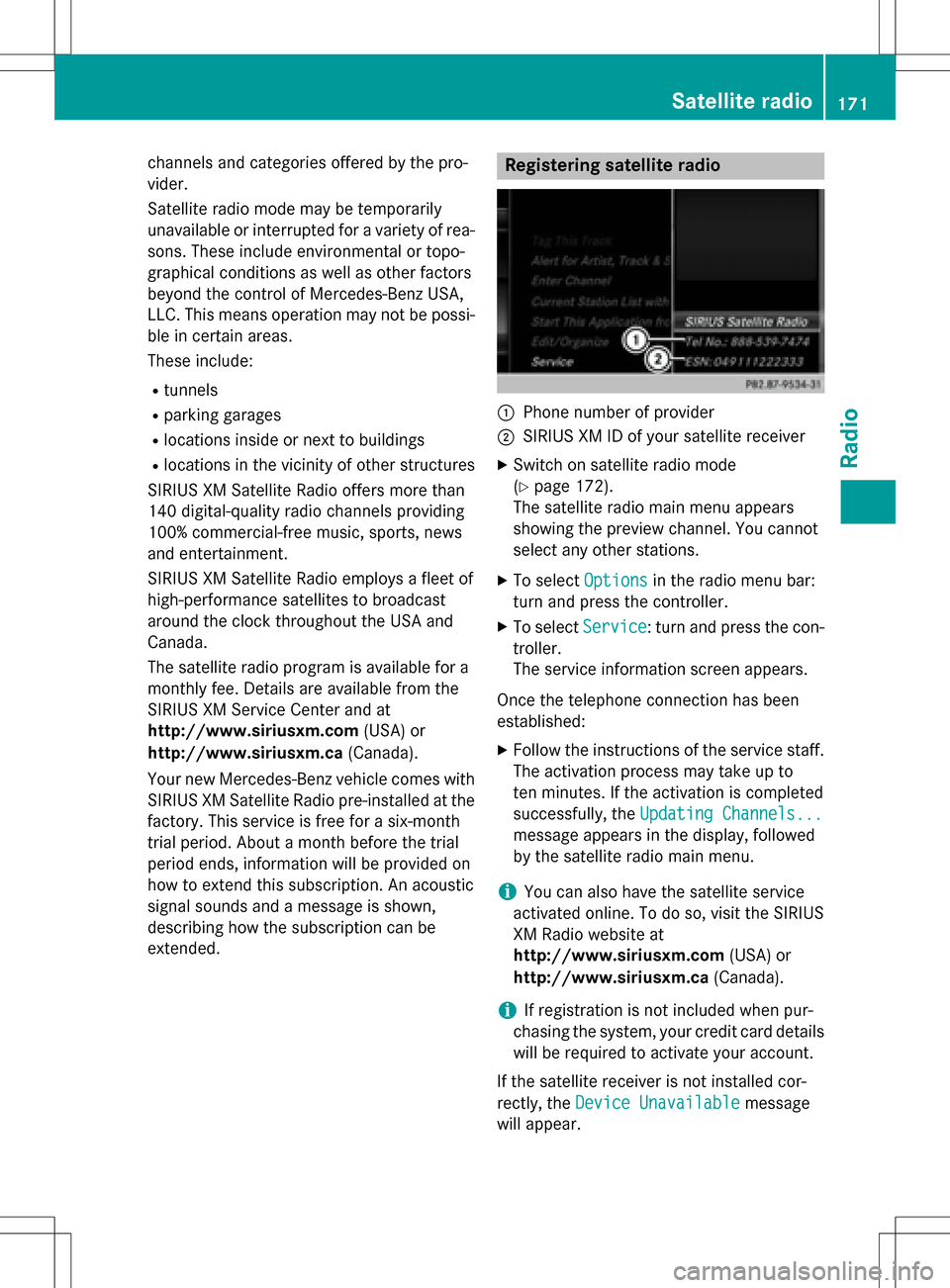
Registering satellite radio
:Phone number of provider
;SIRIUS XM ID of your satellite receiver
XSwitch on satellite radio mode
(
Ypage 172).
The satellite radio main menu appears
showing the preview channel. You cannot
select any other stations.
XTo select Optionsin the radio menu bar:
turn and press the controller.
XTo select Service: turn and press the con-
troller.
The service information screen appears.
Once the telephone connection has been
established:
XFollow the instructions of the service staff.
The activation process may take up to
ten minutes. If the activation is completed
successfully, the Updating Channels...
message appears in the display, followed
by the satellite radio main menu.
iYou can also have the satellite service
activated online. To do so, visit the SIRIUS
XM Radio website at
http://www.siriusxm.com (USA) or
http://www.siriusxm.ca (Canada).
iIf registration is not included when pur-
chasing the system, your credit card details
will be required to activate your account.
If the satellite receiver is not installed cor-
rectly, the Device Unavailable
message
will appear.
Satellite radio171
Radio
Page 174 of 222
Switching to satellite radio
XTo show the main function bar: slide5
the controller.
XTo select Radio: turn and press the con-
troller.
The radio display appears. You will hear the
last station played on the last waveband
selected.
XTo select Radioin radio mode: slide 5
and press the controller.
The menu with the available radio modes
appears.
XTo select Sat Radio: turn and press the
controller.
The No Service
message appears if there is
no signal.
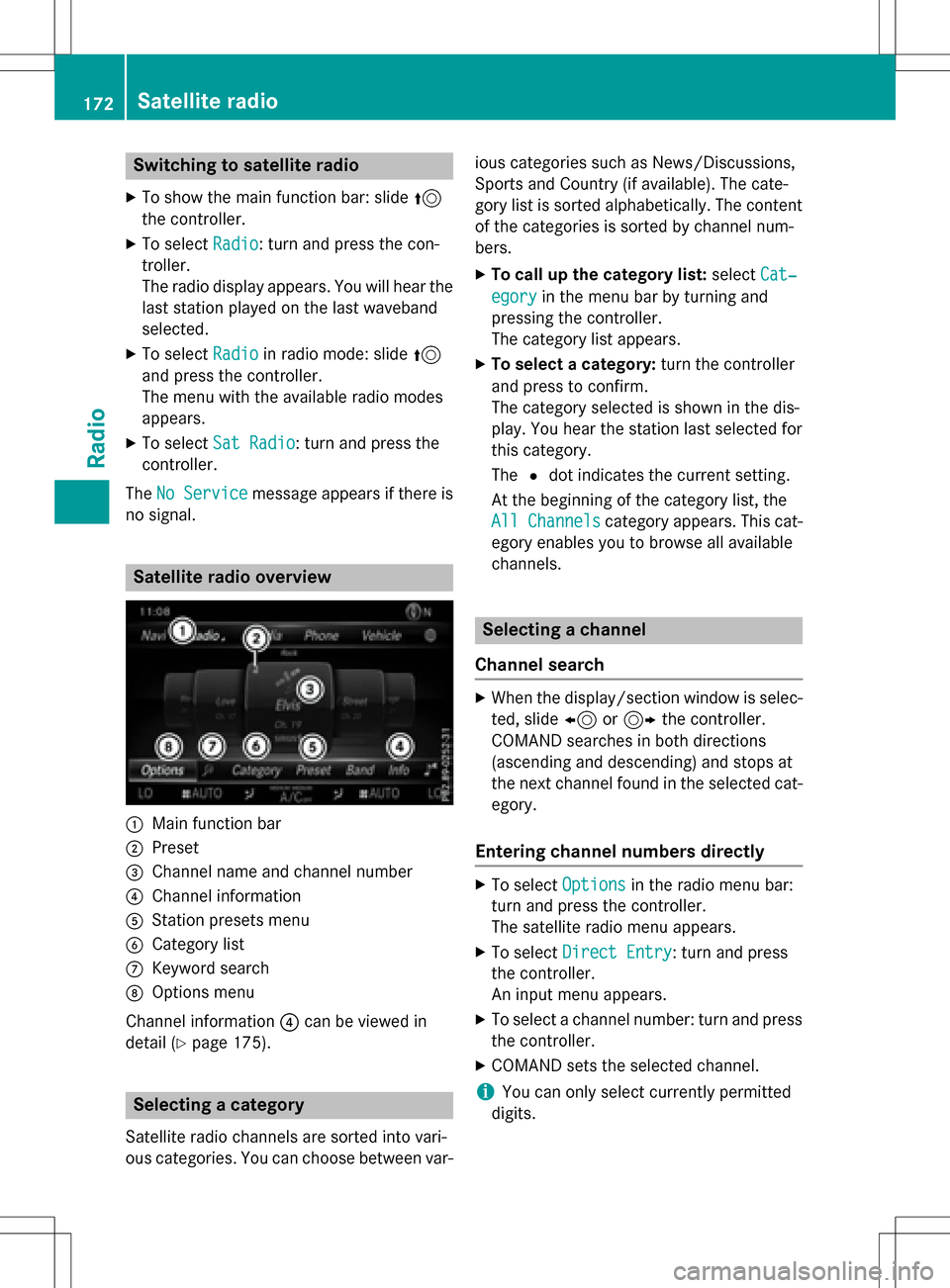
Satellite radio overview
:Main function bar
;Preset
=Channel name and channel number
?Channel information
AStation presets menu
BCategory list
CKeyword search
DOptions menu
Channel information ?can be viewed in
detail (
Ypage 175).
Selecting a category
Satellite radio channels are sorted into vari-
ous categories. You can choose between var- ious categories such as News/Discussions,
Sports and Country (if available). The cate-
gory list is sorted alphabetically. The content
of the categories is sorted by channel num-
bers.
XTo call up the category list:
selectCat‐
egoryin the menu bar by turning and
pressing the controller.
The category list appears.
XTo select a category: turn the controller
and press to confirm.
The category selected is shown in the dis-
play. You hear the station last selected for
this category.
The #dot indicates the current setting.
At the beginning of the category list, the
All Channels
category appears. This cat-
egory enables you to browse all available
channels.
Selecting a channel
Channel search
XWhen the display/section window is selec-
ted, slide 8or9 the controller.
COMAND searches in both directions
(ascending and descending) and stops at
the next channel found in the selected cat-
egory.
Entering channel numbers directly
XTo select Optionsin the radio menu bar:
turn and press the controller.
The satellite radio menu appears.
XTo select Direct Entry: turn and press
the controller.
An input menu appears.
XTo select a channel number: turn and press
the controller.
XCOMAND sets the selected channel.
iYou can only select currently permitted
digits.
172Satellite radio
Radio