audio MERCEDES-BENZ GLC-Class 2017 X253 Comand Manual
[x] Cancel search | Manufacturer: MERCEDES-BENZ, Model Year: 2017, Model line: GLC-Class, Model: MERCEDES-BENZ GLC-Class 2017 X253Pages: 178, PDF Size: 5.65 MB
Page 160 of 178

iiPod®, iPhone®and iPad®are registered
trademarks of Apple Inc., Cupertino, Califor-
nia, USA.
For details and a list of supported devices, visit
http://www.mercedes-benz.com/connect .
Then follow the instructions in the "Media Inter-
face" section.
Or call the Mercedes-Benz Customer Assistance
Center at 1-800-FOR-MERCedes
(1-800-367-6372) (for the USA) or Customer
Relations at 1-800-387-0100 (for Canada).
Supported data formats
Musicmp3, wma, aac
Videompeg, wmv, mov, avi,
mp4
Imagesjpg, jpeg, bmp, png
iVideo files from Apple®devices cannot be
played.
Selecting a music file
Selecting with the controller
XTo display the current track list: press the
controller in the basic display.
XSelect Current Tracklist.
The track list for the active data medium
appears.
XTo select a track: turn the controller and press
to confirm.
XTo skip forwards or backwards to a track:
turn the controller in the basic display.
The selected track is played.
Fast forward/rewind
XWith the media source active in the basic dis- play, slide 8or9 the controller and
hold it until the desired position has been
reached.
Searching for a track
Selecting Search using media menu bar
XIn media mode, slide 6the controller.
The media menu bar is shown.
XTo select Search: turn and press the control-
ler.
The category list appears.
Overview
The following categories are listed:
RCurrent Tracklist
RFolder
RSelect By Cover
RKeyword Search
RPlaylists
RArtists
RAlbums
RTrack
RGenres
RYear
RComposers
RVideos
RPhotos
RPodcasts
RAudiobooks
iThe functions are available as soon as the
entire media content has been read and ana-
lyzed.
If the same device is reconnected with
unchanged media content, these functions
are available more quickly.
The audio books and podcasts categories are
only available for Apple
®devices.
When connecting Apple®devices, the cate-
gories “Folder”, “Year” and “Photos” are not
available.
XTo select a category, e.g. Current Track‐list: turn and press the controller.
A selection list appears.
XSelect the required track.
158Operation with the Media Interface
Media
Page 161 of 178

Keyword search
XTo selectKeyword Searchinthe category
list : turn and press the controller.
XEnter and confirm the characters of the
desired search using the controller
(
Ypage 149).
Search results are sorted according to the
availab lecategories, displayed and can then
be selected.
Selecting the playback option
XInmed iamode, slide6the controller.
The med iamenu bar isshown.
XTo select Options: turn and press the con-
troller.
XTo select the desired playback option: turn
and press the controller.
Ad ditional information on playback options
(
Ypage 145).
Selecting video settings
Vide ofile s from Ap ple®devices cannot be
played.
If playable vide ofile s are foun d,they will be
played bythe multimed iasystem.
XTo swit ch on full-screen mode: press the con-
troller inthe basic display.
XTo show the video menu: slide6the con-
troller infull-screen mode.
The Media Interface menu bar appears.
XTo select Options: turn and press the con-
troller.
XSelect Video Settings.
To change settings (
Ypage 161).
Video DVD mode
Important safety notes
GWARNING
The CD/DVD drive is a class 1 laser product.
If you open the housing of the CD/DVD drive,
there isa risk of exposure to invisible laser
radiation. This laser radiation could damage
your retina. There is a risk of injury.
Never open the housing. Always have main-
tenance and repair work carried out at a quali-
fied specialist workshop.
GWARNING
Han dling discs while driving may distract you
from traffic conditions. You could also lose
control of the vehicle. There is a risk of an
accident.
Handle discs only when the vehicleisstation-
ary.
Bear in mind that at a speed of only 30 mph
(approximately 50 km/h), the vehicle covers a
distance of 44 ft (approximately 14 m)per sec-
ond.
General notes
Notes on discs
!Do not affix stickers or labels to the discs.
They could peel off and damage the drive.
The drive is designed to receive EN 60908 standard discs. Therefore, you can
only use discs with a maximum thickness of
1.3 mm.
If you insert thicker discs, e.g. those that con-
tain data on both sides (DVD on one side and
audio data on the other), they cannot be ejec-
ted and can damage the drive.
Do not use discs with an 8 cm diameter, even
when using an adapter. Only use round discs
with a 12 cm diameter.
The variety of data media, burners and burn
software means there is no guarantee that the
system will be able to play discs that you have
copied yourself.
Video DVD mode159
Media
Z
Page 167 of 178

Your multimediasyste mequipment
These operatin ginstruction sdescribe all th e
standar dan doptional equipment of your multi-
media system, as available at th etime of going
to press. Country-specifi cdifference sare pos -
sible. Bear in min dthat your vehicle may no t
feature all function sdescribed here. Thi salso
applies to safety-relevan tsystems an dfunc-
tions.
Read th einformation on qualifie dspecialis t
workshop sin th evehicle Operator's Manual.
Sound settings
Calling up th esound menu
You can mak evarious sound setting sfo rth e
differen taudio an dvideo sources. It is possible
to set more bass fo rradio mode than fo rCD
audio mode, fo rexample. The respective sound
men ucan be called up from th emen uof th e
desire dmode.
XSwitch to radio mode (Ypage 132).
or
XSwitch to media mode (Ypage 141).
XTo switch to themen ubar :slid e6 thecon-
troller.
XTo selec tà :turn an dpress th econtroller .
The men uappears wit hth elast setting
accessed, e.g. Equalizer
.
Sound men uoverview
FunctionOptions
EqualizerSets treble ,mid -
range an dbass
Balance/faderMoves th esound
focus :left/right an d
front/rea r
Setting treble, mid-range an dbass
XCall up th esound men u (Ypage 165).
XTurnth econtroller until Equalizeris brought
to th efront.
XTo activat erotary menus fo rtreble ,mid-range
an dbass :slid e6 thecontroller .
XTo switch between th erotary menus: slid e
8 or9 thecontroller .
XTo maketh edesire dEqualize rsettings: turn
th econtroller .
Rotary menus sho wtheset values.
XTo return to th emenu: slid e5 thecontrol-
ler .
XTo return to th ebasi cmenu: press th e%
butto nbriefly.
Adjusting th ebalance/fader
Balance moves th efocus of th esound between
lef tan dright .
Fader moves th efocus of th esound between
fron tan drear.
XCall up th esound men u (Ypage 165).
XTurnth econtroller until Balance/Faderis
brought to th efron tan dthen slid e6 the
controller .
Sound settings165
Sound
Page 168 of 178
XTo activate the menu for balance and fader:
press the controller.
XTo adjust the balance focus: slide8or
9 the controller.
XTo adjust the fader focus: slide 6or5 the
controller.
An image shows the sound focus set.
XTo exit the menu: press the %button.
Burmester®surround sound system
General notes
The Burmester®surround sound system is avail-
able for all functions in the radio and media
modes.
For the best sound, we recommend that the
Automatic Volume Adjustment
function is
deactivated (Ypage 41). For further information
on automatic volume adjustment, see
(
Ypage 40).
If using Bluetooth®audio mode, we recommend
you select the Boostsetting (Ypage 156).
Calling up the sound menu
You can make various sound settings for the
different audio and video sources. It is possible
to set more bass for radio mode than for CD
audio mode, for example. The respective sound
menu is called up from the menu of the desired mode.
XSwitch to radio mode (Ypage 132).
or
XSwitch to media mode (Ypage 141).
XTo switch to the menu bar: slide 6the con-
troller.
XTo select à: turn and press the controller.
The menu appears with the last setting
accessed, e.g. Equalizer
. Overview of Burmester
®surround sound sys-
tem
FunctionOptions
EqualizerSets treble, mid-
range and bass
Balance/faderMoves the sound
focus: left/right and
front/rear
SurroundOptimizes sound
playback for all seats
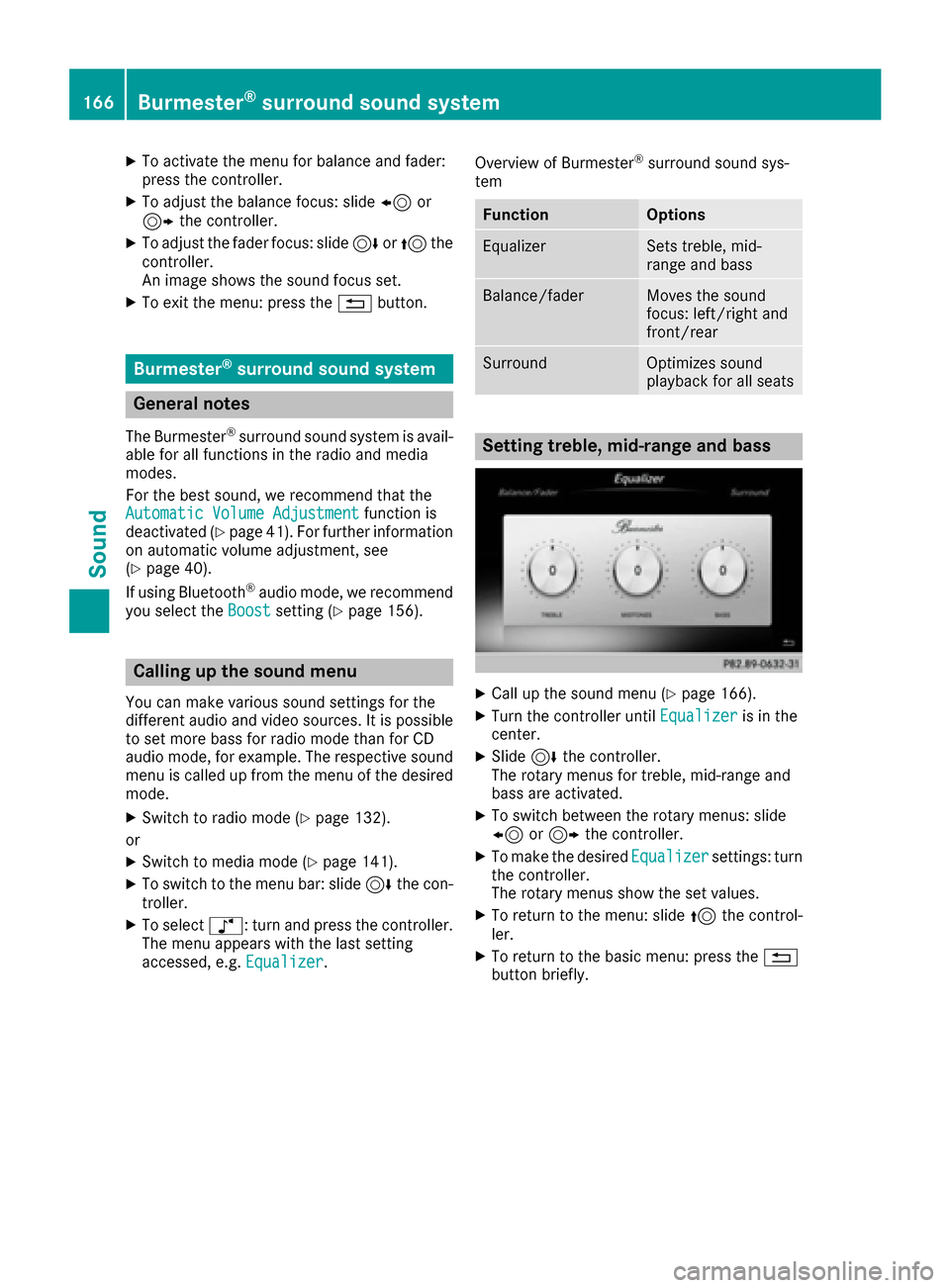
Setting treble, mid-range and bass
XCall up the sound menu (Ypage 166).
XTurn the controller until Equalizeris in the
center.
XSlide 6the controller.
The rotary menus for treble, mid-range and
bass are activated.
XTo switch between the rotary menus: slide
8 or9 the controller.
XTo make the desired Equalizersettings: turn
the controller.
The rotary menus show the set values.
XTo return to the menu: slide 5the control-
ler.
XTo return to the basic menu: press the %
button briefly.
166Burmester®surround sound system
Sound