change time MERCEDES-BENZ GLC COUPE 2016 Service Manual
[x] Cancel search | Manufacturer: MERCEDES-BENZ, Model Year: 2016, Model line: GLC COUPE, Model: MERCEDES-BENZ GLC COUPE 2016Pages: 389, PDF Size: 7.34 MB
Page 247 of 389
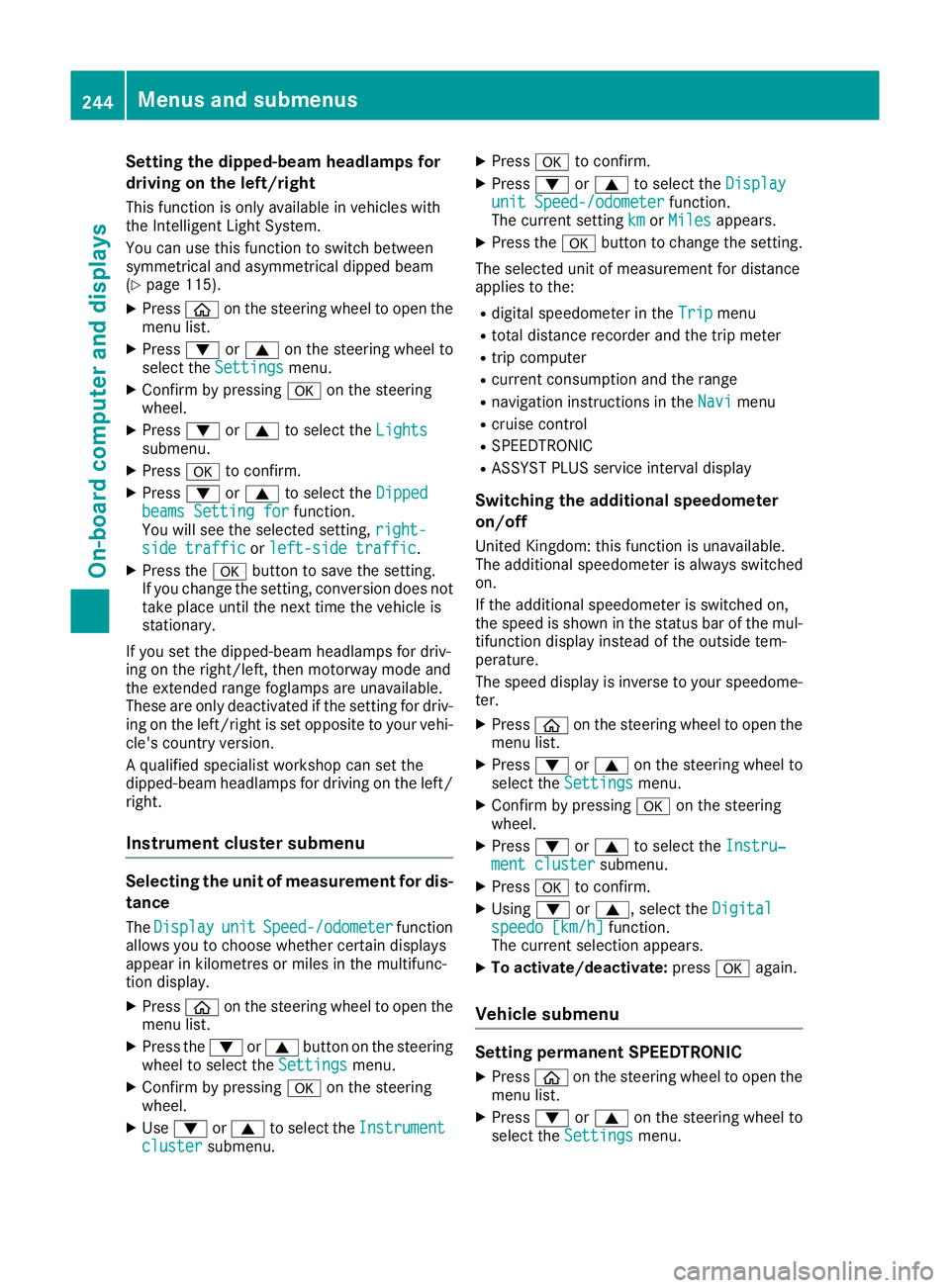
Setting the dipped-beam headlamps for
driving on the left/right
This function is only available in vehicles with
the Intelligent Light System.
You can use this function to switch between
symmetrical and asymmetrical dipped beam
(Y page 115).
X Press òon the steering wheel to open the
menu list.
X Press :or9 on the steering wheel to
select the Settings
Settings menu.
X Confirm by pressing aon the steering
wheel.
X Press :or9 to select the Lights Lights
submenu.
X Press ato confirm.
X Press :or9 to select the Dipped
Dipped
beams Setting for
beams Setting for function.
You will see the selected setting, right-
right-
side traffic
side traffic orleft-side traffic
left-side traffic.
X Press the abutton to save the setting.
If you change the setting, conversion does not
take place until the next time the vehicle is
stationary.
If you set the dipped-beam headlamps for driv-
ing on the right/left, then motorway mode and
the extended range foglamps are unavailable.
These are only deactivated if the setting for driv-
ing on the left/right is set opposite to your vehi- cle's country version.
A qualified specialist workshop can set the
dipped-beam headlamps for driving on the left/
right.
Instrument cluster submenu Selecting the unit of measurement for dis-
tance
The Display
Display unit unitSpeed-/odometer
Speed-/odometer function
allows you to choose whether certain displays
appear in kilometres or miles in the multifunc-
tion display.
X Press òon the steering wheel to open the
menu list.
X Press the :or9 button on the steering
wheel to select the Settings Settingsmenu.
X Confirm by pressing aon the steering
wheel.
X Use : or9 to select the Instrument
Instrument
cluster
cluster submenu. X
Press ato confirm.
X Press :or9 to select the Display Display
unit Speed-/odometer unit Speed-/odometer function.
The current setting km
kmorMiles
Miles appears.
X Press the abutton to change the setting.
The selected unit of measurement for distance
applies to the:
R digital speedometer in the Trip Tripmenu
R total distance recorder and the trip meter
R trip computer
R current consumption and the range
R navigation instructions in the Navi
Navimenu
R cruise control
R SPEEDTRONIC
R ASSYST PLUS service interval display
Switching the additional speedometer
on/off
United Kingdom: this function is unavailable.
The additional speedometer is always switched
on.
If the additional speedometer is switched on,
the speed is shown in the status bar of the mul- tifunction display instead of the outside tem-
perature.
The speed display is inverse to your speedome-
ter.
X Press òon the steering wheel to open the
menu list.
X Press :or9 on the steering wheel to
select the Settings
Settings menu.
X Confirm by pressing aon the steering
wheel.
X Press :or9 to select the Instru‐ Instru‐
ment cluster
ment cluster submenu.
X Press ato confirm.
X Using :or9, select the Digital
Digital
speedo [km/h]
speedo [km/h] function.
The current selection appears.
X To activate/deactivate: pressaagain.
Vehicle submenu Setting permanent SPEEDTRONIC
X Press òon the steering wheel to open the
menu list.
X Press :or9 on the steering wheel to
select the Settings
Settings menu. 244
Menus and submenusOn-board computer and displays
Page 269 of 389
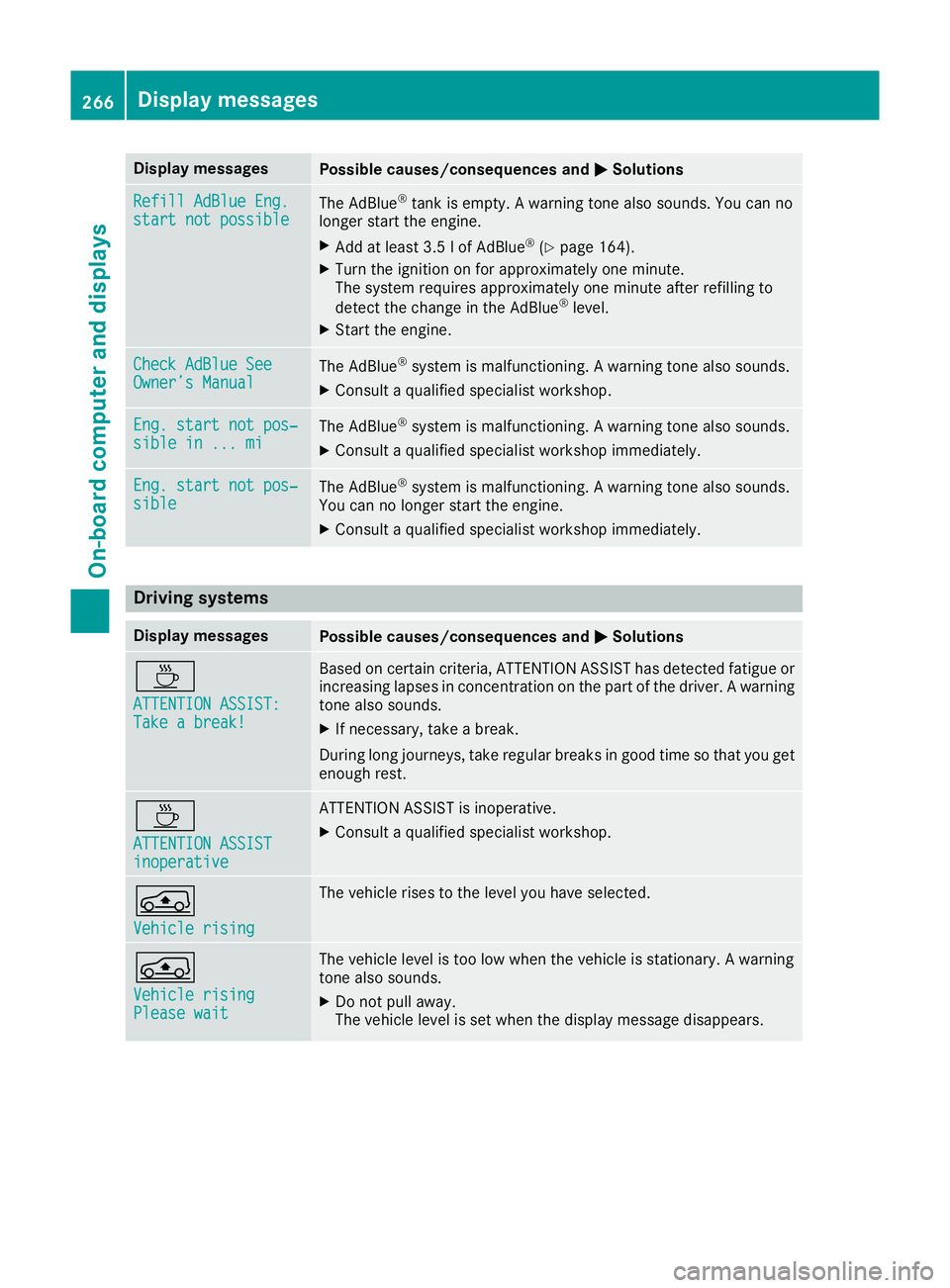
Display messages
Possible causes/consequences and
M
MSolutions Refill AdBlue Eng.
Refill AdBlue Eng.
start not possible start not possible
The AdBlue
®
tank is empty. A warning tone also sounds. You can no
longer start the engine.
X Add at least 3.5 l of AdBlue ®
(Y page 164).
X Turn the ignition on for approximately one minute.
The system requires approximately one minute after refilling to
detect the change in the AdBlue ®
level.
X Start the engine. Check AdBlue See Check AdBlue See
Owner’s Manual Owner’s Manual
The AdBlue
®
system is malfunctioning. A warning tone also sounds.
X Consult a qualified specialist workshop. Eng. start not pos‐
Eng. start not pos‐
sible in ... mi sible in ... mi
The AdBlue
®
system is malfunctioning. A warning tone also sounds.
X Consult a qualified specialist workshop immediately. Eng. start not pos‐
Eng. start not pos‐
sible sible
The AdBlue
®
system is malfunctioning. A warning tone also sounds.
You can no longer start the engine.
X Consult a qualified specialist workshop immediately. Driving systems
Display messages
Possible causes/consequences and
M
MSolutions À
ATTENTION ASSIST: ATTENTION ASSIST:
Take a break! Take a break! Based on certain criteria, ATTENTION ASSIST has detected fatigue or
increasing lapses in concentration on the part of the driver. A warning tone also sounds.
X If necessary, take a break.
During long journeys, take regular breaks in good time so that you get enough rest. À
ATTENTION ASSIST ATTENTION ASSIST
inoperative inoperative ATTENTION ASSIST is inoperative.
X Consult a qualified specialist workshop. Á
Vehicle rising Vehicle rising The vehicle rises to the level you have selected.
Á
Vehicle rising Vehicle rising
Please wait Please wait The vehicle level is too low when the vehicle is stationary. A warning
tone also sounds.
X Do not pull away.
The vehicle level is set when the display message disappears. 266
Display
messagesOn-board computer and displays
Page 270 of 389
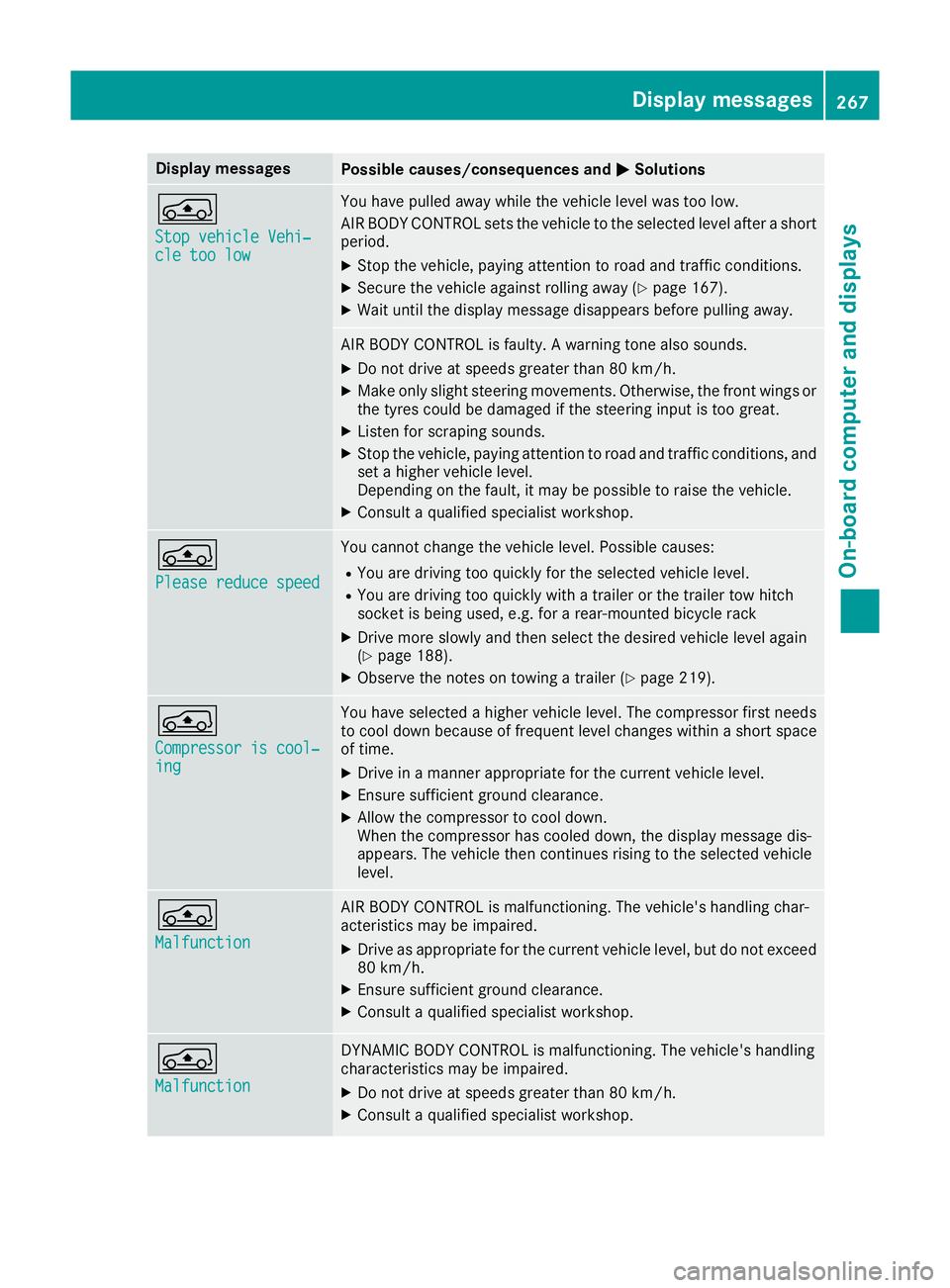
Display messages
Possible causes/consequences and
M
MSolutions Á
Stop vehicle Vehi‐ Stop vehicle Vehi‐
cle too low cle too low You have pulled away while the vehicle level was too low.
AIR BODY CONTROL sets the vehicle to the selected level after a short
period.
X Stop the vehicle, paying attention to road and traffic conditions.
X Secure the vehicle against rolling away (Y page 167).
X Wait until the display message disappears before pulling away. AIR BODY CONTROL is faulty. A warning tone also sounds.
X Do not drive at speeds greater than 80 km/h.
X Make only slight steering movements. Otherwise, the front wings or
the tyres could be damaged if the steering input is too great.
X Listen for scraping sounds.
X Stop the vehicle, paying attention to road and traffic conditions, and
set a higher vehicle level.
Depending on the fault, it may be possible to raise the vehicle.
X Consult a qualified specialist workshop. Á
Please reduce speed Please reduce speed You cannot change the vehicle level. Possible causes:
R You are driving too quickly for the selected vehicle level.
R You are driving too quickly with a trailer or the trailer tow hitch
socket is being used, e.g. for a rear-mounted bicycle rack
X Drive more slowly and then select the desired vehicle level again
(Y page 188).
X Observe the notes on towing a trailer (Y page 219).Á
Compressor is cool‐ Compressor is cool‐
ing ing You have selected a higher vehicle level. The compressor first needs
to cool down because of frequent level changes within a short space of time.
X Drive in a manner appropriate for the current vehicle level.
X Ensure sufficient ground clearance.
X Allow the compressor to cool down.
When the compressor has cooled down, the display message dis-
appears. The vehicle then continues rising to the selected vehicle
level. Á
Malfunction Malfunction AIR BODY CONTROL is malfunctioning. The vehicle's handling char-
acteristics may be impaired.
X Drive as appropriate for the current vehicle level, but do not exceed
80 km/h.
X Ensure sufficient ground clearance.
X Consult a qualified specialist workshop. Á
Malfunction Malfunction DYNAMIC BODY CONTROL is malfunctioning. The vehicle's handling
characteristics may be impaired.
X Do not drive at speeds greater than 80 km/h.
X Consult a qualified specialist workshop. Display
messages
267On-board computer and displays Z
Page 295 of 389
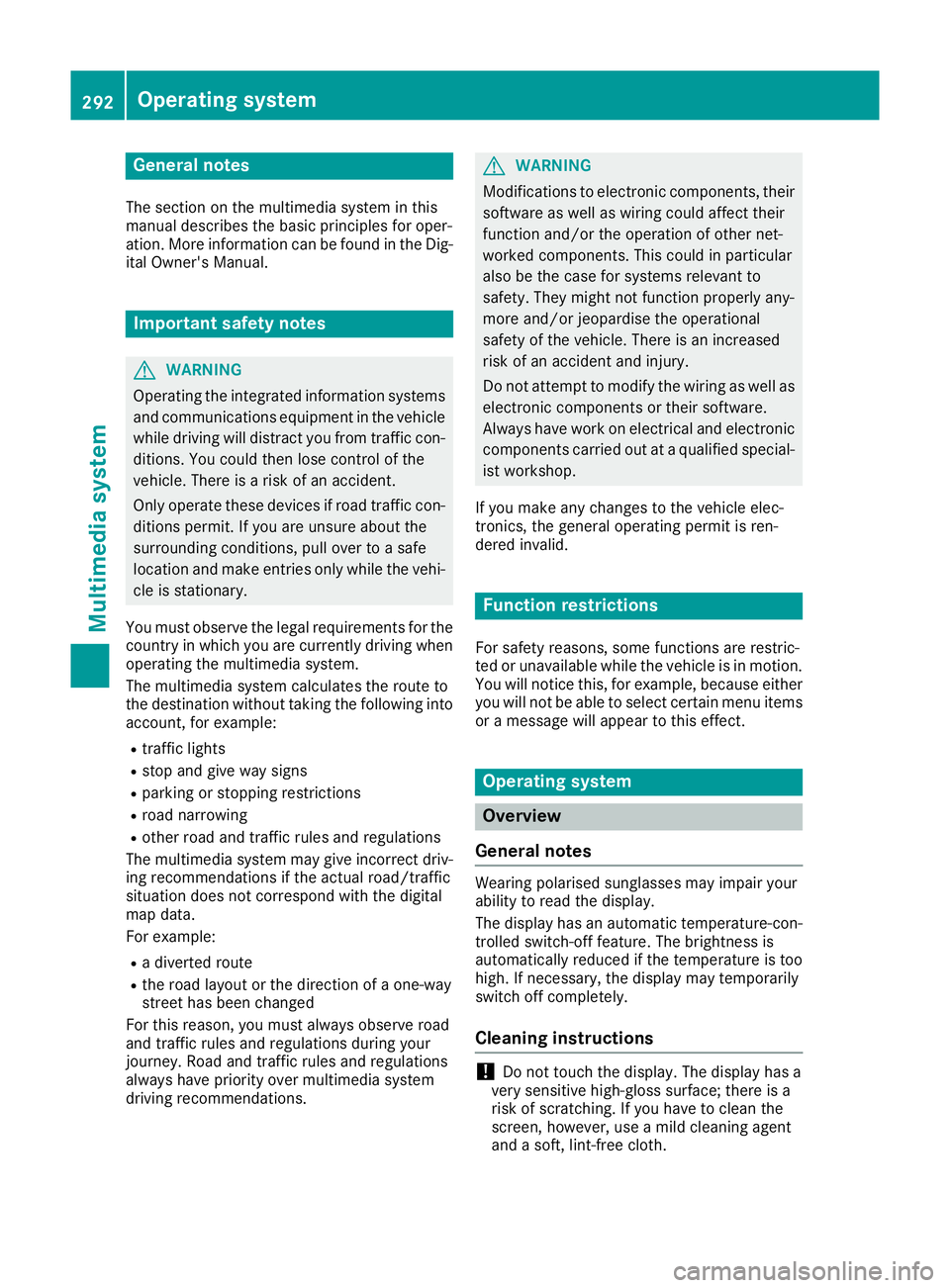
General notes
The section on the multimedia system in this
manual describes the basic principles for oper-
ation. More information can be found in the Dig-
ital Owner's Manual. Important safety notes
G
WARNING
Operating the integrated information systems and communications equipment in the vehicle
while driving will distract you from traffic con-
ditions. You could then lose control of the
vehicle. There is a risk of an accident.
Only operate these devices if road traffic con-
ditions permit. If you are unsure about the
surrounding conditions, pull over to a safe
location and make entries only while the vehi-
cle is stationary.
You must observe the legal requirements for the country in which you are currently driving whenoperating the multimedia system.
The multimedia system calculates the route to
the destination without taking the following into
account, for example:
R traffic lights
R stop and give way signs
R parking or stopping restrictions
R road narrowing
R other road and traffic rules and regulations
The multimedia system may give incorrect driv-
ing recommendations if the actual road/traffic
situation does not correspond with the digital
map data.
For example:
R a diverted route
R the road layout or the direction of a one-way
street has been changed
For this reason, you must always observe road
and traffic rules and regulations during your
journey. Road and traffic rules and regulations
always have priority over multimedia system
driving recommendations. G
WARNING
Modifications to electronic components, their software as well as wiring could affect their
function and/or the operation of other net-
worked components. This could in particular
also be the case for systems relevant to
safety. They might not function properly any-
more and/or jeopardise the operational
safety of the vehicle. There is an increased
risk of an accident and injury.
Do not attempt to modify the wiring as well as
electronic components or their software.
Always have work on electrical and electronic components carried out at a qualified special-
ist workshop.
If you make any changes to the vehicle elec-
tronics, the general operating permit is ren-
dered invalid. Function restrictions
For safety reasons, some functions are restric-
ted or unavailable while the vehicle is in motion.
You will notice this, for example, because either you will not be able to select certain menu items
or a message will appear to this effect. Operating system
Overview
General notes Wearing polarised sunglasses may impair your
ability to read the display.
The display has an automatic temperature-con-
trolled switch-off feature. The brightness is
automatically reduced if the temperature is too
high. If necessary, the display may temporarily
switch off completely.
Cleaning instructions !
Do not touch the display. The display has a
very sensitive high-gloss surface; there is a
risk of scratching. If you have to clean the
screen, however, use a mild cleaning agent
and a soft, lint-free cloth. 292
Operating systemMultimedia system
Page 296 of 389
The display must be switched off and have
cooled down before you start cleaning. Do not
apply pressure to the display surface when
cleaning it, as this could cause irreversible dam- age to the display.
Switching the multimedia system
on/off X
Press the Übutton on the centre console
to the right of the controller.
X For Mercedes-AMG vehicles with a switch-
able AMG Performance exhaust system:
press the thumbwheel which is to the right of
the controller.
Adjusting the volume X
Turn the thumbwheel on the right of the con-
troller.
The volume changes:
R for the currently set media source
R during a traffic announcement or navigation
message
R in hands-free mode during an active call
Switching the sound on/off This function is only available on the multifunc-
tion steering wheel for Mercedes-AMG vehicles
with a selectable AMG Performance exhaust
system.
X Press the thumbwheel to the right of the con-
troller.
or X Press the 8button on the multifunction
steering wheel.
If the audio output is switched off, the status
line will show the 8symbol. If you switch
the media source or change the volume, the
sound is automatically switched on.
i You will hear navigation messages even
when the sound is muted.
Functions The multimedia system has the following func-
tions:
R Radio mode
R Media mode with media search
R Sound systems R
Navigation system
COMAND Online: navigation using hard drive
Audio 20: navigation using SD memory card
R Communication functions
R Vehicle functions with system settings
R Favourites functions
Controller The controller in the centre console lets you:
R select menu items on the display
R enter characters
R select a destination on the map
R save entries
The controller can be:
R turned 3
R slid left or right 1
R slid forwards or back 4
R slid diagonally 2
R pressed briefly or pressed and held 7
Back button You can use the
%button to exit a menu or to
call up the basic display of the current operating mode.
X To exit the menu: briefly press the%
button.
The multimedia system changes to the next
higher menu level in the current operating
mode.
X To call up the basic display: press the%
button for longer than two seconds.
The multimedia system changes to the basic
display of the current operating mode. Touchpad
Switching the touchpad on/off Multimedia system:
X Select Vehicle VehicleQSystem set‐ System set‐
tings tingsQTouchpad TouchpadQActivate touch‐ Activate touch‐
pad pad.
Touchpad is activated Oor deactivated ª. Operating system
293Multimedia system Z
Page 297 of 389
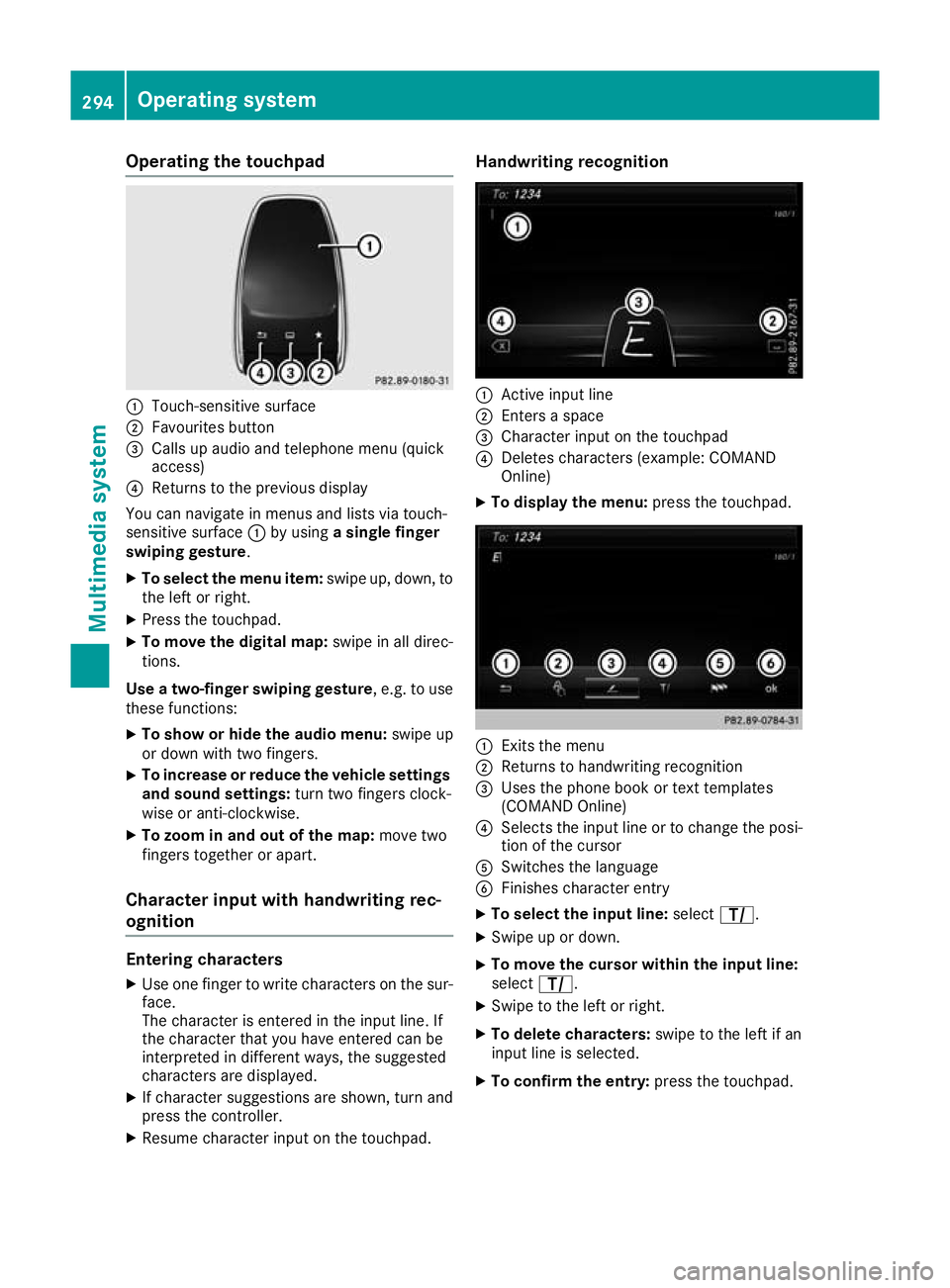
Operating the touchpad
:
Touch-sensitive surface
; Favourites button
= Calls up audio and telephone menu (quick
access)
? Returns to the previous display
You can navigate in menus and lists via touch-
sensitive surface :by using a single finger
swiping gesture.
X To select the menu item: swipe up, down, to
the left or right.
X Press the touchpad.
X To move the digital map: swipe in all direc-
tions.
Use a two-finger swiping gesture , e.g. to use
these functions:
X To show or hide the audio menu: swipe up
or down with two fingers.
X To increase or reduce the vehicle settings
and sound settings: turn two fingers clock-
wise or anti-clockwise.
X To zoom in and out of the map: move two
fingers together or apart.
Character input with handwriting rec-
ognition Entering characters
X Use one finger to write characters on the sur-
face.
The character is entered in the input line. If
the character that you have entered can be
interpreted in different ways, the suggested
characters are displayed.
X If character suggestions are shown, turn and
press the controller.
X Resume character input on the touchpad. Handwriting recognition
:
Active input line
; Enters a space
= Character input on the touchpad
? Deletes characters (example: COMAND
Online)
X To display the menu: press the touchpad. :
Exits the menu
; Returns to handwriting recognition
= Uses the phone book or text templates
(COMAND Online)
? Selects the input line or to change the posi-
tion of the cursor
A Switches the language
B Finishes character entry
X To select the input line: selectp.
X Swipe up or down.
X To move the cursor within the input line:
select p.
X Swipe to the left or right.
X To delete characters: swipe to the left if an
input line is selected.
X To confirm the entry: press the touchpad.294
Operating systemMultimedia system
Page 299 of 389
Climate control settings
General notes You can adjust the climate control settings
using the climate control bar or the climate con-
trol menu.
Important climate control functions can be set
in the climate control bar:
R Temperature
R Airflow
R Air distribution
The climate control bar is visible in most dis-
plays.
You can find all available climate control func-
tions in the climate control menu. You can use
the climate control bar to switch to the climate
control menu.
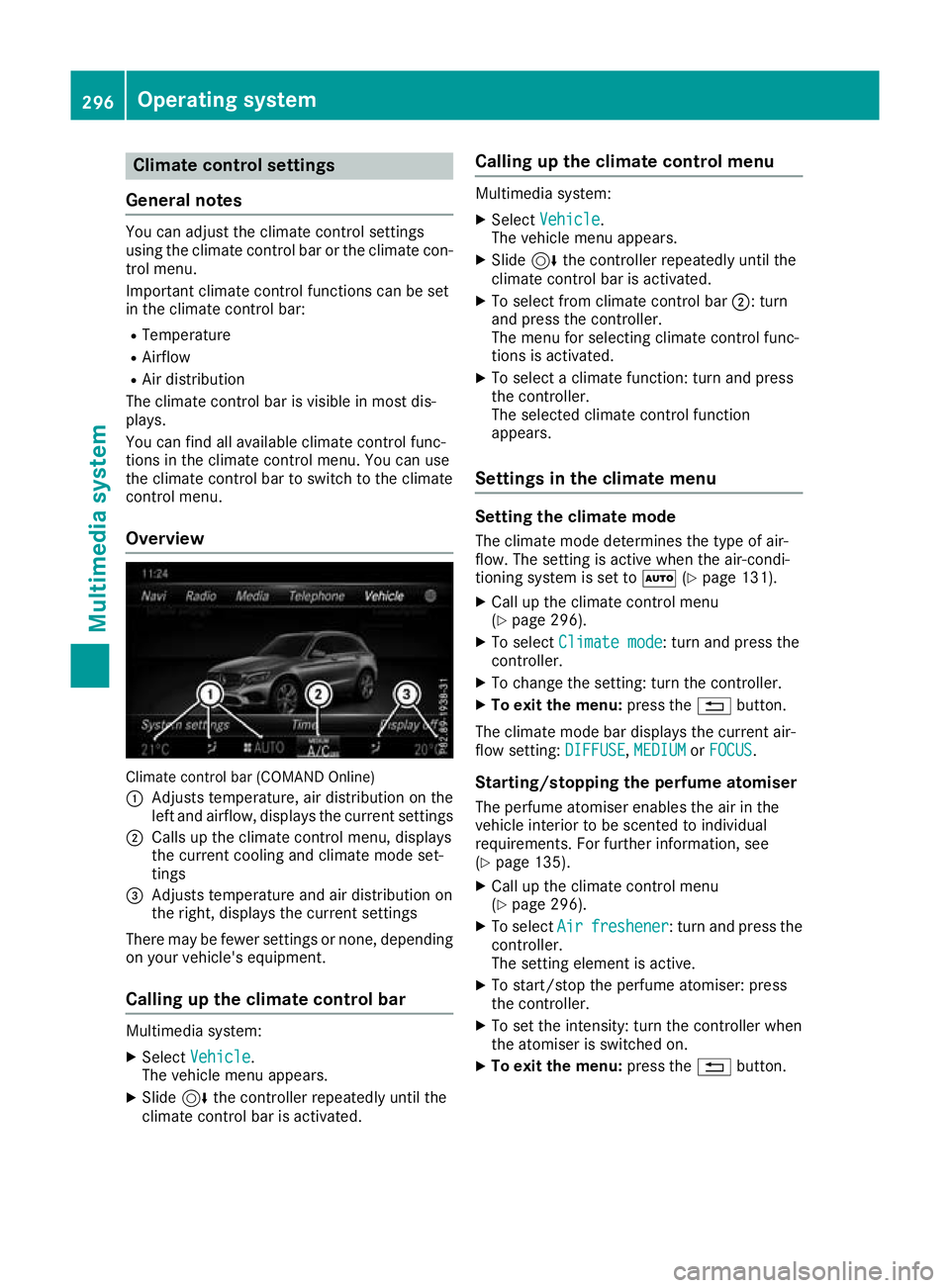
Overview Climate control bar (COMAND Online)
: Adjusts temperature, air distribution on the
left and airflow, displays the current settings
; Calls up the climate control menu, displays
the current cooling and climate mode set-
tings
= Adjusts temperature and air distribution on
the right, displays the current settings
There may be fewer settings or none, depending on your vehicle's equipment.
Calling up the climate control bar Multimedia system:
X Select Vehicle
Vehicle.
The vehicle menu appears.
X Slide 6the controller repeatedly until the
climate control bar is activated. Calling up the climate control menu Multimedia system:
X Select Vehicle Vehicle.
The vehicle menu appears.
X Slide 6the controller repeatedly until the
climate control bar is activated.
X To select from climate control bar ;: turn
and press the controller.
The menu for selecting climate control func-
tions is activated.
X To select a climate function: turn and press
the controller.
The selected climate control function
appears.
Settings in the climate menu Setting the climate mode
The climate mode determines the type of air-
flow. The setting is active when the air-condi-
tioning system is set to Ã(Ypage 131).
X Call up the climate control menu
(Y page 296).
X To select Climate mode
Climate mode: turn and press the
controller.
X To change the setting: turn the controller.
X To exit the menu: press the%button.
The climate mode bar displays the current air-
flow setting: DIFFUSE DIFFUSE,MEDIUM
MEDIUMorFOCUS
FOCUS.
Starting/stopping the perfume atomiser
The perfume atomiser enables the air in the
vehicle interior to be scented to individual
requirements. For further information, see
(Y page 135).
X Call up the climate control menu
(Y page 296).
X To select Air Airfreshener
freshener: turn and press the
controller.
The setting element is active.
X To start/stop the perfume atomiser: press
the controller.
X To set the intensity: turn the controller when
the atomiser is switched on.
X To exit the menu: press the%button. 296
Operating systemMulti
media system
Page 302 of 389
Calculating the route
Prerequisite: the address has been entered and
is in the menu.
X Select Start
Start orContinue
Continue.
The route is calculated with the selected route
type and the selected route options.
If route guidance has already been activated,
a prompt will appear asking whether you wish to end the current route guidance.
X Select Yes
Yes orSet as intermediate des‐
Set as intermediate des‐
tination
tination.
Yes
Yes cancels the current route guidance and
starts route calculation to the new destina-
tion.
Set as intermediate destination
Set as intermediate destination adds
the new destination in addition to the existing
destination and opens the intermediate des-
tinations list. Connecting the mobile phone
Requirements For telephony via the Bluetooth
®
interface, you
require a Bluetooth ®
-capable mobile phone. The
mobile phone must support Hands-Free Profile
1.0 or above.
Multimedia system:
X Select Vehicle
VehicleQSystem set‐ System set‐
tings tingsQ Activate Bluetooth
Activate Bluetooth .
X Activate Bluetooth ®
O.
Mobile phone:
X Activate Bluetooth ®
and, if necessary, Blue-
tooth ®
visibility for other devices (see the
manufacturer's operating instructions).
The Bluetooth ®
device names for all of one man-
ufacturer's products might be identical. To
make it possible to clearly identify your mobile
phone, change the device name (see the man-
ufacturer's operating instructions).
If the mobile phone supports the PBAP (Phone
Book Access Profile) and MAP (Message
Access Profile) Bluetooth ®
profiles, the follow-
ing information will be transmitted after you
connect:
R Phone book
R Call lists
R Messages i
Further information on suitable mobile
phones can be obtained on the Internet at:
http://www.mercedes-benz.com/
connect
Searching for and authorising a mobile
phone Before using your mobile phone with the multi-
media system for the first time, you will need to
search for the phone and then authorise (con-
nect) it. Depending on the mobile phone, author- isation takes place by means of Secure Simple
Pairing or by entering a passkey. The multimedia
system automatically makes the procedure that is relevant for your mobile phone available. The
mobile phone is always connected automati-
cally after authorisation. Further information on
using a mobile phone with the multimedia sys-
tem (see the Digital Owner's Manual).
If the multimedia system does not detect your
mobile phone, this may be due to particular
security settings on your mobile phone (see the manufacturer's operating instructions).
Only one mobile phone can be connected to the
multimedia system at any one time.
Searching for a mobile phone
Audio 20:
X Select Tel/
Tel/®Q Connect Connect
device
device QSearch for phonesSearch for phones QStartStart
search
search .
The available mobile phones are displayed.
COMAND Online:
X Select Telephone
Telephone QConnectConnect
device
device QSearch for phonesSearch for phones QStartStart
search
search .
The available mobile phones are displayed.
Symbols in the device list Sym-
bol Explanation
Ï
New mobile phone found, not yet
authorised.
Ñ
Mobile phone is authorised, but is
not connected.
#
Mobile phone is authorised and
connected.
Connecting the mobile phone Operating system
299Multimedia system Z
Page 305 of 389
Requirements
The mobile phone can be authorised and con-
nected to the module if the following conditions are met:
R The module is installed (Y page 300)and acti-
vated in the multimedia system (Y page 301).
R No SIM card is inserted in the module.
R The mobile phone has no active Bluetooth ®
connection to another device.
Depending on the type of mobile phone, differ-
ent settings must be changed on the mobile
phone; see the manufacturer's operating
instructions.
R Bluetooth ®
must be activated on the mobile
phone and must be made visible to other devi-
ces
R the Bluetooth ®
SIM Access Profile of the
mobile phone must be activated
Authorising and connecting a mobile
phone
Multimedia system:
X Select Connect device Connect device QSearch forSearch for
phones
phones QSAP phoneSAP phoneQ Start
Start
search
search QMB SAP module phonesMB SAP module phones .
X Select the mobile phone.
X Enter and confirm any 16-digit PIN.
X Enter and confirm the same PIN on the mobile
phone.
X Where necessary, enter the SIM card PIN into
the multimedia system and confirm.
i Please observe the messages in the mobile
phone. If necessary, you will be asked to con-
firm further profile requests.
Switching between mobile phones If you have authorised more than one mobile
phone on the module, you can switch between
the individual phones.
X Select the mobile phone under MB MBSAP
SAP mod‐
mod‐
ule phones
ule phones .
X Confirm the connection request; see the man-
ufacturer's operating instructions.
X Where necessary, enter the SIM card PIN into
the multimedia system and confirm. Data modem mode X
Connect the mobile phone to the module
(Y page 301).
or
X Insert the SIM card into the SIM card slot on
the module (Y page 301).
X Before connecting for the first time, enable
the module for Internet access and select the network provider in the multimedia system;
see the Digital Owner's Manual.
Use as a data modem is automatically activa- ted.
X Activate/deactivate data roaming; see Digital
Owner's Manual.
For further information on data mode without
telephony with COMAND Online; see the Digital Owner's Manual.
Settings Storing/deleting the SIM card PIN
Multimedia system:
X Select Connect Connect device
deviceQ MB
MBSAP
SAP module
module
phones
phones .
X Highlight the mobile phone.
X To select G: navigate to the right.
X Activate Oor deactivate ªStore PINStore PIN .
For more information on further settings; see
the Digital Owner's Manual.
Transferring the phone book In order to use the phone book of the mobile
phone via the multimedia system, the phone
book must be transferred using the module.
The transfer of data may take up to ten minutes.
Transmission occurs automatically after a Blue- tooth ®
connection is automatically established.
Text messages Requirements
The module is connected with the mobile phone
(Y page 301) or is being used in the SIM card
mode (Y page 301). 302
Operating systemMultimedia system
Page 306 of 389
Activating/deactivating text message
downloading from the mobile phone Dial number Function
00080 Text message down-
loading is deactiva-
ted.
00081 Text message down-
loading is activated.
For further information on receiving text mes-
sages when using the telephone module; see
Digital Owner's Manual.
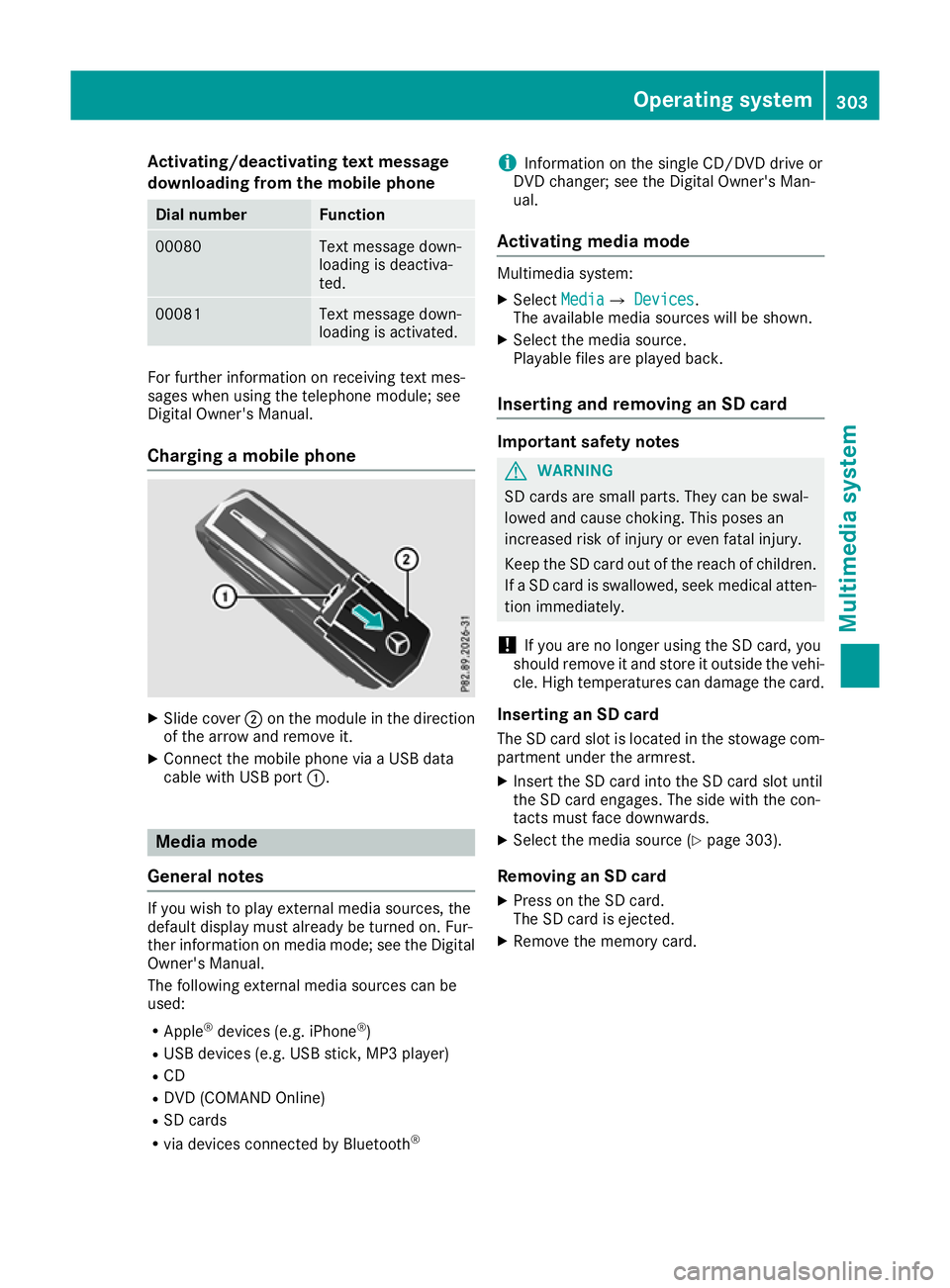
Charging a mobile phone X
Slide cover ;on the module in the direction
of the arrow and remove it.
X Connect the mobile phone via a USB data
cable with USB port :. Media mode
General notes If you wish to play external media sources, the
default display must already be turned on. Fur-
ther information on media mode; see the Digital
Owner's Manual.
The following external media sources can be
used:
R Apple ®
devices (e.g. iPhone ®
)
R USB devices (e.g. USB stick, MP3 player)
R CD
R DVD (COMAND Online)
R SD cards
R via devices connected by Bluetooth ®i
Information on the single CD/DVD drive or
DVD changer; see the Digital Owner's Man-
ual.
Activating media mode Multimedia system:
X Select Media
MediaQ Devices Devices.
The available media sources will be shown.
X Select the media source.
Playable files are played back.
Inserting and removing an SD card Important safety notes
G
WARNING
SD cards are small parts. They can be swal-
lowed and cause choking. This poses an
increased risk of injury or even fatal injury.
Keep the SD card out of the reach of children. If a SD card is swallowed, seek medical atten-
tion immediately.
! If you are no longer using the SD card, you
should remove it and store it outside the vehi-
cle. High temperatures can damage the card.
Inserting an SD card
The SD card slot is located in the stowage com- partment under the armrest.
X Insert the SD card into the SD card slot until
the SD card engages. The side with the con-
tacts must face downwards.
X Select the media source (Y page 303).
Removing an SD card X Press on the SD card.
The SD card is ejected.
X Remove the memory card. Operating system
303Multimedia system Z