navigation system MERCEDES-BENZ GLC COUPE 2016 Owners Manual
[x] Cancel search | Manufacturer: MERCEDES-BENZ, Model Year: 2016, Model line: GLC COUPE, Model: MERCEDES-BENZ GLC COUPE 2016Pages: 389, PDF Size: 7.34 MB
Page 19 of 389
Messages
see Display messages
see Warning and indicator lamps
Mirror turn signal
Cleaning ........................................ .335
Mirrors
see Exterior mirrors
see Rear-view mirror
see Vanity mirror (in sun visor)
Mobile phone
Connecting (Bluetooth ®
inter-
face) .............................................. 299
Connecting another mobile
phone ............................................ 300
Connecting the telephone module
with Bluetooth ®
(SAP profile) ......... 301
Frequencies ................................... 371
Installation ..................................... 371
Menu (on-board computer) ............ 238
Notes/placing in the bracket ......... 322
Transmission output (maximum) .... 371
Modifying the programming (key) ..... 84
MOExtended tyres .............................341
Motorway mode ................................ 118
MP3
Operating ....................................... 237
See also Digital Owner's Manual ... 292
Multifunction display
Function/notes ............................ .230
Multifunction steering wheel
Operating the on-board computer .. 229
Overview .......................................... 35
Multimedia system
Switching on and off ..................... .293
Music files
See also Digital Owner's Manual ... 292 N
Navigation Menu (on-board computer) ............ 234
See also Digital Owner's Manual ... 292
Notes on running in a new vehicle .. 143O
Occupant safety Airbags ............................................ 46 Automatic front-passenger front
airbag deactivatio
n .......................... 49
Automatic measures after an acci-
dent ................................................. 56
Children in the vehicle ..................... 56
Important safety notes .................... 41
PASSENGER AIRBAG indicator
lamp ................................................. 42
Pets in the vehicle ........................... 67
PRE-SAFE ®
(anticipatory occu-
pant protection) ............................... 55
PRE-SAFE ®
PLUS (anticipatory
occupant protection PLUS) .............. 55
Restraint system introduction .......... 41
Restraint system warning lamp ....... .42
Seat belts ........................................ 43
Odometer ........................................... 232
Oil
see Engine oil
On-board computer
AMG menu ..................................... 245
Assistance graphic menu ............... 239
Assistance menu ........................... 240
Display messages .......................... 248
Displaying a service message ........ 330
DISTRONIC PLUS ........................... 183
Factory settings ............................. 245
G-Meter ......................................... 246
Head-up display ............................. 231
Important safety notes .................. 228
Instrument cluster menu ............... 244
Light menu ..................................... 243
Media menu ................................... 236
Menu overview .............................. 232
Message memory .......................... 249
Navigation menu ............................ 234
Operating the TV ............................ 238
Operating video DVD ..................... 237
Operation ....................................... 229
RACETIMER ................................... 247
Radio menu ................................... 236
Service menu ................................. 240
Settings menu ............................... 240
Standard display ............................ 232
Telephone menu ............................ 238
Trip menu ...................................... 232
Vehicle menu ................................. 244 16
Index
Page 38 of 389
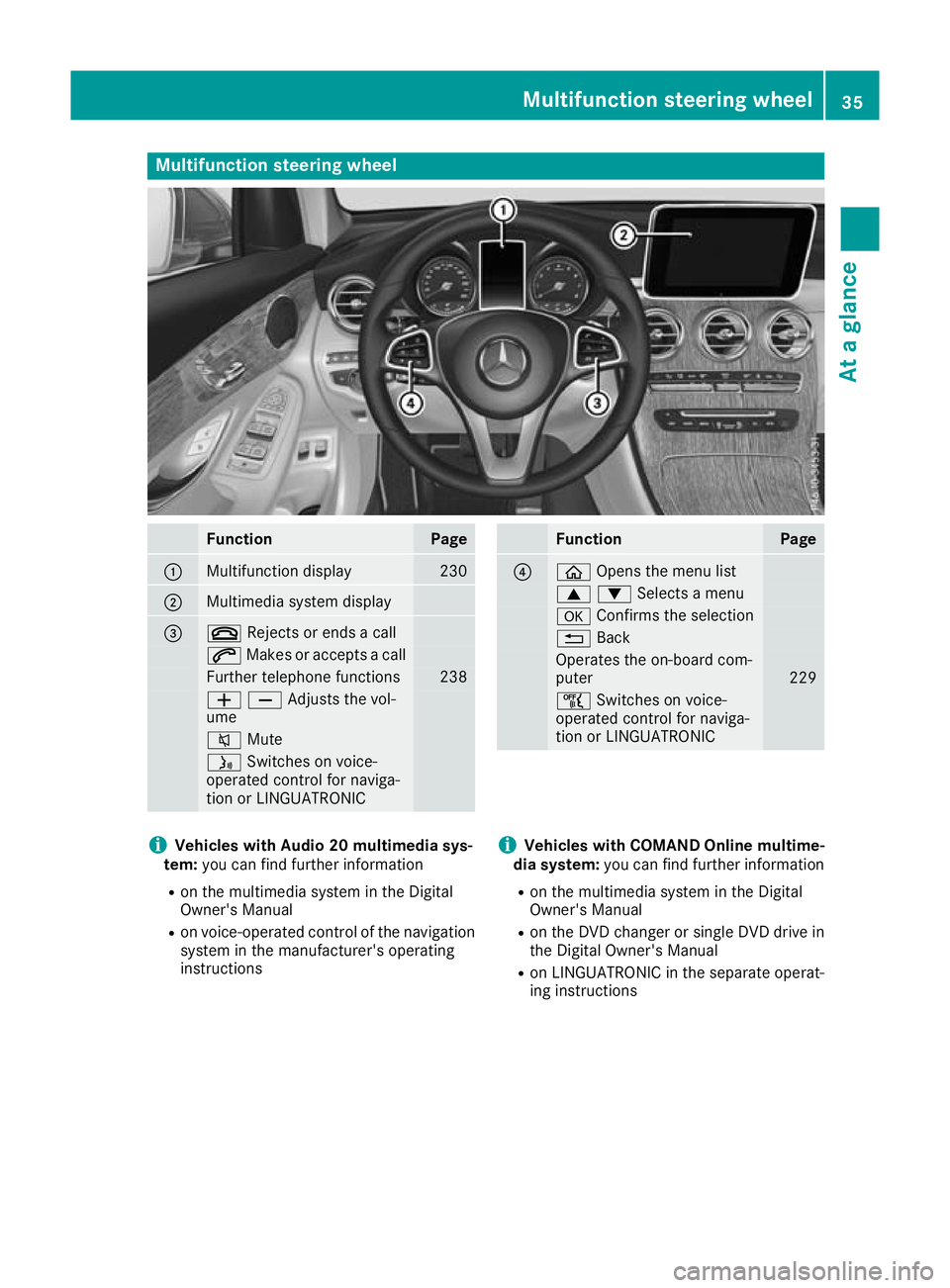
Multifunction steering wheel
Function Page
:
Multifunction display 230
;
Multimedia system display
=
~
Rejects or ends a call 6
Makes or accepts a call Further telephone functions 238
WXAdjusts the vol-
ume 8
Mute ó
Switches on voice-
operated control for naviga-
tion or LINGUATRONIC Function Page
?
ò
Opens the menu list 9:Selects a menu
a
Confirms the selection %
Back Operates the on-board com-
puter
229
ñ
Switches on voice-
operated control for naviga-
tion or LINGUATRONIC i
Vehicles with Audio 20 multimedia sys-
tem: you can find further information
R on the multimedia system in the Digital
Owner's Manual
R on voice-operated control of the navigation
system in the manufacturer's operating
instructions i
Vehicles with COMAND Online multime-
dia system: you can find further information
R on the multimedia system in the Digital
Owner's Manual
R on the DVD changer or single DVD drive in
the Digital Owner's Manual
R on LINGUATRONIC in the separate operat-
ing instructions Multifunction steering wheel
35At a glance
Page 39 of 389
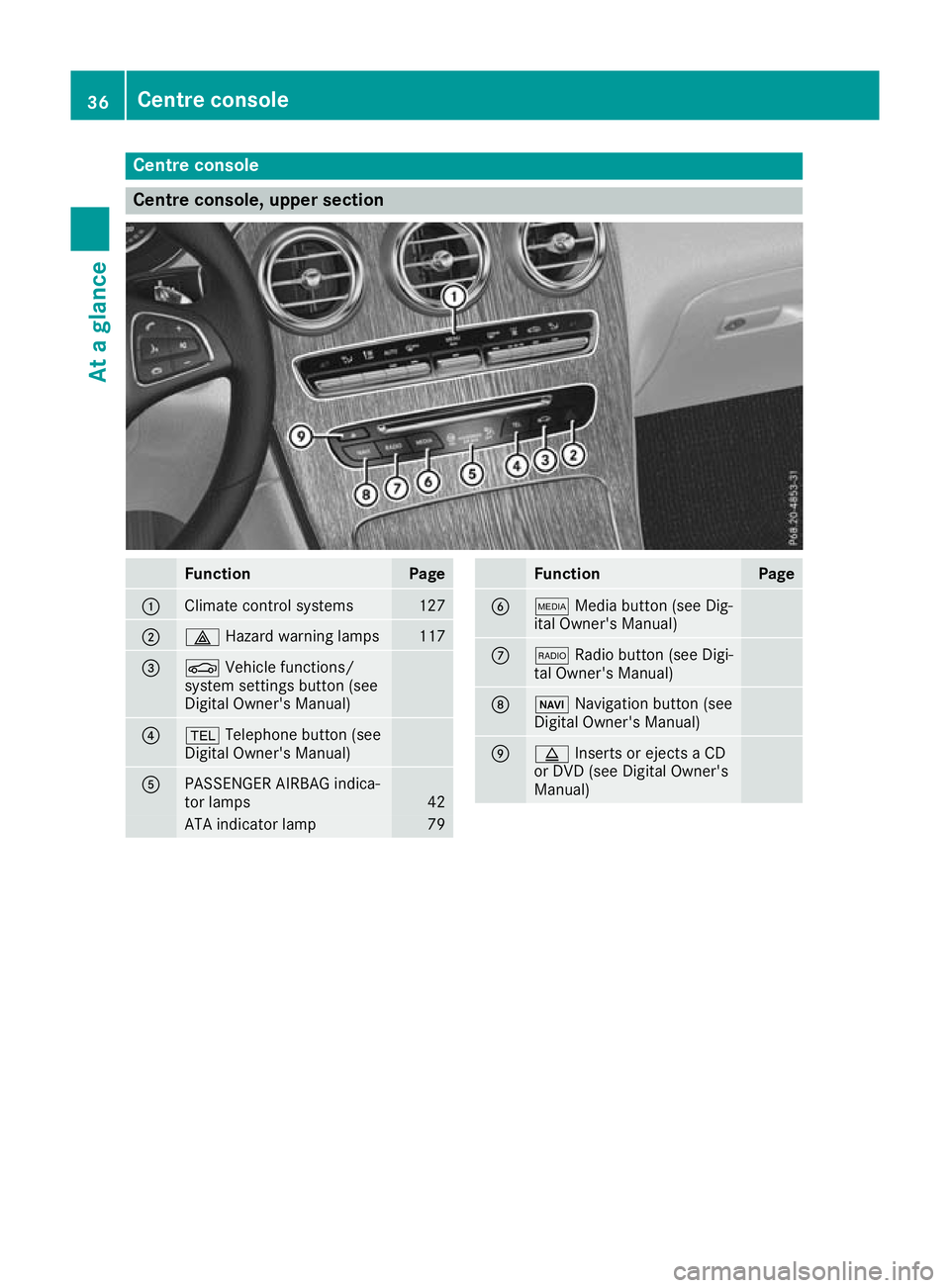
Centre console
Centre console, upper section
Function Page
:
Climate control systems 127
;
£
Hazard warning lamps 117
=
Ø
Vehicle functions/
system settings button (see
Digital Owner's Manual) ?
%
Telephone button (see
Digital Owner's Manual) A
PASSENGER AIRBAG indica-
tor lamps
42
ATA indicator lamp 79 Function Page
B
Õ
Media button (see Dig-
ital Owner's Manual) C
$
Radio button (see Digi-
tal Owner's Manual) D
Ø
Navigation button (see
Digital Owner's Manual) E
þ
Inserts or ejects a CD
or DVD (see Digital Owner's
Manual) 36
Centre consoleAt a glance
Page 137 of 389
Activating/deactivating air-recircula-
tion mode
General notes You can also temporarily deactivate the flow of
fresh air manually if unpleasant odours are
entering the vehicle from outside. The air
already inside the vehicle will then be recircula-
ted.
If you activate air-recirculation mode, the win-
dows can mist up more quickly, particularly at
low outside temperatures. Use air-recirculation
mode only briefly to prevent the windows from
misting up.
Activating/deactivating X
Turn the key to position 2in the ignition lock
(Y page 144).
X To activate: press thegrocker switch up
or down.
The indicator lamp above the grocker
switch lights up.
Air-recirculation mode is activated automati-
cally:
R at high outside temperatures
R at high levels of pollution (THERMOTRONIC
automatic climate control only)
R in tunnels (vehicles with a navigation system
only)
The indicator lamp above the grocker
switch is not lit when automatic air-recirculation
mode is activated. Outside air is added after
approximately 30 minutes.
X To deactivate: press thegrocker switch
up or down.
The indicator lamp above the grocker
switch goes out.
Air-recirculation mode is deactivated automati-
cally:
R after approximately five minutes at outside
temperatures below approximately 5 †
R after approximately five minutes if "Cooling
with air dehumidification" is deactivated
R after approximately 30 minutes at outside
temperatures above approximately 5 †if the
"Cooling with air dehumidification" function is
activated Convenience opening or closing using
the air-recirculation button G
WARNING
When the convenience closing feature is oper- ating, parts of the body could become trapped
in the closing area of the side window and the
sliding sunroof. There is a risk of injury.
Observe the complete closing procedure
when the convenience closing feature is oper-
ating. When closing make sure that no parts of the body are in the closing area. G
WARNING
During convenience opening parts of the body could be drawn in or become trapped
between the side window and window frame.
There is a risk of injury.
When opening, make sure that nobody is
touching the side window. If someone
becomes trapped, immediately press
the W switch in the door to stop the move-
ment of the side windows. To continue closing
the side window, pull on the Wswitch.
X Convenience closing feature: press and
hold the grocker switch up or down until
the side windows start to close automatically. Vehicles with sliding sunroof: the sliding
sunroof closes simultaneously.
The indicator lamp above the grocker
switch lights up. Air-recirculation mode is
activated.
If you open the side windows or the sliding
sunroof manually after closing with the con-
venience closing feature, they will remain in
this position when opened using the conve-
nience opening feature.
If parts of the body are in the closing area during convenience closing, proceed as follows:
X Press the Wbutton to stop the side win-
dows.
The side windows stop.
X To then open the side windows, press the
W button again. 134
Operating the climate control systemClimate control
Page 184 of 389
Vehicles with COMAND Online multimedia
system: when you change lanes, DISTRONIC
PLUS monitors the right lane in the case of left-
side traffic or the left lane in the case of right-
side traffic.
Vehicles with Audio 20 multimedia system:
when you change lanes, DISTRONIC PLUS mon- itors the left lane on left-hand-drive vehicles or
the right lane on right-hand-drive vehicles.
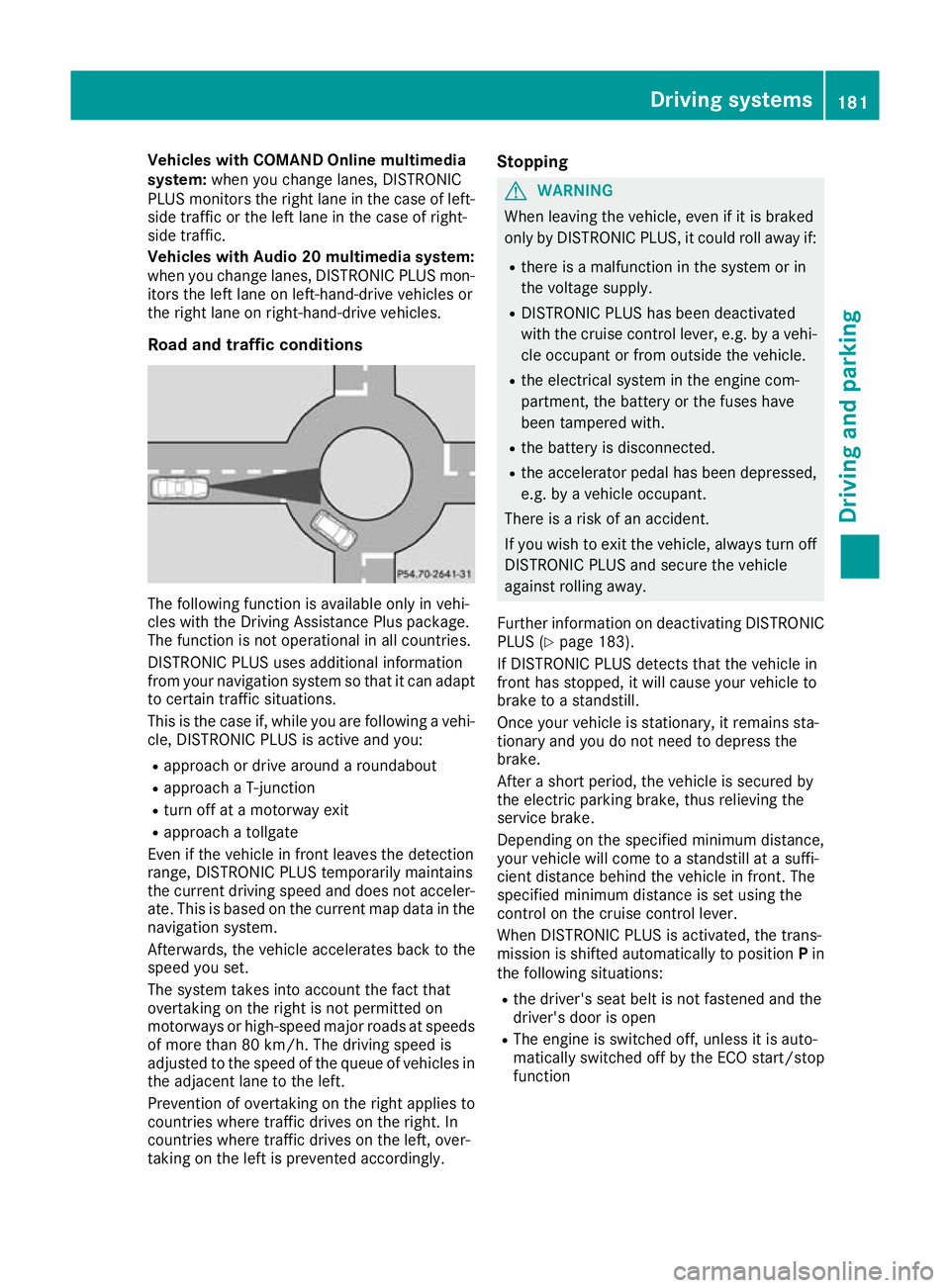
Road and traffic conditions The following function is available only in vehi-
cles with the Driving Assistance Plus package.
The function is not operational in all countries.
DISTRONIC PLUS uses additional information
from your navigation system so that it can adapt to certain traffic situations.
This is the case if, while you are following a vehi-
cle, DISTRONIC PLUS is active and you:
R approach or drive around a roundabout
R approach a T-junction
R turn off at a motorway exit
R approach a tollgate
Even if the vehicle in front leaves the detection
range, DISTRONIC PLUS temporarily maintains
the current driving speed and does not acceler-
ate. This is based on the current map data in the navigation system.
Afterwards, the vehicle accelerates back to the
speed you set.
The system takes into account the fact that
overtaking on the right is not permitted on
motorways or high-speed major roads at speeds
of more than 80 km/h. The driving speed is
adjusted to the speed of the queue of vehicles in
the adjacent lane to the left.
Prevention of overtaking on the right applies to
countries where traffic drives on the right. In
countries where traffic drives on the left, over-
taking on the left is prevented accordingly. Stopping G
WARNING
When leaving the vehicle, even if it is braked
only by DISTRONIC PLUS, it could roll away if:
R there is a malfunction in the system or in
the voltage supply.
R DISTRONIC PLUS has been deactivated
with the cruise control lever, e.g. by a vehi-
cle occupant or from outside the vehicle.
R the electrical system in the engine com-
partment, the battery or the fuses have
been tampered with.
R the battery is disconnected.
R the accelerator pedal has been depressed,
e.g. by a vehicle occupant.
There is a risk of an accident.
If you wish to exit the vehicle, always turn off
DISTRONIC PLUS and secure the vehicle
against rolling away.
Further information on deactivating DISTRONIC PLUS (Y page 183).
If DISTRONIC PLUS detects that the vehicle in
front has stopped, it will cause your vehicle to
brake to a standstill.
Once your vehicle is stationary, it remains sta-
tionary and you do not need to depress the
brake.
After a short period, the vehicle is secured by
the electric parking brake, thus relieving the
service brake.
Depending on the specified minimum distance,
your vehicle will come to a standstill at a suffi-
cient distance behind the vehicle in front. The
specified minimum distance is set using the
control on the cruise control lever.
When DISTRONIC PLUS is activated, the trans-
mission is shifted automatically to position Pin
the following situations:
R the driver's seat belt is not fastened and the
driver's door is open
R The engine is switched off, unless it is auto-
matically switched off by the ECO start/stop
function Driving systems
181Driving and parking Z
Page 211 of 389
corresponds to the last selection activated
(standard/sensitive).
Warning on the multifunction display If fatigue or increasing lapses in concentration
are detected, a warning appears on the multi-
function display: ATTENTION ASSIST ATTENTION ASSIST Take a
Take a
break!
break!.
In addition to the message shown on the multi-
function display, you will then hear a warning
tone.
X If necessary, take a break.
X Confirm the message by pressing the a
button on the steering wheel.
On long journeys, take regular breaks that allow
for adequate recuperation. If you do not take a
break and ATTENTION ASSIST still detects
increasing lapses in concentration, you will be
warned again after 15 minutes at the earliest.
This will happen only if ATTENTION ASSIST still
detects typical indicators of fatigue or increas-
ing lapses in concentration.
Vehicles with COMAND Online multimedia
system: if a warning appears on the multifunc-
tion display, a service station search is per-
formed in the multimedia system. You can
select a service station and you will then be
navigated to this service station. This function
can be activated and deactivated in the
COMAND Online multimedia system (see Digital Owner's Manual). Traffic Sign Assist
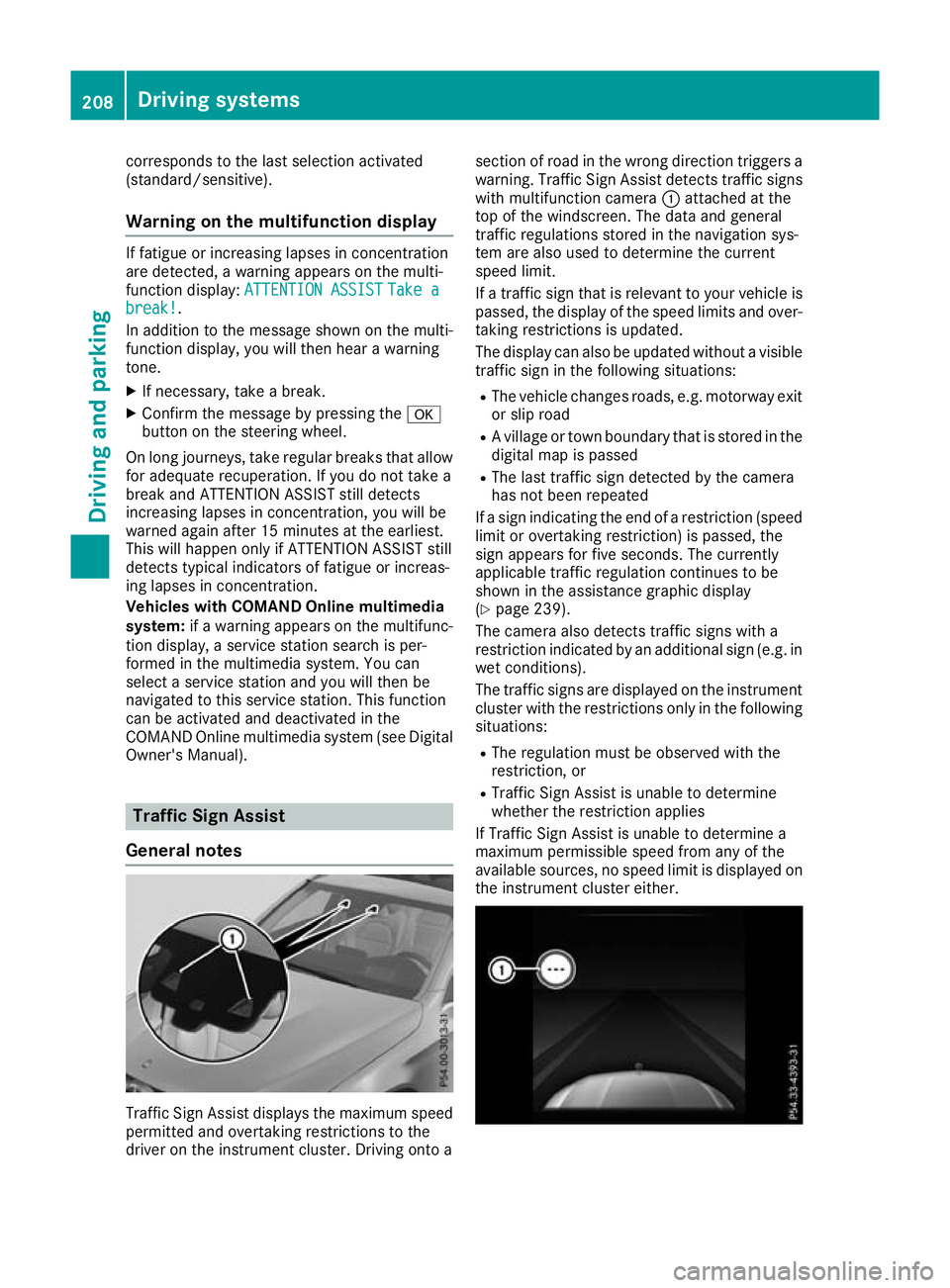
General notes Traffic Sign Assist displays the maximum speed
permitted and overtaking restrictions to the
driver on the instrument cluster. Driving onto a section of road in the wrong direction triggers a
warning. Traffic Sign Assist detects traffic signs with multifunction camera :attached at the
top of the windscreen. The data and general
traffic regulations stored in the navigation sys-
tem are also used to determine the current
speed limit.
If a traffic sign that is relevant to your vehicle is passed, the display of the speed limits and over-
taking restrictions is updated.
The display can also be updated without a visible traffic sign in the following situations:
R The vehicle changes roads, e.g. motorway exit
or slip road
R A village or town boundary that is stored in the
digital map is passed
R The last traffic sign detected by the camera
has not been repeated
If a sign indicating the end of a restriction (speed limit or overtaking restriction) is passed, the
sign appears for five seconds. The currently
applicable traffic regulation continues to be
shown in the assistance graphic display
(Y page 239).
The camera also detects traffic signs with a
restriction indicated by an additional sign (e.g. in
wet conditions).
The traffic signs are displayed on the instrument cluster with the restrictions only in the following situations:
R The regulation must be observed with the
restriction, or
R Traffic Sign Assist is unable to determine
whether the restriction applies
If Traffic Sign Assist is unable to determine a
maximum permissible speed from any of the
available sources, no speed limit is displayed on the instrument cluster either. 208
Driving systemsDriving and parking
Page 212 of 389
Traffic Sign Assist is not available in all coun-
tries. In this case, the display :appears in the
speedometer.
Important safety notes Traffic Sign Assist is only an aid and is not always
able to correctly display speed limits and over-
taking restrictions. Traffic signs always have pri-
ority over the Traffic Sign Assist display.
The system may be either functionally impaired
or temporarily unavailable in the following sit-
uations:
R Visibility is poor, e.g. due to snow, rain, fog or
spray
R Glare, e.g. from the sun being low in the sky
R Dirt, ice or misting on the windscreen in the
vicinity of the camera
R Traffic signs are hard to detect, e.g. due to
dirt, ice, snow
R The traffic signs are insufficiently lit at night
R Signs are ambiguous, e.g. traffic signs on con-
struction sites or in adjacent lanes
R The information in the digital street map of the
navigation system is incorrect or out of date
Switching the message function on/off If you have activated the Traffic Sign Assist mes-
sage function in the on-board computer, the
traffic regulations (speed limits and overtaking
restrictions) are displayed on the instrument
cluster for five seconds respectively. The wrong- way warning and the traffic sign display for
speed limits and overtaking restrictions remain
active even when the display has been deacti-
vated.
X Switch on the Traffic Sign Assist message
function via the on-board computer
(Y page 241).
Instrument cluster display Showing the assistance graphic
X Call up the assistant display function using
the on-board computer (Y page 239).
Detected traffic signs appear on the instru-
ment cluster. Speed limit with unknown restriction
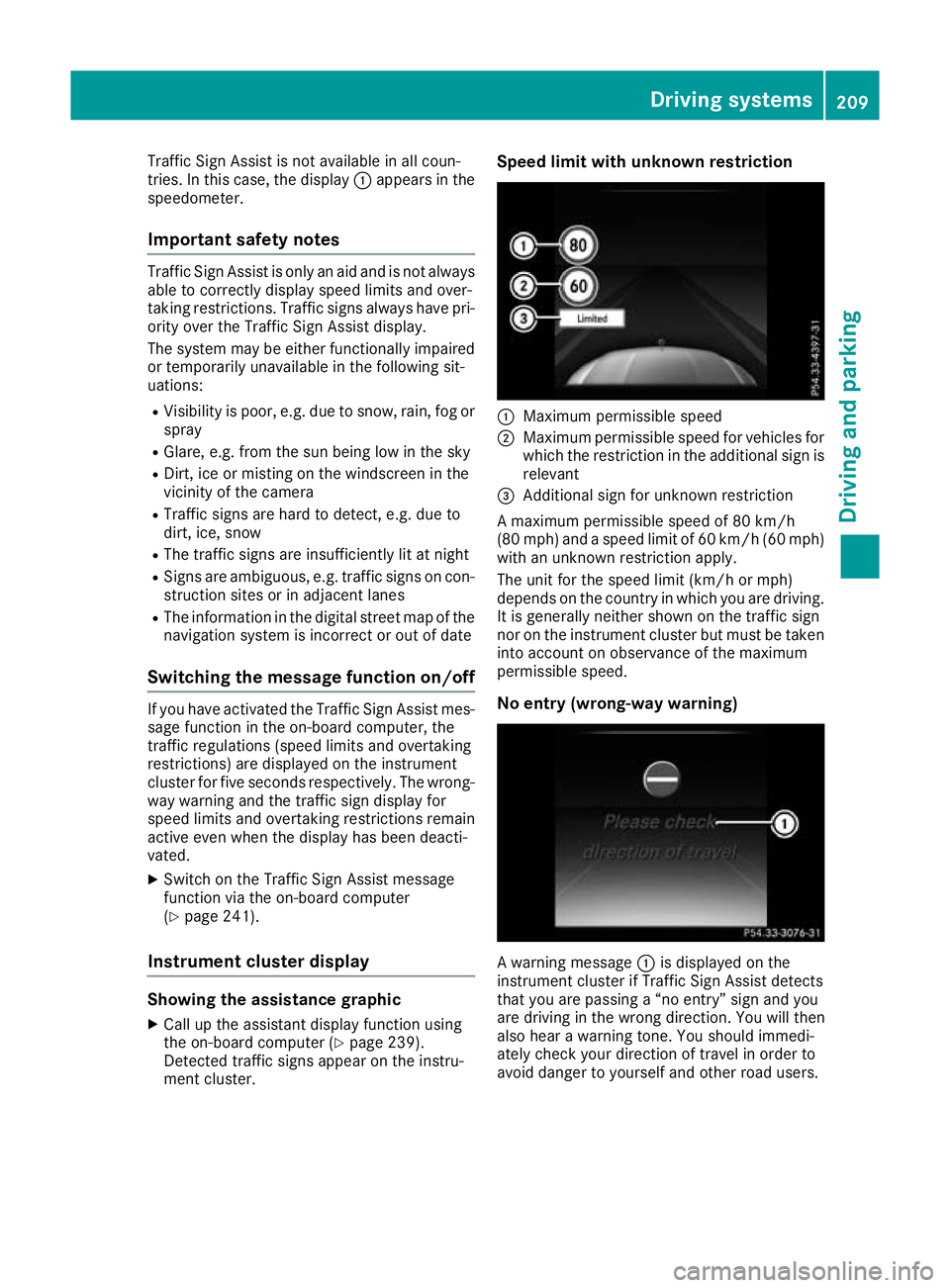
:
Maximum permissible speed
; Maximum permissible speed for vehicles for
which the restriction in the additional sign is
relevant
= Additional sign for unknown restriction
A maximum permissible speed of 80 km/h
(80 mph) and a speed limit of 60 km/h( 60 mph)
with an unknown restriction apply.
The unit for the speed limit (km/h or mph)
depends on the country in which you are driving.
It is generally neither shown on the traffic sign
nor on the instrument cluster but must be taken
into account on observance of the maximum
permissible speed.
No entry (wrong-way warning) A warning message
:is displayed on the
instrument cluster if Traffic Sign Assist detects
that you are passing a “no entry” sign and you
are driving in the wrong direction. You will then
also hear a warning tone. You should immedi-
ately check your direction of travel in order to
avoid danger to yourself and other road users. Driving systems
209Driving and parking Z
Page 233 of 389
a R
In all menus: confirms the selected
entry in the list
R In the Radio
Radio orMedia
Media menu:
opens the list of available radio
sources or media
R In the Telephone Telephone menu: switches
to the phone book and starts dial-
ling the selected number ñ R
Vehicles with multimedia system
Audio 20:
Switches off voice-operated con-
trol for navigation (see manufac-
turer's operating instructions)
R Vehicles with multimedia system
COMAND Online:
Switches off LINGUATRONIC (see
the separate operating instruc-
tions) % Press briefly:
R Back
R In the Radio Radio orMedia
Media menu: dese-
lects the track or station list or list
of available radio sources or media
R Hides display messages
R Exits the telephone book/redial
memory % Press and hold:
R
Calls up the standard display in the
Trip Trip menu Right control panel
~ R
Rejects or ends a call
R Exits the telephone book/redial
memory 6 R
Makes or accepts a call
R Switches to the redial memory W
X R
Adjusts the volume 8 R
Mute ó R
Vehicles with multimedia system
Audio 20:
Switches on voice-operated con-
trol for navigation (see manufac-
turer's operating instructions)
R Vehicles with multimedia system
COMAND Online:
Switches on LINGUATRONIC (see
the separate operating instruc-
tions) Multifunction display
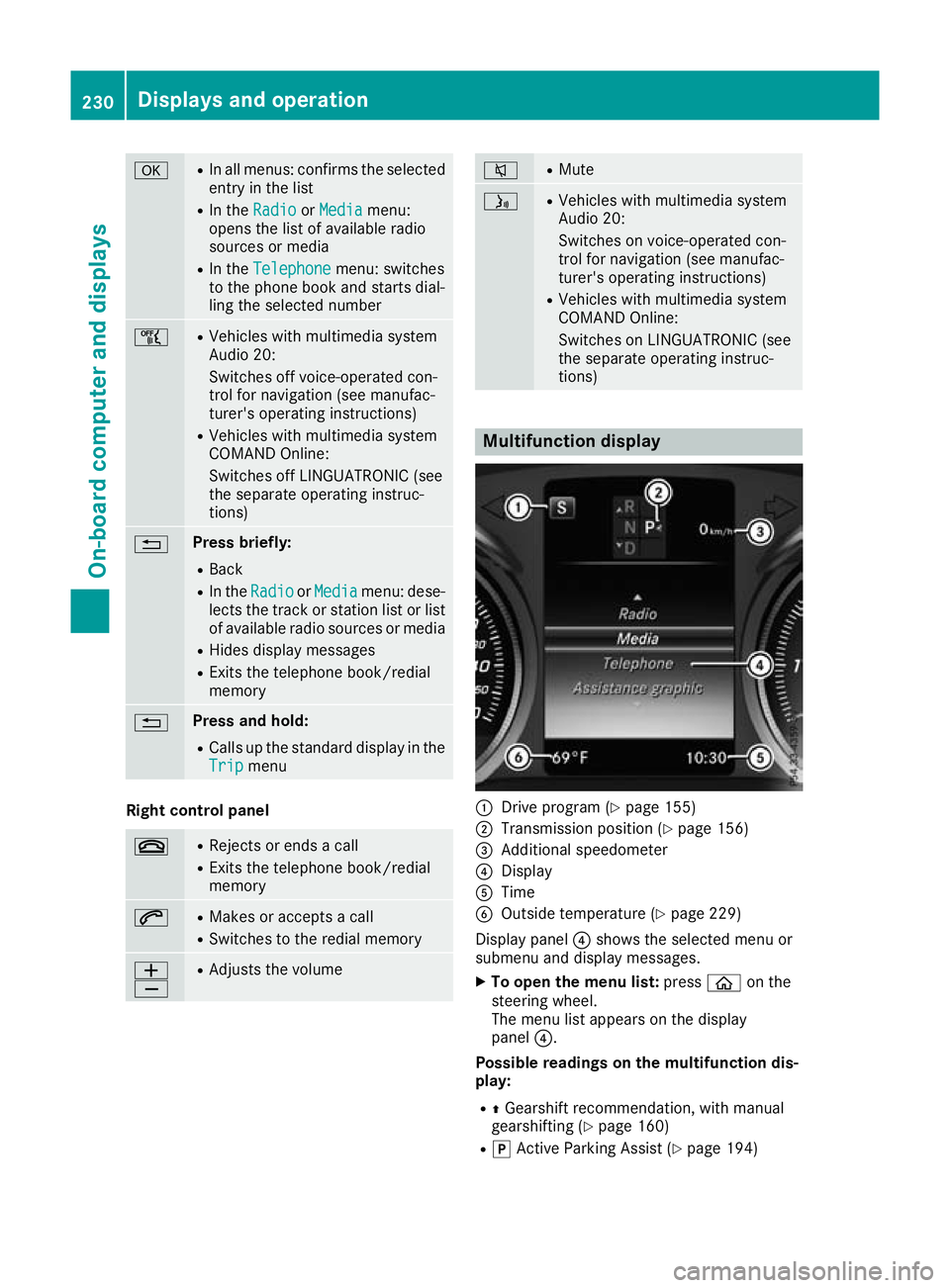
:
Drive program (Y page 155)
; Transmission position (Y page 156)
= Additional speedometer
? Display
A Time
B Outside temperature (Y page 229)
Display panel ?shows the selected menu or
submenu and display messages.
X To open the menu list: pressòon the
steering wheel.
The menu list appears on the display
panel ?.
Possible readings on the multifunction dis-
play:
R ZGearshift recommendation, with manual
gearshifting (Y page 160)
R j Active Parking Assist (Y page 194)230
Displays and operationOn-board computer and displays
Page 234 of 389
R
È SPEEDTRONIC (Y page 176)
R ¯ Cruise control (Y page 174)
R a DISTRONIC PLUS Steering Assist and
Stop&Go Pilot (Y page 184)
R _ Adaptive Highbeam Assist
(Y page 119)
R _ Adaptive Highbeam Assist Plus
(Y page 119)
R è ECO start/stop function (Y page 148)
R ë HOLD function (Y page 186)
R ð Maximum permissible speed exceeded
(for certain countries only) Head-up display
General notes The Head-up Display projects information from
the navigation system and the driver assistance
systems above the dashboard into the driver's
field of vision. This way, the Head-up Display
enables drivers to see information without hav-
ing to take their eyes off the road.
A requirement for the display of the content is
that the following functions are available in the
vehicle and are switched on:
R Cruise control
R SPEEDTRONIC
R DISTRONIC PLUS
R Traffic Sign Assist
R Navigation
Important safety notes The head-up display is only an aid and is not a
substitute for attentive driving.
Speed limits and overtaking restrictions are not
always correctly displayed. Traffic signs always
have priority over the Traffic Sign Assist display.
The visibility of the head-up display is influenced by the following conditions:
R the driver's seat position
R the positioning of the display image
R the general light conditions
R sunglasses with polarisation filters
R wet road surfaces
R blocking of sunlight by objects on the display
cover In the event of extreme sunlight, sections of the
display may fade. This can be reversed by
switching the head-up display off and on again.
i Vehicles with the head-up display are equip-
ped with a special windscreen. Should repairs
be necessary, have the windscreen replaced
at a qualified specialist workshop.
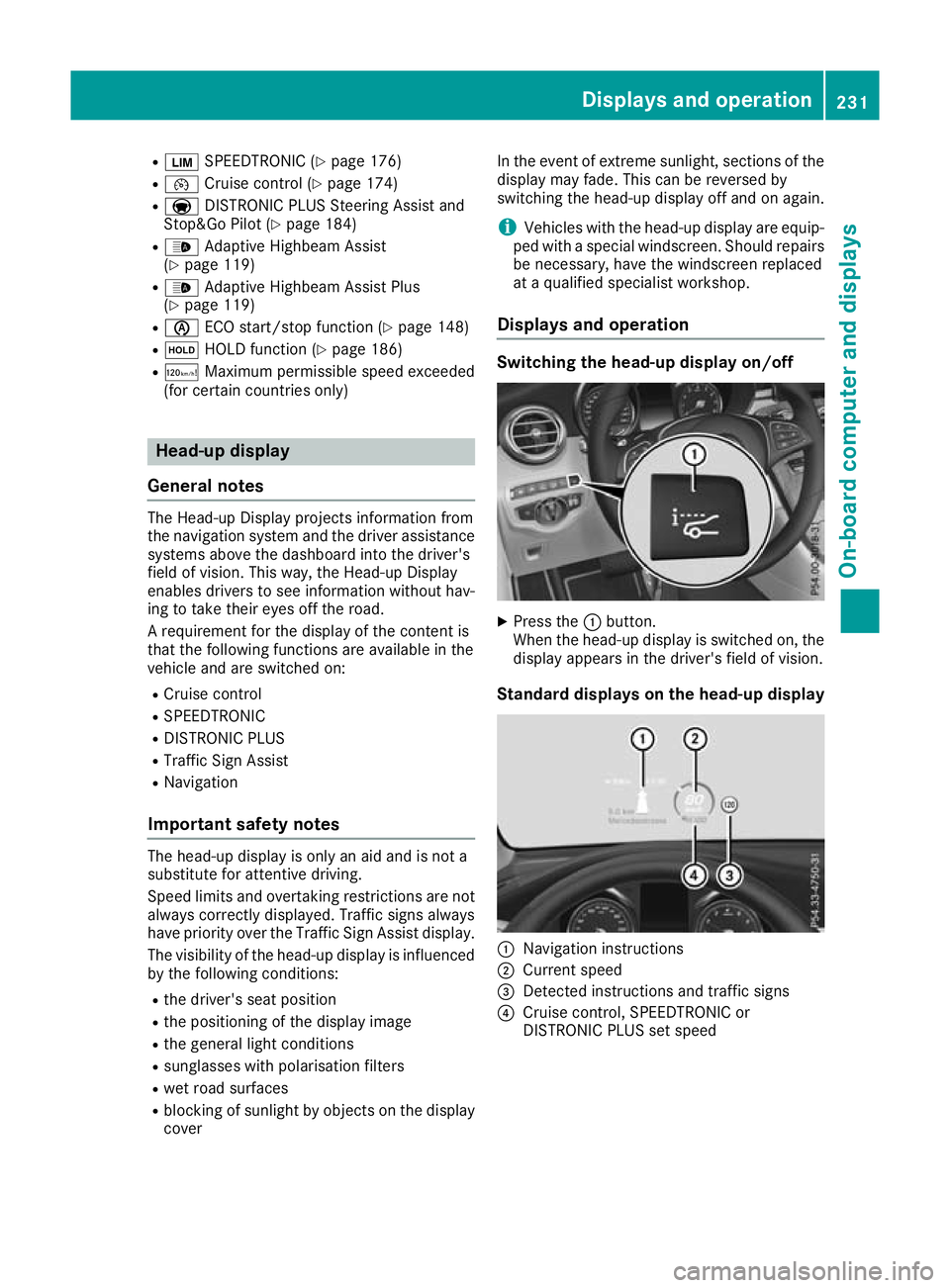
Displays and operation Switching the head-up display on/off
X
Press the :button.
When the head-up display is switched on, the display appears in the driver's field of vision.
Standard displays on the head-up display :
Navigation instructions
; Current speed
= Detected instructions and traffic signs
? Cruise control, SPEEDTRONIC or
DISTRONIC PLUS set speed Displays and operation
231On-board computer and displays Z
Page 237 of 389
X
Confirm by pressing aon the steering
wheel.
X Press :or9 to select the digital
speedometer.
Resetting values X
Press òon the steering wheel to open the
menu list.
X Press :or9 on the steering wheel to
select the Trip
Trip menu.
X Confirm by pressing aon the steering
wheel.
X Press :or9 to select the function that
you wish to reset.
X Press abriefly.
X Press :to select Yes Yesand press ato
confirm.
You can reset the values of the following func- tions:
R Trip meter
R "From start" trip computer
R "From reset" trip computer
R ECO display
If you reset the values in the "ECO display",
the values in the "From start" trip computer
are also reset. If you reset the values in the
"From start" trip computer, the values in the
"ECO display" are also reset. Navigation menu
Displaying navigation instructions On the
Navi Navimenu, the multifunction display
shows navigation instructions. You can find fur-
ther information on navigation instructions in
the Digital Owner's Manual in the multimedia
system.
X Switch on the multimedia system.
X Press òon the steering wheel to open the
menu list.
X Press :or9 on the steering wheel to
select the Navi
Navi menu.
X Confirm by pressing aon the steering
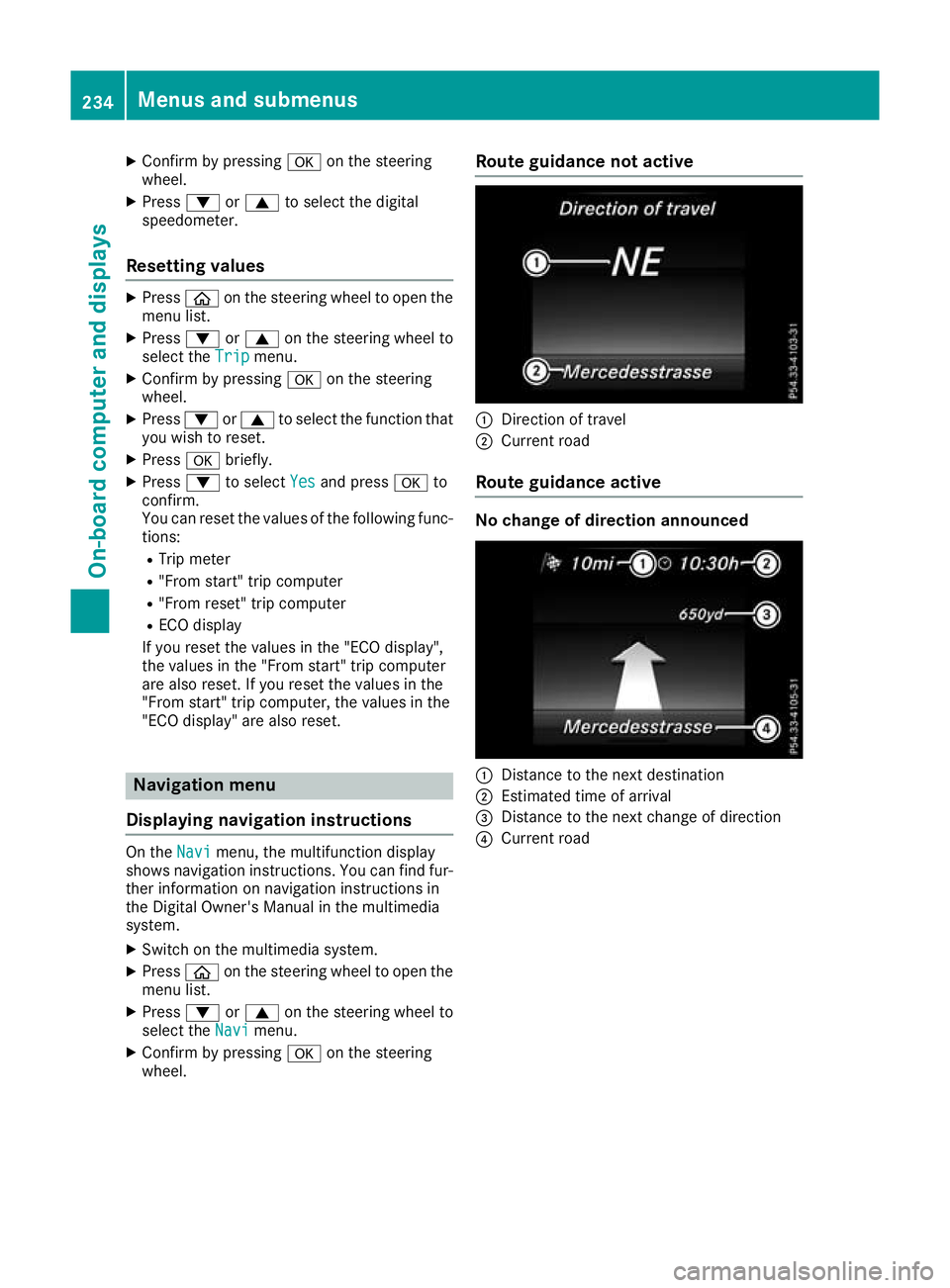
wheel. Route guidance not active
:
Direction of travel
; Current road
Route guidance active No change of direction announced
:
Distance to the next destination
; Estimated time of arrival
= Distance to the next change of direction
? Current road 234
Menus and submenusOn-board computer and displays