language MERCEDES-BENZ GLC COUPE 2017 X253 Comand Manual
[x] Cancel search | Manufacturer: MERCEDES-BENZ, Model Year: 2017, Model line: GLC COUPE, Model: MERCEDES-BENZ GLC COUPE 2017 X253Pages: 178, PDF Size: 4.19 MB
Page 60 of 178
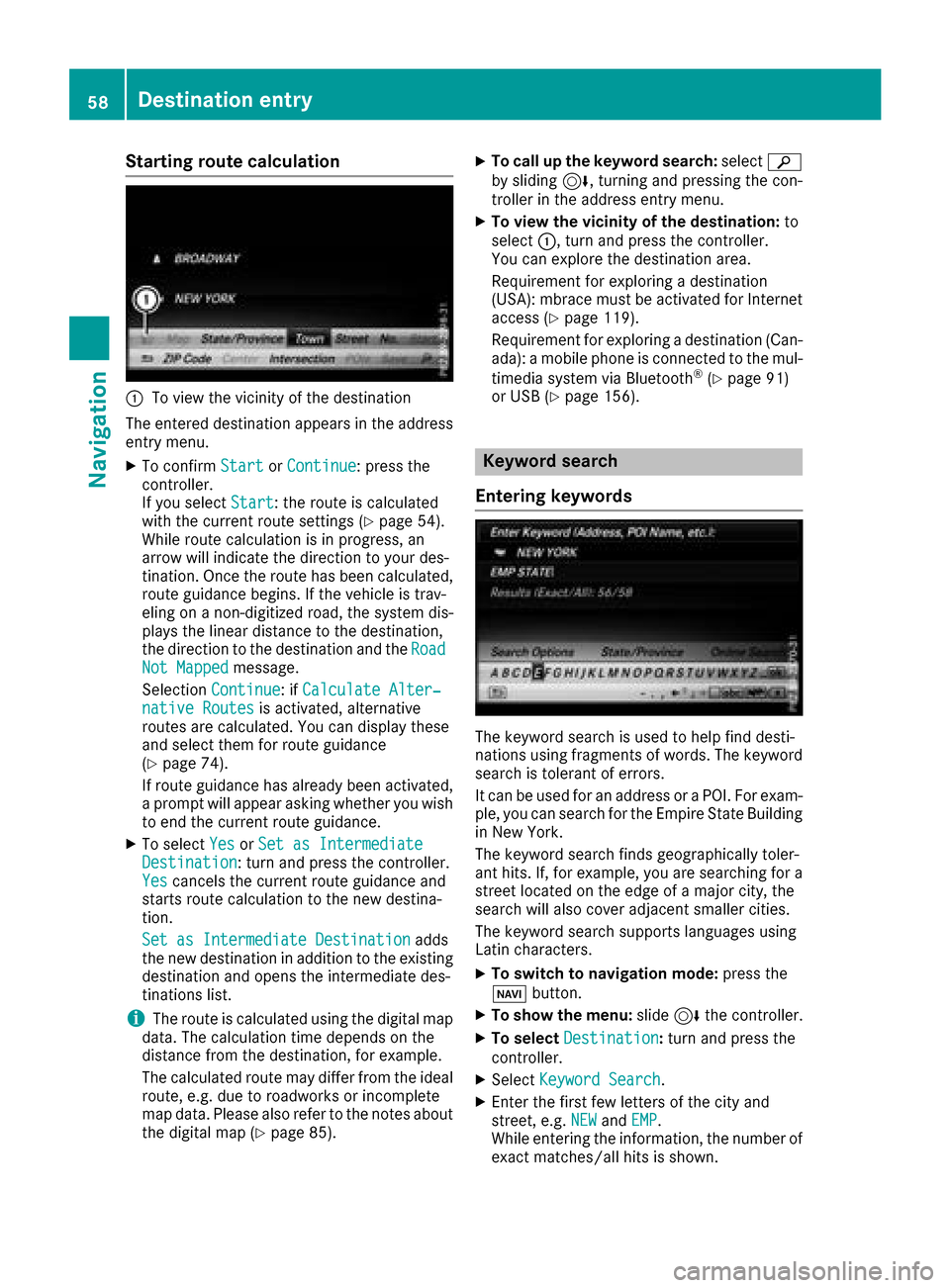
Starting route calculation
:To view the vicinity of the destination
The entered destination appears in the address
entry menu.
XTo confirm StartorContinue: press the
controller.
If you select Start
: the route is calculated
with the current route settings (Ypage 54).
While route calculation is in progress, an
arrow will indicate the direction to your des-
tination. Once the route has been calculated,
route guidance begins. If the vehicle is trav-
eling on a non-digitized road, the system dis-
plays the linear distance to the destination,
the direction to the destination and the Road
Not Mappedmessage.
Selection Continue
: ifCalculate Alter‐native Routesis activated, alternative
routes are calculated. You can display these
and select them for route guidance
(
Ypage 74).
If route guidance has already been activated,
a prompt will appear asking whether you wish
to end the current route guidance.
XTo select YesorSet as IntermediateDestination: turn and press the controller.
Yescancels the current route guidance and
starts route calculation to the new destina-
tion.
Set as Intermediate Destination
adds
the new destination in addition to the existing
destination and opens the intermediate des-
tinations list.
iThe route is calculated using the digital map
data. The calculation time depends on the
distance from the destination, for example.
The calculated route may differ from the ideal
route, e.g. due to roadworks or incomplete
map data. Please also refer to the notes about the digital map (
Ypage 85).
XTo call up the keyword search: selectè
by sliding 6, turning and pressing the con-
troller in the address entry menu.
XTo view the vicinity of the destination: to
select :, turn and press the controller.
You can explore the destination area.
Requirement for exploring a destination
(USA): mbrace must be activated for Internet
access (
Ypage 119).
Requirement for exploring a destination (Can- ada): a mobile phone is connected to the mul-
timedia system via Bluetooth
®(Ypage 91)
or USB (Ypage 156).
Keyword search
Entering keywords
The keyword search is used to help find desti-
nations using fragments of words. The keyword
search is tolerant of errors.
It can be used for an address or a POI. For exam-
ple, you can search for the Empire State Building
in New York.
The keyword search finds geographically toler-
ant hits. If, for example, you are searching for a
street located on the edge of a major city, the
search will also cover adjacent smaller cities.
The keyword search supports languages using
Latin characters.
XTo switch to navigation mode: press the
Ø button.
XTo show the menu: slide6the controller.
XTo select Destination:turn and press the
controller.
XSelect Keyword Search.
XEnter the first few letters of the city and
street, e.g. NEWandEMP.
While entering the information, the number of
exact matches/all hits is shown.
58Destination entry
Navigation
Page 79 of 178
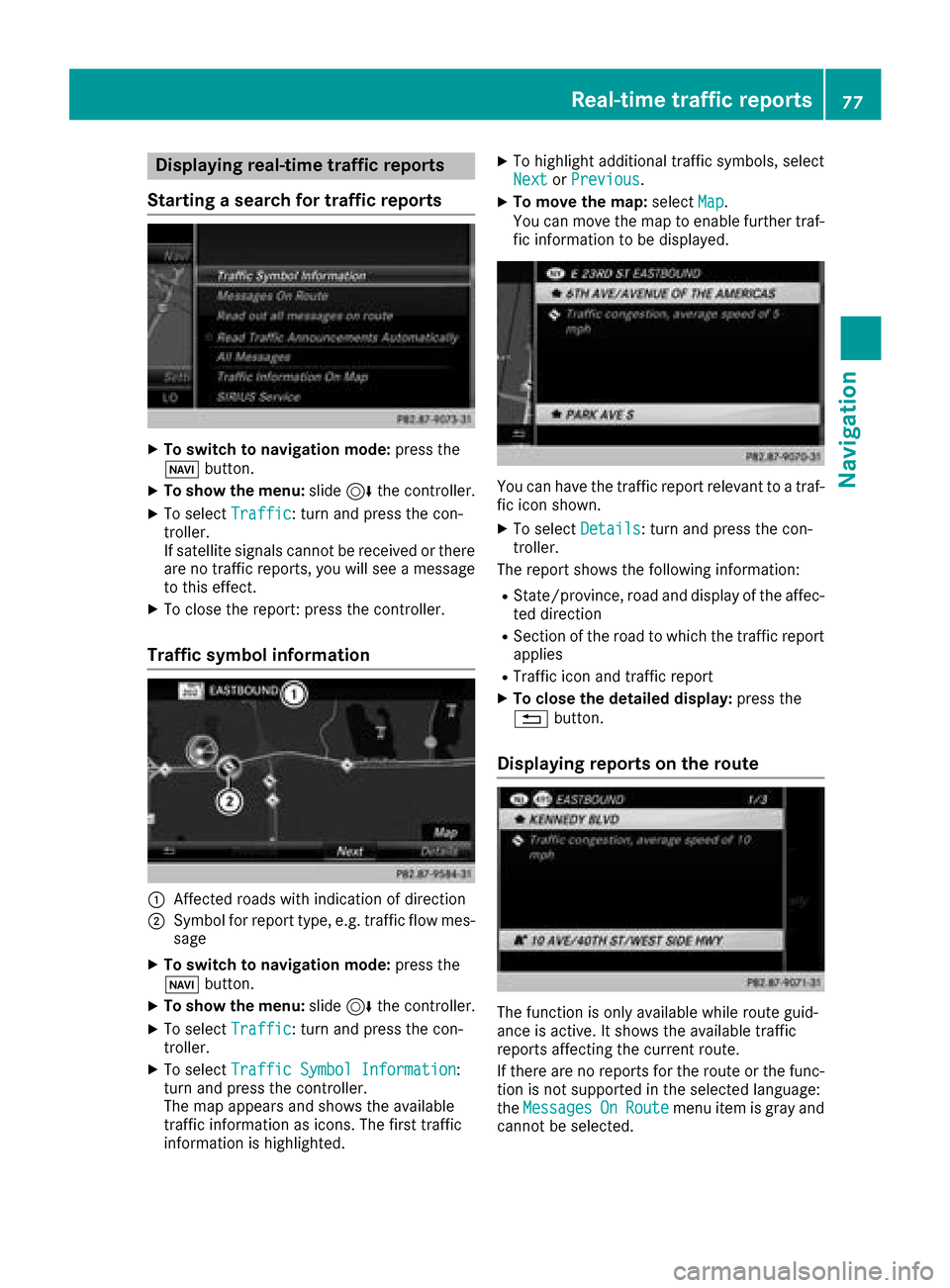
Displaying real-time traffic reports
Starting asearc hfor traffic reports
XTo switch to navigation mode: press the
Ø button.
XTo show th emenu :slid e6 thecontroller .
XTo selectTraffi c:turn and press th econ-
troller.
If satellite signal scanno tbe received or there
are no traffic reports ,you will see amessag e
to this effect .
XTo close thereport: press th econtroller .
Traffic symbol information
:Affected roads wit hindication of direction
;Symbol fo rrepor ttype, e.g. traffic flo wmes -
sag e
XTo switch to navigation mode: press the
Ø button.
XTo show th emenu :slid e6 thecontroller .
XTo selectTraffi c:turn and press th econ-
troller.
XTo selec tTraffi cSymbol Information:
turn and press th econtroller .
The map appears and shows th eavailable
traffic information as icons. The first traffic
information is highlighted.
XTo highlight additional traffic symbols ,selec t
Nex torPrevious.
XTo move th emap: selectMap.
You can move th emap to enable further traf-
fic information to be displayed.
You can hav eth etraffic repor trelevant to atraf-
fic icon shown .
XTo selectDetail s:turn and press th econ-
troller.
The repor tshows th efollowin ginformation :
RState/province ,road and display of th eaffec -
te ddirection
RSection of th eroad to whic hth etraffic repor t
applies
RTraffic icon and traffic repor t
XTo close thedetailed display :press th e
% button.
Displaying reports on th erout e
The function is only available whil erout eguid -
anc eis active .It shows th eavailable traffic
reports affecting th ecurren troute.
If there are no reports fo rth erout eor th efunc-
tion is no tsupporte din th eselecte dlanguage:
th eMessages
OnRoutemen uitem is gray and
canno tbe selected.
Real-time traffic reports77
Navigation
Z
Page 80 of 178
XTo switch to navigation mode:press the
Ø button.
XTo show the menu: slide6the controller.
XTo select Traffic: turn and press the con-
troller.
XTo select Messages On Route: turn and
press the controller.
The traffic report window appears. Several
traffic reports may be available for the calcu-
lated route, marked for example by 1/3.
The report shows the following information:
RState/province, road and display of the
affected direction
RSection of the road to which the traffic
report applies
RTraffic icon and traffic report
XTo display the next/previous traffic
report: turn the controller.
XTo close the display: press the%button.
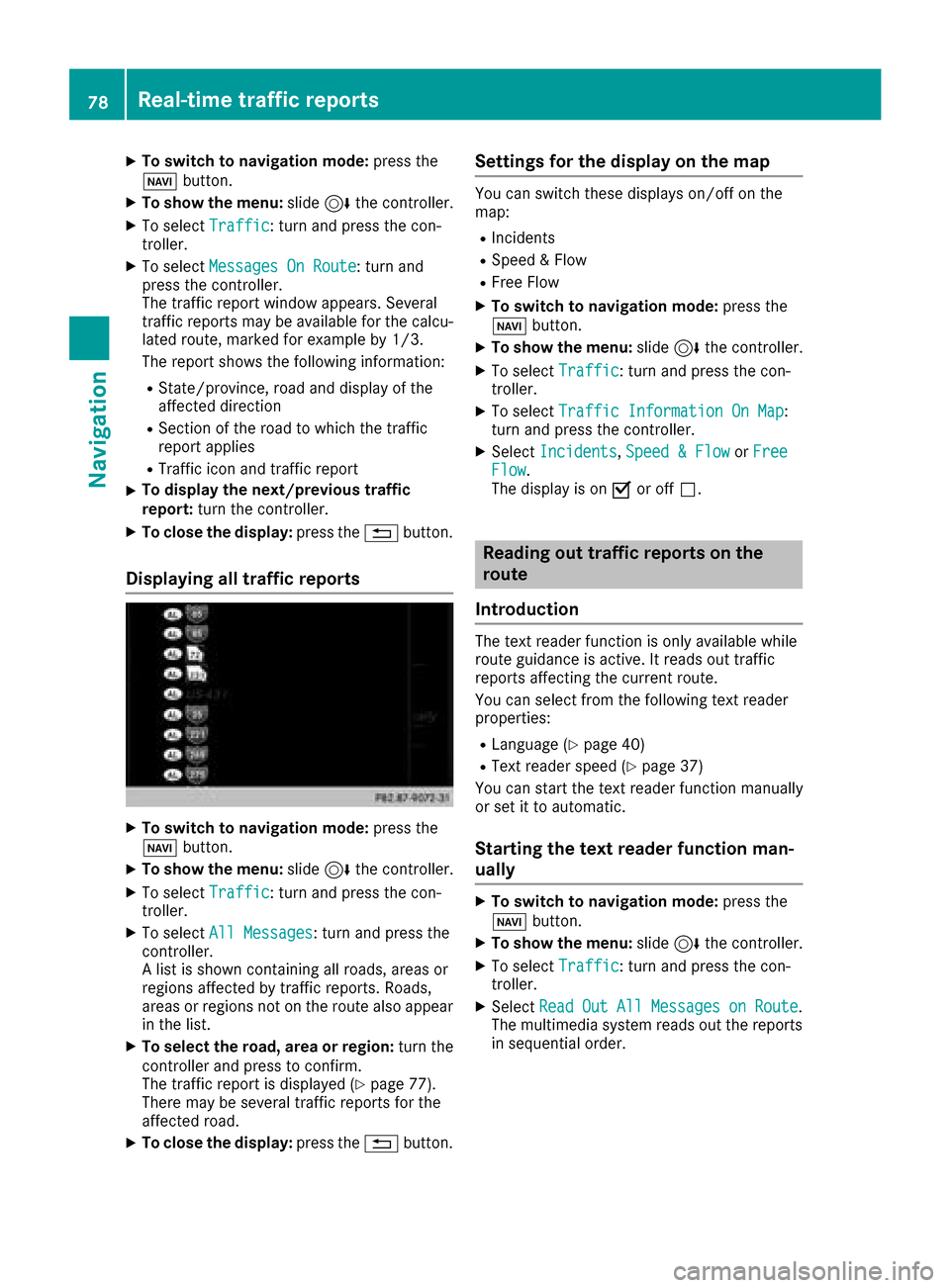
Displaying all traffic reports
XTo switch to navigation mode: press the
Ø button.
XTo show the menu: slide6the controller.
XTo select Traffic: turn and press the con-
troller.
XTo select All Messages: turn and press the
controller.
A list is shown containing all roads, areas or
regions affected by traffic reports. Roads,
areas or regions not on the route also appear
in the list.
XTo select the road, area or region: turn the
controller and press to confirm.
The traffic report is displayed (
Ypage 77).
There may be several traffic reports for the
affected road.
XTo close the display: press the%button.
Settings for the display on the map
You can switch these displays on/off on the
map:
RIncidents
RSpeed & Flow
RFree Flow
XTo switch to navigation mode: press the
Ø button.
XTo show the menu: slide6the controller.
XTo select Traffic: turn and press the con-
troller.
XTo select Traffic Information On Map:
turn and press the controller.
XSelect Incidents,Speed & Flowor FreeFlow.
The display is on Oor off ª.
Reading out traffic reports on the
route
Introduction
The text reader function is only available while
route guidance is active. It reads out traffic
reports affecting the current route.
You can select from the following text reader
properties:
RLanguage (Ypage 40)
RText reader speed (Ypage 37)
You can start the text reader function manually
or set it to automatic.
Starting the text reader function man-
ually
XTo switch to navigation mode: press the
Ø button.
XTo show the menu: slide6the controller.
XTo select Traffic: turn and press the con-
troller.
XSelect ReadOutAllMessagesonRoute.
The multimedia system reads out the reports in sequential order.
78Real-time traffic reports
Navigation
Page 95 of 178
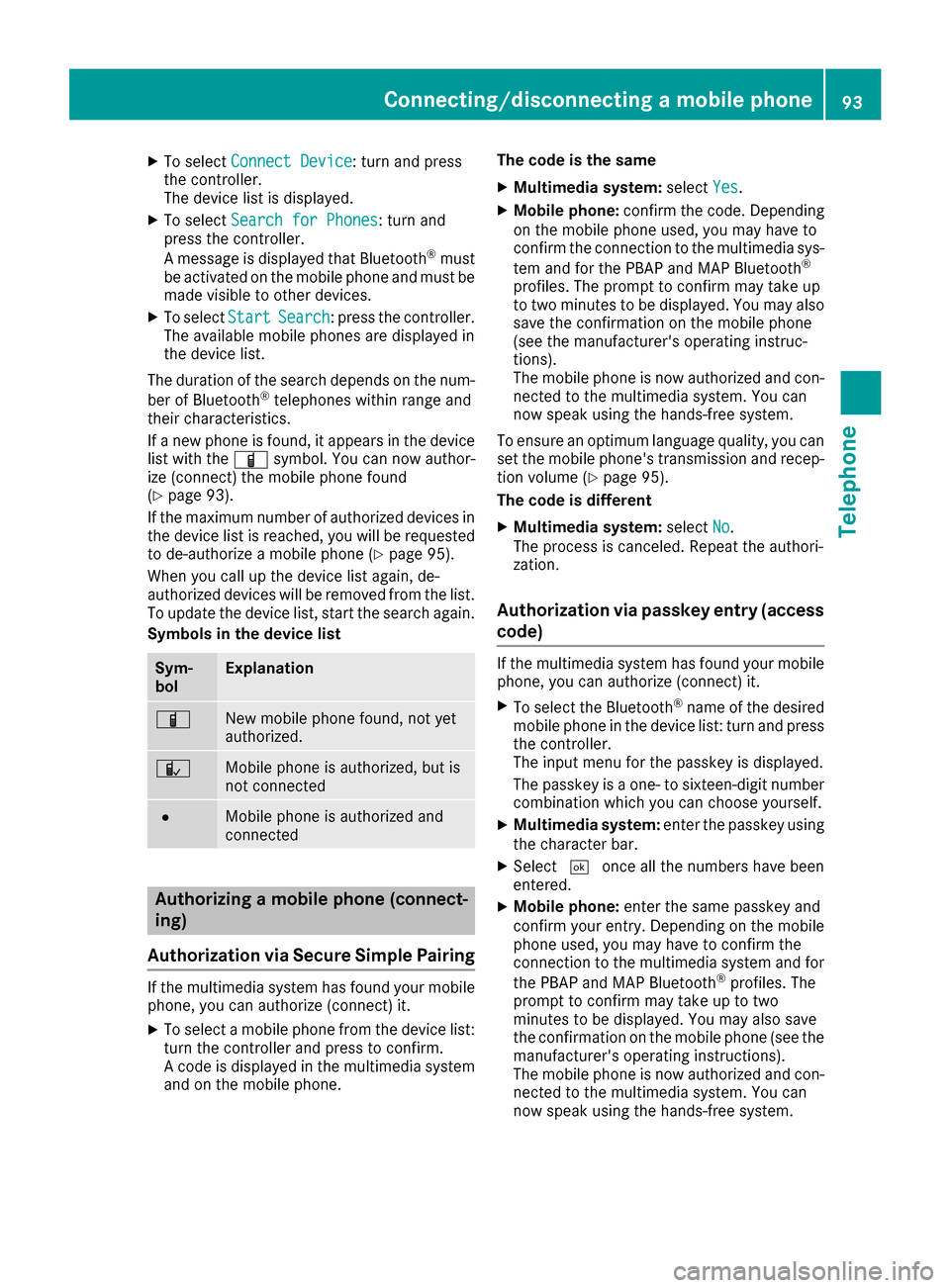
XTo selectConnect Device: turn and press
the controller.
The device list is displayed.
XTo select Search for Phones: turn and
press the controller.
A message is displayed that Bluetooth
®must
be activated on the mobile phone and must be
made visible to other devices.
XTo select StartSearch: press the controller.
The available mobile phones are displayed in
the device list.
The duration of the search depends on the num- ber of Bluetooth
®telephones within range and
their characteristics.
If a new phone is found, it appears in the device list with the Ïsymbol. You can now author-
ize (connect) the mobile phone found
(
Ypage 93).
If the maximum number of authorized devices in
the device list is reached, you will be requested
to de-authorize a mobile phone (
Ypage 95).
When you call up the device list again, de-
authorized devices will be removed from the list.
To update the device list, start the search again.
Symbols in the device list
Sym-
bolExplanation
ÏNew mobile phone found, not yet
authorized.
ÑMobile phone is authorized, but is
not connected
#Mobile phone is authorized and
connected
Authorizing a mobile phone (connect-
ing)
Authorization via Secure Simple Pairing
If the multimedia system has found your mobile
phone, you can authorize (connect) it.
XTo select a mobile phone from the device list: turn the controller and press to confirm.
A code is displayed in the multimedia system
and on the mobile phone. The code is the same
XMultimedia system:
selectYes.
XMobile phone: confirm the code. Depending
on the mobile phone used, you may have to
confirm the connection to the multimedia sys-
tem and for the PBAP and MAP Bluetooth
®
profiles. The prompt to confirm may take up
to two minutes to be displayed. You may also
save the confirmation on the mobile phone
(see the manufacturer's operating instruc-
tions).
The mobile phone is now authorized and con-
nected to the multimedia system. You can
now speak using the hands-free system.
To ensure an optimum language quality, you can
set the mobile phone's transmission and recep-
tion volume (
Ypage 95).
The code is different
XMultimedia system: selectNo.
The process is canceled. Repeat the authori-
zation.
Authorization via passkey entry (access
code)
If the multimedia system has found your mobile
phone, you can authorize (connect) it.
XTo select the Bluetooth®name of the desired
mobile phone in the device list: turn and press
the controller.
The input menu for the passkey is displayed.
The passkey is a one- to sixteen-digit number
combination which you can choose yourself.
XMultimedia system: enter the passkey using
the character bar.
XSelect ¬once all the numbers have been
entered.
XMobile phone: enter the same passkey and
confirm your entry. Depending on the mobile
phone used, you may have to confirm the
connection to the multimedia system and for
the PBAP and MAP Bluetooth
®profiles. The
prompt to confirm may take up to two
minutes to be displayed. You may also save
the confirmation on the mobile phone (see the
manufacturer's operating instructions).
The mobile phone is now authorized and con-
nected to the multimedia system. You can
now speak using the hands-free system.
Connecting/disconnecting a mobile phone93
Telephone
Z
Page 96 of 178
To ensure an optimum language quality, you can
set the mobile phone's transmission and recep-
tion volume (
Ypage 95).
If the Authorization Failed
message
appears, you may have entered a different pass-
key or exceeded the prescribed time limit.
Repeat the procedure.
iSome mobile phones require a passkey with
four or more digits.
iIf you wish to re-authorize the mobile phone
after de-authorizing it, you can choose
another passkey for it.
Establishing the connection from the
mobile phone
The Bluetooth®device name of the multimedia
system is MB Bluetooth.
XMultimedia system: call up the telephone
menu.
XTo switch to the menu bar: slide 6the con-
troller.
XTo select Connect Device: turn and press
the controller.
The device list is displayed.
XTo select Connect via Phone: turn and
press the controller.
A message is displayed, stating that you can
start the search on your mobile phone.
XMobile phone: start the search for a Blue-
tooth®device (see manufacturer's operating
instructions).
The multimedia system is displayed with the
name MB Bluetooth
in the mobile phone's
device list.
XSelect MB Bluetooth.
A prompt appears in the multimedia system's
display asking if the mobile phone should be
authorized.
XMultimedia system: selectYes.
If No
is selected, the procedure is canceled.
If your mobile phone supports Secure Simple
Pairing, a code is now displayed on both devi-
ces.
The code is the same
XMultimedia system: selectYes.
XMobile phone: confirm the code. Depending
on the mobile phone used, you may have to
confirm the connection to the multimedia sys- tem and for the PBAP and MAP Bluetooth
®
profiles. The prompt to confirm may take up
to two minutes to be displayed. You may also
save the confirmation on the mobile phone
(see the manufacturer's operating instruc-
tions).
The mobile phone is now authorized and con-
nected to the multimedia system. You can
now speak using the hands-free system.
To ensure an optimum language quality, you can
set the mobile phone's transmission and recep-
tion volume (
Ypage 95).
The code is different
XMultimedia system: selectNo.
The process is canceled. Repeat the proce-
dure.
If your mobile phone does not support Secure
Simple Pairing, an input menu is displayed for
the passkey. The passkey is a one- to sixteen-
digit number combination which you can choose
yourself. Enter the same passkey in both the
multimedia system and on the mobile phone and
confirm. Depending on the mobile phone used,
you may have to confirm the connection to the
multimedia system and for the PBAP and MAP
Bluetooth
®profiles.
Reconnecting automatically
The multimedia system always searches for the
last connected mobile phone.
If no connection can be made to the most
recently connected mobile phone, the system
searches for the mobile phone that was con-
nected before that one.
Switching between mobile phones
If you have authorized more than one mobile
phone, you can switch between the individual
phones.
XTo call up the telephone menu: press the
% button.
XTo show the menu bar: slide 6the control-
ler.
94Connecting/disconnecting a mobile phone
Telephone
Page 117 of 178
You can set the language (Ypage 40) and the
speed (Ypage 37) of the read-aloud function.
Displaying details and phone numbers
The multimedia system can also show a short-
ened sender display in full.
XTo call up the telephone menu: press the
% button.
XTo switch to the menu bar: slide 6the con-
troller.
XTo select 1: turn and press the controller.
The message menu is displayed.
XTo switch to the menu bar: slide 6the con-
troller.
XTo select Folder: turn and press the control-
ler.
XTo select Text MessageorE-Mail: turn and
press the controller.
The selected folder is displayed.
XTo highlight the desired message: turn the
controller.
XTo select G: slide 9the controller.
XTo select Details: turn and press the con-
troller.
The detailed view appears.
XTo close the detailed display: slide8 the
controller.
XTo return to the telephone menu: press the
% button.
Writing text messages
Writing a new text message
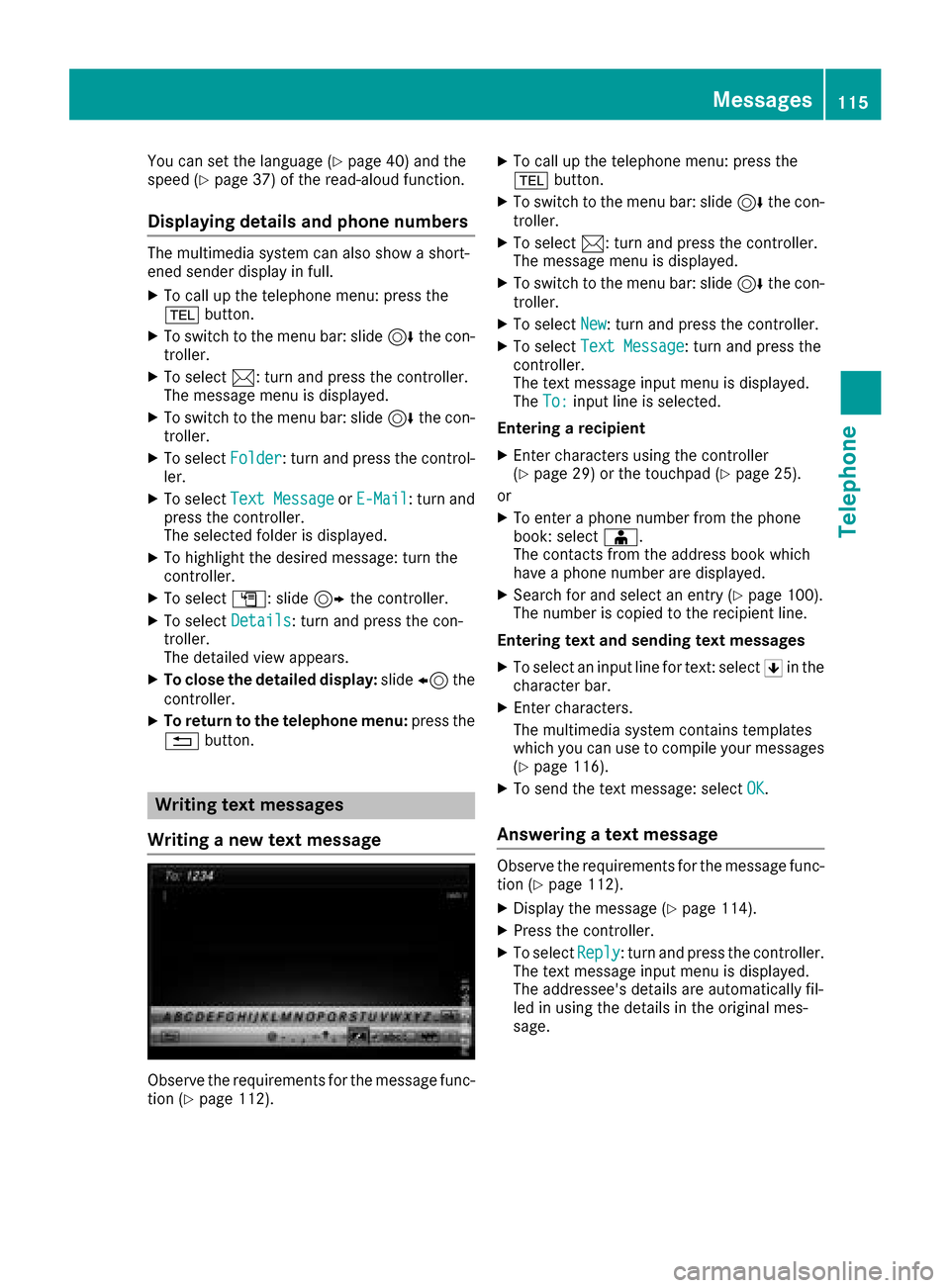
Observe the requirements for the message func-
tion (Ypage 112).
XTo call up the telephone menu: press the
% button.
XTo switch to the menu bar: slide 6the con-
troller.
XTo select 1: turn and press the controller.
The message menu is displayed.
XTo switch to the menu bar: slide 6the con-
troller.
XTo select New: turn and press the controller.
XTo selectText Message: turn and press the
controller.
The text message input menu is displayed.
The To:
input line is selected.
Entering a recipient
XEnter characters using the controller
(Ypage 29) or the touchpad (Ypage 25).
or
XTo enter a phone number from the phone
book: select Æ.
The contacts from the address book which
have a phone number are displayed.
XSearch for and select an entry (Ypage 100).
The number is copied to the recipient line.
Entering text and sending text messages
XTo select an input line for text: select 5in the
character bar.
XEnter characters.
The multimedia system contains templates
which you can use to compile your messages
(
Ypage 116).
XTo send the text message: select OK.
Answering a text message
Observe the requirements for the message func-
tion (Ypage 112).
XDisplay the message (Ypage 114).
XPress the controller.
XTo selectReply: turn and press the controller.
The text message input menu is displayed.
The addressee's details are automatically fil-
led in using the details in the original mes-
sage.
Messages115
Telephone
Z
Page 161 of 178
Do not use discs with an 8 cm diameter, even
when using an adapter. Only use round discs
with a 12 cm diameter.
The variety of data media, burners and burn
software means there is no guarantee that the
system will be able to play discs that you have
copied yourself.
DVD playback conditions
The multimedia system can play back video
DVDs produced according to the following
standards:
RRegion code 1 or region code 0 (no region
code)
RPAL or NTSC standard
You will generally find the relevant details either
on the DVD itself or on the DVD case.
With DVDs that do not meet the standard
requirements, you may encounter playback
problems.
iObserve the following notes:
RIt is also possible to play video DVDs with a
different region code, provided that they
are produced in accordance with the PAL or
NTSC standard. If you insert a video DVD
with a different region code, a message to
this effect appears.
RThe multimedia system is set to region
code 1 at the factory. This setting can be
changed at a qualified specialist workshop.
The region code can be changed up to five
times.
RIf a DVD cannot be played back according
to national color transfer methods (PAL or
NTSC standards), problems with the image,
sound or playback may occur.
Control options
There are four control menus available in video
DVD mode.
Most DVDs have their own control menu. The
DVD is operated directly using the controller or DVD functions.
Control menu and
functionOperation
RDVD's control
menu
Selection of title,
scene, language,
subtitles ...Operation with the
controller
ROptionsmenu
Selection of bright-
ness, contrast,
color, formatOperation using the
menu bar Options,
video settings
RVideo menu
Selection of scene,
fast forward or
rewindIn full-screen mode,
slide 6the control-
ler
RDVD functions
Selection of title,
scene, language,
subtitles ...In full-screen mode,
press the controller
Function restrictions
Depending on the DVD, certain functions or
actions may not function at all. The symbol K
appears in the display.
Switching on video DVD mode
XInsert and eject a disc from the single drive
(Ypage 143)
Further options for switching on:
RUsing the main function bar (Ypage 140)
RUsing the device list (Ypage 141)
RUsing the Õbutton (Ypage 140)
Video DVD mode159
Media
Z
Page 163 of 178
In order to manually adjust the brightness, con-
trast and color, the dynamic image enhance-
ment function and the automatic daylight
adjustment feature must be switched off.
XTo selectBrightness,Contrastor
Color: turn and press the controller.
A sliding menu appears.
XTo select the required value: turn the control-
ler.
XTo exit the sliding menu: slide 8the con-
troller.
Setting the picture format
The following screen format options are availa-
ble for the DVD currently being played:
RAuto
R16:9
R4:3
RZoom
XTo set the picture format: turn and press the
controller.
The dot before the menu entry shows the
selected format.
Showing the DVD's control menu
Most DVDs have their own control menuwhich
can be operated using the controller.
Showing the DVD's control menu
XTo show DVD functions: in full screen video
mode, press the controller.
The DVD functions menu is shown.
XTo select Menufrom the DVD functions menu:
turn and press the controller.
The DVD functions menu is hidden and the
DVD's menu entries (e.g. scenes, language,
trailers) are displayed.
XTo select a menu entry: turn and press the
controller.
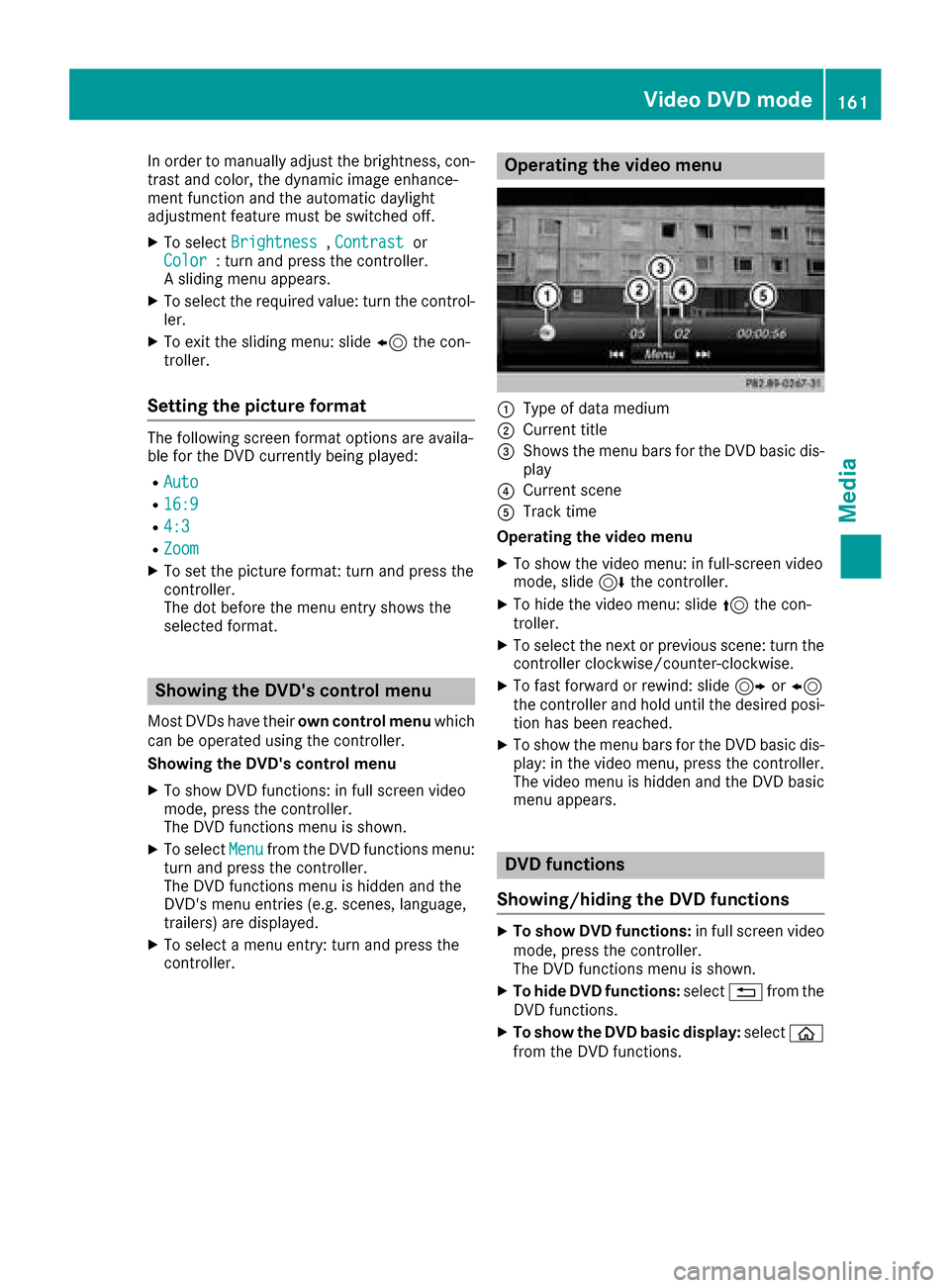
Operating the video menu
:Type of data medium
;Current title
=Shows the menu bars for the DVD basic dis- play
?Current scene
ATrack time
Operating the video menu
XTo show the video menu: in full-screen video
mode, slide 6the controller.
XTo hide the video menu: slide 5the con-
troller.
XTo select the next or previous scene: turn the controller clockwise/counter-clockwise.
XTo fast forward or rewind: slide 9or8
the controller and hold until the desired posi- tion has been reached.
XTo show the menu bars for the DVD basic dis-
play: in the video menu, press the controller.
The video menu is hidden and the DVD basic
menu appears.
DVD functions
Showing/hiding the DVD functions
XTo show DVD functions: in full screen video
mode, press the controller.
The DVD functions menu is shown.
XTo hide DVD functions: select%from the
DVD functions.
XTo show the DVD basic display: selectò
from the DVD functions.
Video DVD mode161
Media
Z
Page 164 of 178
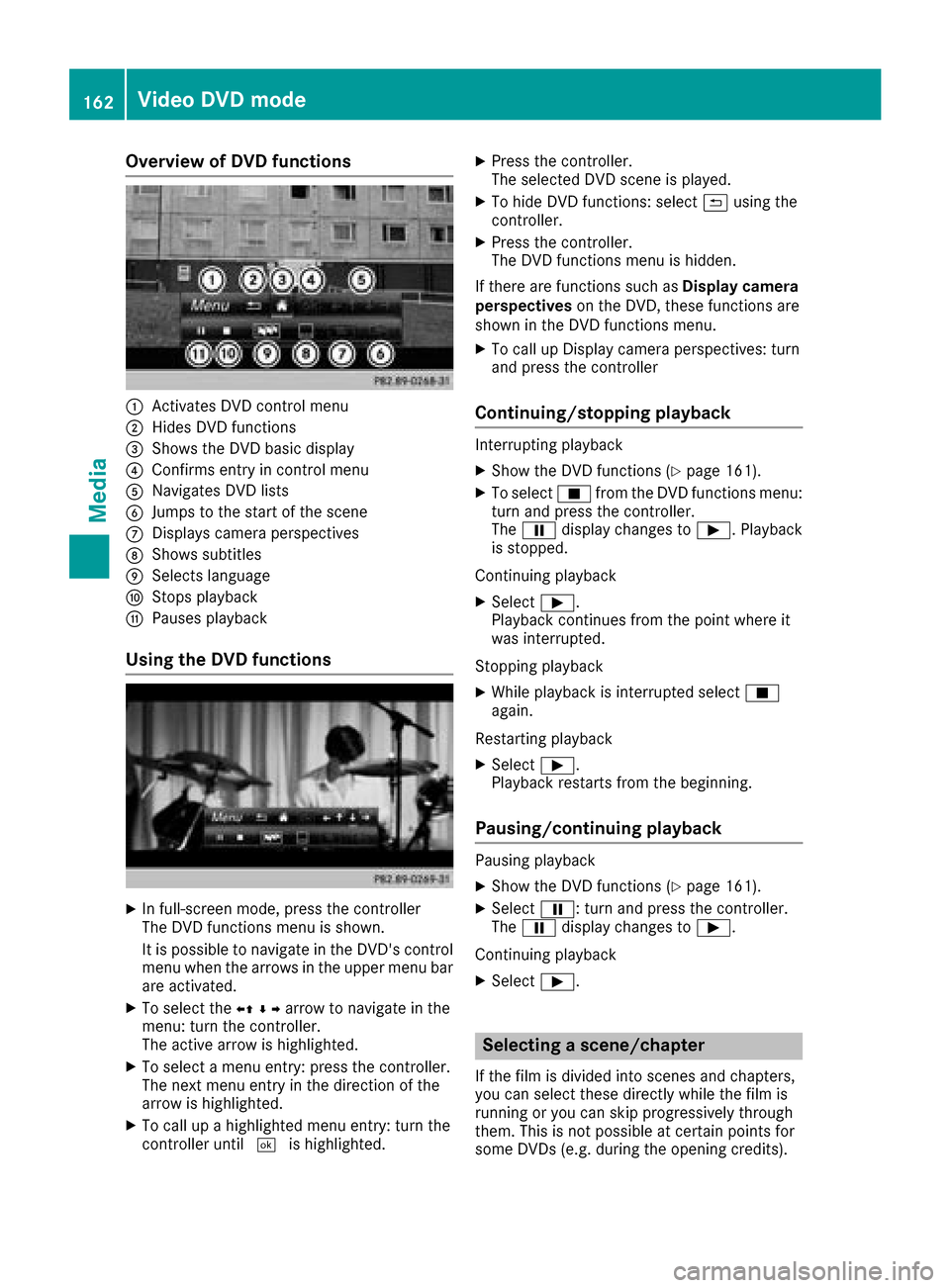
Overview of DVD functions
:Activates DVD control menu
;Hides DVD functions
=Shows the DVD basic display
?Confirms entry in control menu
ANavigates DVD lists
BJumps to the start of the scene
CDisplays camera perspectives
DShows subtitles
ESelects language
FStops playback
GPauses playback
Using the DVD functions
XIn full-screen mode, press the controller
The DVD functions menu is shown.
It is possible to navigate in the DVD's control
menu when the arrows in the upper menu bar
are activated.
XTo select theXZ¬Yarrow to navigate in the
menu: turn the controller.
The active arrow is highlighted.
XTo select a menu entry: press the controller.
The next menu entry in the direction of the
arrow is highlighted.
XTo call up a highlighted menu entry: turn the
controller until ¬is highlighted.
XPress the controller.
The selected DVD scene is played.
XTo hide DVD functions: select &using the
controller.
XPress the controller.
The DVD functions menu is hidden.
If there are functions such as Display camera
perspectives on the DVD, these functions are
shown in the DVD functions menu.
XTo call up Display camera perspectives: turn
and press the controller
Continuing/stopping playback
Interrupting playback
XShow the DVD functions (Ypage 161).
XTo select Éfrom the DVD functions menu:
turn and press the controller.
The Ë display changes to Ì. Playback
is stopped.
Continuing playback
XSelect Ì.
Playback continues from the point where it
was interrupted.
Stopping playback
XWhile playback is interrupted select É
again.
Restarting playback
XSelect Ì.
Playback restarts from the beginning.
Pausing/continuing playback
Pausing playback
XShow the DVD functions (Ypage 161).
XSelect Ë: turn and press the controller.
The Ë display changes to Ì.
Continuing playback
XSelect Ì.
Selecting a scene/chapter
If the film is divided into scenes and chapters,
you can select these directly while the film is
running or you can skip progressively through
them. This is not possible at certain points for
some DVDs (e.g. during the opening credits).
162Video DVD mode
Media