USB MERCEDES-BENZ GLC COUPE 2017 X253 Comand Manual
[x] Cancel search | Manufacturer: MERCEDES-BENZ, Model Year: 2017, Model line: GLC COUPE, Model: MERCEDES-BENZ GLC COUPE 2017 X253Pages: 178, PDF Size: 4.19 MB
Page 146 of 178
Inserting an SD card
XInsertth eSD car dint oth eSD car dslot until
th eSD car dengages. The side wit hth econ-
tacts must fac edown .
If Memory
Car dhas been selected as amedia
source ,th emedium is played and th efile sare
loade din th ebackground. If there are no sup-
porte daudio or vide ofiles, you will see ames -
sage to this effect.
XSelec tth emedia source (Ypage 140).
Removing an SD card
XPress theSD card.
The SD car dis ejected.
XRemove th eSD card.
Connecting USB devices
Ther eare two US Bports in th estowage spac e
under th earmres t (Ypage 140).
XConnect th eUS Bdevice to th eUS Bport.
If th ecorresponding media display is visible,
th emedium is played and th efile sare loade d
in th ebackground. If there are no supported
audio or vide ofiles, you will see amessage to
this effect.
iMP3 player smust support Medi aTransfer
Protoco l(MTP).
Activating media mode
Afte rinserting aCD or DVD, th emedia mod eis
automatically switched on by th emultimedia
system.
If playable musi cfile sare found, they will be
played by th emultimedia system.
If amedia function is already switched on in th e
multimedia system, this will be interrupted and
th ebasic display of th eCD or DV Dmod ewill
appear .If another function ,suc has navigation ,
is bein goperated, th ebasic display will no t
change. Only th emusi cfrom th elast inserted
CD or DV Dwill be played.
Dependin gon th evehicl eequipment, th ebasic
display must already be turne don when usin g
wit hUS Bdevice sor SD cards.
XInser tth eCDs/DVD s (Ypage 143)
or
XInser tan SD card: (Ypage 144)
or
XConnect aUS Bdevice : (Ypage 144)
The multimedia system loads th emedium
inserted and playbac kstart sautomatically.
Further option sfor switching on :
RUsing themain function bar (Ypage 140)
RUsing thedevice list (Ypage 141)
RUsing theÕ button (Ypage 140)
Selecting the playback option
Playing similar tracks
XIn media mode, slide 6thecontroller .
XTo select Options:tur nand press th econ-
troller .
XTo select PlayMor eLik eThi s:tur nand
press th econtroller .
The multimedia system automatically creates
and plays atrack list wit hsimilar tracks. If
there are no comparable track son th edat a
carrier, you will see amessage to this effect.
XSelec tth erequire dtrack .
Selecting Play mode
XIn media mode, slide 6thecontroller .
XTo select Options:tur nand press th econ-
troller .
XTo select PlaybackMode:tur nand press th e
controller .
XSelectNormal Track Sequence.
The curren ttrack list is played in th eorder it is
store don th edat amedium.
XSelec tRandom Track Lis t.
The curren ttrack list is played in random
order.
XSelec tRandom Medium.
All track son th edat amedium are played in
random order.
Entering a track number directly
XIn media mode, slide 6thecontroller .
XTo select Options:tur nand press th econ-
troller .
144Audio/video mode
Media
Page 147 of 178
XTo selectTrackNumber:: turn and press the
controller.
A menu appears.
XEnter the desired track number.
Skip to time
XIn media mode, slide 6the controller.
XTo select Options: turn and press the con-
troller.
XTo select Skip to Time: turn and press the
controller.
A menu appears.
XTo set the time: turn the controller.
Selecting an active partition
XIn media mode, slide 6the controller.
XTo select Options: turn and press the con-
troller.
XTo select Select Active Partition: turn
and press the controller.
With the Select
ActivePartitionoption,
you can select a partition in the USB data car-
rier.
Showing track information
XIn media mode, slide 6the controller.
XTo select Options: turn and press the con-
troller.
XTo select Show Track Information: turn
and press the controller.
Ticking or removing the tick from the box in
front of Show Track Information
displays
or hides the information on the track, artist
and album in the main display field.
Saving files to Media Register
iWith the SaveFilestoMediaRegisteroption, you can transfer supported audio,
image or video files to the multimedia system
hard drive.
XIn media mode, slide 6the controller.
XTo select Options: turn and press the con-
troller.
XTo select the Save Files to Media Reg‐isteroption: turn and press the controller.
A menu appears (Ypage 148).
Managing Media Register
XIn media mode, slide 6the controller.
XTo select Options: turn and press the con-
troller.
XDelete or rename individual files in the Media
Register (Ypage 150).
XDelete all files in the Media Register
(Ypage 150).
XCall up information on the preset
(Ypage 151).
Pausing/continuing playback
XTo pause playback: in audio or video mode,
slide 6the controller.
The media menu bar is shown.
XTo select Ëin the media menu bar: turn
and press the controller.
Playback is interrupted. The display changes
to Ì.
XTo continue playback: in audio or video
mode, slide 6the controller.
The media menu bar is shown.
XTo select Ìin the media menu bar: turn
and press the controller.
Playback is continued from the point of inter- ruption. The symbol changes to Ë.
Selecting a track
Selecting using the current track list
XTo display the current track list: press the
controller in the basic display.
The category list appears.
XSelect the current track list.
XTo select a track: turn the controller and press
to confirm.
Selecting by skipping to a track
XTo skip forward or back to a track: turn or
briefly slide 9or8 the controller in the
media basic display.
Audio/video mode145
Media
Z
Page 148 of 178
Searching for a track
XIn media mode, slide6the controller.
The media menu bar is shown.
XTo select Search: turn and press the control-
ler.
The category list is shown.
XSelect a category, e.g. Genres.
Sub-categories appear with the selection of
the main category (depends on the multime-
dia system default settings and the music
tracks available).
XSelect a sub-category, for example Rock.
If the sub-category Rock
contains music
tracks, these will be displayed.
Gracenote®Media Database
General notes
This function is available in CD mode.
There is a version of
Gracenote
®music recognition technology,
Emeryville, California, USA on the multimedia
system hard disk. You will recognize this by the
logo in the bottom right-hand corner of certain
audio displays.
If the audio CD does not contain any CD text
information, the multimedia system can use the
Gracenote
®Media Database to identify
unknown audio tracks when in CD mode.
Carrying out an Internet update of met-
adata
The Updating Metadata Via Internetoption allows any missing metadata for an audio
CD (e.g. cover, track, album, artist) to be uploa-
ded retrospectively to the internal Gracenote
®
database.
An Internet connection is required for this
(
Ypage 123). Selecting Internet update of metadata
XIn media mode, slide
6the controller.
The media menu bar is shown.
XTo select Options: turn and press the con-
troller.
XSelect Updating Metadata Via Internetin the selection list.
A connection with the Gracenote®server is
established. The missing data is loaded,
saved and displayed in the main display field.
If there is no data found or there is no Internet
connection, a corresponding error message
will appear.
Switching the Gracenote®data display
on/off
XActivate CD mode (Ypage 144).
XTo select Gracenote Media Database: turn
and press the controller.
XTo switch the display off: select None.
In the basic display, Track 1is shown instead
of the Gracenote®data, for example.
XTo switch on the display: press the controller.
Media search
General notes
The multimedia system plays back files from the following data media:
RDisc (audio CD or DVD)
RMemory card
RMedia Register
RUSB storage device
RApple®devices (folder, year and photos are
not available)
The categories are displayed according to the
data available.
Starting the media search
XIn media mode, slide 6the controller.
The media menu bar is shown.
XTo select Search: turn and press the control-
ler.
The category list appears.
146Media search
Media
Page 150 of 178
Searching for a track via a keyword
XTo selectKeywordSearchin the category list
(Ypage 147): turn and press the controller.
The input field appears.
XTo select the required characters: turn and
press the controller for each one (Ypage 29).
Entering just part of the name of a track or
artist is enough. The search result then dis-
plays the entire text.
XSelect ¬.
The search results are displayed.
The numbers behind the results, for example
Tracks
(5/0), mean: 5 results that contain
the exact keyword searched for and 0 results
that are similar.
XSelect one of the results.
Keywords that have already been searched
for are displayed in the "Search history" with-
out having to enter them completely. They
can be accepted directly and displayed in the
search result.
XSelect an entry.
Albums and covers (if available) are shown.
The multimedia system searches in all media
sources.
XSelect an album.
The tracks are listed.
XSelect a track.
The basic display appears and playback
starts.
Media Register
General notes
You can store music files, photos or video files in the Media Register. The memory has a capacity
of 10.8 GB.
iKeep your original music files, photos and
video files in a secure location. An error in the multimedia system may result in the loss of
files stored in the Media Register. Mercedes-
Benz is not liable for any loss of data.
Switching on the Media Register
XIn media mode press the Õbutton.
A menu appears with the available media
sources.
XTo select Media Register: turn and press
the controller.
Playback begins at the point last listened to.
If there are no files, you will see a message to
this effect.
Further options for switching on:
Rusing the main function bar: (Ypage 140)
Rusing the device list: (Ypage 141)
Rusing the Õbutton: (Ypage 140)
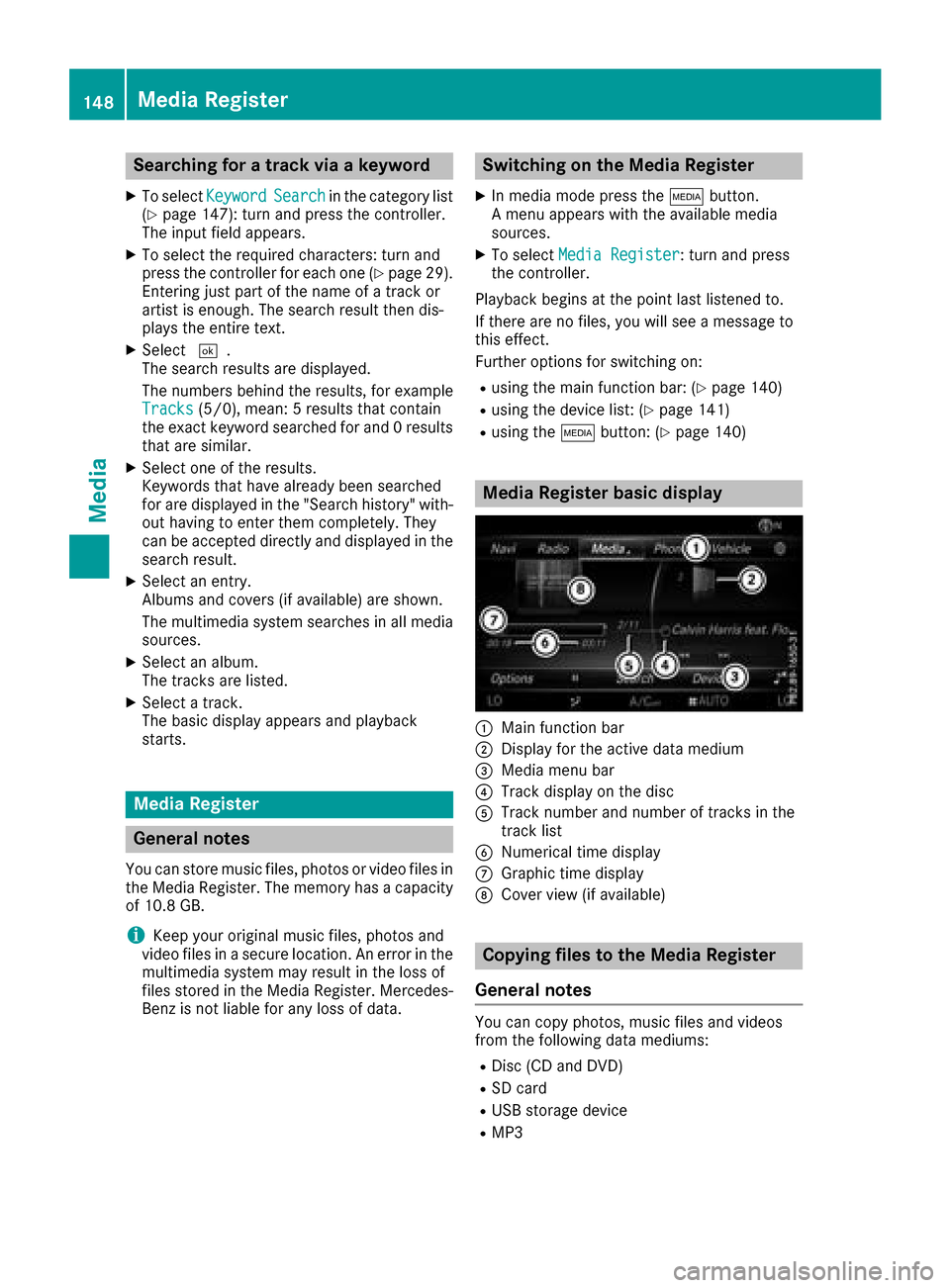
Media Register basic display
:Main function bar
;Display for the active data medium
=Media menu bar
?Track display on the disc
ATrack number and number of tracks in the
track list
BNumerical time display
CGraphic time display
DCover view (if available)
Copying files to the Media Register
General notes
You can copy photos, music files and videos
from the following data mediums:
RDisc (CD and DVD)
RSD card
RUSB storage device
RMP3
148Media Register
Media
Page 151 of 178
iData can only be copied from an MP3 player
if this can be configured as a mass storage
device.
Video files from DVD-V cannot be copied.
While copying, several functions will not be
available. If this is the case, you will see a
message to this effect.
1. Selecting a data medium
XIn media mode: press the Õbutton.
A menu appears with the available media
sources.
XTo select the media source: turn the control-
ler and press to confirm.
XTo switch to the menu bar: slide 6the con-
troller.
XTo select Options: turn and press the con-
troller.
XSelect Save Files to Media Register.
The media list appears. A data medium from
which files can be copied is selected auto-
matically.
iThe Save Files to Media Registerfunction can be reached from any media
application.
XSelect the displayed data medium.
The data medium is loaded.
If the data medium contains files that can be
copied, a selection menu appears.
2. Selecting files
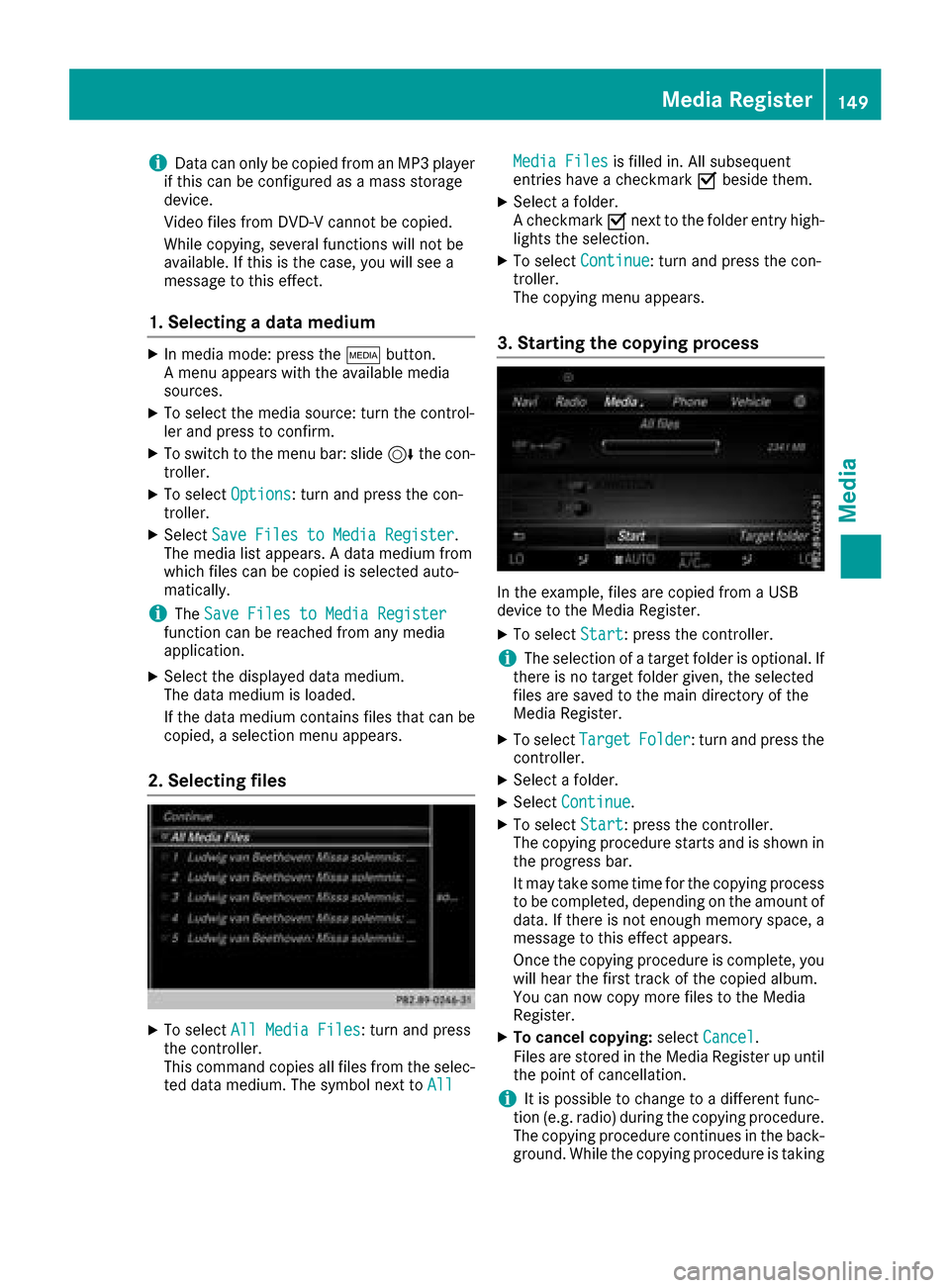
XTo select All Media Files: turn and press
the controller.
This command copies all files from the selec-
ted data medium. The symbol next to All
Media Filesis filled in. All subsequent
entries have a checkmark Obeside them.
XSelect a folder.
A checkmark Onext to the folder entry high-
lights the selection.
XTo select Continue: turn and press the con-
troller.
The copying menu appears.
3. Starting the copying process
In the example, files are copied from a USB
device to the Media Register.
XTo select Start: press the controller.
iThe selection of a target folder is optional. If
there is no target folder given, the selected
files are saved to the main directory of the
Media Register.
XTo select TargetFolder: turn and press the
controller.
XSelect a folder.
XSelect Continue.
XTo select Start: press the controller.
The copying procedure starts and is shown in
the progress bar.
It may take some time for the copying process
to be completed, depending on the amount of
data. If there is not enough memory space, a
message to this effect appears.
Once the copying procedure is complete, you
will hear the first track of the copied album.
You can now copy more files to the Media
Register.
XTo cancel copying: selectCancel.
Files are stored in the Media Register up until
the point of cancellation.
iIt is possible to change to a different func-
tion (e.g. radio) during the copying procedure.
The copying procedure continues in the back-
ground. While the copying procedure is taking
Media Register149
Media
Z
Page 158 of 178
Option 1:
XTo confirm theConnectLastUsedPlayermessage in the basic display: press the con-
troller.
If the multimedia system can locate the Blue-
tooth
®audio device, it will be connected and
start playing.
Option 2:
XSlide 6the controller.
The media menu bar is shown.
XTo select Connect Device: turn and press
the controller.
XTo select a Bluetooth®audio device: turn and
press the controller.
If the Bluetooth
®audio device has been
authorized, playback starts.
Bluetooth®audio device and simulta-
neous search for mobile phones
i
When searching for a mobile phone or a new
Bluetooth®audio device, the connection to an
already activated Bluetooth®audio device is
stopped.
In the Bluetooth
®audio basic display, you will
see the No Bluetooth Audio Device Con‐
nectedmessage, and the displayed ConnectLast Used Playermessage cannot be selec-
ted.
De-authorizing (deregistering) a Blue-
tooth®audio device
XTo select a Bluetooth®audio device from the
Bluetooth®device list: turn the controller
(Ypage 153).
XTo select G: slide 9the controller.
XTo select Deauthorize: press the controller.
A prompt appears asking whether you really
wish to de-authorize this device.
XTo select Yes: turn and press the controller.
If you select Yes, the device will be deleted
from the Bluetooth®device list.
iBefore re-authorizing the Bluetooth®audio
device, you should also delete the device
name MB Bluetooth
from your Bluetooth®
audio device's Bluetooth®list (see the man-
ufacturer's operating instructions).
Operation with the Media Interface
General notes
Media Interface is a universal interface for the
connection of mobile audio and video devices.
Media Interface in the multimedia system has
two USB connections.
The USB ports are located in the stowage com-
partment under the armrest (
Ypage 140).
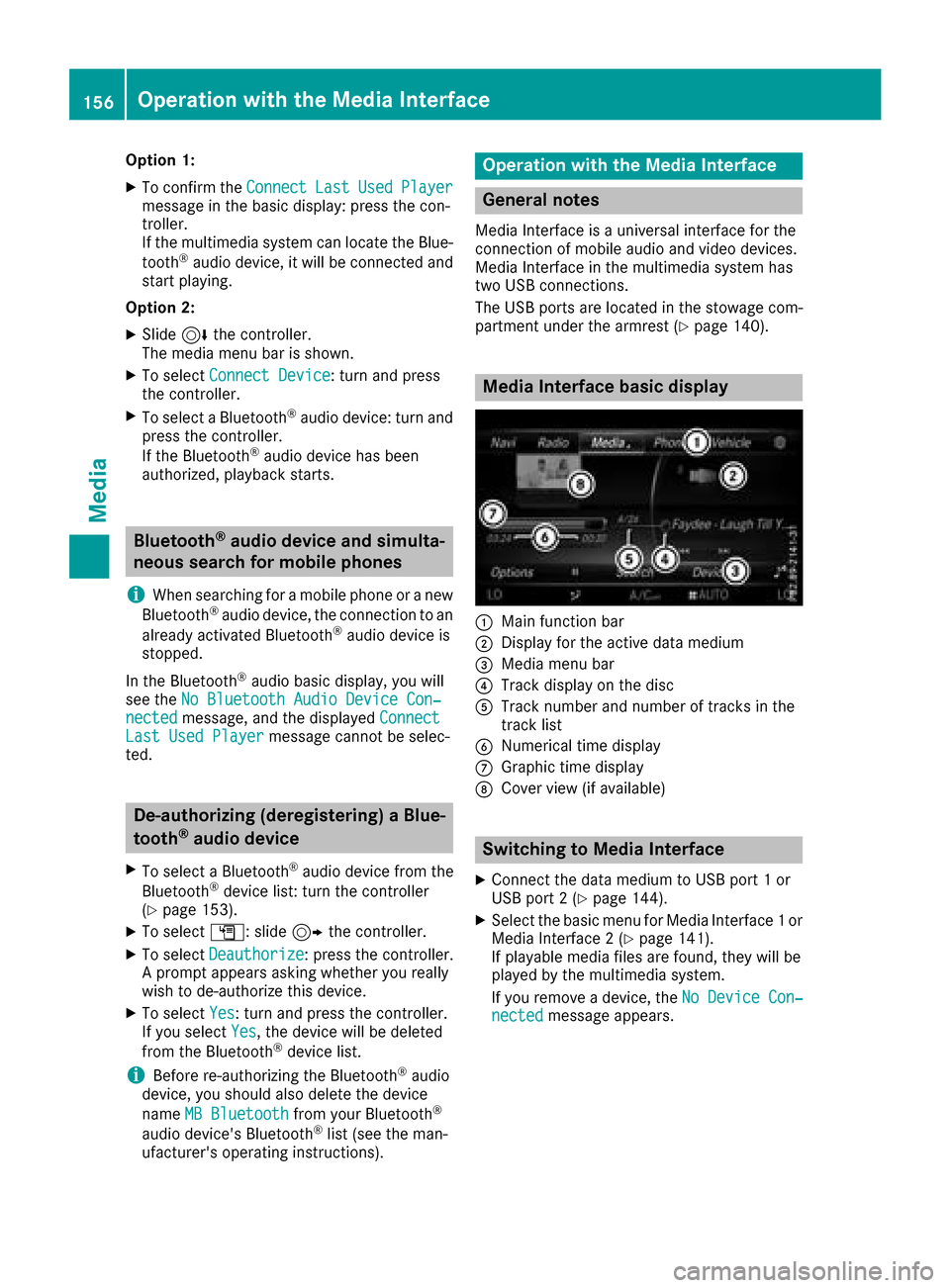
Media Interface basic display
:Main function bar
;Display for the active data medium
=Media menu bar
?Track display on the disc
ATrack number and number of tracks in the
track list
BNumerical time display
CGraphic time display
DCover view (if available)
Switching to Media Interface
XConnect the data medium to USB port 1 or
USB port 2 (Ypage 144).
XSelect the basic menu for Media Interface 1 or
Media Interface 2 (Ypage 141).
If playable media files are found, they will be
played by the multimedia system.
If you remove a device, the No Device Con‐
nectedmessage appears.
156Operation with the Media Interface
Media
Page 159 of 178
Supported devices
The following data media can be connected to
the multimedia system via Media Interface:
RiPod®
RiPhone®
RMP3
RUSB devices
iiPod®and iPhone®are registered trade-
marks of Apple Inc., Cupertino, California,
USA.
For details and a list of supported devices, visit
http://www.mercedes-benz.com/connect .
Then follow the instructions in the "Media Inter-
face" section.
Or call the Mercedes-Benz Customer Assistance
Center at 1-800-FOR-MERCedes
(1-800-367-6372) (for the USA) or Customer
Relations at 1-800-387-0100 (for Canada).
Supported data formats
MusicMP3, WMA, AAC
VideoMPEG, WMV, MOV,
AVI, MP4
ImagesJPG, JPEG, BMP, PNG
iVideo files from Apple®devices cannot be
played.
Selecting a music file
Selecting with the controller
XTo display the current track list: press the
controller in the basic display.
XSelect Current Tracklist.
The track list for the active data medium
appears.
XTo select a track: turn the controller and press
to confirm.
XTo skip forward or back to a track: turn the
controller in the basic display.
The selected track is played.
Fast forward/rewind
XWith the media source active in the basic dis- play, slide 8or9 the controller and
hold it until the desired position has been
reached.
Searching for a track
Selecting Search using media menu bar
XIn media mode, slide 6the controller.
The media menu bar is shown.
XTo select Search: turn and press the control-
ler.
The category list appears.
Overview
The following categories are listed:
RCurrent Tracklist
RFolder
RSelect By Cover
RKeyword Search
RPlaylists
RArtists
RAlbums
RTrack
RGenres
RYear
RComposers
RVideos
RPhotos
RPodcasts
RAudiobooks
iThe functions are available as soon as the
entire media content has been read and ana-
lyzed.
If the same device is reconnected with
unchanged media content, these functions
are available more quickly.
The audio books and podcasts categories are
only available for Apple
®devices.
When connecting Apple®devices, the cate-
gories “Folder”, “Year” and “Photos” are not
available.
Operation with the Media Interface157
Media
Z
Page 165 of 178
It may also be possible to select the scene and
chapter from the functions stored on the DVD.
XTo skip forward or back:in the video menu,
turn the controller.
The next or previous scene in the film is skip-
ped to.
iThe DVD functions can also be used to make
selections (Ypage 161).
Picture viewer
General notes
If there are pictures on the active data medium,
you can view them on the multimedia system.
The following data media and picture formats
are supported:
RData media: Media Register, CD, DVD, USB
devices, SD cards
RPicture formats: jpeg, jpg, bmp, png
The maximum image resolution is
20 megapixels.
It is not possible to view a picture from the driv-
er's side while the vehicle is in motion.
Displaying pictures
XIn media mode, slide 6the controller.
XTo select Search: turn and press the control-
ler.
The category list appears.
XTo select Photos: turn and press the control-
ler.
A directory list appears. Folders and picture
files can be shown.
XSelect a folder or picture.
If there is no picture on the data medium, an
empty list is shown.
Searching for pictures on other data media
XYou can search for pictures on other data
media.
In the directory list, slide 8the controller.
The device list appears.
XTo select a data medium with picture files:
turn the controller and press to confirm.
A directory list appears. Folders and picture
files can be shown.
XSelect a folder or picture.
Starting a slide show
XWhile viewing a picture, press the controller.
The image menu appears.
XTo select Start Slideshow: turn and press
the controller.
The slide show starts.
XTo end the slide show: press the controller.
The image menu appears.
XSelect End Slide Show.
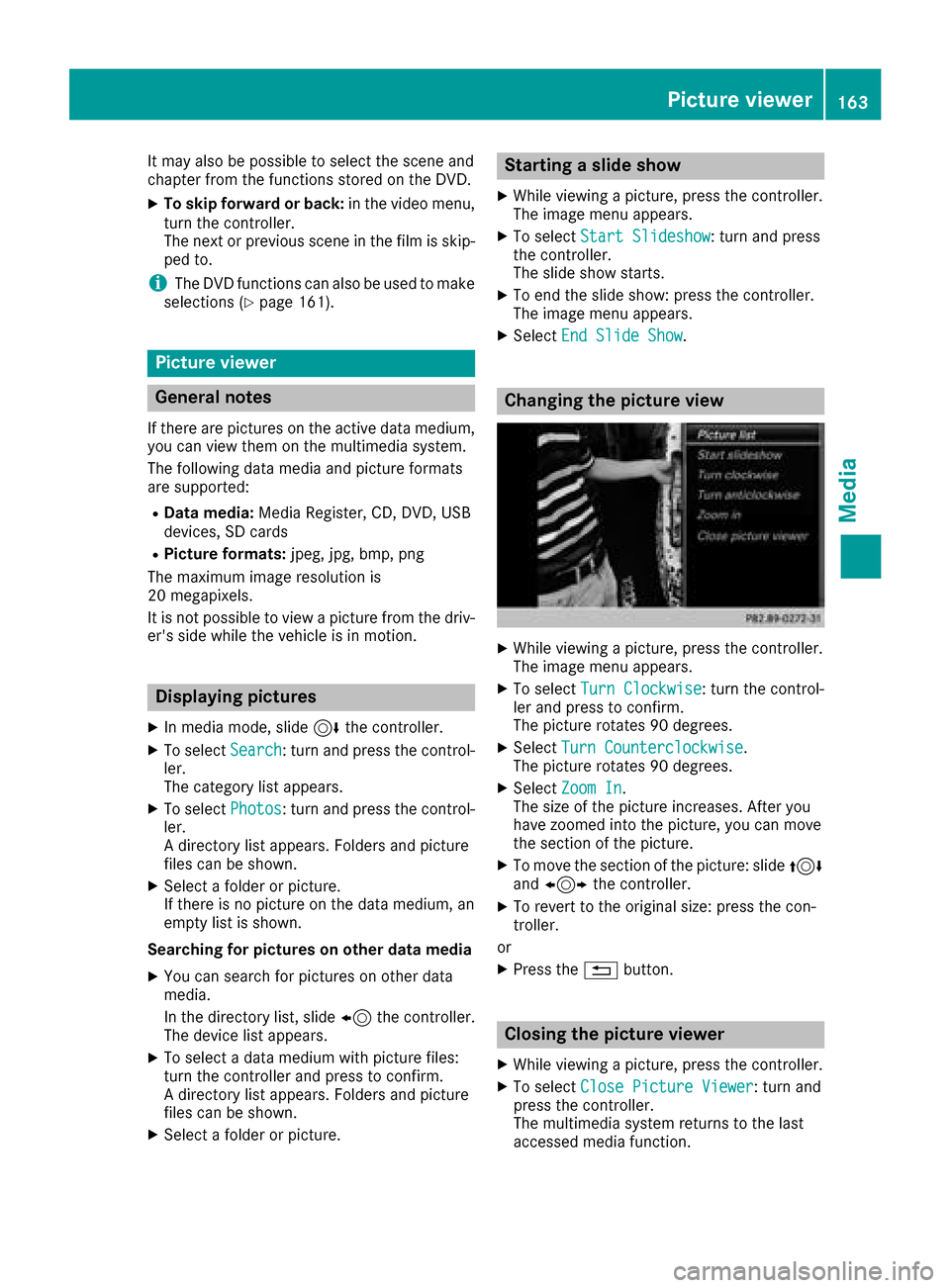
Changing the picture view
XWhile viewing a picture, press the controller.
The image menu appears.
XTo select Turn Clockwise: turn the control-
ler and press to confirm.
The picture rotates 90 degrees.
XSelect Turn Counterclockwise.
The picture rotates 90 degrees.
XSelect Zoom In.
The size of the picture increases. After you
have zoomed into the picture, you can move
the section of the picture.
XTo move the section of the picture: slide 4
and 1 the controller.
XTo revert to the original size: press the con-
troller.
or
XPress the %button.
Closing the picture viewer
XWhile viewing a picture, press the controller.
XTo select Close Picture Viewer: turn and
press the controller.
The multimedia system returns to the last
accessed media function.
Picture viewer163
Media
Z