trip computer MERCEDES-BENZ GLC COUPE 2019 Owners Manual
[x] Cancel search | Manufacturer: MERCEDES-BENZ, Model Year: 2019, Model line: GLC COUPE, Model: MERCEDES-BENZ GLC COUPE 2019Pages: 657, PDF Size: 11.28 MB
Page 276 of 657
R
Assistance
R Trip
R Navigation
R Radio
R Media
R Telephone
R HUD
R Vehicles with an instrument display in
th e widescreen cockpit: Design
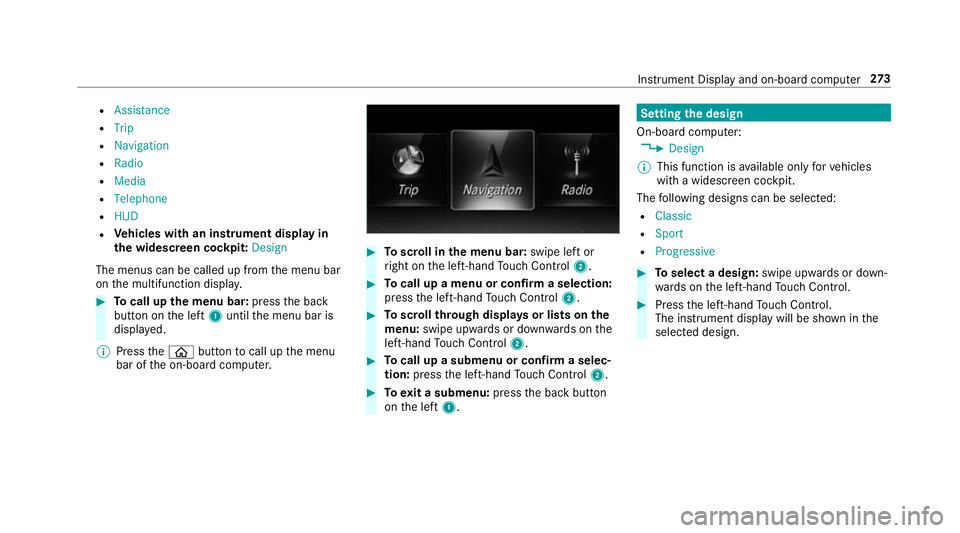
The menus can be called up from the menu bar
on the multifunction displa y.#
Tocall up the menu bar: pressthe back
button on the left 1until the menu bar is
displa yed.
% Press theò button tocall up the menu
bar of the on-board computer. #
Toscroll in the menu bar: swipe left or
ri ght on the left-hand Touch Control 2. #
Tocall up a menu or confirm a selection:
press the left-hand Touch Control 2. #
Toscroll through displa ysor lists on the
menu: swipe upwards or down wards on the
left-hand Touch Control 2. #
Tocall up a submenu or confirm a selec‐
tion: press the left-hand Touch Control 2. #
Toexit a submenu: pressthe back button
on the left 1. Setting
the design
On-board computer: 4 Design
% This function is available on lyforve hicles
with a widescreen cockpit.
The following designs can be selec ted:
R Classic
R Sport
R Progressive #
Toselect a design: swipe upwards or down‐
wa rds on the left-hand Touch Control. #
Press the left-hand Touch Control.
The instrument displ aywill be shown in the
selected design. Instrument Display and on-board computer
273
Page 279 of 657
Calling up displa
yson the Assistance menu On-board computer:
4 Assistance
The following displa ysare available on the Assis‐
ta nce menu:
R Assi stant display
R Attention le vel (/ page 253) #
Toswitch between the displa ys:swipe
upwards or down wards on the left-hand
To uch Control. St
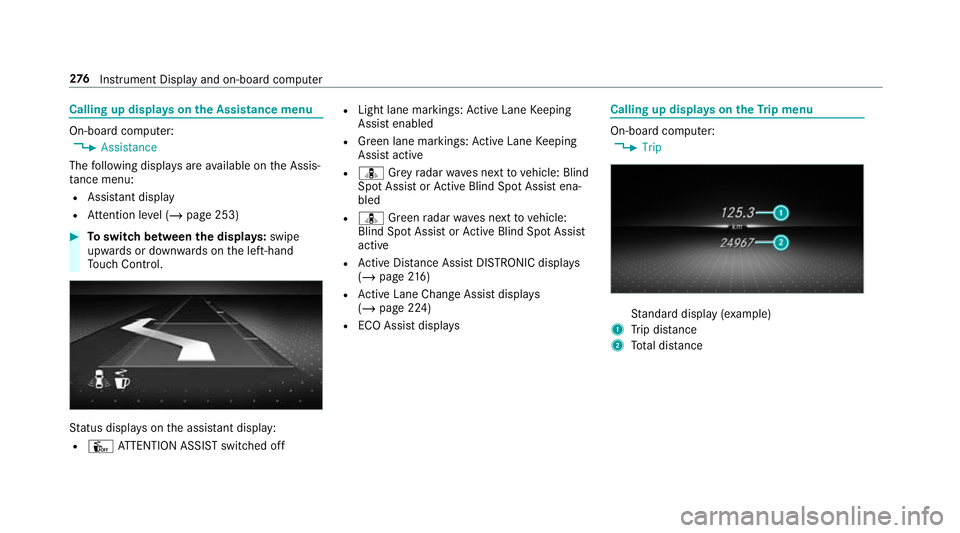
atus displa yson the assis tant displ ay:
R Û ATTENTION ASSIST switched off R
Light lane markings: Active Lane Keeping
Assist enabled
R Green lane markings: Active Lane Keeping
Assist active
R ¸ Grey radar waves next tovehicle: Blind
Spot Assist or Active Blind Spot Assi stena‐
bled
R ¸ Green radar waves next tovehicle:
Blind Spot Assist or Active Blind Spot Assi st
active
R Active Dis tance Assi stDISTRONIC displa ys
( / page 216)
R Active Lane Change Assi stdispla ys
( / page 224)
R ECO Assist displa ys Calling up displa
yson theTr ip menu On-board computer:
4 Trip St
andard display (e xamp le)
1 Trip dis tance
2 Total dis tance 276
Instrument Display and on-board computer
Page 280 of 657
Tr
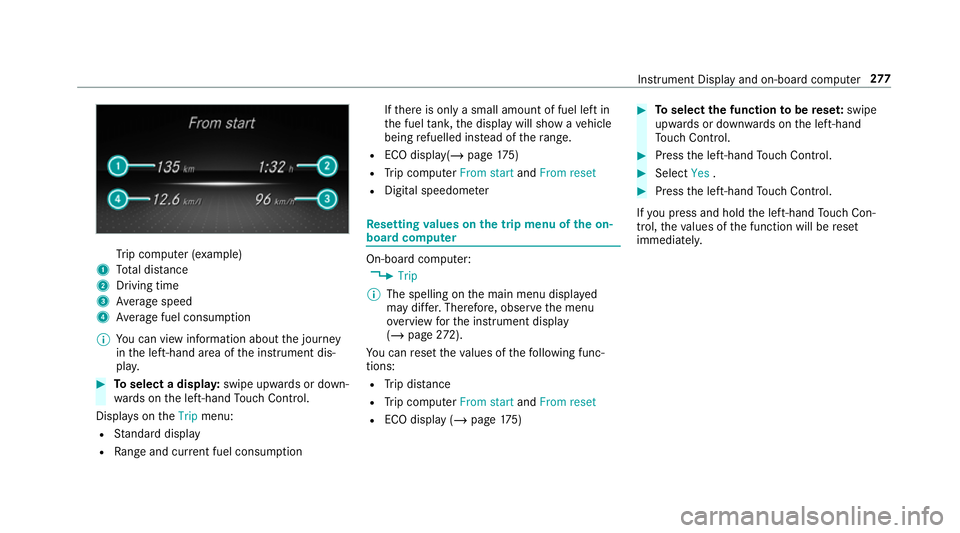
ip computer (e xamp le)
1 Total dis tance
2 Driving time
3 Average speed
4 Average fuel consum ption
% You can view information about the journey
in the left-hand area of the instrument dis‐
pla y. #
Toselect a displa y:swipe upwards or down‐
wa rds on the left-hand Touch Control.
Displa yson theTrip menu:
R Standard display
R Range and cur rent fuel consu mption If
th ere is only a small amount of fuel left in
th e fuel tank, the display will show a vehicle
being refuelled ins tead of thera nge.
R ECO displ ay(/ page 175)
R Trip computer From startandFrom reset
R Digital speedom eter Re
setting values on the trip menu of the on-
board compu ter On-board computer:
4 Trip
% The spelling on the main menu displa yed
may dif fer. Therefore, obser vethe menu
ove rview forth e instrument display
(/ page 272).
Yo u can reset theva lues of thefo llowing func‐
tions:
R Trip dis tance
R Trip computer From startandFrom reset
R ECO display (/ page175) #
Toselect the function tobe rese t:swipe
upwards or down wards on the left-hand
To uch Control. #
Press the left-hand Touch Control. #
Select Yes. #
Press the left-hand Touch Control.
If yo u press and hold the left-hand Touch Con‐
trol, theva lues of the function will be reset
immediatel y. Instrument Display and on-board computer
277
Page 648 of 657
Tr
ailer Manoeuvring Assist ..................... 238
Ad justing the articulation angle ........... 239
Fu nction .............................................. 238
St raightening manoeuvre .................... 239
Using .................................................. .239
Tr ailer operation
Ac tive Blind Spot Assi st....................... 259
Ac tive Lane Keeping Assist ................. 260
Bicycle rack ......................................... 267
Coupling up/uncoupling a trailer ........ 265
Extending/r etra cting the ball neck ...... 263
No tes .................................................. 262
Soc ket ................................................. 265
Tr ailer stabilisation
Fu nction/no tes ................................... 206
Tr ansfer redve hicle data
Android Auto ....................................... 420
Apple CarPl ay®
.................................... 420
Tr ansmission position display ................17 9
Tr anspo rting
Ve hicle ................................................ 496
Tr im element (Care) .................................477 Tr
ip
Menu (on-board computer) .................. 276
Tr ip computer
Displaying ............................................ 276
Re setting ............................................. 277
Tr ip distance ............................................ 276
Displ aying ............................................ 276
Re setting ............................................. 277
Tr ip me ter
see Trip dis tance
Tu rn signal indicator
see Turn signal lights
Tu rn signal lights .....................................1 39
Switching on/off ................................. 13 9
TV ............................................................. 295
Ac tivating ............................................ 449
Ad justing the brightness ..................... 455
Calling up the menu (CI+ module) .......4 56
Information .......................................... 448
Overview ............................................. 450
Picture settings ................................... 455
Setting subtitles ..................................4 54
Setting the audio language .................. 454
Showing telete xt ................................. .455 Showing/hiding full screen .................. 451
Te
lete xt ove rview ................................ .454
Vo ice commands (LINGU ATRO NIC) .....2 95
TV channel
Ac tivating/deactivating channel fix ..... 452
Channel fix .......................................... 452
Channel li stoverview .......................... 453
Countr y-specific character set ............ 453
EPG (electronic prog ramme guide) ..... .452
Overview of favo urites ........................ .453
Selecting from thech annel list ............ 451
Selecting from the control menu ......... 451
Selecting from thefa vo urites .............. 452
Selecting in the bac kground ................ 452
St oring ................................................ 453
Tw o-w ayradios
Fr equencies ......................................... 523
No tes on ins tallation .......................... .522
Tr ansmission output (maximum) ........ .523
Ty re inflation compressor
see TIREFIT kit
Ty re pressure ........................................... 504
Checking (ty repressure monitoring
sy stem) ............................................... 505 Index
645