audio MERCEDES-BENZ GLC COUPE 2021 Owners Manual
[x] Cancel search | Manufacturer: MERCEDES-BENZ, Model Year: 2021, Model line: GLC COUPE, Model: MERCEDES-BENZ GLC COUPE 2021Pages: 481, PDF Size: 9 MB
Page 26 of 481
Mercedes-Benz GenuineParts
+ ENVIRONMENTAL
NOTEEnvironmental
dama gecaused bynot using recycled
re conditioned components Mercedes‑Benz
AGoffers recycled recondi‐
tioned components and pa rts with the same
qu ality as new parts. The same entitlement
from the implied warranty is valid as for new
parts. #
Recycled reconditioned components
and pa rts from Mercedes‑Benz AG.*
NO
TEImpairment of the operating ef fi‐
ciency of there stra int sy stems from
ins talling accessory parts or from repairs
or we lding Airbags and seat belt
tensioners, as well as
control units and sensors forth ere stra int
sy stems, may be ins talled in thefo llowing
areas of your vehicle:
R doors R
door pillars
R door sills
R seats
R cockpit
R instrument clus ter
R centre console
R late ra lro of frame #
Do not ins tall accessory parts such as
audio sy stems in these areas. #
Do not car ryout repairs or welding. #
Have accesso ries retrofitted at a quali‐
fi ed specialist workshop. Yo
u could jeopardise the operating saf ety of your
ve hicle if you use parts, tyres and wheels as well
as accessories releva nt tosaf ety which ha venot
been appr ovedby Mercedes-Benz. Saf ety-re le‐
va nt sy stems, e.g. the brake sy stem, may mal‐
function. Only use Mercedes-Benz GenuineParts
or parts of equal qualit y.Only use tyres, wheels
and accessories that ha vebeen specifically
appr ovedfo ryo ur vehicle model. Mercedes-Benz
tests original parts and con ver‐
sion parts and accessories that ha vebeen spe‐
cifically appr ovedfo ryo ur vehicle model forth eir
re liability, saf ety and suitabilit y.Despite ongoing
ma rket resear ch, Mercedes-Benz is unable to
assess other parts. Mercedes-Benz therefore
accepts no responsibility forth e use of such
parts in Mercedes-Benz vehicles, even if they
ha ve been of ficially appr oved or independently
appr ovedby ate sting centre.
Cer tain parts are only of ficially appr ovedfor
ins tallation or modification if they comply wi th
legal requirements. All Mercedes-Benz Genuine‐
Pa rts meet the appr oval requ irements. The use
of non-appr oved parts may in validate theve hi‐
cle's general operating pe rmit.
This is the case in thefo llowing situations:
R theve hicle type is dif fere nt from that for
which theve hicle's general operating pe rmit
wa s granted.
R other road users could be endangered.
R theex haust gas or noise le velge ts wo rse. General no
tes23
Page 39 of 481
R
address book data for use in connection with
an integrated hands-free sy stem or an inte‐
grated navigation sy stem
R entered navigation destinations
R data about the use of Internet services
These data for con venience and inf otainment
functions may be sa ved locally in theve hicle or
th ey may be located on a device which you ha ve
connected totheve hicle, such as a smartphone,
USB flash drive or MP3 pla yer.If yo u ha ve
entered these data yourself, you can dele tethem
at any time.
This data is transmit ted from theve hicle tothird
parties only at your requ est. This applies, in par‐
ticular, when you use online services in accord‐
ance with the settings that you ha veselected.
Smartphone integ ration (e.g. Android Autoor
Apple CarPlay ®
)
If yo ur vehicle is accordingly equipped, you can
connect your smartphone or ano ther mobile end
device totheve hicle. You can then control them
by means of the control elements integrated in
th eve hicle. Images and audio from the smart‐ phone can be output via
the multimedia sy stem.
Cer tain information is simultaneously transfer‐
re dto your smartphone. Depending on the type
and integration, this includes position data, day/
night mode and other general vehicle statuses.
Fo r more information please consult the Owner's
Manual of theve hicle/inf otainment sy stem.
This integration allo wsthe use of selected
smartphone apps, such as navigation or music
pla yer apps. There is no fur ther interaction
between the smartphone and theve hicle; in par‐
ticular, vehicle data is not directly accessible.
The type of additional data processing is de ter‐
mined bythe pr ovider of the app being used.
Which settings you can make, if an y,depends on
th e specific app and the operating sy stem of
yo ur smartphone. Online services
Wi
reless network connection
If yo ur vehicle has a wireless network connec‐
tion, it enables data tobe exch anged between
yo ur vehicle and additional sy stems. The wire‐
less network connection is made possible bythe ve
hicle's own transmitter and recei ver or by a
mobile end device that you ha vebrought into the
ve hicle, forex ample, a smartphone. Online func‐
tions can be used via the wireless network con‐
nection. This includes online services and appli‐
cations/apps pr ovided to yo uby the manufac‐
turer or by other pr oviders.
Manu factu rer's se rvices
Re garding the manufacturer's online services,
th e individual functions are described bythe
manufacturer in a suita ble place,forex ample, in
th e Owner's Manual or on the manufacturer's
we bsite, where there leva nt da taprotection
information is also given. Personal data may be
used forth e pr ovision of online services. Data
are exchanged via a secure connection, such as
th e manufacturer's designated IT sy stems. Any
personal data which are collected, processed
and used, other than forth e pr ovision of serv‐
ices, is done so exclusively on the basis of legal
permission. This is the case, forex ample, for a
legally prescribed emergency call sy stem, a con‐
tractual agreement or when consent has been
given. 36
General no tes
Page 235 of 481
sensors, e.g.
flowe rpots or dr awbars.
The vehicle or other objects could oth‐
erwise be damaged. Re
quirements:
R The camera menu is open.
R Or: Active Parking Assist is active.
R Or: thePA RKTRONIC pop-up window
appears. #
Tap= inthe media displa y.
If th e indicator lamp is lit, Parking Assist
PA RKTRONIC is active. If the indicator lamp is
not lit or theé symbol appears in the instru‐
ment clus ter,Pa rking Assist PARKTRONIC is not
active.
% Parking Assist PARKTRONIC is automatical ly
activated when the engine is star ted.
Alternatively, Parking Assist PARKTRONIC can be
activated or deacti vated in thequ ick access
menu. Setting
thewa rning tones of Parking Assist
PA RKTRONIC
Multimedia sy stem:
4 © 5
Settings 5
Assistance
5 Camera & parking
Ad justing the volume of thewa rning tones #
Select Warning tone volume. #
Set a value.
Ad justing the pitch of the warning tones #
Select Warning tone pitch. #
Set a value.
Specifying thest arting point for the warning
to nes
Yo u can specify whe ther thePa rking Assist
PA RKTRONIC warning tones should commence
when theve hicle is fur ther aw ay from an obs ta‐
cle. #
Select Warn early all-round. #
Switch the function on or off. Ac
tivating/deactivating audio fadeout
Yo u can specify whe ther thevo lume of a media
source in the multimedia sy stem is tobe
re duced when Parking Assist PARKTRONIC
sounds a warning tone. #
Select Audio fadeout during warning tones. #
Switch the function on or off. Ac
tive Parking Assist Fu
nction of Active Parking Assist
% The availability of this function is dependent
on the count ry.
Ac tive Parking Assist is an electro nic parking
assis tance sy stem, which uses ultrasound with
th e assis tance of there ve rsing camera and 360°
Camera. When you are driving forw ards up to
appr oximately 35 km/h, the sy stem automati‐
cally measures parking spaces on bo thsides of
th eve hicle.
As soon as all requ irements are met for sear ch‐
ing for parking spaces, theÇ display appears
in the multifunction displa y.232
Driving and parking
Page 255 of 481
Ve
hicles with Traf fic Sign Assis t:de tected
instructions and traf fic signs (/ page 210). Head-up display
Fu
nction of the head-up display *
NO
TEMercedes-AMG vehicles #
Obser vethe no tes in the Supplement.
Yo u could otherwise failto recognise
dangers. The head-up displ
ayprojects thefo llowing into
th e driver's field of vision:
R Information from the navigation sy stem
R Information from the driver assis tance sys‐
te ms
R Some warning messages Display content 1
Navigation instructions
2 Curr ent speed
3 Detected instructions and traf fic signs
4 Set speed in the driver assis tance sy stem
(e.g. cruise control)
When youre cei vea call, the6 Incoming call
message will appear on the head-up displa y.
In audio mode, thest ation name or track will be
shown temp orarily when the audio source is
being actively operated. Sy
stem limits
The visibility is influenced bythefo llowing condi‐
tions:
R Seat position
R Image position setting
R Light conditions
R Wetro ad sur faces
R Objects on the display co ver
R Polarisation in sunglasses
% Inextreme sunlight, sections of the display
may appear washed out. You can co rrect this
by switching the head-up display off and on
again. 252
Instrument display and on-board computer
Page 260 of 481
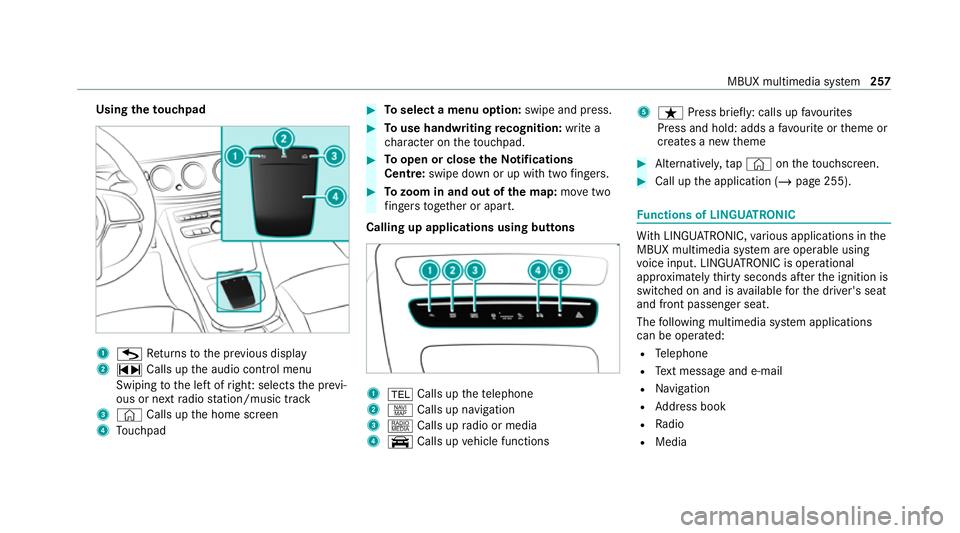
Using
theto uchpad 1
G Returns tothe pr evious display
2 ~ Calls up the audio control menu
Swiping tothe left of right: selects the pr evi‐
ous or next radio station/music track
3 © Calls up the home screen
4 Touchpad #
Toselect a menu option: swipe and press. #
Touse handwriting recognition: write a
ch aracter on theto uchpad. #
Toopen or close theNo tifications
Centre: swipe down or up with twofingers. #
Tozoom in and out of the map: movetwo
fi ngers toget her or apart.
Calling up applications using buttons 1
% Calls up thete lephone
2 z Calls up navigation
3 | Calls up radio or media
4 y Calls up vehicle functions 5
ß Press brief ly: calls up favo urites
Press and hold: adds a favo urite or theme or
creates a new theme #
Alternatively, tap© ontheto uchsc reen. #
Call up the application (/ page 255). Fu
nctions of LINGU ATRO NIC Wi
th LINGU ATRO NIC, various applications in the
MBUX multimedia sy stem are operable using
vo ice input. LINGU ATRO NIC is operational
appr oximately thirty seconds af terth e ignition is
switched on and is available forth e driver's seat
and front passenger seat.
The following multimedia sy stem applications
can be operated:
R Telephone
R Text messa geand e-mail
R Navigation
R Address book
R Radio
R Media MBUX multimedia sy
stem 257
Page 265 of 481
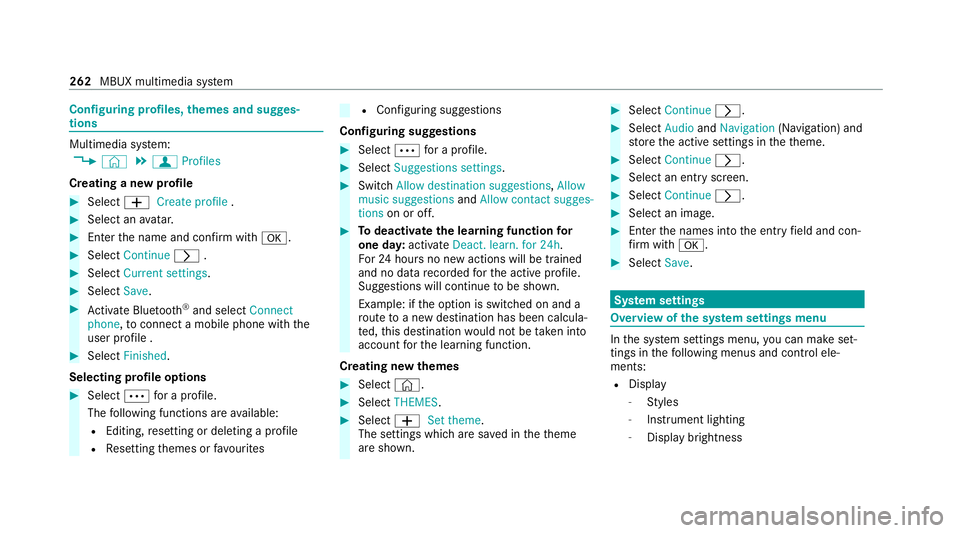
Configuring profiles,
themes and sugges‐
tions Multimedia sy
stem:
4 © 5
f Profiles
Creating a new profile #
Select WCreate profile .#
Select an avatar. #
Enterth e name and confi rmwith a. #
Select Continue r. #
Select Current settings. #
Select Save. #
Activate Blu etoo th®
and select Connect
phone, toconnect a mobile phone wi th the
user profile . #
Select Finished.
Selecting profile options #
Select Äfor a profile.
The following functions are available:
R Editing, resetting or deleting a profile
R Resetting themes or favo urites R
Con figuring suggestions
Configuring suggestions #
Select Äfor a profile. #
Select Suggestions settings . #
Switch Allow destination suggestions, Allow
music suggestions andAllow contact sugges-
tions on or off. #
Todeactivate the learning function for
one da y:activate Deact. learn. for 24h .
Fo r24 hours no new actions will be trained
and no data recorded forth e active profile.
Suggestions will continue tobe shown.
Example: if the option is switched on and a
ro ute toa new destination has been calcula‐
te d, this destination would not be take n into
account forth e learning function.
Creating new themes #
Select ©. #
Select THEMES . #
Select WSet theme.
The settings which are sa ved in theth eme
are shown. #
Select Continue r. #
Select AudioandNavigation (Navigation) and
st ore the active settings in theth eme. #
Select Continue r. #
Select an entry screen. #
Select Continue r. #
Select an image. #
Enter the names into the entry field and con‐
fi rm with a. #
Select Save. Sy
stem settings Overview of
the sy stem settings menu In
the sy stem settings menu, you can make set‐
tings in thefo llowing menus and control ele‐
ments:
R Display
- Styles
- Instrument lighting
- Display brightness 262
MBUX multimedia sy stem
Page 277 of 481
Obser
vethe additional information on stowing
mobile communications devices cor rectly:
R Loading theve hicle (/ page108)
Blue tooth ®
connection:
The menu view and theav ailable functions in the
te lephone menu are in part dependent on the
Blu etoo th®
profile of the connected mobile
phone. Full functionality is only available if the
mobile phone supports bo thofthefo llowing
Blue tooth ®
profiles:
R PBAP (Phone Book Access Profile)
- The contacts on the mobile phone are
shown automatically on the multimedia
sy stem.
R MAP (Message Access Profile)
- The mobile phone message functions can
be used on the multimedia sy stem.
Ir re spective of this, Blue tooth ®
audio functional‐
ity can byused with any mobile radio unit.
Fo r information on thera nge of functions of the
mobile radio unit tobe connec ted, see the man‐
ufacturer's operating instructions. Ne
twork connection:
The following cases can lead tothe call being
disconnected while theve hicle is in motion:
R You swit chinto a transmission/reception
st ation, in which no communication channel
is free.
R The SIM card used is not compatible with the
network available
R A mobile phone with "Twincard" is logged
into the network with the second SIM card at
th e same time
The multimedia sy stem supports calls in HD
Vo ice ®
for impr oved speech qualit y.Arequ ire‐
ment forth is is that the mobile phone and the
mobile phone network pr ovider of the person
yo u are calling suppo rtHD Voice ®
.
Depending on thequ ality of the connection, the
vo ice quality may fluctuate.
Fu rther information can be obtained from a
Mercedes-Benz service centre or at: https://
www.mercedes-benz.com/connect 274
MBUX multimedia sy stem
Page 294 of 481
The
following functions and settings are availa‐
ble in the media menu:
R Connecting extern al data storage media with
th e multimedia sy stem (e.g. using USB or
Blue tooth ®
) R
Playing back audio or video files
R Streaming online music
R Looking at TVprogrammes in theTV menu
Ad ditional functions in the TVmenu Symbol
DesignationF unction
Z SettingsSelecttomake settings in theTV menu. The following functions can be switched
on/off or confi gured:
R Channel fix
R Countr y-specific character set
R Audio language
R Subtitles
R Telete xt
R Picture form at
Õ EPGS electtoshow cur rent programme information forth ech annel.
4 Channel listS electtoshow a list of available channels with the cur rent programme. MBUX multimedia sy
stem 291
Page 295 of 481
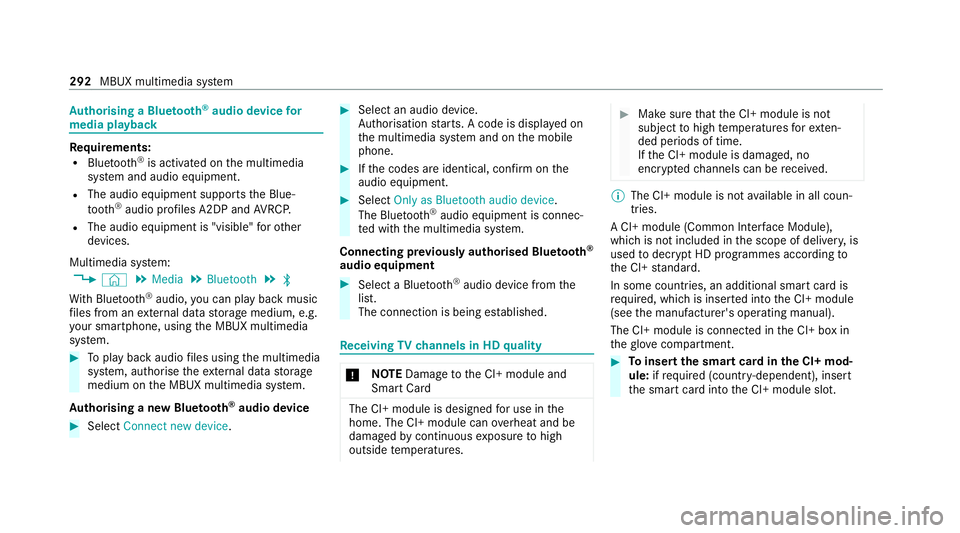
Au
thorising a Blu etoo th®
audio device for
media playba ckRe
quirements:
R Blue tooth ®
is activated on the multimedia
sy stem and audio equipment.
R The audio equipment supports the Blue‐
to oth ®
audio profiles A2DP and AVRC P.
R The audio equipment is "visible" forot her
devices.
Multimedia sy stem:
4 © 5
Media 5
Bluetooth 5
ª
Wi th Blu etoo th®
audio, you can play back music
fi les from an extern al data storage medium, e.g.
yo ur smartphone, using the MBUX multimedia
sy stem. #
Toplay back audio files using the multimedia
sy stem, authorise theex tern al data storage
medium on the MBUX multimedia sy stem.
Au thorising a new Blu etoo th®
audio device #
Select Connect new device . #
Select an audio device.
Auth orisation starts. A code is displa yed on
th e multimedia sy stem and on the mobile
phone. #
Ifth e codes are identical, confi rmonthe
audio equipment. #
Select Only as Bluetooth audio device .
The Blue tooth®
audio equipment is connec‐
te d with the multimedia sy stem.
Connecting pr eviously authorised Blue tooth ®
audio equipment #
Select a Blue tooth®
audio device from the
list.
The connection is being es tablished. Re
ceiving TVchannels in HD quality *
NO
TEDama getothe CI+ module and
Smart Card The CI+ module is designed
for use in the
home. The CI+ module can overheat and be
damaged bycontinuous exposure tohigh
outside temp eratures. #
Make sure that the CI+ module is not
subject tohigh temp eratures forex ten‐
ded pe riods of time.
If th e CI+ module is damaged, no
encryp tedch annels can be recei ved. %
The CI+ module is not available in all coun‐
tries.
A CI+ module (Common In terface Module),
which is not included in the scope of deliver y,is
used todecrypt HD programmes according to
th e CI+ standard.
In some countries, an additional smart card is
re qu ired, which is inse rted into the CI+ module
(see the manufacturer's operating manual).
The CI+ module is connected in the CI+ box in
th eglove compa rtment. #
Toinsert the sma rtcard in the CI+ mod‐
ule: ifre qu ired (countr y-dependent), insert
th e smart card into the CI+ module slot. 292
MBUX multimedia sy stem
Page 462 of 481
MBUX Interior Assistant
Switching there ading light forthe
driver and front passenger on/off
con tact-free........................................... 260
Switching the sear chlight forthe
driver on/off.........................................2 60
MBUX Interior Assistant (multimedia sy stem)
Overview............................................... 258
MBUX multimedia sy stem
Ac tivating/deactivating standby
mode.................................................... .183
Collision de tection (pa rked vehicle).......1 82
Configuri ng drive program I................... 16 5
No tes....................................................2 54
Operating theto uchsc reen.................... 256
Overview...............................................2 54
Re setting (factory setting)..................... 266
Setting route-based speed adap tation.. 202
Setting the air distribution..................... 14 4
Setting the fragrance sy stem.................1 45
Setting thest ationary heater/ venti‐
lation..................................................... 14 8
St andby mode function........................ .183
Switching ionisation on/off................... 14 5MBUX multimedia sy
stem
see Display (MBUX multimedia sy stem)
Media Overview of the functions and sym‐
bols....................................................... 289
Media mode Connecting Blue tooth®
audio equip‐
ment...................................................... 292
Medical aids ................................................ .33
Memory function Function................................................ 107
Head-up display — Calling up stored
settings................................................. 108
Head-up display — Storing settings........ 108
Operating..............................................1 08
Outside mir rors — Calling up stored
settings................................................. 108
Outside mir rors —St oring settings........1 08
Seat — Calling up stored settings..........1 08
Seat — Storing settings.......................... 108
St eering wheel — Calling up sa ved
settings.................................................1 08
St eering wheel — Saving settings........... 108Menu (on-board computer)
Head-up displa y..................................... 253
Overview............................................... 250
Mercedes me app Information............................................ 282
Mercedes me calls Arranging a service appointment.......... 280
Calling the Mercedes-Benz Cus tomer
Centr e................................................... 279
Calling the Mercedes-Benz Cus tomer
Centre af ter auto matic accident or
breakdown de tection............................ .279
Consenting todata transfer.................. 280
Information............................................ 279
Making a call via theov erhead con‐
trol panel............................................... 278
Tr ans ferred data.................................... 281
Mercedes me connect Accident and Breakdown Manage‐
ment...................................................... 277
Information............................................ 276
Tr ans ferred data.................................... 278
Mercedes-AMG vehicles
No tes..................................................... 15 2 Index
459