ESP MERCEDES-BENZ GLC SUV 2018 COMAND Manual
[x] Cancel search | Manufacturer: MERCEDES-BENZ, Model Year: 2018, Model line: GLC SUV, Model: MERCEDES-BENZ GLC SUV 2018Pages: 170, PDF Size: 4.1 MB
Page 69 of 170
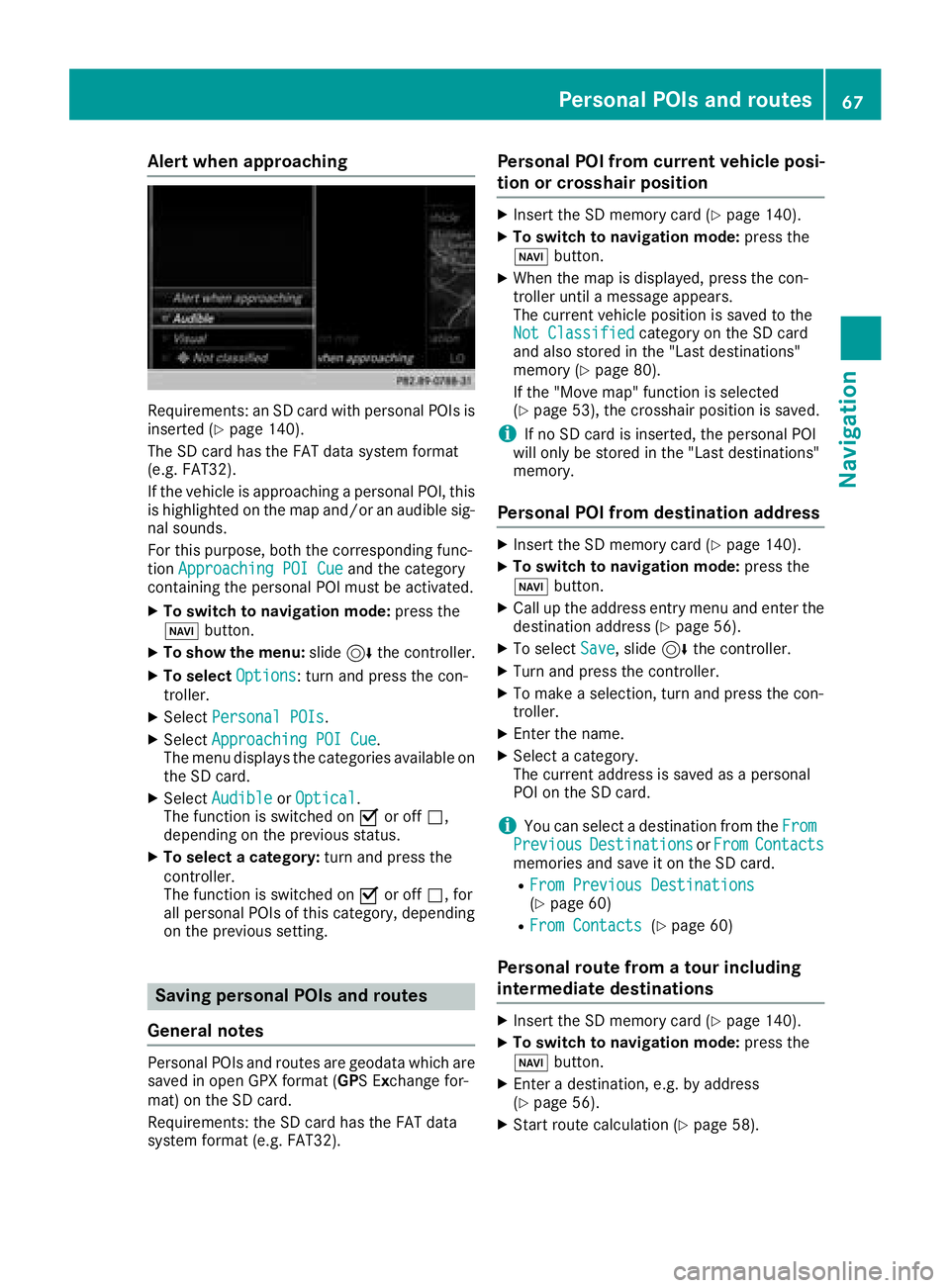
Alert when approaching
Requirements: an SD cardwit hpersonal POI sis
inserted (Ypage 140).
The SD car dhas th eFA Tdat asystem format
(e.g. FAT32).
If th evehicl eis approachin g apersonal POI ,this
is highlighte don th emap and/o ran audible sig-
nal sounds.
Fo rthis purpose ,bot hth ecorresponding func-
tion Approaching POI Cue
and th ecategory
containing th epersonal POI mus tbe activated.
XTo switch to navigation mode: press the
Ø button.
XTo sho wthemenu: slide6 thecontroller .
XTo select Options:tur nand press th econ-
troller .
XSelectPersonal POI s.
XSelectApproaching POI Cue.
The men udisplays th ecategorie savailable on
th eSD card.
XSelec tAudibl eorOptica l.
The function is switched on Oor off ª,
depending on th eprevious status .
XTo selectacategory: turnand press th e
controller .
The function is switched on Oor off ª,for
all personal POI sof this category, depending
on th eprevious setting .
Saving personal POIs and routes
Gene ral notes
Personal POI sand routes are geodat awhic hare
saved in open GPX format (GP S E xchange for -
mat )on th eSD card.
Requirements: th eSD car dhas th eFA Tdat a
system format (e.g. FAT32).
Personal POI fr omcurrent vehicle posi-
ti on or cros shair position
XInsertth eSD memory car d (Ypage 140).
XTo switch to navigation mode: press the
Ø button.
XWhen th emap is displayed, press th econ-
troller until amessage appears.
The curren tvehicl eposition is saved to th e
Not Classifie d
categoryon th eSD car d
and also store din th e"Las tdestinations"
memory (
Ypage 80).
If th e"Mov emap" function is selected
(
Ypage 53), th ecrosshair position is saved.
iIf no SD car dis inserted, th epersonal POI
will only be store din th e"Las tdestinations"
memory.
Personal POI fr omdestination address
XInser tth eSD memory car d (Ypage 140).
XTo switch to navigation mode: press the
Ø button.
XCall up th eaddress entr ymen uand ente rth e
destination address (Ypage 56).
XTo select Save,slid e6 thecontroller .
XTurn and press th econtroller .
XTo make aselection ,tur nand press th econ-
troller .
XEnterth ename.
XSelec t acategory.
The curren taddress is saved as apersonal
POI on th eSD card.
iYou can select adestination from th eFro mPreviousDestinationsorFro mContactsmemories and sav eit on th eSD card.
RFro mPrevious Destinations(Ypage 60)
RFro mContacts(Ypage 60 )
Personal route fr oma tour including
intermediate destinations
XInser tth eSD memory car d (Ypage 140).
XTo switch to navigation mode: press the
Ø button.
XEnter adestination ,e.g. by address
(Ypage 56).
XStart rout ecalculation (Ypage 58).
Personal POIs and routes67
Navigation
Z
Page 72 of 170
Route guidance
General notes
The multimedia system calculates the route to
the destination without taking the following into
account, for example:
Rtraffic lights
Rstop and yield signs
Rparking or stopping restrictions
Rroad narrowing
Rtemporary traffic rules and regulations
The navigation system can give differing driving
recommendations if the actual street/traffic sit-
uation does not correspond with the digital
map's data. For example, if the road layout or
the direction of a one-way street has been
changed.
For this reason, you must always observe road
and traffic rules and regulations during your
journey. Road and traffic rules and regulations
always have priority over system driving recom-
mendations.
Route guidance begins once a route has been
calculated (
Ypage 58).
The multimedia system guides you to your des-
tination by means of navigation announcements
in the form of audible navigation announce-
ments and route guidance displays.
The route guidance displays can be seen if nav-
igation mode is switched on.
If you do not follow the navigation announce-
ments or if you leave the calculated route, the
multimedia system automatically calculates a
new route to the destination.
If the digital map contains the corresponding
information, the following applie s:
RDuring route guidance, the multimedia sys-
tem tries to avoid roads with restricted
access. These include, for example, roads
which are closed to through-traffic.
RRoads that have time restrictions are consid-
ered for route guidance on days when they are
open. For this purpose, the relevant times
must be correctly stored in the database. For example, a time restriction can mean a road is
closed on Sundays and public holidays.
Change of direction
Overview
Changes of direction have three phases:
RPreparation phase
RAnnouncement phase
RChange-of-direction phase
Changes in direction are also shown in the mul-
tifunction display of the instrument cluster (see
the vehicle Operator's Manual).
Preparation phase
The multimedia system prepares you for the
upcoming driving maneuver, e.g. with the
announcement "Prepare to turn right". You see
the full-screen map.
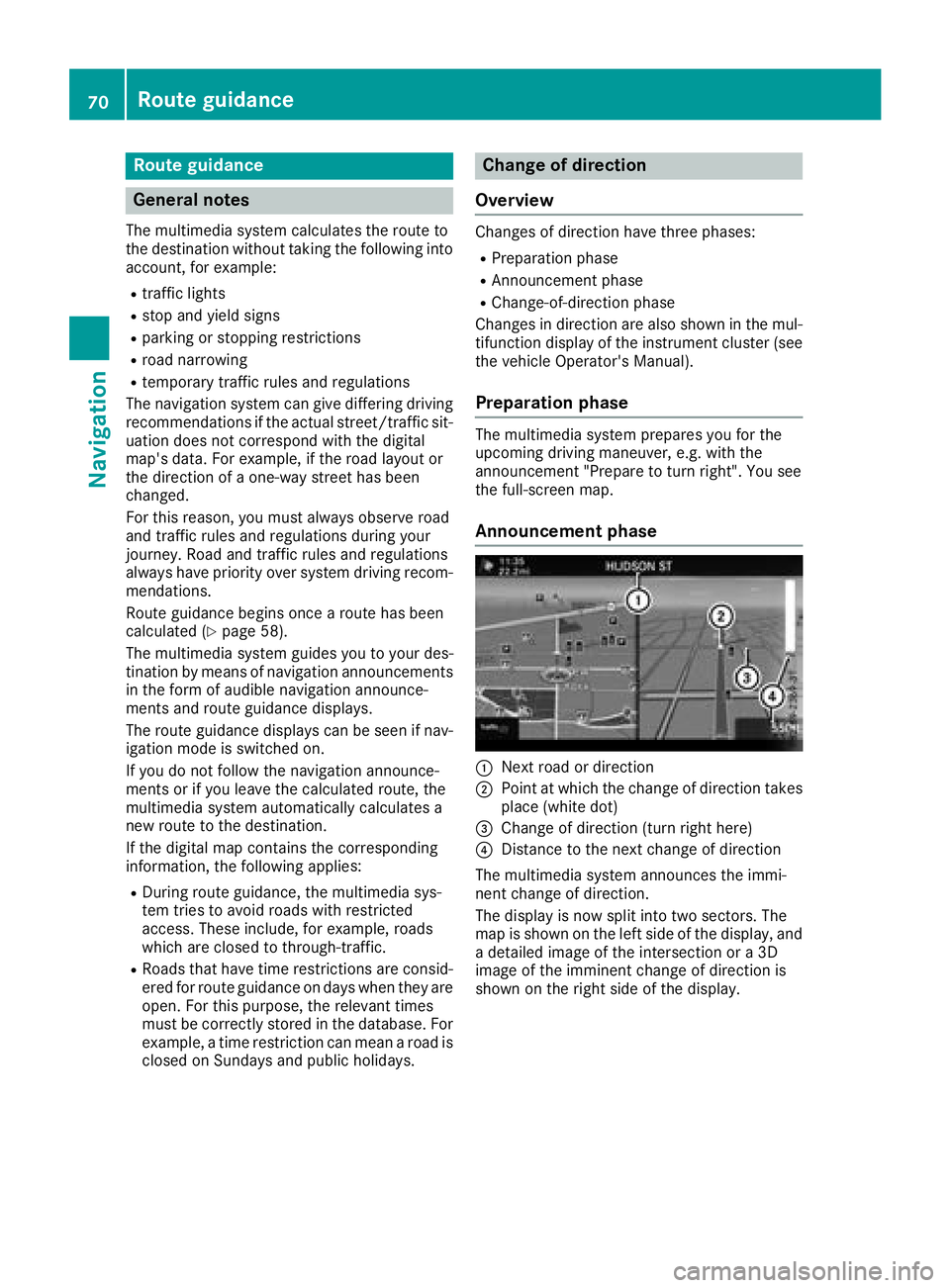
Announcement phase
:Next road or direction
;Point at which the change of direction takes
place (white dot)
=Change of direction (turn right here)
?Distance to the next change of direction
The multimedia system announces the immi-
nent change of direction.
The display is now split into two sectors. The
map is shown on the left side of the display, and
a detailed image of the intersection or a 3D
image of the imminent change of direction is
shown on the right side of the display.
70Route guidance
Navigation
Page 76 of 170
Route information
Destination information
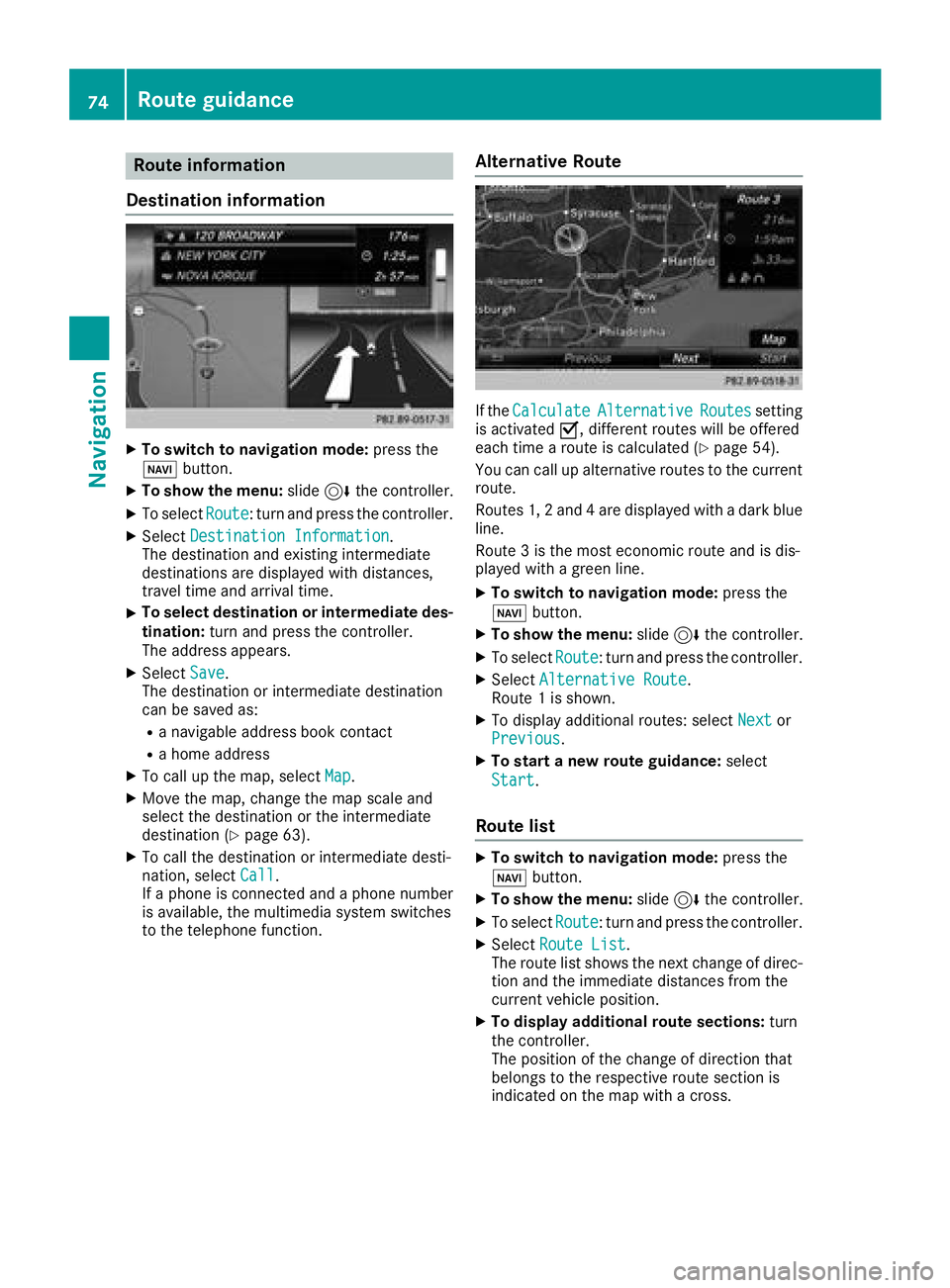
XTo switch to navigation mode: press the
Ø button.
XTo show the menu: slide6the controller.
XTo select Route: turn and press the controller.
XSelectDestination Information.
The destination and existing intermediate
destinations are displayed with distances,
travel time and arrival time.
XTo select destination or intermediate des-
tination: turn and press the controller.
The address appears.
XSelect Save.
The destination or intermediate destination
can be saved as:
Ra navigable address book contact
Ra home address
XTo call up the map, select Map.
XMove the map, change the map scale and
select the destination or the intermediate
destination (
Ypage 63).
XTo call the destination or intermediate desti-
nation, selectCall.
If a phone is connected and a phone number
is available, the multimedia system switches
to the telephone function.
Alternative Route
If the CalculateAlternativeRoutessetting
is activated O, different routes will be offered
each time a route is calculated (
Ypage 54).
You can call up alternative routes to the current
route.
Routes 1, 2 and 4 are displayed with a dark blue line.
Route 3 is the most economic route and is dis-
played with a green line.
XTo switch to navigation mode: press the
Ø button.
XTo show the menu: slide6the controller.
XTo select Route: turn and press the controller.
XSelectAlternative Route.
Route 1 is shown.
XTo display additional routes: select Nextor
Previous.
XTo start a new route guidance: select
Start
.
Route list
XTo switch to navigation mode: press the
Ø button.
XTo show the menu: slide6the controller.
XTo select Route: turn and press the controller.
XSelectRoute List.
The route list shows the next change of direc-
tion and the immediate distances from the
current vehicle position.
XTo display additional route sections: turn
the controller.
The position of the change of direction that
belongs to the respective route section is
indicated on the map with a cross.
74Route guidance
Navigation
Page 77 of 170
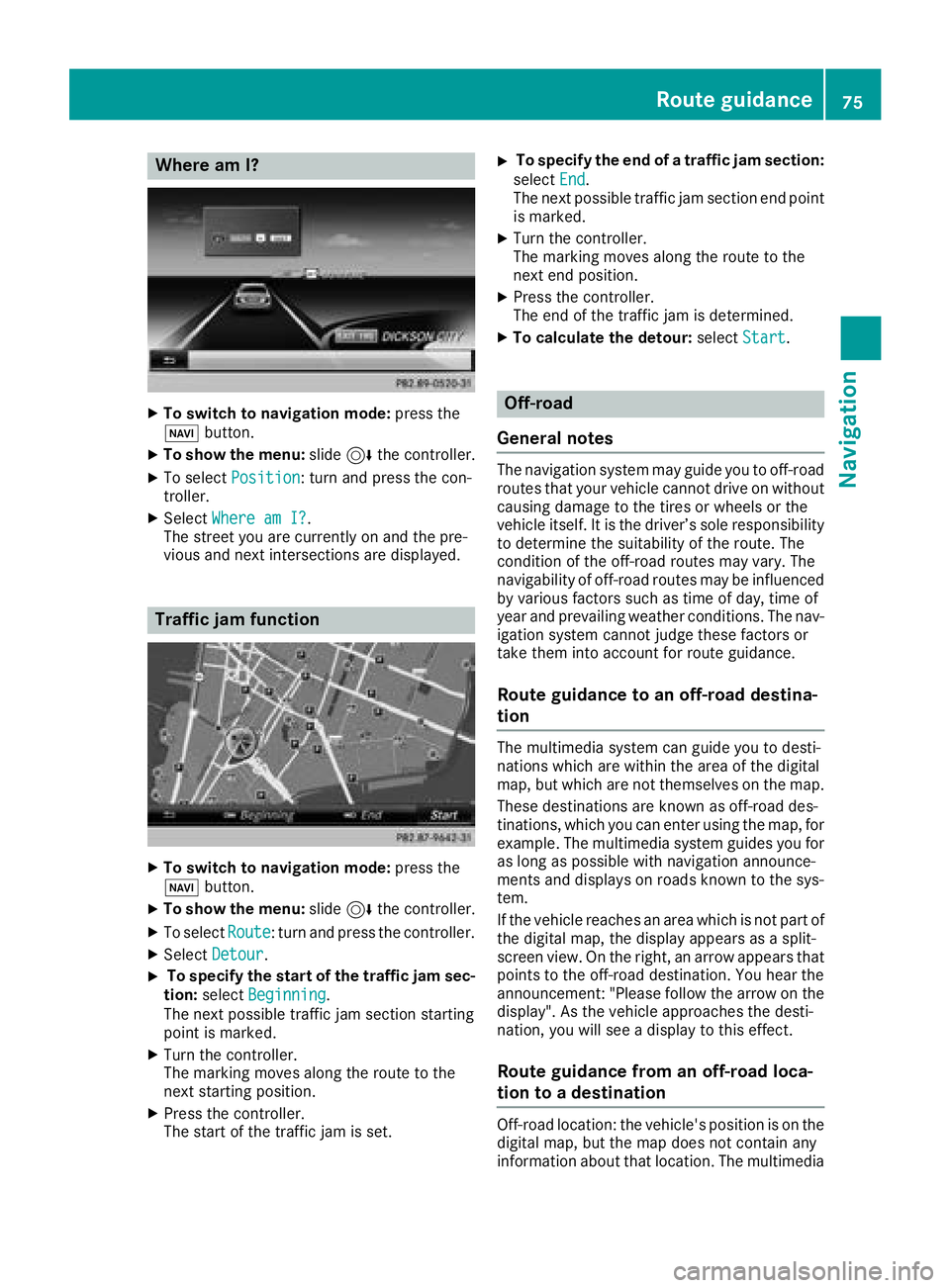
Where am I?
XTo switch to navigation mode:press the
Ø button.
XTo show the menu: slide6the controller.
XTo select Position: turn and press the con-
troller.
XSelect Where am I?.
The street you are currently on and the pre-
vious and next intersections are displayed.
Traffic jam function
XTo switch to navigation mode: press the
Ø button.
XTo show the menu: slide6the controller.
XTo select Route: turn and press the controller.
XSelectDetour.
XTo specify the start of the traffic jam sec-
tion: select Beginning
.
The next possible traffic jam section starting
point is marked.
XTurn the controller.
The marking moves along the route to the
next starting position.
XPress the controller.
The start of the traffic jam is set.
XTo specify the end of a traffic jam section:
select End
.
The next possible traffic jam section end point
is marked.
XTurn the controller.
The marking moves along the route to the
next end position.
XPress the controller.
The end of the traffic jam is determined.
XTo calculate the detour: selectStart.
Off-road
General notes
The navigation system may guide you to off-road
routes that your vehicle cannot drive on without
causing damage to the tires or wheels or the
vehicle itself. It is the driver’s sole responsibility to determine the suitability of the route. The
condition of the off-road routes may vary. The
navigability of off-road routes may be influenced
by various factors such as time of day, time of
year and prevailing weather conditions. The nav-
igation system cannot judge these factors or
take them into account for route guidance.
Route guidance to an off-road destina-
tion
The multimedia system can guide you to desti-
nations which are within the area of the digital
map, but which are not themselves on the map.
These destinations are known as off-road des-
tinations, which you can enter using the map, for
example. The multimedia system guides you for
as long as possible with navigation announce-
ments and displays on roads known to the sys-
tem.
If the vehicle reaches an area which is not part ofthe digital map, the display appears as a split-
screen view. On the right, an arrow appears that
points to the off-road destination. You hear the
announcement: "Please follow the arrow on the
display". As the vehicle approaches the desti-
nation, you will see a display to this effect.
Route guidance from an off-road loca-
tion to a destination
Off-road location: the vehicle's position is on the
digital map, but the map does not contain any
information about that location. The multimedia
Route guidance75
Navigation
Z
Page 83 of 170
XSlide9the controller.
A menu appears.
XTo select DeleteorDelete All: turn and
press the controller.
A prompt appears.
XSelect YesorNo.
Selecting Yesdeletes the selected destina-
tion or all destinations.
Map functions
General notes
Company logos displayed on the map are trade- marks of the respective companies and used
solely for the purpose of indicating the locations
of these companies. The use of such logos on
the map does not indicate approval of, support
of or advertising by these companies for the
navigation system itself.
iAlternatively, you can carry out this opera-
tion using the touchpad (Ypage 23).
Map settings
Setting the map scale
Requirement: the map is in full screen mode, the
menu is faded out (Ypage 53).
The lower left-hand section of the map shows
the currently set map scale and compass nee-
dle.
Right-hand-drive vehicles: the currently set map
scale and compass needle are displayed in the
lower right-hand section of the map.
XTo show the map in full screen mode: to
hide the menu, push the %button.
or
XSlide the controller to the center of the map
and press to confirm.
XTo set the map scale: as soon as you turn the
controller, the scale bar appears on the bot-
tom of the display.
XTurn the controller until the needle points to
the desired map scale.
Once you are finished selecting a map scale,
the new map scale will be shown.
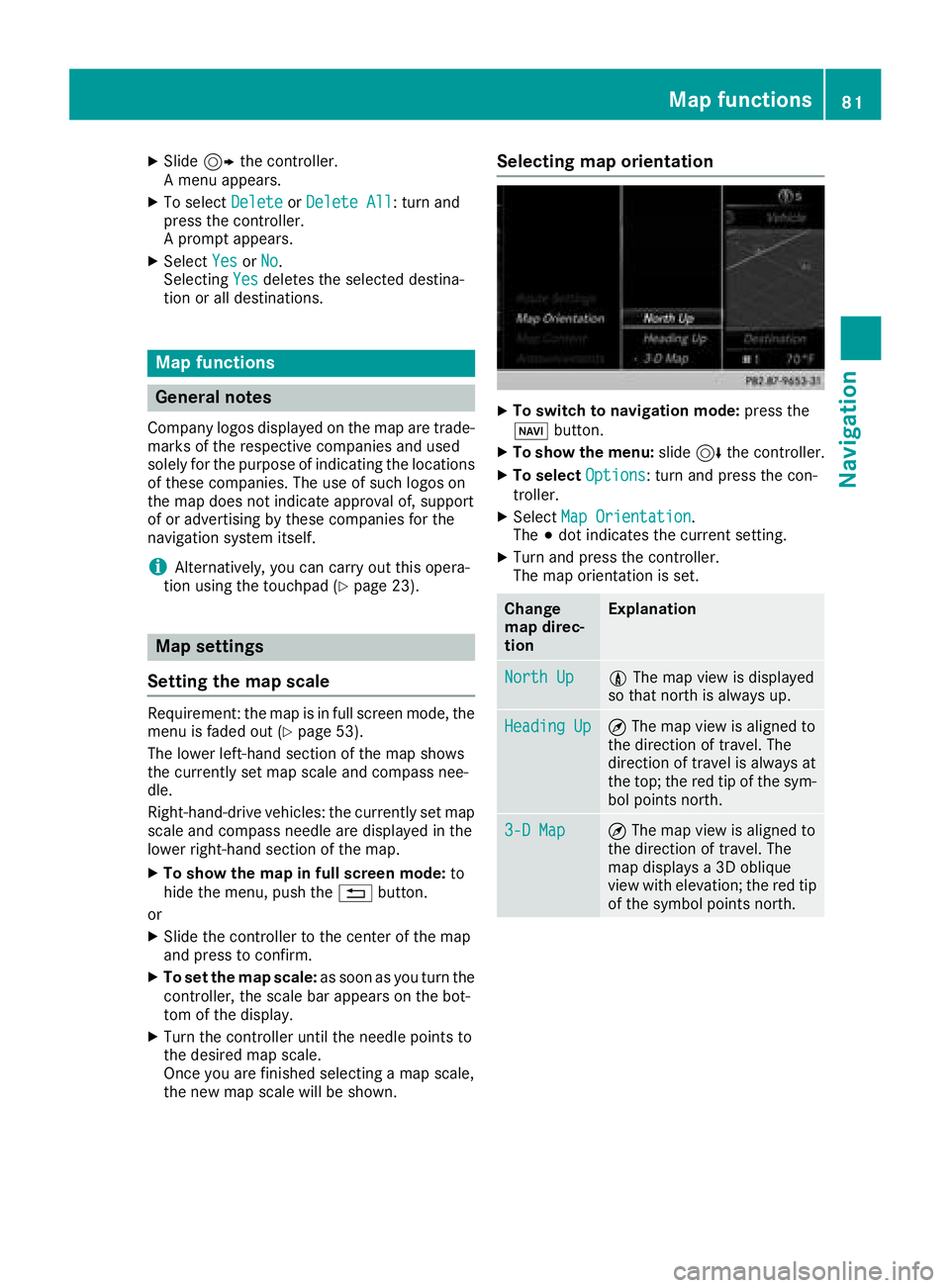
Selecting map orientation
XTo switch to navigation mode: press the
Ø button.
XTo show the menu: slide6the controller.
XTo select Options: turn and press the con-
troller.
XSelect Map Orientation.
The #dot indicates the current setting.
XTurn and press the controller.
The map orientation is set.
Change
map direc-
tionExplanation
North Up0 The map view is displayed
so that north is always up.
Heading Up¤ The map view is aligned to
the direction of travel. The
direction of travel is always at
the top; the red tip of the sym-
bol points north.
3-D Map¤ The map view is aligned to
the direction of travel. The
map displays a 3D oblique
view with elevation; the red tip
of the symbol points north.
Map functions81
Navigation
Z
Page 100 of 170
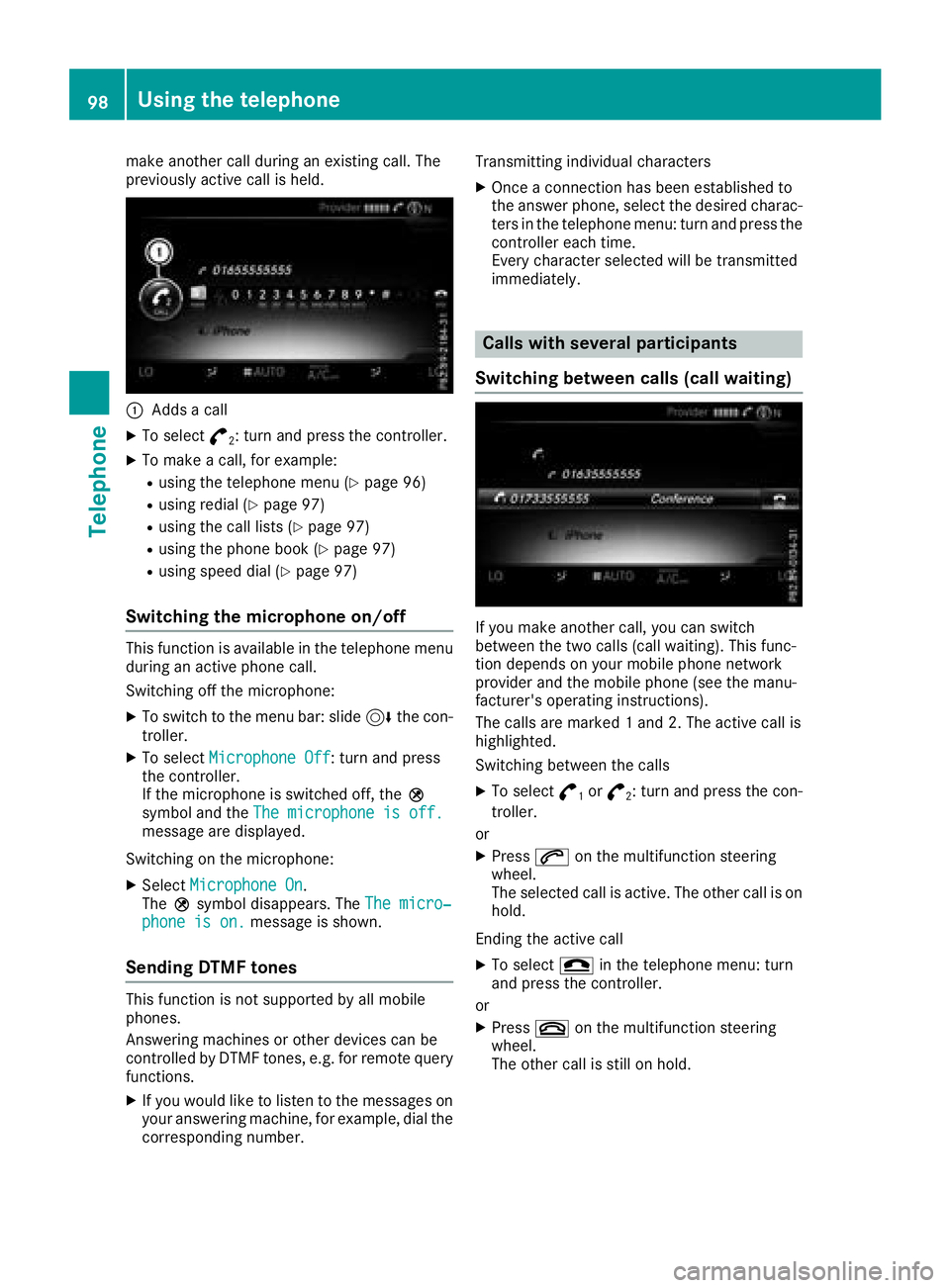
make another call during an existing call. The
previously active call is held.
:Adds a call
XTo select°2: turn and press the controller.
XTo make a call, for example:
Rusing the telephone menu (Ypage 96)
Rusing redial (Ypage 97)
Rusing the call lists (Ypage 97)
Rusing the phone book (Ypage 97)
Rusing speed dial (Ypage 97)
Switching the microphone on/off
This function is available in the telephone menu
during an active phone call.
Switching off the microphone:
XTo switch to the menu bar: slide 6the con-
troller.
XTo select Microphone Off: turn and press
the controller.
If the microphone is switched off, the Q
symbol and the The microphone is off.
message are displayed.
Switching on the microphone:
XSelect Microphone On.
The Qsymbol disappears. The The micro‐
phone is on.message is shown.
Sending DTMF tones
This function is not supported by all mobile
phones.
Answering machines or other devices can be
controlled by DTMF tones, e.g. for remote query
functions.
XIf you would like to listen to the messages on
your answering machine, for example, dial the
corresponding number. Transmitting individual characters
XOnce a connection has been established to
the answer phone, select the desired charac-
ters in the telephone menu: turn and press the
controller each time.
Every character selected will be transmitted
immediately.
Calls with several participants
Switching between calls (call waiting)
If you make another call, you can switch
between the two calls (call waiting). This func-
tion depends on your mobile phone network
provider and the mobile phone (see the manu-
facturer's operating instructions).
The calls are marked 1 and 2. The active call is
highlighted.
Switching between the calls
XTo select °1or°2: turn and press the con-
troller.
or
XPress 6on the multifunction steering
wheel.
The selected call is active. The other call is on
hold.
Ending the active call
XTo select =in the telephone menu: turn
and press the controller.
or
XPress ~on the multifunction steering
wheel.
The other call is still on hold.
98Using the telephone
Telephone
Page 110 of 170
Importing contacts
Information and requirements
Contacts can be imported as vCards (vc ffiles). A
vCar dis an electronic business card. Amemory
card, US Bdevice or aBluetoot h
®connection
can be used for importing .
iUp to 2000 entries can be imported int oth e
address book . Amessage notifie syou when
th emaximum number is reached. In order to
be able to then import ne wcontacts, you have
to delet eexisting contact s (
Ypage 107).
SourceRequirements
Memory cardThe SD cardis inserted. It
contain simportable contact
details.
US BdeviceThe US Bdevice is inserted
int oth eUS Bport. It contain s
importable contact details.
Bluetoot h®
connection
If thesendin gof vCards is
supported via Bluetoot h®,
vCards can be received on
mobile phones or netbooks,
for example.
Bluetoot h
®must be activa-
te din th emultimedia system
and on th erespective device ;
see th emanufacturer' soper -
ating instructions.
iIf automatic calling up of th econtact sis
deactivated (Ypage 107), th eImportfro mPhoneoption is available.
Importing from the memory card or USB
device
Contacts imported from th ememory car dor
from aUS Bdevice are identifie dby th e¯
symbol.
The followin gcondition smust be fulfilled in
order to import vCards:
RvCards (vc ffiles) may be locate din th emain
directory or in folders. The multimedia system
allows for atargeted selection of th ecorre-
sponding directories.
RvCards must have th efile extension "vcf".
iThe multimedia system support svCards in
version s2. 1and 3.0.
XTo switch to th emen ubar in th etelephon e
men uor th eaddress book :slide 6thecon-
troller .
XTo select Options:tur nand press th econ-
troller .
XTo select Download Contacts:tur nand
press th econtroller .
XTo select FromMemory Car dorFro mUSBdevice:tur nand press th econtroller .
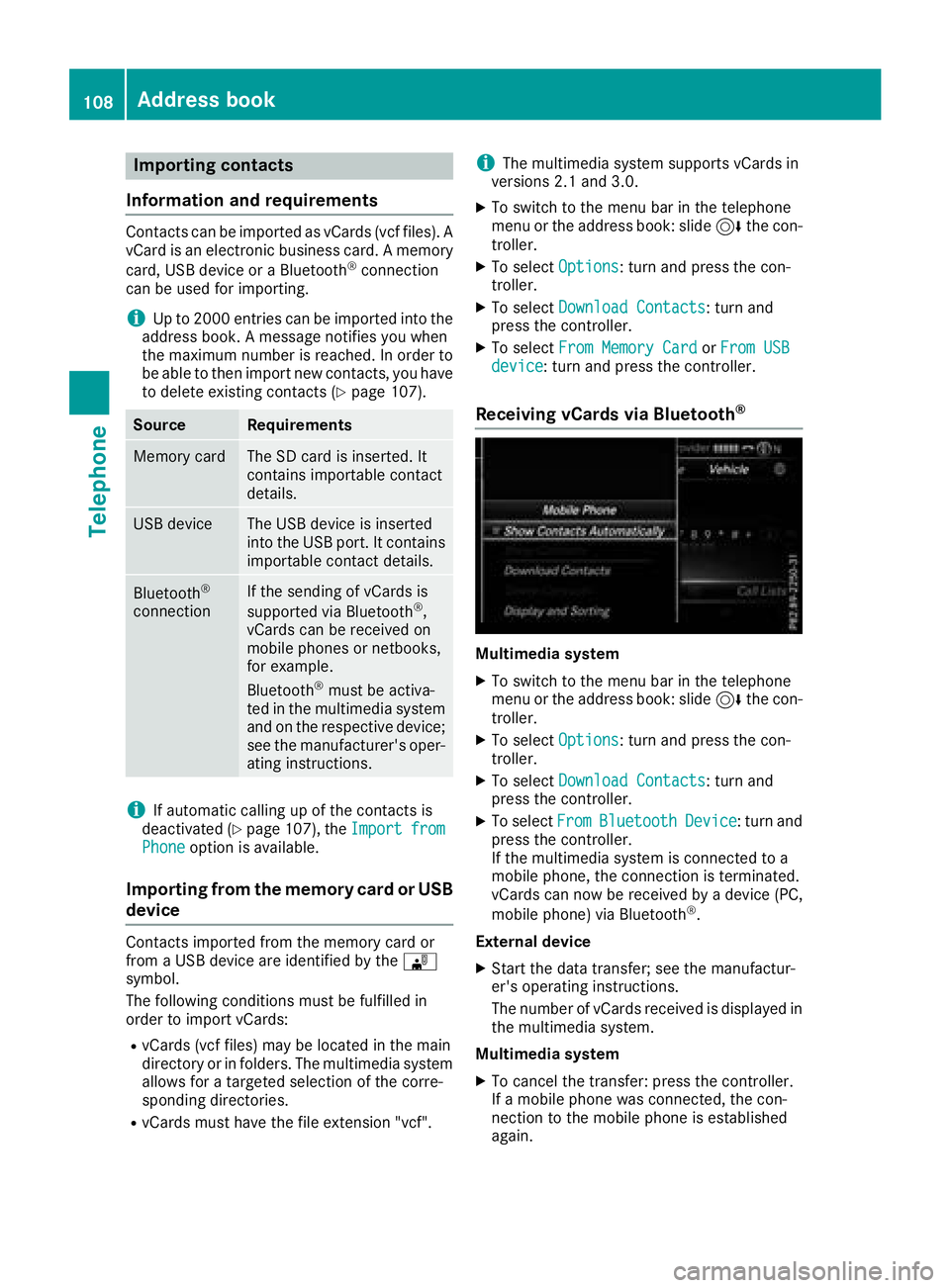
Receiving vCards via Bluetooth®
Multimedi asystem
XTo switch to th emen ubar in th etelephon e
men uor th eaddress book :slide 6thecon-
troller .
XTo select Options:tur nand press th econ-
troller .
XTo select Download Contacts:tur nand
press th econtroller .
XTo selectFromBluetoothDevice:tur nand
press th econtroller .
If th emultimedia system is connecte dto a
mobile phone, th econnection is terminated.
vCards can no wbe received by adevice (PC,
mobile phone) via Bluetoot h
®.
External device
XStart th edat atransfer ;see th emanufactur -
er' soperating instructions.
The number of vCards received is displayed in th emultimedia system.
Multimedi asystem
XTo cance lth etransfer :press th econtroller .
If amobile phon ewas connected, th econ-
nection to th emobile phon eis established
again .
108Address book
Telephone
Page 113 of 170
Overwriting an entry
XTo selectYes: turn and press the controller.
A list of the existing five numbers is displayed.
XTo select the number to be overwritten from
the list: turn the controller and press to con-
firm.
The entry is overwritten with the new tele-
phone number.
Canceling the overwriting of an entry
XTo select No: turn and press the controller.
The process is canceled.
Deleting call lists
Call lists which are generated and managed by
the multimedia system can be deleted in the
multimedia system.
You cannot delete call lists from the multimedia
system which are displayed on a mobile phone
that supports the PBAP Bluetooth
®.
XTo call up the telephone menu: press the
% button.
XTo switch to the menu bar: slide 6the con-
troller.
XTo select Call Lists: turn and press the
controller.
XSelect Delete Call Lists.
A prompt appears asking whether you wish to
delete all call lists.
XTo select Yes: turn and press the controller.
The call lists are deleted.
iIf you delete call lists from the mobile phone
(see the manufacturer's operating instruc-
tions), the multimedia system updates the
call list display the next time it connects.
Speed dial lists
Setting up
XTo call up the telephone menu: press the
% button.
XTo call up the menu bar: slide 6the con-
troller.
XTo select Call Lists: turn and press the
controller.
XSelect Speed Dial Preset List.
The speed dial list is displayed.
XTo highlight a memory position for the speed
dial: turn the controller.
If you highlight an entry that already exists in the speed dial list, this is overwritten with the
new entry.
XTo select G: slide 9the controller.
XSelect Assign Speed Dial Preset.
The phone book is displayed.
XSearch for a contact (Ypage 100).
XTo select a contact: turn and press the con-
troller.
The phone number has been saved as a speed
dial.
Deleting
Deleting a speed dial preset
XTo call up the telephone menu: press the
% button.
XTo call up the menu bar: slide 6the con-
troller.
XTo select Call Lists: turn and press the
controller.
XSelect Speed Dial Preset List.
The speed dial list is displayed.
XTo highlight the memory position you want to
delete: turn the controller.
XTo select G: slide 9the controller.
XTo select DeleteSpeedDialPreset: turn
and press the controller.
XTo select Yes: turn and press the controller.
The speed dial preset has been deleted.
Deleting all speed dial presets
XTo call up the telephone menu: press the
% button.
XTo call up the menu bar: slide 6the con-
troller.
XTo select Call Lists: turn and press the
controller.
XSelect Speed Dial Preset List.
The speed dial list is displayed.
XTo select G: slide 9the controller.
XTo select Delete All Speed Dial Pre‐sets: turn and press the controller.
XTo selectYes: turn and press the controller.
All speed dials are deleted.
Speed dial lists111
Telephone
Z
Page 115 of 170
Configuring the e-mails displayed
XCall up the settings menu for messages
(Ypage 112).
XTo highlight an e-mail account: turn the con-
troller.
XTo selectG: slide 9the controller.
A menu with the following options is shown:
RAll Messages
RNew Messages
ROff
The messages are not displayed automati-
cally. You can also display the 100 newest
e-mails using the Download
option in the
message menu.
XTo select the required option: turn and press
the controller.
Configuring an e-mail account
XCall up the settings menu for messages
(Ypage 112).
XTo select an e-mail account: turn and press
the controller.
The e-mail account is now configured. E-mails
can now be received and sent in the multi-
media system.
Deactivating the e-mail function
XCall up the settings menu for messages
(Ypage 112).
XTo select E-Mail Off: turn and press the
controller.
E-mail reception is deactivated.
Changing the displayed name of the e-
mail account
Some mobile phones:
Rdo not support the changing of the displayed
name
Rsupport only the e-mail address of the e-mail
account
XCall up the settings menu for messages
(Ypage 112).
XTo highlight an e-mail account: turn the con-
troller.
XTo select G: slide 9the controller.
XTo select Own E-Mail Address: turn and
press the controller.
The input menu for entering your own e-mail
address is displayed.
Downloading messages manually
XTo call up the telephone menu: press the
% button.
XTo switch to the menu bar: slide 6the con-
troller.
XTo select 1: turn and press the controller.
The message menu is displayed.
XTo switch to the menu bar: slide 6the con-
troller.
XTo select Download: turn and press the con-
troller.
Downloading text messages and e-mails
from the phone
XSelect From the Phone.
The messages are downloaded.
If you have selected Automatic
Downloadin
the e-mail settings, manual downloading is
not possible.
Updating from the e-mail server by the
mobile phone
XSelect From the E-Mail Server.
The e-mails in the mobile phone are updated.
This function is not supported by all mobile
phones.
Reading messages
In the message menu
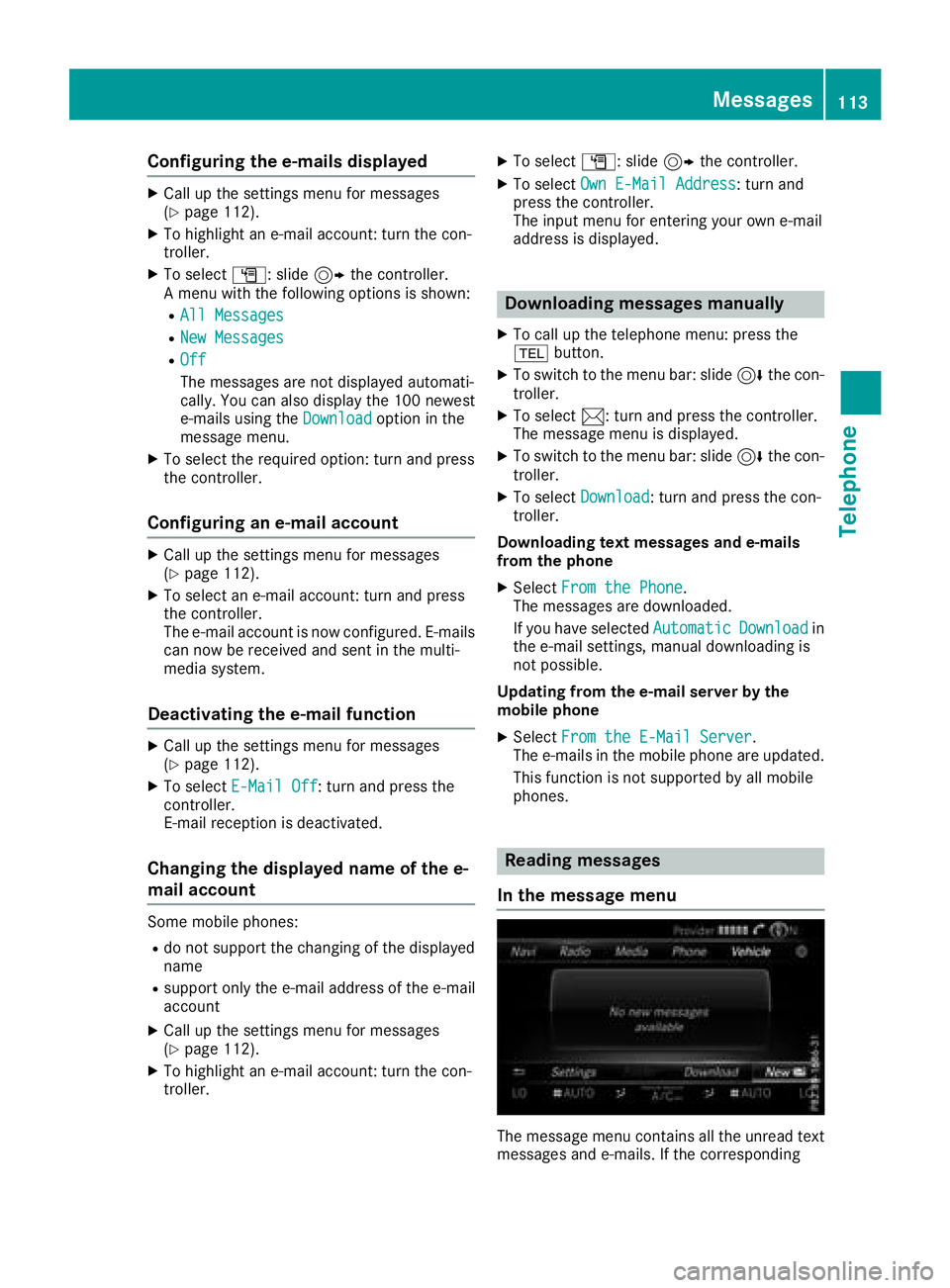
The message menu contains all the unread text
messages and e-mails. If the corresponding
Messages113
Telephone
Z
Page 123 of 170
If the mobile phone network provider provides
multiple access data options, the relevant
access data still has to be selected. This
depends on the data package used, for example.
To check whether the predetermined dial-in
data corresponds with the dial-in data providedby your mobile phone network provider, pro-
ceed as follows (
Ypage 122) and select Man‐ual Settings. The access data is displayed.
The access data for the mobile phone network
provider is selected once for the mobile phone
connected and is loaded again each time the
mobile phone is connected. Establishing a con-
nection (
Ypage 123).
You must set the access data of the mobile
phone network provider who provides the SIM
card and the associated data package (access
settings) for the connected mobile phone. The
access data remains the same when you are in a
different country (roaming). The access data of
another network is notselected.
Manually setting the access data of the
mobile phone network provider
XTo select Manual Settings: turn and press
the controller.
An overview of the provider settings appears.
XSet access data (Ypage 121).
XTo select ConfirmSettings: turn and press
the controller.
The access data for the mobile phone network
provider is selected once for the mobile phone
connected and is loaded again each time the
mobile phone is connected. Establishing a con-
nection (
Ypage 123).
You must set the access data of the mobile
phone network provider who provides the SIM
card and the associated data package (access
settings) for the connected mobile phone. The
access data remains the same when you are in a
different country (roaming). The access data of
another network is notselected.
Setting access data
Set the access data in accordance with your
data package. You can contact your mobile
phone network provider to obtain the precise
access data. Explanation of the access data
Input fieldMeaning
Phone Num‐ber:Access number for estab-
lishing the connection
The access number
depends on the mobile
phone used. For GSM/
UMTS mobile phones,
*99***1#
is used as a
standard.
AccessPoint:APN network access point
(A ccess PointName)
You can obtain this infor-
mation from your mobile
phone network provider.
Entry is not necessary for
all mobile phone network
providers and mobile
phones.
PDP Type:Internet protocol used.
You can obtain this infor-
mation from your mobile
phone network provider.
User ID:The user identification can
be obtained from your
mobile phone network pro-
vider.
Entry is not necessary for
all mobile phone network
providers.
Password:The password can be
obtained from your mobile
phone network provider.
Entry is not necessary for
all mobile phone network
providers.
Auto DNS:Automatic allocation of
DNS servers is activated. If
the function is deactivated,
the DNS server addresses
must be entered manually.
DNS ( Domain Name
Service).
DNS1:
DNS2:
Fields for entering the DNS
server addresses manually. The address can be
obtained from your mobile
phone network provider.
Setting up an Internet connection (Canada)121
Online and Internet functions
Z