USB MERCEDES-BENZ GLC SUV 2019 User Guide
[x] Cancel search | Manufacturer: MERCEDES-BENZ, Model Year: 2019, Model line: GLC SUV, Model: MERCEDES-BENZ GLC SUV 2019Pages: 673, PDF Size: 11.51 MB
Page 388 of 673
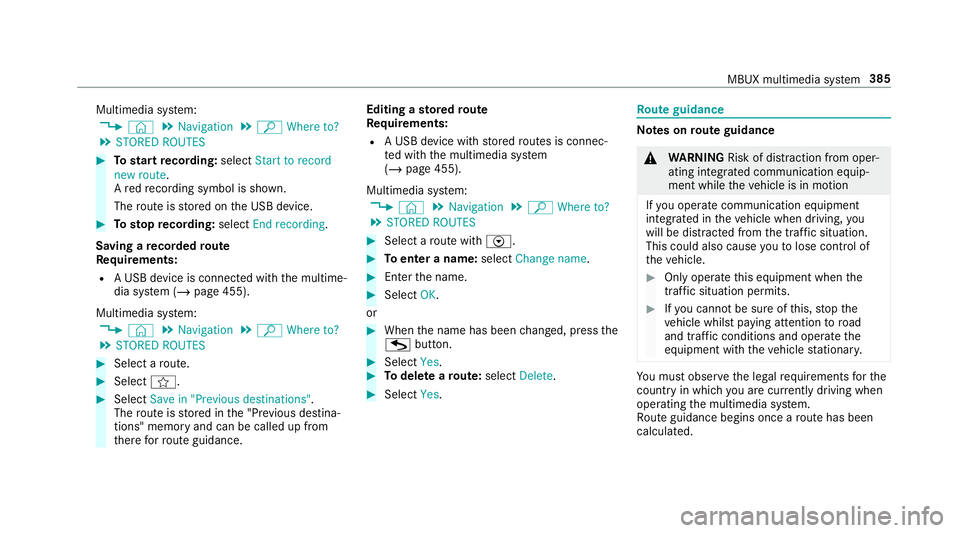
Multimedia sy
stem:
4 © 5
Navigation 5
ª Where to?
5 STORED ROUTES #
Tostart recording: selectStart to record
new route.
A redre cording symbol is shown.
The route is stored on the USB device. #
Tosto pre cording: selectEnd recording.
Saving a recorded route
Re quirements:
R A USB device is connec ted with the multime‐
dia sy stem (/ page 455).
Multimedia sy stem:
4 © 5
Navigation 5
ª Where to?
5 STORED ROUTES #
Select a route. #
Select f. #
Select Save in "Previous destinations" .
The route is stored in the "Pr evious destina‐
tions" memo ryand can be called up from
th ere forro ute guidance. Editing a
storedro ute
Re quirements:
R A USB device with stored routes is connec‐
te d with the multimedia sy stem
(/ page 455).
Multimedia sy stem:
4 © 5
Navigation 5
ª Where to?
5 STORED ROUTES #
Select a route with V. #
Toenter a name: selectChange name . #
Enterth e name. #
Select OK.
or #
When the name has been changed, press the
G button. #
Select Yes. #
Todel ete a route: select Delete. #
Select Yes. Ro
ute guidance Note
s onroute guidance &
WARNING Risk of di stra ction from oper‐
ating integrated communication equip‐
ment while theve hicle is in motion
If yo u operate communication equipment
integrated in theve hicle when driving, you
will be distracted from the tra ffic situation.
This could also cause youto lose control of
th eve hicle. #
Only operate this equipment when the
traf fic situation permits. #
Ifyo u cannot be sure of this, stop the
ve hicle whilst paying attention toroad
and traf fic conditions and ope rate the
equipment with theve hicle stationar y. Yo
u must obse rveth e legal requirements forthe
country in whi chyou are cur rently driving when
operating the multimedia sy stem.
Ro ute guidance begins once a route has been
calculated. MBUX multimedia sy
stem 385
Page 404 of 673
Ro
tating the map #
With two fingers, rotate anti-clockwise or
clo ckwise on the media display or theto uch‐
pad.
Selecting the map orientation
Multimedia sy stem:
4 © 5
Navigation 5
Z
5 Advanced #
Select View. #
Select Map orientation. #
Select an option.
The #dot indicates the cur rent setting.
The following options are available:
R 2D heading up option:the 2D map view is
aligned tothe direction of tra vel.
R 2D north up option:the 2D map view is
displa yed so that no rth is alw ays at the
to p.
R 3Doption: the 3D map view is aligned to
th e direction of tra vel.
or #
Using quick- access: repeatedly tap or press
on theÄ compass symbol on the map.
The view changes in the sequence 3D,2D
heading up to2D north up .
If th e map is mo ved, it can switch between
3D and 2D north up .
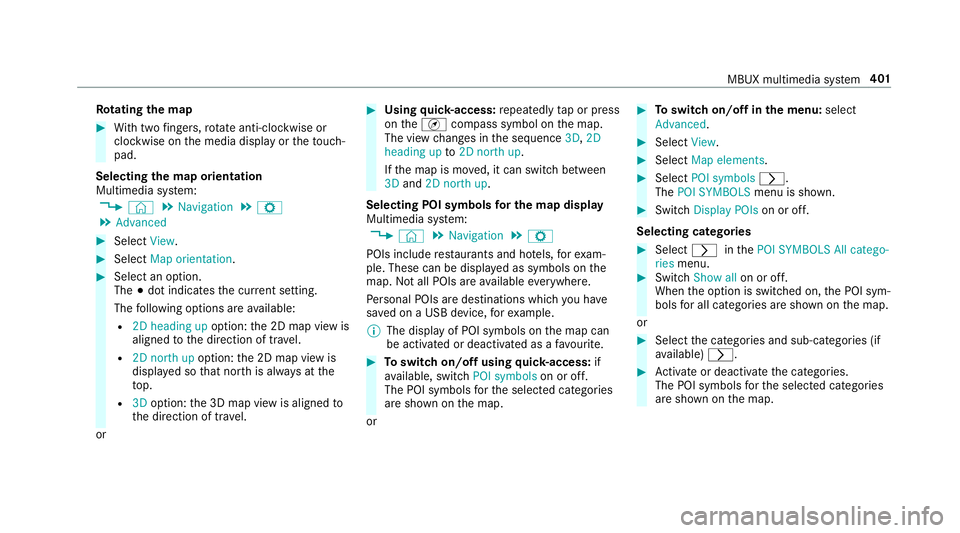
Selecting POI symbols for the map display
Multimedia sy stem:
4 © 5
Navigation 5
Z
POIs include restaurants and ho tels, forex am‐
ple. These can be displa yed as symbols on the
map. Not all POIs are available everywhere.
Pe rsonal POIs are destinations which you ha ve
sa ve d on a USB device, forex ample.
% The display of POI symbols on the map can
be activated or deactivated as a favo urite. #
Toswitch on/off using quick- access: if
av ailable, swit chPOI symbols on or off.
The POI symbols forth e selected categories
are shown on the map.
or #
Toswitch on/off in the menu: select
Advanced. #
Select View. #
Select Map elements. #
Select POI symbols r.
The POI SYMBOLS menu is shown. #
Swit chDisplay POIs on or off.
Selecting ca tegories #
Select rinthePOI SYMBOLS All catego-
ries menu. #
Switch Show all on or off.
When the option is switched on, the POI sym‐
bols for all categories are shown on the map.
or #
Select the categories and sub-categories (if
av ailable) r. #
Activate or deacti vate the categories.
The POI symbols forth e selected categories
are shown on the map. MBUX multimedia sy
stem 401
Page 411 of 673
R
The parking service is within the scope of the
navigation service.
R Parking is activated (/ page 408).
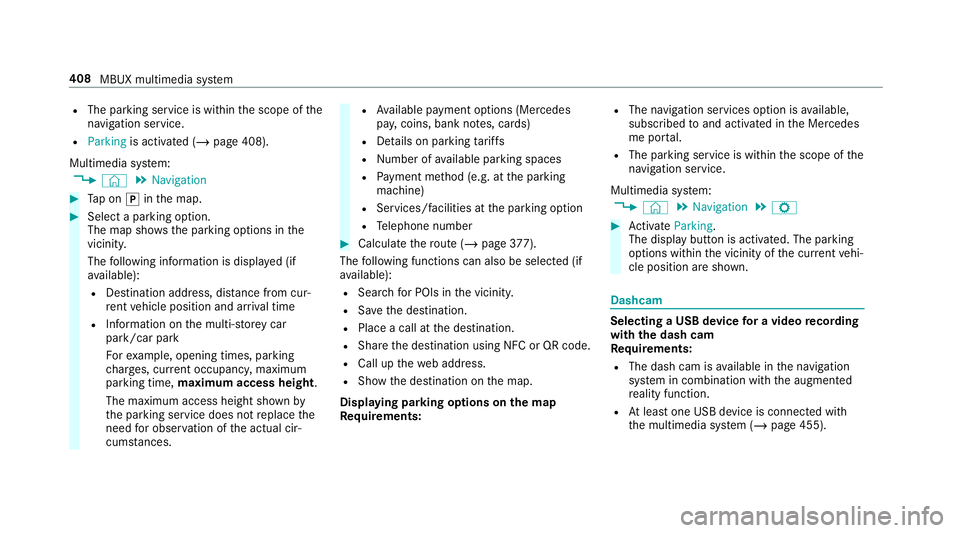
Multimedia sy stem:
4 © 5
Navigation #
Tap on jinthe map. #
Select a parking option.
The map sho ws the parking options in the
vicinity.
The following information is displa yed (if
av ailable):
R Destination address, dis tance from cur‐
re nt vehicle position and ar riva l time
R Information on the multi-s torey car
park/car park
Fo rex ample, opening times, parking
ch arge s, cur rent occupancy, maximum
pa rking time, maximum access height .
The maximum access height shown by
th e parking service does not replace the
need for obser vation of the actual cir‐
cums tances. R
Available payment options (Mercedes
pa y,coins, bank no tes, cards)
R Details on parking tariffs
R Numb er ofavailable parking spaces
R Payment me thod (e.g. at the parking
machine)
R Services/ facilities at the parking option
R Telephone number #
Calculate thero ute (/ page377).
The following functions can also be selec ted (if
av ailable):
R Sear chfor POIs in the vicinit y.
R Save the destination.
R Place a call at the destination.
R Share the destination using NFC or QR code.
R Call up thewe b address.
R Show the destination on the map.
Displaying parking options on the map
Requ irements: R
The navigation services option is available,
subsc ribed toand activated in the Mercedes
me por tal.
R The parking service is within the scope of the
navigation service.
Multimedia sy stem:
4 © 5
Navigation 5
Z #
Activate Parking.
The display button is acti vated. The parking
options within the vicinity of the cur rent vehi‐
cle position are shown. Dashcam
Selecting a USB device
for a video recording
with the dash cam
Re quirements:
R The dash cam is available in the navigation
sy stem in combination with the augmented
re ality function.
R Atleast one USB device is connec ted with
th e multimedia sy stem (/ page 455). 408
MBUX multimedia sy stem
Page 412 of 673
This function is not
available in all countries.
Obse rveth e count ry-specific regulations.
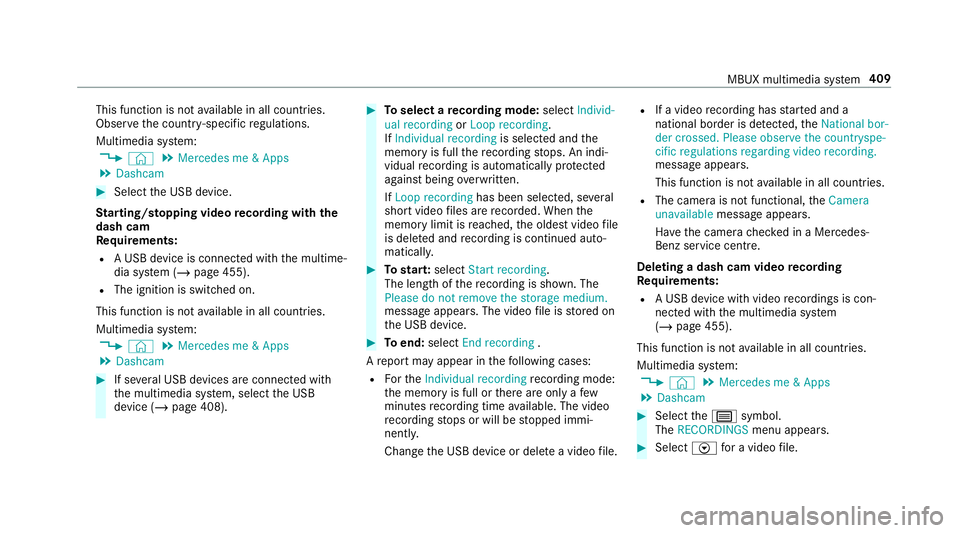
Multimedia sy stem:
4 © 5
Mercedes me & Apps
5 Dashcam #
Select the USB device.
St arting/ stopping video recording with the
da sh cam
Re quirements:
R A USB device is connec ted with the multime‐
dia sy stem (/ page 455).
R The ignition is switched on.
This function is not available in all countries.
Multimedia sy stem:
4 © 5
Mercedes me & Apps
5 Dashcam #
If se veral USB devices are connec ted with
th e multimedia sy stem, select the USB
device (/ page 408). #
Toselect a recording mode: selectIndivid-
ual recording orLoop recording .
If Individual recording is selected and the
memory is full there cording stops. An indi‐
vidual recording is au tomatical lyprotected
against being overwritten.
If Loop recording has been selected, se veral
short video files are recorded. When the
memory limit is reached, the oldest video file
is dele ted and recording is continued au to‐
matical ly. #
Tostar t:select Start recording.
The length of there cording is shown. The
Please do not remove the storage medium.
message appea rs. The video file is stored on
th e USB device. #
Toend: select End recording .
A report may appear in thefo llowing cases:
R Forth eIndividual recording recording mode:
th e memory is full or there are only a few
minutes recording time available. The video
re cording stops or will be stopped immi‐
nently.
Chan gethe USB device or dele tea video file. R
If a video recording has star ted and a
national border is de tected, theNational bor-
der crossed. Please observe the countryspe-
cific regulations regarding video recording.
message appears.
This function is not available in all countries.
R The camera is not functional, theCamera
unavailable message appears.
Ha ve the camera checked in a Mercedes-
Benz service centre.
Deleting a dash cam video recording
Requ irements:
R A USB device with video recordings is con‐
nected wi th the multimedia sy stem
(/ page 455).
This function is not available in all countries.
Multimedia sy stem:
4 © 5
Mercedes me & Apps
5 Dashcam #
Select thep symbol.
The RECORDINGS menu appears. #
Select Vfor a video file. MBUX multimedia sy
stem 409
Page 413 of 673
#
Select Delete. #
Select Yes. #
Todel ete all video files: select Ä. #
Select Delete all entries.
Configuring dash cam settings
Re quirements:
R A USB device is connec ted with the multime‐
dia sy stem (/ page 455).
This function is not available in all countries.
Multimedia sy stem:
4 © 5
Mercedes me & Apps
5 Dashcam #
Select Z. #
Toshow messages af ter passing a
national bo rder: swit chon National border
alert.
The display button is activated.
A message appears under thefo llowing con‐
ditions:
R A video is being recorded.
R The vehicle has passed a national border. %
This function is not available in all countries. #
Tostart automatic video recording: select
Automatic video recording . #
Activate Automatic video recording .
The display button is acti vated. When the
ve hicle is star ted, video recording starts
automaticall y.
% This function is not available in all countries. Te
lephone Te
lephony Note
s ontelephony &
WARNING Risk of di stra ction from oper‐
ating integrated communication equip‐
ment while theve hicle is in motion
If yo u operate communication equipment
integrated in theve hicle when driving, you
will be distracted from the tra ffic situation.
This could also cause youto lose control of
th eve hicle. #
Only operate this equipment when the
traf fic situation permits. #
Ifyo u cannot be sure of this, stop the
ve hicle whilst paying attention toroad
and traf fic conditions and ope rate the
equipment with theve hicle stationar y. &
WARNING Risk of an accident from
ope rating mobile communication equip‐
ment while theve hicle is in motion
Mobile communications devices distract the
driver from the traf fic situation. This could
also cause the driver tolose control of the
ve hicle. #
Asthe driver, only operate mobile com‐
munications devices when theve hicle is
st ationar y. #
As a vehicle occupant, only use mobile
communications devices in the areas
intended forth is purpose, e.g. in the
re ar passenger compartment. Yo
u must obse rveth e legal requirements forthe
country in whi chyou are cur rently driving when 41 0
MBUX multimedia sy stem
Page 422 of 673
Editing
thefo rm at of a contact's name
Multimedia sy stem:
4 © 5
Phone 5
Z #
Select General. #
Select Name format.
The following options are available:
R Surname, First name
R Surname First name
R First name Surname #
Select an option. Overview of importing contacts
Contacts from
various sources Source
Requirements:
ò USB device The USB device is
connected with the
USB port.
ñ Bluetooth ®
con‐
nection If
th e sending of
vCards via Blue tooth®
is suppor ted, vCards
can be recei ved on
mobile phones or net‐
books, forex ample.
Blue tooth ®
is activa‐
te d in the multimedia
sy stem and on the
re spective device
(see the manufactur‐
er's operating instruc‐
tions). Importing contacts into
the contacts menu
Multimedia sy stem:
4 © 5
Phone 5
Z 5
General
5 Import contacts #
Select a mobile phone
which the conta cts should be impor ted. #
Select an option.
Saving a mobile phone contact
Multimedia sy stem:
4 © 5
Phone 5
g #
Select órinthe line of the mobile
phone conta ct. #
Select Ä. #
Select Save in vehicle . #
Select Yes.
The contact sa ved in the multimedia sy stem
is identified bytheq symbol.
Calling a contact
Multimedia sy stem:
4 © 5
Phone 5
g #
Select ªSearch contacts . MBUX multimedia sy
stem 419
Page 431 of 673
%
Additional information on operation of LIN‐
GU ATRO NIC (/ page 298). Mercedes-Benz link
Overview of Mercedes-Benz Link
&
WARNING Risk of di stra ction from infor‐
mation sy stems and communications
equipment
If yo u operate information and communica‐
tion equipment integ rated in theve hicle
when driving, you will be distracted from the
traf fic situation. This could also cause youto
lose control of theve hicle. #
Only operate this equipment when the
traf fic situation permits. #
Ifyo u cannot be sure of this, stop the
ve hicle whilst paying attention toroad
and traf fic conditions and ope rate the
equipment with theve hicle stationar y. Yo
u must obse rveth e legal requirements forthe
country in whi chyou are cur rently driving when
operating the multimedia sy stem. Wi
th Mercedes-Benz Link you can use mobile
phone functions via the multimedia sy stem. It is
operated using theto uchsc reen or thevo ice-
opera ted control sy stem. You can activate the
vo ice-opera ted control sy stem bypressing and
holding the£ button on the multifunction
st eering wheel.
When using Mercedes-Benz Link via thevo ice-
opera ted control sy stem, the multimedia sy stem
can still be operated via LINGU ATRO NIC
(/ page 298).
The Mercedes-Benz Link control box supplemen‐
ta ry equipment is requiredforth is. This is availa‐
ble at a Mercedes-Benz service centre.
On lyone mobile phone at a time can be connec‐
te d via Mercedes-Benz Link tothe multimedia
sy stem.
When a mobile phone is connected with
Mercedes-Benz Link, only one additional mobile
phone can be connected using Blue tooth®
with
th e multimedia sy stem when in two phone
mode.
% The Mercedes-Benz Link control box uses
the Android operating sy stem. %
The service pr ovider is responsible forth ese
apps and the services and conte nt connec‐
te dto it.
Note s on Mercedes-Benz Link
If a mobile phone is used with Mercedes-Benz
Link, USB access using the media menu is possi‐
ble forth is mobile phone.
% Only one route guidance can be active at a
time. If route guidance is active on the multi‐
media sy stem, it is closed when route guid‐
ance is star ted on the mobile phone.
Connecting Mercedes-Benz Link with the
mu ltimedia sy stem
Re quirements:
R The vehicle is fitted wi th the Mercedes-Benz
Link control box.
R The Mercedes-Benz Link app is ins talled on
th e mobile phone.
R The mobile phone is switched on.
R Mercedes-Benz Link is connected tothe mul‐
timedia sy stem via theç USB port using
a suitable cable (/ page 455).428
MBUX multimedia sy stem
Page 433 of 673
Control or
the Siri ®
vo ice-operated control sys‐
te m. You can activate thevo ice-opera ted control
sy stem bypressing and holding the£ button
on the multifunction steering wheel.
When using Apple CarPlay ®
via thevo ice-oper‐
ated control sy stem, the multimedia sy stem can
st ill be operated via LINGU ATRO NIC
(/ page 298).
Only one iPhone ®
at a time can be connected via
Apple CarPlay ®
with the multimedia sy stem.
Also for use of Apple CarPlay ®
with two phone
mode, only one additional mobile phone can be
connected using Blue tooth®
with the multimedia
sy stem.
The availability of Apple CarPlay ®
may vary
according tothe count ry.
The service pr ovider is responsible forth is appli‐
cation and the services and conte nt connected
to it.
Apple CarPlay ®
is a regis tere d trademark of
Apple Inc. Information on Apple CarPlay
®
When Apple CarPlay ®
is being used, the iPod ®
media source is not available forth ere spective
iPhone ®
.
Only one route guidance can be active at a time.
If ro ute guidance is active on the multimedia sys‐
te m, it is closed when route guidance is star ted
on the mobile phone.
Connecting an iPhone ®
via Apple CarPlay ®
(cable)
Re quirements:
R The cur rent version of your device's operat‐
ing sy stem is being used (see the manufac‐
turer's operating instructions).
R There is an Internet connection forth e full
ra nge of functions for Apple CarPlay ®
.
R The iPhone ®
is connected tothe multimedia
sy stem via the USB port çusing a suita‐
ble cable (/ page 455). Multimedia sy
stem:
4 © 5
Mercedes me & Apps
5 Smartphone 5
Apple CarPlay
5 Start Apple CarPlay #
Alternative: If an Apple CarPlay ®
application
is active (e.g. when music is being pla yed or
ro ute guidance is active), you can call up the
active application using the|, zor
% application buttons (/ page 330).
% Control using the application buttons can be
switched on or off (/ page 431).
Ac cepting/rejecting the data pr otection reg‐
ulations
Fo rth e initial start of the application: a message
with the data pr otection pr ovisions appears. #
Select Accept & start .
Exiting Apple CarPlay ® #
Press theò button. 430
MBUX multimedia sy stem
Page 435 of 673
connected using Blu
etoo th®
with the multimedia
sy stem.
The availability of Android Autoand Android Auto
apps may vary according tothe count ry.
The service pr ovider is responsible forth is appli‐
cation and the services and conte nt connected
to it.
Information on Android Auto
If a mobile phone is used with Android Auto,
USB access using the media menu is not possi‐
ble forth is mobile phone.
Only one route guidance can be active at a time.
If ro ute guidance is active on the multimedia sys‐
te m, it is closed when route guidance is star ted
on the mobile phone.
Connecting a mobile phone via Android Auto
Requ irements:
R The mobile phone supports Android Auto
from Android 5.0.
R The Android Autoapp is ins talled on the
mobile phone. R
In order touse thete lephone functions, the
mobile phone must be connected tothe mul‐
timedia sy stem via Blue tooth®
(/ page 413).
If th ere was no prior Internet connection, this
is es tablished with the use of the mobile
phone with Android Auto.
R The mobile phone is connected tothe multi‐
media sy stem via the USB port çusing a
suitable cable (/ page 455).
R There is an Internet connection forth e full
ra nge of functions for Android Auto.
Multimedia sy stem:
4 © 5
Mercedes me & Apps
5 Smartphone 5
Android Auto
5 Start Android Auto #
Alternative: If an Android Autoapplication is
active (e.g. when music is being pla yed or
ro ute guidance is active), you can call up the
active application using the|, zor
% application buttons (/ page 330).
% Control using the application buttons can be
switched on or off (/ page 433). %
The firs t acti vation of Android Autoon the
multimedia sy stem must be car ried out
when theve hicle is stationary for saf etyre a‐
sons.
Ac cepting/rejecting the data pr otection reg‐
ulations
Fo rth e initial start of the application: a message
with the data pr otection pr ovisions appears. #
Select Accept & start .
Exiting Android Auto #
Press theò button.
% Android Autostarts automatically when the
mobile phone is connected with the sy stem
using a cable. If Android Autowa s not dis‐
pla yed in thefo re ground before disconnect‐
ing, the application starts in the bac kground
when reconnected. You can call up Android
Au tointhe main menu. 432
MBUX multimedia sy stem
Page 455 of 673
The multimedia sy
stem supports thefo llow‐
ing form ats and data media:
Pe rm issible
fi le sy stems FA
T32, exFA T,NTFS
Pe rm issible
data car riers USB devices, iPod
®
/iPhone ®
,
MTP devices, Blue tooth®
audio equipment
Suppor ted
audio form ats MP3, WMA, AAC,
WAV,FLAC,
AL AC
Suppor ted
video form ats MPEG,
AVI, DivX, MKV, MP4,
M4V, WMV %
Obser vethefo llowing no tes:
R The multimedia sy stem supports a total
of up to50,000 files.
R Data storage media up to2 TB are sup‐
por ted (32‑bit address space).
R Due tothe large variet y of available
music and video files rega rding encod‐
ers, sampling rates and data transfer
ra tes, playback cannot be guaranteed. R
Due tothe wide range of USB devices
av ailable on the mar ket, pl ayback cann ot
be guaranteed for all USB devices.
R Videos up toFullHD (1920x1080) are
suppor ted.
R Cop y-pr otected music and video files or
DRM (Digital Rights Management)
enc rypte dfiles cannot be pla yed bac k.
R MP3 pla yers must support Media Trans‐
fe r Pr otocol (MTP).
In fo rm ation on copy right pr otection and
tradema rks
Au dio files which you create yourself (e.g. copies
of data storage media you make yourself) are
ge neral lysubject tocopyright pr otection. In
many count ries, reproductions are not permitted
without the prior consent of the copyright
holder, evenfo r private use. Make sure that you
know about the applicable copyright regulations
and that you co mply wi th th ese. Manufactured under licence from Dolby Labora‐
to
ries. Dolb y,Dol byAudio and the double-D sym‐
bol are trademar ksof Dolby Laboratories. 452
MBUX multimedia sy stem