radio MERCEDES-BENZ GLC SUV 2019 Owner's Manual
[x] Cancel search | Manufacturer: MERCEDES-BENZ, Model Year: 2019, Model line: GLC SUV, Model: MERCEDES-BENZ GLC SUV 2019Pages: 673, PDF Size: 11.51 MB
Page 347 of 673
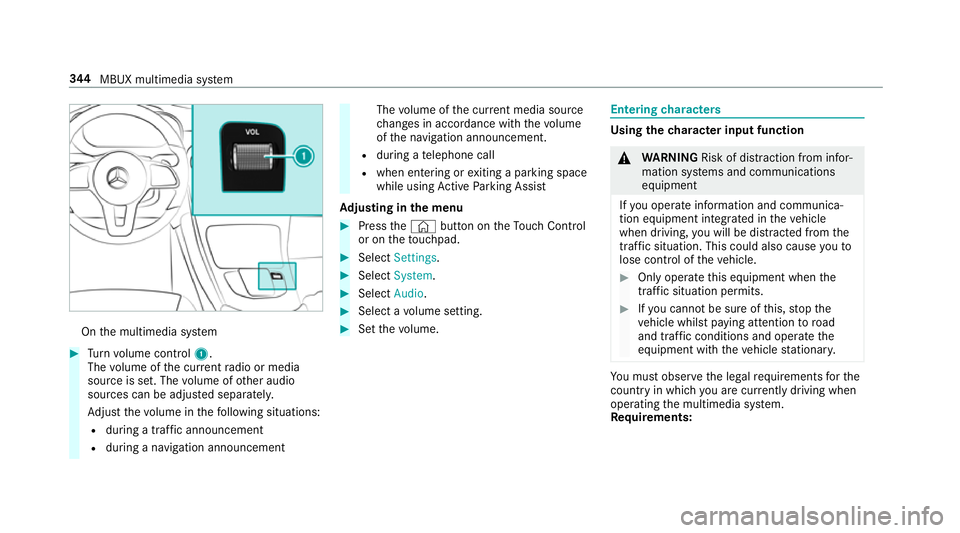
On
the multimedia sy stem #
Turn volume control 1.
The volume of the cur rent radio or media
source is set. The volume of other audio
sources can be adjus ted separatel y.
Ad just thevo lume in thefo llowing situations:
R during a traf fic announcement
R during a navigation announcement The
volume of the cur rent media sou rce
ch anges in accordance with thevo lume
of the navigation announcement.
R during a telephone call
R when entering or exiting a parking space
while using Active Parking Assist
Ad justing in the menu #
Press the© button on theTo uch Control
or on theto uchpad. #
Select Settings . #
Select System. #
Select Audio. #
Select a volume setting. #
Set thevo lume. Entering
characters Using
thech aracter input function &
WARNING Risk of di stra ction from infor‐
mation sy stems and communications
equipment
If yo u operate information and communica‐
tion equipment integ rated in theve hicle
when driving, you will be distracted from the
traf fic situation. This could also cause youto
lose control of theve hicle. #
Only operate this equipment when the
traf fic situation permits. #
Ifyo u cannot be sure of this, stop the
ve hicle whilst paying attention toroad
and traf fic conditions and ope rate the
equipment with theve hicle stationar y. Yo
u must obse rveth e legal requirements forthe
country in whi chyou are cur rently driving when
operating the multimedia sy stem.
Re quirements: 344
MBUX multimedia sy stem
Page 396 of 673
or
#
If a destination has been recei ved from an
app, select Details. #
Calculate thero ute. #
Aro ute has been received: selectYes. #
Select Start route guidance from the begin-
ning orStart route guidance from current
location.
Ro ute guidance starts from the selected
position. Ro
ute guidance with cur rent traf fic re ports Tr
af fic information overview
The services are not available in everycountr y.
Tr af fic re ports can be recei ved with thefo llowing
services:
R Live Traf fic Information
R FM RDS-TMC
It is not possible touse bo thservices simultane‐
ously.
Live Traf fic Information or FM RDS-TMC is dis‐
pl ay ed with a symbol. %
Hazard warnings can be recei ved using the
Car-to-X service.
There may be dif fere nces between the traf fic
re ports recei ved and the actual road and traf fic
conditions.
Impor tant information on Live Traf fic Informa‐
tion:
R Current tra ffic reports are recei ved via the
Internet connection or via data roaming (for
selec ted count ries).
R The traf fic situation is upda ted at short, regu‐
lar inter vals.
R In selec ted count ries, the subscription
service is available free of charge for a period
of thre eye ars from the manufacturing date.
The subscription information sho wsthest a‐
tus (/ page 393).
Re gis tering Live Traf fic Information:
R The service must be regis tere d with
Mercedes me (/ page 393).
R Registration is car ried out at a Mercedes-
Benz service cent re. Information on
theve hicle's position is regular ly
sent toDaimler AG. The da tais immediately ren‐
de red anonymous byDaimler AGand forw arded
to the tra ffic data pr ovider. Using this data, traf‐
fi c re ports releva nt totheve hicle's position are
sent totheve hicle. The vehicle acts as a sensor
fo rth eflow of traf fic and helps toimpr ovethe
qu ality of the traf fic re ports.
If yo u do not wish totransmit your vehicle posi‐
tion, you can ha vethis service deactivated at a
Mercedes-Benz service centre.
Useful information on FM RDS -TMC:
R A FM RDS-TMC radio station broadcasts traf‐
fi c re ports alongside thera dio programme.
R FM RDS-TMC is not available in all countries.
Showing information from the service pro‐
vider for Li veTraf fic Information
Requ irements:
R The vehicle is equipped with Live Traf fic
Information. MBUX multimedia sy
stem 393
Page 452 of 673
Closing
the br owser
Multimedia sy stem:
4 © 5
Mercedes me & Apps
5 z Browser #
Select ©. Internet
radio Calling up In
ternetradio
Re quirements: R
There is an account on http://
www.me rcedes.me.
R The Internet radio service is activated.
R The data volume is available.
Depending on the count ry, data volume may
need tobe pur chased.
R Afast Internet connection for data transmis‐
sion free of inter fere nce.
% The functions and services are countr y-
dependent. For more information, consult a
Mercedes-Benz service centre. Multimedia sy
stem:
4 © 5
Radio #
Select TuneIn radio.
The Internet radio menu appears. The last
st ation set starts playing.
% The connection quality depends on the local
mobile phone reception. MBUX multimedia sy
stem 449
Page 453 of 673
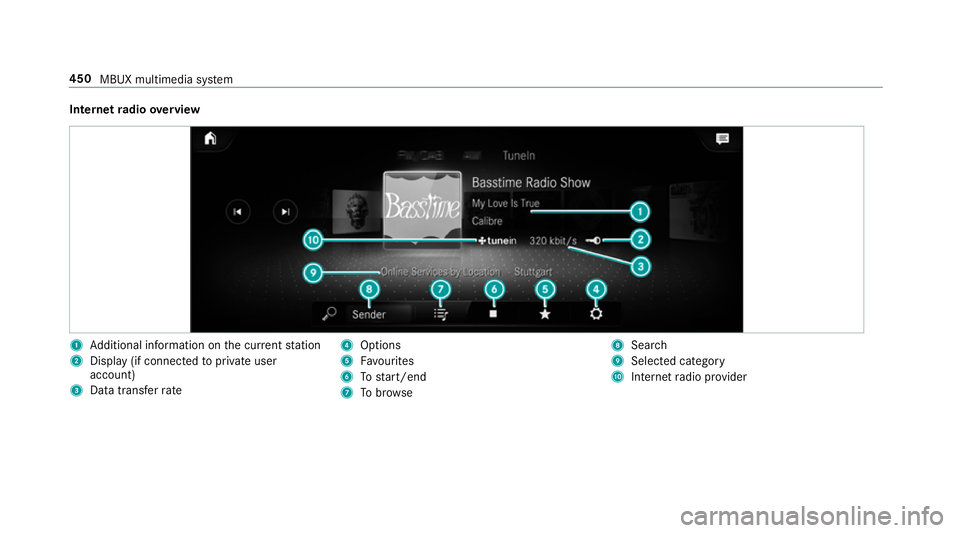
Internet
radio overview 1
Additional information on the cur rent station
2 Display (if connec tedto private user
account)
3 Data transfer rate 4
Options
5 Favourites
6 Tostart/end
7 Tobrow se 8
Sear ch
9 Selected catego ry
A Internet radio pr ovider 450
MBUX multimedia sy stem
Page 454 of 673
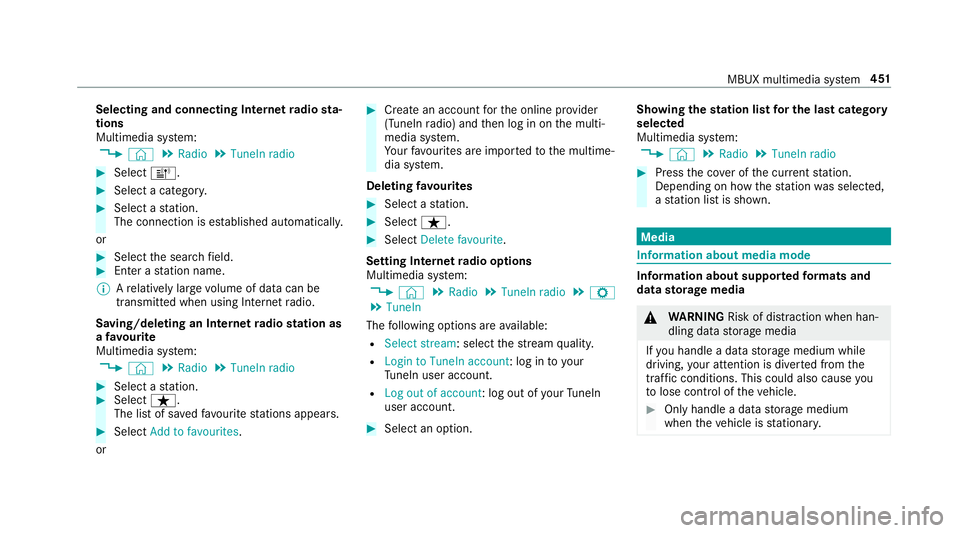
Selecting and connecting Internet
radio sta‐
tions
Multimedia sy stem:
4 © 5
Radio 5
TuneIn radio #
Select =. #
Select a categor y. #
Select a station.
The connection is es tablished automaticall y.
or #
Select the sear chfield. #
Ente r astation name.
% Arelatively lar gevolume of data can be
transmitte d when using Internet radio.
Saving/deleting an Internet radio station as
a fa vo urite
Multimedia sy stem:
4 © 5
Radio 5
TuneIn radio #
Select a station. #
Select ß.
The list of sa vedfavo urite stations appears. #
Select Add to favourites.
or #
Create an account forth e online pr ovider
(TuneIn radio) and then log in on the multi‐
media sy stem.
Yo ur favo urites are impor tedto the multime‐
dia sy stem.
Deleting favo urites #
Select a station. #
Select ß. #
Select Delete favourite.
Setting Internet radio options
Multimedia sy stem:
4 © 5
Radio 5
TuneIn radio 5
Z
5 TuneIn
The following options are available:
R Select stream: select thest re am qualit y.
R Login to TuneIn account : log into your
Tu neIn user account.
R Log out of account : log out ofyour TuneIn
user account. #
Select an option. Showing the
station list for the last ca tegory
selected
Multimedia sy stem:
4 © 5
Radio 5
TuneIn radio #
Press the co ver of the cur rent station.
Depending on how thest ation was selected,
a st ation list is shown. Media
Information about media mode
Information about suppor
tedfo rm ats and
data storage media &
WARNING Risk of di stra ction when han‐
dling da tastorage media
If yo u handle a data storage medium while
driving, your attention is diver ted from the
traf fic conditions. This could also cause you
to lose control of theve hicle. #
Only handle a data storage medium
when theve hicle is stationar y. MBUX multimedia sy
stem 451
Page 461 of 673
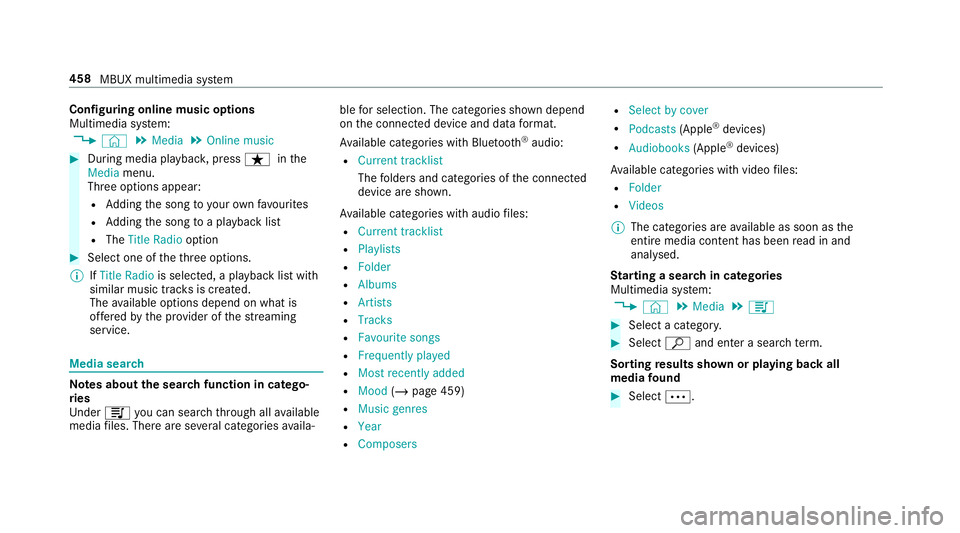
Configuring online music options
Multimedia sy
stem:
4 © 5
Media 5
Online music #
During media playbac k,press ß inthe
Media menu.
Three options appear:
R Adding the song to yourow nfavo urites
R Adding the song toa playback list
R The Title Radio option #
Select one of theth re e options.
% IfTitle Radio is selected, a playback list with
similar music tra cks is created.
The available options depend on what is
of fere dby the pr ovider of thest re aming
service. Media sear
ch Note
s about the sear chfunction in catego‐
ri es
Und er5 you can sear chthro ugh all available
media files. There are se veral categories availa‐ ble
for selection. The categories shown depend
on the connected device and data form at.
Av ailable categories with Blue tooth ®
audio:
R Current tracklist
The folders and categories of the connected
device are shown.
Av ailable categories with audio files:
R Current tracklist
R Playlists
R Folder
R Albums
R Artists
R Tracks
R Favourite songs
R Frequently played
R Most recently added
R Mood (/page 459)
R Music genres
R Year
R Composers R
Select by cover
R Podcasts (Apple®
devices)
R Audiobooks (Apple®
devices)
Av ailable categories with video files:
R Folder
R Videos
% The categories are available as soon as the
entire media conte nt has beenread in and
anal ysed.
St arting a sear chin categories
Multimedia sy stem:
4 © 5
Media 5
5 #
Select a categor y. #
Select ªand enter a sea rchte rm.
Sorting results shown or playing back all
media found #
Select Ä. 458
MBUX multimedia sy stem
Page 462 of 673
#
Toplay back all results found in the cate‐
gor y:select Play all.
If, forex ample, theAlbums category is
active, all albums found bythe desired artist
will be pla yed bac k. #
Tosort results alphabeticall y:select Sort
from A-Z. #
Tosort results in reve rse alphab etical
order: selectSort from Z-A.
% The available options depend on the selec‐
te d category and the connected device.
Using theke yword sear ch
Multimedia sy stem:
4 © 5
Media
Yo u can look for content using theke yword
sear chwith free text input. #
Select ª.
A ke yboard forch aracter ent ryappears. #
Enterth ete rm sear ched for.
% The sear chbegins with thefirs tch aracter
entered. The more characters entered the
more concr eteth e sear chresults become. #
Select the desired entry fromthere sult list.
If th e selected result is an album, song or a
playback list then playback is star ted. If the
selected result is a new category then this is
opened in the sear ch.
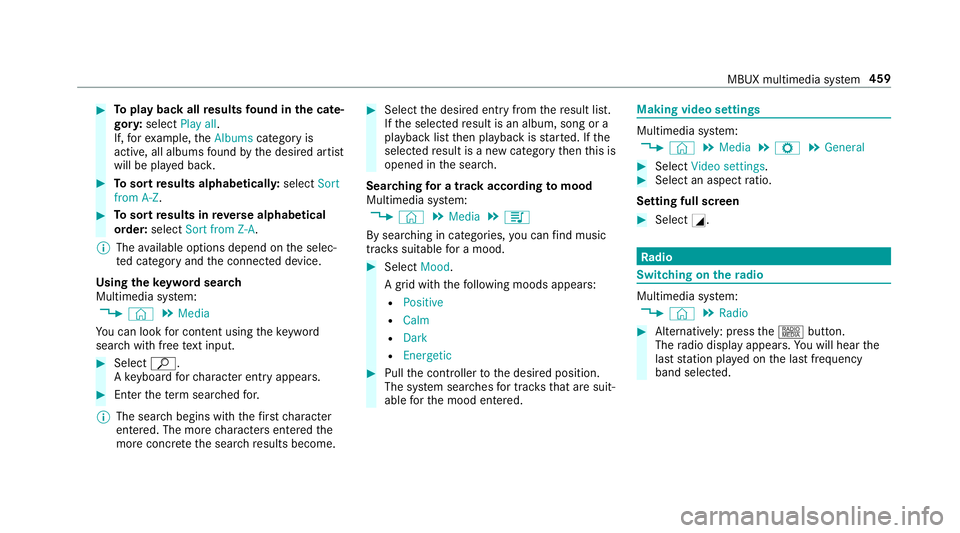
Sear ching for a track acco rding tomood
Multimedia sy stem:
4 © 5
Media 5
5
By sear ching in categories, you can find music
trac kssuitable for a mood. #
Select Mood.
A grid with thefo llowing moods appears:
R Positive
R Calm
R Dark
R Energetic #
Pull the controller tothe desired position.
The sy stem sear ches for trac ksthat are suit‐
able forth e mood entered. Making video settings
Multimedia sy
stem:
4 © 5
Media 5
Z 5
General #
Select Video settings. #
Select an aspect ratio.
Setting full sc reen #
Select G. Ra
dio Switching on the
radio Multimedia sy
stem:
4 © 5
Radio #
Alternatively: press the| button.
The radio display appears. You will hear the
last station pla yed on the last frequency
band selected. MBUX multimedia sy
stem 459
Page 463 of 673
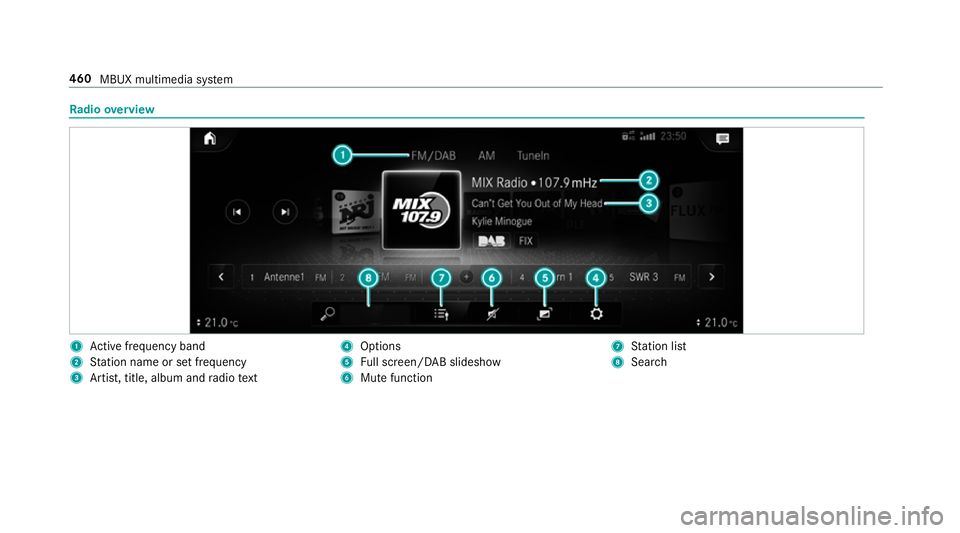
Ra
dio overview 1
Active frequency band
2 Station name or set frequency
3 Artist, title, album and radio text 4
Options
5 Full screen/ DAB slideshow
6 Mutefunction 7
Station list
8 Sear ch 460
MBUX multimedia sy stem
Page 464 of 673
Setting
the frequency band Multimedia sy
stem:
4 © 5
Radio #
Select a frequency band. Selecting a
radio station Multimedia sy
stem:
4 © 5
Radio #
Swipe tothe left or right on the control ele‐
ment. Calling up
thera dio station list Multimedia sy
stem:
4 © 5
Radio #
Select .
The station list appears. #
Select a station. Sear
ching forra dio stations using station
names or frequency entry Multimedia sy
stem:
4 © 5
Radio #
Select è. #
Ente r astation name or frequenc y. #
Select a station. St
oring radio stations Multimedia sy
stem:
4 © 5
Radio #
Select a radio station.
Memory slots are available in station presets #
Select f.
or #
Press and hold on thera dio station.
Re placing an entry in the station presets #
Press and hold on an entry in thest ation pre‐
sets. #
Select Yes. Editing
station presets Multimedia sy
stem:
4 © 5
Þ Radio
Moving stations #
Press and hold a stored station. #
Select Move. #
Movethest ation tothe new position.
Deleting channels #
Press and hold a station. #
Select Delete.
Re placing a station #
Press and hold a station. #
Select Replace radio station . Calling up a slide show (FM/DAB
radio mode) Multimedia sy
stem:
4 © 5
Radio
The slide show displa ysadditional information
pr ov ided bythest ation as an image. This can MBUX multimedia sy
stem 461
Page 465 of 673
include logos, album co
vers, music trac ks, pro‐
grammes, ne wsor service information, forex am‐
ple. #
Select .
Ac
tivating/deactivating the frequency fix
function Multimedia sy
stem:
4 © 5
Radio 5
Z 5
General #
Switch Frequency fix on or off.
If th e function is activated, the set frequency
is ke pt eve n ifthere ception is poo r.Ac
tivating/deactivating traf fic announce‐
ments Multimedia sy
stem:
4 © 5
Radio 5
Z 5
General #
Switch Traffic announcements (TA) on or off. Setting
the traf fic information service vol‐
ume increase Multimedia sy
stem:
4 © 5
Settings 5
Audio #
Select Navigation and traffic announce-
ments. #
Set a value forTraffic announc. vol. increase . #
Set a value. #
Accept theva lue with q. Displaying
radio text Multimedia sy
stem:
4 © 5
Radio 5
Z 5
General #
Switch Radio text information on or off. TV
Information on
TVmode In
fo rm ation on copy right pr otection and
tradema rks
Ubiquitous DTCP-IP Copyright
®
20 15 Ubiquitous Corp.
DV B and DVB logos are tradema rks of theDVB
Project.
The TVtuner enables reception of digital chan‐
nels according tothefo llowing standards:
R DVB-T
R DVB-T2
In some countries, thest andards may not be
av ailable, or may not be available in all areas.
A CI+ module (Common In terface Module),
which is not included in the scope of deliver y,is
used todecrypt HD prog rammes according to
th e CI+ standard. In some countries, an addi‐
tional smart card is required, which is inse rted
into the CI+ module (see the manufacturer's
operating manual).
The CI+ module is connected in the CI+ box in
th eglov e compartment. 462
MBUX multimedia sy stem