steering MERCEDES-BENZ GLC SUV 2019 Service Manual
[x] Cancel search | Manufacturer: MERCEDES-BENZ, Model Year: 2019, Model line: GLC SUV, Model: MERCEDES-BENZ GLC SUV 2019Pages: 673, PDF Size: 11.51 MB
Page 260 of 673
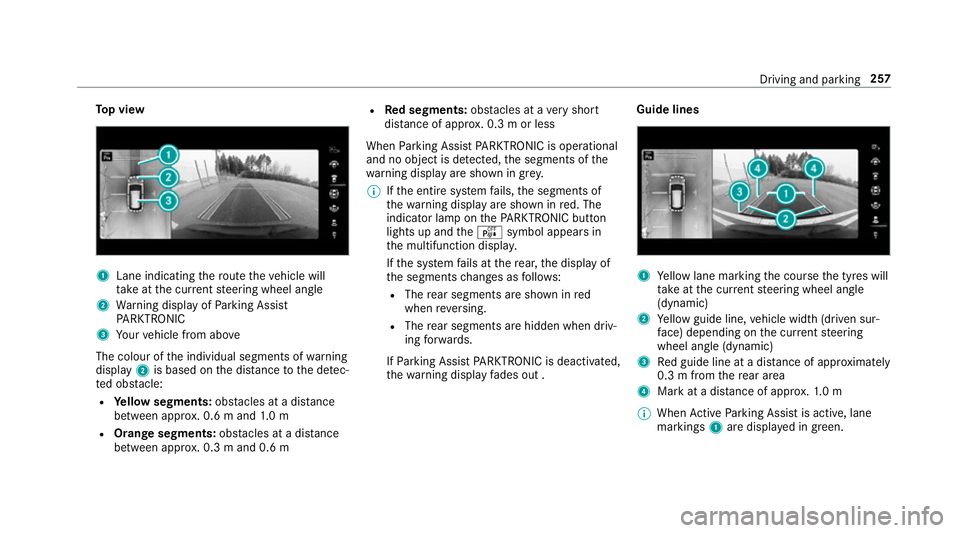
To
p view 1
Lane indicating thero ute theve hicle will
ta ke atthe cur rent steering wheel angle
2 Warning display of Parking Assist
PA RKTRONIC
3 Your vehicle from abo ve
The colour of the individual segments of warning
display 2is based on the dis tance tothe de tec‐
te d obs tacle:
R Yellow segments: obstacles at a di stance
between appr ox. 0.6 m and 1.0 m
R Orange segments: obstacles at a di stance
between appr ox. 0.3 m and 0.6 m R
Red segments: obstacles at a very short
dis tance of appr ox. 0.3 m or less
When Parking Assist PARKTRONIC is operational
and no object is de tected, the segments of the
wa rning display are shown in gr ey.
% Ifth e entire sy stem fails, the segments of
th ewa rning display are shown in red. The
indicator lamp on thePA RKTRONIC but ton
lights up and theé symbol appears in
th e multifunction displa y.
If th e sy stem fails at there ar, the display of
th e segments changes as follo ws:
R The rear segments are shown in red
when reve rsing.
R The rear segments are hidden when driv‐
ing forw ards.
If Pa rking Assist PARKTRONIC is deacti vated,
th ewa rning display fades out . Guide lines
1
Yellow lane marking the course the tyres will
ta ke atthe cur rent steering wheel angle
(dynamic)
2 Yellow guide line, vehicle width (driven sur‐
fa ce) depending on the cur rent steering
wheel angle (dynamic)
3 Red guide line at a dis tance of appr oximately
0.3 m from there ar area
4 Mark at a distance of appr ox.1. 0 m
% When Active Parking Assist is active, lane
markings 1are displa yed in green. Driving and parking
257
Page 263 of 673
Opening
the camera co ver of the reve rsing
camera
Multimedia sy stem:
4 © 5
Settings 5
Assistance
5 Camera & parking #
Select Open camera cover.
% The camera co ver closes auto maticallyafter
some time or af ter an ignition cycle.
Setting the camera as a favo urite
Yo u can call up the camera view directly in the
multimedia sy stem bysetting it as a favo urite. #
Press theò button on theto uchpad.
The main functions are displ ayed. #
Navigate down wards twice.
The Favourites menu appears. #
Select New favourite. #
Select Vehicle . #
Select Camera. Ac
tive Parking Assist Fu
nction of Active Parking Assist
Ac tive Parking Assist is an elect ronic pa rking
assis tance sy stem which uses ultrasound and is
automatically activated during forw ard tra vel.
The sy stem is operational at speeds below
appr oximately 35 km/h.
If all requ irements are met, theÇ display
appears in the multifunction displa y.The sy stem
th en independently locates and measures paral‐
lel and perpendicular parking spaces on bo th
sides of theve hicle.
When Active Parking Assist has de tected pa rking
spaces, theÈ display appears in the multi‐
function displa y.The ar rowsshow on which side
of thero ad de tected pa rking spaces are located.
They are then shown in the media displa y.The
parking space and, if necessar y,the parking
direction can be selected as desired. Active
Pa rking Assist calculates a suitable vehicle path,
switches on the turn signal indicator and assists
yo u in parking and exiting the parking space. Ac
tive Parking Assist pr ovides assis tance when
ch anging gear, accelerating, braking and steer‐
ing theve hicle.
Ac tive Parking Assist is only an aid. It is not a
substitute foryo ur attention tothe sur roundings.
The responsibility for safe manoeuvring and
parking remains with you. Make sure that no
persons, animals or objects etc. are in the
manoeuvring range.
Ac tive Parking Assist is cancelled if, among
ot her things, one of thefo llowing actions is car‐
ri ed out:
R Parking Assist PARKTRONIC is deacti vated.
R Active Parking Assist is deactivated.
R You begin steering.
R You apply the parking brake.
R You en gage transmission position j.
R ESP ®
inter venes.
R You open the doors or theta ilgate while driv‐
ing. 260
Driving and parking
Page 276 of 673
Sy
stem limits
Either a course-cor recting brake application
appropria teto the driving situation, or none at
all, may occur in thefo llowing situations:
R Vehicles or obs tacles, e.g. crash ba rriers, are
located on bo thsides of your vehicle.
R Ave hicle approaches too closely on the side.
R You ha veadop ted a sporty driving style with
high cornering speeds.
R You brake or accelerate significantl y.
R A driving sa fety sy stem inter venes, e.g. ESP ®
or Active Brake Assi st.
R ESP ®
is deacti vated.
R A loss of tyre pressure or a defective tyre is
de tected.
R You are driving with a trailer and the electri‐
cal connection tothe trailer hitch has been
cor rectly es tablished. Ac
tivating/deactivating Blind Spot Assi stor
Ac tive Blind Spot Assi st
Multimedia sy stem:
4 © 5
Settings 5
Assistance #
Activate or deacti vate Blind Spot Assist . Ac
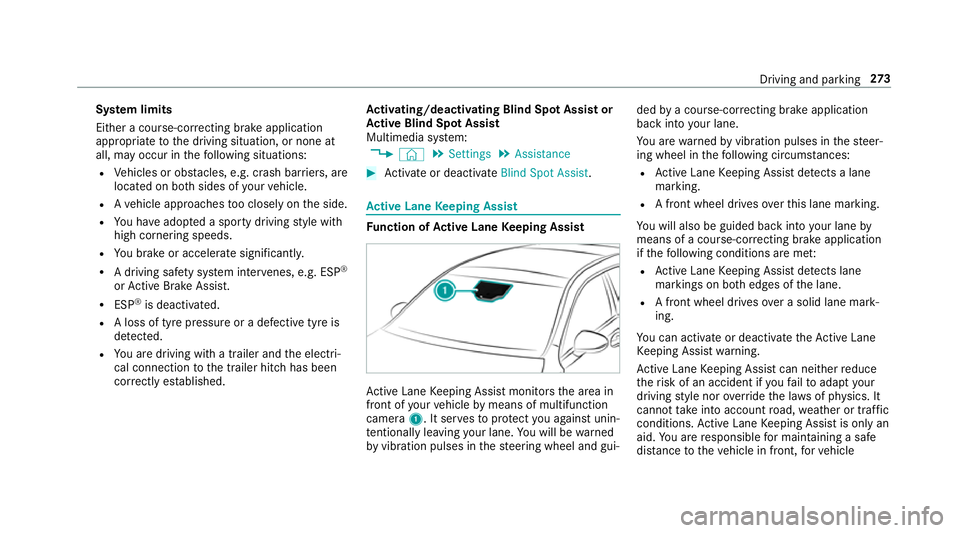
tive Lane Keeping Assist Fu
nction of Active Lane Keeping Assist Ac
tive Lane Keeping Assist monitors the area in
front of your vehicle bymeans of multifunction
camera 1. It ser vesto protect you against unin‐
te ntional lyleaving your lane. You will be warned
by vibration pulses in thesteering wheel and gui‐ ded
bya course-cor recting brake application
ba ck into your lane.
Yo u are warned byvibration pulses in thesteer‐
ing wheel in thefo llowing circums tances:
R Active Lane Keeping Assist de tects a lane
marking.
R A front wheel drives overth is lane marking.
Yo u will also be guided back into your lane by
means of a course-cor recting brake application
if th efo llowing conditions are me t:
R Active Lane Keeping Assist de tects lane
markings on bo thedges of the lane.
R A front wheel drives over a solid lane mark‐
ing.
Yo u can activate or deactivate theAc tive Lane
Ke eping Assist warning.
Ac tive Lane Keeping Assist can neither reduce
th erisk of an accident if youfa ilto adapt your
driving style nor override the la wsof ph ysics. It
cannot take into account road, weather or traf fic
conditions. Active Lane Keeping Assist is only an
aid. You are responsible for maintaining a safe
dis tance totheve hicle in front, forve hicle Driving and parking
273
Page 291 of 673
Fu
rther displa yson the multifunction display:
Z Gearshift
recommendation (/ page 192)
ë Active Parking Assist activated
(/ page 261)
é Parking Assist PARKTRONIC deacti vated
( / page 250, 249, 250)
¯ Cruise control (/
page 222)
È Limi
ter (/ page 223)
ç Active Dis tance Assi stDISTRONIC
(/ page 228)
æ Ac
tive Brake Assi st (/ page 221)
è Active Steering Assist (/ page 234)
à Ac
tive Lane Keeping Assist (/ page273)
± Active Lane Change Assi st (/ page 236)
è ECO
start/ stop function (/ page181)
ë HOLD fu
nction (/ page 240)
_ Ad
aptive Highbeam Assist (/ page146)
Ad aptive Highbeam Assist Plus
(/ page 147)
ð Maximum pe rmissible speed exceeded
(for cer tain countries only) Ve
hicles with Traf fic Sign Assis t:de tected
instructions and traf fic signs (/ page 268). Ad
justing the in stru ment lighting #
Turn brightness control 1up or down.
The lighting of the instrument display and in
th e control elements of theve hicle interior is
adjus ted. Menus and submenus
Fu
nctions on the service menu of the on-
board compu ter On-board computer:
4 Service #
Toselect the function: swipe upwards or
down wards on the left-hand Touch Control. #
Press the left-hand Touch Control.
Fu nctions on theServicemenu:
R Message memory (/ page 554)
R AdBlue :Ad blue ®
ra nge and fill le vel
R Tyres:
- Restart the tyre pressure loss warning
sy stem (/ page 525)
- Check the tyre pressure with the tyre
pressure monitor (/ page519)
- Restart the tyre pressure monitor
(/ page 520)
R ASSYST PLUS: call up the service due date
(/ page 474) 288
Instrument Displ ayand on-board computer
Page 297 of 673
#
Ifth ere are multiple telephone numbers
sa ve dto an entr y:swipe upwards or down‐
wa rds on the left-hand Touch Control to
select the desired telephone number. #
Press the left-hand Touch Control.
The telephone number will be dialled.
The following displa ysmay appear ins tead of the
te lephone numbers dialled:
R Please wait... :th e application is starting. If a
Blue tooth ®
connection tothe mobile phone
is not es tablished, the menu for auth orising
and connecting a mobile phone will be dis‐
pla yed on the multimedia sy stem
(/ page 413).
R Updating data. ..:the call list is being upda‐
te d.
R Importing contacts... : contacts are being
impor ted from the mobile phone or a storage
medium.
Ac cepting/rejecting an incoming call
Ve hicles with head-up displa y:when you
re cei vea call, theIncoming call message will
appear on the head-up displa y. #
Swipe up wards or down wards on the left-
hand Touch Control and select 6(Accept)
or ~ (Reject). #
Press the left-hand Touch Control.
Yo u may accept or reject the call using the6
or ~ button on thesteering wheel. Ad
justing the head-up display settings on
the on-board co mputer On-board computer:
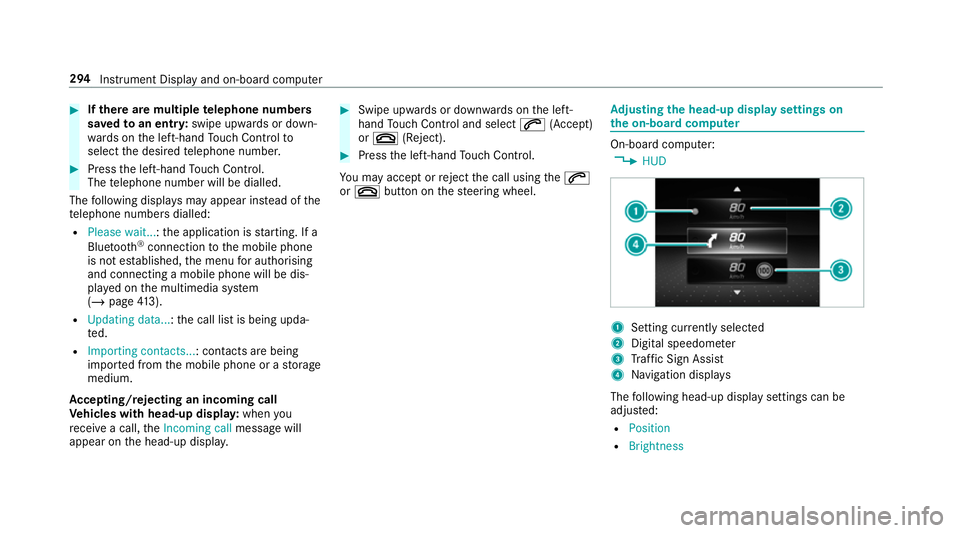
4 HUD 1
Setting cur rently selected
2 Digital speedome ter
3 Traf fic Sign Assi st
4 Navigation displa ys
The following head-up display settings can be
adjus ted:
R Position
R Brightness 294
Instrument Display and on-board computer
Page 301 of 673
R
Ifyo u use thevo ice control sy stem in an
emer gency your voice can change and your
te lephone call, e.g. an emer gency call, can
th ereby be unnecessarily dela yed.
R Familiarise yourself with thevo ice control
sy stem functions before starting the journe y.
R Comply with the loading guidelines
(/ page 116). Operation
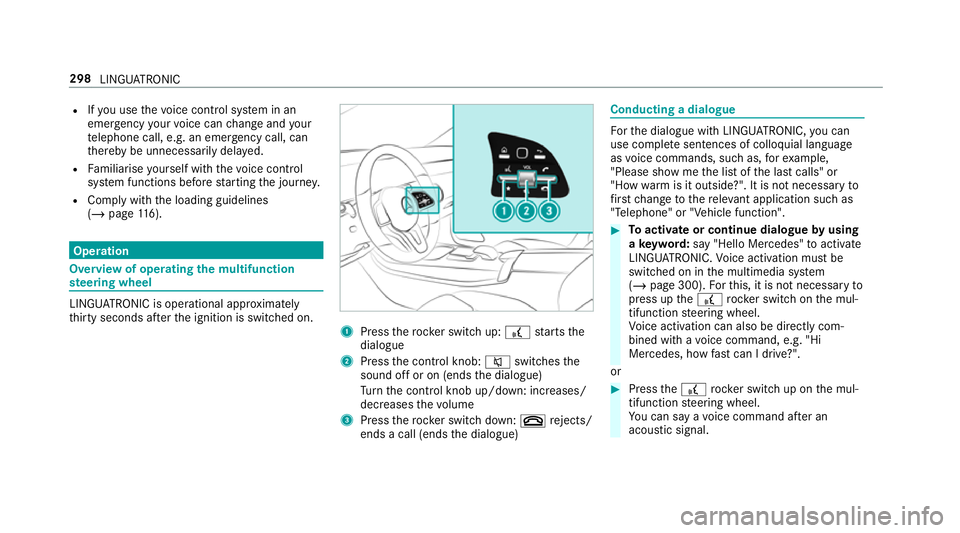
Overview of operating
the multifunction
st eering wheel LINGU
ATRO NIC is operational appr oximately
th irty seconds af terth e ignition is switched on. 1
Press therock er switch up: £starts the
dialogue
2 Press the control knob: 8switches the
sound off or on (ends the dialogue)
Tu rn the control knob up/down: increases/
decreases thevo lume
3 Press therock er switch down: ~rejects/
ends a call (ends the dialogue) Conducting a dialogue
Fo
rth e dialogue with LINGU ATRO NIC, you can
use co mplete sentences of colloquial language
as voice commands, such as, forex ample,
"Please show me the list of the last calls" or
"How warm is it outside?". It is not necessary to
fi rs tch ange tothere leva nt application su chas
"Telephone" or "Vehicle function". #
Toactivate or continue dialogue byusing
a ke yword: say "Hello Mercedes" toactivate
LINGU ATRO NIC. Voice activation must be
switched on in the multimedia sy stem
(/ page 300). Forth is, it is not necessary to
press up the£ rock er switch on the mul‐
tifunction steering wheel.
Vo ice activation can also be directly com‐
bined with a voice command, e.g. "Hi
Mercedes, how fastcan I drive?".
or #
Press the£ rocker switch up on the mul‐
tifunction steering wheel.
Yo u can say a voice command af ter an
acou stic signal. 298
LINGU ATRO NIC
Page 302 of 673
#
Tocor rect an ent ry:say theCorrection
vo ice command. #
Toselect an entry from the selection lis t:
say the line number or the conte nts. #
Tobrows eth e selection lis t:say theNext
or Back voice command. #
Tointer rupt the dialogue: saythePause
vo ice command.
The dialogue can be continued with the
"Hello Mercedes" voice command or by
pressing up the£ rock er switch on the
multifunction steering wheel. #
Tojump tothe preceding dialogue: saythe
Back voice command. #
Tojump back totheto p dialogue le vel:
say theHome voice command. #
Tocancel the dialogue: saytheClose voice
command or press the8 or~ button
on the multifunction steering wheel. #
Tointer rupt avo ice output: speak inthe
middle of a voice dialogue when the sy stem
is still answering.
The voice output is shor tened and the con‐
clusion is reached more quickl y.
% The Voice barge-in option must be switched
on in the multimedia sy stem forth is
(/ page 300). Overview of operable functions in LINGUA‐
TRONIC
Yo
u can use the LINGU ATRO NIC voice control
sy stem tooperate thefo llowing functions
depending on theve hicle equipment:
R Telephone
R Text messa geand e-mail
R Navigation
R Address book
R Radio
R Media
R TV
R Vehicle functions R
Weather
Fu ll functionality is only available foryo u with
activation of online voice control (/ page 300). Note
s onthe language setting Yo
u can change the language of LINGU ATRO NIC
via the sy stem language settings. If the set sys‐
te m language is not suppor tedby LINGUA‐
TRONIC, English will be selected.
LINGU ATRO NIC is available in thefo llowing lan‐
guages:
R German
R English
R French
R Italian
R Dutch
R Polish
R Portuguese
R Russian
R Swedish
R Spanish LINGU
ATRO NIC 299
Page 304 of 673
R
Continued dialogue: saytheHelp voice
command during a voice dialogue. Foreve ry
st ep of the dialogue youre cei vematching
information.
R Speci fic function: saythevo ice command
fo rth e desired function, e.g. with "Hello
Mercedes, I need help with thera dio" or af ter
pressing the£ rock er switch on the multi‐
function steering wheel up, say theHelp for
the telephone voice command, forex ample. Note
s on optimal use of LINGU ATRO NIC No
tes on how toimpr overecognition:
R Activate online voice control (/ page 300).
R Only operate LINGU ATRO NIC from the driv‐
er's seat.
R Say thevo ice commands cohe rently and
clearly, but do not exaggerate thewo rds.
R Avoid loud noises that cause inter fere nce
while making a voice command ent ry, e.g.
th e enter tainment in there ar-passen ger
compa rtment.
R Forte lephone or add ress book entries: -
Only create sensible address book entri es
in the sy stem/mobile phone, e.g. enter
surname and firs t name in the cor rect
fi eld.
- Do not use any abbr eviations, unneces‐
sary spaces or special characters.
R Forra dio or TVprog ramme names: say
th eRead out station list voice command and
say the desired station name in thewa ythe
vo ice output reads aloud to you.
% Toimpr overecognition, depending on the
outside temp erature, either the blo wersfor
ve ntilation or heating are reduced when LIN‐
GU ATRO NIC is star ted. Note
s on online voice control Online
voice control impr oves recognition and
makes additional results available as a result of
ex tern al information, e.g. information about POIs
and about thewe ather. Wetherefore recom‐
mend that you activate online voice control.
Yo u will need a Mercedes me user account for
th is. If you do not yet ha vea user account youha
ve tocrea teone and connect it with your vehi‐
cle (/ page 438).
Then call up your Mercedes me user account.
The Mercedes me services are shown and can
be activated (/ page 438).
In addition, online voice control must be activa‐
te d (/ page 300). Essential
voice commands Note
s onthevo ice commands Aside from
theex act voice commands (see the
"Voice command" column in thefo llowing tables)
to call up specific functions, in most cases LIN‐
GU ATRO NIC also under stands a great ma nypar‐
aphrases from daily usage. Examples of these
are lis ted in the "Colloquial examples" column.
Fo r some languages ho weverth ese examples
are on lyavailable toa limited extent. LING
UATRONIC 301
Page 321 of 673
%
Ifth eve hicle is fitted wi thgesture mode,
selected functions of the multimedia sy stem
can be operated conta ct-free aswell as turn‐
ing there ading light on or off (/ page 325).
Nu merous application, online services, services
and apps are available foryo u. These can be
called up via the home screen or using buttons
3.
Yo u can co nveniently call up and add favo urites
on thesteering wheel using theß rock er
switch or using theß button on control panel
3. Quic k-access in the home screen and in the
applications ser vetoselect functions more
qu ickl y.
If yo u use the learn function of the multimedia
sy stem, you will recei vesuggestions during oper‐
ation of the most probable navigation destina‐
tions, media sources, radio stations and con‐ ta
cts. The configu ration of the suggestions takes
place in your profile. You can co mpileyour pro‐
fi le from various vehicle settings and settings of
th e multimedia sy stem. You can create themes
fo rva rious driving situations in the home screen
as well as using theß rocker switch or the
ß button.
The Notifications Centre collects incoming notifi‐
cations, e.g. about an available software update.
Depending on the type of notification it of fers
va rious actions. You can call up the Notifications
Centre on the home screen and in the applica‐
tion menus.
Wi th th eglobal sear chintheve hicle you can
sear chon-board across many categories as well
as online in the Internet. You can use theglobal
sear chinthe home screen and in the notifica‐
tions. Anti-theft pr
otection
This device is equipped with tech nical pr ovisions
to protect it against theft. More de tailed informa‐
tion about anti-theft pr otection can be obtained
at a qualified specialist workshop. Note
s onthe media display Obser
vethe no tes on caring forth e interior
(/ page 491).
Au tomatic temperature-cont rolled switch-
off feature: ifth ete mp erature is too high, the
brightness is initially reduced automatically. The
media display may then switch off comple tely for
a while.
% Ifyo u are wearing polarised sun glasses, it
may be dif ficult toread the multimedia sys‐
te m displa y. 318
MBUX multimedia sy stem
Page 334 of 673
Profile
Note
s on profiles
The driver's seat is equipped with an anti-entra p‐
ment feature.
If th e driver's door is open, the driver's seat will
not be set af ter calling up the driver's profile.
Overview of profiles
Using the multimedia sy stem up toseven pro‐
fi les can be created in theve hicle.
Profiles store your personal vehicle settings and
settings forth e multimedia sy stem.
If th eve hicle is used byseveral drivers, the
driver can select their profile before the journe y,
without changing the settings of other drivers.
Yo u can select the profile:
R When entering (/ page 333)
R Using the home screen (/ page319)
The profile settings are activated as soon as a
profile is selected.
% Ifyo u call up your profile when driving then
th e driver's seat position will not be adjus‐
te d. Yo
u can cancel the setting process with the
fo llowing actions:
R Tap on thePositioning seat and steering
wheel. Please tap to cancel. warning on
th e media displa y.
R Press one of the seat operating buttons
in the driver's door.
Profile content
Depending on theve hicle equipment, thefo llow‐
ing settings can be stored in your profile, for
ex ample:
R Driver's seat memory
R Radio (including station list)
R Last destinations
R Climate control
R Ambient lighting
R DYNA MIC SELECT I (individual)
R Instrument Displa y,Head-up Display and
st yle (display style of the multimedia sy stem)
R Themes, suggestions and favo urites %
Settings for driver assi stance sy stems can‐
not be sa ved in the profile.
Mercedes me connect profile
If yo u use a profile from Mercedes me connect,
th efo llowing online functions are available, for
ex ample:
R You can configure the settings in theve hicle
using the Mercedes me app and the
Mercedes me por tal.
R You can syn chronise your profile on
Mercedes me connect with the profile in the
ve hicle (/ page 333).
R You can add a personal profile pho tothat is
shown in theve hicle.
R You can take your profile and some of your
settings with you in new vehicles.
Requ irements for using Me rcedes me con‐
nect profiles:
Fo rth eve hicle owner:
R You ha vea Mercedes me user account.
R The vehicle has been connected with the
user account. MBUX multimedia sy
stem 331