ESP MERCEDES-BENZ GLE 2017 Manual Online
[x] Cancel search | Manufacturer: MERCEDES-BENZ, Model Year: 2017, Model line: GLE, Model: MERCEDES-BENZ GLE 2017Pages: 390, PDF Size: 11.63 MB
Page 283 of 390
General notes The multimedia system section in this Opera-
tor's Manual describes the basic principles for
operation. More information can be found in the
Digital Operator's Manual.
Important safety notes
G WARNING
If you operate information systems and com-
munication equipment integrated in the vehi-
cle while driving, you will be distracted from
traffic conditions. You could also lose control
of the vehicle. There is a risk of an accident.
Only operate the equipment when the traffic
situation permits. If you are not sure that this
is possible, park the vehicle paying attention
to traffic conditions and operate the equip-
ment when the vehicle is stationary.
You must observe the legal requirements for the
country in which you are currently driving when
operating the multimedia system.
The multimedia system calculates the route to
the destination without taking the following into
account, for example: R
traffic lights R
stop and yield signs R
parking or stopping restrictions R
road narrowing R
other road and traffic rules and regulations
The multimedia system may give incorrect nav-
igation recommendations if the actual street/
traffic situation does not correspond with the
digital map's data.
For example: R
a diverted route R
the road layout or the direction of a one-way
street has been changed
For this reason, you must always observe road
and traffic rules and regulations during your
journey. Road and traffic rules and regulations
always have priority over multimedia system
driving recommendations.
Navigation announcements are intended to
direct you while driving without diverting your
attention from the road and driving. Please always use this feature instead of con-
sulting the map display for directions. Looking
at the icons or map display can distract you from
traffic conditions and driving, and increase the
risk of an accident.
This equipment complies with FCC radiation
exposure limits set forth for uncontrolled equip-
ment and meets the FCC radio frequency (RF)
Exposure Guidelines in Supplement C to OET65.
This equipment has very low levels of RF energy
that is deemed to comply without maximum
permissive exposure evaluation (MPE). How-
ever, it is recommended to insta ll it at a distance
of
at least 8 inches (approx. 20 cm) between the
radiation source and a person's body (not
including limbs such as hands, wrists, feet and
legs).
G WARNING
Modifications to electronic components, their
software as well as wiring can impair their
function and/or the function of other net-
worked components. In particular, systems
relevant to safety could also be affected. As a
result, these may no longer function as inten-
ded and/or jeopardize the operating safety of
the vehicle. There is an increased risk of an
accident and injury.
Never tamper with the wiring as well as elec-
tronic components or their software. You
should have all work to electrical and elec-
tronic equipment carried out at a qualified
specialist workshop.
If you make any changes to the vehicle elec-
tronics, the general operating permit is ren-
dered invalid.
Function restrictions
For safety reasons, some functions are restric-
ted or unavailable while the vehicle is in motion.
You will notice this, for example, because either
you will not be able to select certain menu items
or a message will appear to this effect.Function restrictions 281
Multimedia system Z
Page 286 of 390
R
Dynamic TRF. Route After Request
You can decide whether or not current traffic
reports should be included in the route cal-
culation (not available in all countries). R
Calculate Alternative Routes
Different routes are being calculated. In order
to do so, instead of Start , select the menu
item Continue .X
To avoid/use route options: select Avoid
Options .X
Select a route option.
Notes for route options: R
Use Toll Roads
The route calculation includes roads which
require you to pay a usage fee (toll). R
Number of Occupants in the Vehicle:
(only available in the USA)
Prerequisite: your vehicle meets the access
conditions for carpool lanes.
Carpool lanes will be included if the carpool
lanes option is activated.
Entering an address Multimedia system: X
Select Navi { Navigation .
The map shows the vehicle's current position. X
Slide 6 the controller.X
Select Destination { Address Entry .
Enter an address, e.g. as follows: R
city or ZIP code, street, house number R
state/province, city or ZIP code R
city or ZIP code, center R
street, city or ZIP code, intersection X
Select City .
The city in which the vehicle is currently loca-
ted (current vehicle position) is at the top.
Below this, you will see locations for which
route guidance has already been carried out. X
Enter the city.
The C symbol: the location is contained on
the digital map multiple times. X
To switch to the list: slide the 5 control-
ler. X
Select the location.
If available, the ZIP code is shown. If there are
different ZIP codes available for the location, the corresponding digits are displayed with an
X . X
Enter the street and house number.
The address is in the menu.
Further options for destination entry: R
search for a keyword
The keyword search finds destinations using
fragments of words. R
select the last destination R
select a contact R
select a POI
You can search for a POI by location, name or
telephone number. R
select destination on the map R
enter intermediate destination
You can map the route to the destination
yourself with up to four intermediate destina-
tions. R
select destinations from Mercedes-Benz
Apps R
select geo-coordinates
Calculating the route Prerequisite: the address has been entered and
is in the menu. X
Select Start or Continue .
The route is calculated with the selected route
type and the selected route options.
If route guidance has already been activated,
a prompt will appear asking whether you wish
to end the current route guidance. X
Select Cancel Active Route Guidance or
Set as Intermediate Destination .
Cancel Active Route Guidance cancels
the current route guidance and starts route
calculation to the new destination.
Set as Intermediate Destination adds
the new destination in addition to the existing
destination and opens the intermediate des-
tinations list.
Connecting a mobile phone
Prerequisites
For telephony via the Bluetooth ®
interface, you
require a Bluetooth ®
-capable mobile phone. The
mobile phone must support Hands-Free Profile
1.0 or above.284
Operating system
Multimedia system
Page 294 of 390
Folding the rear bench seat forwards
If th e driver' s or front-passenger seat is set for a
larger person , it may no t be possible to fol d th e
rear bench seat forward. In this case, mov e th e
fron t seat s as far forward as possible.X
Mov e th e head restraints to th e lowes t posi -
tion ( Y
page 97).X
Fold seat cushion C up.
X
Pull release handle D up in th e direction of
th e arrow until th e backrest is fully released.X
Fold th e backrest forward until it reaches th e
cargo compartmen t position .
X
Guide seat belt s D under respective clips C .Folding the rear bench seat back X
Fold seat backrest D bac k until it engages.
Mak e sure no t to trap th e seat belt while doin g
so. X
Swing seat cushion C back.X
Pull up and adjust th e head restraint s if nec-
essary ( Y
page 97) .
Securing loads
Cargo tie-down rings
G WARNIN G
The Top Tether anchorages canno t secure a
load. If you secure a load wit h th e Top Tether
anchorages , th e Top Tether anchorages could
be pulled out durin g braking , abrup t changes
in direction or in th e event of an accident. The
load could slip, ti p ove r or be flun g aroun d and
thereby hit vehicl e occupants. Ther e is a ris k
of injury.
Only use th e cargo ti e down rings when secur-
ing a load.
Observ e th e followin g note s on securin g loads :R
Secur e th e load usin g th e cargo tie-down
rings. R
Distribut e th e load on th e cargo tie-down
rings evenly. R
Do no t use elastic straps or nets to secure a
load, as these are only intended as an anti-slip
protection for ligh t loads .R
Do no t rout e tie-down s across shar p edge s or
corners . R
Pad shar p edge s for protection .292
Stowage areas
Stowage and features
Page 307 of 390
lished between the Customer Assistance Center
and the vehicle occupants. R
If the vehicle occupants respond, the
Mercedes-Benz Customer Assistance Center
attempts to get more information on the
emergency. R
If there is no response from the vehicle occu-
pants, an ambulance is immediately sent to
the vehicle.
If no voice connection can be established to the
Mercedes-Benz Customer Assistance Center,
the system has been unable to initiate an emer-
gency call.
This can occur, for example, if the relevant
mobile phone network is not available. The indi-
cator lamp in the SOS button flashes continu-
ously.
The Call Failed message appears in the mul-
tifunction display and must be confirmed.
In this case, summon assistance by other
means.
Making an emergency call
X
To initiate an emergency call manually:
press cover C briefly to open.X
Press and hold the SOS button for at least one
second D .
The indicator lamp in SOS button D flashes
until the emergency call is concluded. X
Wait for a voice connection to the Mercedes-
Benz Customer Assistance Center. X
After the emergency call, close cover C .
If the mobile phone network is unavailable,
mbrace will not be able to make the emergency
call. If you leave the vehicle immediately after
pressing SOS button D , you do not know if
mbrace has successfully made the emergency
call. In this case, always summon assistance by
other means. Roadside Assistance button X
To call Roadside Assistance: press Road-
side Assistance button C .
This initiates a call to the Mercedes-Benz Cus-
tomer Assistance Center.
The indicator lamp in Roadside Assistance
button C flashes while the call is active. The
Connecting Call message appears in the
multifunction display. The audio output is
muted.
If a connection can be made, the Call Con‐
nected message appears in the multifunction
display.
If a mobile phone network and GPS reception
are available, the system transfers data to the
Mercedes-Benz Customer Assistance Center,
for example: R
current location of the vehicle R
vehicle identification number
The multimedia system display indicates that a
call is active. During the call, you can change to
the navigation menu by pressing the NAVI but-
ton on the multimedia system, for example.
Voice output is not available in this case.
A voice connection is established between the
Mercedes-Benz Customer Assistance Center
and the vehicle occupants.
From the remote malfunction diagnosis, the
Mercedes-Benz Customer Assistance Center
can ascertain the nature of the problem
( Y
page 308).
The Mercedes-Benz Customer Assistance Cen-
ter either sends a qualified Mercedes-Benz tech-
nician or makes arrangements for your vehicle
to be transported to the nearest authorized
Mercedes-Benz Center.
You may be charged for services such as repair
work and/or towing. Features 305
Stowage and features Z
Page 308 of 390
You can find more information in the separate
mbrace manual.
The system has not been able to initiate a Road-
side Assistance call, if: R
the indicator lamp for Roadside Assistance
call button R is flashing continuously.R
no voice connection to the Mercedes-Benz
Customer Assistance Center was estab-
lished.
This can occur if the relevant mobile phone net-
work is not available, for example.
The Call Failed message appears in the mul-
tifunction display. X
To end a call: press the v button on the
multifunction steering wheel.
or X
Press the corresponding multimedia system
button for ending a phone call.
MB Info call button
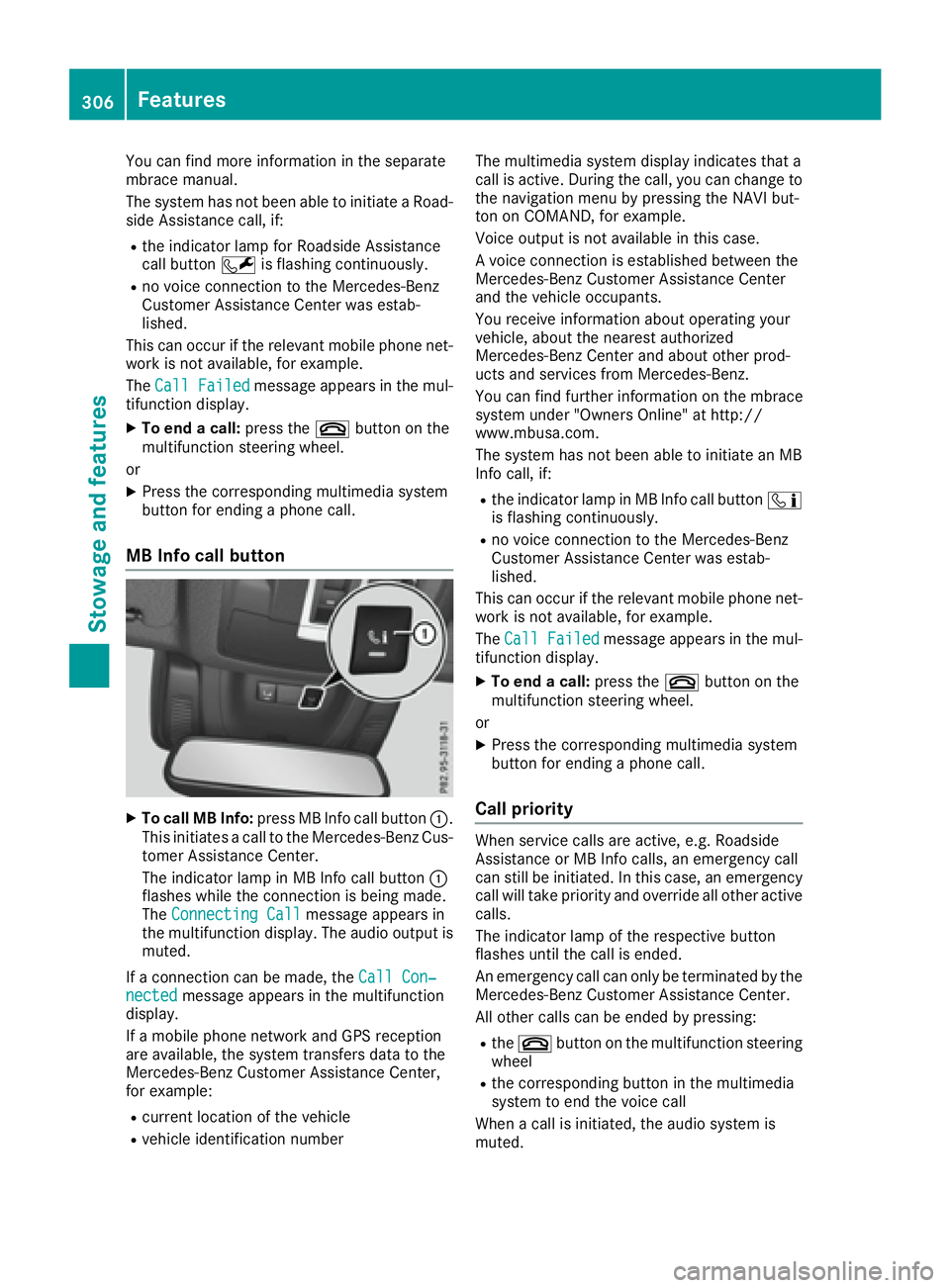
X
To call MB Info: press MB Info call button C .
This initiates a call to the Mercedes-Benz Cus-
tomer Assistance Center.
The indicator lamp in MB Info call button C
flashes while the connection is being made.
The Connecting Call message appears in
the multifunction display. The audio output is
muted.
If a connection can be made, the Call Con‐
nected message appears in the multifunction
display.
If a mobile phone network and GPS reception
are available, the system transfers data to the
Mercedes-Benz Customer Assistance Center,
for example: R
current location of the vehicle R
vehicle identification number The multimedia system display indicates that a
call is active. During the call, you can change to
the navigation menu by pressing the NAVI but-
ton on COMAND, for example.
Voice output is not available in this case.
A voice connection is established between the
Mercedes-Benz Customer Assistance Center
and the vehicle occupants.
You receive information about operating your
vehicle, about the nearest authorized
Mercedes-Benz Center and about other prod-
ucts and services from Mercedes-Benz.
You can find further information on the mbrace
system under "Owners Online" at http://
www.mbusa.com.
The system has not been able to initiate an MB
Info call, if: R
the indicator lamp in MB Info call button
Page 309 of 390
The mobile phone is no longer connected to the
multimedia system.
However, if you want to use your mobile phone,
do so only when the vehicle is stationary and in
a safe location.
Downloading destinations in COMAND Downloading destinations Downloading destinations gives you access to a
database with over 15 million points of interest
(POIs). These can be downloaded on the navi-
gation system in your vehicle. If you know the
destination, the address can be downloaded.
Alternatively, you can obtain the location of
Points of Interest (POIs)/important destinations
in the vicinity.
Furthermore, you can download routes with up
to four way points.
You are prompted to confirm route guidance to
the address entered. X
Select Yes by turning 3 or sliding 1
the controller and confirm with 7 .
The system calculates the route and subse-
quently starts the route guidance with the
address entered.
If you select No the address can be stored in
the address book.
The destination download function is available
if: R
the vehicle is equipped with a navigation sys-
tem. R
the relevant mobile phone network is availa-
ble and data transfer is possible.
Route Assistance
This service is part of the mbrace PLUS Package
and cannot be purchased separately.
You can use the Route Assistance function even
if the vehicle is not equipped with a navigation
system.
Within the framework of this service, you receive
a professional and reliable form of navigation
support without having to leave your vehicle.
The customer service representative finds a
suitable route depending on your vehicle's cur-
rent position and the desired destination. You
will then be guided live through the current route
section. Search & Send General notes To use "Search & Send", your vehicle must be
equipped with mbrace and a navigation system.
Additionally, an mbrace service subscription
must be completed.
"Search & Send" is a destination entry service. A
destination address which is found on Google
Maps ®
can be transferred via mbrace directly to
your vehicle's navigation system.
Specifying and sending the destination
address X
Go to the website http://maps.google.com
and enter a destination address into the entry
field. X
To send the destination address to the e-
mail address of your mbrace account:
click on the corresponding button on the web-
site.
Example:
If you select 'Send to vehicle' and then
'Mercedes-Benz', the destination address will
be sent to your vehicle. X
When the "Send" dialog window appears:
Enter the e-mail address you specified when
setting up your mbrace account into the cor-
responding field. X
Click "Send".
Information on specific commands such as
"Address entry" or "Send" can be found on the
website.
Calling up a transmitted destination
address X
Turn the SmartKey to position 2 in the ignition
lock ( Y
page 132).
The transmitted destination address is loaded
into the vehicle's navigation system.
A display message appears, asking whether
navigation should be started. X
Select Yes by turning 3 or sliding 1
the controller and confirm with 7 .
The system calculates the route and subse-
quently starts the route guidance with the
address entered.
If you select No
the address can be stored in
the address book. Features 307
Stowage and features Z
Page 321 of 390
obtained at a qualified specialist workshop, e.g.
an authorized Mercedes-Benz Center.
Driving abroad An extensive Mercedes-Benz Service network is
also available in other countries. You can obtain
further information from any authorized
Mercedes-Benz Center.
Care
General notes
H Environmental note
Dispose of empty packaging and cleaning
cloths in an environmentally responsible man-
ner.
! For cleaning your vehicle, do not use any of
the following: R
dry, rough or hard cloths R
abrasive cleaning agents R
solvents R
cleaning agents containing solvents
Do not scrub.
Do not touch the surfaces or protective films
with hard objects, e.g. a ring or ice scraper.
You could otherwise scratch or damage the
surfaces and protective film.
! Do not park your vehicle for a long period of
time directly after cleaning, particularly after
cleaning the wheel rim with wheel cleaner.
Wheel cleaner can lead to the increased cor-
rosion of the brake discs and pads. Therefore,
drive for a few minutes after cleaning. By
heating up the brakes, the brake discs and
pads dry. The vehicle can then be parked for a
long period of time.
Regular care of your vehicle is a condition for
retaining the quality in the long term.
Use care products and cleaning agents recom-
mended and approved by Mercedes-Benz. Washing the vehicle and cleaning the
paintwork
Automatic car wash
G WARNING
Braking efficiency is reduced after washing
the vehicle. There is a risk of an accident.
After the vehicle has been washed, brake
carefully while paying attention to the traffic
conditions until full braking power is restored.
! Before driving into an automatic car wash,
make sure that it is suitable for the dimen-
sions of the vehicle. In particular, make sure
that: R
there is enough ground clearance between
the vehicle underbody and the guide rails of
the automatic car wash. R
the clearance width of the automatic car
wash is sufficient, particularly the width of
the guide rails. R
you enter the automatic car wash straight
and in the center of the guide rails in order
to avoid damaging the tires or wheel rims.
Fold in the exterior mirrors before the vehicle
is washed. The exterior mirrors could other-
wise be damaged.
! When DISTRONIC PLUS or the HOLD func-
tion is activated, the vehicle brakes automat-
ically in certain situations.
To avoid damage to the vehicle, deactivate
DISTRONIC PLUS and the HOLD function in
the following or similar situations: R
when towing the vehicle R
in the car wash
! Never clean your vehicle in a Touchless
Automatic Car Wash as these use special
cleaning agents. These cleaning agents can
damage the paintwork or plastic parts.
! Make sure that: R
the side windows and the sliding sunroof
are fully closed. R
the ventilation/heating is switched off (the
OFF button has been pressed). R
the windshield wiper switch is in position 0 .
Otherwise, the vehicle might be damaged. Care 319
Maintenance and care Z
Page 325 of 390
Cleaning the sensors
! If you clean the sensors with a power
washer, make sure that you keep a distance
of at least 11.8 in (30 cm ) betwee n the vehicl e
and the power washer nozzle. Information
about the correct distance is available from
the equipment manufacturer.
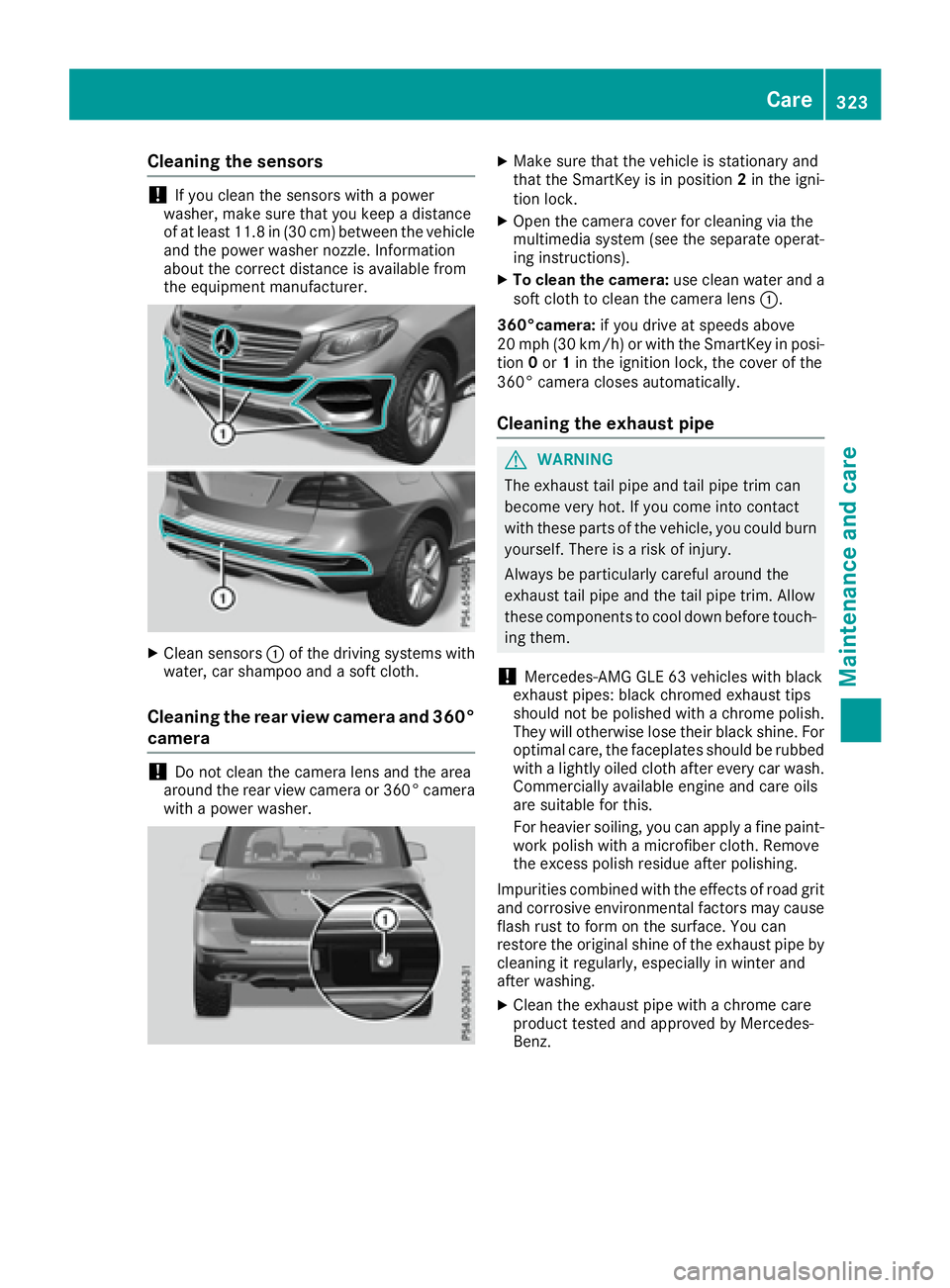
X
Clean sensors C of the driving systems with
water, car shampoo and a soft cloth.
Cleaning the rear view camera and 360°
camera
! Do not clean the camera lens and the area
around the rear view camera or 360° camera
with a power washer. X
Make sure that the vehicle is stationary and
that the SmartKey is in position 2 in the igni-
tion lock. X
Open the camera cover for cleaning via the
multimedia system (see the separate operat-
ing instructions). X
To clean the camera: use clean water and a
soft cloth to clean the camera lens C .
360°camera: if you drive at speeds above
20 mph (30 km/h) or with the SmartKey in posi-
tion 0 or 1 in the ignition lock, the cover of the
360° camera closes automatically.
Cleaning the exhaust pipe
G WARNING
The exhaust tail pipe and tail pipe trim can
become very hot. If you come into contact
with these parts of the vehicle, you could burn
yourself. There is a risk of injury.
Always be particularly careful around the
exhaust tail pipe and the tail pipe trim. Allow
these components to cool down before touch-
ing them.
! Mercedes-AMG GLE 63 vehicles with black
exhaust pipes: black chromed exhaust tips
should not be polished with a chrome polish.
They will otherwise lose their black shine. For
optimal care, the faceplates should be rubbed
with a lightly oiled cloth after every car wash.
Commercially available engine and care oils
are suitable for this.
For heavier soiling, you can apply a fine paint-
work polish with a microfiber cloth. Remove
the excess polish residue after polishing.
Impurities combined with the effects of road grit
and corrosive environmental factors may cause
flash rust to form on the surface. You can
restore the original shine of the exhaust pipe by
cleaning it regularly, especially in winter and
after washing. X
Clean the exhaust pipe with a chrome care
product tested and approved by Mercedes-
Benz. Care 323
Maintenance and care Z
Page 326 of 390
Cleaning the trailer tow hitch
H Environmental note
Dispose of rags soaked in oil and grease in an
environmentally responsible manner.
! Do not clean the ball coupling with a power
washer. Do not use solvents.
! Please note the care instructions in the
trailer coupling manufacturer's operating
instructions.
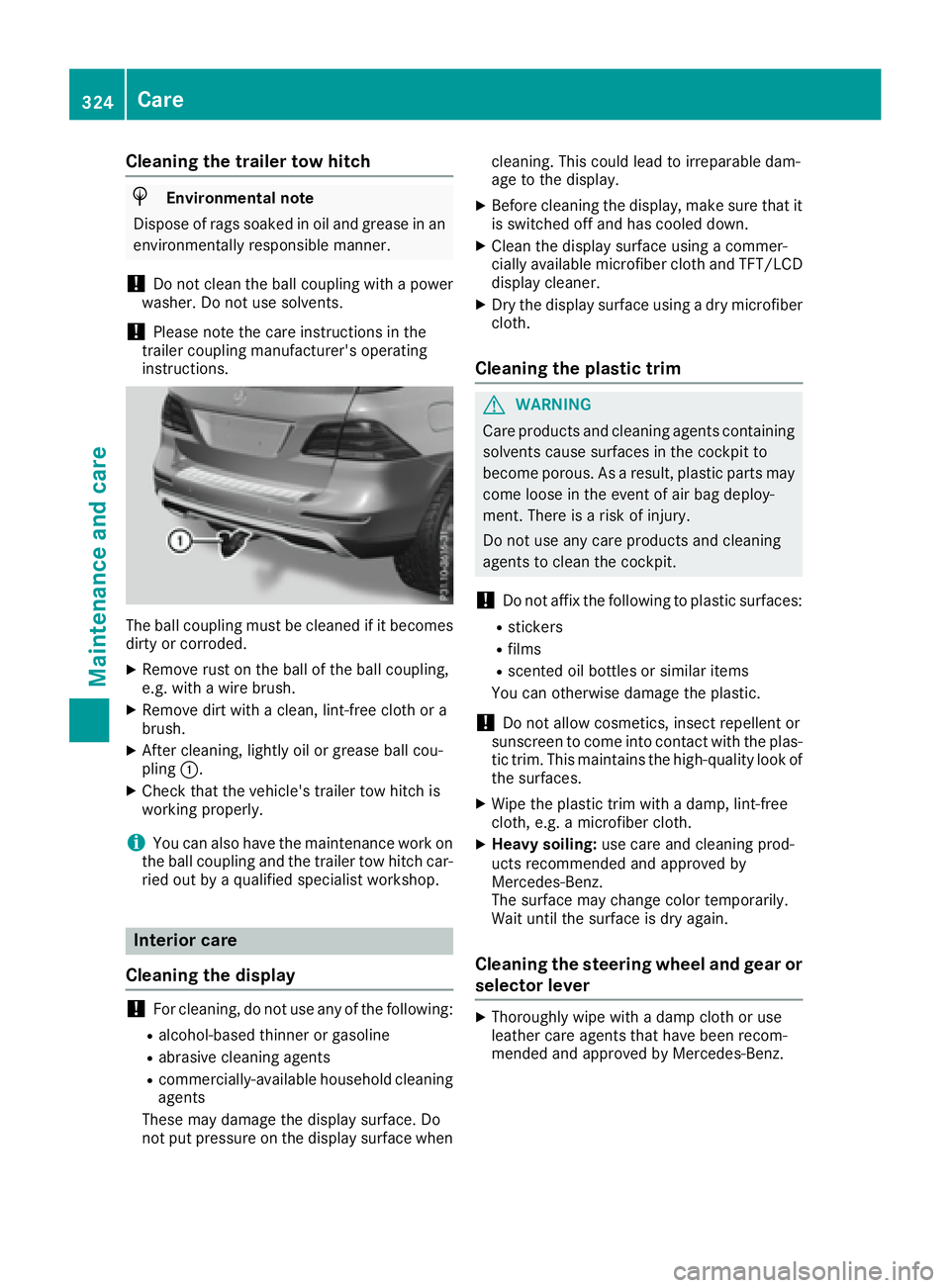
The ball coupling must be cleaned if it becomes
dirty or corroded. X
Remove rust on the ball of the ball coupling,
e.g. with a wire brush. X
Remove dirt with a clean, lint-free cloth or a
brush. X
After cleaning, lightly oil or grease ball cou-
pling C .X
Check that the vehicle's trailer tow hitch is
working properly.
i You can also have the maintenance work on
the ball coupling and the trailer tow hitch car-
ried out by a qualified specialist workshop.
Interior care
Cleaning the display
! For cleaning, do not use any of the following: R
alcohol-based thinner or gasoline R
abrasive cleaning agents R
commercially-available household cleaning
agents
These may damage the display surface. Do
not put pressure on the display surface when cleaning. This could lead to irreparable dam-
age to the display. X
Before cleaning the display, make sure that it
is switched off and has cooled down. X
Clean the display surface using a commer-
cially available microfiber cloth and TFT/LCD
display cleaner. X
Dry the display surface using a dry microfiber
cloth.
Cleaning the plastic trim
G WARNING
Care products and cleaning agents containing
solvents cause surfaces in the cockpit to
become porous. As a result, plastic parts may
come loose in the event of air bag deploy-
ment. There is a risk of injury.
Do not use any care products and cleaning
agents to clean the cockpit.
! Do not affix the following to plastic surfaces: R
stickers R
films R
scented oil bottles or similar items
You can otherwise damage the plastic.
! Do not allow cosmetics, insect repellent or
sunscreen to come into contact with the plas-
tic trim. This maintains the high-quality look of
the surfaces. X
Wipe the plastic trim with a damp, lint-free
cloth, e.g. a microfiber cloth. X
Heavy soiling: use care and cleaning prod-
ucts recommended and approved by
Mercedes-Benz.
The surface may change color temporarily.
Wait until the surface is dry again.
Cleaning the steering wheel and gear or
selector lever X
Thoroughly wipe with a damp cloth or use
leather care agents that have been recom-
mended and approved by Mercedes-Benz.324
Care
Maintenance and care
Page 333 of 390
X
Drive to the nearest qualified specialist work-
shop and have the tire changed there. X
Have the tire sealant bottle replaced as soon
as possible at a qualified specialist workshop. X
Have the tire sealant bottle replaced every
four years at a qualified specialist workshop.
Battery (vehicle)
12 V battery - important safety notes PLUG ‑ IN HYBRID vehicles: it is essential to
comply with the separate operating instruc-
tions. You could otherwise fail to recognize dan-
gers e.g. due to high voltage.
Special tools and expert knowledge are required
when working on the battery, e.g. removal and
installation. You should therefore have all work
involving the battery carried out at a qualified
specialist workshop.
G WARNING
Work carried out incorrectly on the battery
can lead, for example, to a short circuit and
thus damage the vehicle electronics. This can
lead to function restrictions applying to
safety-relevant systems, e.g the lighting sys-
tem, the ABS (anti-lock braking system) or the
ESP ®
(Electronic Stability Program). The oper-
ating safety of your vehicle may be restricted.
You could lose control of the vehicle, for
example: R
when braking R
in the event of abrupt steering maneuvers
and/or when the vehicle's speed is not
adapted to the road conditions
There is a risk of an accident.
In the event of a short circuit or a similar inci-
dent, contact a qualified specialist workshop
immediately. Do not drive any further. You
should have all work involving the battery car-
ried out at a qualified specialist workshop.
For further information about ABS and ESP ®
,
see ( Y
page 63) and ( Y
page 66). G WARNING
Electrostatic build-up can lead to the creation
of sparks, which could ignite the highly explo-
sive gases of a battery. There is a risk of an
explosion.
Before handling the battery, touch the vehicle
body to remove any existing electrostatic
build-up.
The highly flammable gas mixture forms when
charging the battery as well as when jump-start-
ing.
Always make sure that neither you nor the bat-
tery is electrostatically charged. A build-up of
electrostatic charge can be caused, for exam-
ple: R
by wearing clothing made from synthetic
fibers R
due to friction between clothing and seats R
if you push or pull the battery across the car-
pet or other synthetic materials R
if you wipe the battery with a cloth
G WARNING
During the charging process, a battery produ-
ces hydrogen gas. If a short circuit occurs or
sparks are created, the hydrogen gas can
ignite. There is a risk of an explosion. R
Make sure that the positive terminal of a
connected battery does not come into con-
tact with vehicle parts. R
Never place metal objects or tools on a bat-
tery. R
It is important that you observe the descri-
bed order of the battery terminals when
connecting and disconnecting a battery. R
When jump-starting, make sure that the
battery poles with identical polarity are
connected. R
It is particularly important to observe the
described order when connecting and dis-
connecting the jumper cables. R
Never connect or disconnect the battery
terminals while the engine is running.
G WARNING
Battery acid is caustic. There is a risk of injury.Battery (vehicle) 331
Breakdown assistance Z