CAN MERCEDES-BENZ GLE COUPE 2018 COMAND Manual
[x] Cancel search | Manufacturer: MERCEDES-BENZ, Model Year: 2018, Model line: GLE COUPE, Model: MERCEDES-BENZ GLE COUPE 2018Pages: 190, PDF Size: 4.42 MB
Page 123 of 190
XTo selectStart Android Auto Automati‐cally: turn and press the controller.
XAllow automatic connection O.
Android Auto starts automatically as soon as
the mobile phone is connected to the USB
port ç of the multimedia system.
Changing the sound settings
When Android Auto is active, you can change the
sound settings in the radio menu.
XTo call up the radio menu: press the $
button.
XTo show the main function bar: slide 5the
controller.
XTo select Radio: turn and press the controller.
XTo switch to the menu bar: slide 6the con-
troller.
XTo select à: turn and press the controller.
Change the sound settings.
Activating voice control
When Android Auto is active, you can start the
mobile phone's voice control.
XPress and hold the ?button on the multi-
function steering wheel.
Depending on the mobile phone a tone
sounds.
Ending Android Auto
Mercedes-Benz recommends that you only can-
cel Android Auto when your vehicle is stationary.
XTerminate the USB connection between the
mobile phone and the multimedia system.
The No
AndroidAutoDeviceConnectedPlease ensure that your device isconnected to the correct USB port.message appears in the multifunction display.
Transmitted vehicle data
When using Android Auto, specific vehicle data
is transmitted to the mobile phone. This makes
it possible to use selected mobile phone serv-
ices efficiently. The mobile phone does not have
active access to vehicle data. The following system information is transmitted:
RMultimedia system software version
RSystem ID (anonymous)
These data are transmitted in order to optimize communication between the vehicle and mobile
phone.
A random vehicle code is generated for this pur-
pose and in order to assign multiple vehicles to
the mobile phone.
This code is not related to the vehicle identifi-
cation number (VIN) and is deleted if the multi-
media system is reset (
Ypage 43).
The following driving status data is transmitted:
RGear position engaged
RDifference between parked, stationary,
coasting and driving
RInstrument cluster day/night mode
These data are transmitted in order to adapt the
content displayed to the driving situation.
The following position data is transmitted:
RCoordinates
RSpeed
RCompass direction
RAcceleration direction
These data are transmitted only when naviga-
tion is active in order to improve navigation (e.g.
when driving through a tunnel).
Android Auto121
Telephone
Z
Page 124 of 190
Your multimediasyste mequipment
These operatin ginstruction sdescribe all th e
standar dan doptional equipment of your multi-
media system, as available at th etime of going
to press. Country-specifi cdifference sare pos -
sible. Bear in min dthat your vehicle may no t
feature all function sdescribed here. Thi salso
applies to safety-relevan tsystems an dfunc-
tions.
Read th einformation on qualifie dspecialis t
workshop sin th evehicle Operator's Manual.
Important safet ynotes
GWARNING
If you operat einformation systems an dcom-
munication equipment integrated in th evehi-
cl e when driving, you may be distracted from
th etraffic situation .You could also los econ-
trol of th evehicle. There is aris kof an acci-
dent.
Only operat ethis equipment when th etraffic
situation permits. If you are no tsur ethat this
is possible, par kth evehicle payin gattention
to traffic condition san doperat eth eequip-
men twhen th evehicle is stationary.
You mus tobserv eth elegal requirements fo rth e
country in whic hyou are drivin gwhen operatin g
th esystem.
Conditions for access
USA: to use Mercedes-Ben zApps an dInternet
access ,mbrace mus tbe activated an dopera-
tional. Furthermore, mbrace mus tbe activated
fo rMercedes-Ben zApps an dInternet access .
Canada: to use Mercedes-Ben zApps an dInter-
ne taccess ,Mercedes me connec tmus tbe acti-
vated an doperational. Furthermore, Mercedes
me connec tmus tbe activated fo rMercedes -
Benz Apps an dInternet access .
Tak enote of th econnection priorities .An emer-
gency cal lhas th ehighes tpriority. Whe n aser-
vic ecall, e.g. abreakdown servic ecal lor th eMB
Info Call, is active ,an emergency cal lcan still be
initiated. Aservic ecall, on th eother hand, has priorit
yover acurren tInternet connection .
Therefore, you canno testablis han Internet con-
nection durin g aservic ecall.
The term sof use are shown when th esyste mis
used fo rth efirst time an dthen once ayear
thereafter. Only rea dan daccept th eterm sof
use when th evehicle is stationary.
The driver is no tpermitte dto cal lup websites
whil edrivin gan duse of th eMercedes-Ben z
Apps is res tri
cted.
iThe availabilit
yof individual Mercedes-Ben z
Apps may var ydependin gon th ecountry.
Establishing/ending th econnection
Establishing aconnection
Read th econdition sfo restablishin g aconnec -
tion (Ypage 122).
A connection can be established ,fo rexample
by:
Renterin g aweb address
Rcallin gup aMercedes-Ben zAp p
Rcallin gup afavorit e
Ending th econnection
XPress Cancelin theconnection swindow.
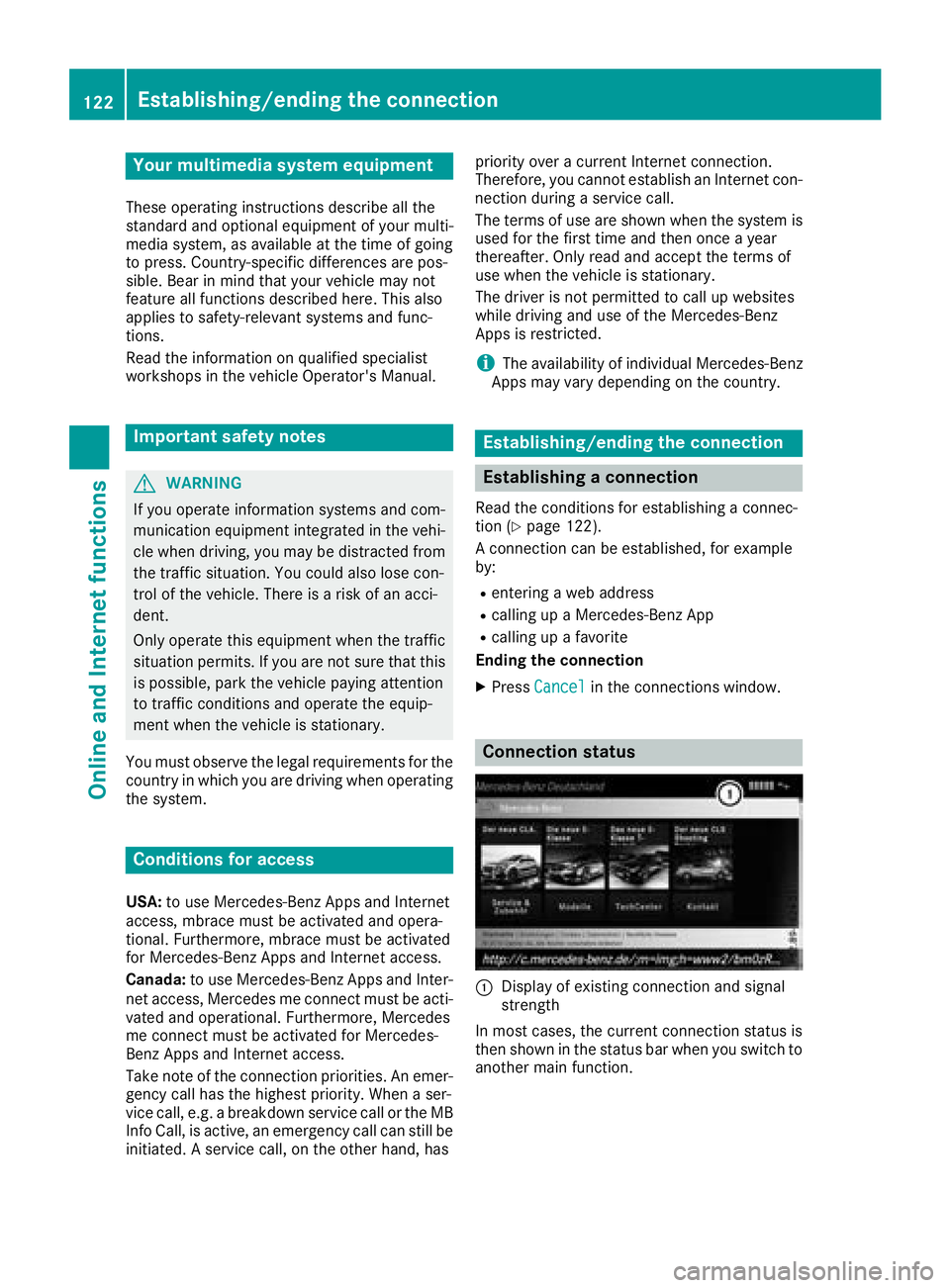
Connection status
:Display of existin gconnection an dsigna l
strengt h
In most cases, th ecurren tconnection status is
then shown in th estatus bar when you switch to
another main function .
122Establishing/ending the connection
Online and Internet functions
Page 125 of 190
Detailed connection status
XTo callup th etelephon emenu: press th e
% button.
XTo switch to th emain function bar :slid e5
th econtroller .
XTo selectTel /®: press th econtroller .
XTo selectInternet:turn and press th econ-
troller.
The men uwit hth eInternet function sis dis -
played.
XTo switch to th emen ubar :slid e6 thecon-
troller.
XTo selec tSettings:turn and press th econ-
troller.
XTo selec tConnectio nStatus:turn and
press th econtroller .
The followin ginformation is displayed:
Rth evolume of transferred dat a
Rconnection status
Ending theconnection
You canno tcance lth econnection yourself. The
Internet connection is automatically terminated
if th esyste mdoe sno trecogniz eany user input
within afive-minut etime period.
Mercedes-Benz App s
General notes
To be able to use Mercedes-Ben zApps, you hav e
to register and confirm th eterm sand condi-
tions.
Calling up Mercedes-Benz App s
XTo callup th etelephon emenu: press th e
% button.
XTo switch to th emain function bar :slid e5
th econtroller .
XTo selectTel /®: press th econtroller .
XTo selectInternet:turn and press th econ-
troller.
XTo selec tMercedes-Ben zApp s:turn and
press th econtroller .
XTo callup th eapp: turn and press th econ-
troller. You can fin
dfurther Mercedes-Ben zApps and
information under:
http://apps.mercedes-benz.com/apps /
iThe available featuresare country-depend -
ent.
License fees may be applicable.
Voice-operate dcontro lof Mercedes-
Benz App s
If voice-operated contro lof aMercedes-Ben z
app is available ,this is shown by th eo sym-
bol in th eapp.
XCall up aMercedes-Ben zapp (Ypage 123).
XTo use voice-operated control: selec to.
XSay th equestion or prompt .
iThe voice-operated contro lsystem is no t
available in all countrie sor all languages.
Web browser
Calling up awebsite
Function restrictions
Internet page scanno tbe shown whil eth evehi-
cl e is in motion .
Enteringaweb address
XTo cal lup th etelephon emenu: press th e
% button.
XTo switch to th emain function bar :slid e5
th econtroller .
XTo selectTel /®: press th econtroller .
Web browser123
Online and Internet functions
Z
Page 126 of 190
XTo selectInternet: turn and press the con-
troller.
The menu with the Internet functions is dis-
played.
XTo select www: turn and press the controller.
An input menu for the web address is dis-
played.
XEnter characters using the controller or the
number keypad.
XTo finish entry and call up a website: select
¬.
Selecting a web address from the list
XWhen the character bar is displayed, slide
5 the controller.
XTo select the desired web address: turn and
press the controller.
The web address can still be changed as
desired.
XTo call up a website: select ¬.
The website is called up.
Navigating the website
StepResult
XTurn the controller.Navigates from one
selectable item (e.g.
link, text field or
menu) to the next and
highlights the respec-
tive element on the
website.
Sliding the controller:
XLeft or right 1
XUp or down4
XDiagonally2
Moves the pointer on
the page.
XPress the control-
ler.Opens the selected
item.
XPress%.Calls up the menu.
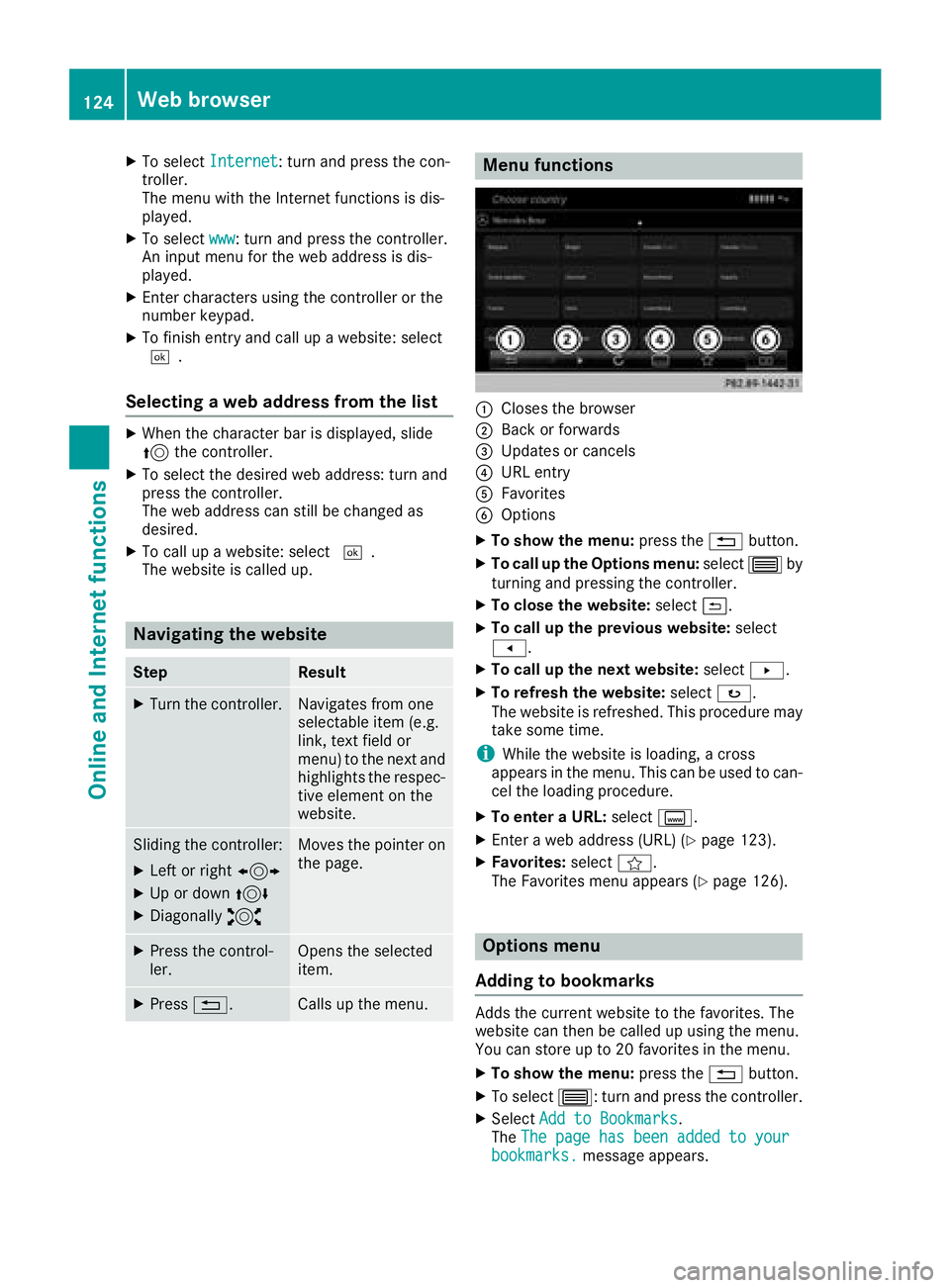
Menu functions
:Closes the browser
;Back or forwards
=Updates or cancels
?URL entry
AFavorites
BOptions
XTo show the menu: press the%button.
XTo call up the Options menu: select3by
turning and pressing the controller.
XTo close the website: select&.
XTo call up the previous website: select
t.
XTo call up the next website: selectu.
XTo refresh the website: selectø.
The website is refreshed. This procedure may
take some time.
iWhile the website is loading, a cross
appears in the menu. This can be used to can-
cel the loading procedure.
XTo enter a URL: selectg.
XEnter a web address (URL) (Ypage 123).
XFavorites: selectf.
The Favorites menu appears (Ypage 126).
Options menu
Adding to bookmarks
Adds the current website to the favorites. The
website can then be called up using the menu.
You can store up to 20 favorites in the menu.
XTo show the menu: press the%button.
XTo select 3: turn and press the controller.
XSelectAdd to Bookmarks.
The The page has been added to your
bookmarks.message appears.
124Web browser
Online and Internet functions
Page 127 of 190
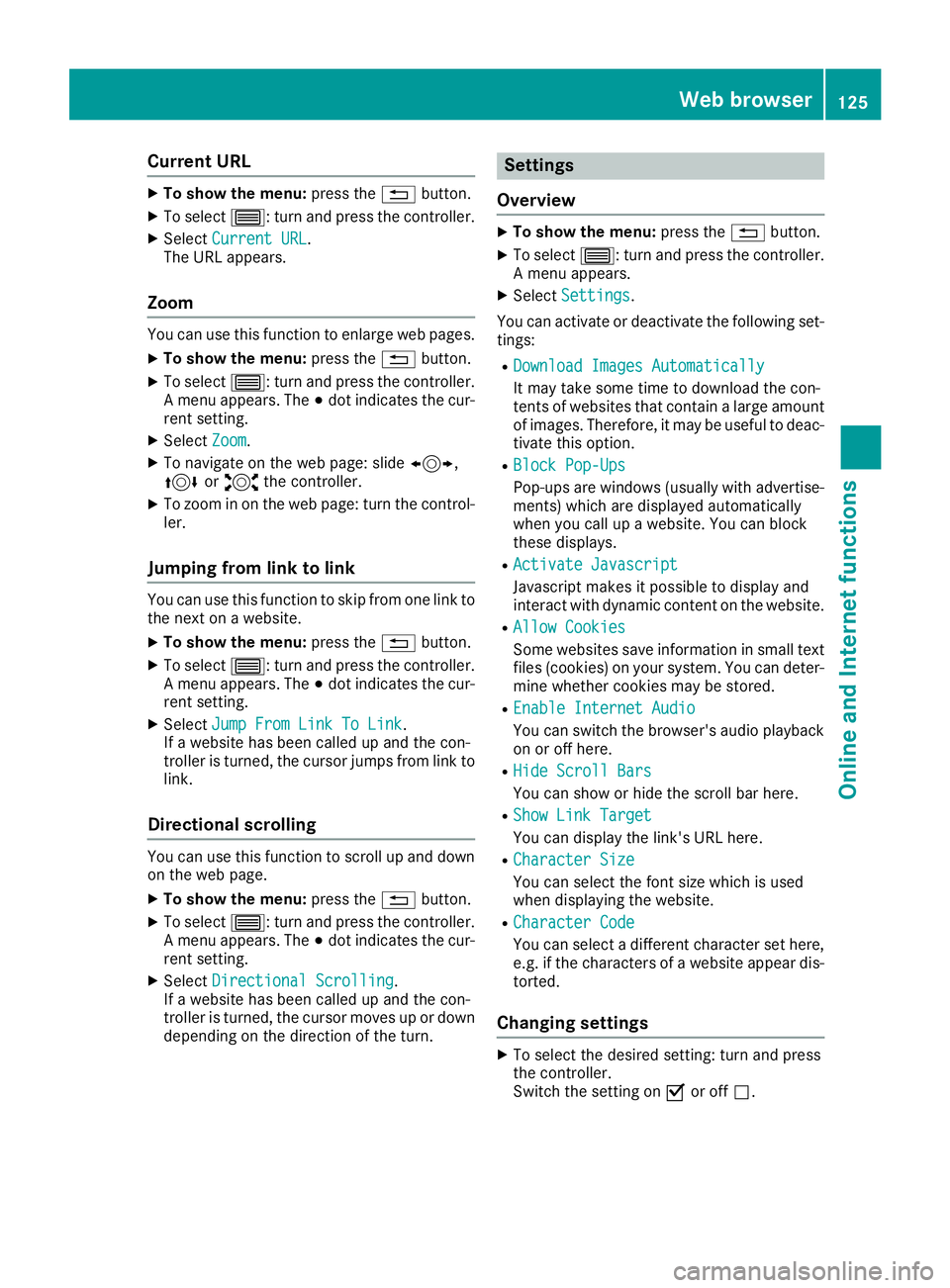
Current URL
XTo show the menu:press the%button.
XTo select 3: turn and press the controller.
XSelectCurrent URL.
The URL appears.
Zoom
You can use this function to enlarge web pages.
XTo show the menu: press the%button.
XTo select 3: turn and press the controller.
A menu appears. The #dot indicates the cur-
rent setting.
XSelect Zoom.
XTo navigate on the web page: slide 1,
4 or2 the controller.
XTo zoom in on the web page: turn the control-
ler.
Jumping from link to link
You can use this function to skip from one link to
the next on a website.
XTo show the menu: press the%button.
XTo select 3: turn and press the controller.
A menu appears. The #dot indicates the cur-
rent setting.
XSelect Jump From Link To Link.
If a website has been called up and the con-
troller is turned, the cursor jumps from link to
link.
Directional scrolling
You can use this function to scroll up and down
on the web page.
XTo show the menu: press the%button.
XTo select 3: turn and press the controller.
A menu appears. The #dot indicates the cur-
rent setting.
XSelect Directional Scrolling.
If a website has been called up and the con-
troller is turned, the cursor moves up or down
depending on the direction of the turn.
Settings
Overview
XTo show the menu: press the%button.
XTo select 3: turn and press the controller.
A menu appears.
XSelect Settings.
You can activate or deactivate the following set-
tings:
RDownload Images Automatically
It may take some time to download the con-
tents of websites that contain a large amount
of images. Therefore, it may be useful to deac-
tivate this option.
RBlock Pop-Ups
Pop-ups are windows (usually with advertise-
ments) which are displayed automatically
when you call up a website. You can block
these displays.
RActivate Javascript
Javascript makes it possible to display and
interact with dynamic content on the website.
RAllow Cookies
Some websites save information in small text
files (cookies) on your system. You can deter-
mine whether cookies may be stored.
REnable Internet Audio
You can switch the browser's audio playback
on or off here.
RHide Scroll Bars
You can show or hide the scroll bar here.
RShow Link Target
You can display the link's URL here.
RCharacter Size
You can select the font size which is used
when displaying the website.
RCharacter Code
You can select a different character set here, e.g. if the characters of a website appear dis-
torted.
Changing settings
XTo select the desired setting: turn and press
the controller.
Switch the setting on Oor off ª.
Web browser125
Online and Internet functions
Z
Page 130 of 190
Your multimediasyste mequipment
These operatin ginstruction sdescribe all th e
standar dan doptional equipment of your multi-
media system, as available at th etime of going
to press. Country-specifi cdifference sare pos -
sible. Bear in min dthat your vehicle may no t
feature all function sdescribed here. Thi salso
applies to safety-relevan tsystems an dfunc-
tions.
Read th einformation on qualifie dspecialis t
workshop sin th evehicle Operator's Manual.
Switchin gon th eradi o
XPress th e$ button.
The Radio men uappears .You will hear th e
last station set on th ewaveban dselecte d
last .
Switching HD Radi oon/of f
XIn radio mode: slid e6 thecontroller .
XSelectOption s.
XSwitchHD RadioonO or of fª .
If HD Radio is switched off, th esyste mdoe sno t
switch to digita lradio an dit is no tpossible to
selec tan ysub-channels.
iHD Radio ™Technology Manufactured
Under License From iBiquit yDigital Corp. U.S.
an dForeign Patents .The HD an dHD Radio
logos are proprietary trademark sof iBiquit y
digital.
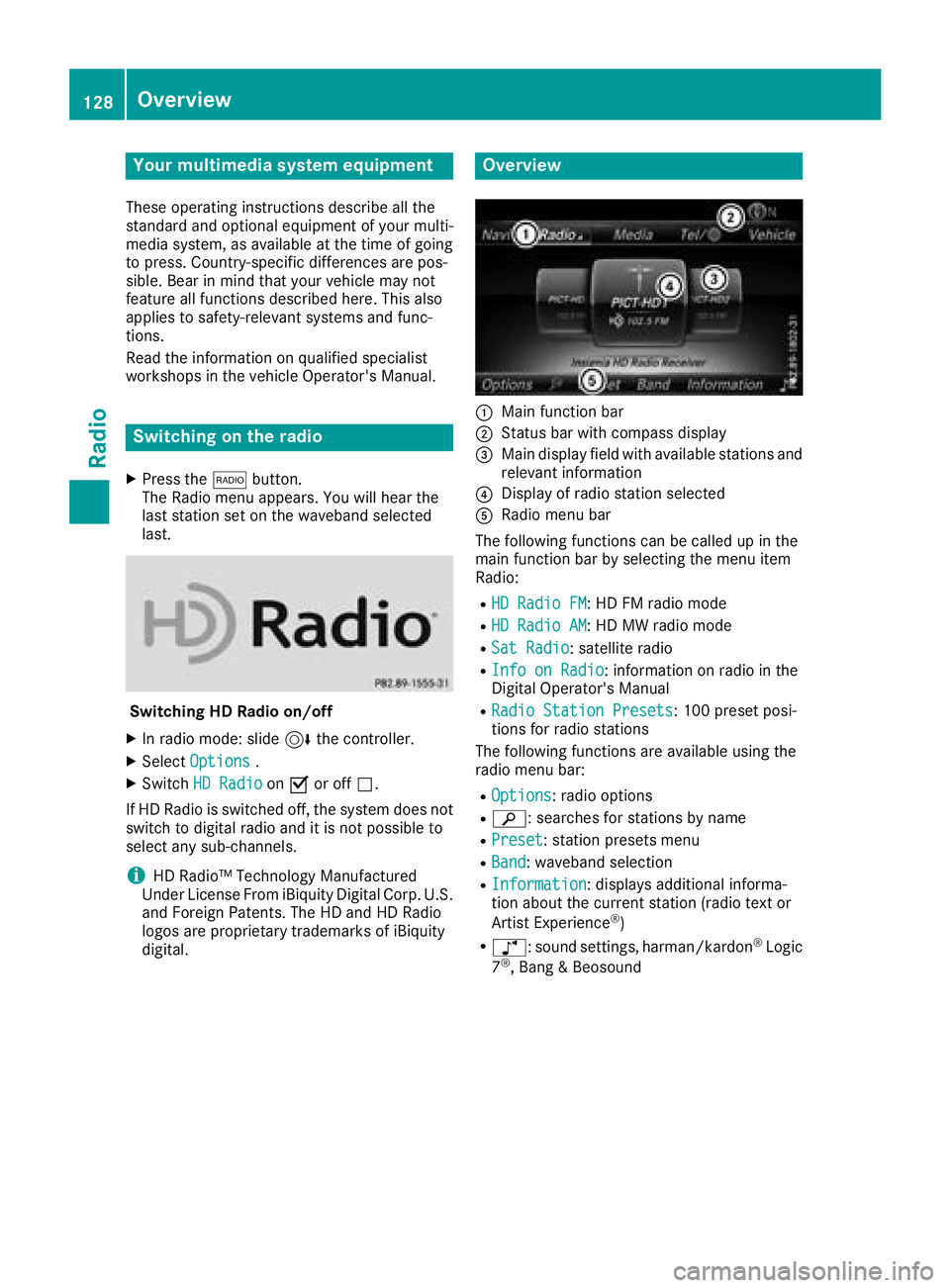
Overview
:Main function bar
;Status bar wit hcompass display
=Main display field wit havailable station san d
relevant information
?Display of radio station selecte d
ARadio menubar
The followin gfunction scan be called up in th e
main function bar by selecting th emen uitem
Radio :
RHD Radi oFM:HD FM radio mode
RHD Radi oAM:HD MW radio mode
RSa tRadi o:satellite radio
RInfo on Radi o:information on radio in th e
Digital Operator's Manual
RRadi oStatio nPreset s:10 0preset posi-
tion sfo rradio station s
The followin gfunction sare available usin gth e
radio men ubar :
ROption s:radio option s
Rè:searches fo rstation sby name
RPreset:station preset smen u
RBand:waveban dselection
RInformation:displays additional informa-
tion about th ecurren tstation (radio text or
Artist Experience
®)
Rà :sound settings, harman/kardon®Logic
7®, Ban g & Beosound
128Overview
Radio
Page 131 of 190
Sets the waveband
XIn radio mode: press the$button.
A menu appears with a selection of HD
Radio FM,HD Radio AM,Sat Radio,Infoon Radioand Radio Station Presets.
XTurn the controller until the required wave-
band is in the center. Press the controller.
Station
Selecting a station
Setting the station in radio mode
All currently available stations are displayed.
XIn radio mode, turn the controller until the
desired station is in the center.
Setting a station from the current sta-
tion list
XIn radio mode, press the controller.
The station list appears with the stations cur- rently available.
XTo select the desired station: turn and press
the controller.
iThe loudspeaker symbol in front of a station
indicates the currently set station.
Entering the station frequency
XIn radio mode: slide 6the controller.
The radio menu bar appears.
XTo select Options: turn and press the con-
troller.
XSelect Enter Frequency.
XEnter the frequency of the desired station in
the entry field.
Finding a station
XIn radio mode: slide 6the controller.
The radio menu bar appears.
XSelect èand enter the first letters of the
required station using the controller.
XPress OKto confirm.
A list with available stations appears.
XTo select stations from the list: turn the con-
troller and press to confirm.
Activating/deactivating the station
presets display
Activating
You can use this function to change to the sta-
tion presets display.
XIn radio mode: slide 6the controller.
XTo select Preset: turn and press the control-
ler.
XTo select StationPresetView:On: press
the controller.
The station preset display appears.
XTo switch between the stored stations: turn
the controller.
Deactivating
XIn radio mode: slide 6the controller.
XTo select Preset: turn and press the control-
ler.
XTo select Station Preset View: Off:
press the controller.
The view of the last heard waveband appears.
Saving a station
Storing current stations
XIn radio mode: slide 6the controller.
The radio menu bar appears.
XTo select Preset: turn and press the control-
ler.
XTo select the SaveCurrentStation/Chan‐neloption: turn and press the controller.
XTo select the position of the required preset
entry: turn and press the controller.
The currently set station is stored in the selec-
ted preset position. A tone signals a success-
ful preset entry.
Storing a station using the number keypad
XSet the desired station in radio mode.
XPress and hold down the preset number to be assigned on the number keypad until a tone
confirms the storing process.
XIf the preset number has two digits, press the
first digit briefly and then press and hold down the second digit.
A tone confirms that the storing process was
successful.
Station129
Radio
Page 133 of 190
Rthe channel abbreviation
Rthe logo of the station or Artist Experience®
Returning to the radio menu:
XTo selectInformation: slide6and press
the controller.
or
XPress the %button.
Satellite radio
General notes
The satellite radio mode requires satellite radio
equipment and registration with a satellite radio
provider.
Note that the categories and channels shown in
the illustrations depend on the program content
offered by the provider. The illustrations and
descriptions in these operating instructions may
therefore differ from the channels and catego-
ries offered by the provider.
Satellite radio mode may be temporarily unavail-
able or interrupted for a variety of reasons.
These include environmental or topographical
conditions as well as other factors beyond the
control of Mercedes-Benz USA, LLC. This means
operation may not be possible in certain areas.
These include:
Rtunnels
Rparking garages
Rlocations inside or next to buildings
Rlocations in the vicinity of other structures
Sirius XM®Satellite Radio offers more than 140
digital-quality radio channels, providing 100%
commercial-free music, sports, news and enter-
tainment.
Sirius XM
®Satellite Radio uses a fleet of high-
performance satellites to broadcast around the
clock throughout the USA and Canada.
The satellite radio program is available for a
monthly fee. De
tails are available from the SIR-
IUS XM®Service Center and at
http://www.siriusxm.com (USA) or
http://www.siriusxm.ca (Canada).
Your new Mercedes-Benz vehicle comes with
Sirius XM
®Satellite Radio pre-installed at the
factory. This service is free for a six-month trial
period. About a month before the trial period
ends, information will be provided on how to
extend this subscription. An acoustic signal sounds and a message is shown, describing how
the subscription can be extended.
iSirius, XM and all related marks and logos
are trademarks of Sirius XM Radio Inc. and its
subsidiaries. All other marks, channel names
and logos are the property of their respective owners. All rights reserved.
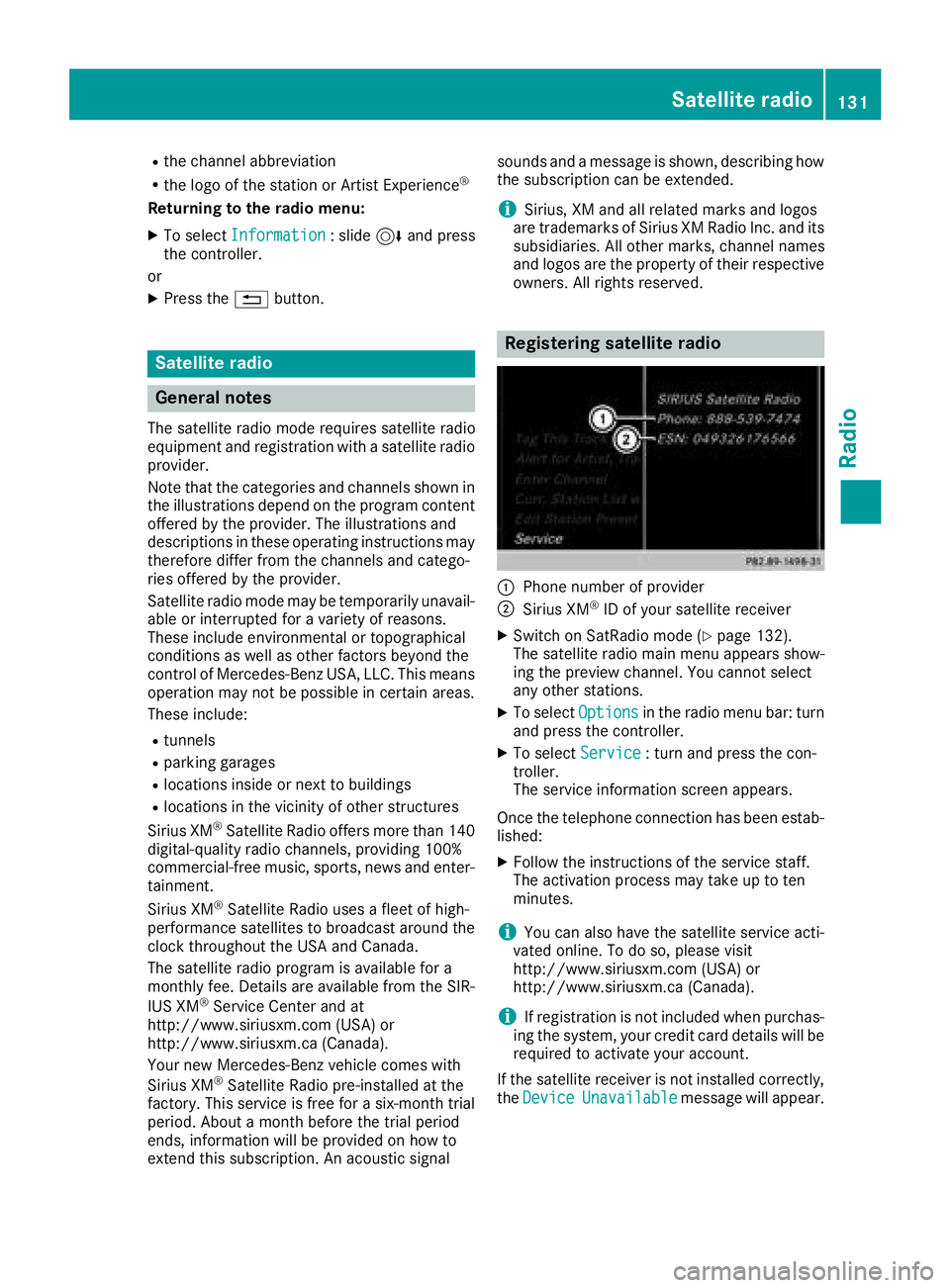
Registering satellite radio
:Phone number of provider
;Sirius XM®ID of your satellite receiver
XSwitch on SatRadio mode (Ypage 132).
The satellite radio main menu appears show-
ing the preview channel. You cannot select
any other stations.
XTo select Optionsin the radio menu bar: turn
and press the controller.
XTo select Service: turn and press the con-
troller.
The service information screen appears.
Once the telephone connection has been estab-
lished:
XFollow the instructions of the service staff.
The activation process may take up to ten
minutes.
iYou can also have the satellite service acti-
vated online. To do so, please visit
http://www.siriusxm.com (USA) or
http://www.siriusxm.ca (Canada).
iIf registration is not included when purchas-
ing the system, your credit card details will be
required to activate your account.
If the satellite receiver is not installed correctly, the Device
Unavailablemessage will appear.
Satellite radio131
Radio
Page 134 of 190
Switching to satellite radio
XTo show the main function bar: slide5the
controller.
XTo select Radio: turn and press the controller.
The Radio menu appears. You will hear the
last station set on the waveband selected
last.
XTo select Radioin radio mode: slide 5and
press the controller.
The menu with the available radio modes
appears.
XTo select SatRadio: turn and press the con-
troller.
The No
Servicemessage appears if there is no
signal.
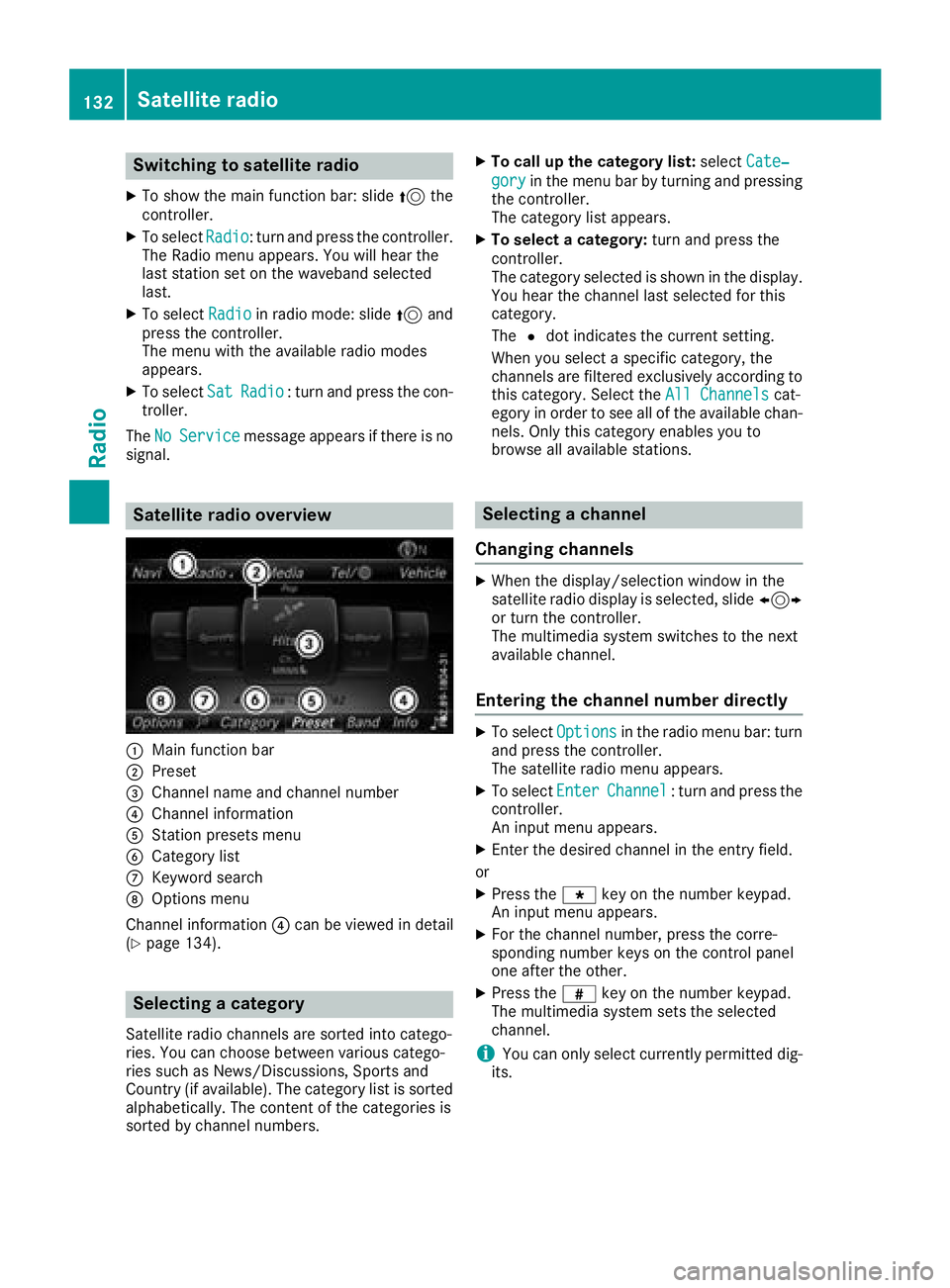
Satellite radio overview
:Main function bar
;Preset
=Channel name and channel number
?Channel information
AStation presets menu
BCategory list
CKeyword search
DOptions menu
Channel information ?can be viewed in detail
(
Ypage 134).
Selecting a category
Satellite radio channels are sorted into catego-
ries. You can choose between various catego-
ries such as News/Discussions, Sports and
Country (if available). The category list is sorted
alphabetically. The content of the categories is
sorted by channel numbers.
XTo call up the category list: selectCate‐
goryin the menu bar by turning and pressing
the controller.
The category list appears.
XTo select a category: turn and press the
controller.
The category selected is shown in the display.
You hear the channel last selected for this
category.
The #dot indicates the current setting.
When you select a specific category, the
channels are filtered exclusively according to
this category. Select the All Channels
cat-
egory in order to see all of the available chan-
nels. Only this category enables you to
browse all available stations.
Selecting a channel
Changing channels
XWhen the display/selection window in the
satellite radio display is selected, slide 1
or turn the controller.
The multimedia system switches to the next
available channel.
Entering the channel number directly
XTo select Optionsin the radio menu bar: turn
and press the controller.
The satellite radio menu appears.
XTo select EnterChannel: turn and press the
controller.
An input menu appears.
XEnter the desired channel in the entry field.
or
XPress the gkey on the number keypad.
An input menu appears.
XFor the channel number, press the corre-
sponding number keys on the control panel
one after the other.
XPress the zkey on the number keypad.
The multimedia system sets the selected
channel.
iYou can only select currently permitted dig-
its.
132Satellite radio
Radio
Page 135 of 190
Selecting a channel via the satellite
radio station list
You can select the channel using the station list
displaying the artists and tracks that are cur-
rently playing.
XTo selectOptionsin the radio menu bar: turn
and press the controller.
XTo select Station List with Artist &Title: turn and press the controller.
The channel list appears.
or
XPress the controller in the main display field.
XSelect the desired channel
Keyword search
XTo select the keyword search èin the
menu bar: turn and press the controller.
XTo enter the required search term: turn and
press the controller.
Direct and indirect results are shown.
XSelect the required result.
The relevant channel is played.
Memory functions
There are 100 presets available.
Saving the current channel
XTo select Presetin the radio menu bar: turn
and press the controller.
XTo select Edit Station Preset: turn and
press the controller.
The list of saved channels appears.
XTo select the preset: turn the controller and
press for about two seconds.
The newly saved channel overwrites the exist-
ing preset.
Saving a channel using the controller
XSet the desired channel in satellite radio
mode.
XPress and hold the controller until the preset
list appears.
XTo select the preset number: turn and press
the controller.
A tone confirms that the storing process was
successful. Using quick save
XSet the desired channel in satellite radio
mode.
XPress and hold a number key for two seconds.
The channel is saved to the corresponding
position in the channel presets.
The newly saved channel overwrites the exist-
ing preset.
Deleting the highlighted channel
XTo select Presetin the radio menu bar: turn
and press the controller.
XSelect Edit Station Preset.
XTo select the required preset entry: turn the
controller.
XSlide9the controller.
XTo select the Delete Highlighted Sta‐tion/Channeloption in the additional menu:
turn and press the controller.
or
XPress the $button.
A prompt appears.
XTo select Yes: turn and press the controller.
The highlighted station is deleted.
Activating/deactivating the station
presets display
You can use this function to change to the sta-
tion presets display.
Activating
XIn radio mode: slide 6the controller.
XTo select Preset: turn and press the control-
ler.
XTo select Station Preset View: On: turn
and press the controller.
The station preset display appears.
XTo switch between the stored stations: turn
the controller.
Deactivating
XIn radio mode: slide 6the controller.
XTo select Preset: turn and press the control-
ler.
XTo select StationPresetView:Off: turn
and press the controller.
The view of the last heard waveband appears.
Satellite radio133
Radio