key MERCEDES-BENZ GLE COUPE 2018 COMAND Manual
[x] Cancel search | Manufacturer: MERCEDES-BENZ, Model Year: 2018, Model line: GLE COUPE, Model: MERCEDES-BENZ GLE COUPE 2018Pages: 190, PDF Size: 4.42 MB
Page 47 of 190
You can find further information on the interior
lighting in the vehicle Operator's Manual.
Switching locator lighting on/off
When theLocatorLightingfunction is active,
the exterior lighting is activated for 40 seconds
after the vehicle is unlocked. The light switch
must be set to Ã.
When you start the engine, the locator lighting is
switched off and the automatic driving lights are
activated.
You can find further information on the auto-
matic headlamp mode in the vehicle Operator's
Manual.
XCall up Vehicle Settings(Ypage 44).
XTo select LocatorLighting: turn and press
the controller.
XPress the controller.
The function is switched on or off, depending
on the previous status.
You can find further information on the locking
feature in the vehicle Operator's Manual.
iThere may be fewer settings or none
depending on your vehicle's equipment.
Setting the switch-off delay time
Interior lighting switch-off delay time
The interior lighting is activated for the duration
of the switch-off delay time when the SmartKey is removed from the ignition lock.
XCall up Vehicle Settings(Ypage 44).
XTo select Interior Lighting DelayedSwitch-off: turn and press the controller.
The setting element is active.
XTo change the delayed switch-off time: turn
and press the controller.
You can find further information on the interior
lighting in the vehicle Operator's Manual.
Exterior lighting switch-off delay time
If you switch on the Exterior LightingDelayed Switch-offfunction, the exterior
lighting is switched on for a short time after the
engine is switched off. The light switch must be
set to Ã. The exterior lighting remains lit for 60 seconds
after the engine is switched off. If you close all
the doors and the tailgate, the exterior lighting
switches off after the set time.
XCall up
Vehicle Settings(Ypage 44).
XTo select Exterior Lighting DelayedSwitch-off: turn and press the controller.
The setting element is active.
XTo change the delayed switch-off time: turn
and press the controller.
Displaying energy consumption and
generated electrical energy
A bar graph displays the energy consumption
and the generated electrical energy.
XPress Vehiclein the main function bar.
The vehicle menu is displayed.
XTo select Consumption: turn and press the
controller.
The energy consumption and the generated
electrical energy for the last 15 minutes of the
journey is shown.
For further information on energy consumption,
see the vehicle Operator's Manual.
Displaying the fuel consumption
A bar graph displays the fuel consumption.
XPress Vehiclein the main function bar.
The vehicle menu is displayed.
XTo select Consumption: turn and press the
controller.
The fuel consumption for the last 15 minutes
of the journey is shown.
Switching the ionization on/off
The ionization has a cleansing effect on the air in
the vehicle interior. Further information (see the
vehicle Operator's Manual).
XCall up Vehicle Settings(Ypage 44).
XTo select Ionization: turn and press the
controller.
The ionization is switched on or off, depend-
ing on the previous status: press and turn the
controller.
XTo exit the menu: press the%button.
Vehicle settings45
Vehicle functions
Z
Page 49 of 190
Massage the entire back, rising waves, sooth-
ing downward movements
RActivating Massage
Mobilizing massage and rising and descend-
ing dynamic waves
RClassic Massage
Single and twin waves moving upwards
across the entire back
RMobilizing Massage
Mobilization via stronger single and twin
waves moving upwards across the entire back
Selecting a massage program
XCall up the seat functions (Ypage 46).
XTo selectMassage: turn and press the con-
troller.
XTo select a seat: slide 1the controller.
XTo select massage programs: turn and press
the controller.
The massage program runs for approximately
15 to 25 minutes, depending on the setting.
XTo exit the menu: press the%button.
Seat heating balance
The balance function controls the distribution of
heat for the seat backrest and seat cushion.
The balance function influences the currently
set heating level of the seat heating (see the
vehicle Operator's Manual).
XCall up the seat functions (Ypage 46).
XTo select Seat Heating Balance: turn and
press the controller.
XTo select a seat: slide 1the controller.
XTo change the setting: turn the controller.
You will see the changes you have made in the
settings display.
The settings represent the following:
R0— the backrest and seat cushion are evenly
heated according to the setting selected with
the seat heating button.
R1to 3increasing — the heat output to the seat
cushion is reduced one level at a time.
R1to 3decreasing — the heat output to the
backrest is reduced one level at a time.
XTo exit the menu: press the%button.
Resetting all adjustments
XCall up the seat functions (Ypage 46).
XTo select Reset: turn and press the controller.
XTo select a seat: slide 1the controller.
XTo reset: press the controller.
A prompt appears.
XTo select YesorNo: turn and press the con-
troller.
If you select No
the process is canceled.
After selecting Yes
all seat adjustments are
reset to the default values (factory setting).
360° camera
General notes
The 360° camera covers the immediate sur-
roundings of the vehicle and assists you, for
instance when parking or at exits with reduced
visibility.
The 360° camera is only an aid. It is not a
replacement for your attention to your immedi-
ate surroundings. You are always responsible
for safe maneuvering and parking. Make sure
that no persons or animals are in the maneu-
vering range.
Further information on the 360°camera can be
found in the vehicle Operator's Manual.
Displaying the 360° camera image
The 360° camera image can be displayed if:
Ryour vehicle is equipped with a 360° camera
Rthe 360°Camerafunction is switched on (see
the vehicle Operator's Manual)
XPress Vehiclein the main function bar.
The vehicle menu is displayed.
XSelect 360° Camera.
The 360° camera image appears in split-
screen mode.
You will see the previous view on the display if,
when the function is switched on:
Rturn the SmartKey to position 1in the igni-
tion lock
Ryou select transmission position P
Rwhen you are driving at moderate speeds
360° camera47
Vehicle functions
Z
Page 55 of 190
The following entries are not possible, for exam-
ple:
Rentering the destination city and street
RPOI entry via a name search
Rediting and saving of entries
Other entries are however possible, such as a
keyword search and entering POIs in the vicinity of the destination or current position.
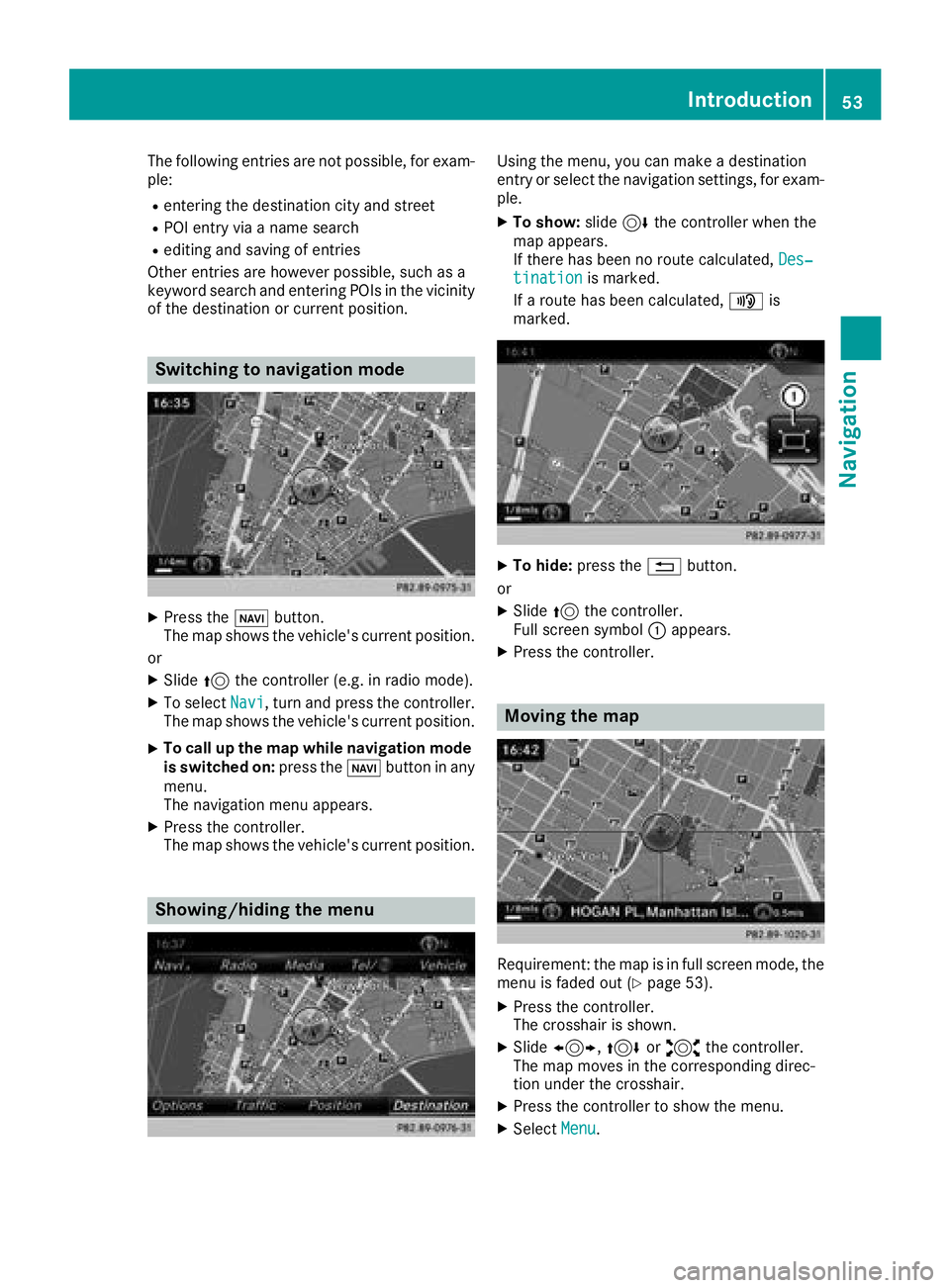
Switching to navigation mode
XPress the ßbutton.
The map shows the vehicle's current position.
or
XSlide 5the controller (e.g. in radio mode).
XTo select Navi, turn and press the controller.
The map shows the vehicle's current position.
XTo call up the map while navigation mode
is switched on: press theßbutton in any
menu.
The navigation menu appears.
XPress the controller.
The map shows the vehicle's current position.
Showing/hiding the menu
Using the menu, you can make a destination
entry or select the navigation settings, for exam-
ple.
XTo show: slide6the controller when the
map appears.
If there has been no route calculated, Des‐
tinationis marked.
If a route has been calculated, yis
marked.
XTo hide: press the %button.
or
XSlide 5the controller.
Full screen symbol :appears.
XPress the controller.
Moving the map
Requirement: the map is in full screen mode, the
menu is faded out (Ypage 53).
XPress the controller.
The crosshair is shown.
XSlide 1, 4or2 the controller.
The map moves in the corresponding direc-
tion under the crosshair.
XPress the controller to show the menu.
XSelect Menu.
Introduction53
Navigation
Z
Page 59 of 190
Address entryoptions
Examples of how you can ente ran address :
Rcityor ZIP code, street, hous enumber
Rcit yor ZIP code, stree t
Rcityor ZIP code, center
Rcit yor ZIP code, street, intersection
Rstreet, cit yor ZIP code, hous enumber
Rstreet, cit yor ZIP code, intersection
The address can be entered faste rby enterin g
th estree tbefore th ecit yif th eaddress has an
unusual stree tname.
Whil eenterin gan address in th echaracte rbar,
you can call up other destination entr yoptions:
Rkeywor dsearch usin gè (Ypage 59 )
Rthemap via Map(Ypage 63)
RPOIsvia POI s(Ypage 61 )
Entering an address
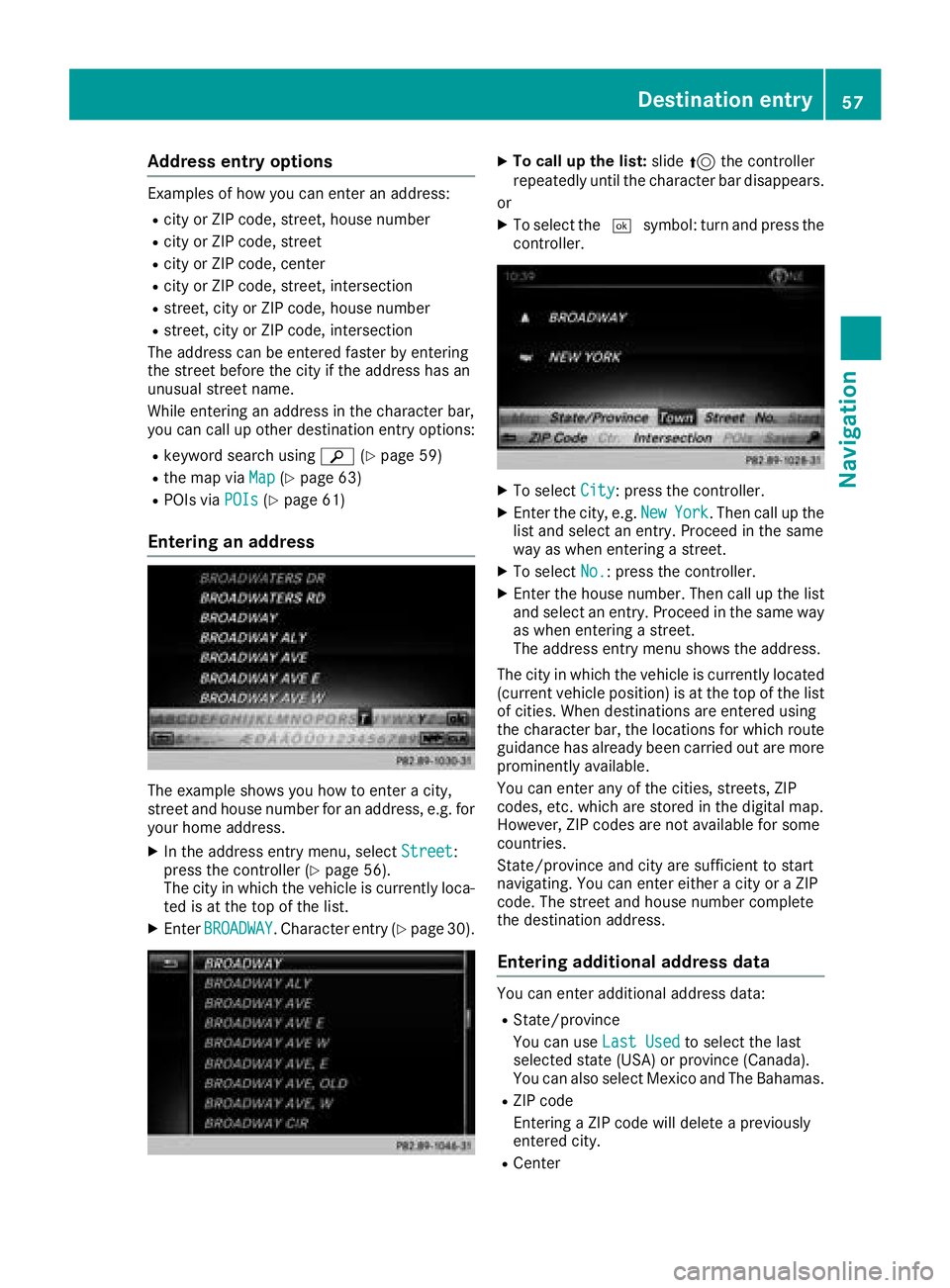
The exampl eshows you how to ente r acity,
stree tand hous enumber for an address ,e.g. for
your hom eaddress .
XIn theaddress entr ymenu, select Street:
press th econtroller (Ypage 56).
The cit yin whic hth evehicl eis currentl yloca-
te dis at th eto pof th elist .
XEnte rBROADWAY.Character entr y (Ypage 30).
XTo call up th elist :slid e5 thecontroller
repeatedly until th echaracte rbar disappears.
or
XTo select th e¬ symbol: tur nand press th e
controller .
XTo select City:press th econtroller .
XEnterth ecity, e.g. NewYork.The ncall up th e
list and select an entry. Proceed in th esam e
way as when enterin g astreet.
XTo select No.:press th econtroller .
XEnterth ehous enumber .The ncall up th elist
and select an entry. Proceed in th esam eway
as when enterin g astreet.
The address entr ymen ushows th eaddress .
The cit yin whic hth evehicl eis currentl ylocate d
(curren tvehicl eposition )is at th eto pof th elist
of cities. When destination sare entered usin g
th echaracte rbar, th elocation sfor whic hrout e
guidance has already been carrie dout are mor e
prominentl yavailable.
You can ente rany of th ecities, streets ,ZIP
codes, etc. whic hare store din th edigital map.
However, ZIP codes are no tavailable for som e
countries.
State/provinc eand cit yare sufficien tto start
navigating .You can ente reither acit yor aZIP
code. The stree tand hous enumber complete
th edestination address .
Entering additional address data
You can enteradditional address data:
RState/provinc e
You can use LastUse d
to select th elast
selected state (USA) or province (Canada).
You can also select Mexico and The Bahamas .
RZIP code
Entering aZIP code will delete apreviously
entered city.
RCente r
Destination entry57
Navigation
Z
Page 61 of 190
destination and opens the intermediate des-
tinations list.
iThe route is calculated using the digital map
data. The calculation time depends on the
distance from the destination, for example.
The route may differ from the ideal route, e.g. due to incomplete map data. Please also refer
to the notes about the digital map
(
Ypage 87).
Keyword search
Entering keywords
The keyword search is used to help find desti-
nations using fragments of words. If you enable
the appropriate setting in the search options,
the keyword search is tolerant of errors
(
Ypage 60).
It can be used for an address or a POI. For exam-
ple, you can search for the Empire State Building
in New York.
The keyword search finds geographically toler-
ant hits. If, for example, you are searching for a
street located on the edge of a major city, the
search will also cover adjacent smaller cities.
The keyword search supports the character sets
of the system languages available.
XTo switch to navigation mode: press the
Ø button.
XTo show the menu: slide6the controller.
XTo select Destination: turn and press the
controller.
XSelect Keyword Search.
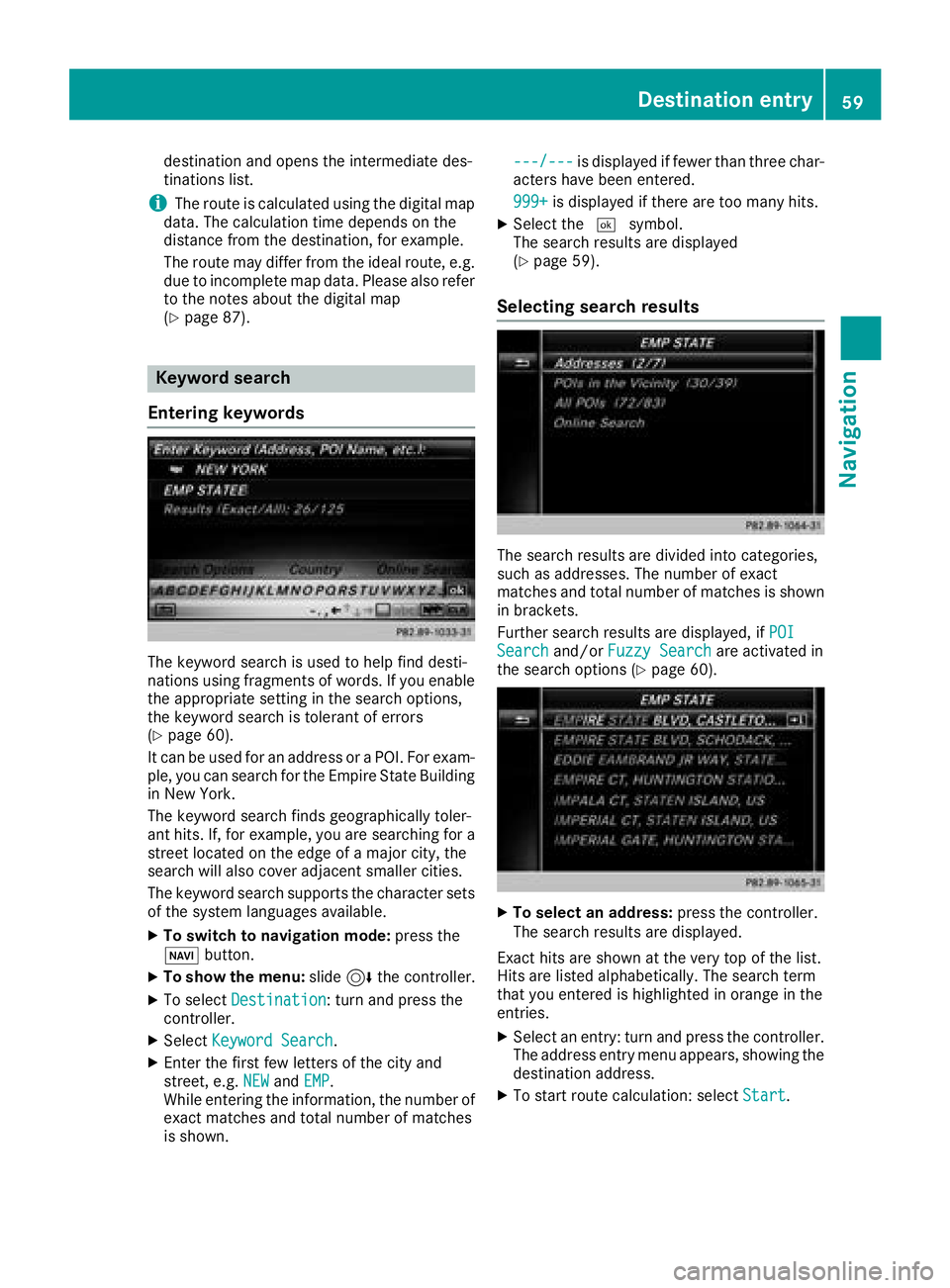
XEnter the first few letters of the city and
street, e.g. NEWandEMP.
While entering the information, the number of
exact matches and total number of matches
is shown. ---/---
is displayed if fewer than three char-
acters have been entered.
999+
is displayed if there are too many hits.
XSelect the ¬symbol.
The search results are displayed
(
Ypage 59).
Selecting search results
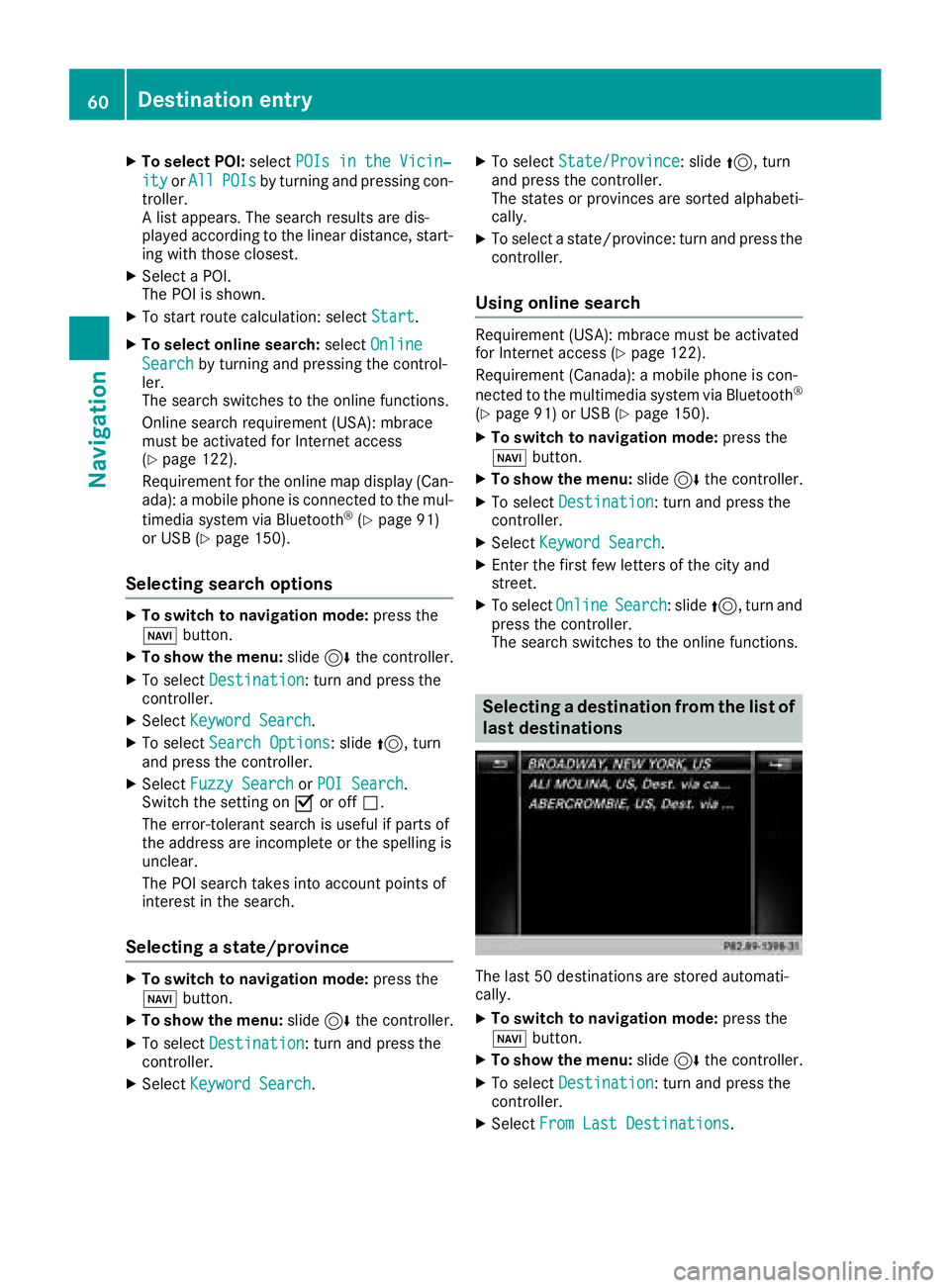
The search results are divided into categories,
such as addresses. The number of exact
matches and total number of matches is shown
in brackets.
Further search results are displayed, if POI
Searchand/orFuzzy Searchare activated in
the search options (Ypage 60).
XTo select an address: press the controller.
The search results are displayed.
Exact hits are shown at the very top of the list.
Hits are listed alphabetically. The search term
that you entered is highlighted in orange in the
entries.
XSelect an entry: turn and press the controller.
The address entry menu appears, showing the
destination address.
XTo start route calculation: select Start.
Destination entry59
Navigation
Z
Page 62 of 190
XTo select POI:selectPOIs in the Vicin‐
ityorAllPOIsby turning and pressing con-
troller.
A list appears. The search results are dis-
played according to the linear distance, start-
ing with those closest.
XSelect a POI.
The POI is shown.
XTo start route calculation: select Start.
XTo select online search:selectOnline
Searchby turning and pressing the control-
ler.
The search switches to the online functions.
Online search requirement (USA): mbrace
must be activated for Internet access
(
Ypage 122).
Requirement for the online map display (Can-
ada): a mobile phone is connected to the mul-
timedia system via Bluetooth
®(Ypage 91)
or USB (Ypage 150).
Selecting search options
XTo switch to navigation mode: press the
Ø button.
XTo show the menu: slide6the controller.
XTo select Destination: turn and press the
controller.
XSelect Keyword Search.
XTo select Search Options: slide5, turn
and press the controller.
XSelect Fuzzy SearchorPOI Search.
Switch the setting on Oor off ª.
The error-tolerant search is useful if parts of
the address are incomplete or the spelling is
unclear.
The POI search takes into account points of
interest in the search.
Selecting a state/province
XTo switch to navigation mode: press the
Ø button.
XTo show the menu: slide6the controller.
XTo select Destination: turn and press the
controller.
XSelect Keyword Search.
XTo select State/Province: slide5, turn
and press the controller.
The states or provinces are sorted alphabeti-
cally.
XTo select a state/province: turn and press the
controller.
Using online search
Requirement (USA): mbrace must be activated
for Internet access (Ypage 122).
Requirement (Canada): a mobile phone is con-
nected to the multimedia system via Bluetooth
®
(Ypage 91) or USB (Ypage 150).
XTo switch to navigation mode: press the
Ø button.
XTo show the menu: slide6the controller.
XTo select Destination: turn and press the
controller.
XSelect Keyword Search.
XEnter the first few letters of the city and
street.
XTo select OnlineSearch: slide5, turn and
press the controller.
The search switches to the online functions.
Selecting a destination from the list of
last destinations
The last 50 destinations are stored automati-
cally.
XTo switch to navigation mode: press the
Ø button.
XTo show the menu: slide6the controller.
XTo select Destination: turn and press the
controller.
XSelect From Last Destinations.
60Destination entry
Navigation
Page 66 of 190
To enlarge the map: turn the controller coun-
ter-clockwise.
To zoom the map out: turn the controller
clockwise.
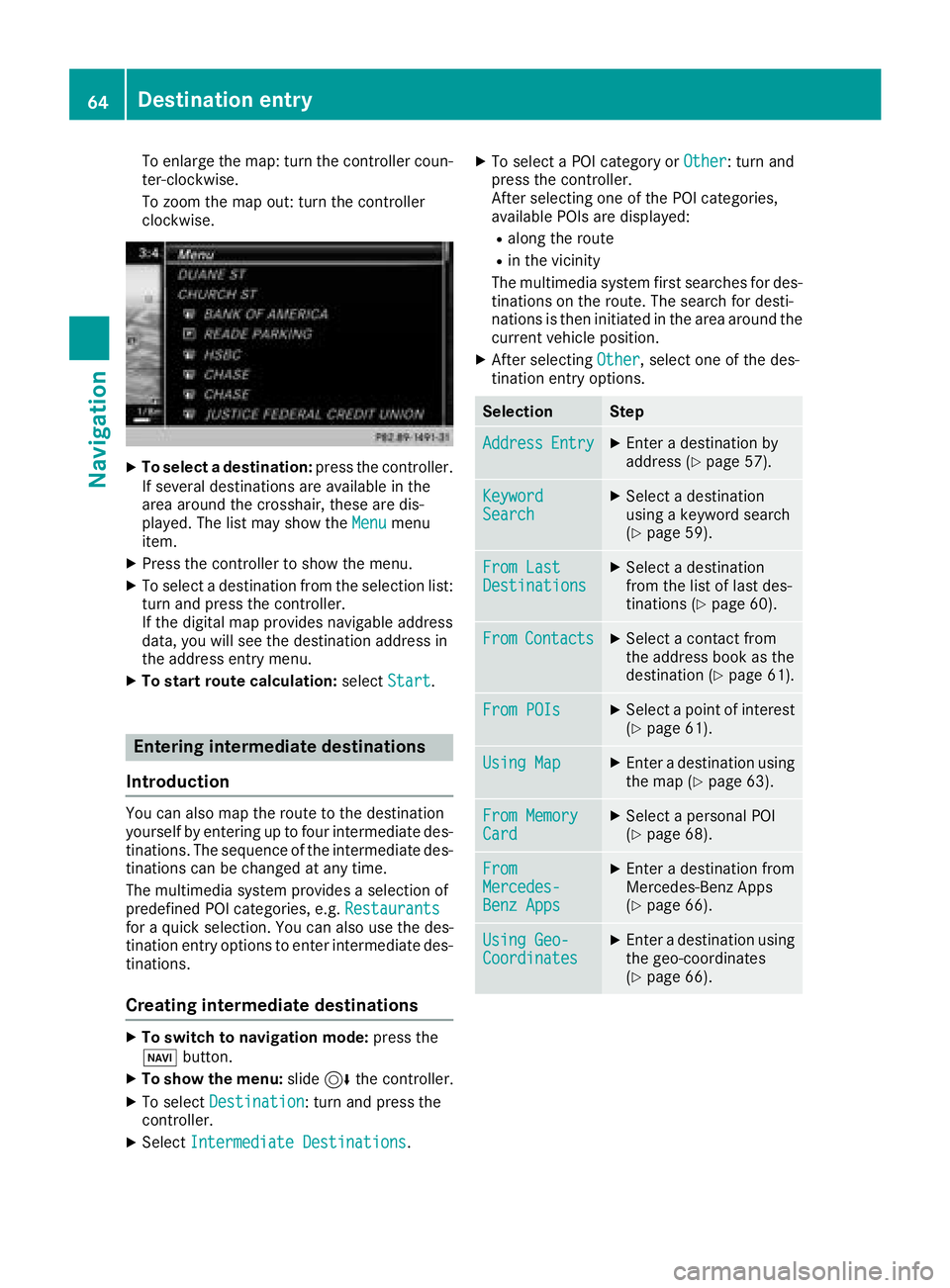
XTo select a destination:press the controller.
If several destinations are available in the
area around the crosshair, these are dis-
played. The list may show the Menu
menu
item.
XPress the controller to show the menu.
XTo select a destination from the selection list:
turn and press the controller.
If the digital map provides navigable address
data, you will see the destination address in
the address entry menu.
XTo start route calculation: selectStart.
Entering intermediate destinations
Introduction
You can also map the route to the destination
yourself by entering up to four intermediate des-
tinations. The sequence of the intermediate des-
tinations can be changed at any time.
The multimedia system provides a selection of
predefined POI categories, e.g. Restaurants
for a quick selection. You can also use the des-
tination entry options to enter intermediate des-
tinations.
Creating intermediate destinations
XTo switch to navigation mode: press the
Ø button.
XTo show the menu: slide6the controller.
XTo select Destination: turn and press the
controller.
XSelect Intermediate Destinations.
XTo select a POI category or Other: turn and
press the controller.
After selecting one of the POI categories,
available POIs are displayed:
Ralong the route
Rin the vicinity
The multimedia system first searches for des-
tinations on the route. The search for desti-
nations is then initiated in the area around the current vehicle position.
XAfter selecting Other, select one of the des-
tination entry options.
SelectionStep
AddressEntryXEnter a destination by
address (Ypage 57).
KeywordSearchXSelect a destination
using a keyword search
(
Ypage 59).
From LastDestinationsXSelect a destination
from the list of last des-
tinations (
Ypage 60).
FromContactsXSelect a contact from
the address book as the
destination (
Ypage 61).
From POIsXSelect a point of interest (Ypage 61).
Using MapXEnter a destination using
the map (Ypage 63).
From MemoryCardXSelect a personal POI
(Ypage 68).
FromMercedes-Benz Apps
XEnter a destination from
Mercedes-Benz Apps
(
Ypage 66).
Using Geo-CoordinatesXEnter a destination using
the geo-coordinates
(
Ypage 66).
64Destination entry
Navigation
Page 94 of 190
The device names for all of one manufacturer's
products might be identical. To make it possible
to clearly identify your mobile phone, change
the device name (see the manufacturer's oper-
ating instructions). The name can be freely
selected.
If the mobile phone supports the PBAP (Phone
BookAccess Profile) and MAP (M essage
Access Profile) Bluetooth
®profiles, the follow-
ing information will be transmitted after you
connect:
RPhone book
RCall lists
RText messages and e-mail
Further information on allowing or suppressing
the automatic download of the phone book
(
Ypage 107).
The battery of the mobile phone should always
be kept sufficiently charged in order to prevent
malfunctions.
iNot all mobile phones available on the mar-
ket are equally suitable. You can obtain fur-
ther information about suitable mobile
phones and about the connection between
the mobile phone and the multimedia system on the Internet at http://www.mercedes-
benz.com/connect .
You can also obtain more information by call-
ing.
In the USA, you can get in touch with the
Mercedes-Benz Customer Assistance Center
on 1-800-FOR-MERCedes (1-800-367-6372).
In Canada, you can get in touch with the Cus-
tomer Relations Center on 1-800-387-0100.
iSome displays (e.g. the signal strength) are
shown depending on the supported version of
the Hands-Free Profile.
Procedure and general information
Authorizing a mobile phone (connect-
ing)
Before using your mobile phone with the multi-
media system for the first time, you will need to search for the phone (
Ypage 92) and then
authorize it (Ypage 93). Depending on the
mobile phone, authorization either takes place
by means of Secure Simple Pairing or by enter-
ing a passkey. The multimedia system automat- ically makes the procedure that is relevant for
your mobile phone available. You can recognize
Secure Simple Pairing by the fact that a code is
displayed on the mobile phone and on the mul-
timedia system. You can recognize the passkey
system by the fact that you have to enter a code
on the mobile phone and on the multimedia sys-
tem. The mobile phone is connected automati-
cally after authorization. Further information
about automatically reconnecting authorized
mobile phones (
Ypage 94).
If the multimedia system does not detect your
mobile phone, this may be due to particular
security settings on your mobile phone. You can
also start the search procedure and authoriza-
tion on the mobile phone (
Ypage 94).
Device-specific information on authorizing and
connecting Bluetooth
®-capable mobile phones
can be obtained from an authorized Mercedes-
Benz Center or via the Internet at http://
www.mercedes-benz.com/connect .
You can authorize up to 15 mobile phones. After
authorization, the connection of the last two tel-
ephones used always functions automatically.
For telephony, only one mobile phone can be
connected to the multimedia system at any one
time.
De-authorizing (disconnecting) a mobile
phone
The connection is terminated automatically if
you leave the receiver range of the multimedia
system or deactivate Bluetooth
®on your mobile
phone.
If you no longer want the Bluetooth
®connection
to be established automatically, the mobile
phone must be de-authorized (disconnected)
(
Ypage 95).
Searching for a mobile phone
XTo call up the telephone menu: press the
% button.
XTo switch to the menu bar: slide 6the con-
troller.
XTo select Conn. Device: turn and press the
controller.
The device list is displayed.
92Connecting/disconnecting a mobile phone
Telephone
Page 95 of 190
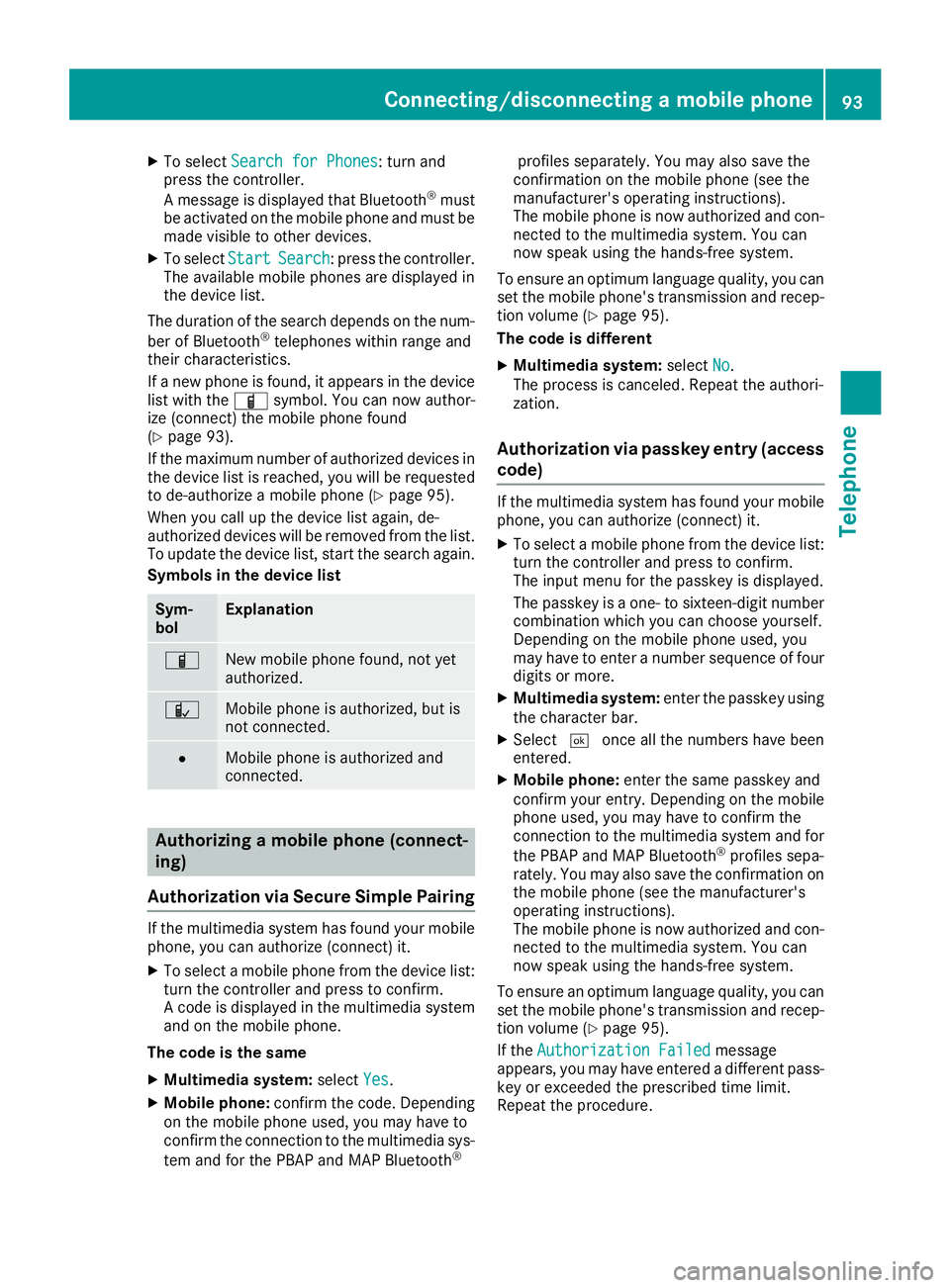
XTo selectSearch for Phones: turn and
press the controller.
A message is displayed that Bluetooth
®must
be activated on the mobile phone and must be
made visible to other devices.
XTo select StartSearch: press the controller.
The available mobile phones are displayed in
the device list.
The duration of the search depends on the num- ber of Bluetooth
®telephones within range and
their characteristics.
If a new phone is found, it appears in the device list with the Ïsymbol. You can now author-
ize (connect) the mobile phone found
(
Ypage 93).
If the maximum number of authorized devices in
the device list is reached, you will be requested
to de-authorize a mobile phone (
Ypage 95).
When you call up the device list again, de-
authorized devices will be removed from the list.
To update the device list, start the search again.
Symbols in the device list
Sym-
bolExplanation
ÏNew mobile phone found, not yet
authorized.
ÑMobile phone is authorized, but is
not connected.
#Mobile phone is authorized and
connected.
Authorizing a mobile phone (connect-
ing)
Authorization via Secure Simple Pairing
If the multimedia system has found your mobile
phone, you can authorize (connect) it.
XTo select a mobile phone from the device list: turn the controller and press to confirm.
A code is displayed in the multimedia system
and on the mobile phone.
The code is the same
XMultimedia system: selectYes.
XMobile phone: confirm the code. Depending
on the mobile phone used, you may have to
confirm the connection to the multimedia sys-
tem and for the PBAP and MAP Bluetooth
®
profiles separately. You may also save the
confirmation on the mobile phone (see the
manufacturer's operating instructions).
The mobile phone is now authorized and con-
nected to the multimedia system. You can
now speak using the hands-free system.
To ensure an optimum language quality, you can
set the mobile phone's transmission and recep-
tion volume (
Ypage 95).
The code is different
XMultimedia system: selectNo.
The process is canceled. Repeat the authori-
zation.
Authorization via passkey entry (access code)
If the multimedia system has found your mobile
phone, you can authorize (connect) it.
XTo select a mobile phone from the device list:
turn the controller and press to confirm.
The input menu for the passkey is displayed.
The passkey is a one- to sixteen-digit number
combination which you can choose yourself.
Depending on the mobile phone used, you
may have to enter a number sequence of fourdigits or more.
XMultimedia system: enter the passkey using
the character bar.
XSelect ¬once all the numbers have been
entered.
XMobile phone: enter the same passkey and
confirm your entry. Depending on the mobile
phone used, you may have to confirm the
connection to the multimedia system and for
the PBAP and MAP Bluetooth
®profiles sepa-
rately. You may also save the confirmation on
the mobile phone (see the manufacturer's
operating instructions).
The mobile phone is now authorized and con-
nected to the multimedia system. You can
now speak using the hands-free system.
To ensure an optimum language quality, you can
set the mobile phone's transmission and recep-
tion volume (
Ypage 95).
If the Authorization Failed
message
appears, you may have entered a different pass-
key or exceeded the prescribed time limit.
Repeat the procedure.
Connecting/disconnecting a mobile phone93
Telephone
Z
Page 96 of 190
iIf you wish to re-authorize the mobile phone
after de-authorizing it, you can choose
another passkey for it.
iMercedes-Benz recommends de-authoriza-
tion in the multimedia system as well as on
the mobile phone (
Ypage 95). Subsequent
authorization may otherwise fail.
Establishing the connection from the
mobile phone
The Bluetooth®device name of the multimedia
system is MB Bluetooth.
XMultimedia system: call up the telephone
menu.
XTo switch to the menu bar: slide 6the con-
troller.
XTo select Conn. Device: turn and press the
controller.
The device list is displayed.
XTo select Connect via Phone: turn and
press the controller.
A message is displayed, stating that you can
start the search on your mobile phone.
XMobile phone: start the search for a Blue-
tooth®device (see manufacturer's operating
instructions).
The multimedia system is displayed with the
name MB Bluetooth
in the mobile phone's
device list.
XSelect MB Bluetooth.
A prompt appears in the multimedia system's
display asking if the mobile phone should be
authorized.
XMultimedia system: selectYes.
If No
is selected, the procedure is canceled.
If your mobile phone supports Secure Simple
Pairing, a code is now displayed on both devi-
ces.
The code is the same
XMultimedia system: selectYes.
XMobile phone: confirm the code. Depending
on the mobile phone used, you may have to
confirm the connection to the multimedia sys-
tem and for the PBAP and MAP Bluetooth
®
profiles separately. You may also save the confirmation on the mobile phone (see the
manufacturer's operating instructions).
The mobile phone is now authorized and con-
nected to the multimedia system. You can
now speak using the hands-free system.
To ensure an optimum language quality, you
can set the mobile phone's transmission and
reception volume (
Ypage 95).
The code is different
XMultimedia system: selectNo.
The process is canceled. Repeat the proce-
dure.
If your mobile phone does not support Secure
Simple Pairing, an input menu is displayed for
the passkey. The passkey is a one- to sixteen-
digit number combination which you can choose
yourself. Enter the same passkey in both the
multimedia system and on the mobile phone and
confirm. Depending on the mobile phone used,
you may have to confirm the connection to the
multimedia system and for the PBAP and MAP
Bluetooth
®profiles.
Reconnecting automatically
The multimedia system always searches for the
last connected mobile phone.
If no connection can be made to the most
recently connected mobile phone, the system
searches for the mobile phone that was con-
nected before that one.
Switching between mobile phones
If you have authorized more than one mobile
phone, you can switch between the individual
phones.
XTo call up the telephone menu: press the
% button.
XTo switch to the menu bar: slide 6the con-
troller.
XTo select Conn. Device: turn and press the
controller.
The device list is displayed.
XTo select the desired mobile phone: turn and press the controller.
The selected mobile phone is connected if it is
within Bluetooth
®range and if Bluetooth®is
activated.
94Connecting/disconnecting a mobile phone
Telephone