reset MERCEDES-BENZ GLE COUPE 2018 COMAND Manual
[x] Cancel search | Manufacturer: MERCEDES-BENZ, Model Year: 2018, Model line: GLE COUPE, Model: MERCEDES-BENZ GLE COUPE 2018Pages: 190, PDF Size: 4.42 MB
Page 108 of 190
Further information about character entry
(Ypage 29).
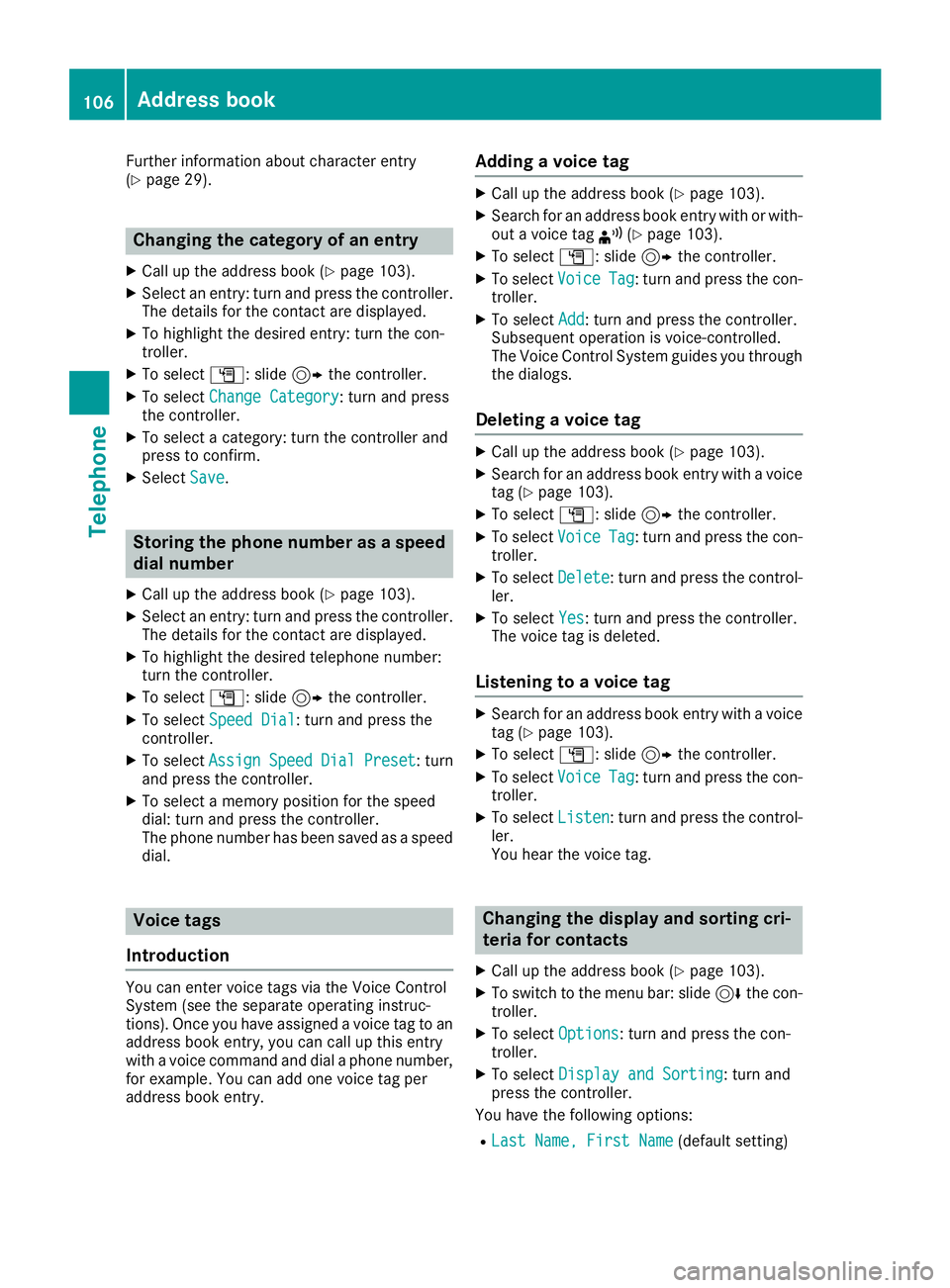
Changing the category of an entry
XCall up the address book (Ypage 103).
XSelect an entry: turn and press the controller.
The details for the contact are displayed.
XTo highlight the desired entry: turn the con-
troller.
XTo selectG: slide 9the controller.
XTo select Change Category: turn and press
the controller.
XTo select a category: turn the controller and
press to confirm.
XSelect Save.
Storing the phone number as a speed
dial number
XCall up the address book (Ypage 103).
XSelect an entry: turn and press the controller.
The details for the contact are displayed.
XTo highlight the desired telephone number:
turn the controller.
XTo select G: slide 9the controller.
XTo select Speed Dial: turn and press the
controller.
XTo select AssignSpeedDialPreset: turn
and press the controller.
XTo select a memory position for the speed
dial: turn and press the controller.
The phone number has been saved as a speed
dial.
Voice tags
Introduction
You can enter voice tags via the Voice Control
System (see the separate operating instruc-
tions). Once you have assigned a voice tag to an
address book entry, you can call up this entry
with a voice command and dial a phone number,
for example. You can add one voice tag per
address book entry.
Adding a voice tag
XCall up the address book (Ypage 103).
XSearch for an address book entry with or with- out a voice tag ¦(Ypage 103).
XTo select G: slide 9the controller.
XTo select VoiceTag: turn and press the con-
troller.
XTo select Add: turn and press the controller.
Subsequent operation is voice-controlled.
The Voice Control System guides you through
the dialogs.
Deleting a voice tag
XCall up the address book (Ypage 103).
XSearch for an address book entry with a voice
tag (Ypage 103).
XTo select G: slide 9the controller.
XTo select VoiceTag: turn and press the con-
troller.
XTo select Delete: turn and press the control-
ler.
XTo select Yes: turn and press the controller.
The voice tag is deleted.
Listening to a voice tag
XSearch for an address book entry with a voice
tag (Ypage 103).
XTo select G: slide 9the controller.
XTo select VoiceTag: turn and press the con-
troller.
XTo select Listen: turn and press the control-
ler.
You hear the voice tag.
Changing the display and sorting cri-
teria for contacts
XCall up the address book (Ypage 103).
XTo switch to the menu bar: slide 6the con-
troller.
XTo select Options: turn and press the con-
troller.
XTo select Display and Sorting: turn and
press the controller.
You have the following options:
RLast Name, First Name(default setting)
106Address book
Telephone
Page 113 of 190
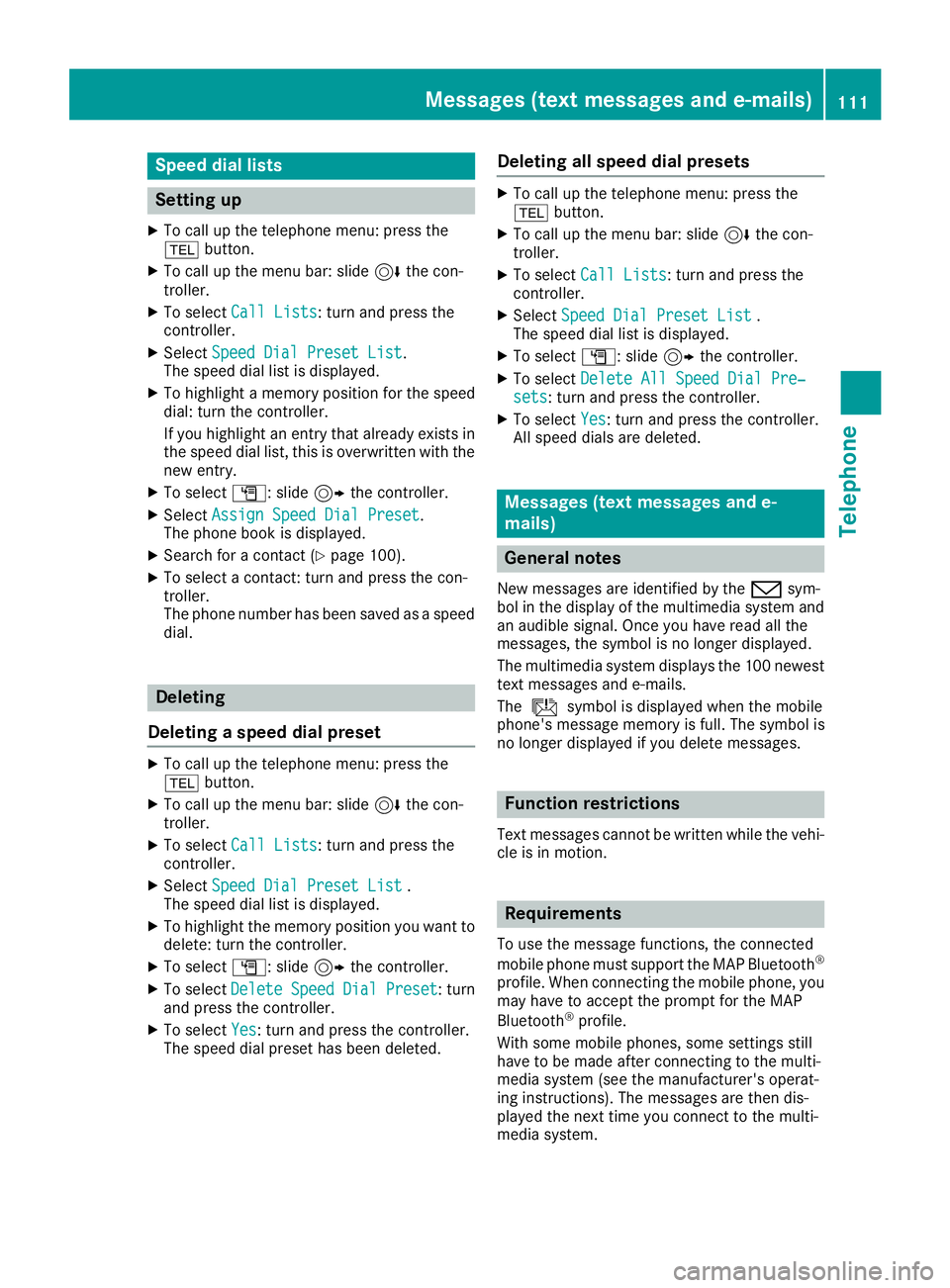
Speed dial lists
Setting up
XTo call up the telephone menu: press the
%button.
XTo call up the menu bar: slide 6the con-
troller.
XTo select Call Lists: turn and press the
controller.
XSelect Speed Dial Preset List.
The speed dial list is displayed.
XTo highlight a memory position for the speed
dial: turn the controller.
If you highlight an entry that already exists in the speed dial list, this is overwritten with the
new entry.
XTo select G: slide 9the controller.
XSelect Assign Speed Dial Preset.
The phone book is displayed.
XSearch for a contact (Ypage 100).
XTo select a contact: turn and press the con-
troller.
The phone number has been saved as a speed
dial.
Deleting
Deleting a speed dial preset
XTo call up the telephone menu: press the
% button.
XTo call up the menu bar: slide 6the con-
troller.
XTo select Call Lists: turn and press the
controller.
XSelect Speed Dial Preset List.
The speed dial list is displayed.
XTo highlight the memory position you want to
delete: turn the controller.
XTo select G: slide 9the controller.
XTo select DeleteSpeedDialPreset: turn
and press the controller.
XTo select Yes: turn and press the controller.
The speed dial preset has been deleted.
Deleting all speed dial presets
XTo call up the telephone menu: press the
% button.
XTo call up the menu bar: slide 6the con-
troller.
XTo select Call Lists: turn and press the
controller.
XSelect Speed Dial Preset List.
The speed dial list is displayed.
XTo select G: slide 9the controller.
XTo select Delete All Speed Dial Pre‐sets: turn and press the controller.
XTo selectYes: turn and press the controller.
All speed dials are deleted.
Messages (text messages and e-
mails)
General notes
New messages are identified by the /sym-
bol in the display of the multimedia system and
an audible signal. Once you have read all the
messages, the symbol is no longer displayed.
The multimedia system displays the 100 newest
text messages and e-mails.
The ú symbol is displayed when the mobile
phone's message memory is full. The symbol is
no longer displayed if you delete messages.
Function restrictions
Text messages cannot be written while the vehi-
cle is in motion.
Requirements
To use the message functions, the connected
mobile phone must support the MAP Bluetooth®
profile. When connecting the mobile phone, you
may have to accept the prompt for the MAP
Bluetooth
®profile.
With some mobile phones, some settings still
have to be made after connecting to the multi-
media system (see the manufacturer's operat-
ing instructions). The messages are then dis-
played the next time you connect to the multi-
media system.
Messages (text messages and e-mails)111
Telephone
Z
Page 121 of 190
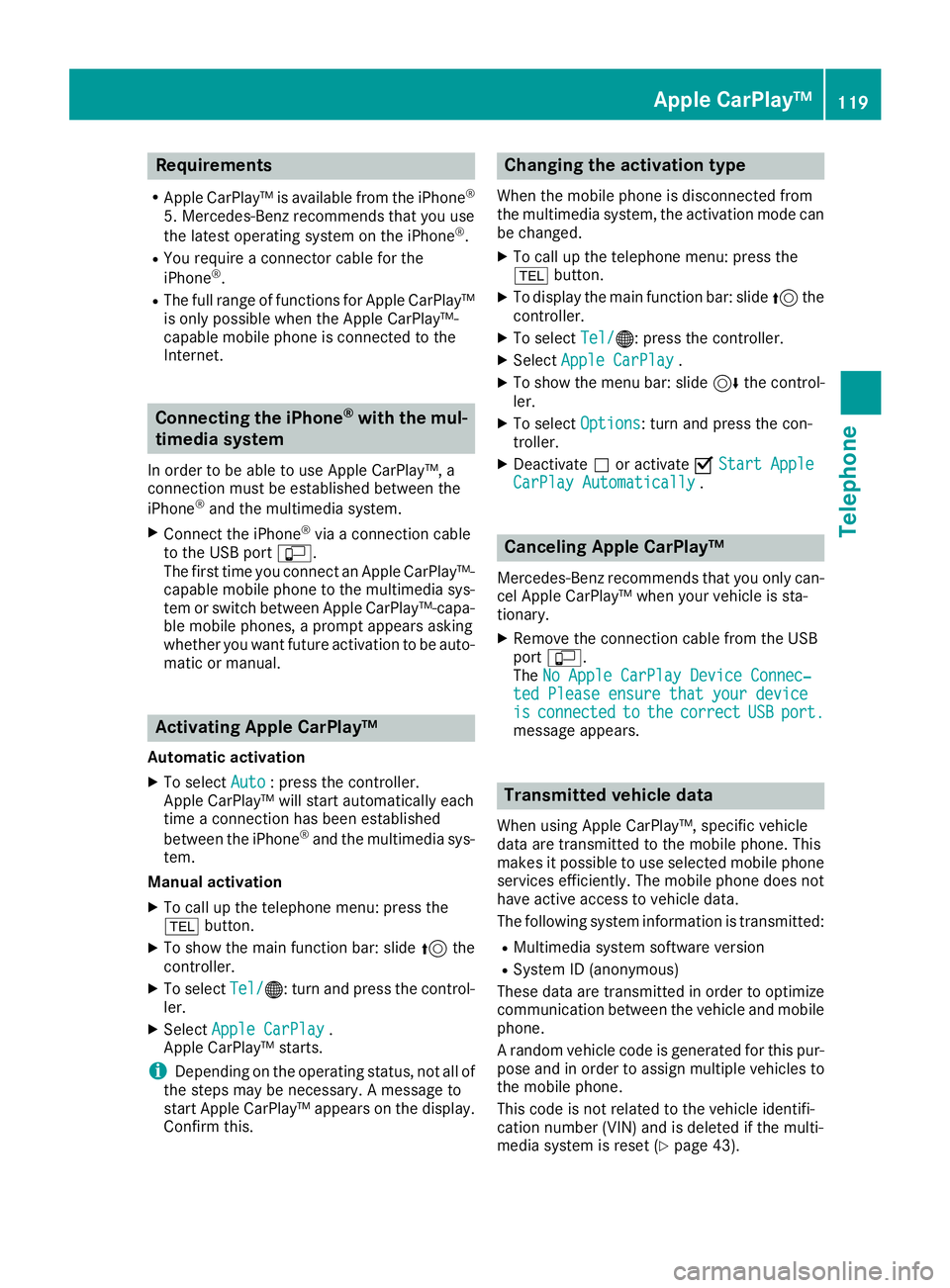
Requirements
RApple CarPlay™ is available from the iPhone®
5. Mercedes-Benz recommends that you use
the latest operating system on the iPhone®.
RYou require a connector cable for the
iPhone®.
RThe full range of functions for Apple CarPlay™is only possible when the Apple CarPlay™-
capable mobile phone is connected to the
Internet.
Connecting the iPhone®with the mul-
timedia system
In order to be able to use Apple CarPlay™, a
connection must be established between the
iPhone
®and the multimedia system.
XConnect the iPhone®via a connection cable
to the USB port ç.
The first time you connect an Apple CarPlay™-
capable mobile phone to the multimedia sys-
tem or switch between Apple CarPlay™-capa-
ble mobile phones, a prompt appears asking
whether you want future activation to be auto- matic or manual.
Activating Apple CarPlay™
Automatic activation
XTo select Auto: press the controller.
Apple CarPlay™ will start automatically each
time a connection has been established
between the iPhone
®and the multimedia sys-
tem.
Manual activation
XTo call up the telephone menu: press the
% button.
XTo show the main function bar: slide 5the
controller.
XTo select Tel/®: turn and press the control-
ler.
XSelect Apple CarPlay.
Apple CarPlay™ starts.
iDepending on the operating status, not all of
the steps may be necessary. A message to
start Apple CarPlay™ appears on the display.
Confirm this.
Changing the activation type
When the mobile phone is disconnected from
the multimedia system, the activation mode can
be changed.
XTo call up the telephone menu: press the
% button.
XTo display the main function bar: slide 5the
controller.
XTo select Tel/®: press the controller.
XSelectApple CarPlay.
XTo show the menu bar: slide 6the control-
ler.
XTo select Options: turn and press the con-
troller.
XDeactivate ªor activate OStart AppleCarPlay Automatically.
Canceling Apple CarPlay™
Mercedes-Benz recommends that you only can-
cel Apple CarPlay™ when your vehicle is sta-
tionary.
XRemove the connection cable from the USB
port ç.
The No Apple CarPlay Device Connec‐
ted Please ensure that your deviceisconnectedtothecorrectUSBport.message appears.
Transmitted vehicle data
When using Apple CarPlay™, specific vehicle
data are transmitted to the mobile phone. This
makes it possible to use selected mobile phone
services efficiently. The mobile phone does not
have active access to vehicle data.
The following system information is transmitted:
RMultimedia system software version
RSystem ID (anonymous)
These data are transmitted in order to optimize communication between the vehicle and mobile
phone.
A random vehicle code is generated for this pur-
pose and in order to assign multiple vehicles to
the mobile phone.
This code is not related to the vehicle identifi-
cation number (VIN) and is deleted if the multi-
media system is reset (
Ypage 43).
Apple CarPlay™119
Telephone
Z
Page 123 of 190
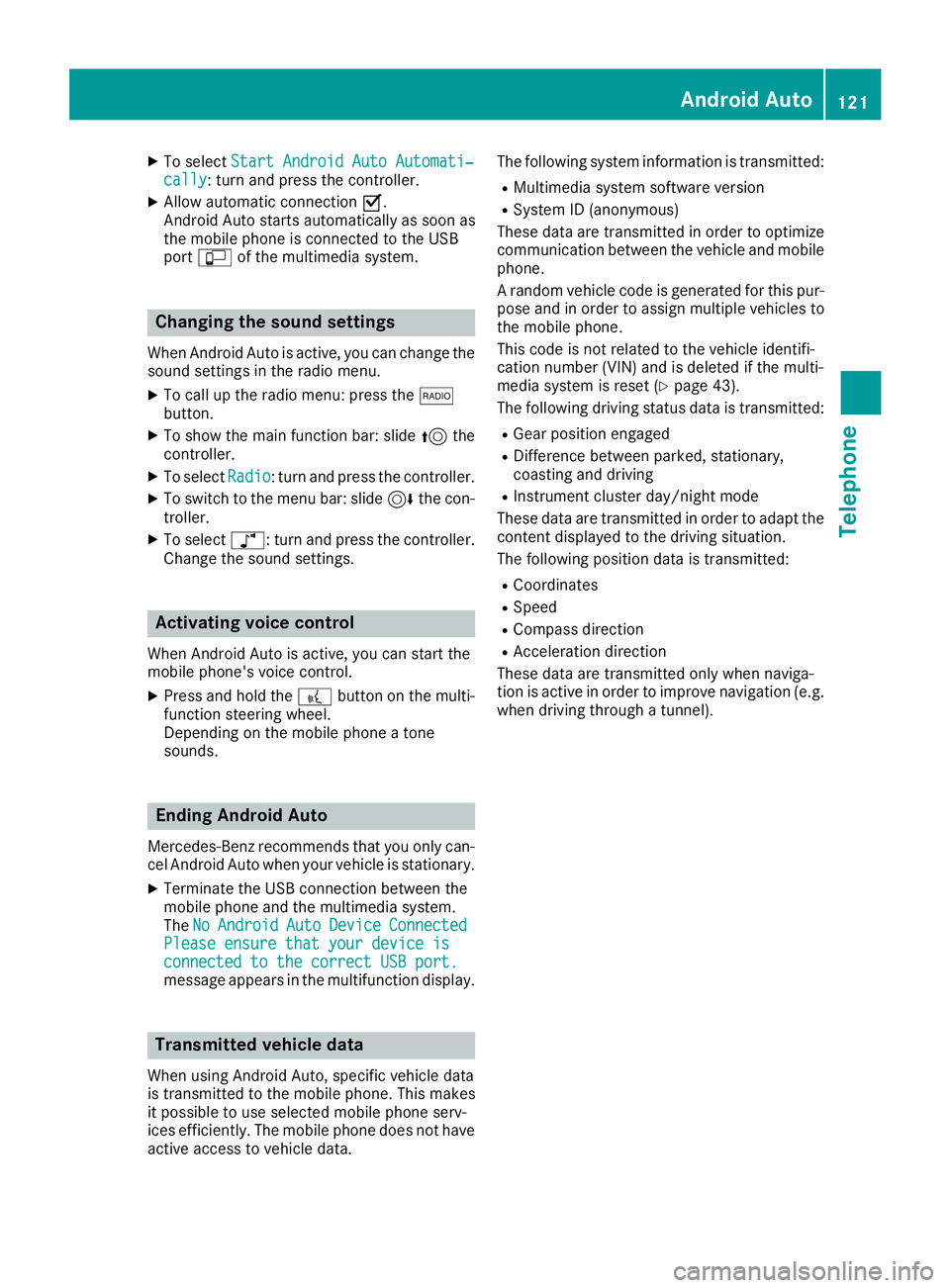
XTo selectStart Android Auto Automati‐cally: turn and press the controller.
XAllow automatic connection O.
Android Auto starts automatically as soon as
the mobile phone is connected to the USB
port ç of the multimedia system.
Changing the sound settings
When Android Auto is active, you can change the
sound settings in the radio menu.
XTo call up the radio menu: press the $
button.
XTo show the main function bar: slide 5the
controller.
XTo select Radio: turn and press the controller.
XTo switch to the menu bar: slide 6the con-
troller.
XTo select à: turn and press the controller.
Change the sound settings.
Activating voice control
When Android Auto is active, you can start the
mobile phone's voice control.
XPress and hold the ?button on the multi-
function steering wheel.
Depending on the mobile phone a tone
sounds.
Ending Android Auto
Mercedes-Benz recommends that you only can-
cel Android Auto when your vehicle is stationary.
XTerminate the USB connection between the
mobile phone and the multimedia system.
The No
AndroidAutoDeviceConnectedPlease ensure that your device isconnected to the correct USB port.message appears in the multifunction display.
Transmitted vehicle data
When using Android Auto, specific vehicle data
is transmitted to the mobile phone. This makes
it possible to use selected mobile phone serv-
ices efficiently. The mobile phone does not have
active access to vehicle data. The following system information is transmitted:
RMultimedia system software version
RSystem ID (anonymous)
These data are transmitted in order to optimize communication between the vehicle and mobile
phone.
A random vehicle code is generated for this pur-
pose and in order to assign multiple vehicles to
the mobile phone.
This code is not related to the vehicle identifi-
cation number (VIN) and is deleted if the multi-
media system is reset (
Ypage 43).
The following driving status data is transmitted:
RGear position engaged
RDifference between parked, stationary,
coasting and driving
RInstrument cluster day/night mode
These data are transmitted in order to adapt the
content displayed to the driving situation.
The following position data is transmitted:
RCoordinates
RSpeed
RCompass direction
RAcceleration direction
These data are transmitted only when naviga-
tion is active in order to improve navigation (e.g.
when driving through a tunnel).
Android Auto121
Telephone
Z
Page 130 of 190
Your multimediasyste mequipment
These operatin ginstruction sdescribe all th e
standar dan doptional equipment of your multi-
media system, as available at th etime of going
to press. Country-specifi cdifference sare pos -
sible. Bear in min dthat your vehicle may no t
feature all function sdescribed here. Thi salso
applies to safety-relevan tsystems an dfunc-
tions.
Read th einformation on qualifie dspecialis t
workshop sin th evehicle Operator's Manual.
Switchin gon th eradi o
XPress th e$ button.
The Radio men uappears .You will hear th e
last station set on th ewaveban dselecte d
last .
Switching HD Radi oon/of f
XIn radio mode: slid e6 thecontroller .
XSelectOption s.
XSwitchHD RadioonO or of fª .
If HD Radio is switched off, th esyste mdoe sno t
switch to digita lradio an dit is no tpossible to
selec tan ysub-channels.
iHD Radio ™Technology Manufactured
Under License From iBiquit yDigital Corp. U.S.
an dForeign Patents .The HD an dHD Radio
logos are proprietary trademark sof iBiquit y
digital.
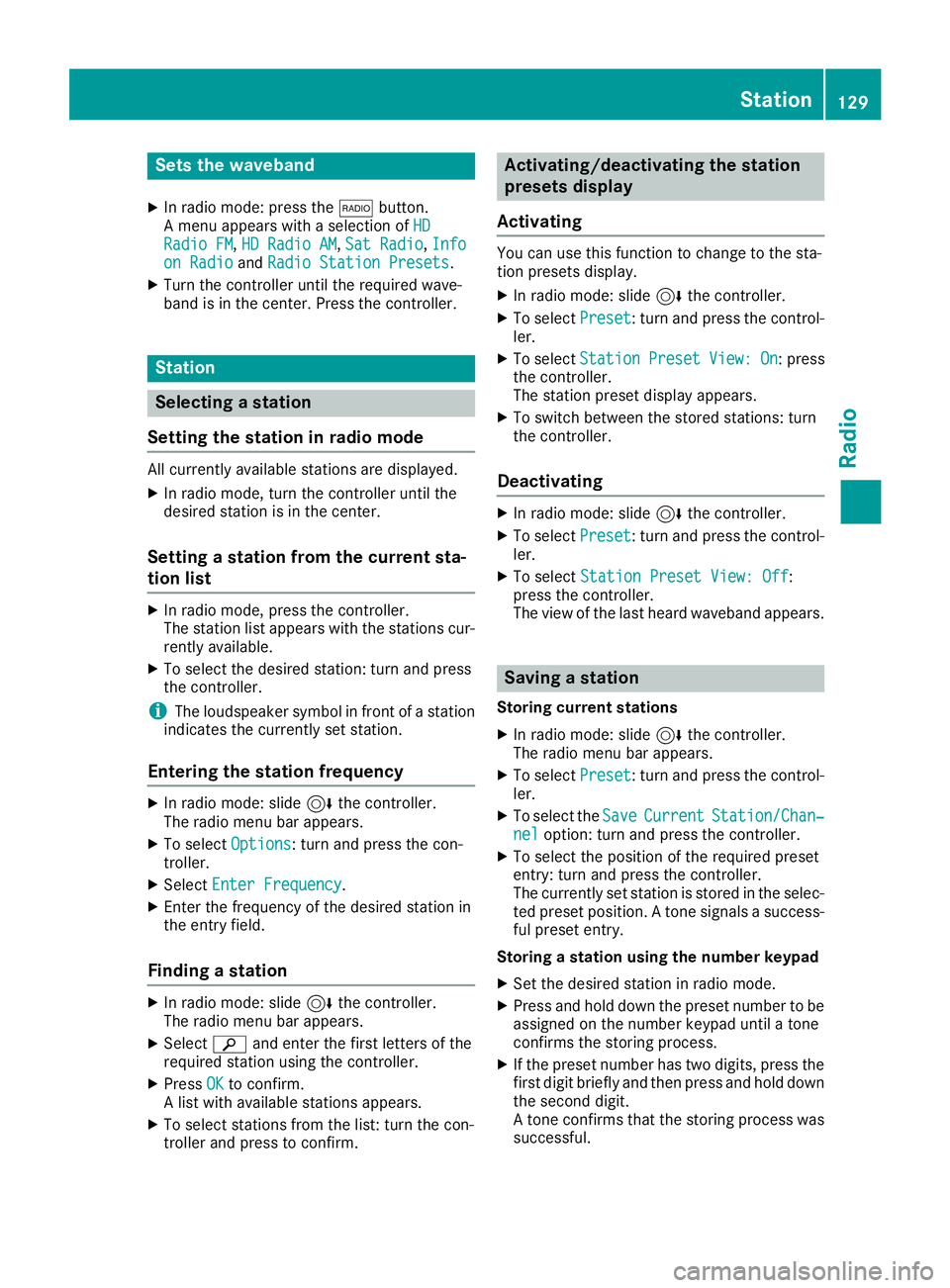
Overview
:Main function bar
;Status bar wit hcompass display
=Main display field wit havailable station san d
relevant information
?Display of radio station selecte d
ARadio menubar
The followin gfunction scan be called up in th e
main function bar by selecting th emen uitem
Radio :
RHD Radi oFM:HD FM radio mode
RHD Radi oAM:HD MW radio mode
RSa tRadi o:satellite radio
RInfo on Radi o:information on radio in th e
Digital Operator's Manual
RRadi oStatio nPreset s:10 0preset posi-
tion sfo rradio station s
The followin gfunction sare available usin gth e
radio men ubar :
ROption s:radio option s
Rè:searches fo rstation sby name
RPreset:station preset smen u
RBand:waveban dselection
RInformation:displays additional informa-
tion about th ecurren tstation (radio text or
Artist Experience
®)
Rà :sound settings, harman/kardon®Logic
7®, Ban g & Beosound
128Overview
Radio
Page 131 of 190
Sets the waveband
XIn radio mode: press the$button.
A menu appears with a selection of HD
Radio FM,HD Radio AM,Sat Radio,Infoon Radioand Radio Station Presets.
XTurn the controller until the required wave-
band is in the center. Press the controller.
Station
Selecting a station
Setting the station in radio mode
All currently available stations are displayed.
XIn radio mode, turn the controller until the
desired station is in the center.
Setting a station from the current sta-
tion list
XIn radio mode, press the controller.
The station list appears with the stations cur- rently available.
XTo select the desired station: turn and press
the controller.
iThe loudspeaker symbol in front of a station
indicates the currently set station.
Entering the station frequency
XIn radio mode: slide 6the controller.
The radio menu bar appears.
XTo select Options: turn and press the con-
troller.
XSelect Enter Frequency.
XEnter the frequency of the desired station in
the entry field.
Finding a station
XIn radio mode: slide 6the controller.
The radio menu bar appears.
XSelect èand enter the first letters of the
required station using the controller.
XPress OKto confirm.
A list with available stations appears.
XTo select stations from the list: turn the con-
troller and press to confirm.
Activating/deactivating the station
presets display
Activating
You can use this function to change to the sta-
tion presets display.
XIn radio mode: slide 6the controller.
XTo select Preset: turn and press the control-
ler.
XTo select StationPresetView:On: press
the controller.
The station preset display appears.
XTo switch between the stored stations: turn
the controller.
Deactivating
XIn radio mode: slide 6the controller.
XTo select Preset: turn and press the control-
ler.
XTo select Station Preset View: Off:
press the controller.
The view of the last heard waveband appears.
Saving a station
Storing current stations
XIn radio mode: slide 6the controller.
The radio menu bar appears.
XTo select Preset: turn and press the control-
ler.
XTo select the SaveCurrentStation/Chan‐neloption: turn and press the controller.
XTo select the position of the required preset
entry: turn and press the controller.
The currently set station is stored in the selec-
ted preset position. A tone signals a success-
ful preset entry.
Storing a station using the number keypad
XSet the desired station in radio mode.
XPress and hold down the preset number to be assigned on the number keypad until a tone
confirms the storing process.
XIf the preset number has two digits, press the
first digit briefly and then press and hold down the second digit.
A tone confirms that the storing process was
successful.
Station129
Radio
Page 132 of 190
Storing a station using the controller
XSet the desired station in radio mode.
XPress and hold the controller until the preset
list appears.
XTo select the preset number: turn and press
the controller.
iFrequencies have already been stored in the
multimedia system. There are 100 preset
positions available.
Moving highlighted stations
XIn radio mode: slide 6the controller.
XTo select Preset: turn and press the control-
ler.
XSelect Edit Station Preset.
XTo select the required preset entry: turn the
controller.
XSlide9the controller.
An additional menu appears.
XTo select the Move Highlighted Station/Channeloption: turn and press the control-
ler.
The list of stored stations appears again.
XTo move the highlighted station to the new
position: turn the controller and press to con-
firm.
Deleting highlighted stations
XIn radio mode: slide 6the controller.
XTo select Preset: turn and press the control-
ler.
XSelect Edit Station Preset.
XTo select the required preset entry: turn the
controller.
XSlide9the controller.
XTo select the Delete Highlighted Sta‐tion/Channeloption in the additional menu:
turn and press the controller.
or
XPress the $button.
A prompt appears.
XTo select Yes: turn and press the controller.
The highlighted station is deleted.
Tagging music tracks
This function allows you to transfer the music
track currently playing to an Apple®device and
then purchase it in the iTunes store®.
XIn radio mode: slide 6the controller.
XTo select Options: turn and press the con-
troller.
XSelect Tag This Track.
A message appears in the multimedia system
about storing the track information.
Displaying station information
XIn radio mode: slide 6the controller.
XTo select Options: turn and press the con-
troller.
XSwitch Show Station InformationonO
or off ª.
If the function is active, the artist and track
will also be displayed in the main display field.
Calling up sound settings
XIn radio mode: slide 6the controller.
The radio menu bar appears.
XTo select à: turn and press the controller.
The sound menu appears (Ypage 157).
Displaying information
This function is available in HD FM radio and HD
AM radio mode.
Reception is only possible if the radio stations
provide the relevant information.
XTo select Informationin the radio menu bar:
turn and press the controller.
Information on the currently received pro-
gram is displayed.
If available, you will see:
Rthe track that is currently being played
Rthe artist of the track that is currently being
played
Rthe album name
130Displaying information
Radio
Page 134 of 190
Switching to satellite radio
XTo show the main function bar: slide5the
controller.
XTo select Radio: turn and press the controller.
The Radio menu appears. You will hear the
last station set on the waveband selected
last.
XTo select Radioin radio mode: slide 5and
press the controller.
The menu with the available radio modes
appears.
XTo select SatRadio: turn and press the con-
troller.
The No
Servicemessage appears if there is no
signal.
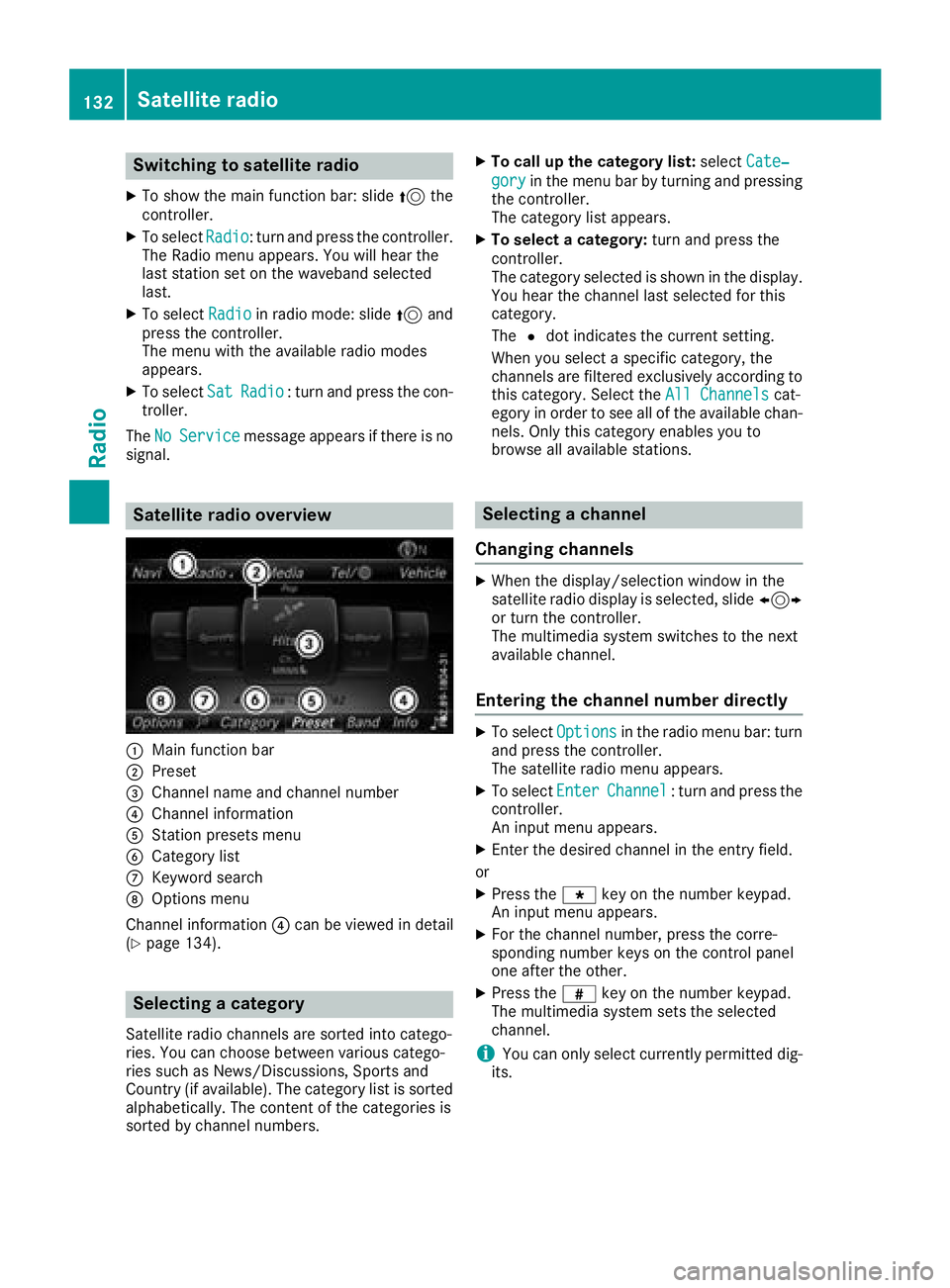
Satellite radio overview
:Main function bar
;Preset
=Channel name and channel number
?Channel information
AStation presets menu
BCategory list
CKeyword search
DOptions menu
Channel information ?can be viewed in detail
(
Ypage 134).
Selecting a category
Satellite radio channels are sorted into catego-
ries. You can choose between various catego-
ries such as News/Discussions, Sports and
Country (if available). The category list is sorted
alphabetically. The content of the categories is
sorted by channel numbers.
XTo call up the category list: selectCate‐
goryin the menu bar by turning and pressing
the controller.
The category list appears.
XTo select a category: turn and press the
controller.
The category selected is shown in the display.
You hear the channel last selected for this
category.
The #dot indicates the current setting.
When you select a specific category, the
channels are filtered exclusively according to
this category. Select the All Channels
cat-
egory in order to see all of the available chan-
nels. Only this category enables you to
browse all available stations.
Selecting a channel
Changing channels
XWhen the display/selection window in the
satellite radio display is selected, slide 1
or turn the controller.
The multimedia system switches to the next
available channel.
Entering the channel number directly
XTo select Optionsin the radio menu bar: turn
and press the controller.
The satellite radio menu appears.
XTo select EnterChannel: turn and press the
controller.
An input menu appears.
XEnter the desired channel in the entry field.
or
XPress the gkey on the number keypad.
An input menu appears.
XFor the channel number, press the corre-
sponding number keys on the control panel
one after the other.
XPress the zkey on the number keypad.
The multimedia system sets the selected
channel.
iYou can only select currently permitted dig-
its.
132Satellite radio
Radio
Page 135 of 190
Selecting a channel via the satellite
radio station list
You can select the channel using the station list
displaying the artists and tracks that are cur-
rently playing.
XTo selectOptionsin the radio menu bar: turn
and press the controller.
XTo select Station List with Artist &Title: turn and press the controller.
The channel list appears.
or
XPress the controller in the main display field.
XSelect the desired channel
Keyword search
XTo select the keyword search èin the
menu bar: turn and press the controller.
XTo enter the required search term: turn and
press the controller.
Direct and indirect results are shown.
XSelect the required result.
The relevant channel is played.
Memory functions
There are 100 presets available.
Saving the current channel
XTo select Presetin the radio menu bar: turn
and press the controller.
XTo select Edit Station Preset: turn and
press the controller.
The list of saved channels appears.
XTo select the preset: turn the controller and
press for about two seconds.
The newly saved channel overwrites the exist-
ing preset.
Saving a channel using the controller
XSet the desired channel in satellite radio
mode.
XPress and hold the controller until the preset
list appears.
XTo select the preset number: turn and press
the controller.
A tone confirms that the storing process was
successful. Using quick save
XSet the desired channel in satellite radio
mode.
XPress and hold a number key for two seconds.
The channel is saved to the corresponding
position in the channel presets.
The newly saved channel overwrites the exist-
ing preset.
Deleting the highlighted channel
XTo select Presetin the radio menu bar: turn
and press the controller.
XSelect Edit Station Preset.
XTo select the required preset entry: turn the
controller.
XSlide9the controller.
XTo select the Delete Highlighted Sta‐tion/Channeloption in the additional menu:
turn and press the controller.
or
XPress the $button.
A prompt appears.
XTo select Yes: turn and press the controller.
The highlighted station is deleted.
Activating/deactivating the station
presets display
You can use this function to change to the sta-
tion presets display.
Activating
XIn radio mode: slide 6the controller.
XTo select Preset: turn and press the control-
ler.
XTo select Station Preset View: On: turn
and press the controller.
The station preset display appears.
XTo switch between the stored stations: turn
the controller.
Deactivating
XIn radio mode: slide 6the controller.
XTo select Preset: turn and press the control-
ler.
XTo select StationPresetView:Off: turn
and press the controller.
The view of the last heard waveband appears.
Satellite radio133
Radio
Page 166 of 190
selected location. The data is supplied by the
nearest weather station.
Option 2: selecting the area in the
weather map
XCall up the weather map (Ypage 164).
XMove the weather map so that the crosshair is
over the desired area (Ypage 164).
XPress the controller.
The information chart shows the weather
forecast for the selected area. The data is
supplied by the nearest weather station.
Memory functions
Storing the area in the weather memory
You can save locations that are called up fre-
quently in ten preset positions (0, 1-9) in the
weather memory.
XIn the weather memory: select the area for
the weather forecast (Ypage 162).
The selected location appears at the top in the status bar.
XTo select Positionin the information chart:
turn and press the controller.
XSelect Preset.
XSelect a preset using the controller.
XPress and hold the controller until you hear a
tone.
The area is entered on the selected preset.
XTo store rapidly: in the daily forecast
(Ypage 161) press and hold a number key,
e.g. l, until the preset position number is
shown in the status bar in front of the area
name.
iYou can also use this function in the five-day
forecast (Ypage 161), and in the detailed
information view (Ypage 162).
Selecting an area from the weather
memory
XDirectly from the weather memory: select
Position
from the information chart: turn
and press the controller.
XSelect Preset.
XSelect the memory position which contains
the location you require.
The weather data for the selected area is dis-
played.
XQuick select: if a location is stored in the
weather memory, for example when the cur-
rent forecast display is active, briefly press a
number key, e.g. l.
The weather data for the selected area is dis-
played.
Weather map
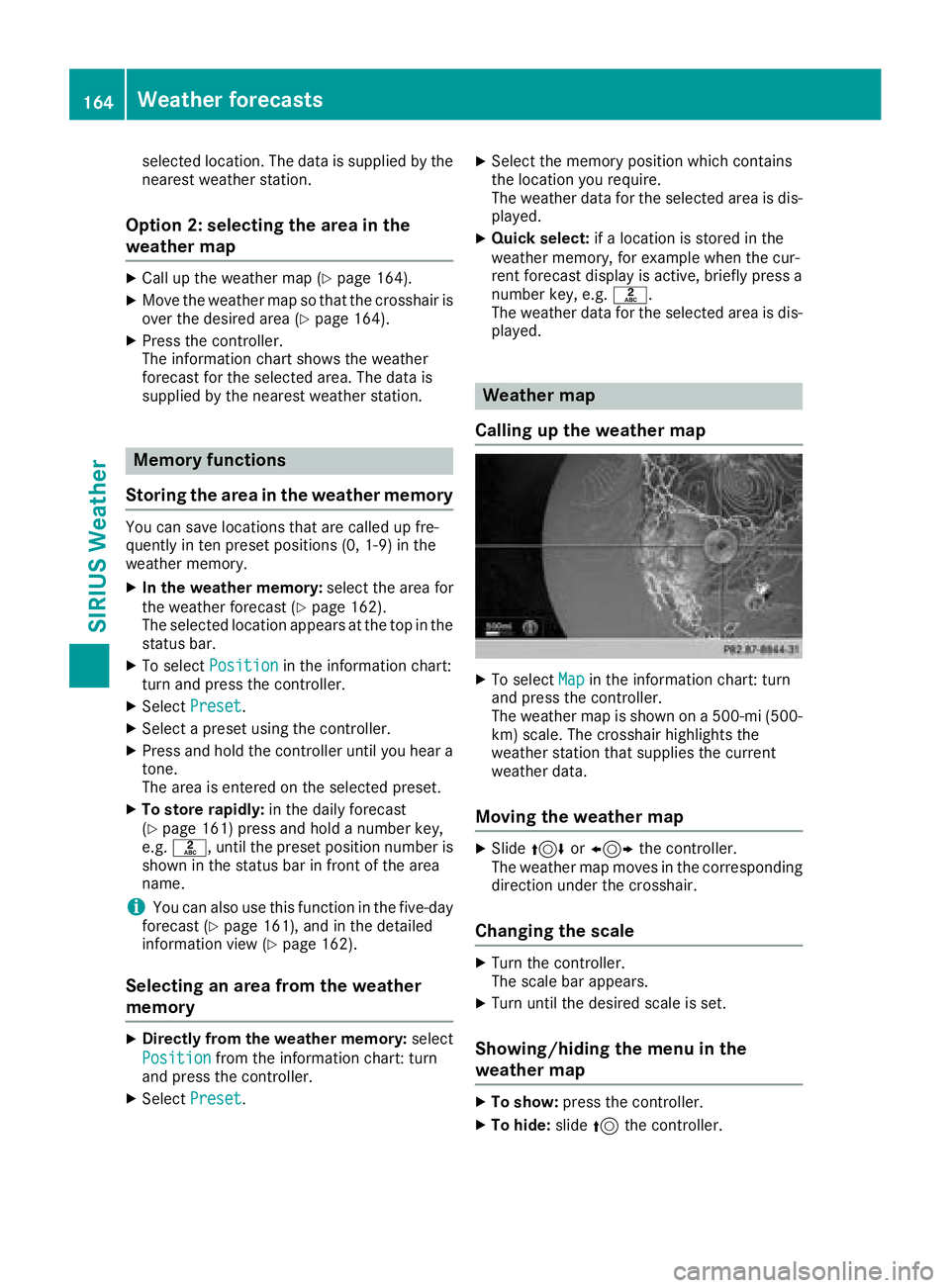
Calling up the weather map
XTo select Mapin the information chart: turn
and press the controller.
The weather map is shown on a 500-mi (500-
km) scale. The crosshair highlights the
weather station that supplies the current
weather data.
Moving the weather map
XSlide 4 or1 the controller.
The weather map moves in the corresponding
direction under the crosshair.
Changing the scale
XTurn the controller.
The scale bar appears.
XTurn until the desired scale is set.
Showing/hiding the menu in the
weather map
XTo show: press the controller.
XTo hide:slide5the controller.
164Weather forecasts
SIRIUS Weather