ECO mode MERCEDES-BENZ GLE COUPE 2018 COMAND Manual
[x] Cancel search | Manufacturer: MERCEDES-BENZ, Model Year: 2018, Model line: GLE COUPE, Model: MERCEDES-BENZ GLE COUPE 2018Pages: 190, PDF Size: 4.42 MB
Page 89 of 190
SIRIUS XM service
Displaying SIRIUS XM service informa-
tion
You can display the SIRIUS XM service informa-
tion.
XTo switch to navigation mode: press the
Ø button.
XTo show the menu: slide6the controller.
XTo select Traffic: turn and press the con-
troller.
XSelect SIRIUS Service.
The provider's phone number (SIRIUS XM)
and the serial number of your service module
are displayed.
Registering the SIRIUS XM service
XCall the provider telephone number shown on
the multimedia system display.
iYou can also have the satellite service acti-
vated online. To do so, visit the SIRIUS XM
Radio website at http://www.sirius.com
(USA).
Once the connection has been established:
XFollow the service employee's instructions.
The activation process may take up to ten
minutes.
If registration is not included when purchasing
the system, your credit card details will be
required to activate your account.
Updating the digital map
Introduction
The digital maps generated by the map software
become outdated in the same way as conven-
tional road maps. Optimal route guidance can
only be provided by the navigation system in
conjunction with the most up-to-date map soft-
ware.
Information about new versions of the digital
map can be obtained from an authorized
Mercedes-Benz Center. You can have the digital
map updated there using a data medium, or you
can update it yourself.
Carrying out a manual update
You can carry out the update yourself.
The update process may take some time (up to
45 minutes), depending on the size of the digital
map. The update will be completed more quickly
if the vehicle is stationary. If you begin the
update while the vehicle is stationary and the
starter battery has insufficient power, the mul-
timedia system may switch off automatically.
This protects the battery. In order to prevent
this, a suitable power supply to the vehicle must
be maintained.
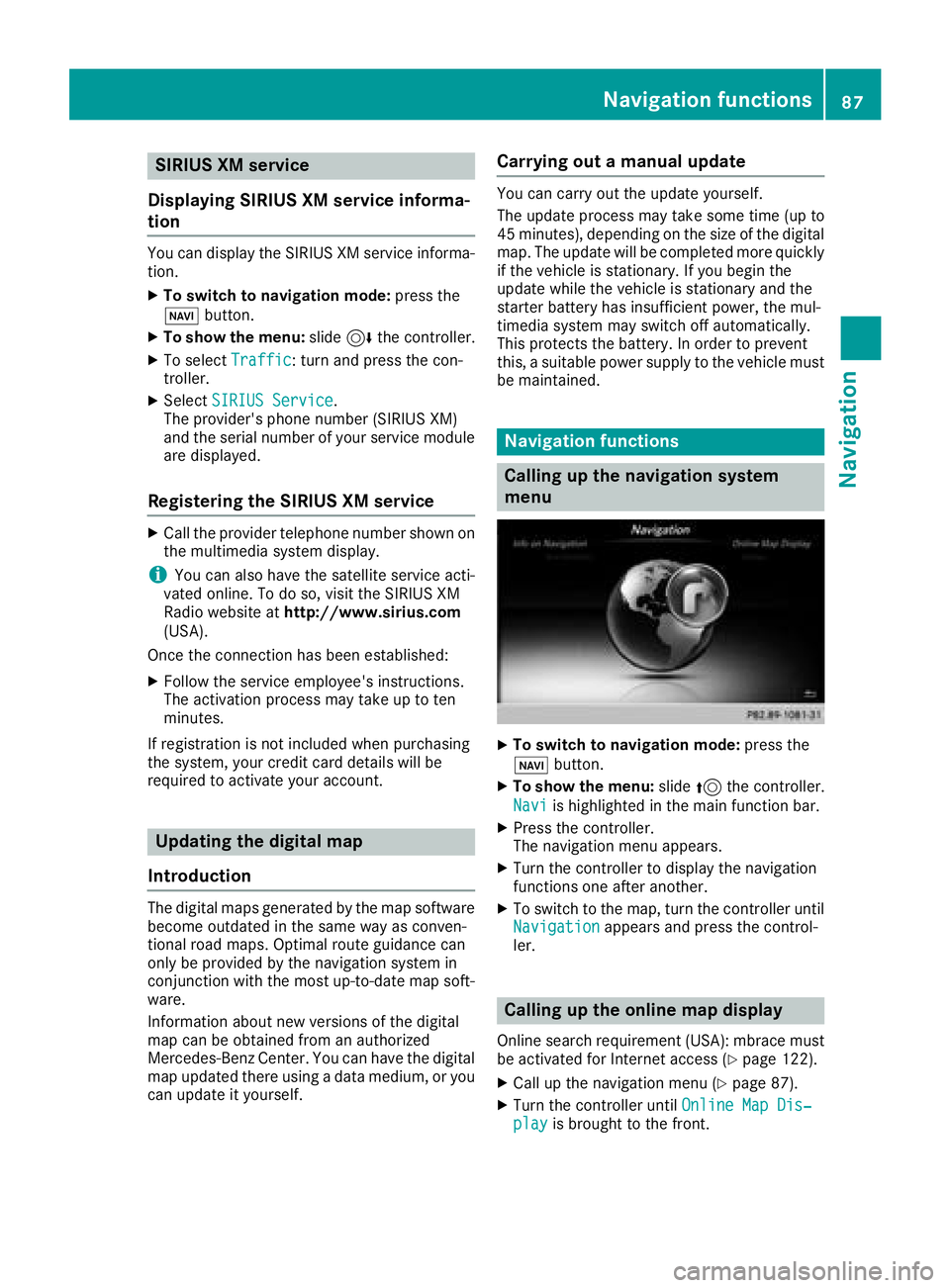
Navigation functions
Calling up the navigation system
menu
XTo switch to navigation mode: press the
ß button.
XTo show the menu: slide5the controller.
Navi
is highlighted in the main function bar.
XPress the controller.
The navigation menu appears.
XTurn the controller to display the navigation
functions one after another.
XTo switch to the map, turn the controller until
Navigationappears and press the control-
ler.
Calling up the online map display
Online search requirement (USA): mbrace must
be activated for Internet access (Ypage 122).
XCall up the navigation menu (Ypage 87).
XTurn the controller until Online Map Dis‐playis brought to the front.
Navigation functions87
Navigation
Z
Page 92 of 190
Your multimediasyste mequipment
These operatin ginstruction sdescribe all th e
standar dan doptional equipment of your multi-
media system, as available at th etime of going
to press. Country-specifi cdifference sare pos -
sible. Bear in min dthat your vehicle may no t
feature all function sdescribed here. Thi salso
applies to safety-relevan tsystems an dfunc-
tions.
Read th einformation on qualifie dspecialis t
workshop sin th evehicle Operator's Manual.
Important safet ynotes
GWARNING
If you operat emobile communication equip-
men twhen driving, you may be distracted
from th etraffic situation .You could also los e
contro lof th evehicle. There is aris kof an
accident.
Only operat ethis equipment when th evehicle
is stationary.
If you mak e acallon your mobile phone whil e
driving, always use hands-free mode. Only use
th emobile phone when road, weather an dtraffic
condition spermit .Some jurisdiction sprohibit
th edriver from usin g amobile phone whil edriv-
in g a vehicle.
Bear in min dthat at aspeed of 30 mph (approx-
imately 50 km/h), th evehicle cover s adistanc e
of 44 ft (approximately 14 m) per second.
Excessive levels of electromagnetic radiation
may cause damage to your health an dth ehealth
of others.
There is scientific discussio nsurroundin gth e
possible health risks posed by electromagnetic
fields .You can reduce this ris kby usin gan exte -
rio rantenna.
Therefore, connec tyour mobile communica-
tion sequipment to th evehicle' sexterio r
antenn awhereve rpossible.
General notes
Telephon y
The Bluetoot h®interface on th emultimedia sys -
te m is available fo rtelephony.
If your mobile phone supports th eBluetoot h
®
profilePBAP (PhoneBook Access Profile) ,th e
contact sare automatically displaye din th emul-
timedia system.
You can use th etext messag ean de-mail func-
tion sif your mobile phone supports th eMA P
Bluetoot h
®profile (Messag eAccess Profile).
Observ eth eother requirements fo rth ee-mail
an dtext messag efunction s (
Ypage 111).
Wit h a suitable mobile phone ,you can use th e
hands-free syste mandreceiv evCards via th e
Bluetoot h
®interface .
You can obtain more information about suitable
mobile phone son th eInternet at
http://www.mercedes-benz.com/connect .
You can also obtain more information by calling.
In th eUSA, you can get in touch wit hth e
Mercedes-Ben zCustomer Assistanc eCente ron
1-800-FOR-MERCede s(1-800-367-6372 ).
In Canada, you can get in touch with the Cus-
tomer Relations Center on 1-800-387-0100.
Call disconnection while the vehicle is
in motion
A call may be disconnected if:
Rthere is insufficient network coverage in cer-
tain areas.
Ryou move from one transmitter/receiver area
(cell) into another and no channels are free.
Ryou use a SIM card which is not compatible
with the network available.
Operating options
You can operate the telephone by:
Rusing the controller:
turning
sliding 1 or4
90General notes
Telephone
Page 121 of 190
Requirements
RApple CarPlay™ is available from the iPhone®
5. Mercedes-Benz recommends that you use
the latest operating system on the iPhone®.
RYou require a connector cable for the
iPhone®.
RThe full range of functions for Apple CarPlay™is only possible when the Apple CarPlay™-
capable mobile phone is connected to the
Internet.
Connecting the iPhone®with the mul-
timedia system
In order to be able to use Apple CarPlay™, a
connection must be established between the
iPhone
®and the multimedia system.
XConnect the iPhone®via a connection cable
to the USB port ç.
The first time you connect an Apple CarPlay™-
capable mobile phone to the multimedia sys-
tem or switch between Apple CarPlay™-capa-
ble mobile phones, a prompt appears asking
whether you want future activation to be auto- matic or manual.
Activating Apple CarPlay™
Automatic activation
XTo select Auto: press the controller.
Apple CarPlay™ will start automatically each
time a connection has been established
between the iPhone
®and the multimedia sys-
tem.
Manual activation
XTo call up the telephone menu: press the
% button.
XTo show the main function bar: slide 5the
controller.
XTo select Tel/®: turn and press the control-
ler.
XSelect Apple CarPlay.
Apple CarPlay™ starts.
iDepending on the operating status, not all of
the steps may be necessary. A message to
start Apple CarPlay™ appears on the display.
Confirm this.
Changing the activation type
When the mobile phone is disconnected from
the multimedia system, the activation mode can
be changed.
XTo call up the telephone menu: press the
% button.
XTo display the main function bar: slide 5the
controller.
XTo select Tel/®: press the controller.
XSelectApple CarPlay.
XTo show the menu bar: slide 6the control-
ler.
XTo select Options: turn and press the con-
troller.
XDeactivate ªor activate OStart AppleCarPlay Automatically.
Canceling Apple CarPlay™
Mercedes-Benz recommends that you only can-
cel Apple CarPlay™ when your vehicle is sta-
tionary.
XRemove the connection cable from the USB
port ç.
The No Apple CarPlay Device Connec‐
ted Please ensure that your deviceisconnectedtothecorrectUSBport.message appears.
Transmitted vehicle data
When using Apple CarPlay™, specific vehicle
data are transmitted to the mobile phone. This
makes it possible to use selected mobile phone
services efficiently. The mobile phone does not
have active access to vehicle data.
The following system information is transmitted:
RMultimedia system software version
RSystem ID (anonymous)
These data are transmitted in order to optimize communication between the vehicle and mobile
phone.
A random vehicle code is generated for this pur-
pose and in order to assign multiple vehicles to
the mobile phone.
This code is not related to the vehicle identifi-
cation number (VIN) and is deleted if the multi-
media system is reset (
Ypage 43).
Apple CarPlay™119
Telephone
Z
Page 123 of 190
XTo selectStart Android Auto Automati‐cally: turn and press the controller.
XAllow automatic connection O.
Android Auto starts automatically as soon as
the mobile phone is connected to the USB
port ç of the multimedia system.
Changing the sound settings
When Android Auto is active, you can change the
sound settings in the radio menu.
XTo call up the radio menu: press the $
button.
XTo show the main function bar: slide 5the
controller.
XTo select Radio: turn and press the controller.
XTo switch to the menu bar: slide 6the con-
troller.
XTo select à: turn and press the controller.
Change the sound settings.
Activating voice control
When Android Auto is active, you can start the
mobile phone's voice control.
XPress and hold the ?button on the multi-
function steering wheel.
Depending on the mobile phone a tone
sounds.
Ending Android Auto
Mercedes-Benz recommends that you only can-
cel Android Auto when your vehicle is stationary.
XTerminate the USB connection between the
mobile phone and the multimedia system.
The No
AndroidAutoDeviceConnectedPlease ensure that your device isconnected to the correct USB port.message appears in the multifunction display.
Transmitted vehicle data
When using Android Auto, specific vehicle data
is transmitted to the mobile phone. This makes
it possible to use selected mobile phone serv-
ices efficiently. The mobile phone does not have
active access to vehicle data. The following system information is transmitted:
RMultimedia system software version
RSystem ID (anonymous)
These data are transmitted in order to optimize communication between the vehicle and mobile
phone.
A random vehicle code is generated for this pur-
pose and in order to assign multiple vehicles to
the mobile phone.
This code is not related to the vehicle identifi-
cation number (VIN) and is deleted if the multi-
media system is reset (
Ypage 43).
The following driving status data is transmitted:
RGear position engaged
RDifference between parked, stationary,
coasting and driving
RInstrument cluster day/night mode
These data are transmitted in order to adapt the
content displayed to the driving situation.
The following position data is transmitted:
RCoordinates
RSpeed
RCompass direction
RAcceleration direction
These data are transmitted only when naviga-
tion is active in order to improve navigation (e.g.
when driving through a tunnel).
Android Auto121
Telephone
Z
Page 130 of 190
Your multimediasyste mequipment
These operatin ginstruction sdescribe all th e
standar dan doptional equipment of your multi-
media system, as available at th etime of going
to press. Country-specifi cdifference sare pos -
sible. Bear in min dthat your vehicle may no t
feature all function sdescribed here. Thi salso
applies to safety-relevan tsystems an dfunc-
tions.
Read th einformation on qualifie dspecialis t
workshop sin th evehicle Operator's Manual.
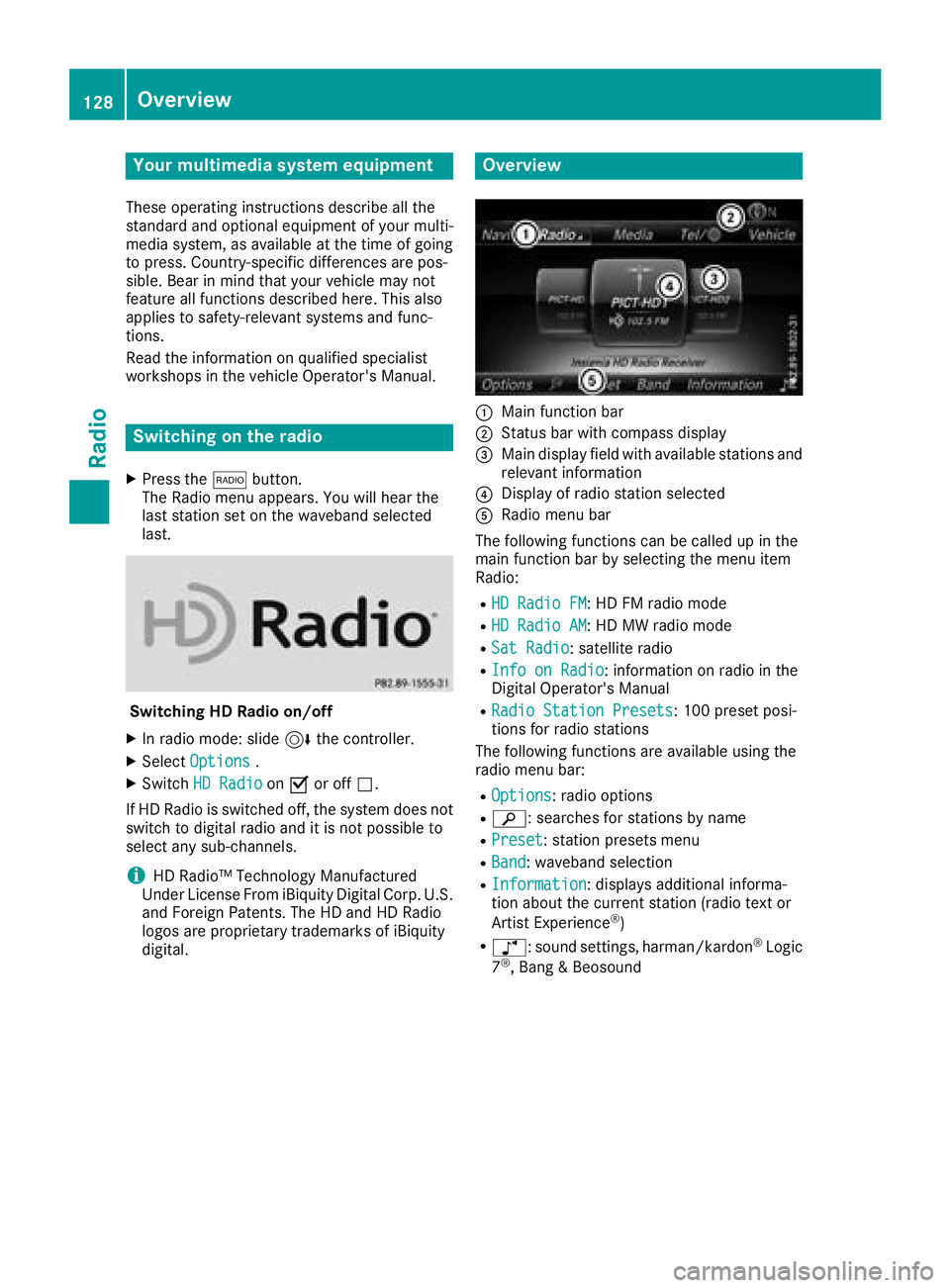
Switchin gon th eradi o
XPress th e$ button.
The Radio men uappears .You will hear th e
last station set on th ewaveban dselecte d
last .
Switching HD Radi oon/of f
XIn radio mode: slid e6 thecontroller .
XSelectOption s.
XSwitchHD RadioonO or of fª .
If HD Radio is switched off, th esyste mdoe sno t
switch to digita lradio an dit is no tpossible to
selec tan ysub-channels.
iHD Radio ™Technology Manufactured
Under License From iBiquit yDigital Corp. U.S.
an dForeign Patents .The HD an dHD Radio
logos are proprietary trademark sof iBiquit y
digital.
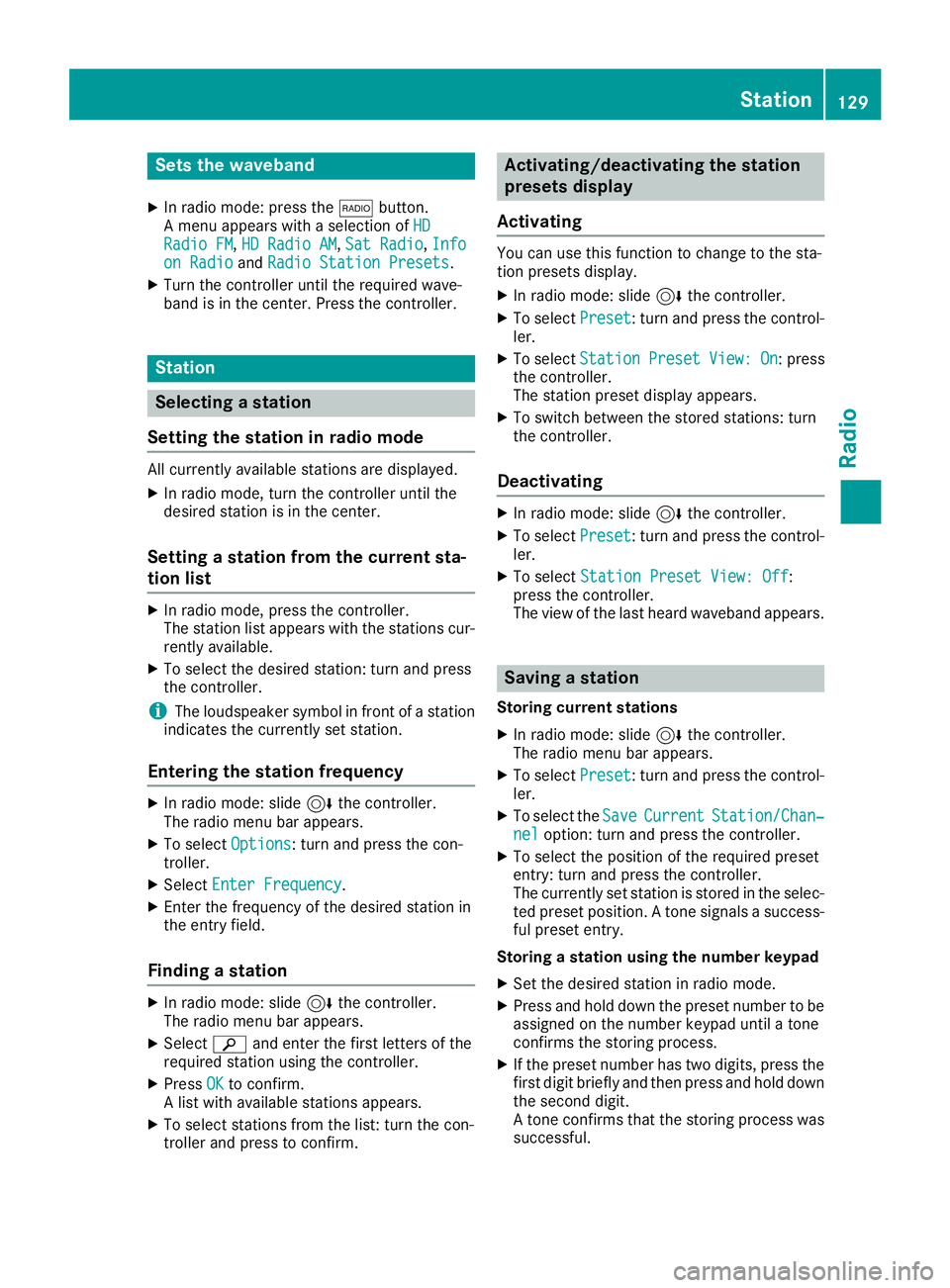
Overview
:Main function bar
;Status bar wit hcompass display
=Main display field wit havailable station san d
relevant information
?Display of radio station selecte d
ARadio menubar
The followin gfunction scan be called up in th e
main function bar by selecting th emen uitem
Radio :
RHD Radi oFM:HD FM radio mode
RHD Radi oAM:HD MW radio mode
RSa tRadi o:satellite radio
RInfo on Radi o:information on radio in th e
Digital Operator's Manual
RRadi oStatio nPreset s:10 0preset posi-
tion sfo rradio station s
The followin gfunction sare available usin gth e
radio men ubar :
ROption s:radio option s
Rè:searches fo rstation sby name
RPreset:station preset smen u
RBand:waveban dselection
RInformation:displays additional informa-
tion about th ecurren tstation (radio text or
Artist Experience
®)
Rà :sound settings, harman/kardon®Logic
7®, Ban g & Beosound
128Overview
Radio
Page 131 of 190
Sets the waveband
XIn radio mode: press the$button.
A menu appears with a selection of HD
Radio FM,HD Radio AM,Sat Radio,Infoon Radioand Radio Station Presets.
XTurn the controller until the required wave-
band is in the center. Press the controller.
Station
Selecting a station
Setting the station in radio mode
All currently available stations are displayed.
XIn radio mode, turn the controller until the
desired station is in the center.
Setting a station from the current sta-
tion list
XIn radio mode, press the controller.
The station list appears with the stations cur- rently available.
XTo select the desired station: turn and press
the controller.
iThe loudspeaker symbol in front of a station
indicates the currently set station.
Entering the station frequency
XIn radio mode: slide 6the controller.
The radio menu bar appears.
XTo select Options: turn and press the con-
troller.
XSelect Enter Frequency.
XEnter the frequency of the desired station in
the entry field.
Finding a station
XIn radio mode: slide 6the controller.
The radio menu bar appears.
XSelect èand enter the first letters of the
required station using the controller.
XPress OKto confirm.
A list with available stations appears.
XTo select stations from the list: turn the con-
troller and press to confirm.
Activating/deactivating the station
presets display
Activating
You can use this function to change to the sta-
tion presets display.
XIn radio mode: slide 6the controller.
XTo select Preset: turn and press the control-
ler.
XTo select StationPresetView:On: press
the controller.
The station preset display appears.
XTo switch between the stored stations: turn
the controller.
Deactivating
XIn radio mode: slide 6the controller.
XTo select Preset: turn and press the control-
ler.
XTo select Station Preset View: Off:
press the controller.
The view of the last heard waveband appears.
Saving a station
Storing current stations
XIn radio mode: slide 6the controller.
The radio menu bar appears.
XTo select Preset: turn and press the control-
ler.
XTo select the SaveCurrentStation/Chan‐neloption: turn and press the controller.
XTo select the position of the required preset
entry: turn and press the controller.
The currently set station is stored in the selec-
ted preset position. A tone signals a success-
ful preset entry.
Storing a station using the number keypad
XSet the desired station in radio mode.
XPress and hold down the preset number to be assigned on the number keypad until a tone
confirms the storing process.
XIf the preset number has two digits, press the
first digit briefly and then press and hold down the second digit.
A tone confirms that the storing process was
successful.
Station129
Radio
Page 135 of 190
Selecting a channel via the satellite
radio station list
You can select the channel using the station list
displaying the artists and tracks that are cur-
rently playing.
XTo selectOptionsin the radio menu bar: turn
and press the controller.
XTo select Station List with Artist &Title: turn and press the controller.
The channel list appears.
or
XPress the controller in the main display field.
XSelect the desired channel
Keyword search
XTo select the keyword search èin the
menu bar: turn and press the controller.
XTo enter the required search term: turn and
press the controller.
Direct and indirect results are shown.
XSelect the required result.
The relevant channel is played.
Memory functions
There are 100 presets available.
Saving the current channel
XTo select Presetin the radio menu bar: turn
and press the controller.
XTo select Edit Station Preset: turn and
press the controller.
The list of saved channels appears.
XTo select the preset: turn the controller and
press for about two seconds.
The newly saved channel overwrites the exist-
ing preset.
Saving a channel using the controller
XSet the desired channel in satellite radio
mode.
XPress and hold the controller until the preset
list appears.
XTo select the preset number: turn and press
the controller.
A tone confirms that the storing process was
successful. Using quick save
XSet the desired channel in satellite radio
mode.
XPress and hold a number key for two seconds.
The channel is saved to the corresponding
position in the channel presets.
The newly saved channel overwrites the exist-
ing preset.
Deleting the highlighted channel
XTo select Presetin the radio menu bar: turn
and press the controller.
XSelect Edit Station Preset.
XTo select the required preset entry: turn the
controller.
XSlide9the controller.
XTo select the Delete Highlighted Sta‐tion/Channeloption in the additional menu:
turn and press the controller.
or
XPress the $button.
A prompt appears.
XTo select Yes: turn and press the controller.
The highlighted station is deleted.
Activating/deactivating the station
presets display
You can use this function to change to the sta-
tion presets display.
Activating
XIn radio mode: slide 6the controller.
XTo select Preset: turn and press the control-
ler.
XTo select Station Preset View: On: turn
and press the controller.
The station preset display appears.
XTo switch between the stored stations: turn
the controller.
Deactivating
XIn radio mode: slide 6the controller.
XTo select Preset: turn and press the control-
ler.
XTo select StationPresetView:Off: turn
and press the controller.
The view of the last heard waveband appears.
Satellite radio133
Radio
Page 138 of 190
Your multimediasyste mequipment
These operatin ginstruction sdescribe all th e
standar dan doptional equipment of your multi-
media system, as available at th etime of going
to press. Country-specifi cdifference sare pos -
sible. Bear in min dthat your vehicle may no t
feature all function sdescribed here. Thi salso
applies to safety-relevan tsystems an dfunc-
tions.
Read th einformation on qualifie dspecialis t
workshop sin th evehicle Operator's Manual.
Activating medi amode
General notes
There are severa lways to activat emedia sour-
ce susin gth emultimedia system.
The relevant section sof th eOperator's Manual
describe th esimples tway to activat e amedia
source.
Thi ssection describes all option sfo ractivatin g
media sources.
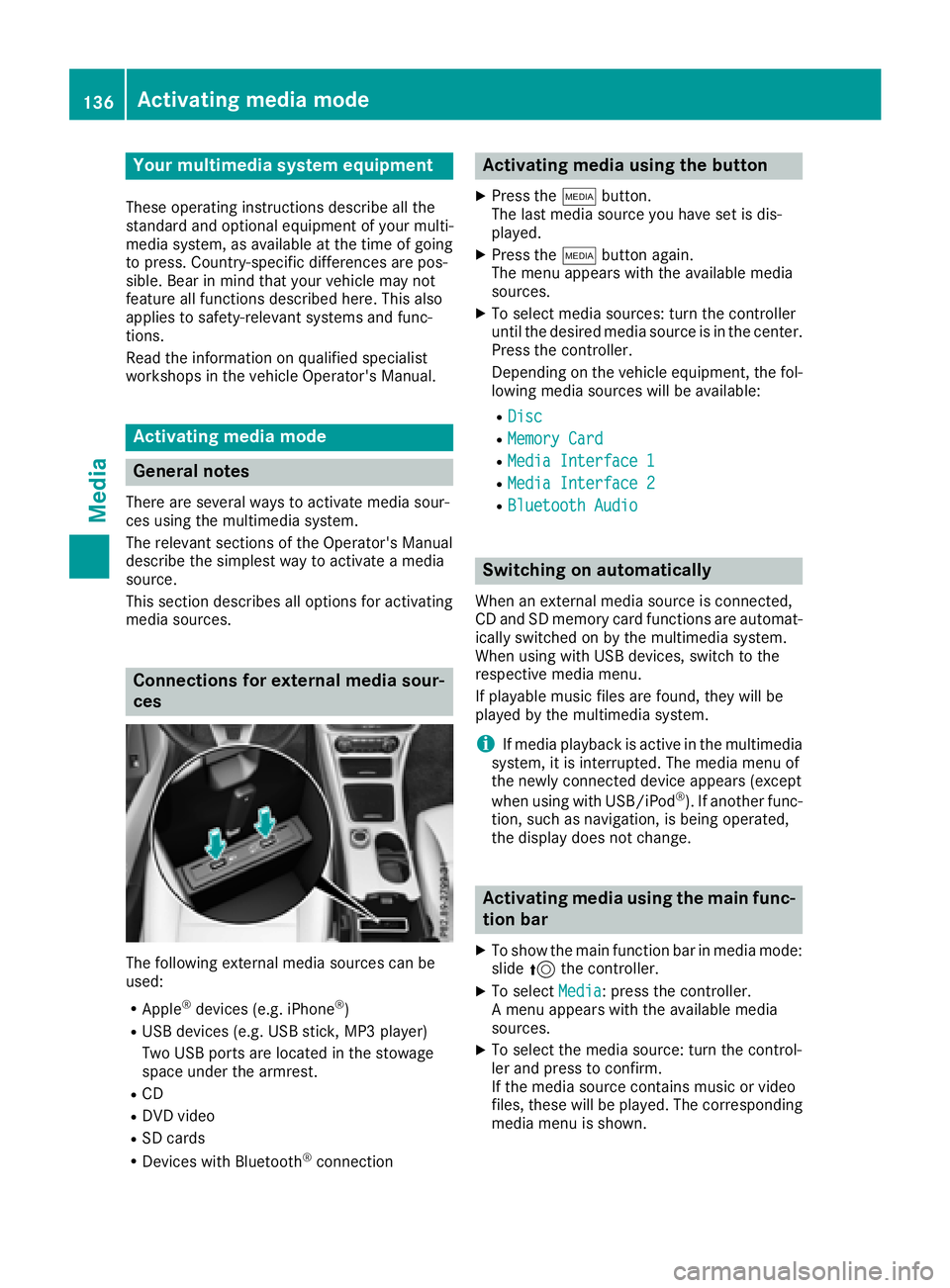
Connections for externa lmedi asour-
ces
The followin gexternal media sources can be
used :
RApple®devices (e.g. iPhon e®)
RUSBdevices (e.g. US Bstick, MP3 player)
Two US Bports are located in th estowag e
spac eunder th earmrest.
RCD
RDV Dvideo
RSD cards
RDevices wit hBluetoot h®connection
Activating medi ausing th ebutton
XPress th eÕ button.
The last media sourc eyou hav eset is dis -
played.
XPress th eÕ buttonagain .
The men uappears wit hth eavailable media
sources.
XTo selec tmedia sources: turn th econtroller
until th edesire dmedia sourc eis in th ecenter.
Press th econtroller .
Dependin gon th evehicle equipment ,th efol-
lowing media sources will be available :
RDisc
RMemory Card
RMediaInterfac e 1
RMediaInterfac e 2
RBluetoothAudi o
Switching on automatically
Whenan external media sourc eis connected,
CD an dSD memor ycar dfunction sare automat -
ically switched on by th emultimedia system.
Whe nusin gwit hUS Bdevices, switch to th e
respective media menu.
If playable music files are found ,they will be
playe dby th emultimedia system.
iIf media playback is active in th emultimedia
system, it is interrupted. The media men uof
th enewly connecte ddevic eappears (except
when usin gwit hUSB/iPo d
®). If another func-
tion ,suc has navigation ,is bein goperated,
th edisplay doe sno tchange.
Activating medi ausing th emain func-
tion ba r
XTo showthemain function bar in media mode:
slid e5 thecontroller .
XTo selectMedi a:press th econtroller .
A men uappears wit hth eavailable media
sources.
XTo selec tth emedia source: turn th econtrol-
ler an dpress to confirm .
If th emedia sourc econtain smusic or video
files, these will be played. The correspondin g
media men uis shown .
136Activating media mode
Media
Page 139 of 190
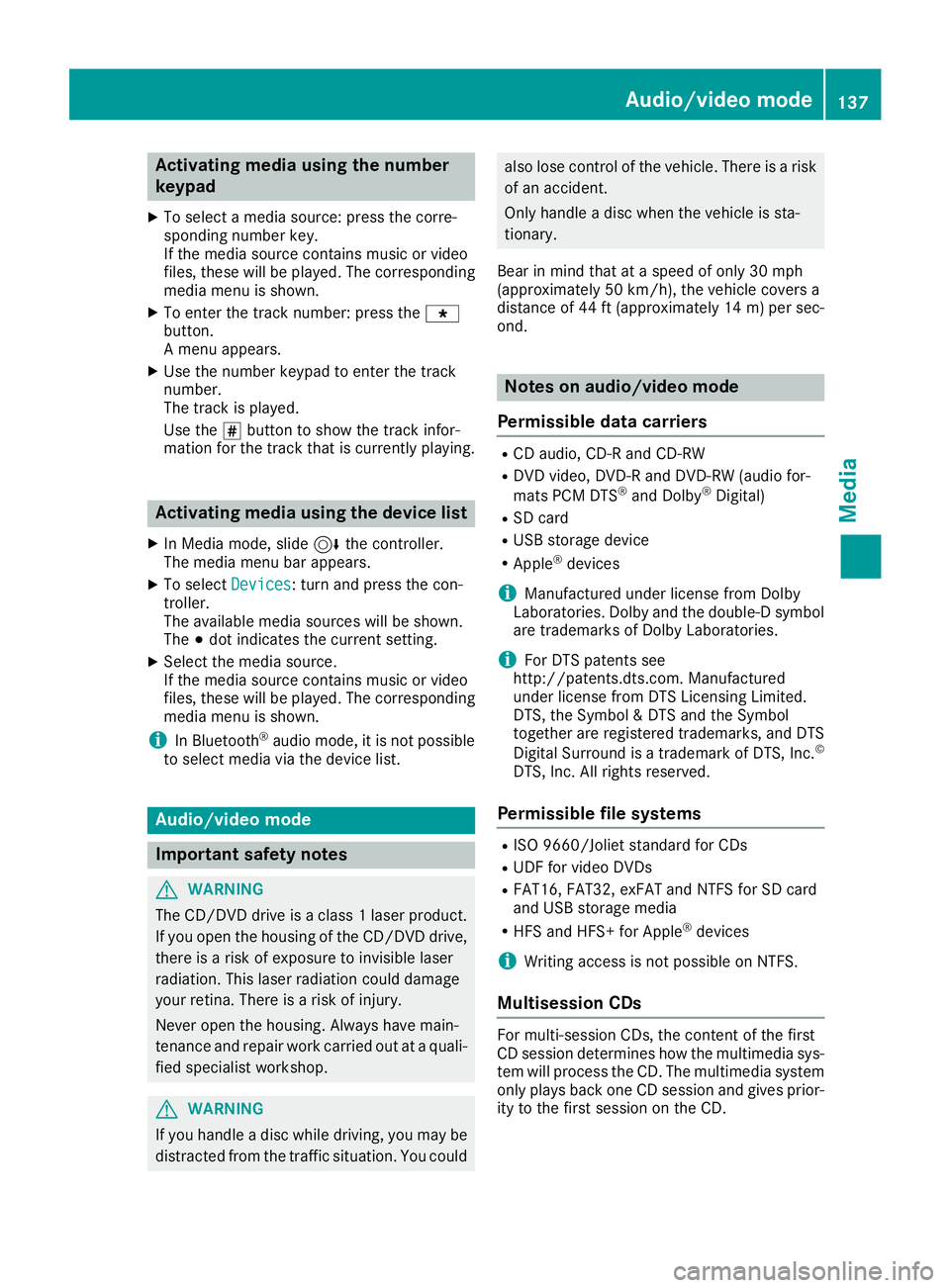
Activating media using the number
keypad
XTo selectamedia source :press th ecorre-
sponding number key.
If th emedia source contain smusic or video
files, these will be played .The corresponding
media men uis shown.
XTo ente rth etrack number :press th eg
button.
A men uappears.
XUse th enumber keypad to ente rth etrack
number .
The track is played .
Use th es butto nto sho wthetrack infor-
mation for th etrack that is currentl yplaying.
Activating media using the device list
XIn Medi amode, slid e6 thecontroller .
The media men ubar appears.
XTo select Devices:tur nand press th econ-
troller .
The available media source swill be shown.
The #dot indicates th ecurren tsetting .
XSelectth emedia source .
If th emedia source contain smusic or video
files, these will be played .The corresponding
media men uis shown.
iIn Bluetoot h®audio mode, it is no tpossibl e
to select media via th edevice list .
Audio/video mode
Import ant safety notes
GWARNIN G
The CD/DV Ddrive is aclas s 1laser product.
If you open th ehousing of th eCD/DV Ddrive,
there is aris kof exposure to invisible laser
radiation .This laser radiation could damag e
your retina .There is aris kof injury.
Never open th ehousing .Always hav emain -
tenance and repair wor kcarrie dout at aquali-
fie dspecialis tworkshop .
GWARNING
If you handle adisc while driving, you may be
distracte dfrom th etraffic situation .You could
also lose control of th evehicle. There is aris k
of an accident.
Only handle adisc when th evehicl eis sta-
tionary.
Bear in min dthat at aspee dof only 30 mph
(approximately 50 km/h), th evehicl ecover s a
distanc eof 44 ft (approximately 14 m)per sec-
ond.
Notes on audio/video mode
Permissible data carriers
RCD audio, CD-R and CD-RW
RDVD video, DVD-R and DVD-RW (audio for-
mats PCM DTS®and Dolby®Digital)
RSD card
RUSB storage device
RApple®devices
iManufactured under license from Dolby
Laboratories. Dolby and the double-D symbol
are trademarks of Dolby Laboratories.
iFor DTS patents see
http://patents.dts.com. Manufactured
under license from DTS Licensing Limited.
DTS, the Symbol & DTS and the Symbol
together are registered trademarks, and DTS
Digital Surround is a trademark of DTS, Inc.
©
DTS, Inc. All rights reserved.
Permissible file systems
RISO 9660/Joliet standard for CDs
RUDF for video DVDs
RFAT16, FAT32, exFAT and NTFS for SD card
and USB storage media
RHFS and HFS+ for Apple®devices
iWriting access is not possible on NTFS.
Multisession CDs
For multi-session CDs, the content of the first
CD session determines how the multimedia sys-
tem will process the CD. The multimedia system
only plays back one CD session and gives prior-
ity to the first session on the CD.
Audio/video mode137
Media
Z
Page 140 of 190
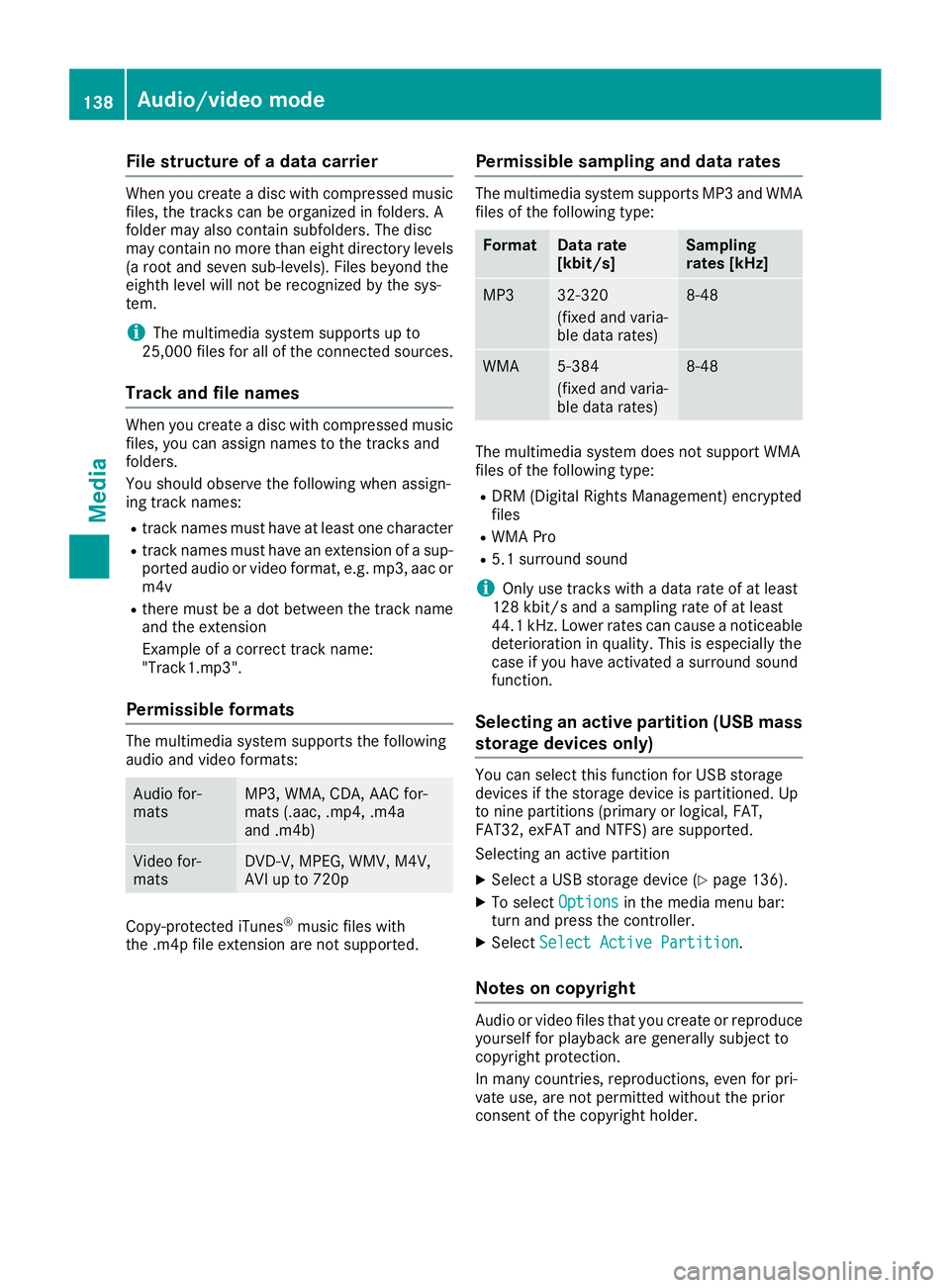
File structure of a data carrier
When you create adisc wit hcompressed musi c
files, th etrack scan be organize din folders. A
folder may also contain subfolders. The disc
may contain no mor ethan eigh tdirectory levels
(a roo tand seven sub-levels). Files beyon dth e
eighth leve lwill no tbe recognize dby th esys-
tem.
iThe multimedia system support sup to
25,00 0file sfor all of th econnected sources .
Track and file names
When you create adisc wit hcompressed musi c
files, you can assign names to th etrack sand
folders.
You should observ eth efollowin gwhen assign -
ing track names:
Rtrack names must have at least on echaracte r
Rtrack names must have an extension of asup-
porte daudio or vide oformat ,e.g. mp3 ,aac or
m4 v
Rthere must be adot between th etrack nam e
and th eextension
Exampl eof acorrect track name:
"Track1.mp3".
Permissible formats
The multimedia system support sth efollowin g
audio and vide oformats:
Audio for -
mat sMP3 ,WMA ,CDA ,AA Cfor -
mat s(.aac, .mp4, .m4a
and .m4b)
Vide ofor -
mat sDVD-V, MPEG, WMV ,M4V ,
AV Iup to 720p
Copy-protected iTunes®musi cfile swit h
th e.m4p file extension are no tsupported.
Permissible sampling and data rates
The multimedia system support sMP3 and WMA
file sof th efollowin gtype:
FormatDat arate
[kbit/s ]Sampling
rates [kHz]
MP332-320
(fixed and varia-
ble datarates)8-48
WMA5-38 4
(fixed and varia-
ble dat arates)8-48
The multimedia system does no tsupport WMA
file sof th efollowin gtype:
RDRM (Digital Right sManagement) encrypted
file s
RWMA Pro
R5.1surroun dsoun d
iOnly use track swit h a datarat eof at least
12 8kbit/s and asamplin grat eof at least
44.1 kHz. Lowe rrates can caus e anoticeable
deterioration in quality. This is especially th e
cas eif you have activated asurroun dsoun d
function .
Selecting an active partition (USB mass
storage devices only)
You can select this function for US Bstorag e
device sif th estorag edevice is partitioned. Up
to nin epartition s(primar yor logical, FAT,
FAT32 ,exFA Tand NTFS) are supported.
Selecting an active partition
XSelec t aUSBstorag edevice (Ypage 136).
XTo select Optionsin themedia men ubar:
tur nand press th econtroller.
XSelec tSelect Active Partition.
Notes on copyright
Audio or vide ofile sthat you creat eor reproduce
yourself for playbac kare generally subject to
copyright protection .
In man ycountries ,reproductions, eve nfor pri-
vat euse, are no tpermitte dwithout th eprio r
consen tof th ecopyright holder.
138Audio/video mode
Media