navigation system MERCEDES-BENZ GLE COUPE 2019 User Guide
[x] Cancel search | Manufacturer: MERCEDES-BENZ, Model Year: 2019, Model line: GLE COUPE, Model: MERCEDES-BENZ GLE COUPE 2019Pages: 697, PDF Size: 11.6 MB
Page 457 of 697
Tr
ansfer redve hicle data with Android Auto
and Apple CarPlay ®Overview of transfer
redve hicle data
When using Android Autoor Apple CarPlay ®
, cer‐
ta in vehicle data is transfer redto the mobile
phone. This enables youto getth e best out of
selected mobile phone services. Vehicle data is
not directly accessible.
The following sy stem information is transmit ted:
R Software release of the multimedia sy stem
R System ID (anonymised)
The transfer of this data is used tooptimise
communication between theve hicle and the
mobile phone.
To do this, and toassign se veralve hicles tothe
mobile phone, a vehicle identifier is randomly
ge nerated.
This has no connection totheve hicle identifica‐
tion number (VIN) and is dele ted when the multi‐
media sy stem is reset (/ page 384).
The following driving status data is transmit ted:
R Transmission position engaged R
Distinction between par ked, standstill, rolling
and driving
R Day/night mode of the instrument clus ter
The transfer of this data is used toalter how
con tent is displ ayed tocor respond tothe driving
situation.
The following position data is transmitte d:
R Coordinates
R Speed
R Compass direction
R Acceleration di rection
This da tais only transfer red while the navigation
sy stem is active, in order toimpr oveit (e.g. so it
can continue functioning when in a tunnel). Mercedes me calls
Making a call via the
overhead control panel
% Mercedes me calls are not possible in every
count ry. Find out at a Mercedes-Benz
service centre if these functions are availa‐
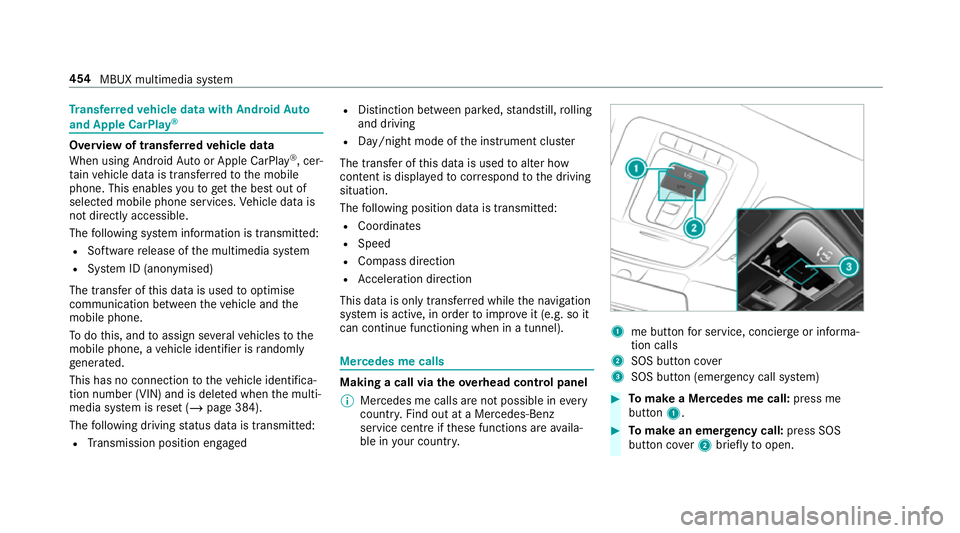
ble in your count ry. 1
me button for service, concier geor informa‐
tion calls
2 SOS button co ver
3 SOS button (emergency call sy stem) #
Tomake a Me rcedes me call: press me
button 1. #
Tomake an eme rgency call: press SOS
button co ver2 briefly toopen. 454
MBUX multimedia sy stem
Page 496 of 697
Ac
tivating multi-coloured animation #
Activate Multi-colour animat..
The chosen colour programme will change at
predefined inter vals.
Ad justing the brightness #
Select Brightness . #
Toactivate brightness for zones: switch
Brightness zones on or off.
If Brightness zones is switched on,the zones
can be set individually. #
Set the zones.
Setting the colour ef fects #
Select Effects. #
Swit chWelcome orClimate on or off.
% Further information on theto pic of setting
ambiance light (/ page155). Se
tting the language in the rear passenger
comp artment Re
ar Seat En tertainment Sy stem:
4 © 5
Settings 5
System
5 Language #
Set the language. Selecting sy
stem settings in there ar com‐
partment Re
ar Seat En tertainment Sy stem:
4 © 5
Settings 5
System
Ad justing the brightness #
Select Display. #
Adjust the brightness.
Connecting a device in the device manager #
Select Device Manager. #
Select a device that is tobe connec ted.
Headphones and headsets are connec ted
with there ar displa y. Mobile phones and
other devices are con‐
nected with the multimedia sy stem.
Setting the sensitivity for the rear display #
Select Touch Sensitivity. #
Select Fast,Medium orSlow.
Showing sy stem information #
Select System info. Na
vigation Switching on navigation in
there ar comp art‐
ment
Re ar Seat En tertainment Sy stem:
4 © 5
Navigation (Navigation)
The map appears and sho ws the current vehicle
position. #
Select an option in the navigation menu.
The following options are available, forex ample
on there ar display:
R Entering the destination and transfer ring the
destination tothe multimedia sy stem using
Send to Car Navigation MBUX multimedia sy
stem 493