stop start MERCEDES-BENZ GLE COUPE 2019 Owner's Manual
[x] Cancel search | Manufacturer: MERCEDES-BENZ, Model Year: 2019, Model line: GLE COUPE, Model: MERCEDES-BENZ GLE COUPE 2019Pages: 697, PDF Size: 11.6 MB
Page 318 of 697
Changing a media source
#
Press the left-hand Touch Control. #
Toselect a media source: swipe upwards
or down wards on the left-hand Touch Con‐
trol. #
Press the left-hand Touch Control. Dialling
telephone numbers using the on-
board compu ter &
WARNING Risk of di stra ction from infor‐
mation sy stems and communications
equipment
If yo u operate information and communica‐
tion equipment integ rated in theve hicle
when driving, you will be distracted from the
traf fic situation. This could also cause youto
lose control of theve hicle. #
Only operate this equipment when the
traf fic situation permits. #
Ifyo u cannot be sure of this, stop the
ve hicle whilst paying attention toroad and traf
fic conditions and ope rate the
equipment with theve hicle stationar y. When using
the phone, obser vethe legal
re qu irements forth e count ryin which you are
cur rently driving.
Re quirements:
R The mobile phone is connec tedto the multi‐
media sy stem.
On-board computer: 4 Telephone
The most recent telephone calls (dialled,
re cei ved and missed calls) are displa yed on the
Telephone menu. #
Toselect an entr y:swipe upwards or down‐
wa rds on the left-hand Touch Control. #
Press the left-hand Touch Control.
If th ere is only one telephone number
sa ve dto an entr y:thete lephone number
will be selec ted. #
Ifth ere are multiple telephone numbers
sa ve dto an entr y:swipe upwards or down‐ wa
rds on the left-hand Touch Control to
select the desired telephone number. #
Press the left-hand Touch Control.
The telephone number will be dialled.
The following displa ysmay appear ins tead of the
te lephone numbers dialled:
R Please wait :th e application is starting. If a
Blue tooth ®
connection tothe mobile phone
is not es tablished, the menu for auth orising
and connecting a mobile phone will be dis‐
pla yed on the multimedia sy stem
(/ page 429).
R Updating data: the call list is being updated.
R Importing contacts : contacts are being
impor ted from the mobile phone or a storage
medium.
Ac cepting/rejecting an incoming call
Ve hicles with head-up displa y:when you
re cei vea call, theIncoming call message will
appear on the head-up displa y. #
Swipe up wards or down wards on the left-
hand Touch Control and select 6(Accept)
or ~ (Reject). In
stru ment Display and on-board computer 315
Page 322 of 697
Note
s on operating saf ety &
WARNING Risk of di stra ction from infor‐
mation sy stems and communications
equipment
If yo u operate information and communica‐
tion equipment integ rated in theve hicle
when driving, you will be distracted from the
traf fic situation. This could also cause youto
lose control of theve hicle. #
Only operate this equipment when the
traf fic situation permits. #
Ifyo u cannot be sure of this, stop the
ve hicle whilst paying attention toroad
and traf fic conditions and ope rate the
equipment with theve hicle stationar y. &
WARNING Risk of an accident from
ope rating mobile communication equip‐
ment while theve hicle is in motion
Mobile communications devices distract the
driver from the traf fic situation. This could also cause
the driver tolose control of the
ve hicle. #
Asthe driver, only operate mobile com‐
munications devices when theve hicle is
st ationar y. #
As a vehicle occupant, only use mobile
communications devices in the areas
intended forth is purpose, e.g. in the
re ar passenger compartment. &
WARNING Risk of inju rydue toobjects
being stowed incor rectly
If objects in theve hicle interior are stowed
incor rectly, they can slide or be thrown
around and hit vehicle occupants. In addi‐
tion, cup holders, open stowage spaces and
mobile phone recep tacles cannot al ways
re tain all objects they contain.
The reis a risk of injur y,particularly in the
ev ent of sudden braking or a sudden change
in direction. #
Alw aysstow objects so that they can‐
not be throw n around in su chsitua‐
tions. #
Alw ays make sure that objects do not
pr otru de from stowage spaces, luggage
nets or stowage nets. #
Close the loc kable stow age spaces
before starting a journe y. #
Alw aysstow and secure heavy, hard,
poin ted, sharp-edged, fragile or bulky
objects in the boot/load compartment. Fo
ryo ur ow n sa fety, al ways obser vethefo llow‐
ing points when operating mobile communica‐
tions equipment and especially your voice con‐
trol sy stem:
R Obser vethe legal requ irements forth e coun‐
try in which you are driving.
R While driving, on ly operate mobile communi‐
cations equipment and your voice control
sy stem when the tra ffic conditions permit it.
Yo u may otherwise be distracted from the
traf fic conditions and cause an accident,
inju ring yourself and others. LINGU
ATRO NIC 319
Page 360 of 697
R
Favoured drive program
These settings are sa ved under the name you
wish when setting up a theme (/ page 357). On
th e next mo torw ay jou rney you can select this
th eme and thereby restore your settings.
Content of a theme
Depending on vehicle equipment thefo llowing
settings can be sa ved in a theme:
R Setting of the Instrument Display
(/ page 304)
R Setting of the Head-up Display (/ page316)
R Setting of the ambient lighting (/ page155)
R Active audio sou rce, e.g. radio or USB
R Starting sc reen forth e media display
R Visual style (/ page374)
R DYNA MIC SELECT drive program
(/ page 195)
R Eco start/ stop setting (/ page191)
R Navigation sy stem settings
% Atheme conta insthe cur rently acti veset‐
tings in theve hicle. Calling up
themes
Multimedia sy stem:
4 © #
When the home screen is shown, swipe up
until THEMES appears. #
Select a theme.
Creating new themes
Re quirements:
R The settings which are tobe sa ved in the
th eme are active.
The overview sho wsthe settings which can
be sa ved in a theme (/ page 356).
Multimedia sy stem:
4 © 5
THEMES #
Select WSet theme.
The settings which are sa ved in theth eme
are shown. #
Select Continue r. #
Select additional settings which are tobe
sa ve d in theth eme.
R Select Audio, tosave the active audio set‐
tings in theth eme. R
Select Navigation (Navigation), tosave
th e active navigation settings in the
th eme. #
Select Continue r. #
Select an entry screen. #
Select Continue r. #
Select an image. #
Enter the names into the entry field and con‐
fi rm with a. #
Tosave ath eme: select Save.
When the maximum number that can be
sa ve d is reached: #
Select afromthe prom pt. #
Select a theme that should be overwritten.
The settings which are sa ved in theth eme
are shown. #
Select Continue r. #
Select additional settings which are tobe
sa ve d in theth eme.
R Select Audio, tosave the active audio set‐
tings in theth eme. MBUX multimedia sy
stem 357
Page 405 of 697
Multimedia sy
stem:
4 © 5
Navigation 5
ª Where to?
5 STORED ROUTES #
Tostart recording: selectStart to record
new route.
A redre cording symbol is shown.
The route is stored on the USB device. #
Tosto pre cording: selectEnd recording.
Saving a recorded route
Re quirements:
R A USB device is connec ted with the multime‐
dia sy stem (/ page479).
Mul timedia sy stem:
4 © 5
Navigation 5
ª Where to?
5 STORED ROUTES #
Select a route. #
Select f. #
Select Save in "Previous destinations" .
The route is stored in the "Pr evious destina‐
tions" memo ryand can be called up from
th ere forro ute guidance. Editing a
storedro ute
Re quirements:
R A USB device with stored routes is connec‐
te d with the multimedia sy stem
(/ page 479).
Mul timedia sy stem:
4 © 5
Navigation 5
ª Where to?
5 STORED ROUTES #
Select a route with V. #
Toenter a name: selectChange name . #
Enterth e name. #
Select OK.
or #
When the name has been changed, press the
G button. #
Select Yes. #
Todel ete a route: select Delete. #
Select Yes. Ro
ute guidance Note
s onroute guidance &
WARNING Risk of di stra ction from oper‐
ating integrated communication equip‐
ment while theve hicle is in motion
If yo u operate communication equipment
integrated in theve hicle when driving, you
will be distracted from the tra ffic situation.
This could also cause youto lose control of
th eve hicle. #
Only operate this equipment when the
traf fic situation permits. #
Ifyo u cannot be sure of this, stop the
ve hicle whilst paying attention toroad
and traf fic conditions and ope rate the
equipment with theve hicle stationar y. Yo
u must obse rveth e legal requirements forthe
country in whi chyou are cur rently driving when
operating the multimedia sy stem.
Ro ute guidance begins once a route has been
calculated. 402
MBUX multimedia sy stem
Page 427 of 697
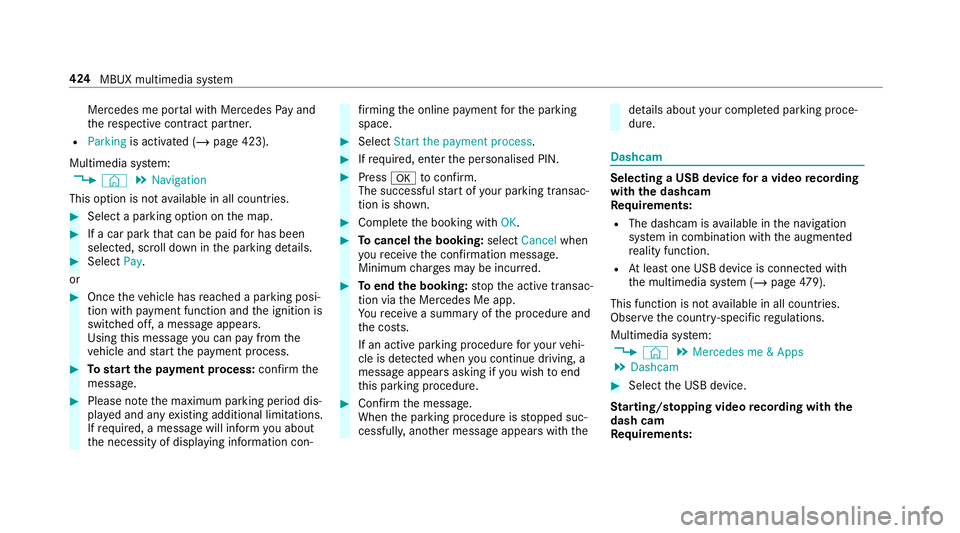
Mercedes me por
tal with Mercedes Pay and
th ere spective contra ct partner.
R Parking is activated (/ page 423).
Multimedia sy stem:
4 © 5
Navigation
This option is not available in all countries. #
Select a parking option on the map. #
If a car park that can be paid for has been
selected, scroll down in the parking de tails. #
Select Pay.
or #
Once theve hicle has reached a parking posi‐
tion with payment function and the ignition is
switched off, a message appears.
Using this message you can pay from the
ve hicle and start the payment process. #
Tostart the payment process: confirm the
messa ge. #
Please no tethe maximum parking period dis‐
pla yed and any existing additional limitations.
If re qu ired, a message will inform you about
th e necessity of displaying information con‐ fi
rm ing the online payment forth e parking
space. #
Select Start the payment process. #
Ifre qu ired, enter the personalised PIN. #
Press atoconfirm.
The successful start of your parking transac‐
tion is shown. #
Comple tethe booking with OK. #
Tocancel the booking: selectCancel when
yo ure cei vethe confi rmation message.
Minimum charge s may be incur red. #
Toend the booking: stop the active transac‐
tion via the Mercedes Me app.
Yo ure cei vea summary of the procedure and
th e costs.
If an active parking procedure foryo ur vehi‐
cle is de tected when you continue driving, a
message appears asking if you wish toend
th is parking procedure. #
Confirm the message.
When the parking procedure is stopped suc‐
cessfull y,ano ther message appears with the de
tails about your co mplete d parking proce‐
dure. Dashcam
Selecting a USB device
for a video recording
with the dashcam
Re quirements:
R The dashcam is available in the navigation
sy stem in combination with the augmented
re ality function.
R Atleast one USB device is connec ted with
th e multimedia sy stem (/ page479).
This function is not available in all countries.
Obse rveth e count ry-specific regulations.
Multimedia sy stem:
4 © 5
Mercedes me & Apps
5 Dashcam #
Select the USB device.
St arting/ stopping video recording with the
da sh cam
Re quirements: 424
MBUX multimedia sy stem
Page 428 of 697
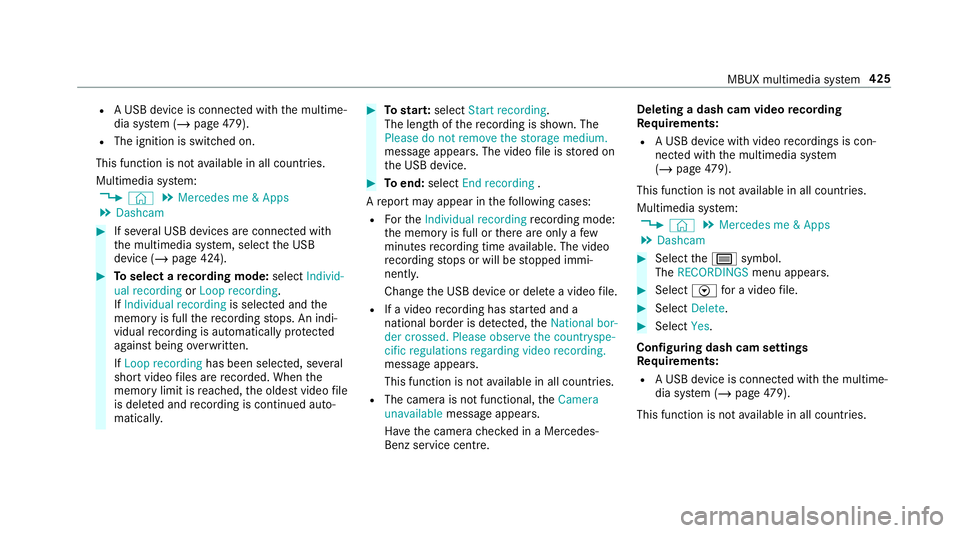
R
A USB device is connected wi th the multime‐
dia sy stem (/ page479).
R The ig nition is switched on.
This function is not available in all countries.
Multimedia sy stem:
4 © 5
Mercedes me & Apps
5 Dashcam #
If se veral USB devices are connec ted with
th e multimedia sy stem, select the USB
device (/ page 424). #
Toselect a recording mode: selectIndivid-
ual recording orLoop recording .
If Individual recording is selected and the
memory is full there cording stops. An indi‐
vidual recording is au tomatical lyprotected
against being overwritten.
If Loop recording has been selected, se veral
short video files are recorded. When the
memory limit is reached, the oldest video file
is dele ted and recording is continued au to‐
matical ly. #
Tostar t:select Start recording.
The length of there cording is shown. The
Please do not remove the storage medium.
message appea rs. The video file is stored on
th e USB device. #
Toend: select End recording .
A report may appear in thefo llowing cases:
R Forth eIndividual recording recording mode:
th e memory is full or there are only a few
minutes recording time available. The video
re cording stops or will be stopped immi‐
nently.
Chan gethe USB device or dele tea video file.
R If a video recording has star ted and a
national border is de tected, theNational bor-
der crossed. Please observe the countryspe-
cific regulations regarding video recording.
message appears.
This function is not available in all countries.
R The camera is not functional, theCamera
unavailable message appears.
Ha ve the camera checked in a Mercedes-
Benz service centre. Deleting a dash cam video
recording
Requ irements:
R A USB device with video recordings is con‐
nected wi th the multimedia sy stem
(/ page 479).
This fu nction is not available in all countries.
Multimedia sy stem:
4 © 5
Mercedes me & Apps
5 Dashcam #
Select thep symbol.
The RECORDINGS menu appears. #
Select Vfor a video file. #
Select Delete. #
Select Yes.
Configuring dash cam settings
Re quirements:
R A USB device is connec ted with the multime‐
dia sy stem (/ page479).
This fu nction is not available in all countries. MBUX multimedia sy
stem 425
Page 429 of 697
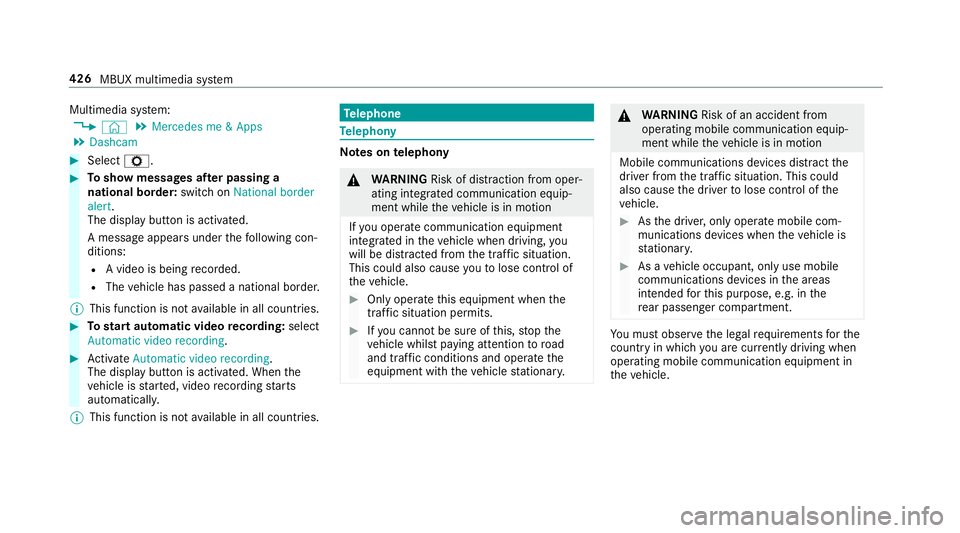
Multimedia sy
stem:
4 © 5
Mercedes me & Apps
5 Dashcam #
Select Z. #
Toshow messages af ter passing a
national bo rder: swit chon National border
alert.
The display button is activated.
A message appears under thefo llowing con‐
ditions:
R A video is being recorded.
R The vehicle has passed a national border.
% This function is not available in all countries. #
Tostart automatic video recording: select
Automatic video recording .#
Activate Automatic video recording.
The display button is acti vated. When the
ve hicle is star ted, video recording starts
automaticall y.
% This function is not available in all countries. Te
lephone Te
lephony Note
s ontelephony &
WARNING Risk of di stra ction from oper‐
ating integrated communication equip‐
ment while theve hicle is in motion
If yo u operate communication equipment
integrated in theve hicle when driving, you
will be distracted from the tra ffic situation.
This could also cause youto lose control of
th eve hicle. #
Only operate this equipment when the
traf fic situation permits. #
Ifyo u cannot be sure of this, stop the
ve hicle whilst paying attention toroad
and traf fic conditions and ope rate the
equipment with theve hicle stationar y. &
WARNING Risk of an accident from
ope rating mobile communication equip‐
ment while theve hicle is in motion
Mobile communications devices distract the
driver from the traf fic situation. This could
also cause the driver tolose control of the
ve hicle. #
Asthe driver, only operate mobile com‐
munications devices when theve hicle is
st ationar y. #
As a vehicle occupant, only use mobile
communications devices in the areas
intended forth is purpose, e.g. in the
re ar passenger compartment. Yo
u must obse rveth e legal requirements forthe
country in whi chyou are cur rently driving when
operating mobile communication equipment in
th eve hicle. 426
MBUX multimedia sy stem
Page 507 of 697
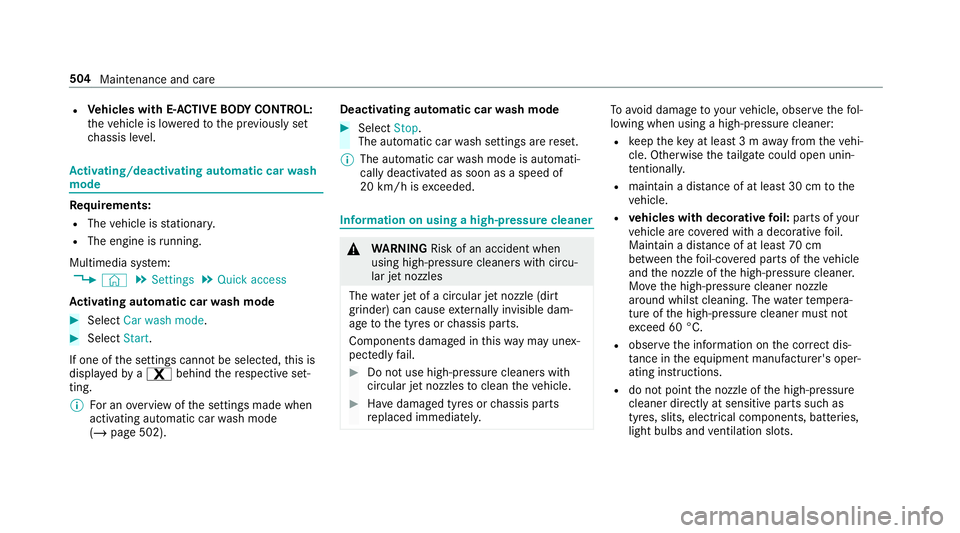
R
Vehicles with E- ACTIVE BODY CONT ROL:
th eve hicle is lo weredto the pr eviously set
ch assis le vel. Ac
tivating/deactivating automatic car wash
mode Requ
irements:
R The vehicle is stationar y.
R The engine is running.
Multimedia sy stem:
4 © 5
Settings 5
Quick access
Ac tivating automatic car wash mode #
Select Car wash mode .#
Select Start.
If one of the settings cann otbe selected, this is
displa yedby a% behind there spective set‐
ting.
% For an overview of the settings made when
activating automatic car wash mode
(/ page 502). Deactivating automatic car
wash mode #
Select Stop.
The automatic car wash settings are reset.
% The automatic car wash mode is automati‐
cally deactivated as soon as a speed of
20 km/h is exceeded. Information on using a high-p
ressure cleaner &
WARNING Risk of an accident when
using high-pressure cleane rswith circu‐
lar jet nozzles
The wate r jet of a circular jet nozzle (dirt
grinder) can cause extern ally invisible dam‐
age tothe tyres or chassis parts.
Components damaged in this wa y may unex‐
pec tedly fail. #
Do not use high-pressure cleaners with
circular jet nozzles toclean theve hicle. #
Have damaged tyres or chassis parts
re placed immediatel y. To
avo id damage to yourvehicle, obser vethefo l‐
lowing when using a high-pressure cleaner:
R keep theke y at least 3 m away from theve hi‐
cle. Otherwise theta ilgate could open unin‐
te ntional ly.
R maintain a dis tance of at least 30 cm tothe
ve hicle.
R vehicles with deco rative foil: parts of your
ve hicle are co vered with a decorative foil.
Maintain a dis tance of at least 70 cm
between thefo il-c ove red parts of theve hicle
and the nozzle of the high-pressure cleaner.
Mo vethe high-pressure cleaner nozzle
around whilst cleaning. The waterte mp era‐
ture of the high-pressure cleaner must not
exc eed 60 °C.
R obser vethe information on the cor rect dis‐
ta nce in the equipment manufacturer's oper‐
ating instructions.
R do not point the nozzle of the high-pressure
cleaner directly at sensitive parts such as
tyres, slits, electrical components, bat teries,
light bulbs and ventilation sl ots. 504
Maintenance and care
Page 593 of 697
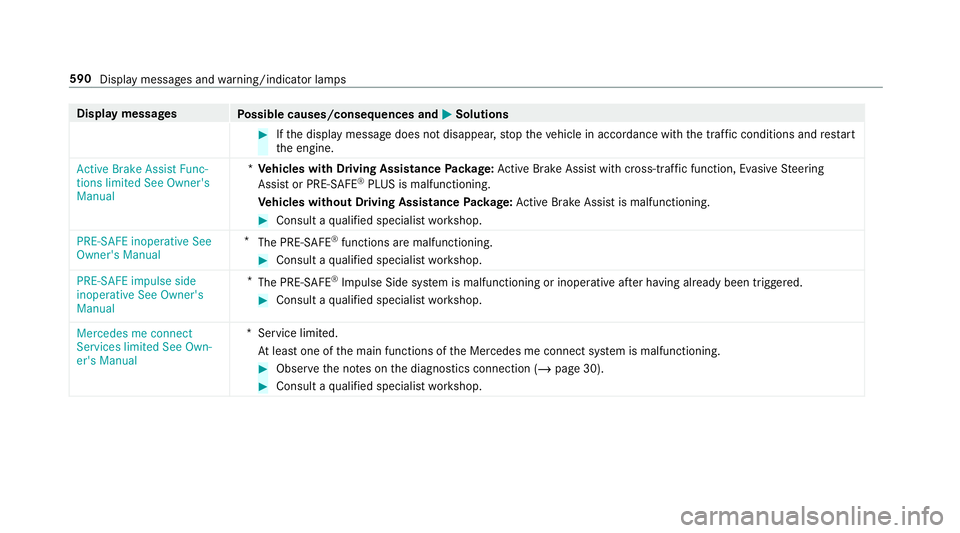
Display messages
Possible causes/consequences and M
MSolutions #
Ifth e display message does not disappear, stop theve hicle in accordance with the tra ffic conditions and restart
th e engine.
Active Brake Assist Func-
tions limited See Owner's
Manual *
Ve hicles with Driving Assistance Package: Active Brake Assi stwith cross-traf fic function, Evasi veSteering
Assist or PRE‑SAFE ®
PLUS is malfunctioning.
Ve hicles without Driving Assistance Package: Active Brake Assi stis malfunctioning. #
Consult a qualified specialist workshop.
PRE-SAFE inoperative See
Owner's Manual *
The PRE‑SAFE ®
functions are malfunctioning. #
Consult a qualified specialist workshop.
PRE-SAFE impulse side
inoperative See Owner's
Manual *
The PRE‑SAFE ®
Impulse Side sy stem is malfunctioning or inoperative af ter having already been triggered. #
Consult a qualified specialist workshop.
Mercedes me connect
Services limited See Own-
er's Manual *S
ervice limited.
At least one of the main functions of the Mercedes me connect sy stem is malfunctioning. #
Obser vethe no tes on the diagnostics connection (/ page 30). #
Consult a qualified specialist workshop. 590
Display messages and warning/indicator lamps
Page 595 of 697
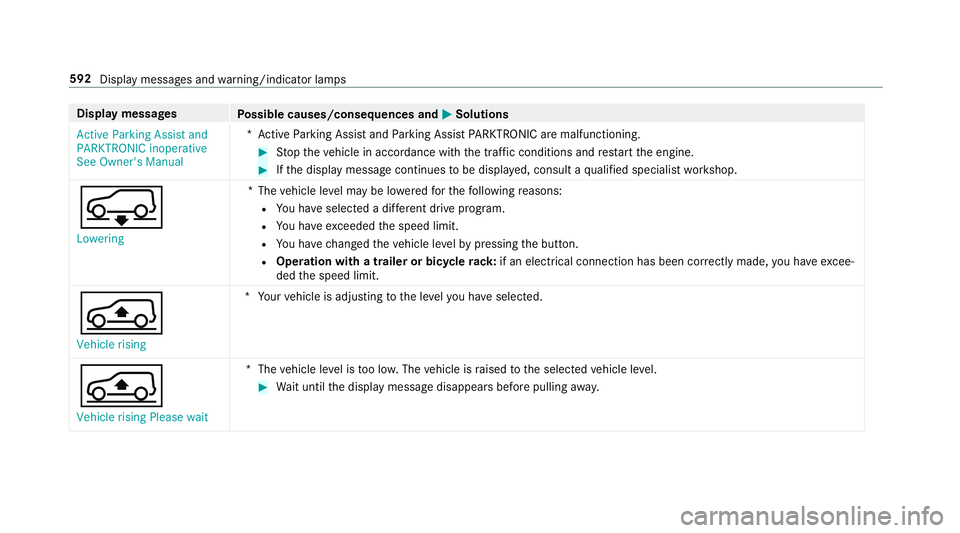
Display messages
Possible causes/consequences and M
MSolutions
Active Parking Assist and
PARKTRONIC inoperative
See Owner's Manual *A
ctive Parking Assist and Parking Assist PARKTRONIC are malfunctioning. #
Stop theve hicle in accordance with the tra ffic conditions and restart the engine. #
Ifth e display message continues tobe displa yed, consult a qualified specialist workshop.
 Lowering *T
hevehicle le vel may be lo weredfo rth efo llowing reasons:
R You ha veselected a dif fere nt drive program.
R You ha veexceeded the speed limit.
R You ha vechanged theve hicle le velby pressing the button.
R Operation with a trailer or bicycle rack:if an elect rical connection has been cor rectly made, you ha veexcee‐
ded the speed limit.
Á
Vehicle rising *Y
our vehicle is adjusting tothe le velyo u ha veselected.
Á Vehicle rising Please wait *T
hevehicle le vel is too lo w.The vehicle is raised tothe selected vehicle le vel. #
Wait until the display message disappears before pulling away. 592
Display messages and warning/indicator lamps