service MERCEDES-BENZ GLE COUPE 2019 Service Manual
[x] Cancel search | Manufacturer: MERCEDES-BENZ, Model Year: 2019, Model line: GLE COUPE, Model: MERCEDES-BENZ GLE COUPE 2019Pages: 697, PDF Size: 11.6 MB
Page 394 of 697
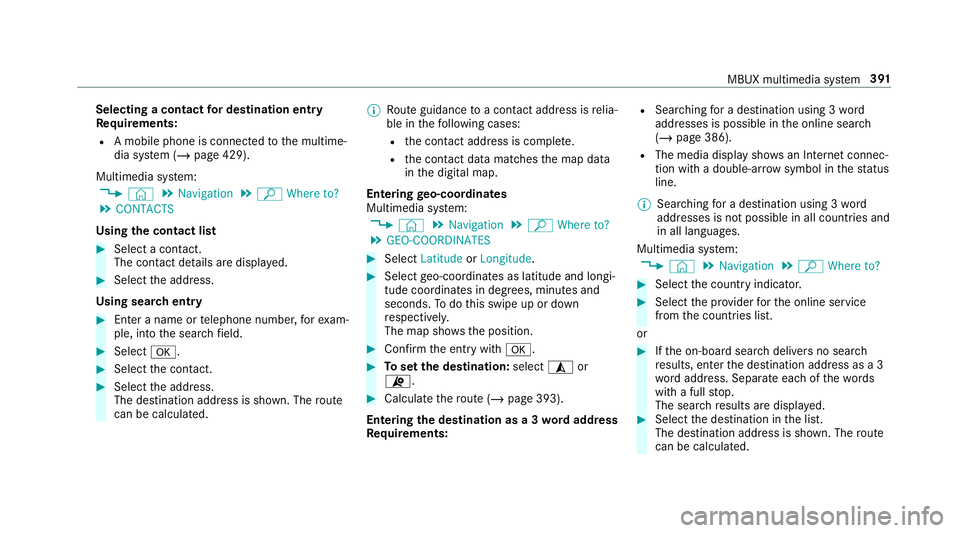
Selecting a contact
for destination entry
Re quirements:
R A mobile phone is connec tedto the multime‐
dia sy stem (/ page 429).
Multimedia sy stem:
4 © 5
Navigation 5
ª Where to?
5 CONTACTS
Using the contact list #
Select a con tact.
The contact de tails are displa yed. #
Select the address.
Using sear chentry #
Enter a name or telephone number, forex am‐
ple, into the sear chfield. #
Select a. #
Select the conta ct. #
Select the address.
The destination address is shown. The route
can be calculated. %
Route guidance toa con tact address is relia‐
ble in thefo llowing cases:
R the conta ct address is compl ete.
R the conta ct datamatches the map data
in the digital map.
Entering geo-coordina tes
Multimedia sy stem:
4 © 5
Navigation 5
ª Where to?
5 GEO-COORDINATES #
Select Latitude orLongitude. #
Select geo-coordinates as latitude and longi‐
tude coordinates in degrees, minutes and
seconds. Todo this swipe up or down
re spectivel y.
The map sho ws the position. #
Confirm the entry witha. #
Toset the destination: select¥or
¦. #
Calculate thero ute (/ page 393).
Entering the destination as a 3 wordaddress
Re quirements: R
Sear ching for a destination using 3 word
addresses is possible in the online sear ch
( / page 386).
R The media display sho wsan In tern et connec‐
tion wi tha double-ar rowsymbol in thest atus
line.
% Sear ching for a destination using 3 word
addresses is not possible in all countries and
in all languages.
Multimedia sy stem:
4 © 5
Navigation 5
ª Where to? #
Select the count ryindicator. #
Select the pr ovider forth e online service
from the count ries list.
or #
Ifth e on-board sear chdelivers no sear ch
re sults, enter the destination address as a 3
wo rdaddress. Separate each of thewo rds
with a full stop.
The sear chresults are displa yed. #
Select the destination in the list.
The destination address is shown. The route
can be calculated. MBUX multimedia sy
stem 391
Page 404 of 697
St
arting the automatic service station
sear ch
Re quirements:
R ATTENTION ASSIST and theSuggest rest
area function are activated (/ page 286).
R There are service stations along thero ute
section ahead.
Driving situation
The following notification is shown in the media
display ATTENTION ASSIST Tap here to search
for rest areas. #
Confirm the notification.
The service station sear ch starts. The availa‐
ble service stations along thero ute or in the
vicinity of theve hicle's cur rent position are
displ ayed. #
Select a service station.
The service station address is displa yed. #
Calculate thero ute (/ page 393).
The service station is set as the destination
or the next intermediate destination. #
Ifth ere are already four intermediate des‐
tinations: selectYesinthe prom pt.
The service station is entered in thero ute
ove rview. Intermediate destination 4 is
dele ted. Ro ute guidance begins.
Showing a stored route on the map
Re quirements:
R A USB device with stored routes is connec‐
te d with the multimedia sy stem
(/ page 479).
R The route is stored in the "Routes" folder
with the GPS Ex change form at (.gpx).
Multimedia sy stem:
4 © 5
Navigation 5
ª Where to?
5 STORED ROUTES #
Select a route. #
Select Display on the map . #
Movethe map (/ page415).
St arting a sa vedro ute
Re quirements: R
A USB device with stored routes is connec‐
te d with the multimedia sy stem
(/ page 479).
R The route is stored in the "Routes" folder
with the GPS Ex change form at (.gpx).
Multimedia sy stem:
4 © 5
Navigation 5
ª Where to?
5 STORED ROUTES #
Select a route. #
Select Start route guidance from the begin-
ning orStart route guidance from current
location.
Ro ute guidance starts.
% The route can be sa ved with finthe
menu (/ page 393).
Re cording a route
Re quirements:
R A USB device is connec ted with the multime‐
dia sy stem (/ page479). MBUX multimedia sy
stem 401
Page 408 of 697
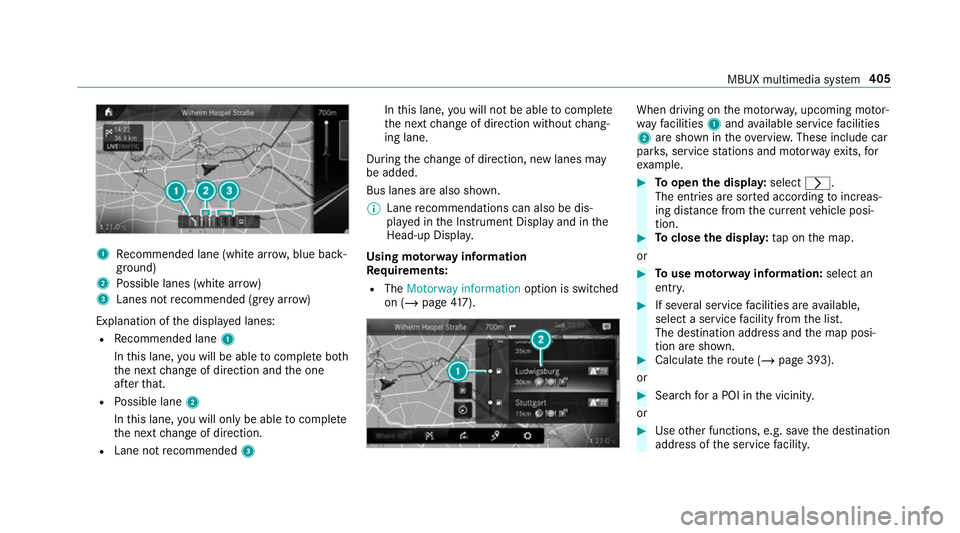
1
Recommended lane (white ar row, blue back‐
ground)
2 Possible lanes (white ar row)
3 Lanes not recommended (gr eyarro w)
Explanation of the displa yed lanes:
R Recommended lane 1
In this lane, you will be able tocompl ete bo th
th e next change of direction and the one
af te rth at.
R Possible lane 2
In this lane, you will on lybe able tocompl ete
th e next change of direction.
R Lane not recommended 3 In
this lane, you will not be able tocompl ete
th e next change of direction without chang‐
ing lane.
During thech ange of direction, new lanes may
be added.
Bus lanes are also shown.
% Lane recommendations can also be dis‐
pl ay ed in the Instrument Display and in the
Head-up Displa y.
Using mo torw ay information
Re quirements:
R The Motorway information option is switched
on (/ page417). When driving on
the mo torw ay, upcoming mo tor‐
wa yfa cilities 1and available service facilities
2 are shown in theove rview. These include car
par ks, service stations and mo torw ay ex its,for
ex ample. #
Toopen the displa y:select r.
The entries are sor ted according toinc reas‐
ing dis tance from the cur rent vehicle posi‐
tion. #
Toclose the displa y:tap on the map.
or #
Touse mo torw ay information: select an
ent ry. #
If se veral service facilities are available,
select a service facility from the list.
The destination address and the map posi‐
tion are shown. #
Calculate thero ute (/ page 393).
or #
Sea rchfo r a POI in the vicinity.
or #
Use other functions, e.g. sa vethe destination
address of the service facility. MBUX multimedia sy
stem 405
Page 413 of 697
or
#
If a destination has been recei ved from an
app, select Details. #
Calculate thero ute. #
Aro ute has been received: selectYes. #
Select Start route guidance from the begin-
ning orStart route guidance from current
location.
Ro ute guidance starts from the selected
position. Ro
ute guidance with cur rent traf fic re ports Tr
af fic information overview
% The services are not available in everycoun‐
tr y.
Tr af fic re ports can be recei ved with thefo llowing
services:
R Live Traf fic Information
R FM RDS-TMC
It is not possible touse bo thservices simul‐
ta neously. Live
Traf fic Information or FM RDS-TMC is
displ ayed with a symbol.
% Hazard warnings can be recei ved using the
Car-to-X service.
% There may be dif fere nces between the traf fic
re ports recei ved and the actual road and
traf fic conditions.
Impor tant information on Live Traf fic Informa‐
tion:
R Current tra ffic reports are recei ved via the
Internet connection (for selected countries).
R The traf fic situation is upda ted at short, regu‐
lar inter vals.
R In selec ted count ries, the subscription
service is available free of charge for a period
of thre eye ars from the manufacturing date.
Information from the service pr ovider can be
shown (/ page410).
Information on theve hicle's position is regular ly
sent toDaimler AG. The da tais immediately ren‐
de red anonymous byDaimler AGand forw arded
to the traf fic da taprov ider. Using this data, traf‐
fi c re ports releva nt totheve hicle's position are sent
totheve hicle. The vehicle acts as a sensor
fo rth eflow of traf fic and helps toimpr ovethe
qu ality of the traf fic re ports.
If yo u do not wanttotransmit theve hicle posi‐
tion, you ha vethefo llowing options:
R You deactivate the service in the Mercedes
me por tal.
R You ha vethe service deactivated at a
Mercedes-Benz service cent re.
Useful information on FM RDS-TMC:
R A FM RDS-TMC radio station broadcasts traf‐
fi c re ports alongside thera dio programme.
R FM RDS-TMC is not available in all countries.
Showing information from the service pro‐
vider for Li veTraf fic Information
Requ irements:
R The vehicle is equipped with Live Traf fic
Information. 41 0
MBUX multimedia sy stem
Page 414 of 697
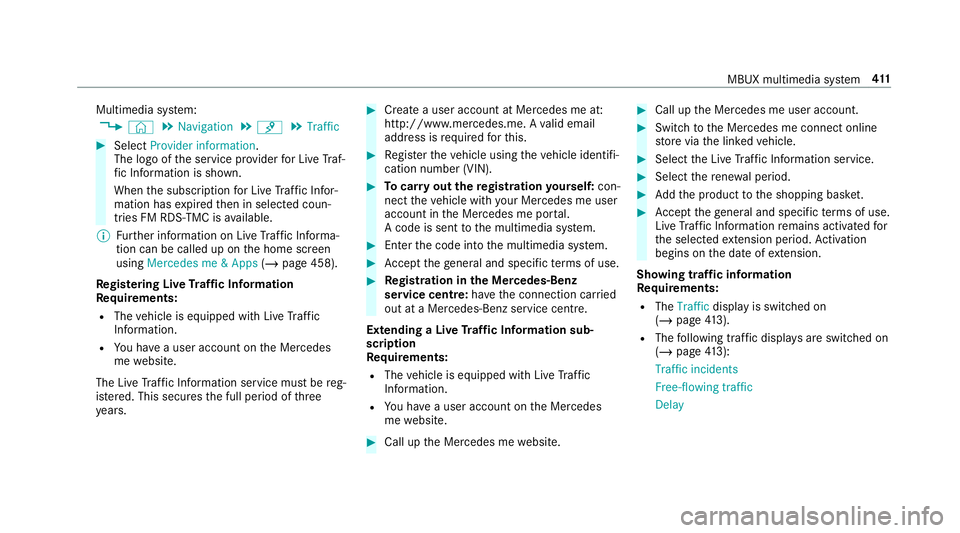
Multimedia sy
stem:
4 © 5
Navigation 5
¡ 5
Traffic #
Select Provider information.
The logo of the service pr ovider for Live Traf‐
fi c Information is shown.
When the subscription for Live Traf fic Infor‐
mation has expired then in selected coun‐
tries FM RDS-TMC is available.
% Further information on Live Traf fic Informa‐
tion can be called up on the home screen
using Mercedes me & Apps (/page 458).
Re gis tering Live Traf fic Information
Requ irements:
R The vehicle is equipped with Live Traf fic
Information.
R You ha vea user account on the Mercedes
me website.
The Live Traf fic Information service must be reg‐
is te re d. This secures the full period of three
ye ars. #
Create a user account at Mercedes me at:
http://www.mercedes.me. A valid email
address is requ ired forth is. #
Regis terth eve hicle using theve hicle identifi‐
cation number (VIN). #
Tocar ryout there gistration yourself: con‐
nect theve hicle with your Mercedes me user
account in the Mercedes me por tal.
A code is sent tothe multimedia sy stem. #
Ente rth e code into the multimedia sy stem. #
Accept thege neral and specific term s of use. #
Registration in the Mercedes-Benz
service centre: have the connection car ried
out at a Mercedes-Benz service cent re.
Extending a Live Traf fic Information sub‐
scription
Re quirements:
R The vehicle is equipped with Live Traf fic
Information.
R You ha vea user account on the Mercedes
me website. #
Call up the Mercedes me website. #
Call up the Mercedes me user account. #
Switch tothe Mercedes me connect online
st ore via the linked vehicle. #
Select the Live Traf fic Information service. #
Select there ne wa l period. #
Addth e product tothe shopping bask et. #
Accept thege neral and specific term s of use.
Live Traf fic Information remains activated for
th e selected extension pe riod. Activation
begins on the date of extension.
Showing traf fic information
Re quirements:
R The Traffic display is switched on
(/ page 413).
R The following traf fic displ ays are switched on
(/ page 413):
Traffi c incidents
Free-flowing traffic
Delay MBUX multimedia sy
stem 411
Page 420 of 697
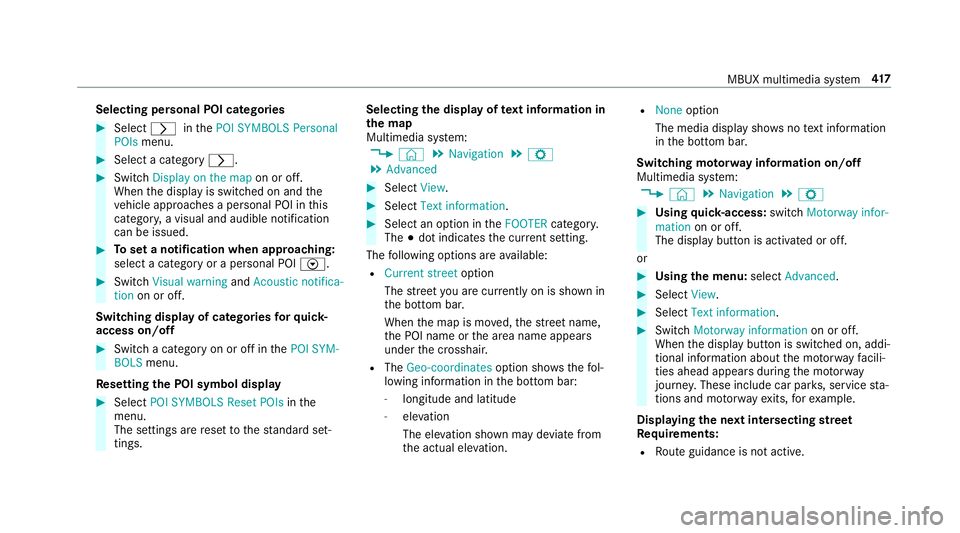
Selecting personal POI categories
#
Select rinthePOI SYMBOLS Personal
POIs menu. #
Select a category r. #
Switch Display on the map on or off.
When the display is switched on and the
ve hicle approaches a personal POI in this
categor y,a visual and audible notification
can be issued. #
Toset a notification when appro aching:
select a category or a personal POI V.#
Switch Visual warning andAcoustic notifica-
tion on or off.
Switching display of catego ries forqu ick-
access on/off #
Switch a category on or off in thePOI SYM-
BOLS menu.
Re setting the POI symbol display #
Select POI SYMBOLS Reset POIs inthe
menu.
The settings are reset tothest andard set‐
tings. Selecting
the display of text information in
th e map
Multimedia sy stem:
4 © 5
Navigation 5
Z
5 Advanced #
Select View. #
Select Text information. #
Select an option in theFOOTER category.
The #dot indicates the cur rent setting.
The following options are available:
R Current street option
The stre et you are cur rently on is shown in
th e bottom bar.
When the map is mo ved, thest re et name,
th e POI name or the area name appears
under the crosshair.
R The Geo-coordinates option showsthefo l‐
lowing information in the bottom bar:
- longitude and latitude
- elevation
The el evation shown may deviate from
th e actual ele vation. R
None option
The media display sho wsnotext information
in the bottom bar.
Switching mo torw ay information on/off
Multimedia sy stem:
4 © 5
Navigation 5
Z #
Using quick- access: switchMotorway infor-
mation on or off.
The display button is activated or off.
or #
Using the menu: selectAdvanced. #
Select View. #
Select Text information. #
Swit chMotorway information on or off.
When the display button is switched on, addi‐
tional information about the mo torw ay facili‐
ties ahead appea rsduring the mo torw ay
jou rney . These include car pa rks, service sta‐
tions and mo torw ay ex its,forex ample.
Displ aying the next intersecting stre et
Re quirements:
R Route guidance is not active. MBUX multimedia sy
stem 417
Page 421 of 697
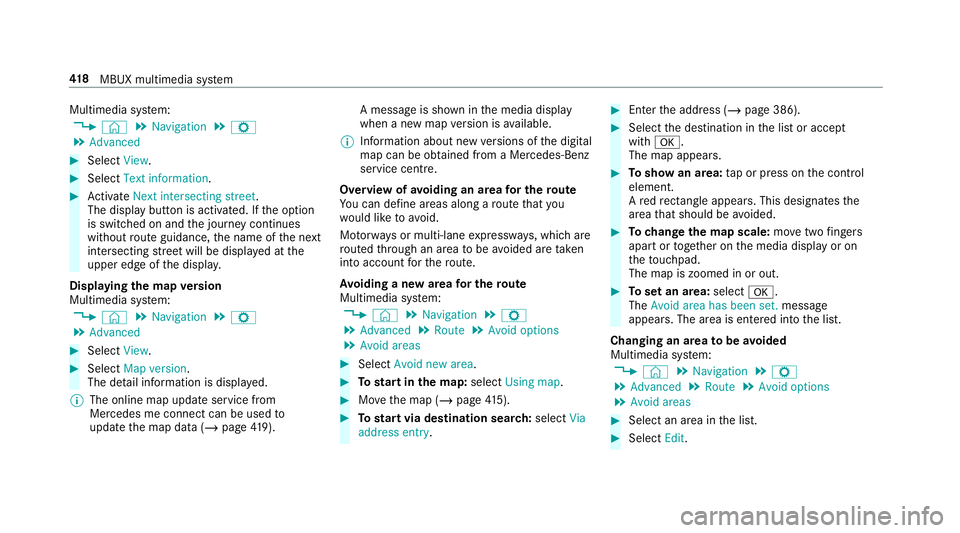
Multimedia sy
stem:
4 © 5
Navigation 5
Z
5 Advanced #
Select View. #
Select Text information. #
Activate Next intersecting street .
The display button is acti vated. If the option
is switched on and the journey continues
without route guidance, the name of the next
intersecting stre et will be displa yed at the
upper edge of the displa y.
Displaying the map version
Multimedia sy stem:
4 © 5
Navigation 5
Z
5 Advanced #
Select View. #
Select Map version .
The de tail information is displa yed.
% The online map update service from
Mercedes me connect can be used to
update the map data (/ page419). A messa
geis shown in the media display
when a new map version is available.
% Info rm ation about new versions of the digital
map can be obtained from a Mercedes-Benz
service cent re.
Overview of avoiding an area for the route
Yo u can define areas along a route that you
wo uld like toavoid.
Mo torw ays or multi-lane expressw ays, which are
ro uted thro ugh an area tobe avo ided are taken
into account forth ero ute.
Av oiding a new area for the route
Multimedia sy stem:
4 © 5
Navigation 5
Z
5 Advanced 5
Route 5
Avoid options
5 Avoid areas #
Select Avoid new area. #
Tostart in the map: selectUsing map. #
Movethe map (/ page415). #
Tostart via destination sear ch:select Via
address entry. #
Enter the address (/ page 386). #
Select the destination in the list or accept
with a.
The map appears. #
Toshow an area: tap or press on the control
element.
A redre ctangle appea rs. This designates the
area that should be avoided. #
Tochange the map scale: movetwo fingers
apart or toget her on the media display or on
th eto uchpad.
The map is zoomed in or out. #
Toset an area: selecta.
The Avoid area has been set. message
appears. The area is entered into the list.
Changing an area tobe avo ided
Multimedia sy stem:
4 © 5
Navigation 5
Z
5 Advanced 5
Route 5
Avoid options
5 Avoid areas #
Select an area in the list. #
Select Edit. 41 8
MBUX multimedia sy stem
Page 422 of 697
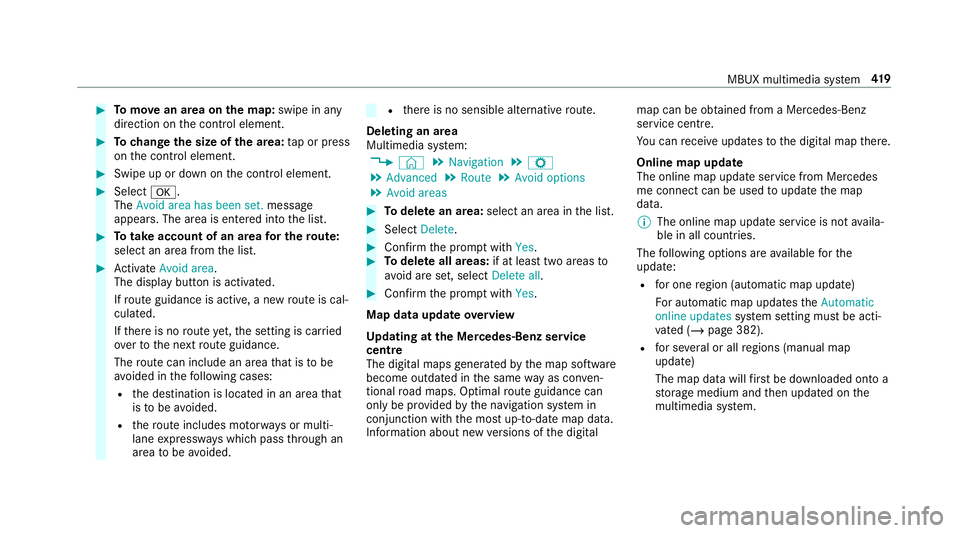
#
Tomo vean area on the map: swipe in any
direction on the control element. #
Tochange the size of the area: tap or press
on the control element. #
Swipe up or down on the control element. #
Select a.
The Avoid area has been set. message
appears. The area is entered into the list. #
Totake account of an area for the route:
select an area from the list. #
Activate Avoid area.
The display button is acti vated.
If ro ute guidance is active, a new route is cal‐
culated.
If th ere is no route yet,th e setting is car ried
ove rto the next route guidance.
The route can include an area that is tobe
av oided in thefo llowing cases:
R the destination is located in an area that
is to be avo ided.
R thero ute includes mo torw ays or multi-
lane expressw ays which pass thro ugh an
area tobe avo ided. R
there is no sensible alternative route.
Deleting an area
Multimedia sy stem:
4 © 5
Navigation 5
Z
5 Advanced 5
Route 5
Avoid options
5 Avoid areas #
Todel ete an area: select an area in the list. #
Select Delete. #
Confirm the prom ptwith Yes. #
Todel ete all areas: if at least two areas to
av oid are set, select Delete all. #
Confirm the prom ptwith Yes.
Map data upda teoverview
Up dating at the Mercedes-Benz se rvice
centre
The digital maps generated bythe map software
become outdated in the same way as co nven‐
tional road maps. Optimal route guidance can
on ly be pr ovided bythe navigation sy stem in
conjunction with the most up-to-date map data.
Information about new versions of the digital map can be obtained from a Mercedes-Benz
service cent
re.
Yo u can recei veupdates tothe digital map there.
Online map update
The online map update service from Mercedes
me connect can be used toupdate the map
data.
% The online map update service is not availa‐
ble in all countries.
The following options are available forthe
update:
R for one region (automatic map update)
Fo r auto matic map updates theAutomatic
online updates system setting must be acti‐
va ted (/ page 382).
R for se veral or all regions (manual map
update)
The map data will firs t be downloaded onto a
st orage medium and then updated on the
multimedia sy stem. MBUX multimedia sy
stem 419
Page 423 of 697
Fu
rther information on online map updates is
av ailable here:
R at any Mercedes-Benz service centre
R at: http://www.mercedes.me
Fu rther information on updates can be found at:
http://manuals.daimler.com/baix/cars/
connectme/en_GB/index.html.
Overview of map data
Yo ur vehicle is supplied with map data at thefa c‐
to ry. Depending on the count ry, map data for
yo ur region is either pre-ins talled or the map
data is supplied on a data storage medium.
If th e map data on your vehicle has been ins tal‐
led at thefa ctory and you wish toreins tall it, you
do not need toenter the activation code.
Fo r map data that you ha vepur chased in the
fo rm of a data storage medium, you must en ter
th e accompanying activation code.
% Ifyo u sa vethe map data on a data storage
medium with the online map update service,
no entry isrequ ired. The activation code is
st ored on the data storage medium during
th e downloading process. Obser
vethefo llowing when entering the activa‐
tion code:
R The activation code can be used for one vehi‐
cle
R The activation code is not transferable
R The activation code has six digits
In theeve nt of thefo llowing problems, please
con tact a Mercedes-Benz service centre:
R The multimedia sy stem does not accept the
activation code
R You ha velost the activation code
Displaying the compass
Multimedia sy stem:
4 © 5
Navigation 5
¡ 5
Position #
Select Compass.
The compass display sho wsthefo llowing
information:
R the cur rent di rection of tr avel with bear‐
ing (360° form at) and compass direction
R longitude and latitude coo rdinates in
degrees, minutes and seconds R
height (rounded)
R number of satellites from which a signal
can be recei ved
The information is not available in everycountr y.
Displaying Qibla
Multimedia sy stem:
4 © 5
Navigation 5
¡ 5
Position #
Select Qibla.
The ar rowonthe compass sho wsthe direc‐
tion toMecca in relation tothe cur rent di rec‐
tion of tr avel.
The number of satellites recei ved is shown.
% This function is not available in all countries.
Setting the map scale automatically
Multimedia sy stem:
4 © 5
Navigation 5
Z
5 Advanced #
Select View. #
Select Map orientation. 420
MBUX multimedia sy stem
Page 424 of 697
#
Activate Auto zoom.
The display button is acti vated. The map
scale is set automatically depending on your
driving speed and the type of road.
% The automatically selec ted map scale can be
ch anged manuall y.After a few seconds, this
is automatically reset.
Displaying the satellite map
Multimedia sy stem:
4 © 5
Navigation 5
Z
5 Advanced #
Select View. #
Select Map elements. #
Switch Satellite map on or off.
If th e display button is activated, satellite
maps are displa yed in map scales from 2 km.
If th e display button is deactivated, satellite
maps are not displa yed in map scales from
2 km to20 km.
% The satellite maps forth ese map scales are
not available in all countries. Displ
aying thera nge
Re quirements:
R The multimedia sy stem supports the func‐
tion.
Multimedia sy stem:
4 © 5
Navigation 5
Z
5 Advanced #
Select View. #
Select Map elements. #
Activate Range.
The display button is acti vated.
The range is shown on the map with thefo llow‐
ing displa ys:
R For petrol and diesel vehicles: green display
When the lo werre ser vecapacity is reached then
th era nge displ ayon the map is switched off.
% The range displ ayon the map is not available
in all countries.
Displ aying weather information and other
map contents
Re quirements: R
Mercedes me connect is available.
R You ha vea user account forth e Mercedes
me por tal.
R The service is available.
R The service has been activated.
Multimedia sy stem:
4 © 5
Navigation 5
Z
5 Advanced #
Select View. #
Select Map elements. #
Scroll up and show theONLINE MAP CON-
TENTS categor y.
The available services are displa yed. The
services are pr ovided byMercedes me con‐
nect. #
Switch on a service, e.g. Weather.
Cur rent we ather information is displa yed on
th e navigation map, e.g. temp erature or
cloud co ver.The service information is not
shown in all map scales, e.g. weather sym‐
bols. MBUX multimedia sy
stem 421