navigation MERCEDES-BENZ GLE COUPE 2019 Manual PDF
[x] Cancel search | Manufacturer: MERCEDES-BENZ, Model Year: 2019, Model line: GLE COUPE, Model: MERCEDES-BENZ GLE COUPE 2019Pages: 697, PDF Size: 11.6 MB
Page 442 of 697
R
Con tacts loaded from the mobile phone:
5,000 entri es per mobile phone
Fr om the conta cts menu, you can per form the
fo llowing actions:
R Make a call, forex ample call a con tact
(/ page 440)
R Navigation (/ page 391)
R Compose messa ges (/ page443)
R Additional options (/ page440)
If a mobile phone is connectedtothe multimedia
sy stem (/ page 429) and automatic calling up
(/ page 439) is activated, the mobile phone's
conta cts are displ ayed in the address book.
The multimedia sy stem can show suggestions
based on frequently used conta cts aswell as
incoming and outgoing calls (/ page 359).
These are shown at theto p of the conta ct list.
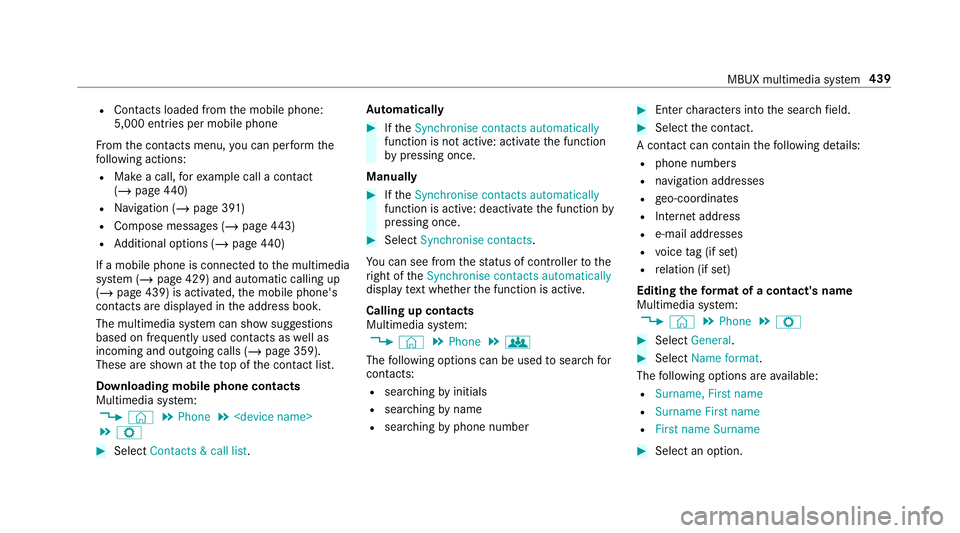
Downloading mobile phone contacts
Multimedia sy stem:
4 © 5
Phone 5
5 Z #
Select Contacts & call list. Au
tomatically #
Ifth eSynchronise contacts automatically
function is not active: activate the function
by pressing once.
Manually #
Ifth eSynchronise contacts automatically
function is active: deactivate the function by
pressing once. #
Select Synchronise contacts .
Yo u can see from thest atus of controller tothe
ri ght of theSynchronise contacts automatically
display text wh ether the function is active.
Calling up contacts
Multimedia sy stem:
4 © 5
Phone 5
g
The following options can be used tosear chfor
contacts:
R searching byinitials
R sear ching byname
R searching byphone number #
Ente rch aracters into the sear chfield. #
Select the conta ct.
A contact can contain thefo llowing de tails:
R phone numbers
R navigation addresses
R geo-coordinates
R Internet address
R e-mail addresses
R voice tag (if set)
R relation (if set)
Editing thefo rm at of a contact's name
Multimedia sy stem:
4 © 5
Phone 5
Z #
Select General. #
Select Name format.
The following options are available:
R Surname, First name
R Surname First name
R First name Surname #
Select an option. MBUX multimedia sy
stem 439
Page 448 of 697
Using
telephone numbers or URLs from a
te xt message
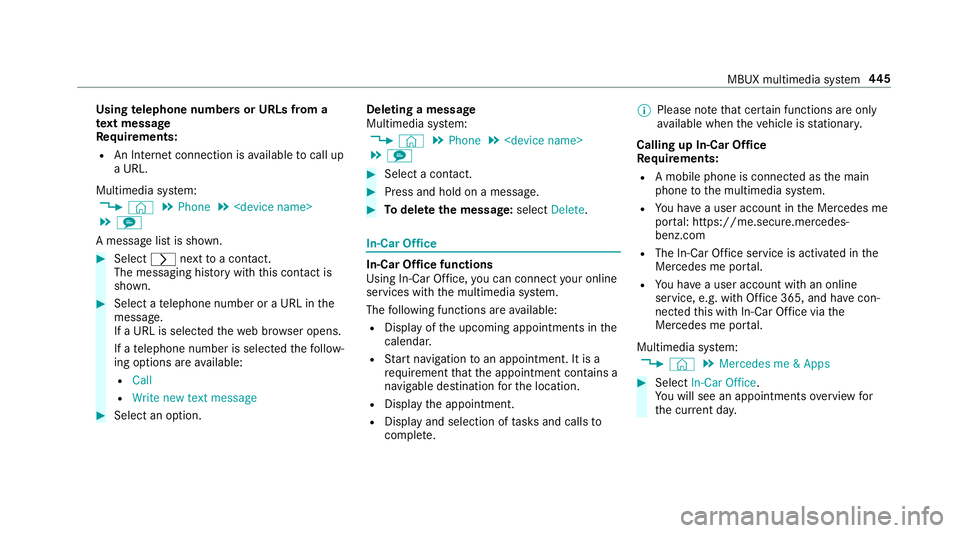
Re quirements:
R An Internet connection is available tocall up
a URL.
Multimedia sy stem:
4 © 5
Phone 5
5 l
A message list is shown. #
Select rnexttoa con tact.
The messaging his tory with this con tact is
shown. #
Select a telephone number or a URL in the
messa ge.
If a URL is selected thewe b br ows er opens.
If a telephone number is selec tedth efo llow‐
ing options are available:
R Call
R Write new text message #
Select an option. Deleting a message
Multimedia sy
stem:
4 © 5
Phone 5
5 l #
Select a conta ct. #
Press and hold on a message. #
Todel eteth e message: selectDelete. In-Car Of
fice In-Car Of
fice functions
Using In-Car Of fice, you can connect your online
services with the multimedia sy stem.
The following functions are available:
R Display of the upcoming appointments in the
calenda r.
R Start navigation toan appointment. It is a
re qu irement that the appointment conta ins a
navigable destination forth e location.
R Display the appointment.
R Display and selection of tasks and calls to
compl ete. %
Please no tethat cer tain functions are only
av ailable when theve hicle is stationar y.
Calling up In-Car Of fice
Re quirements:
R A mobile phone is connec ted as the main
phone tothe multimedia sy stem.
R You ha vea user account in the Mercedes me
por tal: https://me.secure.mercedes-
benz.com
R The In-Car Of fice service is acti vated in the
Mercedes me por tal.
R You ha vea user account with an online
service, e.g. with Of fice 365, and ha vecon‐
nected this with In-Car Of fice via the
Mercedes me por tal.
Multimedia sy stem:
4 © 5
Mercedes me & Apps #
Select In-Car Office.
Yo u will see an appointments overview for
th e cur rent da y. MBUX multimedia sy
stem 445
Page 457 of 697
Tr
ansfer redve hicle data with Android Auto
and Apple CarPlay ®Overview of transfer
redve hicle data
When using Android Autoor Apple CarPlay ®
, cer‐
ta in vehicle data is transfer redto the mobile
phone. This enables youto getth e best out of
selected mobile phone services. Vehicle data is
not directly accessible.
The following sy stem information is transmit ted:
R Software release of the multimedia sy stem
R System ID (anonymised)
The transfer of this data is used tooptimise
communication between theve hicle and the
mobile phone.
To do this, and toassign se veralve hicles tothe
mobile phone, a vehicle identifier is randomly
ge nerated.
This has no connection totheve hicle identifica‐
tion number (VIN) and is dele ted when the multi‐
media sy stem is reset (/ page 384).
The following driving status data is transmit ted:
R Transmission position engaged R
Distinction between par ked, standstill, rolling
and driving
R Day/night mode of the instrument clus ter
The transfer of this data is used toalter how
con tent is displ ayed tocor respond tothe driving
situation.
The following position data is transmitte d:
R Coordinates
R Speed
R Compass direction
R Acceleration di rection
This da tais only transfer red while the navigation
sy stem is active, in order toimpr oveit (e.g. so it
can continue functioning when in a tunnel). Mercedes me calls
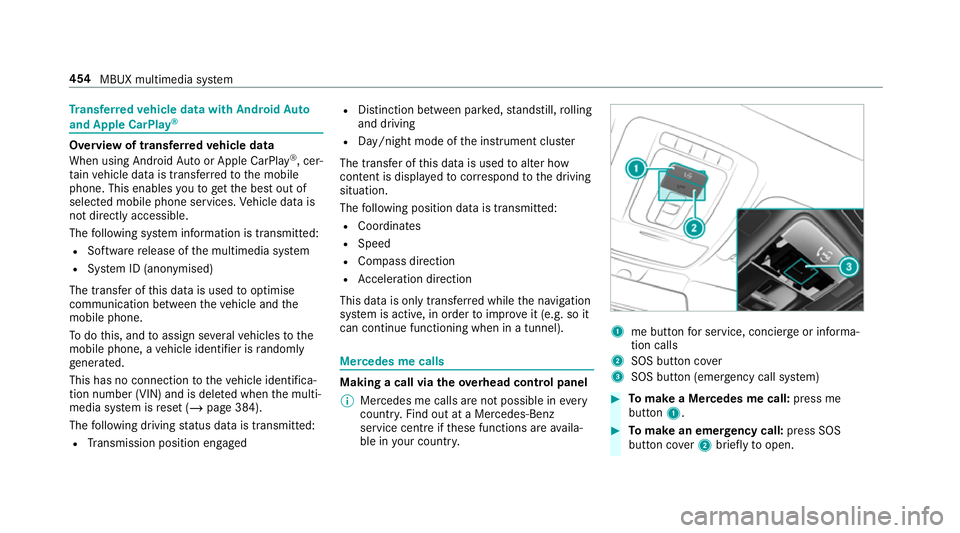
Making a call via the
overhead control panel
% Mercedes me calls are not possible in every
count ry. Find out at a Mercedes-Benz
service centre if these functions are availa‐
ble in your count ry. 1
me button for service, concier geor informa‐
tion calls
2 SOS button co ver
3 SOS button (emergency call sy stem) #
Tomake a Me rcedes me call: press me
button 1. #
Tomake an eme rgency call: press SOS
button co ver2 briefly toopen. 454
MBUX multimedia sy stem
Page 489 of 697
Ac
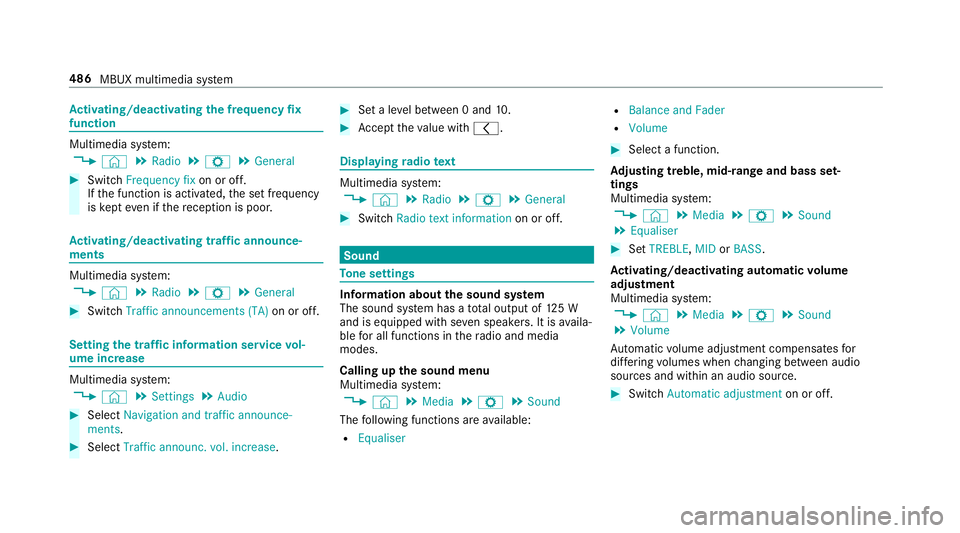
tivating/deactivating the frequency fix
function Multimedia sy
stem:
4 © 5
Radio 5
Z 5
General #
Switch Frequency fix on or off.
If th e function is activated, the set frequency
is ke pt eve n ifthere ception is poo r.Ac
tivating/deactivating traf fic announce‐
ments Multimedia sy
stem:
4 © 5
Radio 5
Z 5
General #
Switch Traffic announcements (TA) on or off.Setting
the traf fic information service vol‐
ume increase Multimedia sy
stem:
4 © 5
Settings 5
Audio #
Select Navigation and traffic announce-
ments. #
Select Traffic announc. vol. increase. #
Set a le vel between 0 and 10. #
Accept theva lue with q. Displaying
radio text Multimedia sy
stem:
4 © 5
Radio 5
Z 5
General #
Switch Radio text information on or off. Sound
To
ne settings Information about
the sound sy stem
The sound sy stem has a total output of 125 W
and is equipped with se ven speakers. It is availa‐
ble for all functions in thera dio and media
modes.
Calling up the sound menu
Multimedia sy stem:
4 © 5
Media 5
Z 5
Sound
The following functions are available:
R Equaliser R
Balance and Fader
R Volume #
Select a function.
Ad justing treble, mid- range and bass set‐
tings
Multimedia sy stem:
4 © 5
Media 5
Z 5
Sound
5 Equaliser #
Set TREBLE, MIDorBASS .
Ac tivating/deactivating automatic volume
adjustment
Multimedia sy stem:
4 © 5
Media 5
Z 5
Sound
5 Volume
Au tomatic volume adjustment compensates for
dif fering volumes when changing between audio
sources and within an audio source. #
Swit chAutomatic adjustment on or off.486
MBUX multimedia sy stem
Page 496 of 697
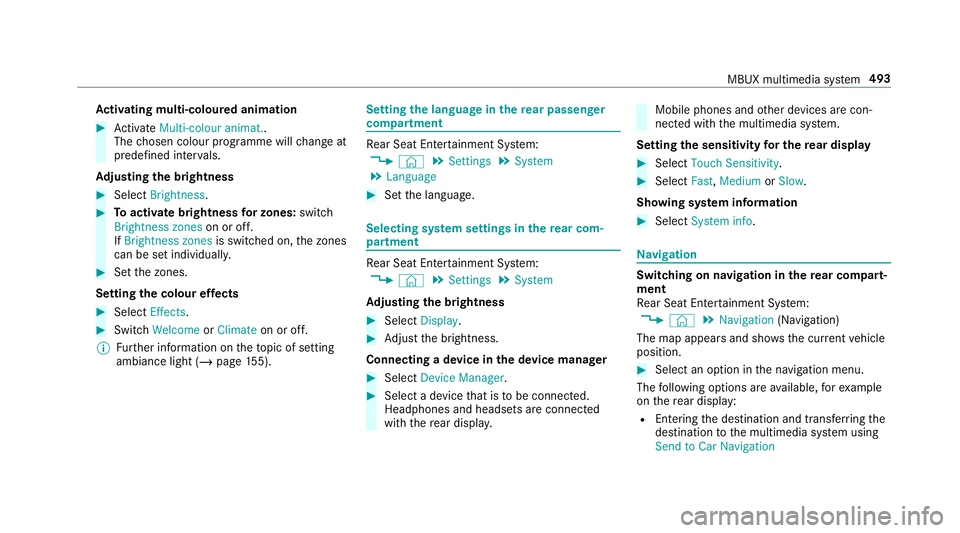
Ac
tivating multi-coloured animation #
Activate Multi-colour animat..
The chosen colour programme will change at
predefined inter vals.
Ad justing the brightness #
Select Brightness . #
Toactivate brightness for zones: switch
Brightness zones on or off.
If Brightness zones is switched on,the zones
can be set individually. #
Set the zones.
Setting the colour ef fects #
Select Effects. #
Swit chWelcome orClimate on or off.
% Further information on theto pic of setting
ambiance light (/ page155). Se
tting the language in the rear passenger
comp artment Re
ar Seat En tertainment Sy stem:
4 © 5
Settings 5
System
5 Language #
Set the language. Selecting sy
stem settings in there ar com‐
partment Re
ar Seat En tertainment Sy stem:
4 © 5
Settings 5
System
Ad justing the brightness #
Select Display. #
Adjust the brightness.
Connecting a device in the device manager #
Select Device Manager. #
Select a device that is tobe connec ted.
Headphones and headsets are connec ted
with there ar displa y. Mobile phones and
other devices are con‐
nected with the multimedia sy stem.
Setting the sensitivity for the rear display #
Select Touch Sensitivity. #
Select Fast,Medium orSlow.
Showing sy stem information #
Select System info. Na
vigation Switching on navigation in
there ar comp art‐
ment
Re ar Seat En tertainment Sy stem:
4 © 5
Navigation (Navigation)
The map appears and sho ws the current vehicle
position. #
Select an option in the navigation menu.
The following options are available, forex ample
on there ar display:
R Entering the destination and transfer ring the
destination tothe multimedia sy stem using
Send to Car Navigation MBUX multimedia sy
stem 493
Page 682 of 697
Re
ar Seat Entertainment Sy stem
Ad justing the brightness ..................... 493
Ad justing there ar seats ...................... .491
Calling up services, apps and web
br ows er ............................................... 494
Calling up the device manager ............ 493
Climate control .................................... 492
Headphones overview ........................ .490
Operating saf ety .................................. 488
Overview ............................................ .488
Overview of services, apps and web
br ows er ............................................... 494
Overview of there ar displa ys.............. 489
Overview of the sound settings ........... 494
Re setting there ar seat ........................ 492
Selecting a massage program .............. 491
Selecting sound settings .................... .494
Setting the language ........................... 493
Setting the sensitivity forth ere ar
display ................................................ .493
Showing sy stem information ............... 493
Switching navigation on ......................4 93
Switching off the display ..................... 489
Re ar window heater ................................ 16 5Re
ar-view mir ror
see Outside mir rors
Re cycling
see Take -ba ckof end-of-life vehicles
Re ducing agent
see AdBlue ®
Re fuelling
Re fuelling theve hicle .......................... 202
To pping up AdBlue ®
............................ 206
Re gistration
Ve hicle ................................................... 31
Re mo tecont rol (stationa ryheater/
ve ntilation)
Displa ys............................................... 174
Problems ..............................................1 76
Re placing the battery ........................... 174
Setting ................................................. 173
Re mo teOnline
Charging the battery ............................1 83
Cooling or heating theve hicle inte‐
ri or .......................................................1 82
St arting theve hicle ............................. 183
Re scue card ............................................... 32 Re
ser ve
Fu el ..................................................... 566
Re set function (multimedia sy stem) .....3 84
Re sidual heat ...........................................1 69
Re ar compartment .............................. 16 9
Re storing (factory settings)
see Reset function (multimedia sy stem)
Re stra int sy stem ...................................... .36
Basic instructions forch ildren .............. .51
Fu nction in an accident ........................ .37
Fu nctionality .......................................... 37
Malfunction ...........................................37
Pr otection ..............................................36
Re duced pr otection ...............................36
Self-test ................................................. 37
Wa rning lamp ........................................ 37
Re versege ar
Inserting .............................................. 19 8
Re versing camera .................................... 271
Care .................................................... 509
Fu nction .............................................. 271
Opening the camera co ver (360°
Camera) ............................................... 278
Setting favo urites (360° Camera) ........ 278 Index
67 9