navigation update MERCEDES-BENZ GLE COUPE 2019 Owners Manual
[x] Cancel search | Manufacturer: MERCEDES-BENZ, Model Year: 2019, Model line: GLE COUPE, Model: MERCEDES-BENZ GLE COUPE 2019Pages: 697, PDF Size: 11.6 MB
Page 292 of 697
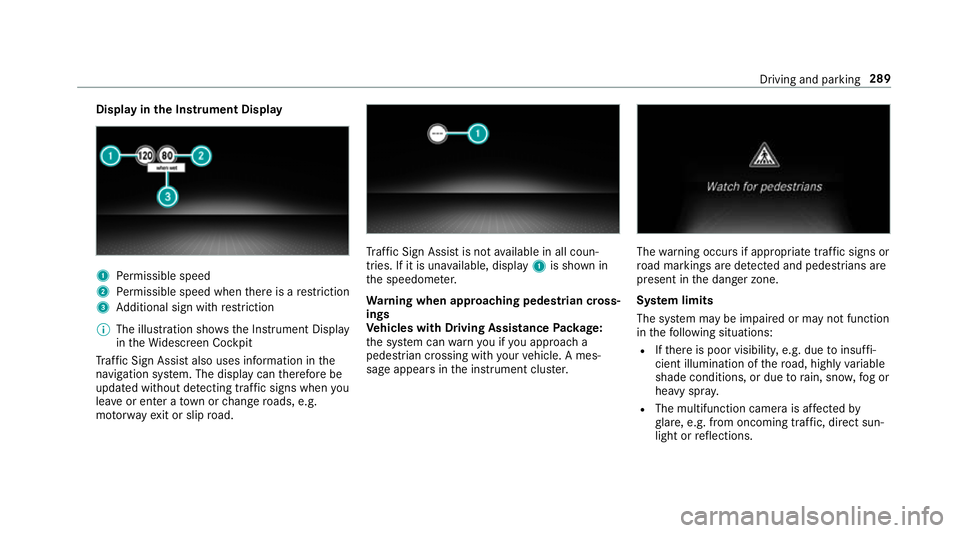
Display in
the Instrument Display 1
Perm issible speed
2 Perm issible speed when there is a restriction
3 Additional sign with restriction
% The illu stra tion sho wsthe Instrument Display
in theWi descreen Cockpit
Tr af fic Sign Assi stalso uses information in the
navigation sy stem. The display can therefore be
updated without de tecting traf fic signs when you
lea veor enter a town or change roads, e.g.
mo torw ay ex it or slip road. Tr
af fic Sign Assi stis not available in all coun‐
tries. If it is una vailable, display 1is shown in
th e speedome ter.
Wa rning when app roaching pedestrian cross‐
ings
Ve hicles with Driving Assistance Package:
th e sy stem can warnyou if you approach a
pedestrian crossing with your vehicle. A mes‐
sage appears inthe instrument clus ter. The
warning occurs if appropriate traf fic signs or
ro ad markings are de tected and pedestrians are
present in the danger zone.
Sy stem limits
The sy stem may be impaired or may not function
in thefo llowing situations:
R Ifth ere is poor visibility, e.g. due toinsuf fi‐
cient illumination of thero ad, high lyvariable
shade conditions, or due torain, sno w,fog or
heavy spr ay.
R The multifunction camera is af fected by
gl are, e.g. from oncoming traf fic, di rect sun‐
light or reflections. Driving and parking
289
Page 343 of 697
%
Ifth eve hicle is fitted wi th the MBUX in-car
assis tant, selected functions of the multime‐
dia sy stem can be operated conta ct-free as
we ll as turning there ading light on or off
(/ page 347).
Nu merous application, online services, services
and apps are available foryo u. You can call
th ese up using the home screen or using buttons
5 and 6next totheto uchpad.
Yo u can co nveniently call up and add favo urites
using theß rocker switch on thesteering
wheel or using theß button next tothe
to uchpad. Quic k-access in the home screen and
in the applications ser vetoselect functions
more quickl y.
If yo u use the learn function of the multimedia
sy stem, you will recei vesuggestions during oper‐
ation of the most probable navigation destina‐
tions, media sources, radio stations and con‐
ta cts. The configu ration of the suggestions takes
place in your profile. You can co mpileyour pro‐
fi le from various vehicle settings and settings of
th e multimedia sy stem. You can create themes
fo rva rious driving situations in the home screen as
well as using theß rocker switch or the
ß button.
The Notifications Centre collects incoming notifi‐
cations, e.g. about an available software update.
Depending on the type of notification it of fers
va rious actions. You can call up the Notifications
Centre on the home screen and in the applica‐
tion menus.
Wi th th eglobal sear chintheve hicle you can
sear chon-board across many categories as well
as online in the Internet. You can use theglobal
sear chinthe home screen and in the notifica‐
tions.
Anti-theft pr otection
This device is equipped with tech nical pr ovisions
to protect it against theft. More de tailed informa‐
tion about anti-theft pr otection can be obtained
at a qualified specialist workshop. Note
s onthe media display Obser
vethe no tes on caring forth e interior
(/ page 511). Au
tomatic temperature-cont rolled switch-
off feature: ifth ete mp erature is too high, the
brightness is initially reduced automatically. The
media display may then switch off comple tely for
a while.
% Ifyo u are wearing polarised sun glasses, it
may be dif ficult toread the multimedia sys‐
te m displa y. 340
MBUX multimedia sy stem
Page 365 of 697
#
Swipe up until FAVOURITESis shown.#
Press on a favo urite until theOPTIONS menu
is shown. #
Select Move. #
Movethefa vo urite tothe new position. #
Tap on ø.
Moving thefa vo urites menu in the personali‐
sation #
Tap on © inthe media displa y.
The home screen is shown. #
Swipe up until Set new orderis shown.#
Select Set new order. #
MoveFavourites tothe new position. #
Tap on ø.
Deleting favo urites #
Tap on © inthe media displa y.
The home screen is shown. #
Swipe up until FAVOURITESis shown.#
Press on a favo urite until theOPTIONS menu
is shown. #
Select Delete. #
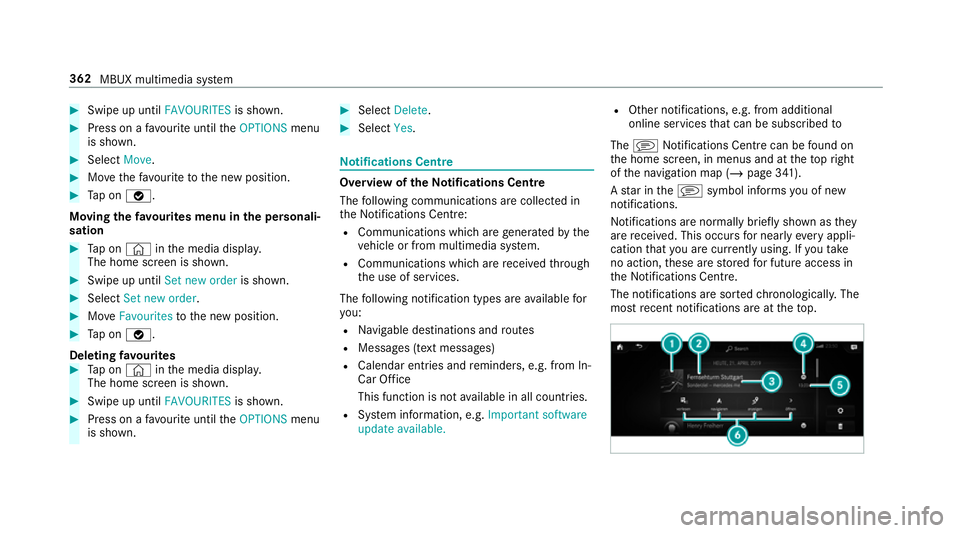
Select Yes. No
tifications Centre Overvi
ewoftheNo tifications Centre
The following communications are collec ted in
th e Notifications Centre:
R Communications which are generated bythe
ve hicle or from multimedia sy stem.
R Communications which are recei vedth ro ugh
th e use of services.
The following notification types are available for
yo u:
R Navigable destinations and routes
R Messages (t ext messa ges)
R Calendar entries and reminders, e.g. from In-
Car Of fice
This function is not available in all countries.
R System information, e.g. Important software
update available. R
Other notifications, e.g. from additional
online services that can be subsc ribed to
The j Notifications Centre can be found on
th e home screen, in menus and at theto pright
of the navigation map (/ page 341).
A star in thej symbol informs you of new
notifications.
Notifications are no rmally brief lyshown as they
are recei ved. This occurs for nearly everyappli‐
cation that you are cur rently using. If youta ke
no action, these are stored for future access in
th e Notifications Centre.
The notifications are sor tedchro nological ly. The
most recent notifications are at theto p. 362
MBUX multimedia sy stem
Page 402 of 697
Multimedia sy
stem:
4 © 5
Navigation
5 ¡ 5
Route overview #
Tochange the sequence of destinations:
select Vfor a destination.
A menu opens. #
Select Move.
ø is highlighted. #
Movethe intermediate destination or the
destination with 4ors tothe desired
position. #
Tap on ø. #
Todel ete a destination: selectVfor an
intermedia tedestination or destination. #
Select Delete.
The destination is dele ted.
Calculating a route with intermediate desti‐
nations
Re quirements:
R The destination and at least one intermediate
destination ha vebeen entered. Multimedia sy
stem:
4 © 5
Navigation
5 ¡ 5
Route overview #
Select Start route guidance.
or #
Ifth ero ute has been edited, select To Navi-
gation G. #
Con firm the prom ptwith Yes.
The route is calculated. Route guidance
begins.
Displaying thero ute list
Multimedia sy stem:
4 © 5
Navigation 5
¡ #
Select Route list.
The route sections are displ ayed. The cur rent
ve hicle position is mar ked on the map.
The cur rent vehicle position is shown with
th efo llowing information:
R The a symbol forth e cur rent vehicle
position is displa yed.
R The name of thero ad on which you are
cur rently driving is shown. R
The road number of thero ad on which
yo u are cur rently driving is shown.
The route list is updated during the journe y. #
Toshow route sections: swipe up or down
on the control element.
The route section is shown on the map.
Selecting an alternative route
Re quirements:
R The Suggest alternative route option is
switched on (/ page 395).
Multimedia sy stem:
4 © 5
Navigation 5
¡ #
Select Alternative routes.
The routes are displ ayed in accordance with
th e setting made in thero ute settings.
The routes are numbered. #
Select the alternative route. #
Toshow thero ute on the map: selectDis-
play on the map . #
Movethe map (/ page415). #
Set the map scale (/ page415). MBUX multimedia sy
stem 399
Page 421 of 697
Multimedia sy
stem:
4 © 5
Navigation 5
Z
5 Advanced #
Select View. #
Select Text information. #
Activate Next intersecting street .
The display button is acti vated. If the option
is switched on and the journey continues
without route guidance, the name of the next
intersecting stre et will be displa yed at the
upper edge of the displa y.
Displaying the map version
Multimedia sy stem:
4 © 5
Navigation 5
Z
5 Advanced #
Select View. #
Select Map version .
The de tail information is displa yed.
% The online map update service from
Mercedes me connect can be used to
update the map data (/ page419). A messa
geis shown in the media display
when a new map version is available.
% Info rm ation about new versions of the digital
map can be obtained from a Mercedes-Benz
service cent re.
Overview of avoiding an area for the route
Yo u can define areas along a route that you
wo uld like toavoid.
Mo torw ays or multi-lane expressw ays, which are
ro uted thro ugh an area tobe avo ided are taken
into account forth ero ute.
Av oiding a new area for the route
Multimedia sy stem:
4 © 5
Navigation 5
Z
5 Advanced 5
Route 5
Avoid options
5 Avoid areas #
Select Avoid new area. #
Tostart in the map: selectUsing map. #
Movethe map (/ page415). #
Tostart via destination sear ch:select Via
address entry. #
Enter the address (/ page 386). #
Select the destination in the list or accept
with a.
The map appears. #
Toshow an area: tap or press on the control
element.
A redre ctangle appea rs. This designates the
area that should be avoided. #
Tochange the map scale: movetwo fingers
apart or toget her on the media display or on
th eto uchpad.
The map is zoomed in or out. #
Toset an area: selecta.
The Avoid area has been set. message
appears. The area is entered into the list.
Changing an area tobe avo ided
Multimedia sy stem:
4 © 5
Navigation 5
Z
5 Advanced 5
Route 5
Avoid options
5 Avoid areas #
Select an area in the list. #
Select Edit. 41 8
MBUX multimedia sy stem
Page 422 of 697
#
Tomo vean area on the map: swipe in any
direction on the control element. #
Tochange the size of the area: tap or press
on the control element. #
Swipe up or down on the control element. #
Select a.
The Avoid area has been set. message
appears. The area is entered into the list. #
Totake account of an area for the route:
select an area from the list. #
Activate Avoid area.
The display button is acti vated.
If ro ute guidance is active, a new route is cal‐
culated.
If th ere is no route yet,th e setting is car ried
ove rto the next route guidance.
The route can include an area that is tobe
av oided in thefo llowing cases:
R the destination is located in an area that
is to be avo ided.
R thero ute includes mo torw ays or multi-
lane expressw ays which pass thro ugh an
area tobe avo ided. R
there is no sensible alternative route.
Deleting an area
Multimedia sy stem:
4 © 5
Navigation 5
Z
5 Advanced 5
Route 5
Avoid options
5 Avoid areas #
Todel ete an area: select an area in the list. #
Select Delete. #
Confirm the prom ptwith Yes. #
Todel ete all areas: if at least two areas to
av oid are set, select Delete all. #
Confirm the prom ptwith Yes.
Map data upda teoverview
Up dating at the Mercedes-Benz se rvice
centre
The digital maps generated bythe map software
become outdated in the same way as co nven‐
tional road maps. Optimal route guidance can
on ly be pr ovided bythe navigation sy stem in
conjunction with the most up-to-date map data.
Information about new versions of the digital map can be obtained from a Mercedes-Benz
service cent
re.
Yo u can recei veupdates tothe digital map there.
Online map update
The online map update service from Mercedes
me connect can be used toupdate the map
data.
% The online map update service is not availa‐
ble in all countries.
The following options are available forthe
update:
R for one region (automatic map update)
Fo r auto matic map updates theAutomatic
online updates system setting must be acti‐
va ted (/ page 382).
R for se veral or all regions (manual map
update)
The map data will firs t be downloaded onto a
st orage medium and then updated on the
multimedia sy stem. MBUX multimedia sy
stem 419
Page 423 of 697
Fu
rther information on online map updates is
av ailable here:
R at any Mercedes-Benz service centre
R at: http://www.mercedes.me
Fu rther information on updates can be found at:
http://manuals.daimler.com/baix/cars/
connectme/en_GB/index.html.
Overview of map data
Yo ur vehicle is supplied with map data at thefa c‐
to ry. Depending on the count ry, map data for
yo ur region is either pre-ins talled or the map
data is supplied on a data storage medium.
If th e map data on your vehicle has been ins tal‐
led at thefa ctory and you wish toreins tall it, you
do not need toenter the activation code.
Fo r map data that you ha vepur chased in the
fo rm of a data storage medium, you must en ter
th e accompanying activation code.
% Ifyo u sa vethe map data on a data storage
medium with the online map update service,
no entry isrequ ired. The activation code is
st ored on the data storage medium during
th e downloading process. Obser
vethefo llowing when entering the activa‐
tion code:
R The activation code can be used for one vehi‐
cle
R The activation code is not transferable
R The activation code has six digits
In theeve nt of thefo llowing problems, please
con tact a Mercedes-Benz service centre:
R The multimedia sy stem does not accept the
activation code
R You ha velost the activation code
Displaying the compass
Multimedia sy stem:
4 © 5
Navigation 5
¡ 5
Position #
Select Compass.
The compass display sho wsthefo llowing
information:
R the cur rent di rection of tr avel with bear‐
ing (360° form at) and compass direction
R longitude and latitude coo rdinates in
degrees, minutes and seconds R
height (rounded)
R number of satellites from which a signal
can be recei ved
The information is not available in everycountr y.
Displaying Qibla
Multimedia sy stem:
4 © 5
Navigation 5
¡ 5
Position #
Select Qibla.
The ar rowonthe compass sho wsthe direc‐
tion toMecca in relation tothe cur rent di rec‐
tion of tr avel.
The number of satellites recei ved is shown.
% This function is not available in all countries.
Setting the map scale automatically
Multimedia sy stem:
4 © 5
Navigation 5
Z
5 Advanced #
Select View. #
Select Map orientation. 420
MBUX multimedia sy stem