bluetooth MERCEDES-BENZ GLE COUPE 2020 User Guide
[x] Cancel search | Manufacturer: MERCEDES-BENZ, Model Year: 2020, Model line: GLE COUPE, Model: MERCEDES-BENZ GLE COUPE 2020Pages: 757, PDF Size: 11.84 MB
Page 492 of 757
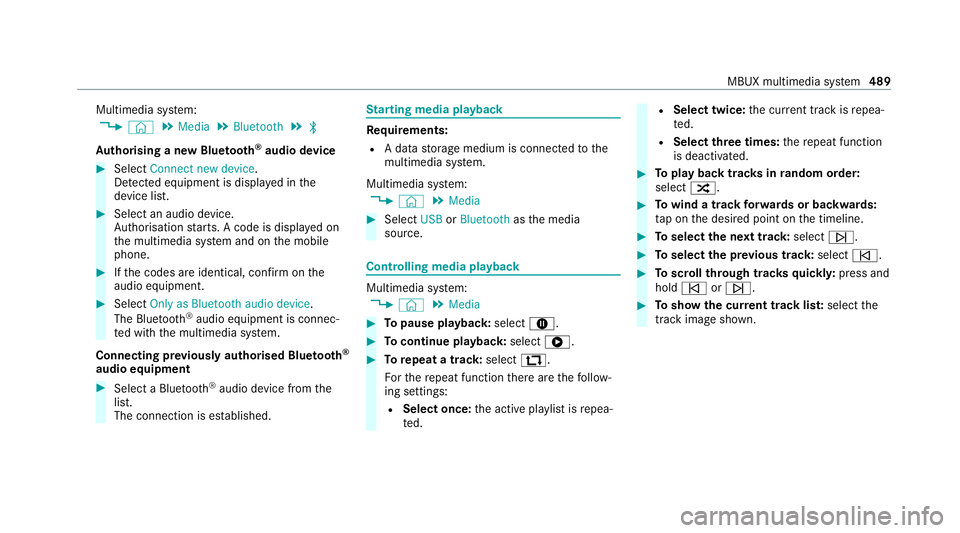
Multimedia sy
stem:
4 © 5
Media 5
Bluetooth 5
00A5
Au thorising a new Blue tooth ®
audio device #
Select Connect new device .
De tected equipment is displ ayed in the
device list. #
Select an audio device.
Auth orisation starts. A code is displa yed on
th e multimedia sy stem and on the mobile
phone. #
Ifth e codes are identical, confi rmonthe
audio equipment. #
Select Only as Bluetooth audio device .
The Blue tooth®
audio equipment is connec‐
te d with the multimedia sy stem.
Connecting pr eviously authorised Blue tooth ®
audio equipment #
Select a Blue tooth®
audio device from the
list.
The connection is es tablished. St
arting media playback Re
quirements:
R A data storage medium is connected tothe
multimedia sy stem.
Multimedia sy stem:
4 © 5
Media #
Select USBorBluetooth asthe media
source. Controlling media playback
Multimedia sy
stem:
4 © 5
Media #
Topause playback: select8. #
Tocontinue playba ck:select 6. #
Torepeat a track: select:.
Fo rth ere peat function there are thefo llow‐
ing settings:
R Select once: the active pla ylist is repea‐
te d. R
Select twice: the cur rent track is repea‐
te d.
R Select three times: there peat function
is deactivated. #
Toplay back trac ksinrandom order:
select 9. #
Towind a track forw ards or backwards:
ta p on the desired point on the timeline. #
Toselect the next track: select00F6. #
Toselect the pr evious track: select00F5. #
Toscroll through trac ksquickl y:press and
hold 00F5 or00F6. #
Toshow the cur rent track lis t:select the
track image shown. MBUX multimedia sy
stem 489
Page 518 of 757
The
term s HDMI and HDMI High-Definition Multi‐
media Inter face, and the HDMI Logo are trade‐
mar ksorregis tere d trademar ksof HDMI Licens‐
ing LLC in theUn ited States and other countries.
Switching on media mode in there ar
passenger comp artment
Re quirements:
R A data storage medium is connected with the
re ar display or the multimedia sy stem.
R A Blue tooth®
audio device is connec ted with
th e multimedia sy stem. Re
ar Seat En tertainment Sy stem:
4 © 5
Media #
Select USB,Bluetooth orMy USB.
% If a USB storage device is connected with a
re ar display (/ page 509),theMy USB
option is available.
The following functions are available:
R Controlling media playback (/ page515)
R ª Using theke yword sear ch
( / page 492)
R 5 Searching for media files using catego‐
ri es (/ page 491)
% Selecting sound settings in there ar com‐
partment (/ page516).
Con trolling media playba ckintheRe ar Seat
Entertainment Sy stem
Re ar Seat En tertainment Sy stem:
4 © 5
Media #
Select USB,Bluetooth orMy USB. %
If a USB storage device is connected with a
re ar display (/ page 509),theMy USB
option is available. #
Topause or continue playback: select
00CF or0065. #
Toselect the next or pr evious track:
select 00F6or00F5. #
Toscroll through trac ksquickl y:press and
hold 00F5 or00F6. #
Towind a track forw ards or backwards:
ta p on the desired point on the timeline. #
Toplay back trac ksinrandom order:
select 9. #
Torepeat a track: select:.
Fo rth ere peat function there are thefo llow‐
ing options:
R Tap once: the active pla ylist is repeated.
R Tap twice: the cur rent track is repeated.
R Tapth re e times: there peat function is
deactivated. #
Toshow the cur rent track lis t:select the
co ver. MBUX multimedia sy
stem 515