navigation update MERCEDES-BENZ GLE COUPE 2020 Owners Manual
[x] Cancel search | Manufacturer: MERCEDES-BENZ, Model Year: 2020, Model line: GLE COUPE, Model: MERCEDES-BENZ GLE COUPE 2020Pages: 757, PDF Size: 11.84 MB
Page 38 of 757
can be output via
the multimedia sy stem. Cer‐
ta in information is simultaneously transfer redto
yo ur smartphone.
Depending on the type of integration, this can
include:
R general vehicle data
R position data
This allo wsyouto use selected apps on your
smartphone, such as navigation or music play‐
bac k.There is no fur ther interaction between the
smartphone and theve hicle; in particular, vehi‐
cle data is not directly accessible. Which type of
fur ther data processing occurs is de term ined by
th e pr ovider of the specific app used. Which set‐
tings you can make, if an y,depends on the spe‐
cific app and the operating sy stem of your
smartphone. Online services
Wi
reless network connection
If yo ur vehicle has a wireless network connec‐
tion, it enables data tobe exch anged between
yo ur vehicle and additional sy stems. The wire‐ less network connection is enabled via
theve hi‐
cle's transmission and reception unit or via con‐
nected mobile end devices (e.g. sma rtphones).
Online functions can be used via the wireless
network connection. This includes online serv‐
ices and applications/apps pr ovided bythe man‐
ufacturer or other pr oviders.
Manu factu rer's se rvices
Re garding online services of the manufacturer,
th e individual functions are described bythe
manufacturer in a suita ble place (e.g. Owner's
Manual, website of the manufacturer) along with
th ere leva nt da taprotection information. Per‐
sonal data may be used forth e pr ovision of
online services. Data is exch anged via a secure
connection, e.g. the manufacturer's designated
IT sy stems. Personal data is collected, pro‐
cessed and used via the pr ovision of services
exc lusively on the basis of legal permissions or
with prior consent.
The services and functions (sometimes subject
to afe e) can usually be activated or deactivated.
In some cases, this also applies tothe entire
ve hicle's data connection. This excludes, in par‐
ticula r,legally prescribed functions and services. Third pa
rty services
If it is possible touse online services from other
pr ov iders, these services are there sponsibility
of the pr ovider in question and subject tothat
pr ov ider's data pr otection conditions and terms
of use. The manufacturer has no influence on
th e conte ntexc hanged.
Fo rth is reason, please ask the service pr ovider
fo r information about the type, extent and pur‐
pose of the collection and use of personal data
when services are pr ovided bythird parties. Copyright
Information on licences for free and open-sou rce
software used in your vehicle can be found on
th e data car rier in your vehicle document wallet
and with updates on thefo llowing website:
https://www.mercedes-benz.com/opensource General no
tes35
Page 287 of 757
Tr
af fic Sign Assist Fu
nction of Traf fic Sign Assist Tr
af fic Sign Assi stdetects traf fic signs wi thmul‐
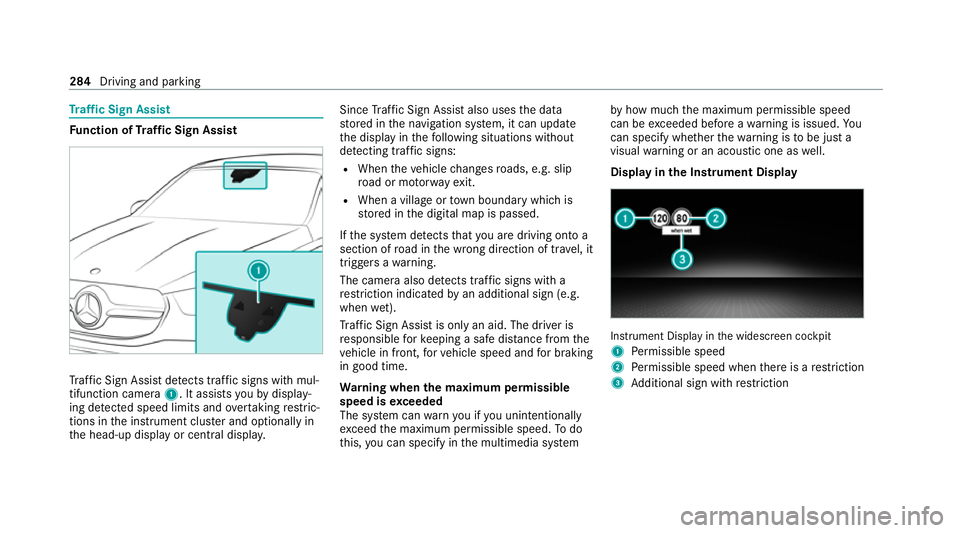
tifunction camera 1. It assistsyo uby display‐
ing de tected speed limits and overtaking restric‐
tions in the instrument clus ter and optionally in
th e head-up display or cent ral displa y. Since
Traf fic Sign Assi stalso uses the data
st ored in the navigation sy stem, it can update
th e display in thefo llowing situations without
de tecting traf fic signs:
R When theve hicle changes roads, e.g. slip
ro ad or mo torw ay ex it.
R When a village or town boundary which is
st ored in the digital map is passed.
If th e sy stem de tects that you are driving on to a
section of road in the wrong direction of tr avel, it
triggers a warning.
The camera also de tects traf fic signs wi th a
re striction indicated byan additional sign (e.g.
when wet).
Tr af fic Sign Assi stis only an aid. The driver is
re sponsible forke eping a safe dis tance from the
ve hicle in front, forve hicle speed and for braking
in good time.
Wa rning when the maximum permissible
speed is exceeded
The sy stem can warnyou if you unin tentionally
exc eed the maximum permissible speed. Todo
th is, you can specify in the multimedia sy stem by
how much the maximum permissible speed
can be exceeded before a warning is issued. Yo u
can specify whe ther thewa rning is tobe just a
visual warning or an acoustic one as well.
Display in the Instrument Display In
stru ment Display in the widescreen cockpit
1 Perm issible speed
2 Perm issible speed when there is a restriction
3 Additional sign with restriction 284
Driving and pa rking
Page 339 of 757
%
Ifth eve hicle is fitted wi th the MBUX Interior
Assis tant, selected functions of the multime‐
dia sy stem can be operated conta ct-free as
we ll as turning there ading light on or off
(/ page 343).
Nu merous application, online services, services
and apps are available foryo u. You can call
th ese up using the home screen or using buttons
5 and 6next totheto uchpad.
Yo u can co nveniently call up and add favo urites
using theß rocker switch on thesteering
wheel or using theß button next tothe
to uchpad. Quic k-access in the home screen and
in the applications ser vetoselect functions
more quickl y.
If yo u use the learn function of the multimedia
sy stem, you will recei vesuggestions during oper‐
ation of the most probable navigation destina‐
tions, media sources, radio stations and con‐
ta cts. The configu ration of the suggestions takes
place in your profile. You can co mpileyour pro‐
fi le from various vehicle settings and settings of
th e multimedia sy stem. You can create themes
fo rva rious driving situations in the home screen as
well as using theß rocker switch or the
ß button.
The Notifications Centre collects incoming notifi‐
cations, e.g. about an available software update.
Depending on the type of notification it of fers
va rious actions. You can call up the Notifications
Centre on the home screen and in the applica‐
tion menus.
Wi th th eglobal sear chintheve hicle you can
sear chacross categories as well as on the Inter‐
net. You can use theglobal sear chinthe home
screen and in the notifications.
Anti-theft pr otection
This device is equipped with tech nical pr ovisions
to protect it against theft. More de tailed informa‐
tion about anti-theft pr otection can be obtained
at a qualified specialist workshop. Note
s onthe media display Obser
vethe no tes on caring forth e interior
(/ page 533).
Au tomatic temperature-cont rolled switch-
off feature: ifth ete mp erature is too high, the brightness is initially
reduced automatically. The
media display may then switch off comple tely for
a while.
% Ifyo u are wearing polarised sun glasses, it
may be dif ficult toread the multimedia sys‐
te m displa y. 336
MBUX multimedia sy stem
Page 405 of 757
Multimedia sy
stem:
4 © 5
Navigation
5 ¡ 5
Route overview #
Tochange the sequence of destinations:
select Vfor a destination.
A menu opens. #
Select Move.
00FB is highlighted. #
Movethe intermediate destination or the
destination with 005Eor0049 tothe desired
position. #
Tap on 00FB. #
Todel ete a destination: selectVfor an
intermedia tedestination or destination. #
Select Delete.
The destination is dele ted.
Calculating a route with intermediate desti‐
nations
Re quirements:
R The destination and at least one intermediate
destination ha vebeen entered. Multimedia sy
stem:
4 © 5
Navigation
5 ¡ 5
Route overview #
Select Start route guidance.
or #
Ifth ero ute has been edited, select To Navi-
gation G. #
Con firm the prom ptwith Yes.
The route is calculated. Route guidance
begins.
Displaying thero ute list
Multimedia sy stem:
4 © 5
Navigation 5
¡ #
Select Route list.
The route sections are displ ayed. The cur rent
ve hicle position is mar ked on the map.
The cur rent vehicle position is shown with
th efo llowing information:
R The a symbol forth e cur rent vehicle
position is displa yed.
R The name of thero ad on which you are
cur rently driving is shown. R
The road number of thero ad on which
yo u are cur rently driving is shown.
The route list is updated during the journe y. #
Toshow route sections: swipe up or down
on the control element.
The route section is shown on the map.
Selecting an alternative route
Re quirements:
R The Suggest alternative route option is
switched on (/ page 398).
Multimedia sy stem:
4 © 5
Navigation 5
¡ #
Select Alternative routes.
The routes are displ ayed in accordance with
th e setting made in thero ute settings.
The routes are numbered. #
Select the alternative route.
Showing thero ute on the map #
Select Display on the map. #
Movethe map (/ page 420). 402
MBUX multimedia sy stem
Page 426 of 757
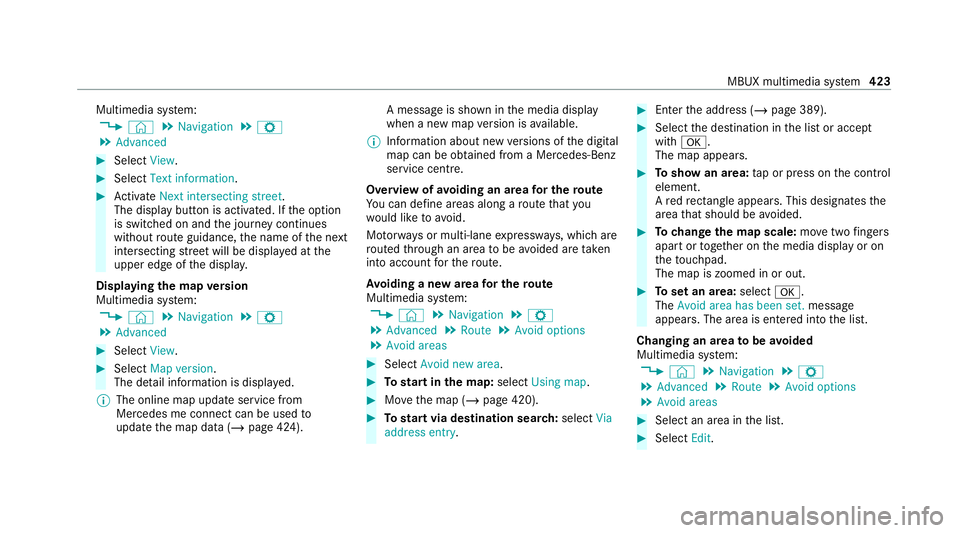
Multimedia sy
stem:
4 © 5
Navigation 5
Z
5 Advanced #
Select View. #
Select Text information. #
Activate Next intersecting street .
The display button is acti vated. If the option
is switched on and the journey continues
without route guidance, the name of the next
intersecting stre et will be displa yed at the
upper edge of the displa y.
Displaying the map version
Multimedia sy stem:
4 © 5
Navigation 5
Z
5 Advanced #
Select View. #
Select Map version .
The de tail information is displa yed.
% The online map update service from
Mercedes me connect can be used to
update the map data (/ page 424). A message is shown in
the media display
when a new map version is available.
% Info rm ation about new versions of the digital
map can be obtained from a Mercedes-Benz
service cent re.
Overview of avoiding an area for the route
Yo u can define areas along a route that you
wo uld like toavoid.
Mo torw ays or multi-lane expressw ays, which are
ro uted thro ugh an area tobe avo ided are taken
into account forth ero ute.
Av oiding a new area for the route
Multimedia sy stem:
4 © 5
Navigation 5
Z
5 Advanced 5
Route 5
Avoid options
5 Avoid areas #
Select Avoid new area. #
Tostart in the map: selectUsing map. #
Movethe map (/ page 420). #
Tostart via destination sear ch:select Via
address entry. #
Enter the address (/ page 389). #
Select the destination in the list or accept
with 0076.
The map appears. #
Toshow an area: tap or press on the control
element.
A redre ctangle appea rs. This designates the
area that should be avoided. #
Tochange the map scale: movetwo fingers
apart or toget her on the media display or on
th eto uchpad.
The map is zoomed in or out. #
Toset an area: select0076.
The Avoid area has been set. message
appears. The area is entered into the list.
Changing an area tobe avo ided
Multimedia sy stem:
4 © 5
Navigation 5
Z
5 Advanced 5
Route 5
Avoid options
5 Avoid areas #
Select an area in the list. #
Select Edit. MBUX multimedia sy
stem 423
Page 427 of 757
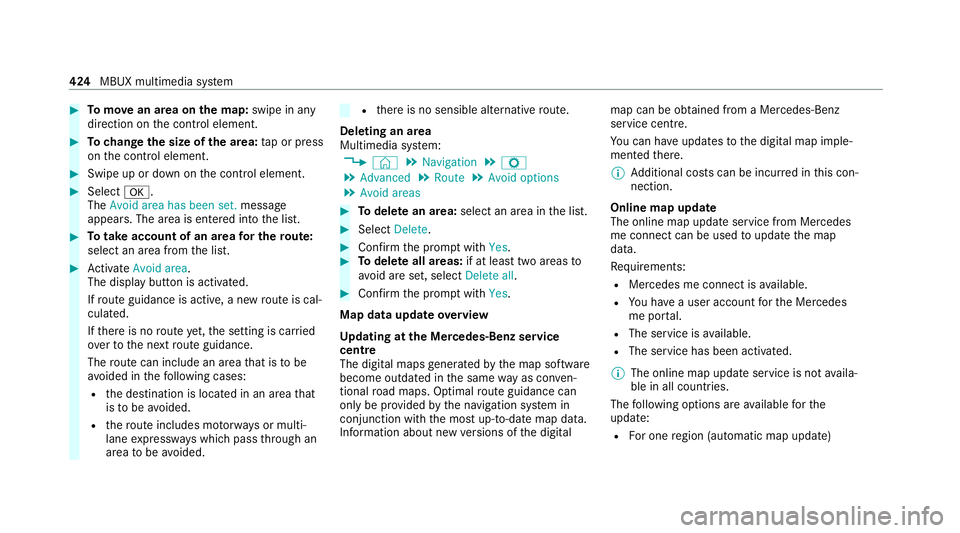
#
Tomo vean area on the map: swipe in any
direction on the control element. #
Tochange the size of the area: tap or press
on the control element. #
Swipe up or down on the control element. #
Select 0076.
The Avoid area has been set. message
appears. The area is entered into the list. #
Totake account of an area for the route:
select an area from the list. #
Activate Avoid area.
The display button is acti vated.
If ro ute guidance is active, a new route is cal‐
culated.
If th ere is no route yet,th e setting is car ried
ove rto the next route guidance.
The route can include an area that is tobe
av oided in thefo llowing cases:
R the destination is located in an area that
is to be avo ided.
R thero ute includes mo torw ays or multi-
lane expressw ays which pass thro ugh an
area tobe avo ided. R
there is no sensible alternative route.
Deleting an area
Multimedia sy stem:
4 © 5
Navigation 5
Z
5 Advanced 5
Route 5
Avoid options
5 Avoid areas #
Todel ete an area: select an area in the list. #
Select Delete. #
Confirm the prom ptwith Yes. #
Todel ete all areas: if at least two areas to
av oid are set, select Delete all. #
Confirm the prom ptwith Yes.
Map data upda teoverview
Up dating at the Mercedes-Benz se rvice
centre
The digital maps generated bythe map software
become outdated in the same way as co nven‐
tional road maps. Optimal route guidance can
on ly be pr ovided bythe navigation sy stem in
conjunction with the most up-to-date map data.
Information about new versions of the digital map can be obtained from a Mercedes-Benz
service cent
re.
Yo u can ha veupdates tothe digital map imple‐
mented there.
% Additional costs can be incur red in this con‐
nection.
Online map update
The online map update service from Mercedes
me connect can be used toupdate the map
data.
Re quirements:
R Mercedes me connect is available.
R You ha vea user account forth e Mercedes
me por tal.
R The service is available.
R The service has been activated.
% The online map update service is not availa‐
ble in all countries.
The following options are available forthe
update:
R For one region (automatic map update) 424
MBUX multimedia sy stem
Page 428 of 757
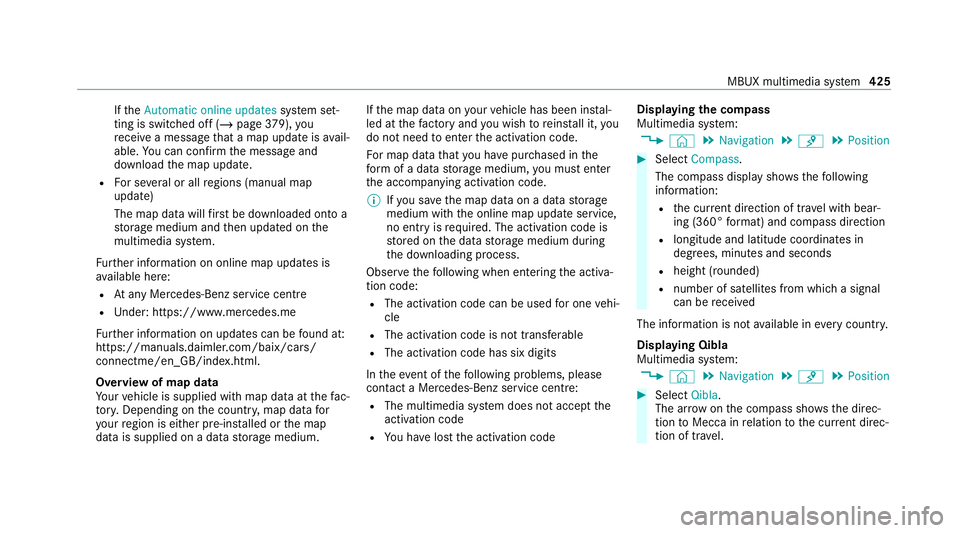
If
th eAutomatic online updates system set‐
ting is switched off (/ page379), you
re cei vea message that a map update is avail‐
able. You can confirm the message and
download the map update.
R For se veral or all regions (manual map
update)
The map data will firs t be downloaded onto a
st orage medium and then updated on the
multimedia sy stem.
Fu rther information on online map updates is
av ailable here:
R Atany Mercedes-Benz service centre
R Under: https://www.mercedes.me
Fu rther information on updates can be found at:
https://manuals.daimler.com/baix/cars/
connectme/en_GB/index.html.
Overview of map data
Yo ur vehicle is supplied with map data at thefa c‐
to ry. Depending on the count ry, map data for
yo ur region is either pre-ins talled or the map
data is supplied on a data storage medium. If
th e map data on your vehicle has been ins tal‐
led at thefa ctory and you wish toreins tall it, you
do not need toenter the activation code.
Fo r map data that you ha vepur chased in the
fo rm of a data storage medium, you must en ter
th e accompanying activation code.
% Ifyo u sa vethe map data on a data storage
medium with the online map update service,
no entry isrequ ired. The activation code is
st ored on the data storage medium during
th e downloading process.
Obser vethefo llowing when entering the activa‐
tion code:
R The activation code can be used for one vehi‐
cle
R The activation code is not transferable
R The activation code has six digits
In theeve nt of thefo llowing problems, please
con tact a Mercedes-Benz service centre:
R The multimedia sy stem does not accept the
activation code
R You ha velost the activation code Displaying
the compass
Multimedia sy stem:
4 © 5
Navigation 5
¡ 5
Position #
Select Compass.
The compass display sho wsthefo llowing
information:
R the cur rent di rection of tr avel with bear‐
ing (360° form at) and compass direction
R longitude and latitude coo rdinates in
degrees, minutes and seconds
R height (rounded)
R number of satellites from which a signal
can be recei ved
The information is not available in every count ry.
Displaying Qibla
Multimedia sy stem:
4 © 5
Navigation 5
¡ 5
Position #
Select Qibla.
The ar rowonthe compass sho wsthe direc‐
tion toMecca in relation tothe cur rent di rec‐
tion of tr avel. MBUX multimedia sy
stem 425
Page 516 of 757
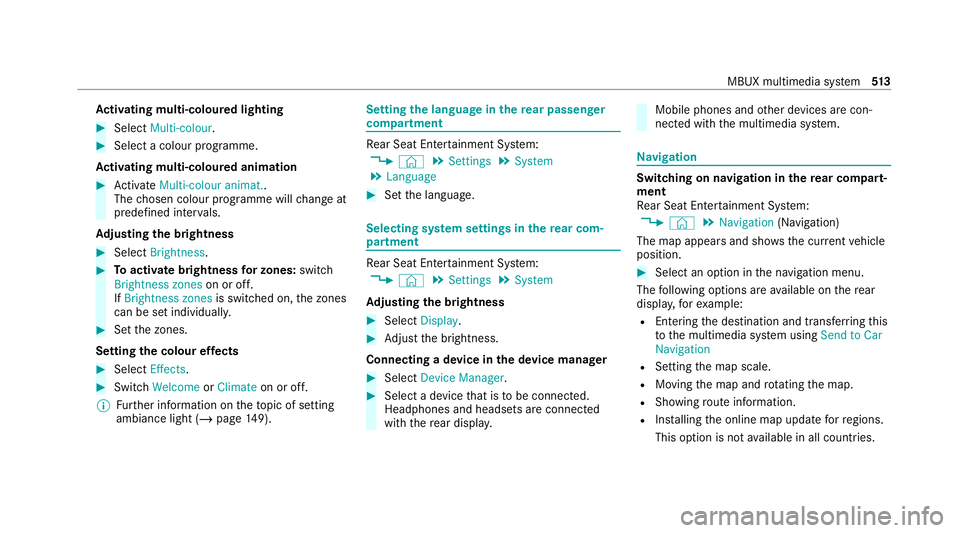
Ac
tivating multi-coloured lighting #
Select Multi-colour. #
Select a colour programme.
Ac tivating multi-coloured animation #
Activate Multi-colour animat..
The chosen colour programme will change at
predefined inter vals.
Ad justing the brightness #
Select Brightness . #
Toactivate brightness for zones: switch
Brightness zones on or off.
If Brightness zones is switched on,the zones
can be set individually. #
Set the zones.
Setting the colour ef fects #
Select Effects. #
Swit chWelcome orClimate on or off.
% Further information on theto pic of setting
ambiance light (/ page149). Setting
the language in there ar passenger
comp artment Re
ar Seat En tertainment Sy stem:
4 © 5
Settings 5
System
5 Language #
Set the language. Selecting sy
stem settings in there ar com‐
partment Re
ar Seat En tertainment Sy stem:
4 © 5
Settings 5
System
Ad justing the brightness #
Select Display. #
Adjust the brightness.
Connecting a device in the device manager #
Select Device Manager. #
Select a device that is tobe connec ted.
Headphones and headsets are connec ted
with there ar displa y. Mobile phones and
other devices are con‐
nected with the multimedia sy stem. Na
vigation Switching on navigation in
there ar comp art‐
ment
Re ar Seat En tertainment Sy stem:
4 © 5
Navigation (Navigation)
The map appears and sho ws the current vehicle
position. #
Select an option in the navigation menu.
The following options are available on there ar
displa y,forex ample:
R Entering the destination and transfer ring this
to the multimedia sy stem using Send to Car
Navigation
R Setting the map scale.
R Moving the map and rotating the map.
R Showing route information.
R Installing the online map update forre gions.
This option is not available in all countries. MBUX multimedia sy
stem 513