display MERCEDES-BENZ GLE SUV 2018 COMAND Manual
[x] Cancel search | Manufacturer: MERCEDES-BENZ, Model Year: 2018, Model line: GLE SUV, Model: MERCEDES-BENZ GLE SUV 2018Pages: 190, PDF Size: 4.42 MB
Page 165 of 190
Option 1: selecting the area in the infor-
mation chart
XTo selectPositionin the information chart:
turn and press the controller.
XTo select the current vehicle position:
select Current Position
from the menu.
The multimedia system receives weather data
for the current vehicle position from the near-
est weather station and automatically dis-
plays the data.
Requirement for "Near destination": a route to a
destination has been calculated (
Ypage 58).
The menu item is otherwise grayed out.
XTo select the vicinity of the destination:
select Near Destination
from the menu:
turn the controller and press to confirm.
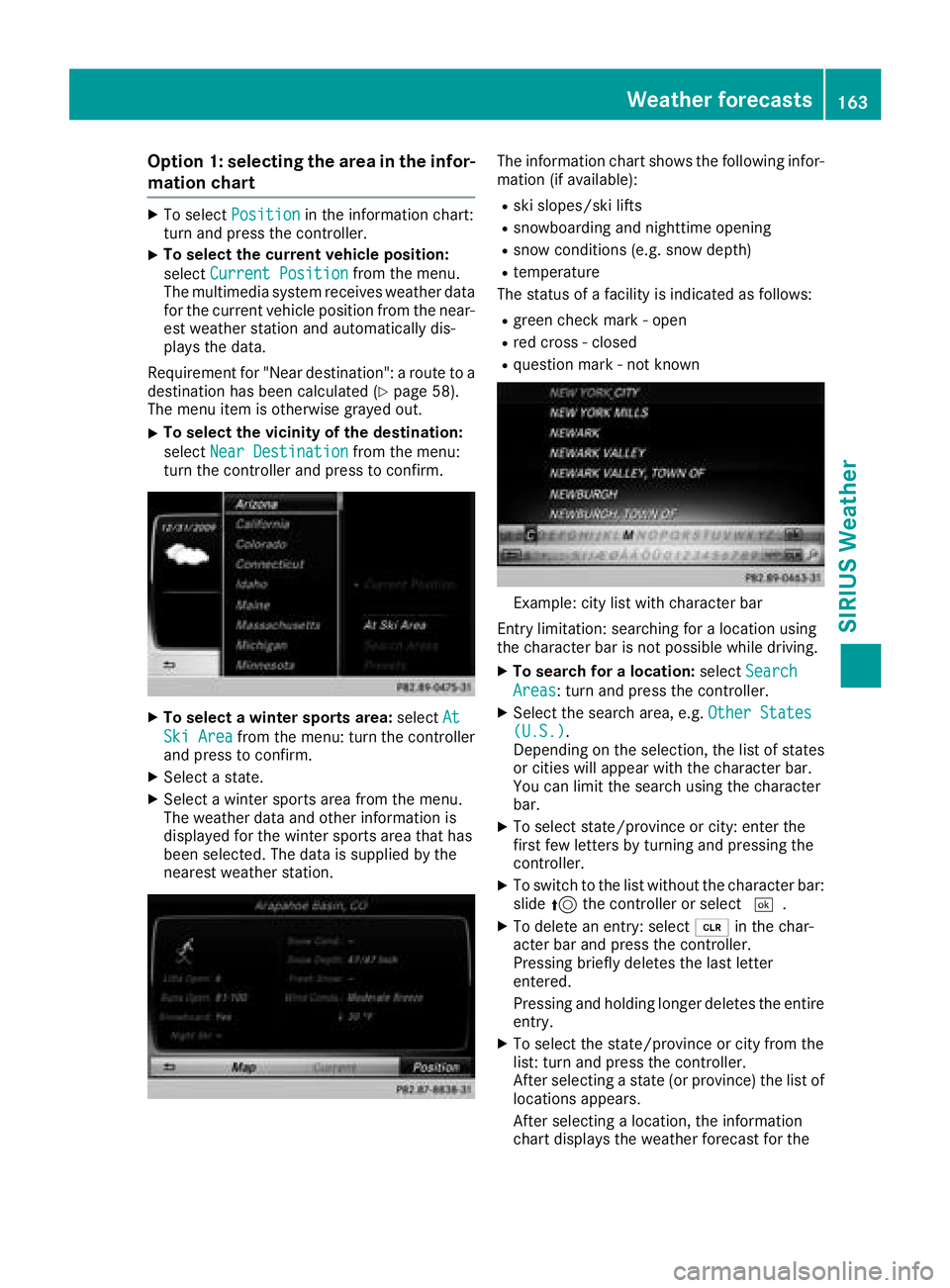
XTo select a winter sports area: selectAt
Ski Areafrom the menu: turn the controller
and press to confirm.
XSelect a state.
XSelect a winter sports area from the menu.
The weather data and other information is
displayed for the winter sports area that has
been selected. The data is supplied by the
nearest weather station.
The information chart shows the following infor-
mation (if available):
Rski slopes/ski lifts
Rsnowboarding and nighttime opening
Rsnow conditions (e.g. snow depth)
Rtemperature
The status of a facility is indicated as follows:
Rgreen check mark - open
Rred cross - closed
Rquestion mark - not known
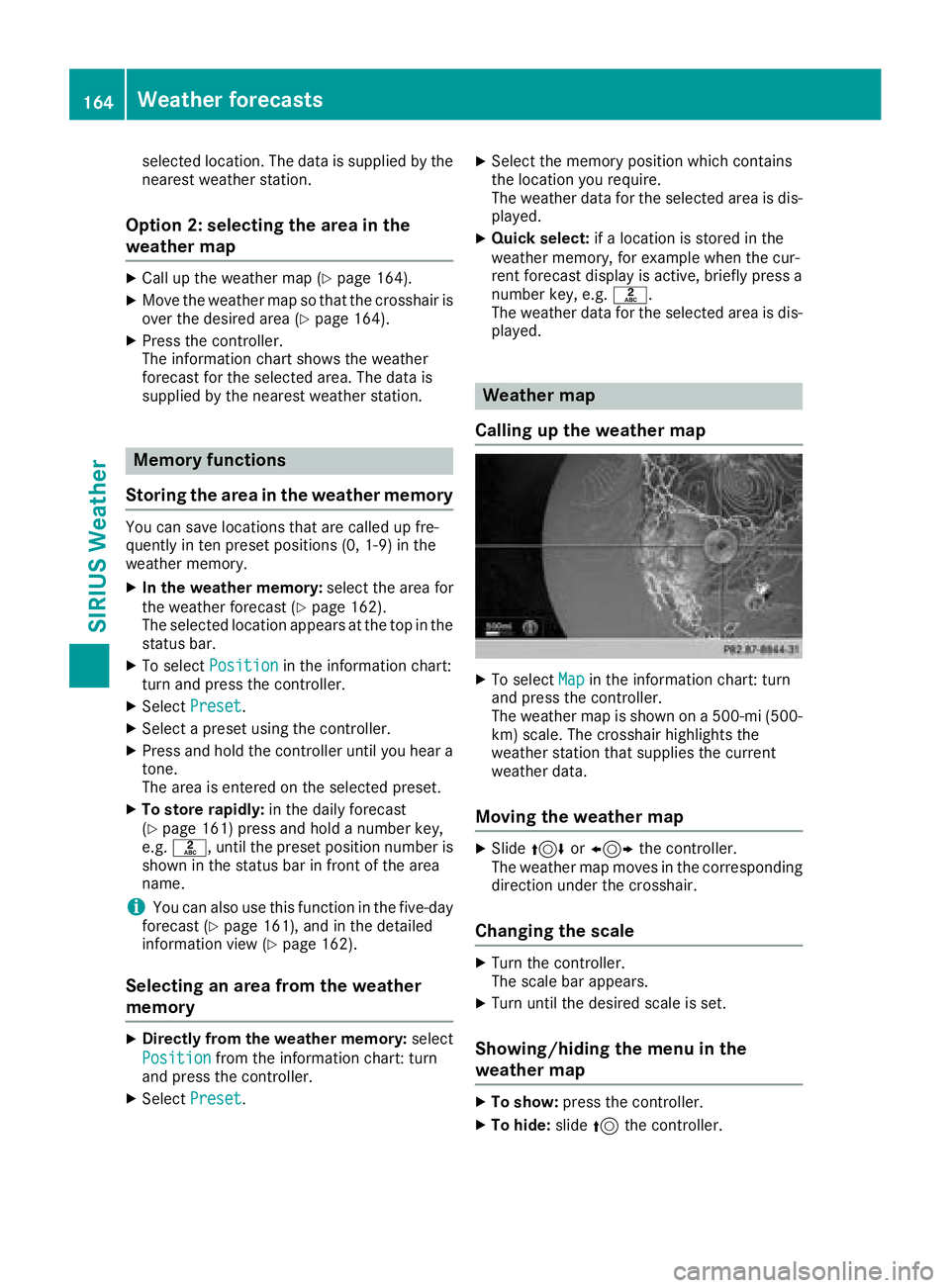
Example: city list with character bar
Entry limitation: searching for a location using
the character bar is not possible while driving.
XTo search for a location: selectSearch
Areas: turn and press the controller.
XSelect the search area, e.g. Other States(U.S.).
Depending on the selection, the list of states
or cities will appear with the character bar.
You can limit the search using the character
bar.
XTo select state/province or city: enter the
first few letters by turning and pressing the
controller.
XTo switch to the list without the character bar:
slide 5the controller or select ¬.
XTo delete an entry: select 2in the char-
acter bar and press the controller.
Pressing briefly deletes the last letter
entered.
Pressing and holding longer deletes the entire entry.
XTo select the state/province or city from the
list: turn and press the controller.
After selecting a state (or province) the list of
locations appears.
After selecting a location, the information
chart displays the weather forecast for the
Weather forecasts163
SIRIUS Weather
Page 166 of 190
selected location. The data is supplied by the
nearest weather station.
Option 2: selecting the area in the
weather map
XCall up the weather map (Ypage 164).
XMove the weather map so that the crosshair is
over the desired area (Ypage 164).
XPress the controller.
The information chart shows the weather
forecast for the selected area. The data is
supplied by the nearest weather station.
Memory functions
Storing the area in the weather memory
You can save locations that are called up fre-
quently in ten preset positions (0, 1-9) in the
weather memory.
XIn the weather memory: select the area for
the weather forecast (Ypage 162).
The selected location appears at the top in the status bar.
XTo select Positionin the information chart:
turn and press the controller.
XSelect Preset.
XSelect a preset using the controller.
XPress and hold the controller until you hear a
tone.
The area is entered on the selected preset.
XTo store rapidly: in the daily forecast
(Ypage 161) press and hold a number key,
e.g. l, until the preset position number is
shown in the status bar in front of the area
name.
iYou can also use this function in the five-day
forecast (Ypage 161), and in the detailed
information view (Ypage 162).
Selecting an area from the weather
memory
XDirectly from the weather memory: select
Position
from the information chart: turn
and press the controller.
XSelect Preset.
XSelect the memory position which contains
the location you require.
The weather data for the selected area is dis-
played.
XQuick select: if a location is stored in the
weather memory, for example when the cur-
rent forecast display is active, briefly press a
number key, e.g. l.
The weather data for the selected area is dis-
played.
Weather map
Calling up the weather map
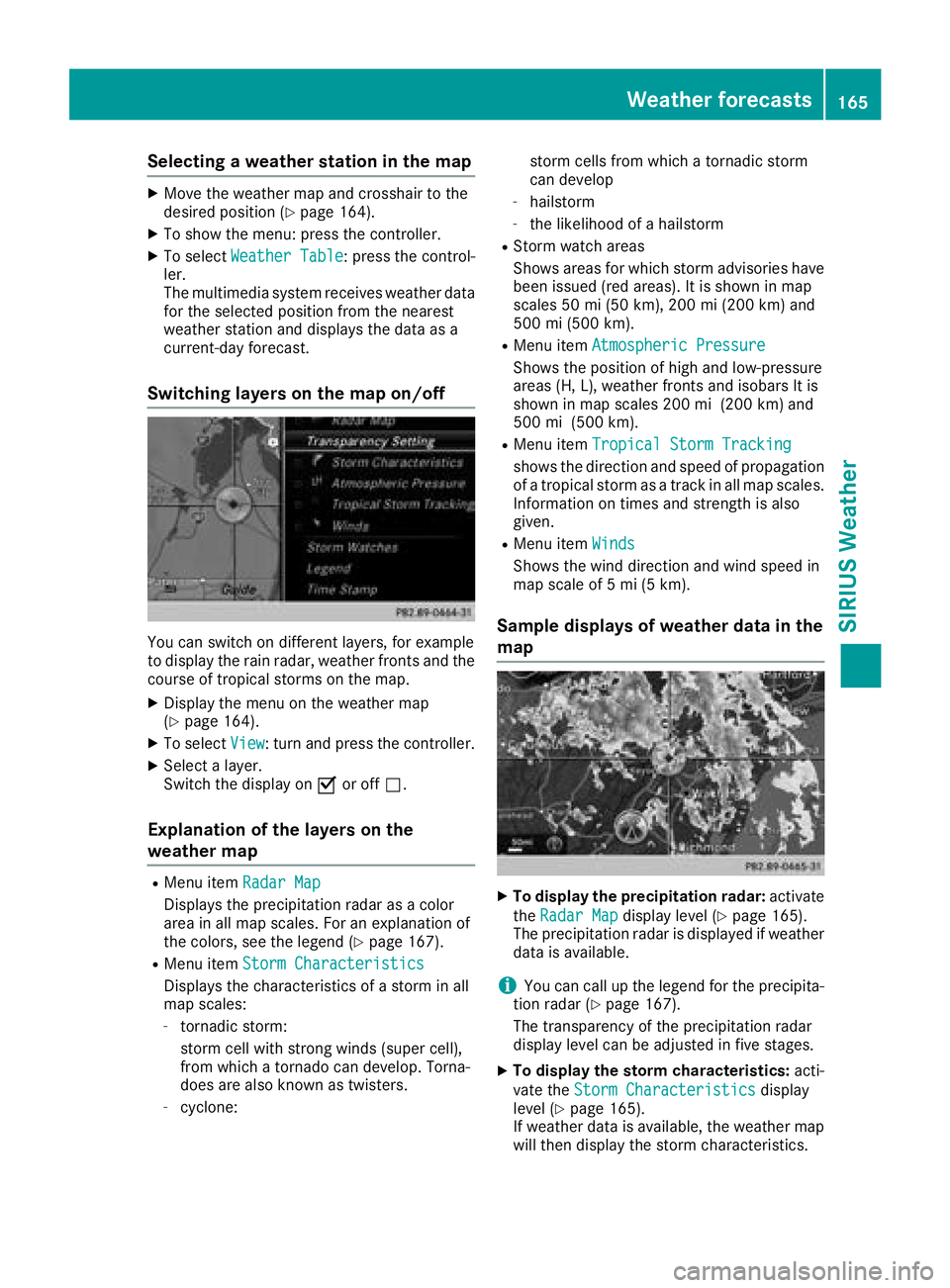
XTo select Mapin the information chart: turn
and press the controller.
The weather map is shown on a 500-mi (500-
km) scale. The crosshair highlights the
weather station that supplies the current
weather data.
Moving the weather map
XSlide 4 or1 the controller.
The weather map moves in the corresponding
direction under the crosshair.
Changing the scale
XTurn the controller.
The scale bar appears.
XTurn until the desired scale is set.
Showing/hiding the menu in the
weather map
XTo show: press the controller.
XTo hide:slide5the controller.
164Weather forecasts
SIRIUS Weather
Page 167 of 190
Selecting a weather station in the map
XMove the weather map and crosshair to the
desired position (Ypage 164).
XTo show the menu: press the controller.
XTo selectWeather Table: press the control-
ler.
The multimedia system receives weather data
for the selected position from the nearest
weather station and displays the data as a
current-day forecast.
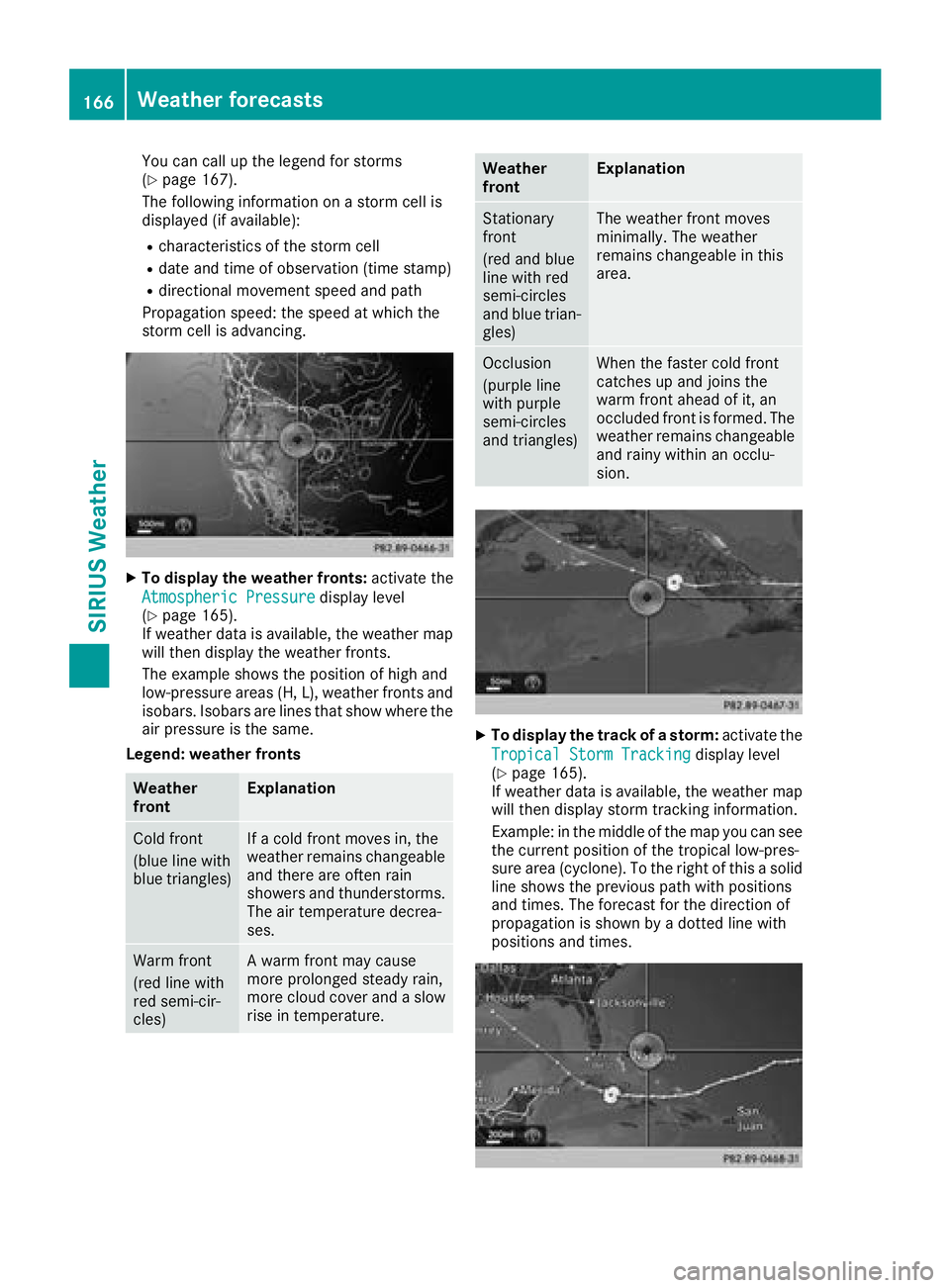
Switching layers on the map on/off
You can switch on different layers, for example
to display the rain radar, weather fronts and the
course of tropical storms on the map.
XDisplay the menu on the weather map
(Ypage 164).
XTo select View: turn and press the controller.
XSelect a layer.
Switch the display on Oor off ª.
Explanation of the layers on the
weather map
RMenu item Radar Map
Displays the precipitation radar as a color
area in all map scales. For an explanation of
the colors, see the legend (
Ypage 167).
RMenu itemStorm Characteristics
Displays the characteristics of a storm in all
map scales:
-tornadic storm:
storm cell with strong winds (super cell),
from which a tornado can develop. Torna-
does are also known as twisters.
-cyclone: storm cells from which a tornadic storm
can develop
-hailstorm
-the likelihood of a hailstorm
RStorm watch areas
Shows areas for which storm advisories have
been issued (red areas). It is shown in map
scales 50 mi (50 km), 200 mi (200 km) and
500 mi (500 km).
RMenu item Atmospheric Pressure
Shows the position of high and low-pressure
areas (H, L), weather fronts and isobars It is
shown in map scales 200 mi (200 km) and
500 mi (500 km).
RMenu itemTropical Storm Tracking
shows the direction and speed of propagation
of a tropical storm as a track in all map scales.
Information on times and strength is also
given.
RMenu itemWinds
Shows the wind direction and wind speed in
map scale of 5 mi (5 km).
Sample displays of weather data in the
map
XTo display the precipitation radar: activate
the Radar Map
display level (Ypage 165).
The precipitation radar is displayed if weather
data is available.
iYou can call up the legend for the precipita-
tion radar (Ypage 167).
The transparency of the precipitation radar
display level can be adjusted in five stages.
XTo display the storm characteristics: acti-
vate the Storm Characteristics
display
level (Ypage 165).
If weather data is available, the weather map
will then display the storm characteristics.
Weather forecasts165
SIRIUS Weather
Page 168 of 190
You can call up the legend for storms
(Ypage 167).
The following information on a storm cell is
displayed (if available):
Rcharacteristics of the storm cell
Rdate and time of observation (time stamp)
Rdirectional movement speed and path
Propagation speed: the speed at which the
storm cell is advancing.
XTo display the weather fronts: activate the
Atmospheric Pressure
display level
(Ypage 165).
If weather data is available, the weather map
will then display the weather fronts.
The example shows the position of high and
low-pressure areas (H, L), weather fronts and
isobars. Isobars are lines that show where the
air pressure is the same.
Legend: weather fronts
Weather
frontExplanation
Cold front
(blue line with
blue triangles)If a cold front moves in, the
weather remains changeable
and there are often rain
showers and thunderstorms. The air temperature decrea-
ses.
Warm front
(red line with
red semi-cir-
cles)A warm front may cause
more prolonged steady rain,
more cloud cover and a slow
rise in temperature.
Weather
frontExplanation
Stationary
front
(red and blue
line with red
semi-circles
and blue trian-
gles)The weather front moves
minimally. The weather
remains changeable in this
area.
Occlusion
(purple line
with purple
semi-circles
and triangles)When the faster cold front
catches up and joins the
warm front ahead of it, an
occluded front is formed. The
weather remains changeable
and rainy within an occlu-
sion.
XTo display the track of a storm: activate the
Tropical Storm Tracking
display level
(Ypage 165).
If weather data is available, the weather map
will then display storm tracking information.
Example: in the middle of the map you can see
the current position of the tropical low-pres-
sure area (cyclone). To the right of this a solid
line shows the previous path with positions
and times. The forecast for the direction of
propagation is shown by a dotted line with
positions and times.
166Weather forecasts
SIRIUS Weather
Page 169 of 190
You can find out more information about cyclo-
nes in the Storm Guide (Ypage 168).
The following information is shown (if available):
Rname of the tropical storm and category
Rtime stamp
Rdirectional movement speed and path
Rmaximum wind speed
Propagation speed: the speed at which the
storm cell of a tropical cyclone is advancing.
A tropical storm is categorized according to
where it originated.
Region of origincategory
Atlantic, North
and South Pacific
OceansName of tropical low-
pressure system (Trop‐
ical Low Press.Sys.)
Atlantic, North
and South Pacific
OceansName of tropical storm
(Tropical Storm)
Atlantic, North
and South Pacific
OceansName of tropical storm
(Hurricane Category
3)
Displays hurricane cate-
gories 1 through 5
Northwestern
Pacific OceanName of tropical storm
(Tropical Low
Press. Sys.)
Northwestern
Pacific OceanName of tropical storm
(Tropical Cyclone)
Northwestern
Pacific OceanName of tropical storm
(Typhoon)
Northwestern
Pacific OceanName of tropical storm
(Super-Typhoon)
You can also see the time stamp for the weather
data on map scales of 50 miles and smaller.
The weather map shows wind directions and
wind speeds.
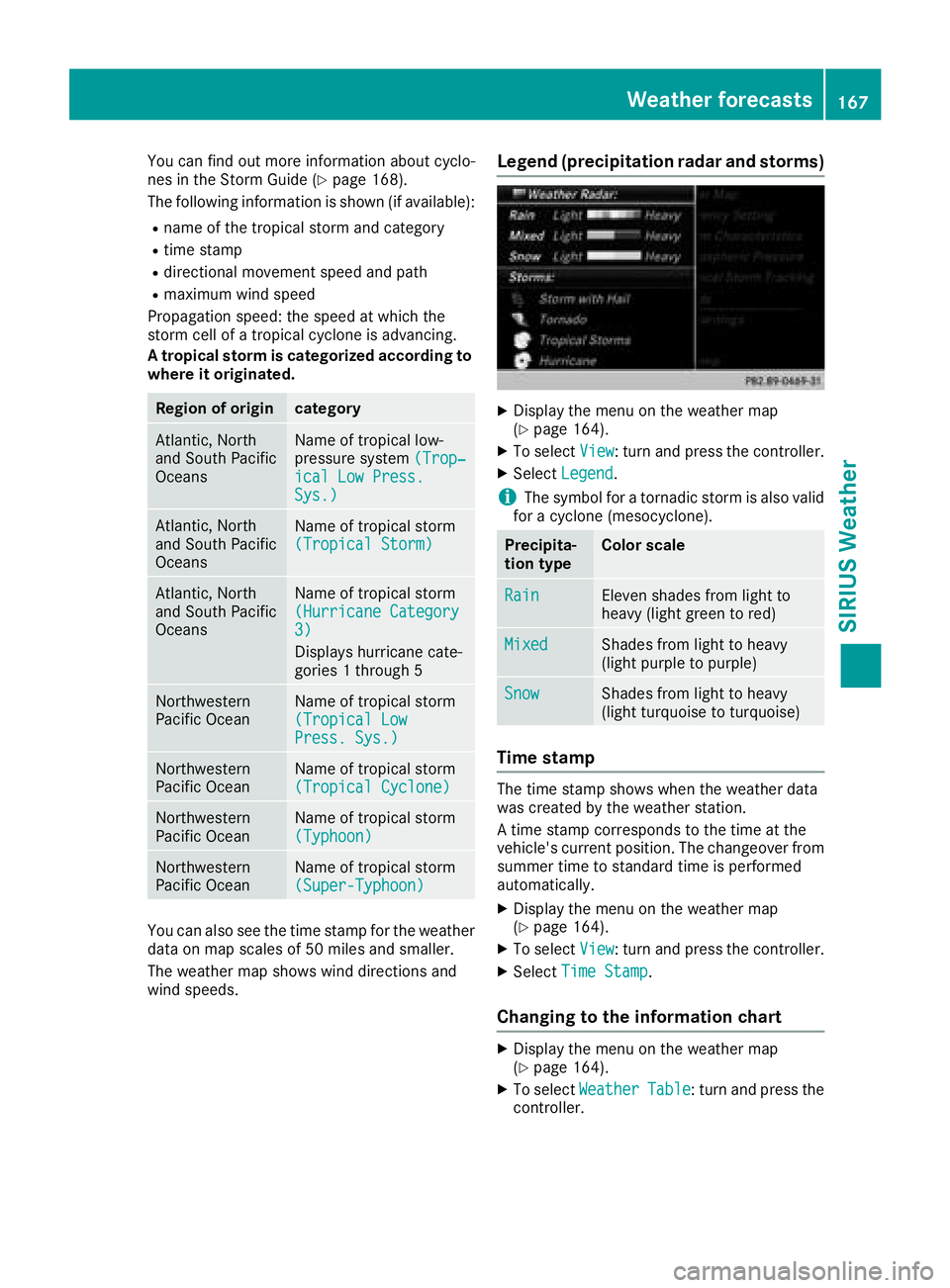
Legend (precipitation radar and storms)
XDisplay the menu on the weather map
(Ypage 164).
XTo selectView: turn and press the controller.
XSelectLegend.
iThe symbol for a tornadic storm is also valid
for a cyclone (mesocyclone).
Precipita-
tion typeColor scale
RainEleven shades from light to
heavy (light green to red)
MixedShades from light to heavy
(light purple to purple)
SnowShades from light to heavy
(light turquoise to turquoise)
Time stamp
The time stamp shows when the weather data
was created by the weather station.
A time stamp corresponds to the time at the
vehicle's current position. The changeover from
summer time to standard time is performed
automatically.
XDisplay the menu on the weather map
(Ypage 164).
XTo select View: turn and press the controller.
XSelectTime Stamp.
Changing to the information chart
XDisplay the menu on the weather map
(Ypage 164).
XTo select WeatherTable: turn and press the
controller.
Weather forecasts167
SIRIUS Weather
Page 170 of 190
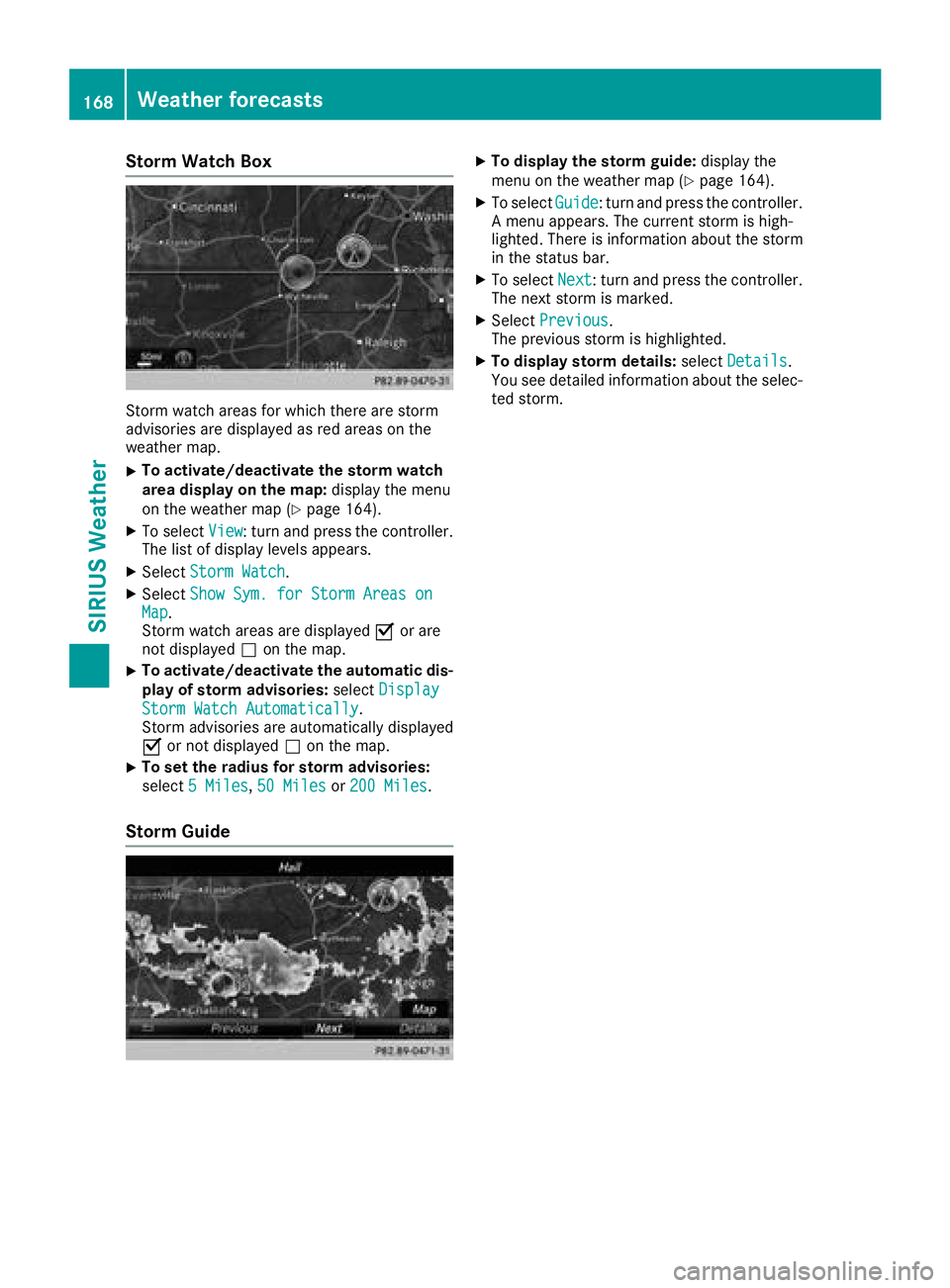
Storm Watch Box
Storm watch areas for which there are storm
advisories are displayed as red areas on the
weather map.
XTo activate/deactivate the storm watch
area display on the map:display the menu
on the weather map (
Ypage 164).
XTo select View: turn and press the controller.
The list of display levels appears.
XSelect Storm Watch.
XSelectShow Sym. for Storm Areas onMap.
Storm watch areas are displayed Oor are
not displayed ªon the map.
XTo activate/deactivate the automatic dis-
play of storm advisories: selectDisplay
Storm Watch Automatically.
Storm advisories are automatically displayed
O or not displayed ªon the map.
XTo set the radius for storm advisories:
select 5 Miles
,50 Milesor 200 Miles.
Storm Guide
XTo display the storm guide: display the
menu on the weather map (Ypage 164).
XTo select Guide: turn and press the controller.
A menu appears. The current storm is high-
lighted. There is information about the storm
in the status bar.
XTo select Next: turn and press the controller.
The next storm is marked.
XSelect Previous.
The previous storm is highlighted.
XTo display storm details: selectDetails.
You see detailed information about the selec-
ted storm.
168Weather forecasts
SIRIUS Weather
Page 171 of 190
Your multimediasyste mequipment
These operatin ginstruction sdescribe all th e
standar dan doptional equipment of your multi-
media system, as available at th etime of going
to press. Country-specifi cdifference sare pos -
sible. Bear in min dthat your vehicle may no t
feature all function sdescribed here. Thi salso
applies to safety-relevan tsystems an dfunc-
tions.
Read th einformation on qualifie dspecialis t
workshop sin th evehicle Operator's Manual.
Overview
Important safet ynotes
GWARNING
The CD/DVD drive is aclass 1lase rproduct.
If you ope nth ehousin gof th eCD/DVD drive,
there is aris kof exposure to invisible lase r
radiation .Thi slase rradiation could damage
your retina. There is aris kof injury.
Never ope nth ehousing. Always hav emain -
tenanc ean drepair wor kcarrie dout at aquali -
fie dspecialis tworkshop .
GWARNING
If objects suc has headphones/headset sor
external audio/video sources are no tsecure d
in th epassenger compartment, they can be
flun garound an dhit vehicle occupants .There
is aris kof injury, fo rexample in th eevent of
sudden braking or asudden change in direc -
tion .
Always stow these items or similar objects
carefully so that they canno tbe flung around ,
fo rexample in alockable vehicle stowag e
compartment.
Equipment
Observ ethat arange of Rear Seat Entertain -
men tSystems are available fo rMercedes-Ben z
vehicles .In this Operator's Manual, th eRear
Seat Entertainmen tSyste mCode 86 4is used
fo rillustration purposes. If you hav e adifferen t
Rear Seat Entertainmen tSyste min your vehicle,
please refer to th emanufacturer's operatin g
instructions.
Component s
The Rear Seat Entertainmen tSyste mincludes :
Rtwoscreens fo rth erea rbehin dth efront-seat
head restraints
Rtw oremot econtrols
Rasingle drive (rear-compartmen tdrive)
RAU Xjack son bot hrea rscreens (AUX display)
RAU Xjack son th erea rdrive (AUX drive)
Rheadphone sfo reac hrea rscree n
Rtwoset sof cordless headphone s
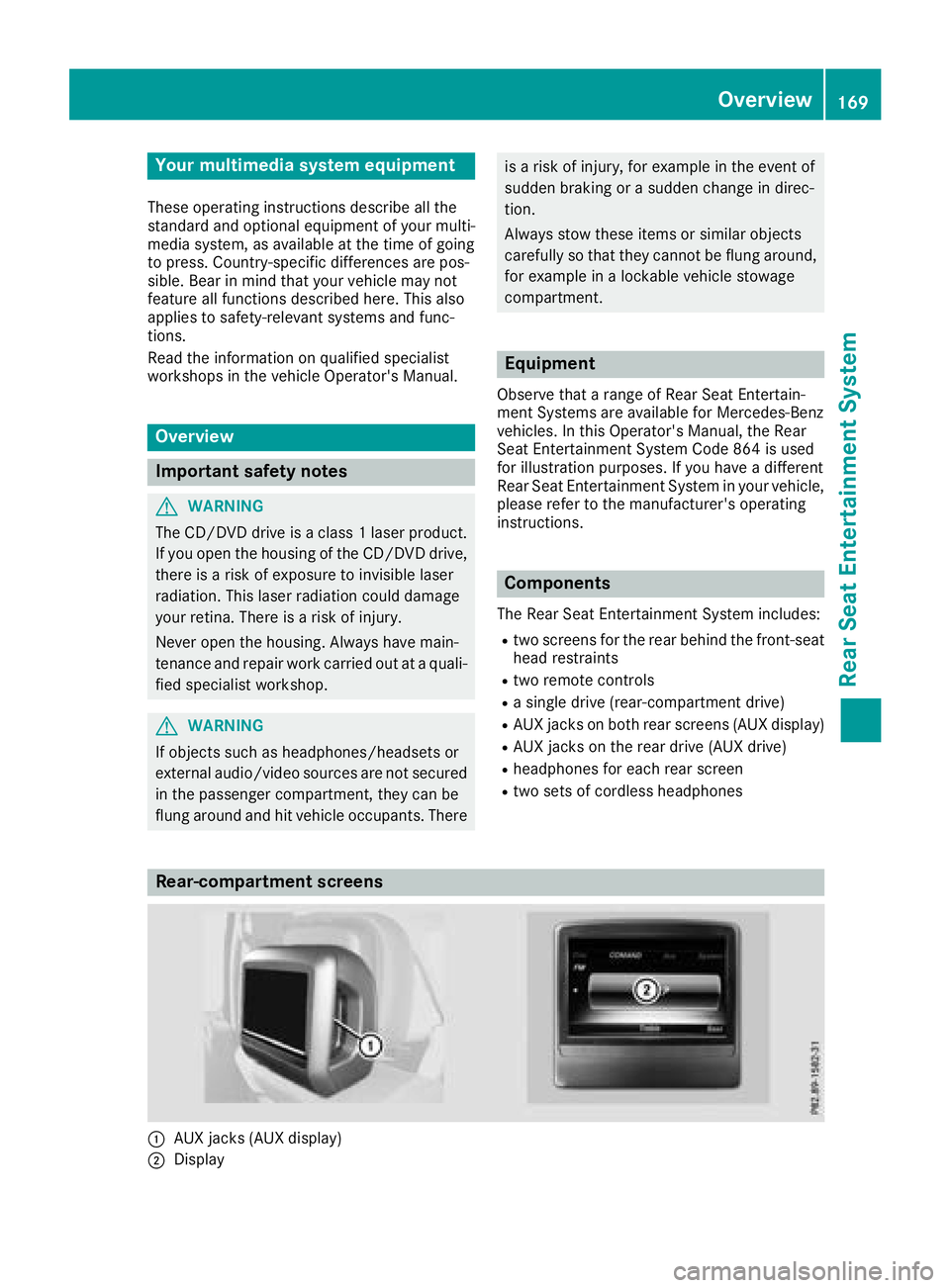
Rear-compartment screens
:AUXjack s(AUX display)
;Display
Overview169
Rear Seat Entertainment System
Z
Page 174 of 190
Indicator lamp on the cordless head-
phones
The color of theindicator lamp shows:
Rwhether th edevice is switched on or off
Rth econdition of th einserted batterie s
LED dis-
pla yStatus
Gree nThe batteries are fine.
RedThe batteries are almost dis-
charged.
Lit continu-
ouslyThe headphones are switched
on and connecte dto ascreen.
Flashin gThe headphones are searching
for theconnection to ascreen.
No display
(dark)The headphones are switched
off or th ebatteries are dis-
charged.
The function of th eheadphones may be
impaired by other radio-base delectronic devi-
ce ssuc has mobile phones or laptops .
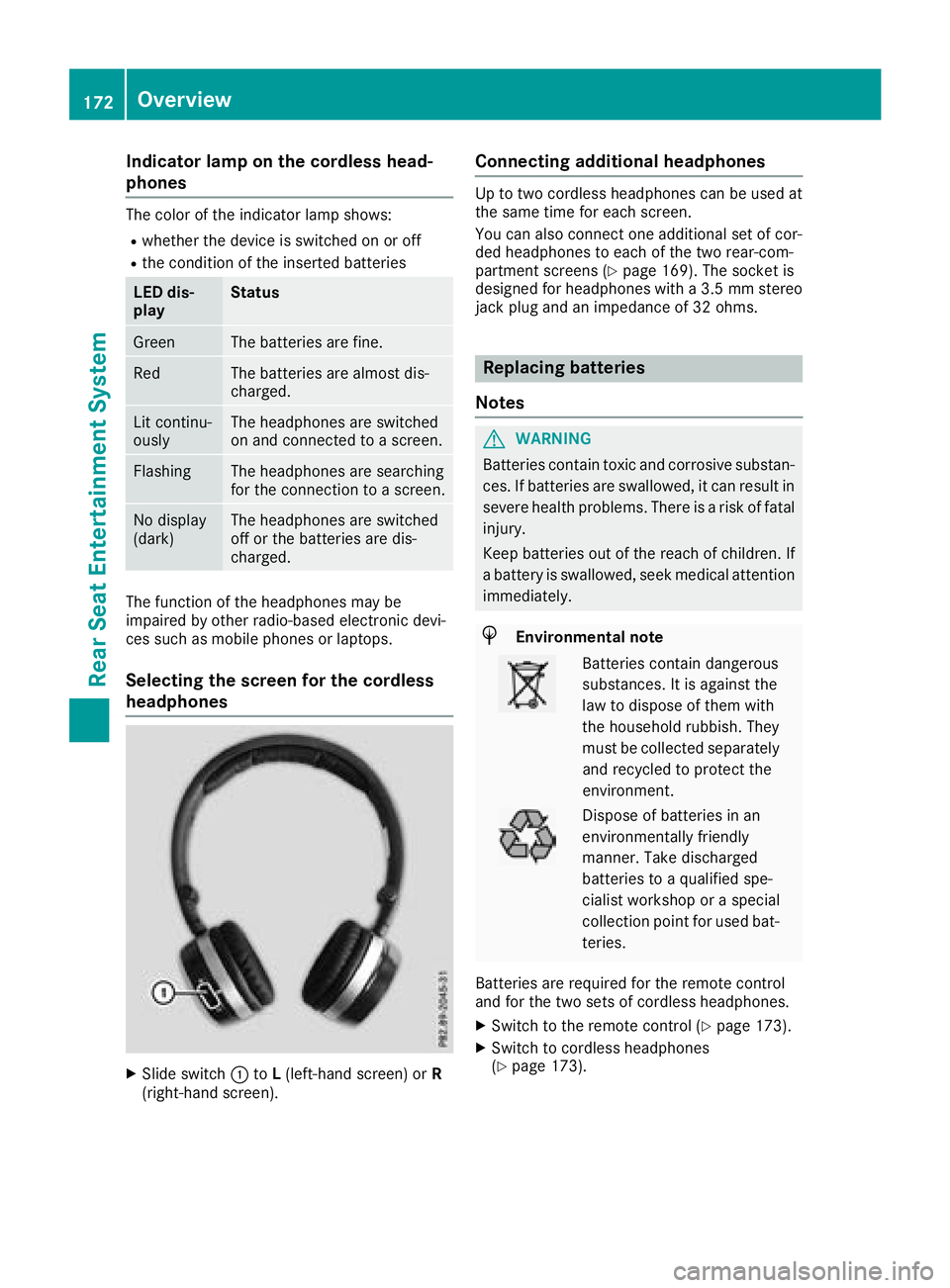
Selecting the screen for the cordless
headphones
XSlide switch:toL(left-han dscreen) or R
(right-hand screen) .
Connecting additional headphones
Up to two cordless headphones can be used at
thesam etime for eac hscreen.
You can also connec ton eadditional set of cor-
ded headphones to eac hof th etwo rear-com-
partmen tscreens (
Ypage 169). The socke tis
designed for headphones wit h a3.5mm stere o
jac kplug and an impedance of 32 ohms.
Replacing batteries
Notes
GWARNIN G
Batterie scontain toxic and corrosiv esubstan -
ces. If batterie sare swallowed, it can result in
severe healt hproblems. Ther eis aris kof fatal
injury.
Kee pbatterie sout of th ereac hof children .If
a battery is swallowed, seek medical attention
immediately.
HEnvironmental not e
Batteriescontain dangerous
substances. It is against th e
law to dispose of them wit h
th ehousehold rubbish. They
must be collecte dseparately
and recycle dto protect th e
environment.
Dispose of batterie sin an
environmentally friendly
manner. Tak edischarged
batterie sto aqualified spe-
cialist workshop or aspecial
collection poin tfor used bat -
teries.
Batterie sare require dfor th eremot econtrol
and for th etwo set sof cordless headphones.
XSwitc hto th eremot econtrol (Ypage 173).
XSwitchto cordless headphones
(Ypage 173).
172Overview
Rear Seat Entertainment System
Page 177 of 190
XSelectDVD-Videousing the :=;
buttons and press the 9button to confirm.
XSelect Brightness,Contrastor Colorusing the 9: buttons and press the 9
button to confirm.
A scale appears.
XSelect a setting using the 9:buttons
and press the 9button to confirm.
Changing the picture format
XTo show the menu: press the9button on
the remote control.
XSelect DVD-Videousing the :=;
buttons and press the 9button to confirm.
The dot in front of one of the menu items
16:9
, 4:3or Zoomshows the currently set
picture format.
XSelect a format using the 9:buttons
and press the 9button to confirm.
System settings
Note
You can adjust all system settings individually
for each rear screen without affecting the other
screen.
Selecting the display language
XSelect Systemusing the 9=; but-
tons on the remote control and press 9to
confirm.
You see the system menu on the selected rear screen.
XSelect Settingsusing the :button and
press 9to confirm.
XPress the 9button to confirm Language.
The list of languages appears. The #dot indi-
cates the current setting.
XSelect a language using the 9:but-
tons and press the 9button to confirm.
The Rear Seat Entertainment System sets the
selected language.
Switching the display design
XSelect Settingsusing the :button and
press 9to confirm.
XSelect Day Mode,Night Modeor Automaticwith the 9: buttons and confirm with
the 9button.
The dot indicates the current setting.
DesignExplanation
Day ModeThe display is set perma-
nently to day design.
Night ModeThe display is set perma-
nently to night design.
AutomaticThe display design
changes depending on
the vehicle instrument
cluster illumination.
Setting the brightness
XSelect Settingsusing the :button and
press 9to confirm.
XSelect Brightnesswith the 9: but-
tons and confirm with the 9button.
A scale appears.
XAdjust the brightness using the 9:
buttons and press the 9button to confirm.
The bar moves up or down. The picture
becomes lighter or darker.
Showing/hiding the picture
XTo hide the picture: selectDisplayin the
system menu using the :;buttons on
the remote control and press the 9button to
confirm.
The picture is hidden.
XTo display the picture: press the9button.
Audio CD/DVD and MP3 mode
Important safety notes
GWARNING
The CD/DVD drive is a class 1 laser product.
If you open the housing of the CD/DVD drive,
there is a risk of exposure to invisible laser
Audio CD/DVD and MP3 mode175
Rear Seat Entertainment System
Z
Page 178 of 190
radiation. This laser radiation could damage
your retina. There is a risk of injury.
Never open the housing. Always have main-
tenance and repair work carried out at a quali-fied specialist workshop.
General notes
The rear-compartment drive is a single disc
drive.
Notes on audio mode can be found in the
"Media" section (
Ypage 137):
RNotes on CDs and DVDs
RNotes on MP3 mode
RNotes on copyright
Inserting and removing a CD/DVD
from the rear-compartment drive
:Disc slot
;Disc eject button
The rear-compartment drive is located behind
the center console in a folding compartment.
Depending on the vehicle equipment level, the
rear-compartment drive is located:
Runder the rear bench seat or
Rin the center console between the driver's
and front-passenger seats
If there is already a disc inserted, this must be
ejected before another is inserted.
XTo remove: press theþbutton.
The rear-compartment drive ejects the disc.
XTo insert: insert a disc into the disc slot with
the printed side facing upwards.
The rear-compartment drive closes and the
disc is played. The rear-compartment drive plays the disc:
Rif it has been inserted correctly and is a
permissible disc, and
Rafter you have switched on disc mode
(audio CD or audio DVD or MP3 mode)
(
Ypage 176).
Data on an MP3 CD first needs to be loaded by the drive. Loading may take some time,
depending on the number of folders and
tracks.
Switching to audio CD, audio DVD or
MP3 mode
:Calls up CD functions, other displays: MP3
(MP3 mode), DVD-A (audio DVD mode)
;Calls up track list (audio CD and audio DVD
mode), calls up folders (MP3 mode)
=Sets the treble
?Sets the bass
The example shows audio CD mode. The num-
ber and the elapsed playback time for the cur-
rent track are displayed.
XInsert a CD or DVD (Ypage 176).
The Rear Seat Entertainment System loads
the inserted disc and plays it.
XIf the Rear Seat Entertainment System does
not play back the disc automatically, select
Disc
using the 9=; buttons on
the remote control and confirm with the 9
button.
The corresponding mode is switched on. The
Rear Seat Entertainment System plays the
disc.
iVariable bit rates in MP3 tracks can result in
the elapsed time shown being different from
the actual elapsed time.
176Audio CD/DVD and MP3 mode
Rear Seat Entertainment System