warning MERCEDES-BENZ GLE SUV 2018 COMAND Manual
[x] Cancel search | Manufacturer: MERCEDES-BENZ, Model Year: 2018, Model line: GLE SUV, Model: MERCEDES-BENZ GLE SUV 2018Pages: 190, PDF Size: 4.42 MB
Page 124 of 190
Your multimediasyste mequipment
These operatin ginstruction sdescribe all th e
standar dan doptional equipment of your multi-
media system, as available at th etime of going
to press. Country-specifi cdifference sare pos -
sible. Bear in min dthat your vehicle may no t
feature all function sdescribed here. Thi salso
applies to safety-relevan tsystems an dfunc-
tions.
Read th einformation on qualifie dspecialis t
workshop sin th evehicle Operator's Manual.
Important safet ynotes
GWARNING
If you operat einformation systems an dcom-
munication equipment integrated in th evehi-
cl e when driving, you may be distracted from
th etraffic situation .You could also los econ-
trol of th evehicle. There is aris kof an acci-
dent.
Only operat ethis equipment when th etraffic
situation permits. If you are no tsur ethat this
is possible, par kth evehicle payin gattention
to traffic condition san doperat eth eequip-
men twhen th evehicle is stationary.
You mus tobserv eth elegal requirements fo rth e
country in whic hyou are drivin gwhen operatin g
th esystem.
Conditions for access
USA: to use Mercedes-Ben zApps an dInternet
access ,mbrace mus tbe activated an dopera-
tional. Furthermore, mbrace mus tbe activated
fo rMercedes-Ben zApps an dInternet access .
Canada: to use Mercedes-Ben zApps an dInter-
ne taccess ,Mercedes me connec tmus tbe acti-
vated an doperational. Furthermore, Mercedes
me connec tmus tbe activated fo rMercedes -
Benz Apps an dInternet access .
Tak enote of th econnection priorities .An emer-
gency cal lhas th ehighes tpriority. Whe n aser-
vic ecall, e.g. abreakdown servic ecal lor th eMB
Info Call, is active ,an emergency cal lcan still be
initiated. Aservic ecall, on th eother hand, has priorit
yover acurren tInternet connection .
Therefore, you canno testablis han Internet con-
nection durin g aservic ecall.
The term sof use are shown when th esyste mis
used fo rth efirst time an dthen once ayear
thereafter. Only rea dan daccept th eterm sof
use when th evehicle is stationary.
The driver is no tpermitte dto cal lup websites
whil edrivin gan duse of th eMercedes-Ben z
Apps is res tri
cted.
iThe availabilit
yof individual Mercedes-Ben z
Apps may var ydependin gon th ecountry.
Establishing/ending th econnection
Establishing aconnection
Read th econdition sfo restablishin g aconnec -
tion (Ypage 122).
A connection can be established ,fo rexample
by:
Renterin g aweb address
Rcallin gup aMercedes-Ben zAp p
Rcallin gup afavorit e
Ending th econnection
XPress Cancelin theconnection swindow.
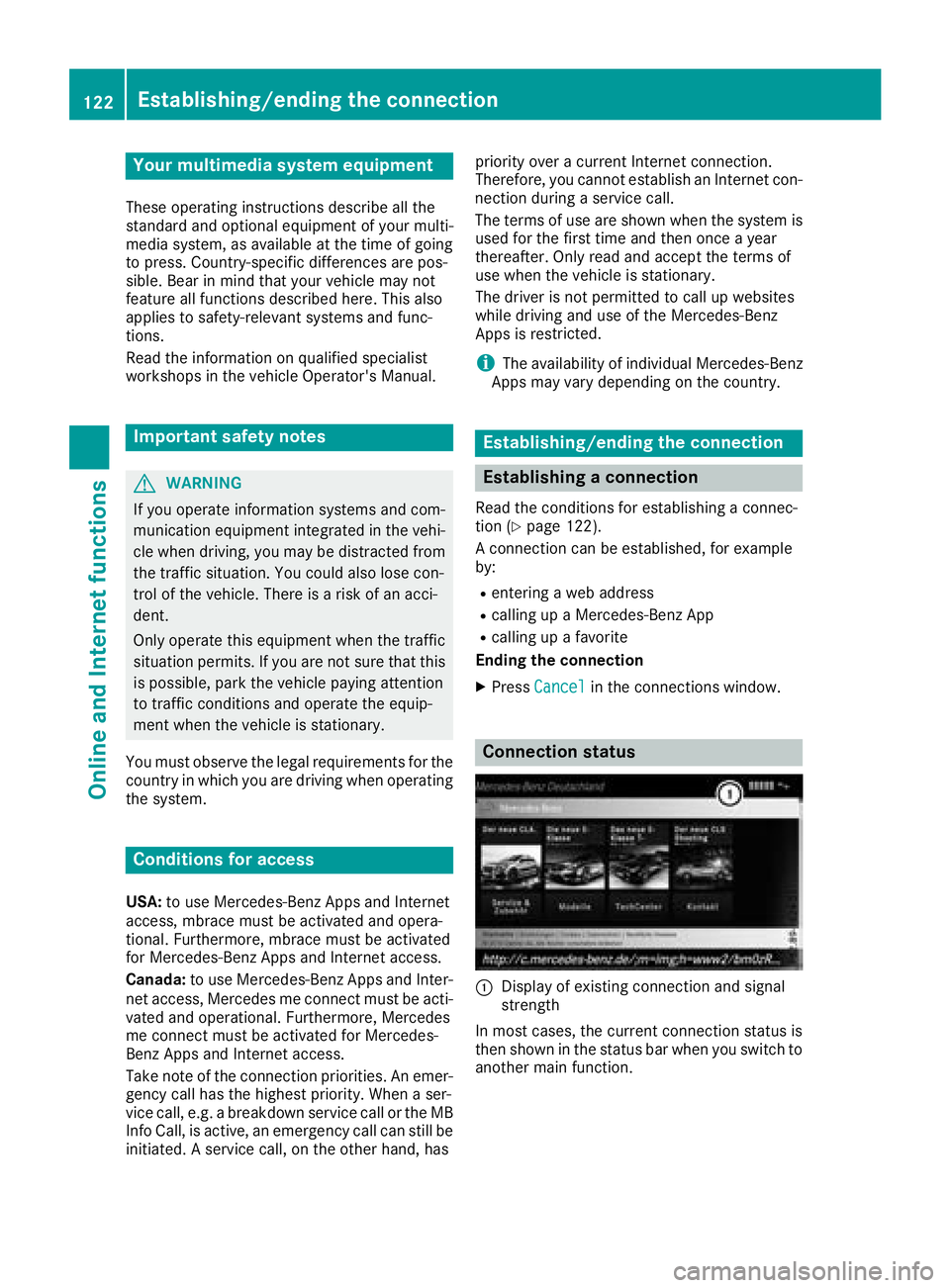
Connection status
:Display of existin gconnection an dsigna l
strengt h
In most cases, th ecurren tconnection status is
then shown in th estatus bar when you switch to
another main function .
122Establishing/ending the connection
Online and Internet functions
Page 139 of 190
Activating media using the number
keypad
XTo selectamedia source :press th ecorre-
sponding number key.
If th emedia source contain smusic or video
files, these will be played .The corresponding
media men uis shown.
XTo ente rth etrack number :press th eg
button.
A men uappears.
XUse th enumber keypad to ente rth etrack
number .
The track is played .
Use th es butto nto sho wthetrack infor-
mation for th etrack that is currentl yplaying.
Activating media using the device list
XIn Medi amode, slid e6 thecontroller .
The media men ubar appears.
XTo select Devices:tur nand press th econ-
troller .
The available media source swill be shown.
The #dot indicates th ecurren tsetting .
XSelectth emedia source .
If th emedia source contain smusic or video
files, these will be played .The corresponding
media men uis shown.
iIn Bluetoot h®audio mode, it is no tpossibl e
to select media via th edevice list .
Audio/video mode
Import ant safety notes
GWARNIN G
The CD/DV Ddrive is aclas s 1laser product.
If you open th ehousing of th eCD/DV Ddrive,
there is aris kof exposure to invisible laser
radiation .This laser radiation could damag e
your retina .There is aris kof injury.
Never open th ehousing .Always hav emain -
tenance and repair wor kcarrie dout at aquali-
fie dspecialis tworkshop .
GWARNING
If you handle adisc while driving, you may be
distracte dfrom th etraffic situation .You could
also lose control of th evehicle. There is aris k
of an accident.
Only handle adisc when th evehicl eis sta-
tionary.
Bear in min dthat at aspee dof only 30 mph
(approximately 50 km/h), th evehicl ecover s a
distanc eof 44 ft (approximately 14 m)per sec-
ond.
Notes on audio/video mode
Permissible data carriers
RCD audio, CD-R and CD-RW
RDVD video, DVD-R and DVD-RW (audio for-
mats PCM DTS®and Dolby®Digital)
RSD card
RUSB storage device
RApple®devices
iManufactured under license from Dolby
Laboratories. Dolby and the double-D symbol
are trademarks of Dolby Laboratories.
iFor DTS patents see
http://patents.dts.com. Manufactured
under license from DTS Licensing Limited.
DTS, the Symbol & DTS and the Symbol
together are registered trademarks, and DTS
Digital Surround is a trademark of DTS, Inc.
©
DTS, Inc. All rights reserved.
Permissible file systems
RISO 9660/Joliet standard for CDs
RUDF for video DVDs
RFAT16, FAT32, exFAT and NTFS for SD card
and USB storage media
RHFS and HFS+ for Apple®devices
iWriting access is not possible on NTFS.
Multisession CDs
For multi-session CDs, the content of the first
CD session determines how the multimedia sys-
tem will process the CD. The multimedia system
only plays back one CD session and gives prior-
ity to the first session on the CD.
Audio/video mode137
Media
Z
Page 142 of 190
XTo select the magazine tray: turn the control-ler and press to confirm.
or
XPress number buttons (1-6) on the multime-
dia system.
The DVD changer switches to the selected
magazine tray.
XWhen the Pleaseinsertdisc1.message
appears: insert a disc into the disc slot with
the printed side facing upwards.
Loading all empty magazine trays
XTo show the magazine menu: press the V
button.
XTo select LoadEmptySlots: turn and press
the controller.
The multimedia system switches to the next
empty magazine tray.
XWhen the Pleaseinsertdisc1.message
appears: insert a disc into the disc slot with
the printed side facing upwards.
Once the disc is loaded, the DVD changer
switches to the next empty tray.
If insertion of the next disc takes too long, the
disc inserted first will be played.
XRepeat these steps until all magazine trays
are filled.
The DVD changer plays the first inserted disc.
Exiting the DVD changer menu
XPress the Vbutton.
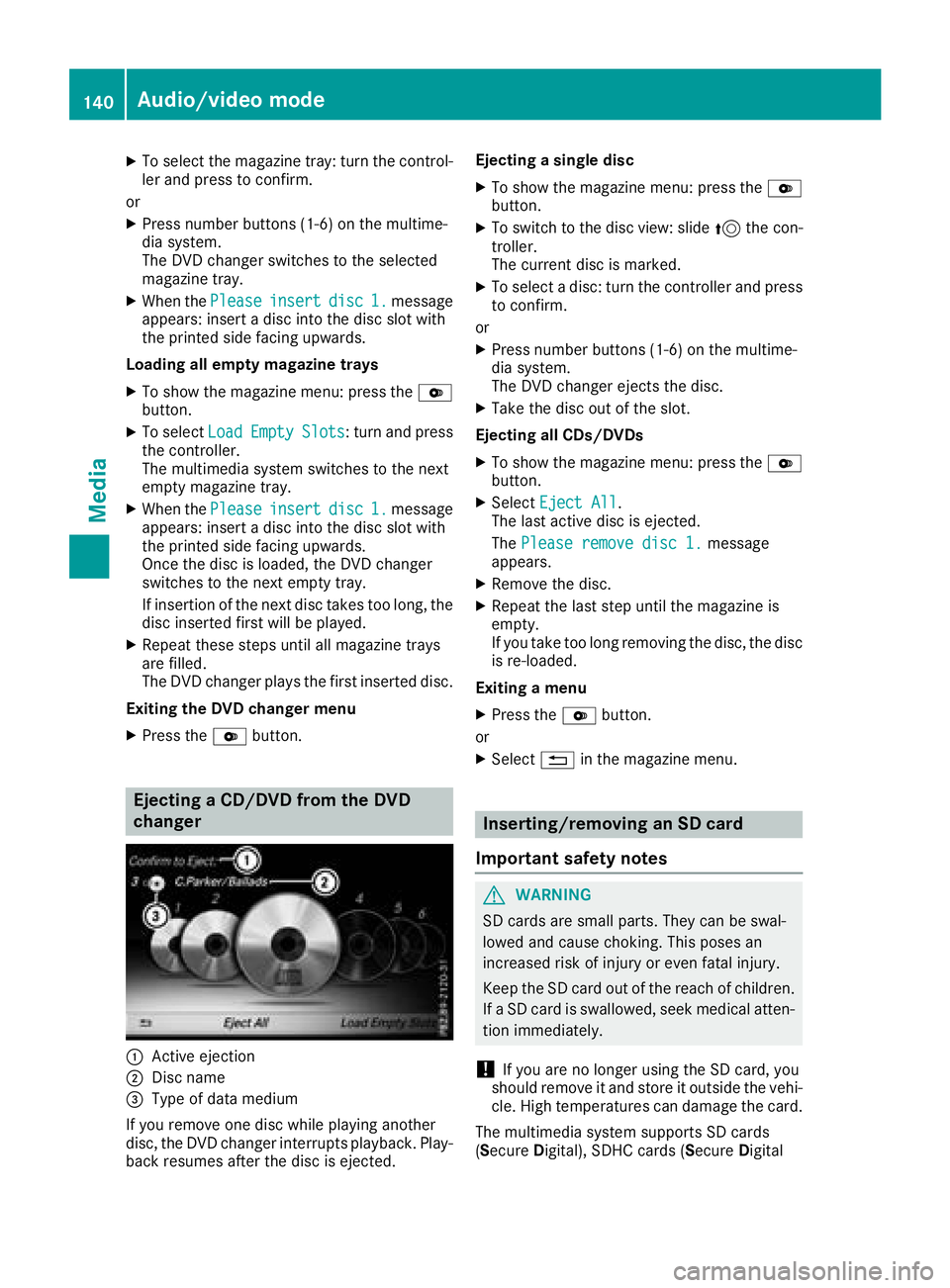
Ejecting a CD/DVD from the DVD
changer
:Active ejection
;Disc name
=Type of data medium
If you remove one disc while playing another
disc, the DVD changer interrupts playback. Play-
back resumes after the disc is ejected. Ejecting a single disc
XTo show the magazine menu: press the
V
button.
XTo switch to the disc view: slide 5the con-
troller.
The current disc is marked.
XTo select a disc: turn the controller and press
to confirm.
or
XPress number buttons (1-6) on the multime-
dia system.
The DVD changer ejects the disc.
XTake the disc out of the slot.
Ejecting all CDs/DVDs
XTo show the magazine menu: press the V
button.
XSelect Eject All.
The last active disc is ejected.
The Please remove disc 1.
message
appears.
XRemove the disc.
XRepeat the last step until the magazine is
empty.
If you take too long removing the disc, the disc
is re-loaded.
Exiting a menu
XPress the Vbutton.
or
XSelect %in the magazine menu.
Inserting/removing an SD card
Important safety notes
GWARNING
SD cards are small parts. They can be swal-
lowed and cause choking. This poses an
increased risk of injury or even fatal injury.
Keep the SD card out of the reach of children. If a SD card is swallowed, seek medical atten-
tion immediately.
!If you are no longer using the SD card, you
should remove it and store it outside the vehi-
cle. High temperatures can damage the card.
The multimedia system supports SD cards
(Secure Digital), SDHC cards (Secure Digital
140Audio/video mode
Media
Page 153 of 190
RTracks
RGenres
RYear
RComposers
RVideos
RPhotos
RAudiobooks
RPodcasts
iThe functions are available as soon as the
entire media content has been read and ana- lyzed.
If the same device is reconnected with
unchanged media content, these functions
are available more quickly.
The audio books and podcasts categories are
only available for Apple
®devices.
When connecting Apple®devices, the cate-
gories “Folder”, “Year”, "Videos" and “Pho-
tos” are not available.
Searching for a track
XSlide 6the controller.
The media menu bar appears.
XTo select Search: turn and press the control-
ler.
The category list appears.
XTo select a category, e.g. Current TrackList: turn and press the controller.
A selection list appears.
XSelect the required track.
Using the keyword search
XEnter and confirm the characters of the
desired search using the controller
(
Ypage 144).
Search results are sorted according to the
available categories, displayed and can then
be selected.
Selecting the playback option
XIn media mode, slide 6the controller.
The media menu bar is shown.
XTo select Options: turn and press the con-
troller.
XSelect the playback option (Ypage 141).
iThe Play More Like Thisoption is also
available for Apple®devices. For this, the Genius functionality must be activated in
iTunes
®. Then synchronization of the device
with iTunes®must be carried out again.
Selecting video settings
Video files from Apple®devices cannot be
played.
If playable video files are found, they will be
played by the multimedia system.
XTo activate full-screen mode: press the con-
troller in the Media Interface menu.
XTo show the video menu: slide 6the con-
troller in full-screen mode.
XSelect Menu.
The Media Interface menu bar appears.
XTo select Options: turn and press the con-
troller.
XSelect Video Settings.
Making settings (
Ypage 153)
Video DVD mode
Important safety notes
GWARNING
The CD/DVD drive is a class 1 laser product.
If you open the housing of the CD/DVD drive,
there is a risk of exposure to invisible laser
radiation. This laser radiation could damage
your retina. There is a risk of injury.
Never open the housing. Always have main-
tenance and repair work carried out at a quali- fied specialist workshop.
GWARNING
If you handle a disc while driving, you may be
distracted from the traffic situation. You could
also lose control of the vehicle. There is a risk of an accident.
Only handle a disc when the vehicle is sta-
tionary.
Bear in mind that at a speed of only 30 mph
(approximately 50 km/h) your vehicle covers a
distance of 44 feet (approximately 14 m) every
second.
Video DVD mode151
Media
Z
Page 163 of 190
Your multimediasyste mequipment
These operatin ginstruction sdescribe all th e
standar dan doptional equipment of your multi-
media system, as available at th etime of going
to press. Country-specifi cdifference sare pos -
sible. Bear in min dthat your vehicle may no t
feature all function sdescribed here. Thi salso
applies to safety-relevan tsystems an dfunc-
tions.
Read th einformation on qualifie dspecialis t
workshop sin th evehicle Operator's Manual.
Weather forecasts
Introduction
Thi sfunction is currentl yno tavailable fo rCan -
ada.
Fo rth ereception of weather forecast svia sat -
ellite radio, you will need aSIRIU SXM Satellite
Weather subscription .
Whe nprompted, hav eth eweather servic eacti-
vated by phone . Amessag eshows th eSIRIU S
telephon enumber an dth eSIRIU Sdevic eiden -
tification number .
XTo selectCal lorCancel:turn an dpress th e
controller .
If amobile phone is connecte dto th emulti-
media syste m (
Ypage 91), when you selec t
Cal l, acal lis placed to amember of th eSIR-
IU Sservic estaff .The ID number of th eSIRIU S
devic ewill be transferred to th etelephon e
display.
XThi swill be followed by instruction sfrom th e
servic eemployee.
The multimedia syste mcan receiv eweather
forecast sfo rth eUS A(includin gAlask aan d
Hawaii) via satellite radio.
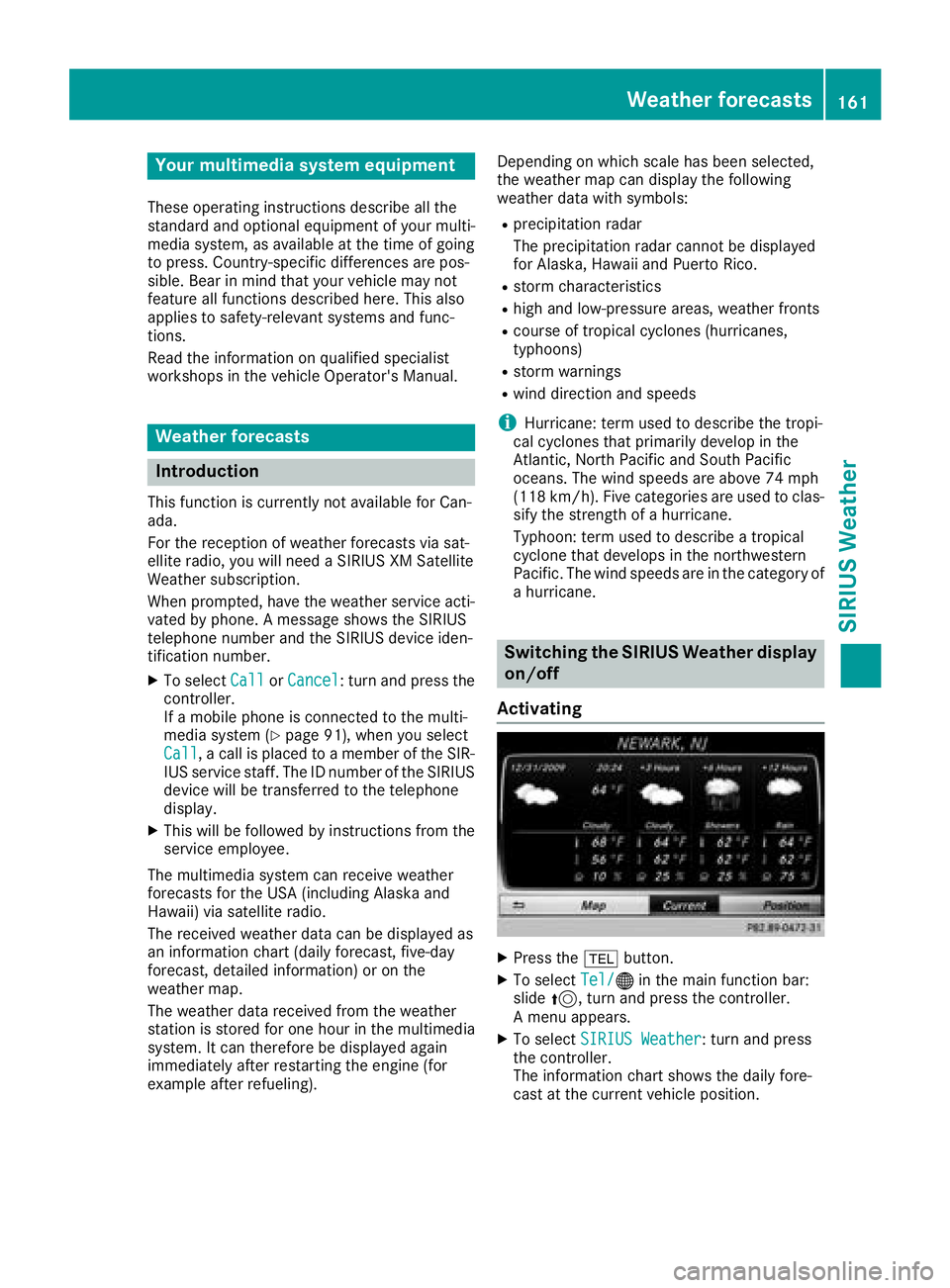
The received weather dat acan be displaye das
an information chart (dail yforecast ,five-day
forecast ,detailed information )or on th e
weather map .
The weather dat areceived from th eweather
station is stored fo ron ehour in th emultimedia
system. It can therefore be displaye dagain
immediately after restartin gth eengin e(fo r
example after refueling). Dependin
gon whic hscale has bee nselected,
th eweather map can display th efollowin g
weather dat awit hsymbols :
Rprecipitation radar
The precipitation radar canno tbe displaye d
fo rAlaska, Hawaii an dPuerto Rico.
Rstor mcharacteristics
Rhig han dlow-pressure areas, weather fronts
Rcours eof tropical cyclones (hurricanes,
typhoons )
Rstormwarnings
Rwin ddirection an dspeeds
iHurricane: term used to describe th etropi-
cal cyclones th at primarily develo pin th e
Atlantic, North Pacifi can dSout hPacifi c
oceans. The win dspeeds are abov e74 mph
(11 8km/ h). Five categories are used to clas-
sify the strength of a hurricane.
Typhoon: term used to describe a tropical
cyclone that develops in the northwestern
Pacific. The wind speeds are in the category of
a hurricane.
Switching the SIRIUS Weather display
on/off
Activating
XPress the %button.
XTo select Tel/®in the main function bar:
slide 5, turn and press the controller.
A menu appears.
XTo select SIRIUS Weather: turn and press
the controller.
The information chart shows the daily fore-
cast at the current vehicle position.
Weather forecasts161
SIRIUS Weather
Page 171 of 190
Your multimediasyste mequipment
These operatin ginstruction sdescribe all th e
standar dan doptional equipment of your multi-
media system, as available at th etime of going
to press. Country-specifi cdifference sare pos -
sible. Bear in min dthat your vehicle may no t
feature all function sdescribed here. Thi salso
applies to safety-relevan tsystems an dfunc-
tions.
Read th einformation on qualifie dspecialis t
workshop sin th evehicle Operator's Manual.
Overview
Important safet ynotes
GWARNING
The CD/DVD drive is aclass 1lase rproduct.
If you ope nth ehousin gof th eCD/DVD drive,
there is aris kof exposure to invisible lase r
radiation .Thi slase rradiation could damage
your retina. There is aris kof injury.
Never ope nth ehousing. Always hav emain -
tenanc ean drepair wor kcarrie dout at aquali -
fie dspecialis tworkshop .
GWARNING
If objects suc has headphones/headset sor
external audio/video sources are no tsecure d
in th epassenger compartment, they can be
flun garound an dhit vehicle occupants .There
is aris kof injury, fo rexample in th eevent of
sudden braking or asudden change in direc -
tion .
Always stow these items or similar objects
carefully so that they canno tbe flung around ,
fo rexample in alockable vehicle stowag e
compartment.
Equipment
Observ ethat arange of Rear Seat Entertain -
men tSystems are available fo rMercedes-Ben z
vehicles .In this Operator's Manual, th eRear
Seat Entertainmen tSyste mCode 86 4is used
fo rillustration purposes. If you hav e adifferen t
Rear Seat Entertainmen tSyste min your vehicle,
please refer to th emanufacturer's operatin g
instructions.
Component s
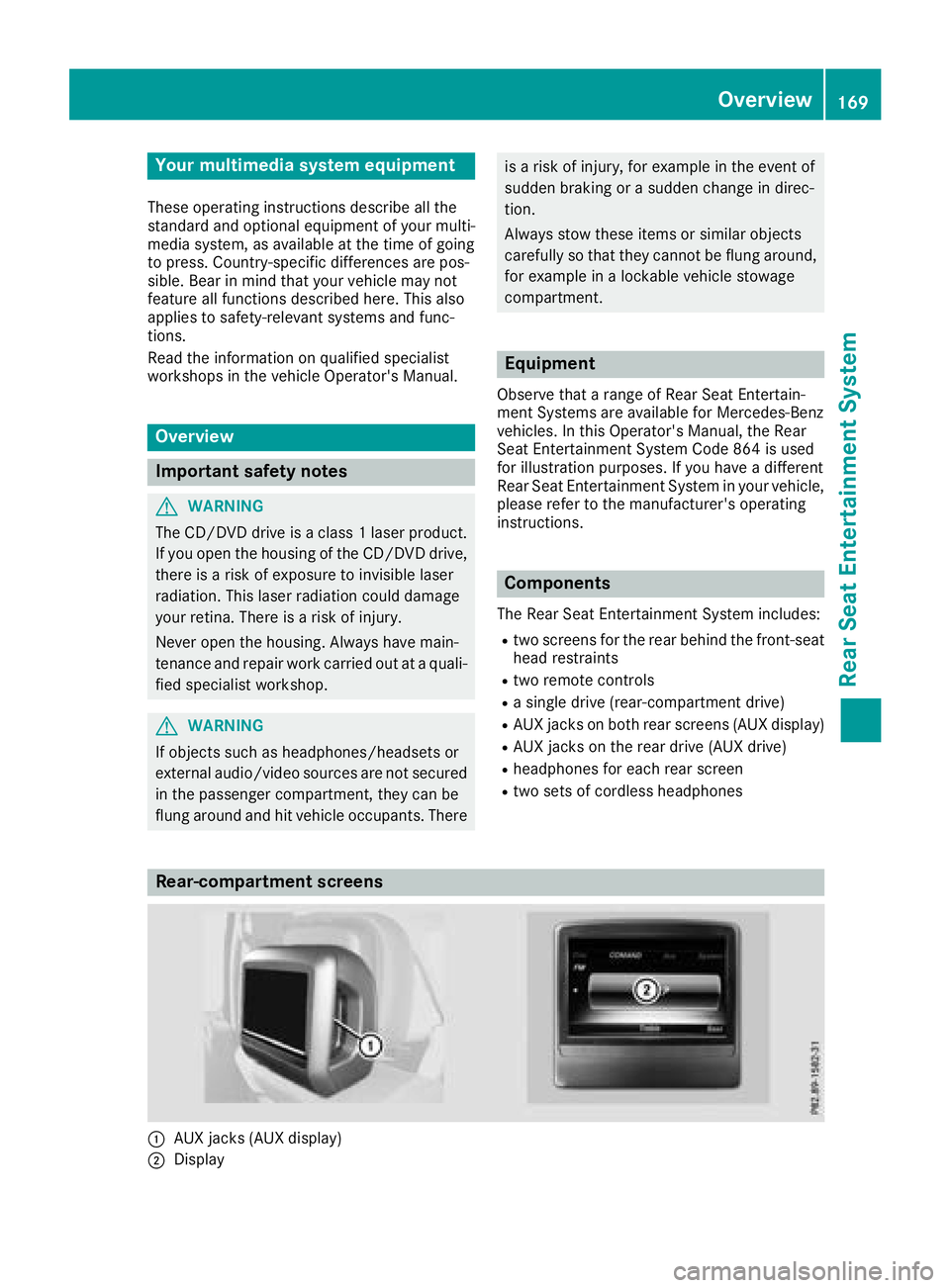
The Rear Seat Entertainmen tSyste mincludes :
Rtwoscreens fo rth erea rbehin dth efront-seat
head restraints
Rtw oremot econtrols
Rasingle drive (rear-compartmen tdrive)
RAU Xjack son bot hrea rscreens (AUX display)
RAU Xjack son th erea rdrive (AUX drive)
Rheadphone sfo reac hrea rscree n
Rtwoset sof cordless headphone s
Rear-compartment screens
:AUXjack s(AUX display)
;Display
Overview169
Rear Seat Entertainment System
Z
Page 177 of 190
XSelectDVD-Videousing the :=;
buttons and press the 9button to confirm.
XSelect Brightness,Contrastor Colorusing the 9: buttons and press the 9
button to confirm.
A scale appears.
XSelect a setting using the 9:buttons
and press the 9button to confirm.
Changing the picture format
XTo show the menu: press the9button on
the remote control.
XSelect DVD-Videousing the :=;
buttons and press the 9button to confirm.
The dot in front of one of the menu items
16:9
, 4:3or Zoomshows the currently set
picture format.
XSelect a format using the 9:buttons
and press the 9button to confirm.
System settings
Note
You can adjust all system settings individually
for each rear screen without affecting the other
screen.
Selecting the display language
XSelect Systemusing the 9=; but-
tons on the remote control and press 9to
confirm.
You see the system menu on the selected rear screen.
XSelect Settingsusing the :button and
press 9to confirm.
XPress the 9button to confirm Language.
The list of languages appears. The #dot indi-
cates the current setting.
XSelect a language using the 9:but-
tons and press the 9button to confirm.
The Rear Seat Entertainment System sets the
selected language.
Switching the display design
XSelect Settingsusing the :button and
press 9to confirm.
XSelect Day Mode,Night Modeor Automaticwith the 9: buttons and confirm with
the 9button.
The dot indicates the current setting.
DesignExplanation
Day ModeThe display is set perma-
nently to day design.
Night ModeThe display is set perma-
nently to night design.
AutomaticThe display design
changes depending on
the vehicle instrument
cluster illumination.
Setting the brightness
XSelect Settingsusing the :button and
press 9to confirm.
XSelect Brightnesswith the 9: but-
tons and confirm with the 9button.
A scale appears.
XAdjust the brightness using the 9:
buttons and press the 9button to confirm.
The bar moves up or down. The picture
becomes lighter or darker.
Showing/hiding the picture
XTo hide the picture: selectDisplayin the
system menu using the :;buttons on
the remote control and press the 9button to
confirm.
The picture is hidden.
XTo display the picture: press the9button.
Audio CD/DVD and MP3 mode
Important safety notes
GWARNING
The CD/DVD drive is a class 1 laser product.
If you open the housing of the CD/DVD drive,
there is a risk of exposure to invisible laser
Audio CD/DVD and MP3 mode175
Rear Seat Entertainment System
Z
Page 181 of 190
Video DVD mode
Important safety notes
GWARNING
The CD/DVD drive is a class 1 laser product.
If you open the housing of the CD/DVD drive,
there is a risk of exposure to invisible laser
radiation. This laser radiation could damage
your retina. There is a risk of injury.
Never open the housing. Always have main-
tenance and repair work carried out at a quali- fied specialist workshop.
General notes
DVD playback conditions
Playback problems may occur when playing
copied discs. There is a large variety of discs,
DVD authoring software, writing software and
writers available. This variety means that there
is no guarantee that the Rear Seat Entertain-
ment System will be able to play DVD videos that
you have copied yourself.
Further information (
Ypage 152). Information
regarding the multimedia system also applies to
the Rear Seat Entertainment System.
Function restrictions
Depending on the DVD, it is possible that certain
functions or actions described in this section
will be temporarily blocked or may not function
at all. As soon as you try to activate these func-
tions or actions, you will see the Ksymbol in
the display.
Switching on video DVD mode
XInsert a video DVD (Ypage 176).
The Rear Seat Entertainment System loads
the disc.
If disc mode was the last mode selected, it will
now be active. If it was not, switch on video DVD mode as
described in the following instructions.
XSelect
Discin the menu using the
9=; buttons on the remote con-
trol and confirm by pressing the 9button.
If the DVD video fulfills the playback criteria,
the film either starts automatically or the
menu saved on the DVD appears. If the DVD
menu appears, you must start the film man-
ually.
XSelect the corresponding menu item in the
DVD menu.
A submenu is displayed. If available, addi-
tional options can now be selected.
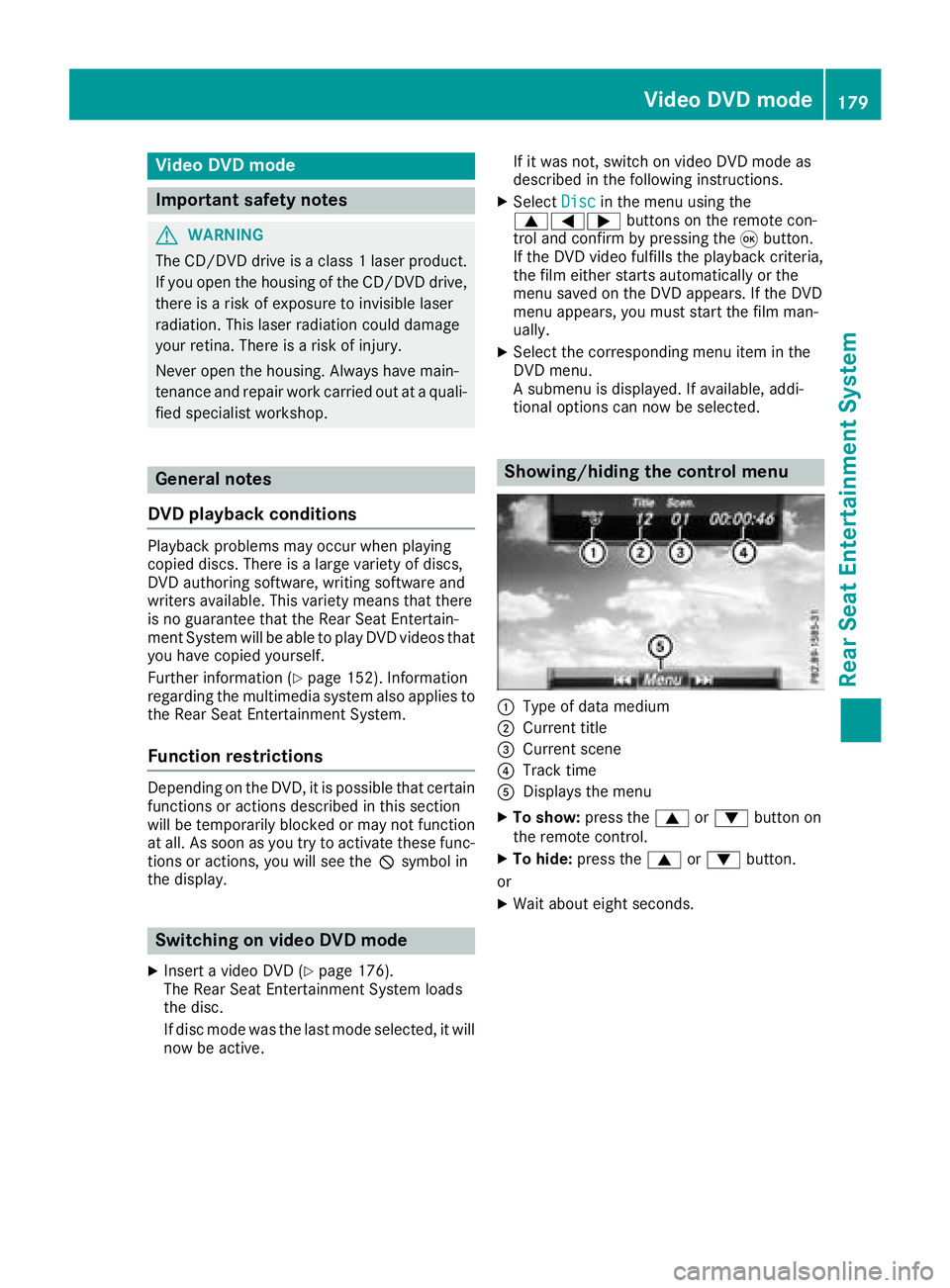
Showing/hiding the control menu
:Type of data medium
;Current title
=Current scene
?Track time
ADisplays the menu
XTo show: press the9or: button on
the remote control.
XTo hide: press the 9or: button.
or
XWait about eight seconds.
Video DVD mode179
Rear Seat Entertainment System
Z