ESP MERCEDES-BENZ GLE SUV 2018 COMAND Manual
[x] Cancel search | Manufacturer: MERCEDES-BENZ, Model Year: 2018, Model line: GLE SUV, Model: MERCEDES-BENZ GLE SUV 2018Pages: 190, PDF Size: 4.42 MB
Page 120 of 190
Some mobile phones with the MAP Bluetooth®
profile:
Rdo not support the deleting or editing of text
messages
Rdo not support the drafts folder for text mes-sages
Rdo not support the sending of text messages
Rdo not support the e-mail function
Rdo not send messages when in a locked sta-
tus
iThe availability of the dictation function is
country-dependent.
Calling up text messages or e-mails in
the message menu
XTo call up the telephone menu: press the
% button.
XTo switch to the menu bar: slide 6the con-
troller.
XTo select 1: turn and press the controller.
The message menu is displayed.
XTo switch to the menu bar: slide 6the con-
troller.
XTo select New: turn and press the controller.
XTo selectText MessageorE-Mail: turn and
press the controller.
The input menu for the message is displayed.
Calling up and using the dictation
function
XSelect the omicrophone.
The app for the dictation function is loaded.
If there was no prior Internet connection, a
connection is now established.
XTo start the dictation function: press the
controller.
XSay your message.
The dictation ends automatically after you
have finished speaking.
After the spoken message has been pro-
cessed, it is shown as text on the display.
XTo select words: turn and press the control-
ler.
XIn the correction menu, you can:
Radjust capitalization of words (if supported
by the character set)
Radd words
Rdelete words
Rreplace the dictated message with a new
one
XTo exit the menu: selectDone.
Send message
The dictated text is displayed in the message
input window.
XEnter the telephone number or e-mail address
into the addressee line.
XTo send the message: select OK.
iThe availability of the dictation function may
vary according to the country and vehicle
equipment.
Apple CarPlay™
Introduction
iPhone®functions can be used via the multime-
dia system using Apple CarPlay™. Apple Car-
Play™ can be operated using the controller or
Siri
®voice-operated control system. Whether
selected buttons are supported in the vehicle
depends on the iOS version of the mobile phone
and the apps available. You will find an overview
of the multimedia system's control panel and
available buttons here (
Ypage 18).
To activate voice-operated control, press and
hold the óbutton on the multifunction steer-
ing wheel (
Ypage 99). Apple CarPlay™ is only
available for Apple®mobile phones (see the
manufacturer's operating instructions). The
availability of Apple CarPlay™ may vary by coun-
try and depending on vehicle equipment.
During Apple CarPlay™ use, various multimedia
system functions, such as navigation, are not
available.
The respective provider is responsible for the
application and the associated services and
content.
118Apple CarPlay™
Telephone
Page 122 of 190
The following driving status data is transmitted:
RGear position engaged
RDifference between parked, stationary,
coasting and driving
RInstrument cluster day/night mode
These data are transmitted in order to adapt the
content displayed to the driving situation.
The following position data is transmitted:
RCoordinates
RSpeed
RCompass direction
RAcceleration direction
These data are transmitted only when naviga-
tion is active in order to improve navigation (e.g.
when driving through a tunnel).
Android Auto
Introduction
Android Auto can be used for functions on
mobile phones with the Android operating sys-
tem:
RAndroid Auto-capable apps of the mobile
phone are shown in the multimedia system.
RAudio content from the mobile phone is
played back in the multimedia system.
Only one mobile phone at a time can be con-
nected to the multimedia system via Android
Auto.
During Android Auto use, various multimedia
system functions such as navigation, are not
available.
The availability of Android Auto and Android
Auto apps may vary from country to country and
depending on the equipment in the vehicle.
The respective provider is responsible for the
application and the associated services and
content.
Connecting a mobile phone via
Android Auto
Requirements:
RFor safety reasons, initial activation of
Android Auto on the multimedia system must
be carried out while the vehicle is stationary.
RThe mobile phone supports Android Auto
starting from Android 5.0.
RThe Android Auto app is installed on the
mobile phone.
RIn order to use the telephone functions, a
mobile phone needs to be connected with the
multimedia system via Bluetooth
®.
RThe full range of functions for Android Auto is
only possible with an Internet connection.
RThe mobile phone is connected to the USB
port ç on the multimedia system via a USB
cable.
The multimedia system automatically estab-
lishes a connection to the mobile phone via
Bluetooth
®. If this is unsuccessful, an error mes-
sage will appear. In this case, you should con-
nect the mobile phone manually via Bluetooth
®
(Ypage 91).
Starting Android Auto
Multimedia system
XTo call up the telephone menu: press the
% button.
XTo show the main function bar: slide 5the
controller.
XTo select Tel/®: press the controller.
XTo selectAndroid Auto: turn and press the
controller.
A message informs you that no Android Auto
device is connected.
Mobile phone
XConnect the mobile phone to the USB port
ç in the center console.
When activated manually, a message to start Android Auto appears on the display of the
multimedia system.
XTo confirm the message: press the controller.
The Android Auto app is shown in the multi-
media system display.
Setting up automatic connection
XTo call up the telephone menu: press the
% button.
XTo display the main function bar: slide 5the
controller.
XTo select Tel/®: press the controller.
XTo selectAndroid Auto: turn and press the
controller.
XTo switch to the menu bar: slide 6the con-
troller.
XTo select Options: turn and press the con-
troller.
120Android Auto
Telephone
Page 126 of 190
XTo selectInternet: turn and press the con-
troller.
The menu with the Internet functions is dis-
played.
XTo select www: turn and press the controller.
An input menu for the web address is dis-
played.
XEnter characters using the controller or the
number keypad.
XTo finish entry and call up a website: select
¬.
Selecting a web address from the list
XWhen the character bar is displayed, slide
5 the controller.
XTo select the desired web address: turn and
press the controller.
The web address can still be changed as
desired.
XTo call up a website: select ¬.
The website is called up.
Navigating the website
StepResult
XTurn the controller.Navigates from one
selectable item (e.g.
link, text field or
menu) to the next and
highlights the respec-
tive element on the
website.
Sliding the controller:
XLeft or right 1
XUp or down4
XDiagonally2
Moves the pointer on
the page.
XPress the control-
ler.Opens the selected
item.
XPress%.Calls up the menu.
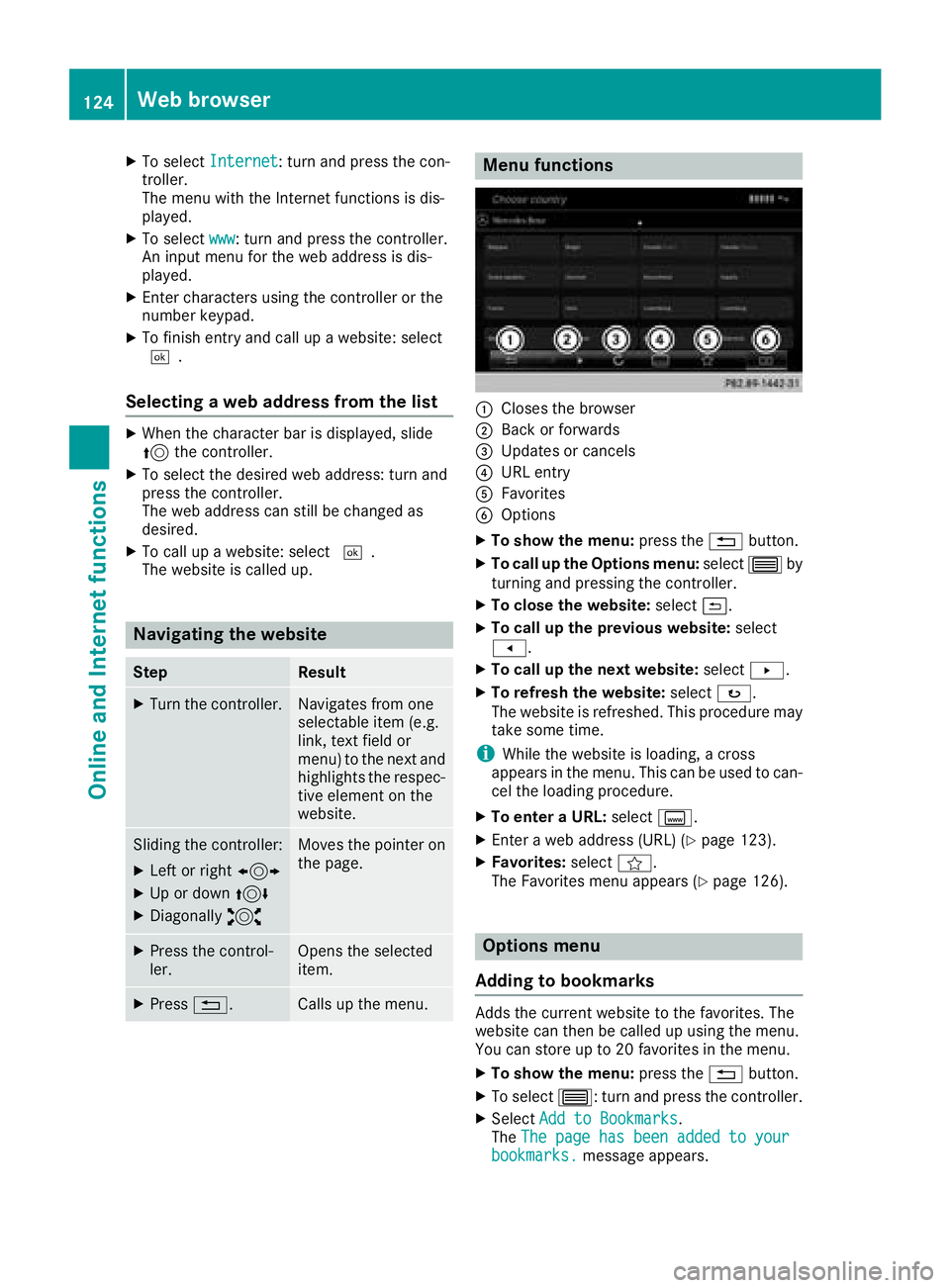
Menu functions
:Closes the browser
;Back or forwards
=Updates or cancels
?URL entry
AFavorites
BOptions
XTo show the menu: press the%button.
XTo call up the Options menu: select3by
turning and pressing the controller.
XTo close the website: select&.
XTo call up the previous website: select
t.
XTo call up the next website: selectu.
XTo refresh the website: selectø.
The website is refreshed. This procedure may
take some time.
iWhile the website is loading, a cross
appears in the menu. This can be used to can-
cel the loading procedure.
XTo enter a URL: selectg.
XEnter a web address (URL) (Ypage 123).
XFavorites: selectf.
The Favorites menu appears (Ypage 126).
Options menu
Adding to bookmarks
Adds the current website to the favorites. The
website can then be called up using the menu.
You can store up to 20 favorites in the menu.
XTo show the menu: press the%button.
XTo select 3: turn and press the controller.
XSelectAdd to Bookmarks.
The The page has been added to your
bookmarks.message appears.
124Web browser
Online and Internet functions
Page 133 of 190
Rthe channel abbreviation
Rthe logo of the station or Artist Experience®
Returning to the radio menu:
XTo selectInformation: slide6and press
the controller.
or
XPress the %button.
Satellite radio
General notes
The satellite radio mode requires satellite radio
equipment and registration with a satellite radio
provider.
Note that the categories and channels shown in
the illustrations depend on the program content
offered by the provider. The illustrations and
descriptions in these operating instructions may
therefore differ from the channels and catego-
ries offered by the provider.
Satellite radio mode may be temporarily unavail-
able or interrupted for a variety of reasons.
These include environmental or topographical
conditions as well as other factors beyond the
control of Mercedes-Benz USA, LLC. This means
operation may not be possible in certain areas.
These include:
Rtunnels
Rparking garages
Rlocations inside or next to buildings
Rlocations in the vicinity of other structures
Sirius XM®Satellite Radio offers more than 140
digital-quality radio channels, providing 100%
commercial-free music, sports, news and enter-
tainment.
Sirius XM
®Satellite Radio uses a fleet of high-
performance satellites to broadcast around the
clock throughout the USA and Canada.
The satellite radio program is available for a
monthly fee. De
tails are available from the SIR-
IUS XM®Service Center and at
http://www.siriusxm.com (USA) or
http://www.siriusxm.ca (Canada).
Your new Mercedes-Benz vehicle comes with
Sirius XM
®Satellite Radio pre-installed at the
factory. This service is free for a six-month trial
period. About a month before the trial period
ends, information will be provided on how to
extend this subscription. An acoustic signal sounds and a message is shown, describing how
the subscription can be extended.
iSirius, XM and all related marks and logos
are trademarks of Sirius XM Radio Inc. and its
subsidiaries. All other marks, channel names
and logos are the property of their respective owners. All rights reserved.
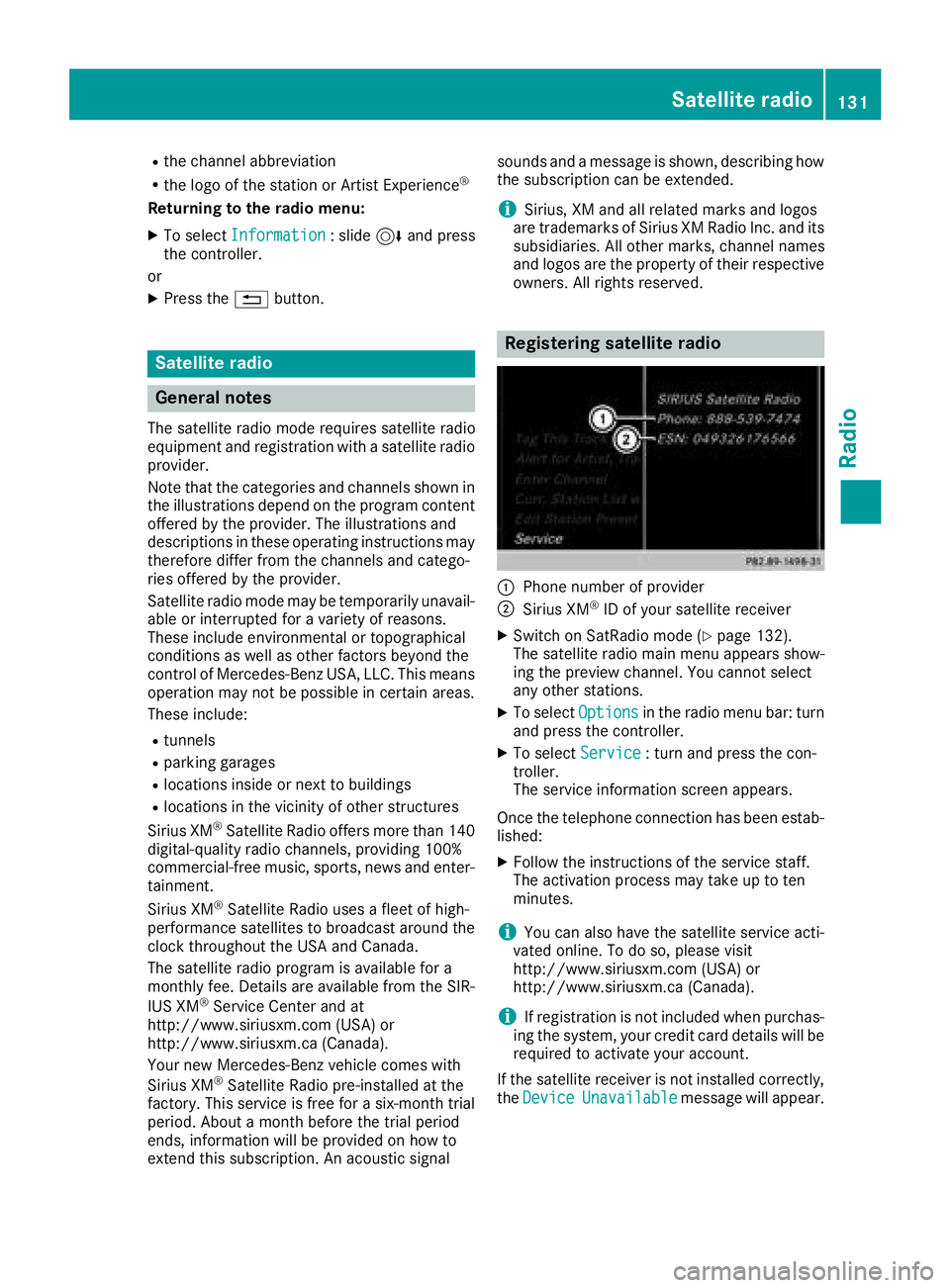
Registering satellite radio
:Phone number of provider
;Sirius XM®ID of your satellite receiver
XSwitch on SatRadio mode (Ypage 132).
The satellite radio main menu appears show-
ing the preview channel. You cannot select
any other stations.
XTo select Optionsin the radio menu bar: turn
and press the controller.
XTo select Service: turn and press the con-
troller.
The service information screen appears.
Once the telephone connection has been estab-
lished:
XFollow the instructions of the service staff.
The activation process may take up to ten
minutes.
iYou can also have the satellite service acti-
vated online. To do so, please visit
http://www.siriusxm.com (USA) or
http://www.siriusxm.ca (Canada).
iIf registration is not included when purchas-
ing the system, your credit card details will be
required to activate your account.
If the satellite receiver is not installed correctly, the Device
Unavailablemessage will appear.
Satellite radio131
Radio
Page 135 of 190
Selecting a channel via the satellite
radio station list
You can select the channel using the station list
displaying the artists and tracks that are cur-
rently playing.
XTo selectOptionsin the radio menu bar: turn
and press the controller.
XTo select Station List with Artist &Title: turn and press the controller.
The channel list appears.
or
XPress the controller in the main display field.
XSelect the desired channel
Keyword search
XTo select the keyword search èin the
menu bar: turn and press the controller.
XTo enter the required search term: turn and
press the controller.
Direct and indirect results are shown.
XSelect the required result.
The relevant channel is played.
Memory functions
There are 100 presets available.
Saving the current channel
XTo select Presetin the radio menu bar: turn
and press the controller.
XTo select Edit Station Preset: turn and
press the controller.
The list of saved channels appears.
XTo select the preset: turn the controller and
press for about two seconds.
The newly saved channel overwrites the exist-
ing preset.
Saving a channel using the controller
XSet the desired channel in satellite radio
mode.
XPress and hold the controller until the preset
list appears.
XTo select the preset number: turn and press
the controller.
A tone confirms that the storing process was
successful. Using quick save
XSet the desired channel in satellite radio
mode.
XPress and hold a number key for two seconds.
The channel is saved to the corresponding
position in the channel presets.
The newly saved channel overwrites the exist-
ing preset.
Deleting the highlighted channel
XTo select Presetin the radio menu bar: turn
and press the controller.
XSelect Edit Station Preset.
XTo select the required preset entry: turn the
controller.
XSlide9the controller.
XTo select the Delete Highlighted Sta‐tion/Channeloption in the additional menu:
turn and press the controller.
or
XPress the $button.
A prompt appears.
XTo select Yes: turn and press the controller.
The highlighted station is deleted.
Activating/deactivating the station
presets display
You can use this function to change to the sta-
tion presets display.
Activating
XIn radio mode: slide 6the controller.
XTo select Preset: turn and press the control-
ler.
XTo select Station Preset View: On: turn
and press the controller.
The station preset display appears.
XTo switch between the stored stations: turn
the controller.
Deactivating
XIn radio mode: slide 6the controller.
XTo select Preset: turn and press the control-
ler.
XTo select StationPresetView:Off: turn
and press the controller.
The view of the last heard waveband appears.
Satellite radio133
Radio
Page 136 of 190
Music and sports alerts
General notes
This function makes it possible to store a pro-
gram alert for your favorite artists, tracks or
sporting events.
You can store up to 30 music and sports alerts
(favorites).
Music alerts can only be saved whilst a track is
being played. You can also specify sports alerts
via the menu option. The system then continu-
ously searches through all the channels. If a
match is found with a saved message, you will
be informed. A window appears with the respec-
tive information.
Setting a music alert
XTo select Optionsin the radio menu bar: turn
and press the controller.
XTo select Alert for Artist, Track &SportsEvent: turn and press the controller.
A menu appears.
XSelect Add New Alert.
A window with a prompt appears.
XSelect ArtistorTrack.
The alert is set for the current artist or track.
iIf an alert cannot be set, the No AlertsAvailablemessage appears.
Setting a sports alert
XTo selectOptionsin the menu bar: turn and
press the controller.
XTo select Alert for Artist, Track &SportsEvent: turn and press the controller.
A menu appears.
XSelect Manage Sports Alerts.
A menu appears.
XSelect Select New Alerts.
A menu appears.
XSelect the desired team from a league, e.g.
college, NBA, NHL, NFL or MLB.
The alert function for the sports team is
added.
A window with music and sports alerts
appears
XSelect Change To.
The channel is changed and the favorite artist
or track is played.
or
XSelect Ignore.
The current channel will continue playing.
Editing music and sports alerts
XTo select Alert for Artist, Track &SportsEvent: turn and press the controller.
A menu appears.
XSelect Manage Music AlertsorManageSports Alerts.
A list of set alerts appears.
Switching music and sports alerts
on/off
XSwitch ActivateMusicAlertsonO or off
ª.
XSwitch Activate Sports AlertsonO or
off ª.
Tagging music tracks
If the channel supports this function, you are
able to transfer the music track currently playing
to an Apple
®device. You can then purchase it in
the iTunes®store.
XTo select Optionsin the radio menu bar: turn
and press the controller.
XTo select Tag This Track: turn and press
the controller.
A message about saving this music track on
the Apple
®device appears.
Displaying information
XTo select Informationin the radio menu bar:
turn and press the controller.
Information on the currently received pro-
gram is displayed.
If available, the following information is dis-
played:
Rthe channel logo
Rthe channel abbreviation
134Satellite radio
Radio
Page 138 of 190
Your multimediasyste mequipment
These operatin ginstruction sdescribe all th e
standar dan doptional equipment of your multi-
media system, as available at th etime of going
to press. Country-specifi cdifference sare pos -
sible. Bear in min dthat your vehicle may no t
feature all function sdescribed here. Thi salso
applies to safety-relevan tsystems an dfunc-
tions.
Read th einformation on qualifie dspecialis t
workshop sin th evehicle Operator's Manual.
Activating medi amode
General notes
There are severa lways to activat emedia sour-
ce susin gth emultimedia system.
The relevant section sof th eOperator's Manual
describe th esimples tway to activat e amedia
source.
Thi ssection describes all option sfo ractivatin g
media sources.
Connections for externa lmedi asour-
ces
The followin gexternal media sources can be
used :
RApple®devices (e.g. iPhon e®)
RUSBdevices (e.g. US Bstick, MP3 player)
Two US Bports are located in th estowag e
spac eunder th earmrest.
RCD
RDV Dvideo
RSD cards
RDevices wit hBluetoot h®connection
Activating medi ausing th ebutton
XPress th eÕ button.
The last media sourc eyou hav eset is dis -
played.
XPress th eÕ buttonagain .
The men uappears wit hth eavailable media
sources.
XTo selec tmedia sources: turn th econtroller
until th edesire dmedia sourc eis in th ecenter.
Press th econtroller .
Dependin gon th evehicle equipment ,th efol-
lowing media sources will be available :
RDisc
RMemory Card
RMediaInterfac e 1
RMediaInterfac e 2
RBluetoothAudi o
Switching on automatically
Whenan external media sourc eis connected,
CD an dSD memor ycar dfunction sare automat -
ically switched on by th emultimedia system.
Whe nusin gwit hUS Bdevices, switch to th e
respective media menu.
If playable music files are found ,they will be
playe dby th emultimedia system.
iIf media playback is active in th emultimedia
system, it is interrupted. The media men uof
th enewly connecte ddevic eappears (except
when usin gwit hUSB/iPo d
®). If another func-
tion ,suc has navigation ,is bein goperated,
th edisplay doe sno tchange.
Activating medi ausing th emain func-
tion ba r
XTo showthemain function bar in media mode:
slid e5 thecontroller .
XTo selectMedi a:press th econtroller .
A men uappears wit hth eavailable media
sources.
XTo selec tth emedia source: turn th econtrol-
ler an dpress to confirm .
If th emedia sourc econtain smusic or video
files, these will be played. The correspondin g
media men uis shown .
136Activating media mode
Media
Page 139 of 190
Activating media using the number
keypad
XTo selectamedia source :press th ecorre-
sponding number key.
If th emedia source contain smusic or video
files, these will be played .The corresponding
media men uis shown.
XTo ente rth etrack number :press th eg
button.
A men uappears.
XUse th enumber keypad to ente rth etrack
number .
The track is played .
Use th es butto nto sho wthetrack infor-
mation for th etrack that is currentl yplaying.
Activating media using the device list
XIn Medi amode, slid e6 thecontroller .
The media men ubar appears.
XTo select Devices:tur nand press th econ-
troller .
The available media source swill be shown.
The #dot indicates th ecurren tsetting .
XSelectth emedia source .
If th emedia source contain smusic or video
files, these will be played .The corresponding
media men uis shown.
iIn Bluetoot h®audio mode, it is no tpossibl e
to select media via th edevice list .
Audio/video mode
Import ant safety notes
GWARNIN G
The CD/DV Ddrive is aclas s 1laser product.
If you open th ehousing of th eCD/DV Ddrive,
there is aris kof exposure to invisible laser
radiation .This laser radiation could damag e
your retina .There is aris kof injury.
Never open th ehousing .Always hav emain -
tenance and repair wor kcarrie dout at aquali-
fie dspecialis tworkshop .
GWARNING
If you handle adisc while driving, you may be
distracte dfrom th etraffic situation .You could
also lose control of th evehicle. There is aris k
of an accident.
Only handle adisc when th evehicl eis sta-
tionary.
Bear in min dthat at aspee dof only 30 mph
(approximately 50 km/h), th evehicl ecover s a
distanc eof 44 ft (approximately 14 m)per sec-
ond.
Notes on audio/video mode
Permissible data carriers
RCD audio, CD-R and CD-RW
RDVD video, DVD-R and DVD-RW (audio for-
mats PCM DTS®and Dolby®Digital)
RSD card
RUSB storage device
RApple®devices
iManufactured under license from Dolby
Laboratories. Dolby and the double-D symbol
are trademarks of Dolby Laboratories.
iFor DTS patents see
http://patents.dts.com. Manufactured
under license from DTS Licensing Limited.
DTS, the Symbol & DTS and the Symbol
together are registered trademarks, and DTS
Digital Surround is a trademark of DTS, Inc.
©
DTS, Inc. All rights reserved.
Permissible file systems
RISO 9660/Joliet standard for CDs
RUDF for video DVDs
RFAT16, FAT32, exFAT and NTFS for SD card
and USB storage media
RHFS and HFS+ for Apple®devices
iWriting access is not possible on NTFS.
Multisession CDs
For multi-session CDs, the content of the first
CD session determines how the multimedia sys-
tem will process the CD. The multimedia system
only plays back one CD session and gives prior-
ity to the first session on the CD.
Audio/video mode137
Media
Z
Page 140 of 190
File structure of a data carrier
When you create adisc wit hcompressed musi c
files, th etrack scan be organize din folders. A
folder may also contain subfolders. The disc
may contain no mor ethan eigh tdirectory levels
(a roo tand seven sub-levels). Files beyon dth e
eighth leve lwill no tbe recognize dby th esys-
tem.
iThe multimedia system support sup to
25,00 0file sfor all of th econnected sources .
Track and file names
When you create adisc wit hcompressed musi c
files, you can assign names to th etrack sand
folders.
You should observ eth efollowin gwhen assign -
ing track names:
Rtrack names must have at least on echaracte r
Rtrack names must have an extension of asup-
porte daudio or vide oformat ,e.g. mp3 ,aac or
m4 v
Rthere must be adot between th etrack nam e
and th eextension
Exampl eof acorrect track name:
"Track1.mp3".
Permissible formats
The multimedia system support sth efollowin g
audio and vide oformats:
Audio for -
mat sMP3 ,WMA ,CDA ,AA Cfor -
mat s(.aac, .mp4, .m4a
and .m4b)
Vide ofor -
mat sDVD-V, MPEG, WMV ,M4V ,
AV Iup to 720p
Copy-protected iTunes®musi cfile swit h
th e.m4p file extension are no tsupported.
Permissible sampling and data rates
The multimedia system support sMP3 and WMA
file sof th efollowin gtype:
FormatDat arate
[kbit/s ]Sampling
rates [kHz]
MP332-320
(fixed and varia-
ble datarates)8-48
WMA5-38 4
(fixed and varia-
ble dat arates)8-48
The multimedia system does no tsupport WMA
file sof th efollowin gtype:
RDRM (Digital Right sManagement) encrypted
file s
RWMA Pro
R5.1surroun dsoun d
iOnly use track swit h a datarat eof at least
12 8kbit/s and asamplin grat eof at least
44.1 kHz. Lowe rrates can caus e anoticeable
deterioration in quality. This is especially th e
cas eif you have activated asurroun dsoun d
function .
Selecting an active partition (USB mass
storage devices only)
You can select this function for US Bstorag e
device sif th estorag edevice is partitioned. Up
to nin epartition s(primar yor logical, FAT,
FAT32 ,exFA Tand NTFS) are supported.
Selecting an active partition
XSelec t aUSBstorag edevice (Ypage 136).
XTo select Optionsin themedia men ubar:
tur nand press th econtroller.
XSelec tSelect Active Partition.
Notes on copyright
Audio or vide ofile sthat you creat eor reproduce
yourself for playbac kare generally subject to
copyright protection .
In man ycountries ,reproductions, eve nfor pri-
vat euse, are no tpermitte dwithout th eprio r
consen tof th ecopyright holder.
138Audio/video mode
Media
Page 141 of 190
Make sure that you know about the applicable
copyright regulations and that you comply with
these.
Notes on CDs/DVDs
!Do not affix stickers or labels to the discs.
They could peel off and damage the drive.
The drive is designed to receive EN 60908 standard discs. Therefore, you can
only use discs with a maximum thickness of
1.3 mm.
If you insert thicker discs, e.g. those that con-
tain data on both sides (DVD on one side and
audio data on the other), they cannot be ejec-
ted and can damage the drive.
Do not use discs with an 8 cm diameter, even
when using an adapter. Only use round discs
with a 12 cm diameter.
Discs with copy protection are not compatible
with the audio CD standard and therefore may
not be able to be played.
Playback problems may occur when playing
copied discs.
There may be playback problems if you play CDs
that you have copied yourself with a storage
capacity of more than 700 MB.
Menu overview
:Main function bar
;Display for the active data medium
=Media menu bar
?Title display in the media list
ACurrent track and number in the track list
BNumerical time display
CGraphic time display
DAlbum cover (if available)
Inserting and removing a disc from
the single CD/DVD drive
Inserting
XPress the þbutton on the single drive.
If there is a disc already inserted, it will be
ejected.
XInsert a disc into the disc slot with the printed
side facing up.
The drive closes and the disc is played.
If the CD or DVD is started in media mode, the
corresponding display is shown. If the CD or
DVD is started from another application (e.g. navigation), the display will not change.
iThe drive may not be able to play discs with
copy protection.
Removing
XPress the þbutton.
The drive ejects the disc.
XTake the disc out of the slot.
If you do not take the disc out of the slot, it is
drawn in again automatically after a short
while.
Inserting a CD/DVD into the DVD
changer
:Disc view
;Selected magazine tray
=Magazine menu
The DVD changer has a magazine with six trays.
Inserting a CD/DVD into the magazine tray
XPress the Vbutton.
Magazine menu =appears.
XTo switch to disc view :: slide5the con-
troller.
Audio/video mode139
Media
Z