USB MERCEDES-BENZ GLE SUV 2018 COMAND Manual
[x] Cancel search | Manufacturer: MERCEDES-BENZ, Model Year: 2018, Model line: GLE SUV, Model: MERCEDES-BENZ GLE SUV 2018Pages: 190, PDF Size: 4.42 MB
Page 143 of 190
HighCapacity), and SDXC cards ( SecureDigital
eXtended Capacity.
Inserting an SD card
XInsert the SD card into the SD card slot on the
control panel until the SD card engages. The
side with the contacts must face down.
The medium is played and the files are loaded
in the background. If there are no supported
audio or video files, you will see a message to
this effect.
Removing an SD card
XPress the SD card.
The SD card is ejected.
XRemove the SD card.
Connecting USB devices
Two USB ports are located in the stowage space
under the armrest (Ypage 136).
XConnect the USB device with a suitable USB
port.
If the corresponding media menu is visible,
the medium is played and the files are loaded
in the background. Otherwise, the system
does not automatically switch to USB. If there
are no supported audio or video files, you will
see a message to this effect.
iMP3 players must support Media Transfer
Protocol (MTP).
Selecting the playback option
XIn media mode, slide 6the controller.
The media menu bar is shown.
XTo select Options: turn and press the con-
troller.
Playing similar tracks
iThis option is available as soon as the music
collection has been read and analyzed.
XTo select Play More Like This: turn and
press the controller. Selecting Play mode
XTo select
Playback Mode: press the control-
ler.
XSelect Normal Track Sequence.
The current track list is played in the order it is
stored on the data medium.
XSelect Random Track List.
The current track list is played in random
order.
XSelect Random Medium.
All tracks on the data medium are played in
random order.
Skipping to time
XTo select Skip to Time: turn and press the
controller.
A menu appears.
XTo set the time: turn the controller.
or
XSet the desired time using the number key-
pad.
Selecting an active partition
XTo select Select Active Partition: turn
and press the controller.
You can select a partition in the current USB
data medium.
Showing track information
XTo switch the Show Track Informationfunction onOor off ª: turn and press the
controller.
You display or hide information for Track,
Artist and Album in the main display field.
If the function is deactivated, the file name
and the folder name of the track are dis-
played.
Entering a track number directly
XTo enter the track number: press the g
button.
A menu appears.
XUse the number keypad to enter the desired
track number.
The track is played.
Audio/video mode141
Media
Z
Page 145 of 190
Saving audio CDs
General notes
iStore your audio CDs in a safe place. Any
malfunction in the multimedia system may
result in the loss of stored files. Mercedes-
Benz is not liable for any loss of data.
No individual music tracks can be stored or
deleted, only a maximum of twelve complete
audio CDs.
If twelve audio CDs are stored, the REC
option in
the Media menu bar is grayed out and has no
function. One audio CD must be deleted before
a new audio CD can be copied.
Copying an audio CD
XInsert an audio CD.
XIn media mode, slide 6the controller.
The media menu bar appears.
XTo start the copying process: selectRECby
turning and pressing the controller.
XTo select Start: press the controller.
The copying procedure starts and is shown in
the progress bar. It may take some time for
the copying process to be completed,
depending on the amount of data. Once the
copying process is completed, a message
appears.
XTo cancel copying: selectCancel.
The files copied up to the point of cancellation
are lost.
iDuring the copying process, you can switch
to another function (e.g. radio) or to another
media source (e.g. USB). The copying proce-
dure continues in the background. It is how-
ever not possible to select another CD in the
CD changer.
Playing stored audio CDs
XIn Media mode, slide 6the controller.
The media menu bar appears.
XTo select Search: turn and press the control-
ler.
The category list appears.
XTo select StoredAudioCDsin the category
list: turn and press the controller.
A selection list for the copied audio CDs is
displayed.
XTo select the desired audio CD: turn and press
the controller.
The track list is displayed.
XTo select a track: turn the controller and press
to confirm.
The tracks on the stored audio CDs can also be
found and played using other media search
functions (
Ypage 143).
Deleting stored audio CDs
If music is being played from the saved audio
CDs, the function for deleting audio CDs is avail-
able.
XIn media mode, slide 6the controller.
The media menu bar appears.
XTo select Options: turn and press the con-
troller.
XTo select DeleteStoredAudioCDs: press
the controller.
A selection list for the stored audio CDs is
displayed.
XTo select the desired audio CD: turn and press
the controller.
The audio CD is deleted.
Media search
General notes
The multimedia system plays back files from the following data media:
RDisc (CD/DVD)
RMemory card
RUSB storage device
RApple®devices
The categories are displayed according to the
data available. A database is created for the
iPod
®and a database is created for all of the
other media sources (CD, USB, SD card). During
the search the relevant database is accessed
depending on the active media source.
Starting the media search
XIn Media mode, slide 6the controller.
Media search143
Media
Z
Page 146 of 190
The media menu bar appears.
XTo selectSearch: turn and press the control-
ler.
The category list appears.
Category list
XIn Media mode, slide 6the controller.
The media menu bar is shown.
XTo select Search: turn and press the control-
ler.
The category list is shown.
Depending on the connected media sources and
files, the following categories are listed:
RCurrent Track List
RFolder
RSelect By Cover
RKeyword Search
RPlaylists
RArtists
RAlbums
RTracks
RGenres
RYear
RComposers
RStored Audio CDs
RVideos
RPhotos
iThe categories are available as soon as the
entire media content has been read and ana-
lyzed.
If the same device is reconnected with
unchanged media content, these categories
are available more quickly.
When connecting Apple
®devices, the cate-
gories “Folder”, “Year” and “Photos” are not
available.
Searching a track using the current
track list
XTo select Current Track Listin the cate-
gory list: turn and press the controller
(
Ypage 144).
The selection list appears.
XSelect the required track.
Searching for a track via a folder
Playable files can be searched for in the active
data medium's directories.
XTo select Folderin the category list: turn and
press the controller (Ypage 144).
The folder list appears.
XSelect the required folder.
Either the desired track list appears or con-
tinue searching in the folder directory until
the desired track list has been found.
XSelect the required track.
Searching for a track via cover view
XTo select Select By Coverin the category
list: turn and press the controller
(
Ypage 144).
A menu with cover views appears.
XSelect the required cover.
Track playback is started automatically.
iThere is a database for iPod®and for each of
the other media sources (CD, USB, SD card).
During the search the relevant database is
accessed depending on the active media
source.
Searching for a track via music genre
XTo select Genresin the category list: turn and
press the controller (Ypage 144).
The multimedia system searches in all media
sources. A selection list with Genre and media sources appears.
XSelect the desired music genre.
A selection list with music tracks from the
selected genre appears.
XSelect a music track.
The track is played. The display for the active
media source is shown.
XTo exit the selection list: press the %but-
ton.
iThe list is closed automatically once a selec-
tion has been made.
Searching for a track via a keyword
XTo select Keyword Searchin the category
list: turn and press the controller
(
Ypage 144).
144Media search
Media
Page 147 of 190
The input field appears.
XTo select the required characters: turn and
press the controller for each one (Ypage 29).
Entering just part of the name of a track or
artist is enough. The search result then dis-
plays the entire text.
XSelect ¬.
The search results are displayed.
The numbers behind the results, for example
Artists
(1/0), mean: 1 result that contains
the exact keyword searched for and 0 results
are similar.
XSelect one of the results.
Keywords that have already been searched
for are displayed in the "Search history" with- out having to enter them completely. They
can be accepted directly and displayed in the
search result.
XSelect one entry, e.g. Artists.
The tracks are listed.
XSelect a track.
Playback starts.
iIf available, the album list and covers are
shown.
iThere is a database for iPod®and for each of
the other media sources (CD, USB, SD card).
During the search the relevant database is
accessed depending on the active media
source.
Bluetooth®audio mode
Requirements
The Bluetooth®function must be activated in
the multimedia system (Ypage 41).
Bluetooth®audio mode requires a Bluetooth®-
capable audio device.
Check your Bluetooth
®audio device for the fol-
lowing; see the manufacturer's operating
instructions:
RBluetooth®audio profile
The Bluetooth®audio device must support
the A2DP and AVRCP Bluetooth®audio pro-
files.
RBluetooth®visibility
Certain Bluetooth®audio devices do not just
require activation of the Bluetooth®function. In addition, your device must be made "visi-
ble" to other devices.
RBluetooth®device name
This device name is predetermined but can
usually be changed. For a clear selection of
the Bluetooth device, we recommend that you
customize the device name.
iA2DP ( Advanced AudioDistribution Profile):
Bluetooth®audio profile for audio data trans-
mission
AVRCP (A udioVideo Remote ControlProfile):
Bluetooth
®audio profile for audio data play-
back
iThe Bluetooth®device must be visible to the
multimedia system for authorization. After
authorization, the multimedia system even
finds the Bluetooth
®device when it is not
visible.
General notes
Before using your Bluetooth®audio device with
the multimedia system for the first time, you will
need to authorize it.
When you authorize a new Bluetooth
®audio
device, it is connected automatically. Connec-
tion involves first searching for a Bluetooth
®
audio device and then authorizing it.
You can authorize up to 15 Bluetooth®devices.
iIf you authorize a mobile phone that sup-
ports Bluetooth®audio, the A2DP and AVRCP
Bluetooth®audio profiles are connected
automatically.
The mobile phone is then entered:
Rin the Bluetooth®telephone list
(Ypage 92)
Rin the Bluetooth®audio device list
(Ypage 146)
Mercedes-Benz recommends authorizing a
mobile phone in Bluetooth
®telephony
(Ypage 93).
Bluetooth®audio mode145
Media
Z
Page 151 of 190
Reconnecting a Bluetooth®audio
device
General notes
The Bluetooth®audio profiles are connected
automatically under the following circumstan-
ces:
Rone of the last two mobile phones to have
been connected has also been used as a Blue-
tooth
®audio device (if the function is sup-
ported by the mobile phone).
Rthe mobile phone is automatically connected.
The Bluetooth®audio device is then connec-
ted.
iFor an automatic connection with the mul-
timedia system, the mobile phone must be
within range.
For most Bluetooth
®audio devices, the "auto-
matic connection" must be activated by tick-
ing a box. Depending on the device used, this
prompt often occurs during authorization (see
the manufacturer's operating instructions).
Connecting Bluetooth®audio devices
If the No Bluetooth Audio Device Connec‐tedmessage appears, you have two options to
reconnect the Bluetooth®audio device.
Option 1:
XTo confirm the ConnectLastUsedPlayermessage: press the controller.
If the multimedia system can locate the Blue-
tooth
®audio device, it will be connected and
start playing.
Option 2:
XSlide 6the controller.
The media menu bar appears.
XTo select Options: turn and press the con-
troller.
XTo select BluetoothAudioDevices: press
the controller.
A new menu appears.
XTo select a Bluetooth®audio device: turn and
press the controller.
If the Bluetooth
®audio device has been
authorized, playback starts.
Bluetooth®audio device and simulta-
neous search for mobile phones
i
When searching for a mobile phone or a new
Bluetooth®audio device, the connection to an
already activated Bluetooth®audio device is
separated (Ypage 92).
In the Bluetooth
®audio basic display, you will
see the No Bluetooth Audio Device Con‐
nectedmessage, and the displayed ConnectLast Used Playermessage cannot be selec-
ted.
De-authorizing (deregistering) a Blue-
tooth®audio device
XTo select a Bluetooth®audio device from the
Bluetooth®device list: turn the controller
(Ypage 146).
XTo select G: slide 9the controller.
XTo select Deauthorize: press the controller.
A prompt appears asking whether you really
wish to de-authorize this device.
XTo select Yes: turn and press the controller.
The device is deleted from the Bluetooth®
device list.
iBefore re-authorizing the Bluetooth®audio
device, you should also delete the device
name MB Bluetooth
from your Bluetooth®
audio device's Bluetooth®list (see the man-
ufacturer's operating instructions).
Operation with the Media Interface
General notes
Media Interface is a universal interface for the
connection of mobile audio and video devices.
Media Interface in the multimedia system has
two USB connections.
The USB ports are located in the stowage com-
partment under the armrest (
Ypage 136).
Operation with the Media Interface149
Media
Z
Page 152 of 190
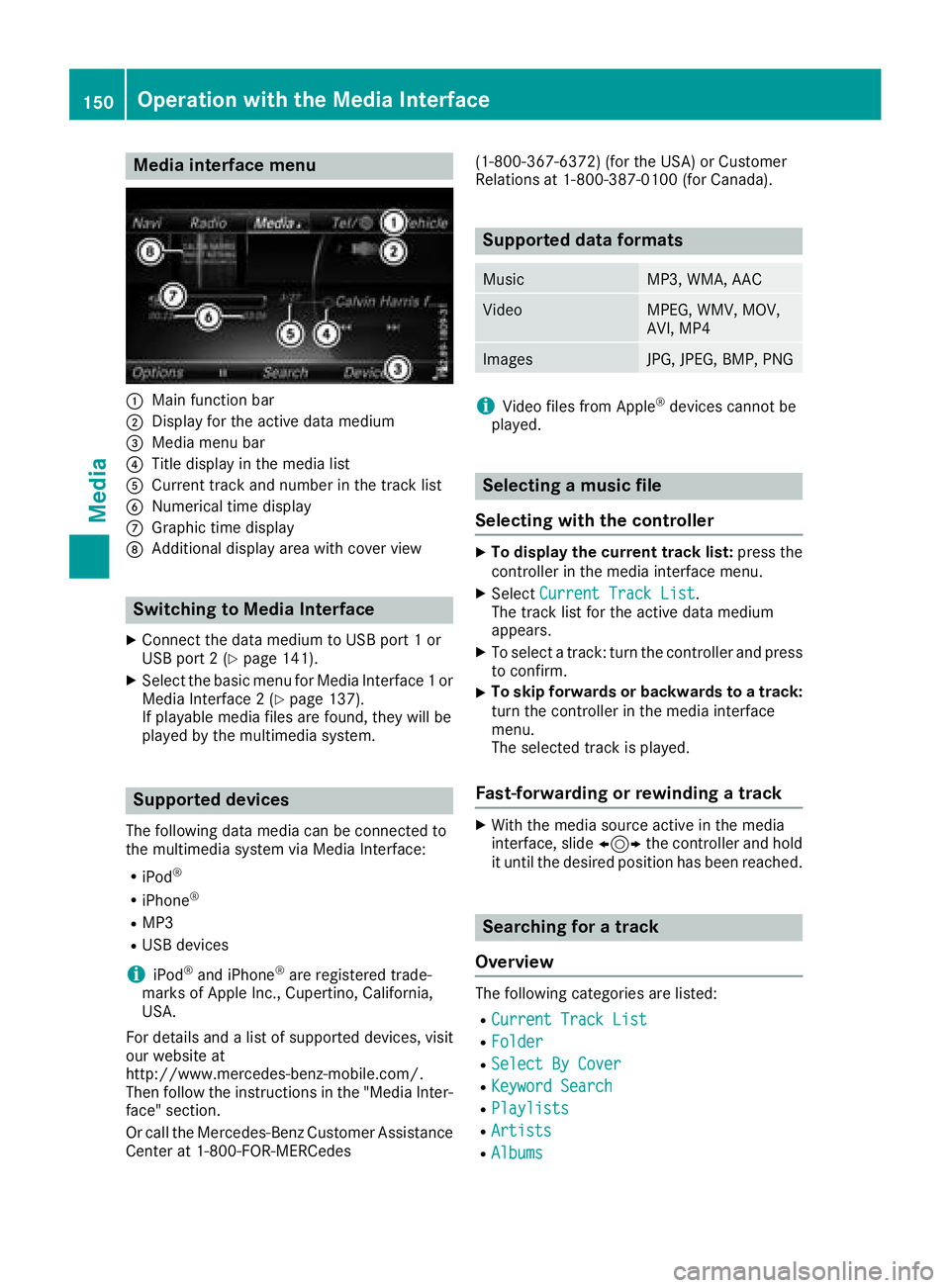
Media interface menu
:Main function bar
;Display for the active data medium
=Media menu bar
?Title display in the media list
ACurrent track and number in the track list
BNumerical time display
CGraphic time display
DAdditional display area with cover view
Switching to Media Interface
XConnect the data medium to USB port 1 or
USB port 2 (Ypage 141).
XSelect the basic menu for Media Interface 1 or
Media Interface 2 (Ypage 137).
If playable media files are found, they will be
played by the multimedia system.
Supported devices
The following data media can be connected to
the multimedia system via Media Interface:
RiPod®
RiPhone®
RMP3
RUSB devices
iiPod®and iPhone®are registered trade-
marks of Apple Inc., Cupertino, California,
USA.
For details and a list of supported devices, visit
our website at
http://www.mercedes-benz-mobile.com/.
Then follow the instructions in the "Media Inter-
face" section.
Or call the Mercedes-Benz Customer Assistance
Center at 1-800-FOR-MERCedes (1-800-367-6372) (for the USA) or Customer
Relations at 1-800-387-0100 (for Canada).
Supported data formats
MusicMP3, WMA, AAC
VideoMPEG, WMV, MOV,
AVI, MP4
ImagesJPG, JPEG, BMP, PNG
iVideo files from Apple®devices cannot be
played.
Selecting a music file
Selecting with the controller
XTo display the current track list: press the
controller in the media interface menu.
XSelect Current Track List.
The track list for the active data medium
appears.
XTo select a track: turn the controller and press
to confirm.
XTo skip forwards or backwards to a track:
turn the controller in the media interface
menu.
The selected track is played.
Fast-forwarding or rewinding a track
XWith the media source active in the media
interface, slide 1the controller and hold
it until the desired position has been reached.
Searching for a track
Overview
The following categories are listed:
RCurrent Track List
RFolder
RSelect By Cover
RKeyword Search
RPlaylists
RArtists
RAlbums
150Operation with the Media Interface
Media
Page 157 of 190
Stopping playback
XIn full-screen mode, press the controller
The DVD overlay menu is shown.
XTo stop playback:selectÉ.
XTo start playback again: selectÌ.
Playback restarts from the beginning.
Pausing playback
XIn full-screen mode, press the controller
The DVD overlay menu is shown.
XTo pause playback
Select Ë.
The Ë display changes to Ì.
XTo continue playback: selectÌ.
Selecting a scene/chapter
If the film is divided into scenes and chapters,
you can select these directly while the film is
running or you can skip progressively through
them. This is not possible at certain points for
some DVDs (e.g. during the opening credits).
It may also be possible to select the scene and
chapter from the functions stored on the DVD.
XTo skip forward or back: in the video menu,
turn the controller.
or
XPress the EorF button.
The next or previous scene in the film is skip-
ped to.
Picture viewer
General notes
If pictures are stored on a connected medium
(except on Apple®devices), you can view these
on the multimedia system.
The following data media and picture formats
are supported:
RData media: CD, DVD, USB devices, SD cards
RPicture formats: jpeg, jpg, bmp, png
The maximum image resolution is
20 megapixels for JPEG, JPG and 1.5 megapixels
for BMP, PNG.
Displaying pictures
XIn media mode, slide 6the controller.
XTo select Search: turn and press the control-
ler.
The category list appears.
XTo select Photos: turn and press the control-
ler.
A directory list appears. Folders and picture
files can be shown.
XSelect a folder or picture.
If there is no picture on the data medium, an
empty list is shown.
Searching for pictures on other data media
XYou can search for pictures on other data
media.
In the directory list, slide 8the controller.
The device list appears.
XTo select a data medium with picture files:
turn the controller and press to confirm.
A directory list appears. Folders and picture
files can be shown.
XSelect a folder or picture.
Starting a slide show
XWhile viewing a picture, press the controller.
The image menu appears.
XTo select Start Slideshow: turn and press
the controller.
The slide show starts.
XTo end the slide show: press the controller.
The image menu appears.
XSelect End Slide Show.
Changing the picture view
XPress the controller.
The image menu appears.
XTo select Turn Clockwise: turn and press
the controller.
The picture rotates 90 degrees clockwise.
XSelect Turn Counterclockwise.
The picture rotates 90 degrees counter-clock-
wise.
XSelect Zoom In.
The size of the picture increases.
Picture viewer155
Media
Z
Page 184 of 190
tings is determined by the DVD content. It may
also be possible to access the settings from the
DVD menu. This function is not available on all
DVDs.
XTo show the menu:press the9button on
the remote control.
XSelect DVD-Videoand press the 9button on
the remote control to confirm.
XSelect DVDFunctionsand press the 9but-
ton to confirm.
XSelect Audio Languageand press the 9
button to confirm.
A menu appears after a short while. The #dot
indicates the currently set language.
XSelect a language using the 9:but-
tons and press the 9button to confirm.
Subtitles and camera angle
These functions are not available on all DVDs.
The number of subtitle languages and camera
angles available depends on the content of the
DVD. It may also be possible to access the set-
tings from the DVD menu.
XTo show the menu: press the9button on
the remote control.
XSelect DVD-Videoand press the 9button on
the remote control to confirm.
XSelect DVDFunctionsand press the 9but-
ton to confirm.
XSelect SubtitlesorCamera Angleand
press the 9button to confirm.
In both cases, a menu appears after a few
seconds. The #dot indicates the current set-
ting.
XSelect a setting using the 9:buttons
and press the 9button to confirm.
Interactive content
DVDs can also contain interactive content (e.g.
a video game). In a video game, you may be able
to influence events, for example, by selecting
and triggering actions. The type and number of
actions depend on the DVD.
XSelect an action using the
9;:= buttons on the remote
control and press the 9button to execute it.
A menu appears and the first entry, Select
, is
highlighted.
XPress the 9button.
Active COMAND media source mode
Overview
You can transfer a media source selected in the
multimedia system to the Rear Seat Entertain-
ment System. If you switch the media source in
the multimedia system, this will not be transfer-
red to the Rear Seat Entertainment System.
You can transfer these media sources to the
Rear Seat Entertainment System:
RRadio
RCD or MP3 mode (CD, SD card, USB)
RMedia Interface
RVideo DVD mode
Follow the sequence described below when
playing a media source from the multimedia
system on the Rear Seat Entertainment System.
1. Switching on the function in the
multimedia system
XSwitch on the radio (Ypage 128).
XSwitch CD or MP3 mode on (CD, SD card,
USB) (Ypage 136).
XSwitch on the media interface (Ypage 150).
XSwitch to video DVD mode (Ypage 152).
182Active COMAND media source mode
Rear Seat Entertainment System