navigation MERCEDES-BENZ GLE SUV 2018 COMAND Manual
[x] Cancel search | Manufacturer: MERCEDES-BENZ, Model Year: 2018, Model line: GLE SUV, Model: MERCEDES-BENZ GLE SUV 2018Pages: 190, PDF Size: 4.42 MB
Page 122 of 190
The following driving status data is transmitted:
RGear position engaged
RDifference between parked, stationary,
coasting and driving
RInstrument cluster day/night mode
These data are transmitted in order to adapt the
content displayed to the driving situation.
The following position data is transmitted:
RCoordinates
RSpeed
RCompass direction
RAcceleration direction
These data are transmitted only when naviga-
tion is active in order to improve navigation (e.g.
when driving through a tunnel).
Android Auto
Introduction
Android Auto can be used for functions on
mobile phones with the Android operating sys-
tem:
RAndroid Auto-capable apps of the mobile
phone are shown in the multimedia system.
RAudio content from the mobile phone is
played back in the multimedia system.
Only one mobile phone at a time can be con-
nected to the multimedia system via Android
Auto.
During Android Auto use, various multimedia
system functions such as navigation, are not
available.
The availability of Android Auto and Android
Auto apps may vary from country to country and
depending on the equipment in the vehicle.
The respective provider is responsible for the
application and the associated services and
content.
Connecting a mobile phone via
Android Auto
Requirements:
RFor safety reasons, initial activation of
Android Auto on the multimedia system must
be carried out while the vehicle is stationary.
RThe mobile phone supports Android Auto
starting from Android 5.0.
RThe Android Auto app is installed on the
mobile phone.
RIn order to use the telephone functions, a
mobile phone needs to be connected with the
multimedia system via Bluetooth
®.
RThe full range of functions for Android Auto is
only possible with an Internet connection.
RThe mobile phone is connected to the USB
port ç on the multimedia system via a USB
cable.
The multimedia system automatically estab-
lishes a connection to the mobile phone via
Bluetooth
®. If this is unsuccessful, an error mes-
sage will appear. In this case, you should con-
nect the mobile phone manually via Bluetooth
®
(Ypage 91).
Starting Android Auto
Multimedia system
XTo call up the telephone menu: press the
% button.
XTo show the main function bar: slide 5the
controller.
XTo select Tel/®: press the controller.
XTo selectAndroid Auto: turn and press the
controller.
A message informs you that no Android Auto
device is connected.
Mobile phone
XConnect the mobile phone to the USB port
ç in the center console.
When activated manually, a message to start Android Auto appears on the display of the
multimedia system.
XTo confirm the message: press the controller.
The Android Auto app is shown in the multi-
media system display.
Setting up automatic connection
XTo call up the telephone menu: press the
% button.
XTo display the main function bar: slide 5the
controller.
XTo select Tel/®: press the controller.
XTo selectAndroid Auto: turn and press the
controller.
XTo switch to the menu bar: slide 6the con-
troller.
XTo select Options: turn and press the con-
troller.
120Android Auto
Telephone
Page 123 of 190
XTo selectStart Android Auto Automati‐cally: turn and press the controller.
XAllow automatic connection O.
Android Auto starts automatically as soon as
the mobile phone is connected to the USB
port ç of the multimedia system.
Changing the sound settings
When Android Auto is active, you can change the
sound settings in the radio menu.
XTo call up the radio menu: press the $
button.
XTo show the main function bar: slide 5the
controller.
XTo select Radio: turn and press the controller.
XTo switch to the menu bar: slide 6the con-
troller.
XTo select à: turn and press the controller.
Change the sound settings.
Activating voice control
When Android Auto is active, you can start the
mobile phone's voice control.
XPress and hold the ?button on the multi-
function steering wheel.
Depending on the mobile phone a tone
sounds.
Ending Android Auto
Mercedes-Benz recommends that you only can-
cel Android Auto when your vehicle is stationary.
XTerminate the USB connection between the
mobile phone and the multimedia system.
The No
AndroidAutoDeviceConnectedPlease ensure that your device isconnected to the correct USB port.message appears in the multifunction display.
Transmitted vehicle data
When using Android Auto, specific vehicle data
is transmitted to the mobile phone. This makes
it possible to use selected mobile phone serv-
ices efficiently. The mobile phone does not have
active access to vehicle data. The following system information is transmitted:
RMultimedia system software version
RSystem ID (anonymous)
These data are transmitted in order to optimize communication between the vehicle and mobile
phone.
A random vehicle code is generated for this pur-
pose and in order to assign multiple vehicles to
the mobile phone.
This code is not related to the vehicle identifi-
cation number (VIN) and is deleted if the multi-
media system is reset (
Ypage 43).
The following driving status data is transmitted:
RGear position engaged
RDifference between parked, stationary,
coasting and driving
RInstrument cluster day/night mode
These data are transmitted in order to adapt the
content displayed to the driving situation.
The following position data is transmitted:
RCoordinates
RSpeed
RCompass direction
RAcceleration direction
These data are transmitted only when naviga-
tion is active in order to improve navigation (e.g.
when driving through a tunnel).
Android Auto121
Telephone
Z
Page 138 of 190
Your multimediasyste mequipment
These operatin ginstruction sdescribe all th e
standar dan doptional equipment of your multi-
media system, as available at th etime of going
to press. Country-specifi cdifference sare pos -
sible. Bear in min dthat your vehicle may no t
feature all function sdescribed here. Thi salso
applies to safety-relevan tsystems an dfunc-
tions.
Read th einformation on qualifie dspecialis t
workshop sin th evehicle Operator's Manual.
Activating medi amode
General notes
There are severa lways to activat emedia sour-
ce susin gth emultimedia system.
The relevant section sof th eOperator's Manual
describe th esimples tway to activat e amedia
source.
Thi ssection describes all option sfo ractivatin g
media sources.
Connections for externa lmedi asour-
ces
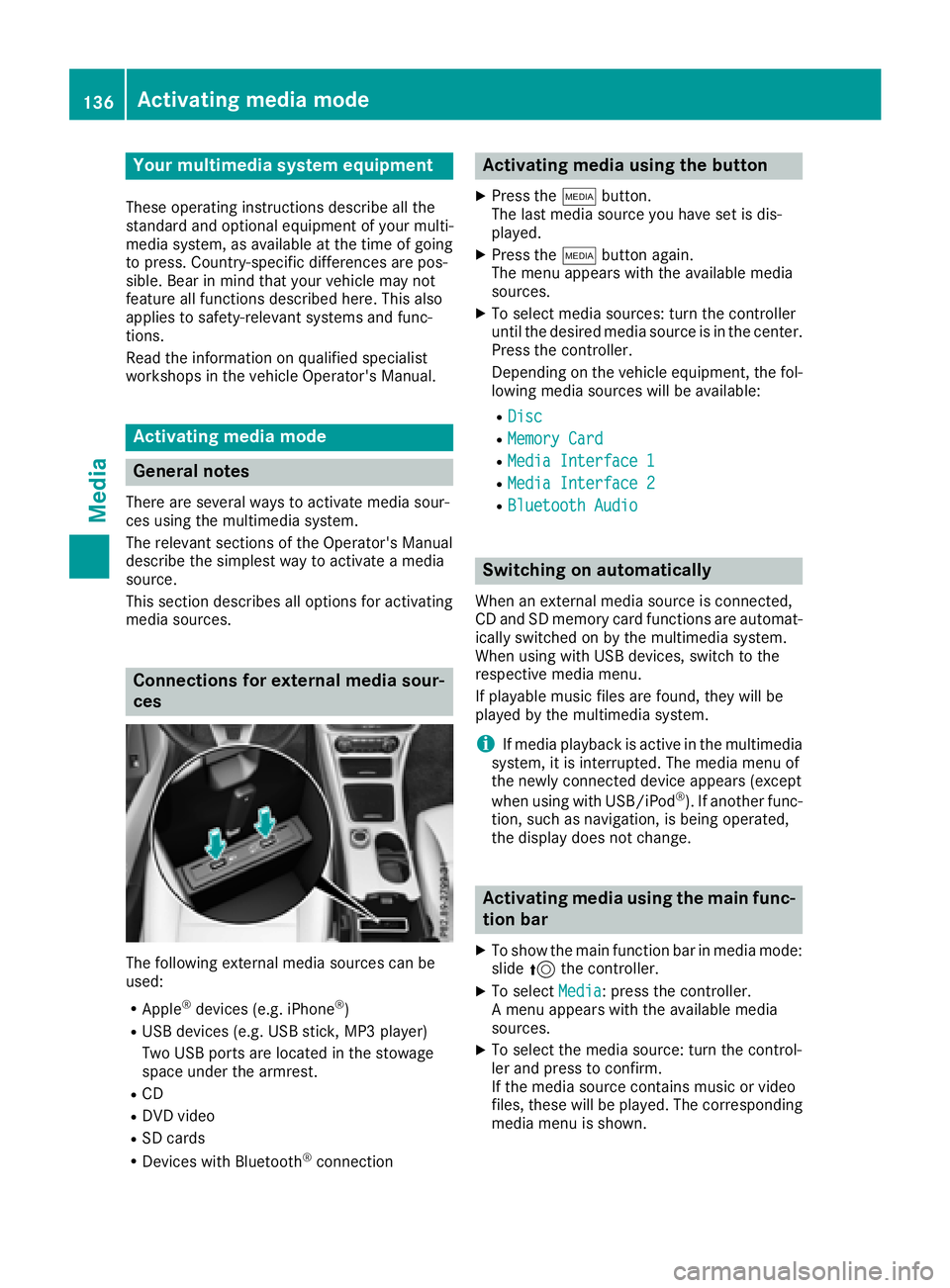
The followin gexternal media sources can be
used :
RApple®devices (e.g. iPhon e®)
RUSBdevices (e.g. US Bstick, MP3 player)
Two US Bports are located in th estowag e
spac eunder th earmrest.
RCD
RDV Dvideo
RSD cards
RDevices wit hBluetoot h®connection
Activating medi ausing th ebutton
XPress th eÕ button.
The last media sourc eyou hav eset is dis -
played.
XPress th eÕ buttonagain .
The men uappears wit hth eavailable media
sources.
XTo selec tmedia sources: turn th econtroller
until th edesire dmedia sourc eis in th ecenter.
Press th econtroller .
Dependin gon th evehicle equipment ,th efol-
lowing media sources will be available :
RDisc
RMemory Card
RMediaInterfac e 1
RMediaInterfac e 2
RBluetoothAudi o
Switching on automatically
Whenan external media sourc eis connected,
CD an dSD memor ycar dfunction sare automat -
ically switched on by th emultimedia system.
Whe nusin gwit hUS Bdevices, switch to th e
respective media menu.
If playable music files are found ,they will be
playe dby th emultimedia system.
iIf media playback is active in th emultimedia
system, it is interrupted. The media men uof
th enewly connecte ddevic eappears (except
when usin gwit hUSB/iPo d
®). If another func-
tion ,suc has navigation ,is bein goperated,
th edisplay doe sno tchange.
Activating medi ausing th emain func-
tion ba r
XTo showthemain function bar in media mode:
slid e5 thecontroller .
XTo selectMedi a:press th econtroller .
A men uappears wit hth eavailable media
sources.
XTo selec tth emedia source: turn th econtrol-
ler an dpress to confirm .
If th emedia sourc econtain smusic or video
files, these will be played. The correspondin g
media men uis shown .
136Activating media mode
Media
Page 141 of 190
Make sure that you know about the applicable
copyright regulations and that you comply with
these.
Notes on CDs/DVDs
!Do not affix stickers or labels to the discs.
They could peel off and damage the drive.
The drive is designed to receive EN 60908 standard discs. Therefore, you can
only use discs with a maximum thickness of
1.3 mm.
If you insert thicker discs, e.g. those that con-
tain data on both sides (DVD on one side and
audio data on the other), they cannot be ejec-
ted and can damage the drive.
Do not use discs with an 8 cm diameter, even
when using an adapter. Only use round discs
with a 12 cm diameter.
Discs with copy protection are not compatible
with the audio CD standard and therefore may
not be able to be played.
Playback problems may occur when playing
copied discs.
There may be playback problems if you play CDs
that you have copied yourself with a storage
capacity of more than 700 MB.
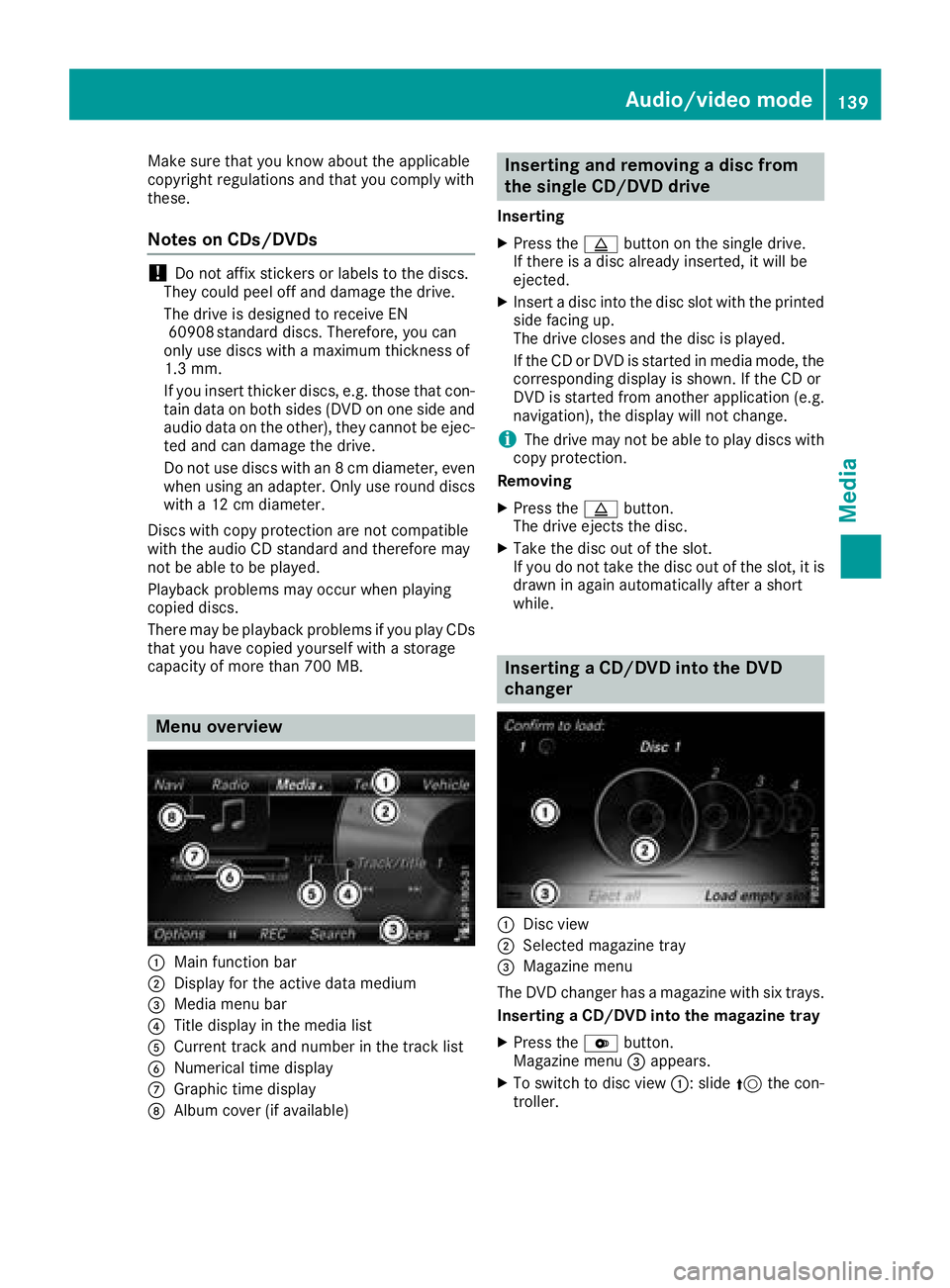
Menu overview
:Main function bar
;Display for the active data medium
=Media menu bar
?Title display in the media list
ACurrent track and number in the track list
BNumerical time display
CGraphic time display
DAlbum cover (if available)
Inserting and removing a disc from
the single CD/DVD drive
Inserting
XPress the þbutton on the single drive.
If there is a disc already inserted, it will be
ejected.
XInsert a disc into the disc slot with the printed
side facing up.
The drive closes and the disc is played.
If the CD or DVD is started in media mode, the
corresponding display is shown. If the CD or
DVD is started from another application (e.g. navigation), the display will not change.
iThe drive may not be able to play discs with
copy protection.
Removing
XPress the þbutton.
The drive ejects the disc.
XTake the disc out of the slot.
If you do not take the disc out of the slot, it is
drawn in again automatically after a short
while.
Inserting a CD/DVD into the DVD
changer
:Disc view
;Selected magazine tray
=Magazine menu
The DVD changer has a magazine with six trays.
Inserting a CD/DVD into the magazine tray
XPress the Vbutton.
Magazine menu =appears.
XTo switch to disc view :: slide5the con-
troller.
Audio/video mode139
Media
Z
Page 182 of 190
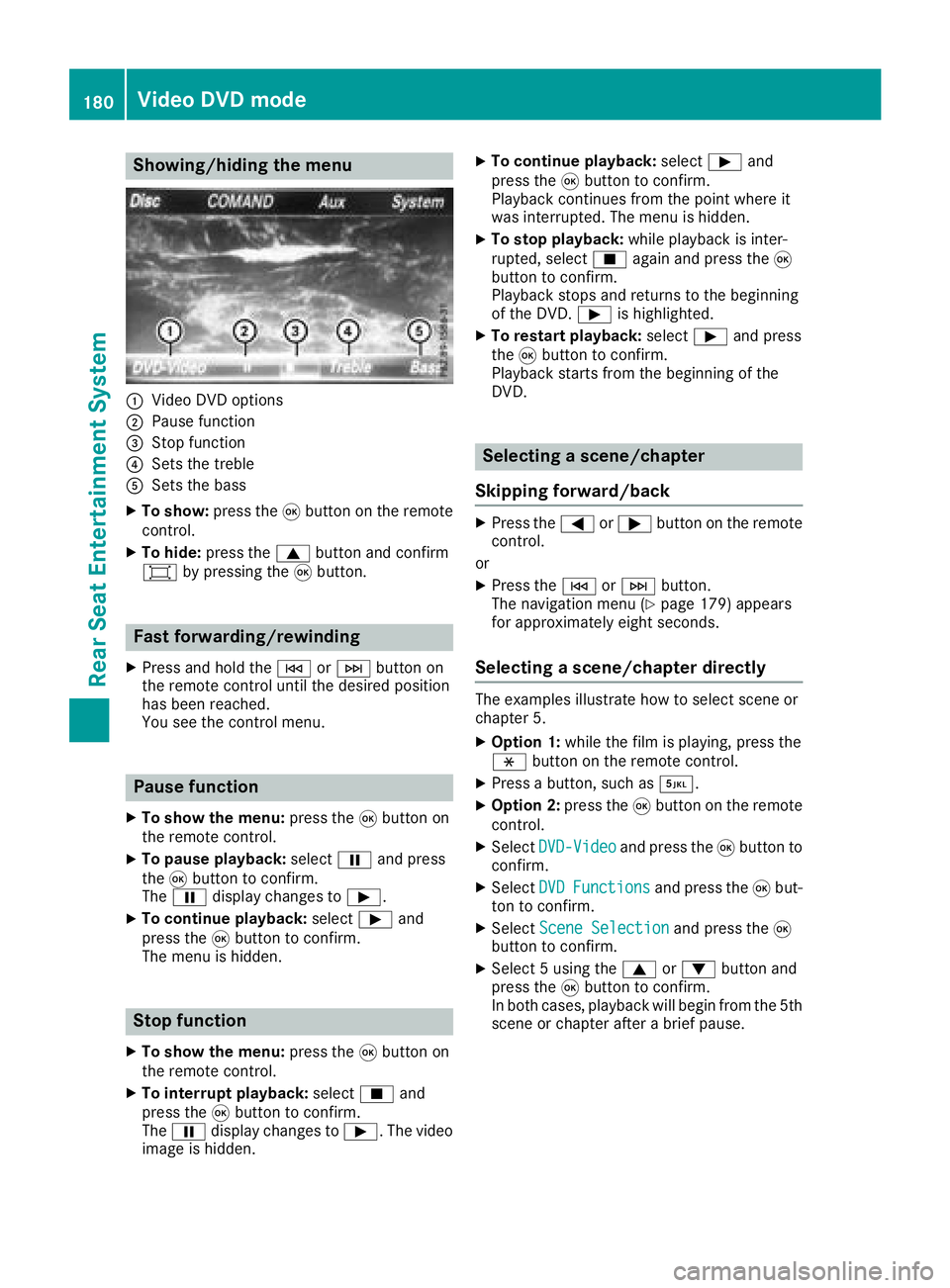
Showing/hiding the menu
:Video DVD options
;Pause function
=Stop function
?Sets the treble
ASets the bass
XTo show:press the9button on the remote
control.
XTo hide: press the 9button and confirm
# by pressing the 9button.
Fast forwarding/rewinding
XPress and hold the EorF button on
the remote control until the desired position
has been reached.
You see the control menu.
Pause function
XTo show the menu: press the9button on
the remote control.
XTo pause playback: selectËand press
the 9button to confirm.
The Ë display changes to Ì.
XTo continue playback: selectÌand
press the 9button to confirm.
The menu is hidden.
Stop function
XTo show the menu: press the9button on
the remote control.
XTo interrupt playback: selectÉand
press the 9button to confirm.
The Ë display changes to Ì. The video
image is hidden.
XTo continue playback: selectÌand
press the 9button to confirm.
Playback continues from the point where it
was interrupted. The menu is hidden.
XTo stop playback: while playback is inter-
rupted, select Éagain and press the 9
button to confirm.
Playback stops and returns to the beginning
of the DVD. Ìis highlighted.
XTo restart playback: selectÌand press
the 9button to confirm.
Playback starts from the beginning of the
DVD.
Selecting a scene/chapter
Skipping forward/back
XPress the =or; button on the remote
control.
or
XPress the EorF button.
The navigation menu (Ypage 179) appears
for approximately eight seconds.
Selecting a scene/chapter directly
The examples illustrate how to select scene or
chapter 5.
XOption 1: while the film is playing, press the
h button on the remote control.
XPress a button, such as ¿.
XOption 2:press the9button on the remote
control.
XSelect DVD-Videoand press the 9button to
confirm.
XSelect DVDFunctionsand press the 9but-
ton to confirm.
XSelect Scene Selectionand press the 9
button to confirm.
XSelect 5 using the 9or: button and
press the 9button to confirm.
In both cases, playback will begin from the 5th
scene or chapter after a brief pause.
180Video DVD mode
Rear Seat Entertainment System