USB MERCEDES-BENZ GLE SUV 2019 Owners Manual
[x] Cancel search | Manufacturer: MERCEDES-BENZ, Model Year: 2019, Model line: GLE SUV, Model: MERCEDES-BENZ GLE SUV 2019Pages: 681, PDF Size: 11.7 MB
Page 34 of 681
Depending on
the selected equipment, you can
import data into vehicle con venience and info‐
ta inment functions yourself.
This includes, forex ample:
R multimedia data such as music, films or pho‐
to sfo r playback in an integrated multimedia
sy stem
R address book data for use in connection with
an integrated hands-free sy stem or an inte‐
grated navigation sy stem
R entered navigation destinations
R data about the use of Internet services
This data can be sa ved locally in theve hicle or it
is located on a device which you ha veconnected
to theve hicle (e.g. smartphone, USB flash drive
or MP3 pla yer). If this data is stored in theve hi‐
cle, you can dele teit at any time. This data is
sent tothird parties only at your requ est, partic‐
ular lywhen you use online services in accord‐
ance with the settings that you ha veselected.
Yo u can store or change con venience settings/
individualisations in theve hicle at any time. Depending on
the equipment, this includes, for
ex ample:
R settings forth e seat and steering wheel posi‐
tions
R suspension and climate control settings
R customisations such as interior lighting
If yo ur vehicle is accordingly equipped, you can
connect your smartphone or ano ther mobile end
device totheve hicle. You can cont rolth is by
means of the control elements integrated in the
ve hicle. Images and audio from the smartphone
can be output via the multimedia sy stem. Cer‐
ta in information is simultaneously transfer redto
yo ur smartphone.
Depending on the type of integration, this can
include:
R general vehicle data
R position data
This allo wsyouto use selected apps on your
smartphone, such as navigation or music play‐
bac k.There is no fur ther interaction between the
smartphone and theve hicle; in particular, vehi‐
cle data is not directly accessible. Which type of fur
ther data processing occurs is de term ined by
th e pr ovider of the specific app used. Which set‐
tings you can make, if an y,depends on the spe‐
cific app and the operating sy stem of your
smartphone. Online services
Wire
less network connection
If yo ur vehicle has a wireless network connec‐
tion, it enables data tobe exc hanged between
yo ur vehicle and additional sy stems. The wire‐
less network connection is enabled via theve hi‐
cle's transmission and reception unit or via con‐
nected mobile end devices (e.g. sma rtphones).
Online functions can be used via the wireless
network connection. This includes online serv‐
ices and applications/apps pr ovided bythe man‐
ufacturer or other pr oviders.
Manu factu rer's se rvices
Re garding online services of the manufacturer,
th e individual functions are described bythe
manufacturer in a suita ble place (e.g. Owner's
Manual, website of the manufacturer) along with
th ere leva nt da taprotection information. Per‐ General no
tes31
Page 127 of 681
R
secure the load using the tie-down eyes and
distribute the load evenly. St
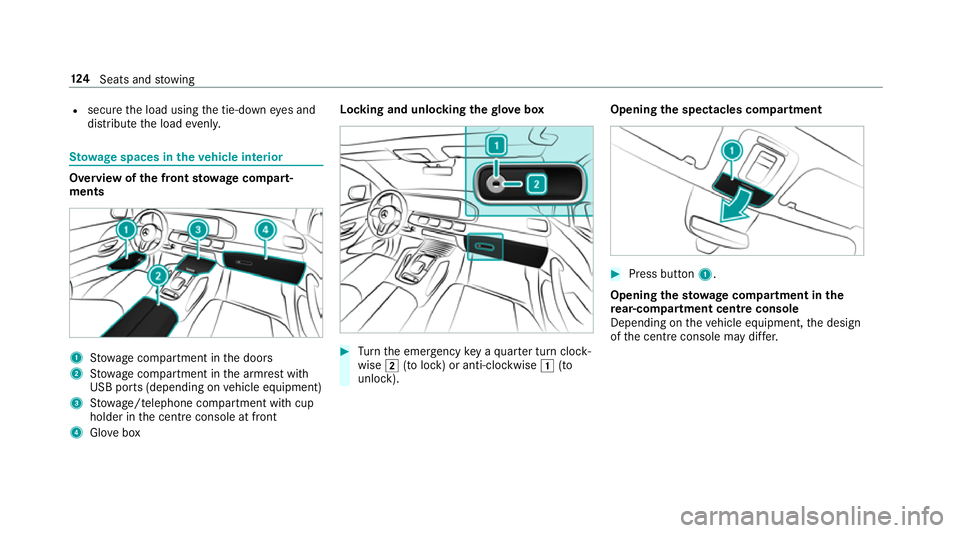
ow age spaces in theve hicle interior Overview of
the front stowage compa rt‐
ments 1
Stow age compartment in the doors
2 Stow age compartment in the armrest with
USB ports (depending on vehicle equipment)
3 Stow age/telephone compartment with cup
holder in the cent reconsole at front
4 Glove box Locking and unlocking
thegl ove box #
Turn the emer gency key a quarter turn clock‐
wise 2(to lock) or anti-clockwise 1(to
unlock). Opening
the spectacles compa rtment #
Press button 1.
Opening the stowage compa rtment in the
re ar-co mpartment centre console
Depending on theve hicle equipment, the design
of the cent reconsole may di ffer. 124
Seats and stowing
Page 146 of 681
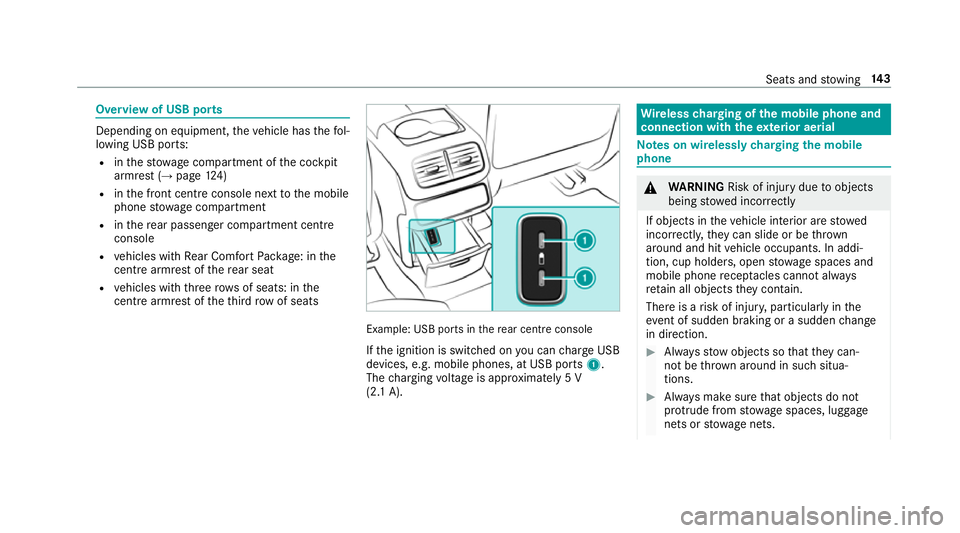
Overview of USB ports
Depending on equipment,
theve hicle has thefo l‐
lowing USB ports:
R inthestow age compartment of the cockpit
armrest (→ page124)
R inthe front cent reconsole next tothe mobile
phone stowage compartment
R inthere ar passenger compartment centre
console
R vehicles with Rear Comfort Package: in the
centre armrest of there ar seat
R vehicles with thre erow s of seats: in the
centre armrest of theth ird row of seats Example: USB ports in
there ar centre console
If th e ignition is switched on you can charge USB
devices, e.g. mobile phones, at USB ports 1.
The charging voltage is appr oximately 5 V
(2.1 A). Wire
lesscharging of the mobile phone and
connection with theex terior aerial Note
s on wirelessly charging the mobile
phone &
WARNING Risk of inju rydue toobjects
being stowed inco rrectly
If objects in theve hicle interior are stowed
incor rectly, they can slide or be thrown
around and hit vehicle occupants. In addi‐
tion, cup holders, open stowage spaces and
mobile phone recep tacles cannot al ways
re tain all objects they contain.
The reis a risk of injur y,particularly in the
ev ent of sudden braking or a sudden change
in direction. #
Alw aysstow objects so that they can‐
not be throw n around in su chsitua‐
tions. #
Alw ays make sure that objects do not
pr otru de from stowage spaces, luggage
nets or stowage nets. Seats and
stowing 14 3
Page 351 of 681
Example
for the use of themes
Fo rre cur ring driving situations, su chas long
drives on the mo torw ay,yo u can sa veyou prefer‐
re d settings in a theme in theve hicle.
Yo u can sa vethefo llowing settings in a theme,
fo rex ample:
R Displa ys(e.g. navigation map or tach ome ter)
R Prefer redra dio station
R Favo ured drive program
These settings are sa ved under the name you
wish when setting up a theme (→ page 348). On
th e next mo torw ay jou rney you can select this
th eme and thereby restore your settings.
Content of a theme
Depending on vehicle equipment thefo llowing
settings can be sa ved in a theme:
R Setting of the Instrument Display
(→ page 303)
R Setting of the Head-up Display (→ page311)
R Setting of the ambient lighting (→ page154)
R Active audio sou rce, e.g. radio or USB R
Starting sc reen forth e media display
R Visual style (→ page 366)
R DYNA MIC SELECT drive program
(→ page 191)
R Eco start/ stop setting (→ page188)
R Navigation sy stem settings
% Atheme conta insthe cur rently acti veset‐
tings in theve hicle.
Calling up themes
Multimedia sy stem:
, © #
When the home screen is shown, swipe up
until THEMES appears. #
Select a theme.
Creating new themes
Re quirements:
R The settings which are tobe sa ved in the
th eme are active.
The overview sho wsthe settings which can
be sa ved in a theme (→ page 347). Multimedia sy
stem:
, © .
THEMES #
Select WSet theme. #
Select an entry screen. #
Select Continuer. #
Select an image. #
Enter the names into the entry field and con‐
fi rm with a. #
Tosave ath eme: select Save.
Selecting additional settings #
Select Advanced settings . #
Activate or deacti vate the settings.
When the maximum number that can be
sa ve d is reached: #
Select afromthe prom pt. #
Select a theme that should be overwritten. #
Select an entry screen. #
Select Continue r. #
Select an image. 348
MBUX multimedia sy stem
Page 377 of 681
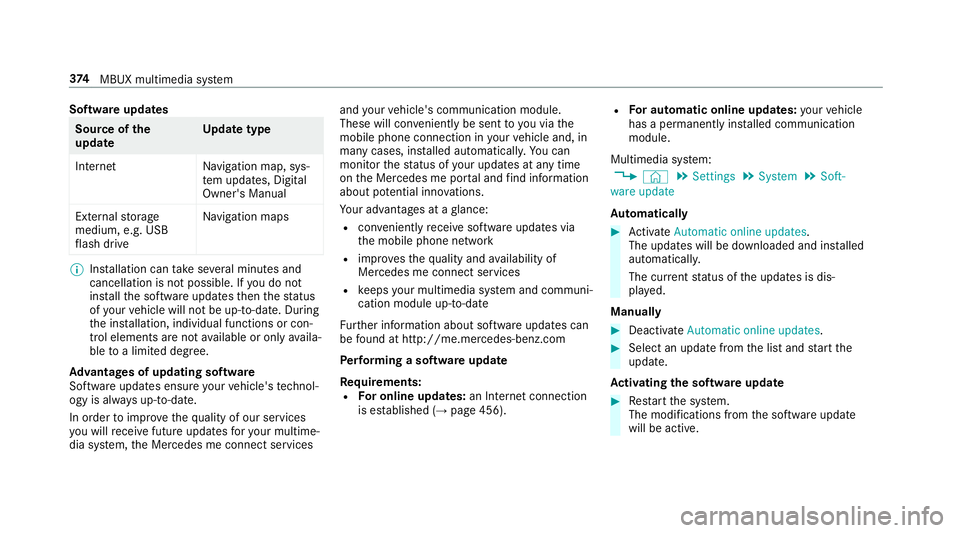
Software updates
Source of
the
update Up
date type
Interne tN avigation map, sys‐
te m updates, Digital
Owner's Manual
External storage
medium, e.g. USB
fl ash drive Na
vigation maps %
Installation can take several minutes and
cancellation is not possible. If you do not
ins tallth e software updates then thest atus
of your vehicle will not be up-to-date. During
th e ins tallation, individual functions or con‐
trol elements are not available or on lyavaila‐
ble toa limited deg ree.
Ad vantages of updating software
Software updates ensure your vehicle's tech nol‐
ogy is al ways up-to-date.
In order toimpr oveth equ ality of our services
yo u will recei vefuture updates foryo ur multime‐
dia sy stem, the Mercedes me connect services and
your vehicle's communication module.
These will con veniently be sent to you via the
mobile phone connection in your vehicle and, in
many cases, ins talled automaticall y.Yo u can
monitor thest atus of your updates at any time
on the Mercedes me por tal and find information
about po tential inno vations.
Yo ur advantages at a glance:
R con veniently recei vesoftware update s via
th e mobile phone network
R impr ovesth equ ality and availability of
Mercedes me connect services
R keeps your multimedia sy stem and communi‐
cation module up-to-date
Fu rther information about software updates can
be found at http://me.mercedes-benz.com
Pe rforming a software upda te
Requ irements:
R For online updates: an Internet connection
is es tablished (→ page 456). R
For automatic online updates: your vehicle
has a permanently ins talled communication
module.
Multimedia sy stem:
, © .
Settings .
System .
Soft-
ware update
Au tomatically #
Activate Automatic online updates.
The upda tes will be downloaded and ins talled
automaticall y.
The cur rent status of the updates is dis‐
pla yed.
Manually #
Deactivate Automatic online updates. #
Select an update from the list and start the
update.
Ac tivating the so ftwa reupdate #
Restart the sy stem.
The modifications from the software update
will be active. 374
MBUX multimedia sy stem
Page 389 of 681
#
Ifth e destination is ambiguous, select the
destination in the list.
The destination address is shown. The route
can be calculated.
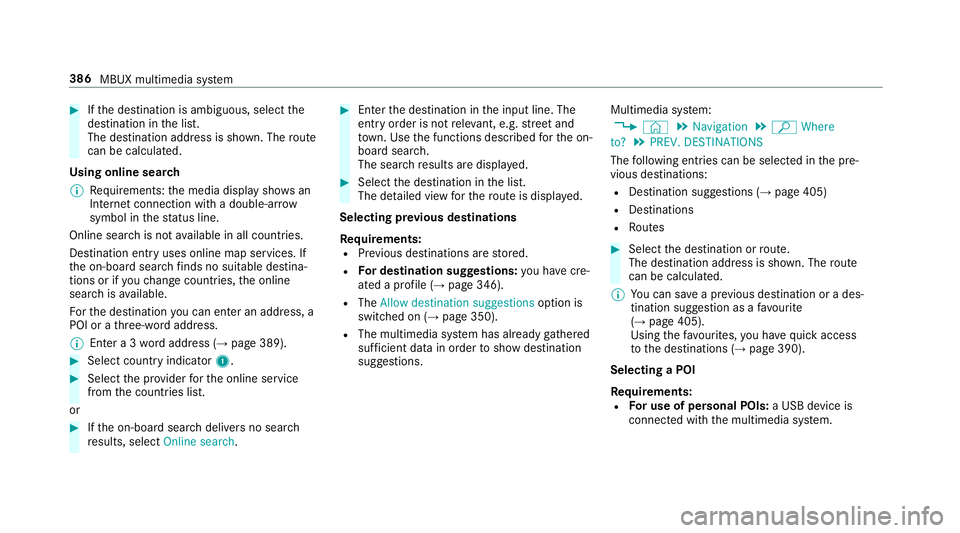
Using online sear ch
% Requirements: the media display sho wsan
In te rn et connection wi tha double-ar row
symbol in thest atus line.
Online sear chis not available in all countries.
De stination ent ryuses online map services. If
th e on-board sear chfinds no suitable de stina‐
tions or if youch ange countries, the online
sear chisavailable.
Fo rth e destination you can en ter an addre ss, a
POI or a thre e-word address.
% Ente r a 3 wordaddress (→ page 389). #
Select country indicator 1.#
Select the pr ovider forth e online service
from the count ries list.
or #
Ifth e on-board sear chdelivers no sear ch
re sults, select Online search. #
Enter the destination in the input line. The
entry order is not releva nt, e.g. stre et and
to wn. Use the functions described forth e on-
board sear ch.
The sear chresults are displa yed. #
Select the destination in the list.
The de tailed view forth ero ute is displ ayed.
Selecting pr evious destinations
Re quirements:
R Prev ious destinations are stored.
R For destination sug gestions: you ha vecre‐
ated a profile (→ page 346).
R The Allow destination suggestions option is
switched on (→ page 350).
R The multimedia sy stem has already gathered
suf ficient da tain order toshow destination
suggestions. Multimedia sy
stem:
, © .
Navigation .
ª Where
to? .
PREV. DESTINATIONS
The following ent ries can be selected in the pre‐
vious destinations:
R Destination suggestions (→ page 405)
R Destinations
R Routes #
Select the destination or route.
The destination address is shown. The route
can be calculated.
% You can sa vea pr evious destination or a des‐
tination suggestion as a favo urite
(→ page 405).
Using thefa vo urites, you ha vequick access
to the destinations (→ page 390).
Selecting a POI
Re quirements:
R For use of personal POIs: a USB device is
connected wi th the multimedia sy stem. 386
MBUX multimedia sy stem
Page 390 of 681
R
Personal POIs with the GPS Ex change form at
(.gpx) ha vebeen sa ved in the "PersonalPOI"
fo lder on the USB device.
Multimedia sy stem:
, © .
Navigation .
ª Where
to? .
POIS
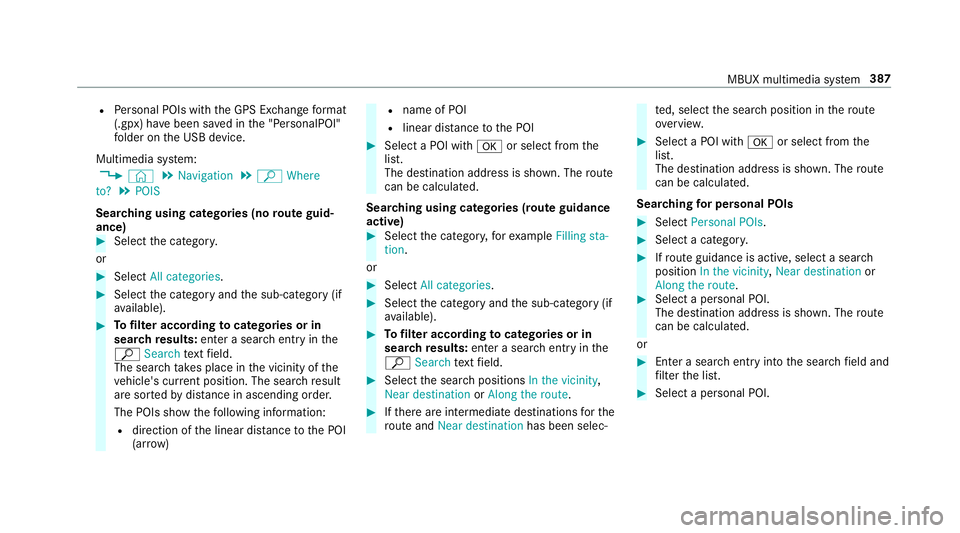
Sear ching using categories (no route guid‐
ance) #
Select the categor y.
or #
Select All categories. #
Select the category and the sub-category (if
av ailable). #
Tofilter according tocategories or in
sear chresults: enter a sear chentry inthe
ª Search text field.
The sear chtake s place in the vicinity of the
ve hicle's cur rent position. The sea rchre sult
are sor tedby distan ce in ascending order.
The POIs show thefo llowing information:
R direction of the linear dis tance tothe POI
(ar row) R
name of POI
R linear dis tance tothe POI #
Select a POI with aor select from the
list.
The destination address is shown. The route
can be calculated.
Sea rching using categories (route guidance
active) #
Select the categor y,forex ample Filling sta-
tion.
or #
Select All categories. #
Select the category and the sub-category (if
av ailable). #
Tofilter according tocategories or in
sear chresults: enter a sear chentry inthe
ª Search text field. #
Select the sear chpositions In the vicinity,
Near destination orAlong the route. #
Ifth ere are intermediate destinations forthe
ro ute and Near destination has been selec‐ te
d, select the sear chposition in thero ute
ove rview. #
Select a POI wi tha or select from the
list.
The destination address is shown. The route
can be calculated.
Sea rching for personal POIs #
Select Personal POIs. #
Select a categor y. #
Ifro ute guidance is active, select a sear ch
position In the vicinity, Near destination or
Along the route. #
Select a personal POI.
The destination address is shown. The route
can be calculated.
or #
Enter a sear chentry intothe sear chfield and
fi lter the list. #
Select a personal POI. MBUX multimedia sy
stem 387
Page 397 of 681
or
#
Activate or deacti vate the count ries.
To avoid: the display button is activated. The
ro ute avoids roads requ iring a special toll
st icke r in the selected count ries.
To use: the display button is off. The route
ta ke s into account roads in the selected
count rywhich requireyouto pay a time-
based fee (vignette). A vignette allo wsforthe
use of a route network for a limi ted time
period.
% These route options are not available in
eve rycountr y.
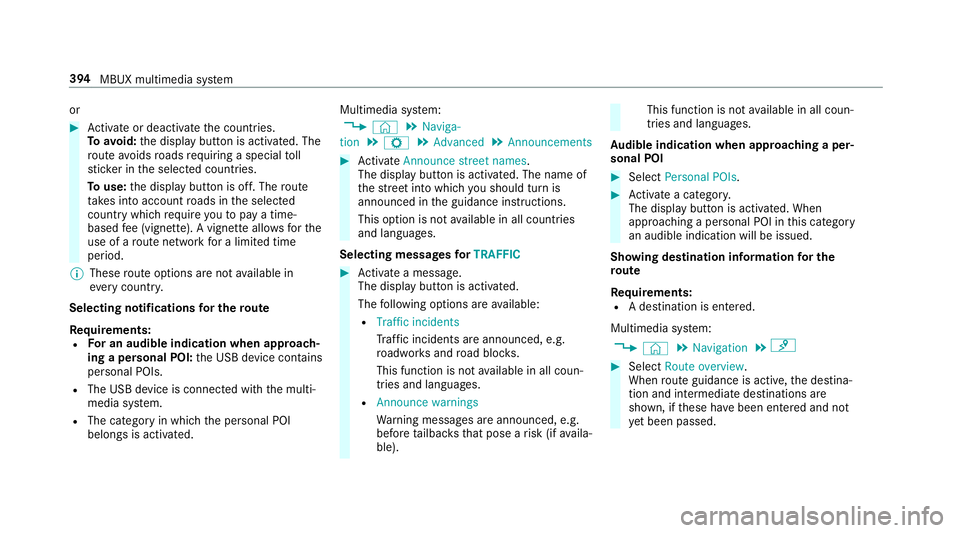
Selecting notifications for the route
Re quirements:
R For an audible indication when approach‐
ing a personal POI: the USB device conta ins
personal POIs.
R The USB device is connec ted with the multi‐
media sy stem.
R The category in which the personal POI
belongs is activated. Multimedia sy
stem:
, © .
Naviga-
tion .
Z .
Advanced .
Announcements #
Activate Announce street names .
The display button is acti vated. The name of
th est re et into which you should turn is
announced in the guidance instructions.
This option is not available in all countries
and languages.
Selecting messages forTRAFFIC #
Activate a messa ge.
The display button is activated.
The following options are available:
R Traffic incidents
Traf fic incidents are announced, e.g.
ro adwor ksand road bloc ks.
This function is not available in all coun‐
tries and languages.
R Announce warnings
Warning messages are announced, e.g.
before tailbac ksthat pose a risk (if availa‐
ble). This function is not
available in all coun‐
tries and languages.
Au dible indication when approaching a per‐
sonal POI #
Select Personal POIs . #
Activate a categor y.
The display button is activated. When
approaching a personal POI in this category
an audible indication will be issued.
Showing destination information for the
ro ute
Re quirements:
R A destination is entered.
Multimedia sy stem:
, © .
Navigation .
¡ #
Select Route overview .
When route guidance is active, the destina‐
tion and intermediate destinations are
shown, if these ha vebeen entered and not
ye t been passed. 394
MBUX multimedia sy stem
Page 400 of 681
Switching
the automatic filling station
sear chon/off
Multimedia sy stem:
, © .
Settings .
Vehicle #
Switch Filling station search on or off.
When the fuel reser veleve l is reached, and
th e display button is switched on, a message
appears tostart sear ching forfilling stations.
St arting an automatic filling station sear ch
Re quirements:
R The automatic filling station sear chis activa‐
te d (→ page 397) .
Driving situation
The fuel le vel in the fuel tankre aches the
re ser vefuel le vel.
The following notification is shown in the media
display Reserve fuel Tap here to search for fill-
ing stations. #
Confirm the notification.
The automatic filling station sear chbegins.
The available filling stations along thero ute or in
the vicinity of theve hicle's cur rent posi‐
tion are displ ayed. #
Select a filling station.
The address of thefilling station is displa yed. #
Calculate thero ute (→ page 390).
The filling station is set as the destination or
th e next intermediate destination. #
Ifth ere are already four intermediate des‐
tinations: selectYesinthe prom pt.
The filling station is entered in thero ute
ove rview. Intermediate destination 4 is
dele ted. Ro ute guidance begins.
St arting the automatic service station
sear ch
Re quirements:
R ATTENTION ASSIST and theSuggest rest
area function are activated (→ page 282).
R There are service stations along thero ute
section ahead.
Driving situation
The following notification is shown in the media
display ATTENTION ASSIST Tap here to search
for rest areas. #
Confirm the notification.
The service station sear ch starts. The availa‐
ble service stations along thero ute or in the
vicinity of theve hicle's cur rent position are
displ ayed. #
Select a service station.
The service station address is displa yed. #
Calculate thero ute (→ page 390).
The service station is set as the destination
or the next intermediate destination. #
Ifth ere are already four intermediate des‐
tinations: selectYesinthe prom pt.
The service station is entered in thero ute
ove rview. Intermediate destination 4 is
dele ted. Ro ute guidance begins.
Showing a stored route on the map
Re quirements:
R A USB device with stored routes is connec‐
te d with the multimedia sy stem
(→ page 469).
R The route is stored in the "Routes" folder
with the GPS Ex change form at (.gpx). MBUX multimedia sy
stem 397
Page 401 of 681
Multimedia sy
stem:
, © .
Navigation .
ª Where
to? .
STORED ROUTES #
Select a route. #
Select Display on the map .#
Movethe map (→ page414).
St arting a sa vedro ute
Re quirements:
R A USB device with stored routes is connec‐
te d with the multimedia sy stem
(→ page 469).
R The route is stored in the "Routes" folder
with the GPS Ex change form at (.gpx).
Multimedia sy stem:
, © .
Navigation .
ª Where
to? .
STORED ROUTES #
Select a route. #
Select Start route guidance from the begin-
ning orStart route guidance from current
location.
Ro ute guidance starts. %
The route can be sa ved with finthe
menu (→ page 390).
Re cording a route
Re quirements:
R A USB device is connec ted with the multime‐
dia sy stem (→ page 469).
Multimedia sy stem:
, © .
Navigation .
ª Where
to? .
STORED ROUTES #
Tostart recording: selectStart to record
new route.
A redre cording symbol is shown.
The route is stored on the USB device. #
Tosto pre cording: selectEnd recording.
Saving a recorded route
Re quirements:
R A USB device is connec ted with the multime‐
dia sy stem (→ page 469). Multimedia sy
stem:
, © .
Navigation .
ª Where
to? .
STORED ROUTES #
Select a route. #
Select f. #
Select Save in "Previous destinations" .
The route is stored in the "Pr evious destina‐
tions" memo ryand can be called up from
th ere forro ute guidance.
Editing a storedro ute
Re quirements:
R A USB device with stored routes is connec‐
te d with the multimedia sy stem
(→ page 469).
Multimedia sy stem:
, © .
Navigation .
ª Where
to? .
STORED ROUTES #
Select a route with V. #
Toenter a name: selectChange name . #
Enterth e name. 398
MBUX multimedia sy stem