light MERCEDES-BENZ GLK-CLASS SUV 2014 Owners Manual
[x] Cancel search | Manufacturer: MERCEDES-BENZ, Model Year: 2014, Model line: GLK-CLASS SUV, Model: MERCEDES-BENZ GLK-CLASS SUV 2014Pages: 384, PDF Size: 48.23 MB
Page 213 of 384
This function is available in the range between
40 mph and 120 mph (60 km/h and
200 km/h).
A lane-correcting brake application can only
be made after driving over a solid,
recognizable lane marking. Before this, a
warning must be given by means of
intermittent vibration in the steering wheel.
In addition, a lane with lane markings on both
sides must be recognized. The brake
application also slightly reduces vehicle
speed.
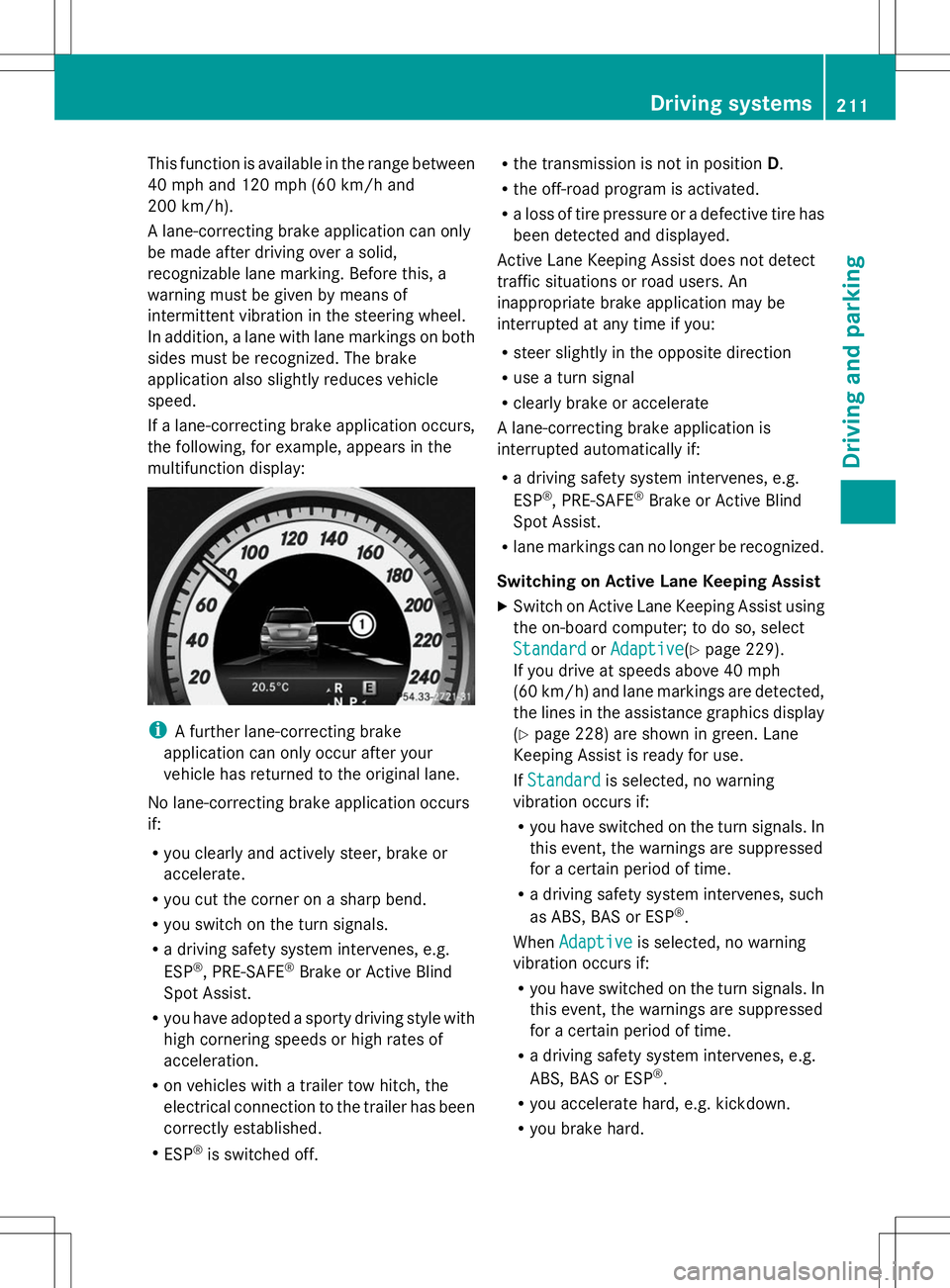
If a lane-correcting brake application occurs,
the following, for example, appears in the
multifunction display: i
A further lane-correcting brake
application can only occur after your
vehicle has returned to the original lane.
No lane-correcting brake application occurs
if:
R you clearly and actively steer, brake or
accelerate.
R you cut the corner on a sharp bend.
R you switch on the turn signals.
R a driving safety system intervenes, e.g.
ESP ®
, PRE-SAFE ®
Brake or Active Blind
Spot Assist.
R you have adopted a sporty driving style with
high cornering speeds or high rates of
acceleration.
R on vehicles with a trailer tow hitch, the
electrical connection to the trailer has been
correctly established.
R ESP ®
is switched off. R
the transmission is not in position D.
R the off-road program is activated.
R a loss of tire pressure or a defective tire has
been detected and displayed.
Active Lane Keeping Assist does not detect
traffic situations or road users. An
inappropriate brake application may be
interrupted at any time if you:
R steer slightly in the opposite direction
R use a turn signal
R clearly brake or accelerate
A lane-correcting brake application is
interrupted automatically if:
R a driving safety system intervenes, e.g.
ESP ®
, PRE-SAFE ®
Brake or Active Blind
Spot Assist.
R lane markings can no longer be recognized.
Switching on Active Lane Keeping Assist
X Switch on Active Lane Keeping Assist using
the on-board computer; to do so, select
Standard Standard orAdaptive
Adaptive (Ypage 229).
If you drive at speeds above 40 mph
(60 km/h) and lane markings are detected,
the lines in the assistance graphics display
(Y page 228) are shown in green. Lane
Keeping Assist is ready for use.
If Standard Standard is selected, no warning
vibration occurs if:
R you have switched on the turn signals. In
this event, the warnings are suppressed
for a certain period of time.
R a driving safety system intervenes, such
as ABS, BAS or ESP ®
.
When Adaptive Adaptive is selected, no warning
vibration occurs if:
R you have switched on the turn signals. In
this event, the warnings are suppressed
for a certain period of time.
R a driving safety system intervenes, e.g.
ABS, BAS or ESP ®
.
R you accelerate hard, e.g. kickdown.
R you brake hard. Driving systems
211Driving and parking Z
Page 214 of 384
R
you steer actively, e.g. swerve to avoid
an obstacle or change lanes quickly.
R you cut the corner on a sharp bend.
Towing a trailer
When you attach a trailer, make sure you have
correctly established the electrical
connection. This can be accomplished by
checking the trailer lighting. Towing a trailer
Notes on towing a trailer
Important safety notes G
WARNING
If you rest your foot on the brake pedal while
driving, the braking system can overheat. This
increases the stopping distance and can even
cause the braking system to fail. There is a
risk of an accident.
Never use the brake pedal as a footrest. Never
depress the brake pedal and the accelerator
pedal at the same time. G
WARNING
When the vehicle/trailer combination begins
to lurch, you could lose control of it. The
vehicle/trailer combination could even
rollover. There is a risk of an accident.
On no account should you attempt to
straighten up the vehicle/trailer combination
by increasing the speed. Reduce vehicle
speed and do not countersteer. Apply the
brake as necessary.
! Depressing the brake pedal constantly
results in excessive and premature wear to
the brake pads.
Please observe the manufacturer's operating
instructions for the trailer coupling if a
detachable trailer coupling is used.
Couple and uncouple the trailer carefully. If
you do not couple the trailer to the towing vehicle correctly, the trailer could become
detached.
Make sure that the following values are not
exceeded:
R
the permissible trailer drawbar noseweight
R the permissible trailer load
R the permissible rear axle load of the towing
vehicle
R the maximum permissible gross vehicle
weight of both the towing vehicle and the
trailer
The applicable permissible values, which
must not be exceeded, can be found:
R in the vehicle documents
R on the identification plates of the trailer tow
hitch, the trailer and the vehicle
If the values differ, the lowest value applies.
You will find the values approved by the
manufacturer on the vehicle identification
plates and those for the towing vehicle under
"Technical data" ( Ypage 376).
When towing a trailer, your vehicle's handling
characteristics will be different in comparison
with when driving without a trailer.
The vehicle/trailer combination:
R is heavier
R is restricted in its acceleration and
gradient-climbing capability
R has an increased braking distance
R is affected more by strong crosswinds
R demands more sensitive steering
R has a larger turning radius
This could impair the handling
characteristics.
When towing a trailer, always adjust your
speed to the current road and weather
conditions. Do not exceed the maximum
permissible speed for your vehicle/trailer
combination. 212
Towing a trailerDriving and pa
rking
Page 217 of 384
X
Couple up the trailer.
X Establish all electrical connections. Towing a trailer
There are numerous legal requirements
concerning the towing of a trailer, e.g. speed
restrictions. Make sure that your car/trailer
combination complies with the local
regulations:
R in your place of residence
R in the location to which you are driving
The police and local authorities can provide
reliable information.
Observe the following when towing a trailer:
R To gain driving experience and to become
accustomed to the new handling
characteristics, you should practice the
following in a traffic-free location:
- cornering
- stopping
- backing up
R Before driving, check:
-the trailer tow hitch
- the safety switch for braked trailers
- the safety chains
- electrical connections
- the lights
- the wheels
R Adjust the exterior mirrors to provide an
unobstructed view of the rear section of the
trailer.
R If the trailer has electronically controlled
brakes, pull away carefully. Brake manually
using the brake controller and check
whether the brakes function correctly.
R Secure any objects on the trailer to prevent
the cargo from slipping when the vehicle is
in motion.
R When you couple up a trailer, check at
regular intervals that the load is firmly
secured. If the trailer is equipped with trailer lights and brakes, check the trailer
to ensure that these are working.
R Bear in mind that the handling will be less
stable when towing a trailer than when
driving without one. Avoid sudden steering
movements.
R The vehicle/trailer combination is heavier,
accelerates more slowly, has a decreased
gradient climbing capability and a longer
braking distance.
It is more susceptible to side winds and
requires more careful steering.
R If possible, avoid abrupt braking. Depress
the brake pedal moderately at first, so that
the trailer can activate its own brakes. Then
increase the pressure on the brake pedal.
R If the automatic transmission repeatedly
shifts between gears on uphill or downhill
gradients, shift to a lower gear using the
left-hand steering wheel paddle shifter.
A lower gear and lower speed reduce the
risk of engine failure.
R When driving downhill, shift to a lower gear
to utilize the engine's braking effect.
Avoid continuous brake application as this
may overheat the vehicle brakes and, if
installed, the trailer brakes.
R If the coolant temperature increases
dramatically while the air-conditioning
system is switched on, switch off the air-
conditioning system.
Coolant heat can additionally be dissipated
by opening the windows and by setting the
blower fan and the interior temperature to
maximum.
R When overtaking, pay particular attention
to the extended length of your vehicle/
trailer combination.
Due to the length of the vehicle/trailer
combination, you require additional road
space in relation to the vehicle you are
overtaking, before you can change back to
the original lane. Towing a trailer
215Driving and parking Z
Page 223 of 384
Outside temperature display
You should pay special attention to road
conditions when temperatures are around
freezing point.
The outside temperature display is in the
multifunction display (Y page 222).
Changes in the outside temperature are
displayed after a short delay. Speedometer with segments
The segments in the speedometer indicate
which speed range is available.
R Cruise control activated (Y page 173):
The segments light up from the stored
speed to the maximum speed.
R DISTRONIC PLUS activated (Y page 175):
One or two segments in the set speed
range light up.
R DISTRONIC PLUS detects a vehicle in front:
The segments between the speed of the
vehicle in front and the stored speed light
up. Operating the on-board computer
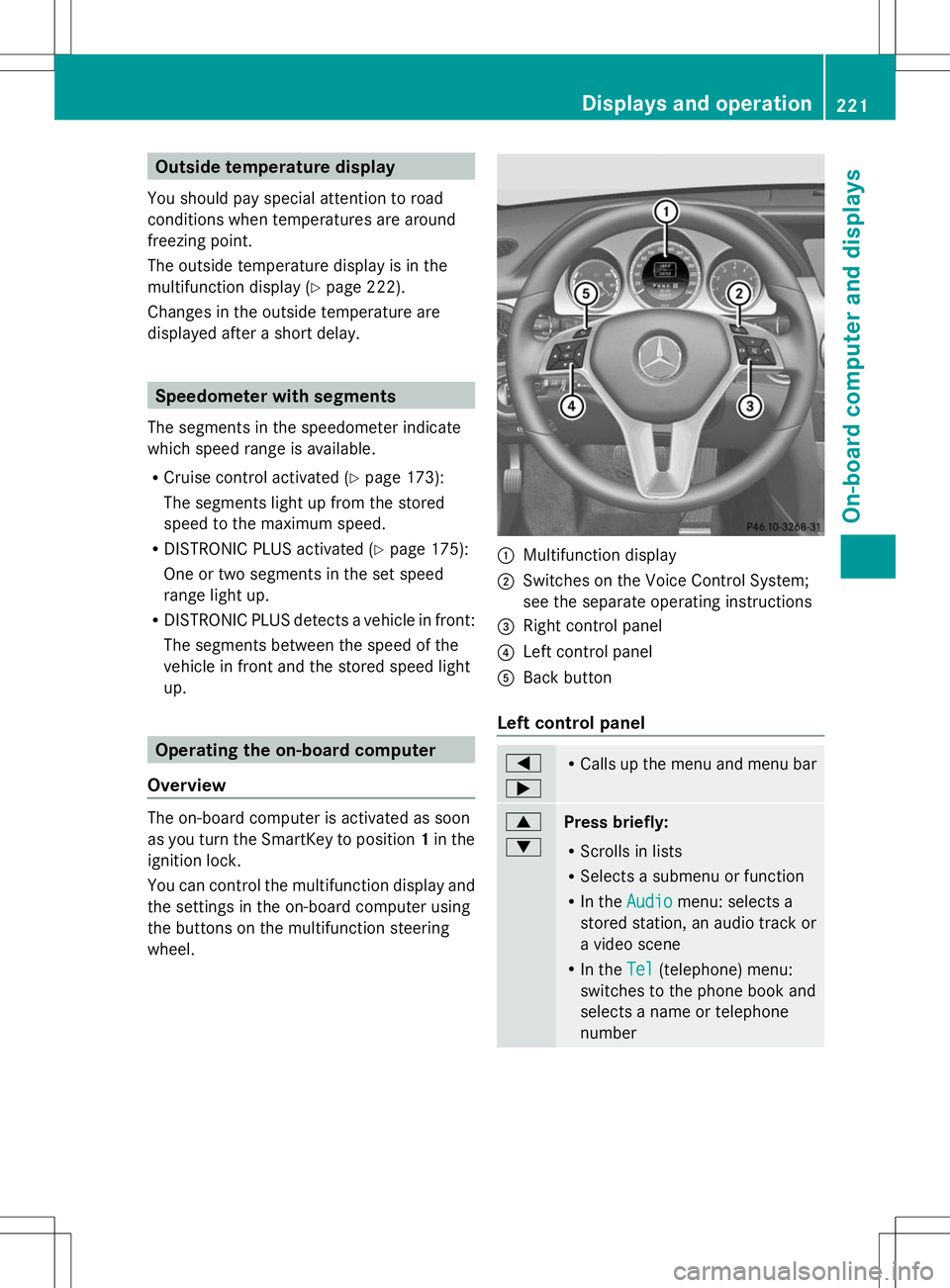
Overview The on-board computer is activated as soon
as you turn the SmartKey to position 1in the
ignition lock.
You can control the multifunction display and
the settings in the on-board computer using
the buttons on the multifunction steering
wheel. :
Multifunction display
; Switches on the Voice Control System;
see the separate operating instructions
= Right control panel
? Left control panel
A Back button
Left control panel =
; R
Calls up the menu and menu bar 9
:
Press briefly:
R
Scrolls in lists
R Selects a submenu or function
R In the Audio Audio menu: selects a
stored station, an audio track or
a video scene
R In the Tel Tel(telephone) menu:
switches to the phone book and
selects a name or telephone
number Displays and operation
221On-board computer and displays Z
Page 225 of 384
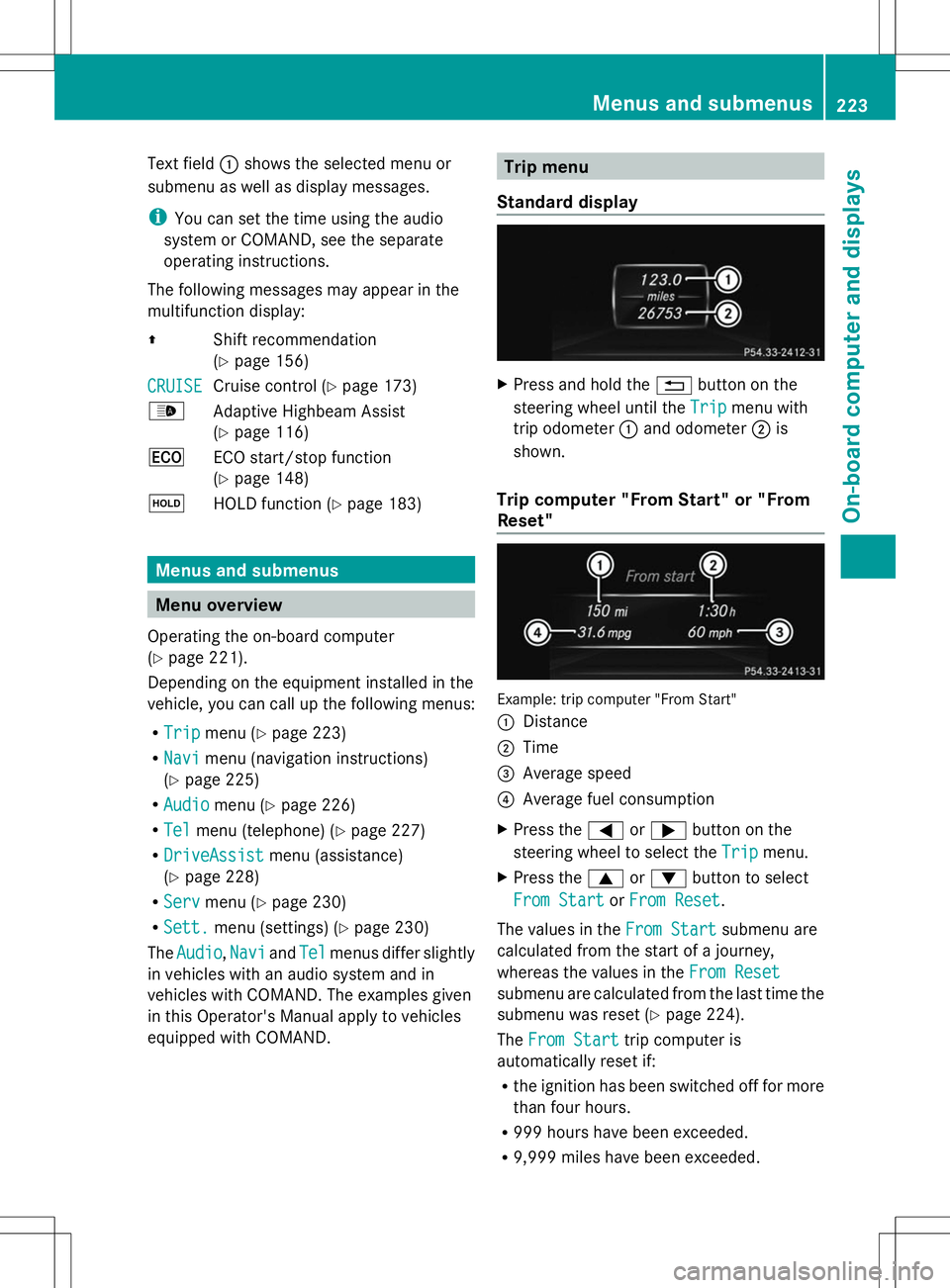
Text field
:shows the selected menu or
submenu as well as display messages.
i You can set the time using the audio
system or COMAND, see the separate
operating instructions.
The following messages may appear in the
multifunction display:
Z Shift recommendation
(Ypage 156)
CRUISE
CRUISE Cruise control (Y
page 173)
_ Adaptive Highbeam Assist
(Ypage 116)
¤ ECO start/stop function
(Ypage 148)
ë HOLD function (Y page 183) Menus and submenus
Menu overview
Operating the on-board computer
(Y page 221).
Depending on the equipment installed in the
vehicle, you can call up the following menus:
R Trip
Trip menu (Y page 223)
R Navi Navi menu (navigation instructions)
(Y page 225)
R Audio
Audio menu (Y page 226)
R Tel
Tel menu (telephone) (Y page 227)
R DriveAssist
DriveAssist menu (assistance)
(Y page 228)
R Serv
Serv menu (Y page 230)
R Sett.
Sett. menu (settings) (Y page 230)
The Audio
Audio ,Navi
Navi andTel
Tel menus differ slightly
in vehicles with an audio system and in
vehicles with COMAND. The examples given
in this Operator's Manual apply to vehicles
equipped with COMAND. Trip menu
Standard display X
Press and hold the %button on the
steering wheel until the Trip
Trip menu with
trip odometer :and odometer ;is
shown.
Trip computer "From Start" or "From
Reset" Example: trip computer "From Start"
:
Distance
; Time
= Average speed
? Average fuel consumption
X Press the =or; button on the
steering wheel to select the Trip
Trip menu.
X Press the 9or: button to select
From Start From Start orFrom Reset
From Reset .
The values in the From Start
From Startsubmenu are
calculated from the start of a journey,
whereas the values in the From Reset From Reset
submenu are calculated from the last time the
submenu was reset (Y page 224).
The From Start From Start trip computer is
automatically reset if:
R the ignition has been switched off for more
than four hours.
R 999 hours have been exceeded.
R 9,999 miles have been exceeded. Menus and submenus
223On-board computer and displays Z
Page 232 of 384
markings as bright lines in the assistance
graphic.
For further information about Lane Keeping
Assist, see (Y page 204).
For further information about Active Lane
Keeping Assist, see (Y page 209).Maintenance menu
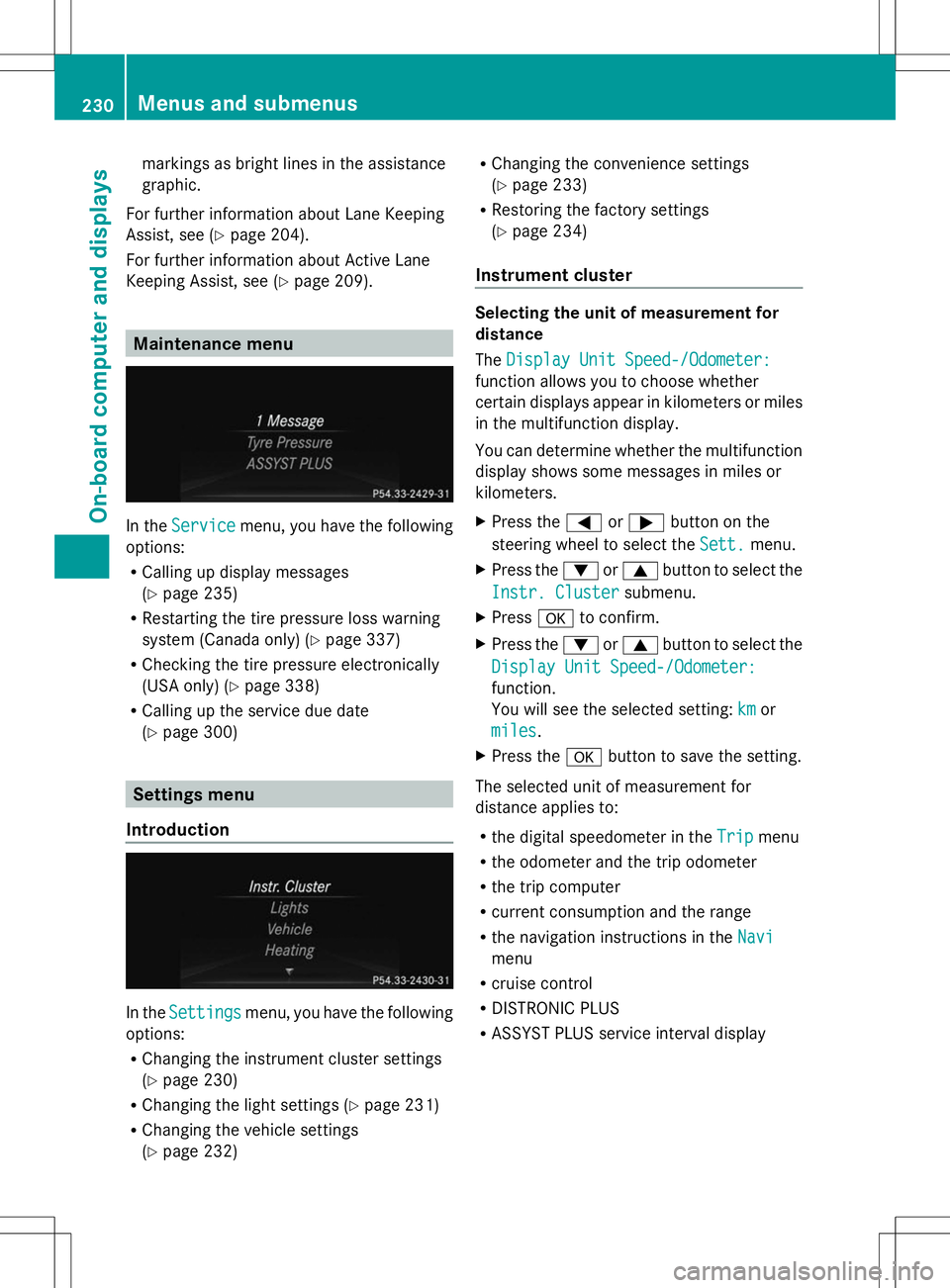
In the
Service Service menu, you have the following
options:
R Calling up display messages
(Y page 235)
R Restarting the tire pressure loss warning
system (Canada only) (Y page 337)
R Checking the tire pressure electronically
(USA only) (Y page 338)
R Calling up the service due date
(Y page 300) Settings menu
Introduction In the
Settings Settings menu, you have the following
options:
R Changing the instrument cluster settings
(Y page 230)
R Changing the light settings (Y page 231)
R Changing the vehicle settings
(Y page 232) R
Changing the convenience settings
(Y page 233)
R Restoring the factory settings
(Y page 234)
Instrument cluster Selecting the unit of measurement for
distance
The
Display Unit Speed-/Odometer: Display Unit Speed-/Odometer:
function allows you to choose whether
certain displays appear in kilometers or miles
in the multifunction display.
You can determine whether the multifunction
display shows some messages in miles or
kilometers.
X Press the =or; button on the
steering wheel to select the Sett. Sett.menu.
X Press the :or9 button to select the
Instr. Cluster
Instr. Cluster submenu.
X Press ato confirm.
X Press the :or9 button to select the
Display Unit Speed-/Odometer:
Display Unit Speed-/Odometer:
function.
You will see the selected setting: km
km or
miles miles .
X Press the abutton to save the setting.
The selected unit of measurement for
distance applies to:
R the digital speedometer in the Trip Tripmenu
R the odometer and the trip odometer
R the trip computer
R current consumption and the range
R the navigation instructions in the Navi
Navi
menu
R cruise control
R DISTRONIC PLUS
R ASSYST PLUS service interval display 230
Menus and submenusOn-board computer and displays
Page 233 of 384
Selecting the permanent display function
You can determine whether the multifunction
display permanently shows your speed or the
outside temperature.
X Press the =or; button on the
steering wheel to select the Settings
Settings
menu.
X Press the :or9 button to select the
Instrument Cluster
Instrument Cluster submenu.
X Press ato confirm.
X Press the :or9 button to select the
Permanent Display:
Permanent Display: function.
You will see the selected setting Outside Outside
Temperature
Temperature orAdditional
Additional
Speedometer [km/h]
Speedometer [km/h]/Additional Additional
Speedometer [mph]
Speedometer [mph].
X Press the abutton to save the setting.
Lights Switching the daytime running lamps on/
off
Daytime running lamps are required by law
(Canada only). You cannot set the "daytime
running lamps" function via the on-board
computer.
X Press the =or; button on the
steering wheel to select the Sett.
Sett. menu.
X Press the :or9 button to select the
Lights
Lights submenu.
X Press ato confirm.
X Press the :or9 button to select the
Day Lights
Day Lights function.
If the Day Lights Day Lights function has been
switched on, the cone of light and the
W symbol in the multifunction display
are shown in orange.
X Press the abutton to save the setting.
Further information on daytime running
lamps (Y page 113). Setting the brightness of the display/
switch
X
Press the =or; button on the
steering wheel to select the Sett.
Sett. menu.
X Press the :or9 button to select the
Lights Lights submenu.
X Press ato confirm.
X Press the :or9 button to select the
Brightness Display/Switches:
Brightness Display/Switches:
function.
You will see the selected setting.
X Press ato confirm.
X Press the :or9 button to adjust the
brightness to any level from Level 1
Level 1 to
Level 5
Level 5 (bright).
X Press the aor% button to save the
setting.
Switching Adaptive Highbeam Assist on/
off
X Press the =or; button on the
steering wheel to select the Sett.
Sett. menu.
X Press the :or9 button to select the
Lights Lights submenu.
X Press ato confirm.
X Press the :or9 button to select the
Adapt. Highbeam
Adapt. Highbeam function.
If the Adapt.
Adapt. Highbeam
Highbeam function has been
switched on, the cone of light and the
_ symbol in the multifunction display
are shown in orange.
X Press the abutton to save the setting.
For further information about Adaptive
Highbeam Assist, see (Y page 116).
Activating/deactivating surround
lighting and exterior lighting delayed
switch-off
X Press the =or; button on the
steering wheel to select the Settings
Settings
menu.
X Press the :or9 button to select the
Lights Lights submenu.
X Press ato confirm. Menus and submenus
231On-board computer and displays Z
Page 234 of 384
X
Press the :or9 button to select the
Surround Lighting
Surround Lighting function.
When the Surround Lighting
Surround Lighting function is
activated, the light cone and the area
around the vehicle are displayed in orange
in the multifunction display.
X Press the abutton to save the setting.
Deactivating delayed switch-off of the
exterior lighting temporarily:
X Before leaving the vehicle, turn the
SmartKey to position 0in the ignition lock.
X Turn the SmartKey to position 2in the
ignition lock.
The exterior lighting delayed switch-off is
deactivated.
Delayed switch-off of the exterior lighting is
reactivated the next time you start the
engine.
If you have activated the Surround
Surround
Lighting Lighting function and the light switch is set
to Ã, the following functions are activated
when it is dark:
R surround lighting: the exterior lighting
remains lit for 40 seconds after unlocking
with the SmartKey. If you start the engine,
the surround lighting is switched off and
automatic headlamp mode is activated
(Y page 113).
R exterior lighting delayed switch-off: the
exterior lighting remains lit for
60 seconds after the engine is switched off.
If you close all the doors and the tailgate,
the exterior lighting goes off after
5 seconds.
i Depending on your vehicle's equipment,
when the surround lighting and delayed
switch-off exterior lighting are on, the
following light up:
R Parking lamps
R Front fog lamps
R Low-beam headlamps
R Daytime running lamps
R Side marker lamps
R Surround lighting in the exterior mirrors Activating/deactivating the interior
lighting delayed switch-off
If you activate the
Interior Lighting
Interior Lighting
Delay Delay function, the interior lighting remains
on for 20 seconds after you remove the
SmartKey from the ignition lock.
X Press the =or; button on the
steering wheel to select the Sett
Sett menu.
X Press the :or9 button to select the
Lights Lights submenu.
X Press ato confirm.
X Press the :or9 button to select the
Interior Lighting Delay
Interior Lighting Delay function.
If the Interior
Interior Lighting
Lighting Delay
Delayfunction
has been switched on, the vehicle interior
is displayed in orange in the multifunction
display.
X Press the abutton to save the setting.
Vehicle Activating/deactivating the automatic
door locking mechanism
X
Press the =or; button on the
steering wheel to select the Sett. Sett.menu.
X Press the :or9 button to select the
Vehicle
Vehicle submenu.
X Press ato confirm.
X Press the :or9 button to select the
Auto. Door Locks
Auto. Door Locks function.
When the Auto. Door Locks
Auto. Door Locks function is
activated, the vehicle doors are displayed
in orange in the multifunction display.
X Press the abutton to save the setting.
If you activate the Auto. Door Locks Auto. Door Locks
function, the vehicle is centrally locked above
a speed of around 9 mph (15 km/h).
For further information on the automatic
locking feature, see (Y page 82).232
Menus and submenusOn-board computer and displays
Page 235 of 384
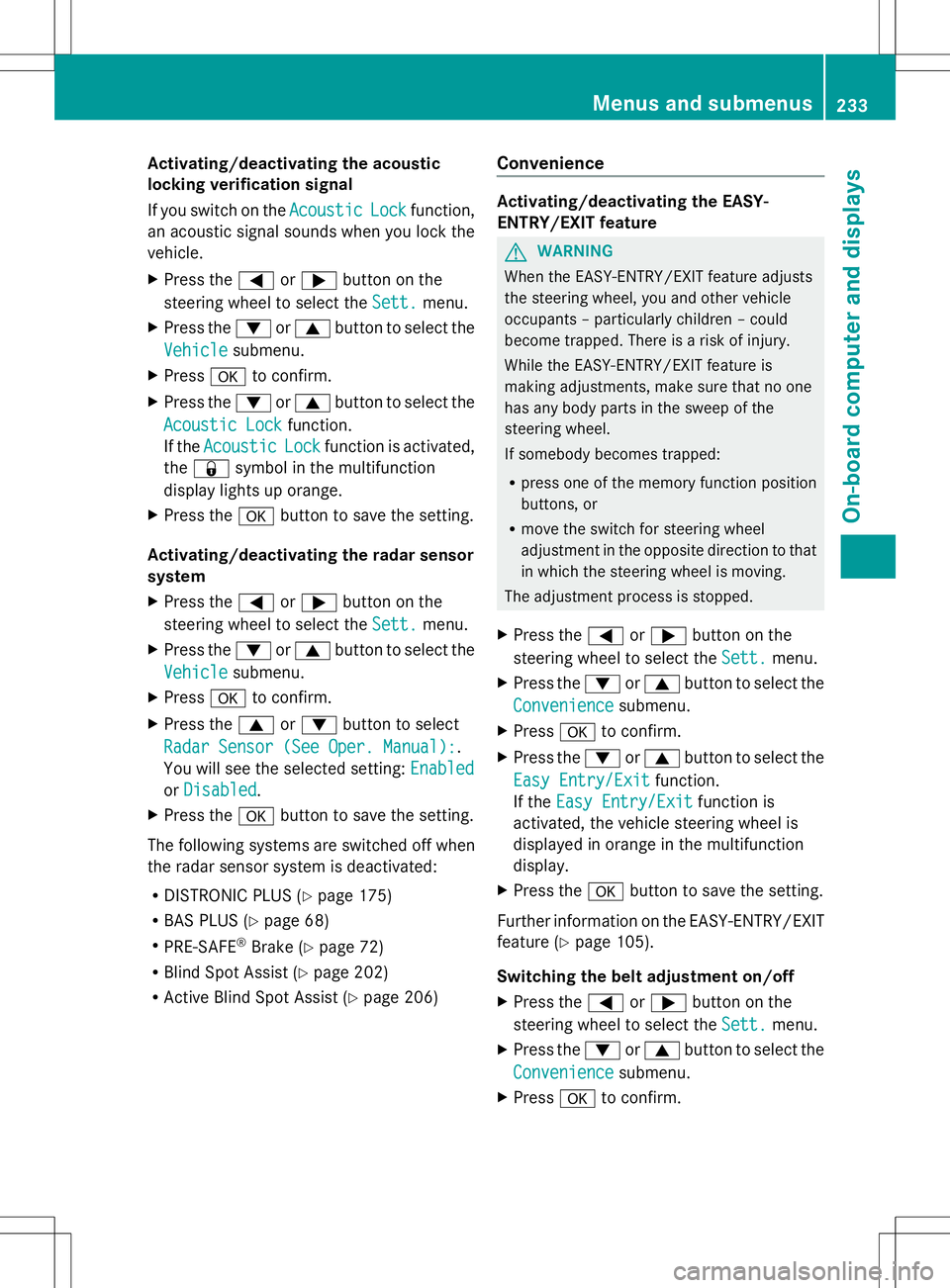
Activating/deactivating the acoustic
locking verification signal
If you switch on the Acoustic
Acoustic Lock Lockfunction,
an acoustic signal sounds when you lock the
vehicle.
X Press the =or; button on the
steering wheel to select the Sett. Sett.menu.
X Press the :or9 button to select the
Vehicle
Vehicle submenu.
X Press ato confirm.
X Press the :or9 button to select the
Acoustic Lock
Acoustic Lock function.
If the Acoustic
Acoustic Lock
Lockfunction is activated,
the & symbol in the multifunction
display lights up orange.
X Press the abutton to save the setting.
Activating/deactivating the radar sensor
system
X Press the =or; button on the
steering wheel to select the Sett.
Sett. menu.
X Press the :or9 button to select the
Vehicle Vehicle submenu.
X Press ato confirm.
X Press the 9or: button to select
Radar Sensor (See Oper. Manual):
Radar Sensor (See Oper. Manual): .
You will see the selected setting: Enabled
Enabled
or Disabled
Disabled .
X Press the abutton to save the setting.
The following systems are switched off when
the radar sensor system is deactivated:
R DISTRONIC PLUS (Y page 175)
R BAS PLUS (Y page 68)
R PRE-SAFE ®
Brake (Y page 72)
R Blind Spot Assist (Y page 202)
R Active Blind Spot Assist (Y page 206)Convenience Activating/deactivating the EASY-
ENTRY/EXIT feature
G
WARNING
When the EASY-ENTRY/EXIT feature adjusts
the steering wheel, you and other vehicle
occupants – particularly children – could
become trapped. There is a risk of injury.
While the EASY-ENTRY/EXIT feature is
making adjustments, make sure that no one
has any body parts in the sweep of the
steering wheel.
If somebody becomes trapped:
R press one of the memory function position
buttons, or
R move the switch for steering wheel
adjustment in the opposite direction to that
in which the steering wheel is moving.
The adjustment process is stopped.
X Press the =or; button on the
steering wheel to select the Sett.
Sett. menu.
X Press the :or9 button to select the
Convenience Convenience submenu.
X Press ato confirm.
X Press the :or9 button to select the
Easy Entry/Exit
Easy Entry/Exit function.
If the Easy Entry/Exit
Easy Entry/Exit function is
activated, the vehicle steering wheel is
displayed in orange in the multifunction
display.
X Press the abutton to save the setting.
Further information on the EASY-ENTRY/EXIT
feature (Y page 105).
Switching the belt adjustment on/off
X Press the =or; button on the
steering wheel to select the Sett. Sett.menu.
X Press the :or9 button to select the
Convenience
Convenience submenu.
X Press ato confirm. Menus and submenus
233On-board computer and displays Z
Page 236 of 384
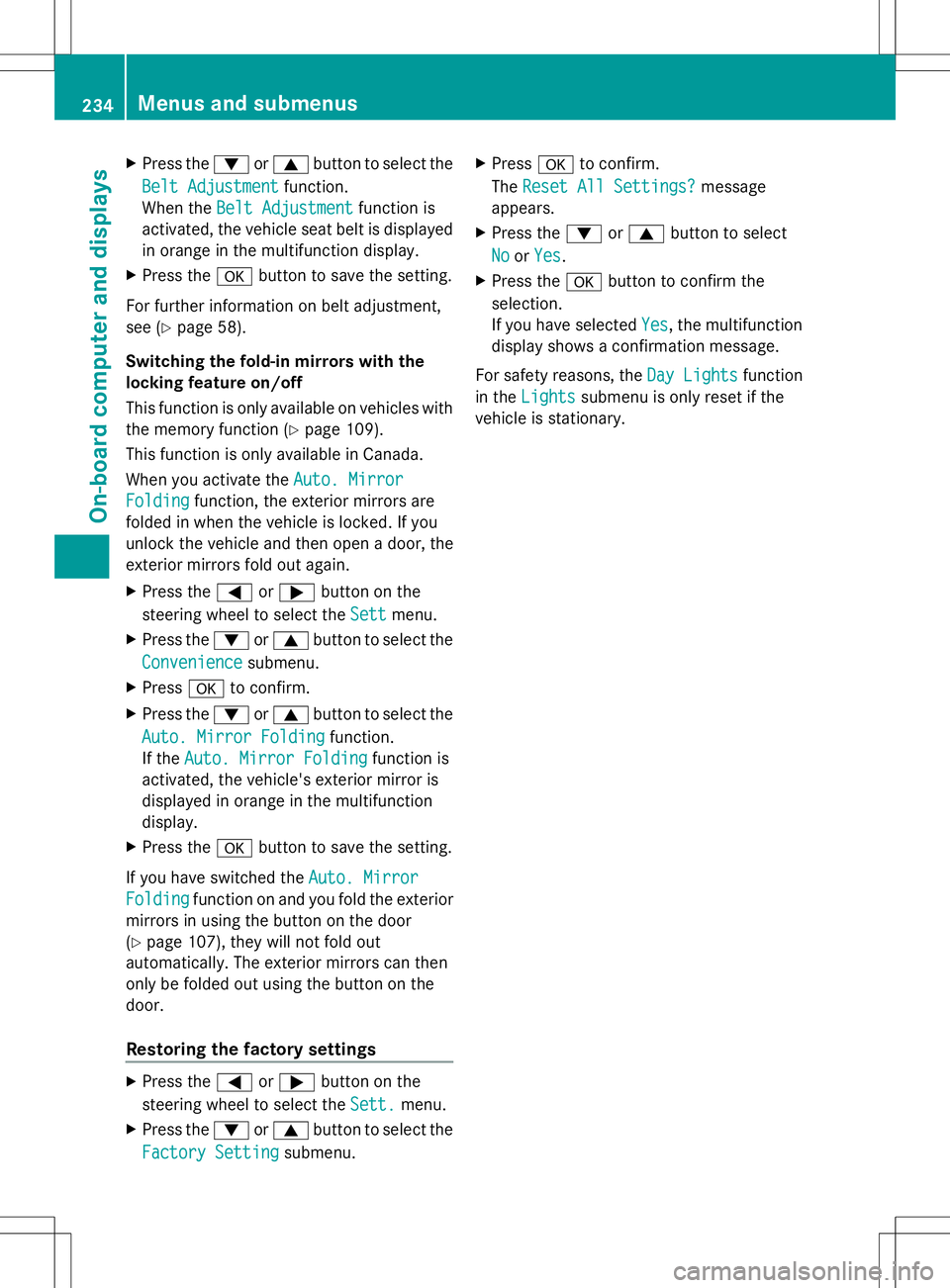
X
Press the :or9 button to select the
Belt Adjustment
Belt Adjustment function.
When the Belt Adjustment
Belt Adjustment function is
activated, the vehicle seat belt is displayed
in orange in the multifunction display.
X Press the abutton to save the setting.
For further information on belt adjustment,
see (Y page 58).
Switching the fold-in mirrors with the
locking feature on/off
This function is only available on vehicles with
the memory function (Y page 109).
This function is only available in Canada.
When you activate the Auto. Mirror Auto. Mirror
Folding
Folding function, the exterior mirrors are
folded in when the vehicle is locked. If you
unlock the vehicle and then open a door, the
exterior mirrors fold out again.
X Press the =or; button on the
steering wheel to select the Sett
Sett menu.
X Press the :or9 button to select the
Convenience
Convenience submenu.
X Press ato confirm.
X Press the :or9 button to select the
Auto. Mirror Folding
Auto. Mirror Folding function.
If the Auto. Mirror Folding Auto. Mirror Folding function is
activated, the vehicle's exterior mirror is
displayed in orange in the multifunction
display.
X Press the abutton to save the setting.
If you have switched the Auto. Mirror
Auto. Mirror
Folding
Folding function on and you fold the exterior
mirrors in using the button on the door
(Y page 107), they will not fold out
automatically. The exterior mirrors can then
only be folded out using the button on the
door.
Restoring the factory settings X
Press the =or; button on the
steering wheel to select the Sett.
Sett. menu.
X Press the :or9 button to select the
Factory Setting
Factory Setting submenu. X
Press ato confirm.
The Reset All Settings? Reset All Settings? message
appears.
X Press the :or9 button to select
No
No orYes
Yes.
X Press the abutton to confirm the
selection.
If you have selected Yes Yes, the multifunction
display shows a confirmation message.
For safety reasons, the Day Lights
Day Lightsfunction
in the Lights
Lights submenu is only reset if the
vehicle is stationary. 234
Menus and submenusOn-board computer and displays