steering MERCEDES-BENZ GLK-CLASS SUV 2015 Service Manual
[x] Cancel search | Manufacturer: MERCEDES-BENZ, Model Year: 2015, Model line: GLK-CLASS SUV, Model: MERCEDES-BENZ GLK-CLASS SUV 2015Pages: 386, PDF Size: 26 MB
Page 193 of 386

When a parking space has been detected, anarrow towards the right or the left also
appears. By default, Active Parking Assist
only displays parking spaces on the front-
passenger side. Parking spaces on the driv-
er's side are displayed as soon as the turn
signal on the driver's side is activated. When
parking on the driver's side, this must remain
switched on until you acknowledge the use of Active Parking Assist by pressing the a
button on the multifunction steering wheel.
A parking space is displayed while you are
driving past it, and until you are approx-
imately 50 ft (15 m) away from it.
Parking
GWARNING
Active Parking Assist merely aids you by inter- vening actively in the steering. If you do not
brake there is a risk of an accident.
Always apply the brakes yourself when
maneuvering and parking.
X Stop the vehicle when the parking space
symbol shows the desired parking space in
the instrument cluster.
X Shift the transmission to position R.
The
Start Park Assist? Yes: OK No:
% message appears in the multifunction
display.
X To cancel the procedure: press the %
button on the multifunction steering wheel or pull away.
or
X To park using Active Parking Assist:
press the a button on the multifunction
steering wheel.
The
Park Assist Active Accelerate
and Brake Observe Surroundings mes-
sage appears in the multifunction display.
X Let go of the multifunction steering wheel.
X Back up the vehicle, being ready to brake at
all times. When backing up, drive at a speed below approximately 6 mph (10 km/h). Otherwise Active Parking Assist will be can-
celed.
iIn tight parking spaces, you will achieve
the best parking results by backing up as
far as possible. When doing so, also
observe the PARKTRONIC messages.
X Stop as soon as PARKTRONIC sounds the
continuous warning tone, if not before.
Maneuvering may be required in tight park-
ing spaces.
The
Park Assist Active Select D
Observe Surroundings message appears in
the multifunction display. X Shift the transmission to position D while
the vehicle is stationary.
Active Parking Assist immediately steers in
the other direction.
The
Park Assist Active Accelerate
and Brake Observe Surroundings mes-
sage appears in the multifunction display.
iYou will achieve the best results by wait-
ing for the steering procedure to complete before pulling away.
X Drive forwards and be ready to brake at all
times.
X Stop as soon as PARKTRONIC sounds the
continuous warning tone, if not before.
The
Park Assist Active Select R
Observe Surroundings message appears in
the multifunction display. X Further transmission shifts may be neces-
sary.
As soon as the parking procedure is com-
plete, the
Park Assist Disabled message
appears and a warning tone sounds. Active
Parking Assist no longer supports you with
steering interventions. When Active Parking
Assist is finished, you must steer again your-
self. PARKTRONIC is still available.
X Maneuver if necessary.
X Always observe the warning messages dis-
played by PARKTRONIC ( Y page 187).
Driving systems191
Driving and parking
Z
Page 194 of 386
Parking tips:R The way your vehicle is positioned in the
parking space after parking is dependent
on various factors. These include the posi-
tion and shape of the vehicles parked in
front and behind it and the conditions of the
location. It may be the case that Active
Parking Assist guides you too far into a
parking space, or not far enough into it. In
some cases, it may also lead you across or
onto the curb. If necessary, you should can- cel the parking procedure with Active Park-
ing Assist.
R You can also select preselect transmission
position D. The vehicle redirects and does
not drive as far into the parking space.
Should a gear be changed too early, the
parking procedure will be canceled. A sen-
sible parking position can no longer be ach- ieved from this position.
Exiting a parking space
In order that Active Parking Assist can sup-
port you when you exit the parking space:
R the border of the parking space must be
high enough at the front and the rear. A
curb is too small, for example.
R the border of the parking space must not be
too wide, as the position of the vehicle must
not exceed an angle of 45° to the starting
position as it is maneuvering into the park-
ing space.
R a maneuvering distance of at least 3.3 ft
(1.0 m) must be available.
X Start the engine.
X Release the parking brake.
X Switch on the turn signal on the side facing
the street.
X Shift the transmission to position D or R.
The
Start Park Assist? Yes: OK No:
% message appears in the multifunction
display. X
To cancel the procedure: press the %
button on the multifunction steering wheel or pull away.
or
X To exit a parking space using Active
Parking Assist: press the a button on
the multifunction steering wheel.
The
Park Assist Active Accelerate
and Brake Observe Surroundings mes-
sage appears in the multifunction display.
X Let go of the multifunction steering wheel.
X Reverse the vehicle or drive forwards, being
ready to brake at all times. Do not exceed a maximum speed of approximately 6 mph
(10 km/h) when exiting a parking space.
Otherwise Active Parking Assist will be can- celed.
X Stop when PARKTRONIC sounds the con-
tinuous warning tone, if not before.
X Shift the transmission to position D or R as
required while the vehicle is stationary.
Active Parking Assist immediately steers in
the other direction. The
Park Assist
Active Accelerate and Brake
Observe Surroundings message appears
in the multifunction display.
iYou will achieve the best results by wait-
ing for the steering procedure to complete before pulling away.
If you back up after activation, the steeringwheel is moved to the straight-ahead posi-
tion.
X Drive forwards or back up the vehicle, being
ready to brake at all times.
X Stop as soon as PARKTRONIC sounds the
continuous warning tone, if not before.
X Drive forwards and back up as prompted by
the PARKTRONIC warning displays, several
times if necessary.
Once you have exited the parking space com- pletely, the steering wheel is moved to the
straight-ahead position. You hear a tone and
the
Park Assist Finished message
appears in the multifunction display. You will
192Driving systems
Driving and parking
Page 195 of 386
then have to steer and merge into traffic on
your own. PARKTRONIC is still available.
Canceling Active Parking Assist
You can cancel Active Parking Assist at any
time.
X Stop the movement of the multifunction
steering wheel or steer yourself.
Active Parking Assist will be canceled at
once. The
Park Assist Canceled mes-
sage appears in the multifunction display.
or
X Press the PARKTRONIC button on the cen-
ter console ( Y page 188).
PARKTRONIC is switched off and Active
Parking Assist is immediately canceled.
The
Park Assist Canceled message
appears in the multifunction display.
Active Parking Assist is canceled automati-
cally if: R transmission position P is selected
R parking using Active Parking Assist is no
longer possible
R you are driving faster than 6 mph (10 km/h)
R a wheel spins, ESP ®
intervenes or fails. The
÷ warning lamp lights up in the instru-
ment cluster.
A warning tone sounds. The parking symbol
goes out and the
Park Assist Canceled
message appears in the multifunction dis-
play.
If Active Parking Assist is canceled, you must
steer again yourself.
Towing a trailer
For vehicles with a trailer tow hitch, the min-
imum length for parking spaces is slightly
increased.
If you have attached a trailer to your vehicle,
you should not use Active Parking Assist.
Once the electrical connection is established between your vehicle and the trailer, Active
Parking Assist is no longer available.
PARKTRONIC is deactivated for the rear area.
Rear view camera
General notes
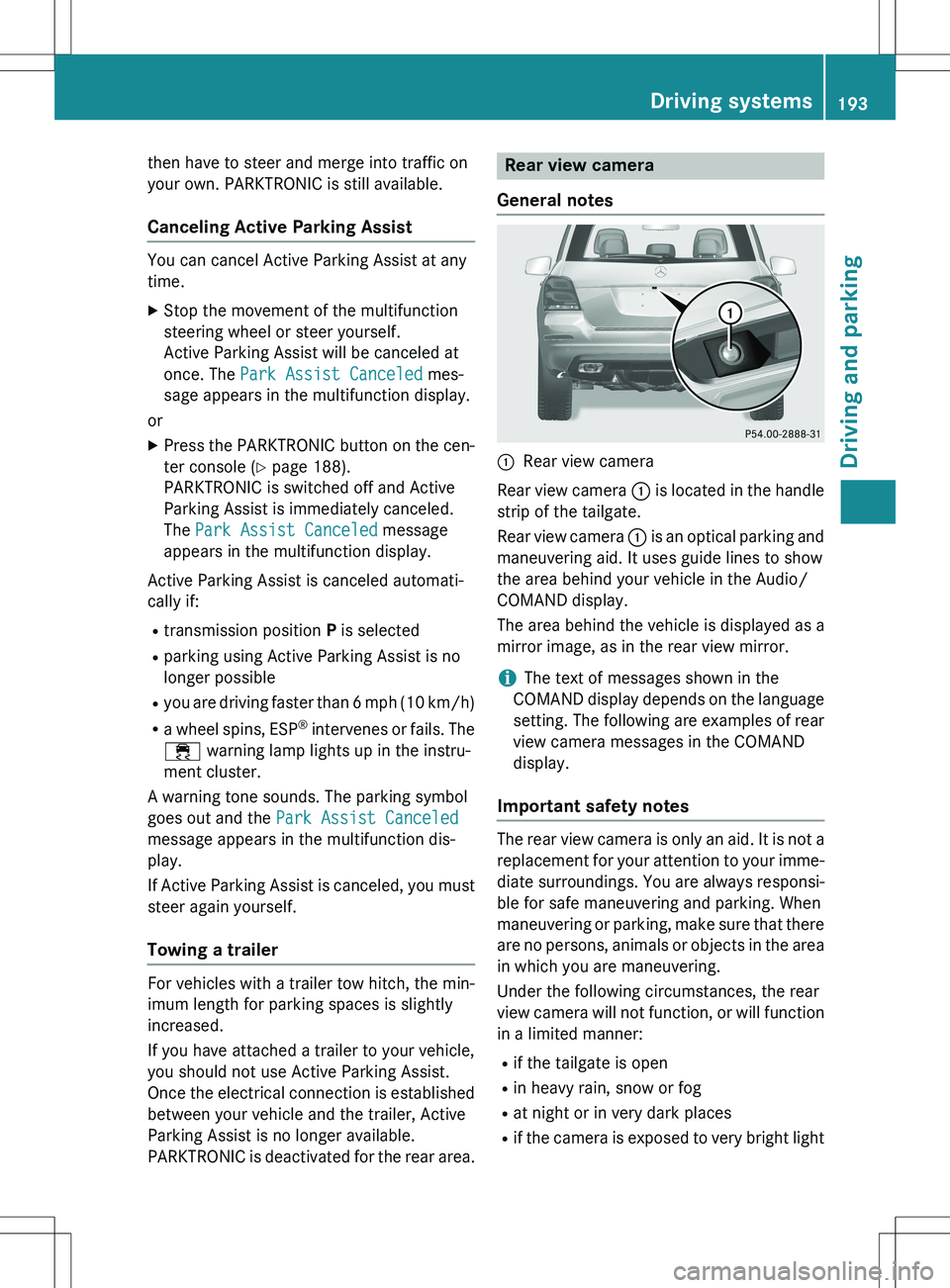
:Rear view camera
Rear view camera : is located in the handle
strip of the tailgate.
Rear view camera : is an optical parking and
maneuvering aid. It uses guide lines to show
the area behind your vehicle in the Audio/
COMAND display.
The area behind the vehicle is displayed as a
mirror image, as in the rear view mirror.
iThe text of messages shown in the
COMAND display depends on the language
setting. The following are examples of rear view camera messages in the COMAND
display.
Important safety notes
The rear view camera is only an aid. It is not a
replacement for your attention to your imme- diate surroundings. You are always responsi-
ble for safe maneuvering and parking. When
maneuvering or parking, make sure that there are no persons, animals or objects in the area
in which you are maneuvering.
Under the following circumstances, the rear
view camera will not function, or will function
in a limited manner:
R if the tailgate is open
R in heavy rain, snow or fog
R at night or in very dark places
R if the camera is exposed to very bright light
Driving systems193
Driving and parking
Z
Page 197 of 386
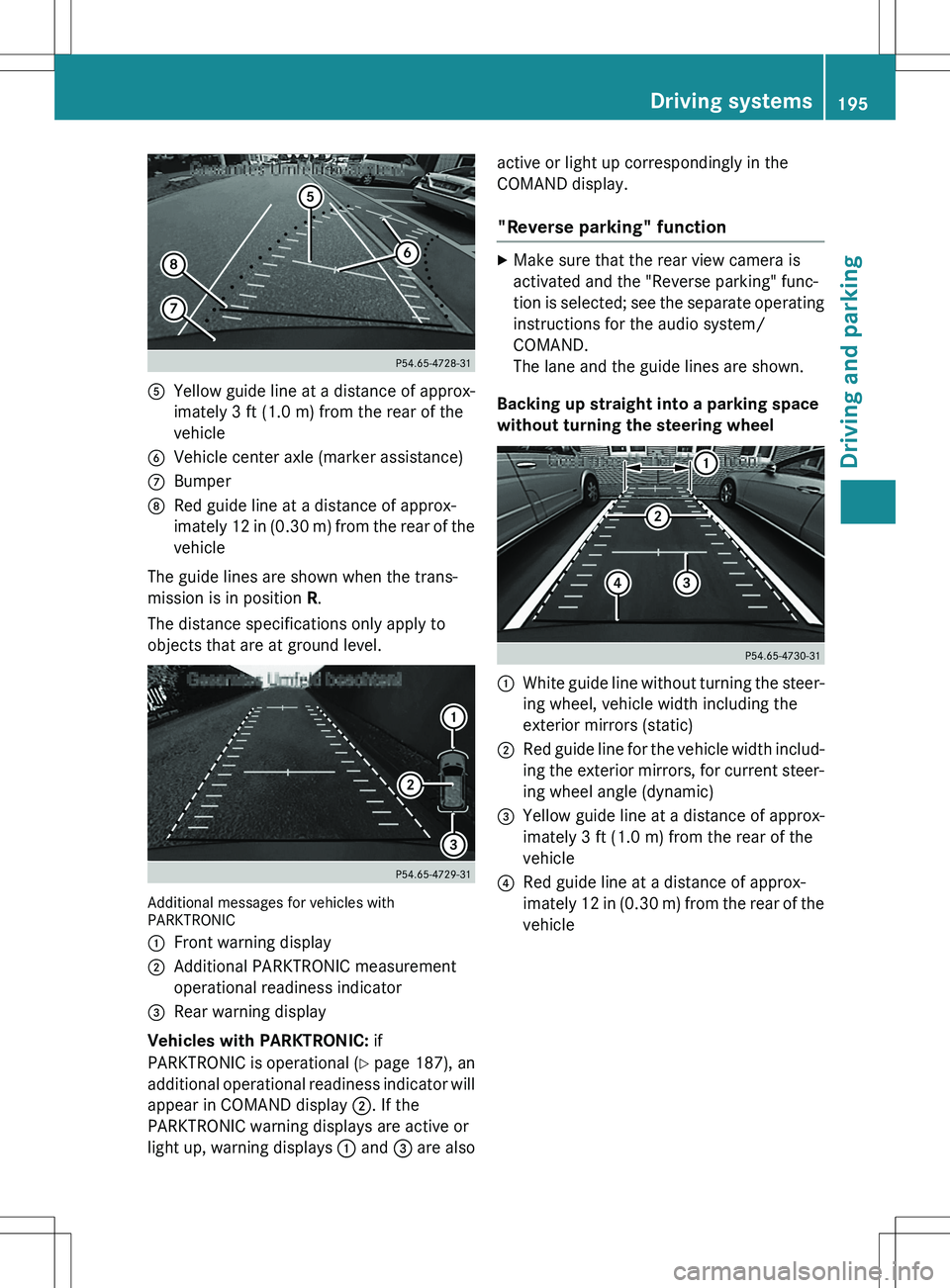
AYellow guide line at a distance of approx-
imately 3 ft (1.0 m) from the rear of the
vehicle
BVehicle center axle (marker assistance)
CBumper
DRed guide line at a distance of approx-
imately 12 in (0.30 m) from the rear of thevehicle
The guide lines are shown when the trans-
mission is in position R.
The distance specifications only apply to
objects that are at ground level.
Additional messages for vehicles with
PARKTRONIC :
Front warning display
;Additional PARKTRONIC measurement
operational readiness indicator
=Rear warning display
Vehicles with PARKTRONIC: if
PARKTRONIC is operational ( Y page 187), an
additional operational readiness indicator will
appear in COMAND display ;. If the
PARKTRONIC warning displays are active or
light up, warning displays : and = are also active or light up correspondingly in the
COMAND display.
"Reverse parking" function
X
Make sure that the rear view camera is
activated and the "Reverse parking" func-
tion is selected; see the separate operating
instructions for the audio system/
COMAND.
The lane and the guide lines are shown.
Backing up straight into a parking space
without turning the steering wheel
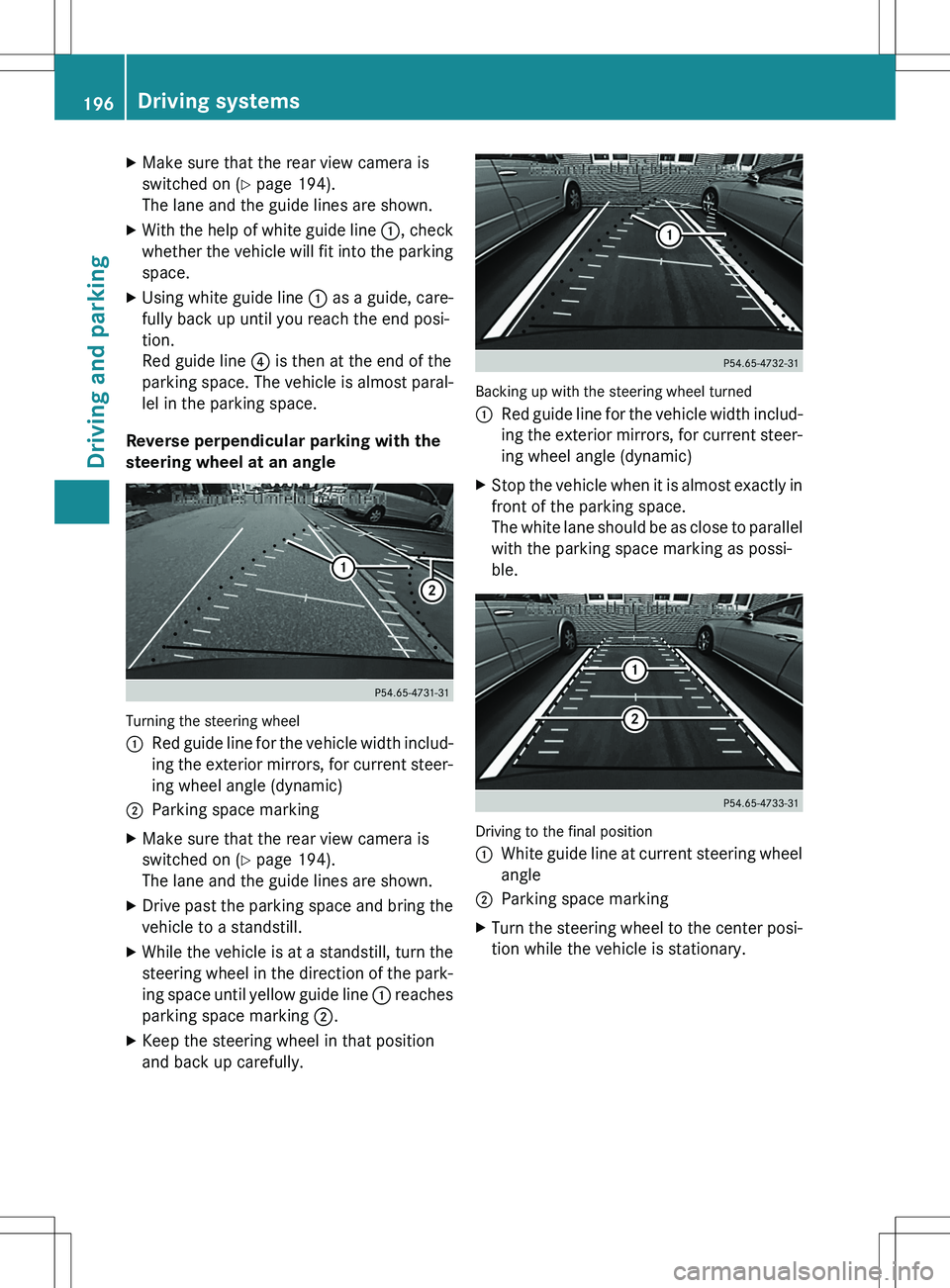
:White guide line without turning the steer-
ing wheel, vehicle width including the
exterior mirrors (static)
;Red guide line for the vehicle width includ-
ing the exterior mirrors, for current steer-
ing wheel angle (dynamic)
=Yellow guide line at a distance of approx-
imately 3 ft (1.0 m) from the rear of the
vehicle
?Red guide line at a distance of approx-
imately 12 in (0.30 m) from the rear of the
vehicle
Driving systems195
Driving and parking
Z
Page 198 of 386
XMake sure that the rear view camera is
switched on ( Y page 194).
The lane and the guide lines are shown.
X With the help of white guide line :, check
whether the vehicle will fit into the parking space.
X Using white guide line : as a guide, care-
fully back up until you reach the end posi-
tion.
Red guide line ? is then at the end of the
parking space. The vehicle is almost paral-
lel in the parking space.
Reverse perpendicular parking with the
steering wheel at an angle
Turning the steering wheel :
Red guide line for the vehicle width includ-
ing the exterior mirrors, for current steer-
ing wheel angle (dynamic)
;Parking space marking
X Make sure that the rear view camera is
switched on ( Y page 194).
The lane and the guide lines are shown.
X Drive past the parking space and bring the
vehicle to a standstill.
X While the vehicle is at a standstill, turn the
steering wheel in the direction of the park-
ing space until yellow guide line : reaches
parking space marking ;.
X Keep the steering wheel in that position
and back up carefully.
Backing up with the steering wheel turned :
Red guide line for the vehicle width includ-
ing the exterior mirrors, for current steer-
ing wheel angle (dynamic)
X Stop the vehicle when it is almost exactly in
front of the parking space.
The white lane should be as close to parallel
with the parking space marking as possi-
ble.
Driving to the final position :
White guide line at current steering wheel
angle
;Parking space marking
X Turn the steering wheel to the center posi-
tion while the vehicle is stationary.
196Driving systems
Driving and parking
Page 200 of 386

apply to objects that are at the same level
as the ball coupling.
X Back up carefully, making sure that trailer
drawbar marker assistant = points
approximately in the direction of trailer
drawbar ?.
X Back up carefully until the trailer draw-
bar ? reaches red guide line ;.
X Couple up the trailer ( Y page 212).
360° camera
General notes
The 360° camera is a system consisting of
four cameras.
The system analyzes images from the follow-
ing cameras: R Rear view camera
R Front camera
R Two cameras in the exterior rear view mir-
rors
The cameras capture the immediate sur-
roundings of the vehicle. The system sup-
ports you, e.g. when parking or if vision is
restricted at an exit.
The 360° camera images can be shown in full
screen mode or in seven different split-screen views on the COMAND display. A split-screen
view also includes a top view of the vehicle.
This view is calculated from the data supplied
by the installed cameras (virtual camera).
The seven split-screen views are:
R top view and picture from the rear view
camera (130° viewing angle)
R top view and picture from the front camera
(without displaying the maximum steering
wheel angle)
R top view and enlarged rear view
R top view and enlarged front view
R top view and trailer view (vehicles with
trailer tow hitch) R
top view and pictures from the rearward
facing mirror cameras (rear wheel view)
R top view and pictures from the forward
facing mirror cameras (front wheel view)
iThe top view and trailer view are available
for vehicles equipped with a trailer tow
hitch.
When the function is active and you shift the
transmission from position D or R to N, you
see the previous view in the COMAND dis-
play. The dynamic guidelines are hidden.
When you change between transmission
positions D and R, you see the previously
selected front or rear view.
Important safety notes
The 360° camera is only an aid. It is not a
replacement for your attention to your imme- diate surroundings. You are always responsi-
ble for safe maneuvering and parking. When
maneuvering or parking, make sure that there are no persons, animals or objects in the area
in which you are maneuvering.
The 360° camera may show a distorted view of obstacles, show them incorrectly or not atall. It cannot show objects in the following
areas:
R under the front bumper
R very close to the front bumper
R very close to the rear bumper
R under the rear bumper
R in close range above the handle on the
trunk lid
R very close to the exterior mirrors
You are always responsible for safety, and
must always pay attention to your surround-
ings when parking and maneuvering. This
applies to the areas behind, in front of and
beside the vehicle. You could otherwise
endanger yourself and others.
The 360° camera will not function or will
function in a limited manner:
R if the doors are open
R if the exterior mirrors are folded in
198Driving systems
Driving and parking
Page 202 of 386
XTo switch to full screen mode: select
Full Screen by turning cVd the
COMAND controller and press W to con-
firm.
Displays in the COMAND display
Important safety notes
! Objects not at ground level may appear to
be further away than they actually are, e.g.: R the bumper of a parked vehicle
R the drawbar of a trailer
R the ball coupling of a trailer tow hitch
R the rear section of an HGV
R a slanted post
Use the guidelines only for orientation.
Approach objects no further than the bot-
tom-most guideline.
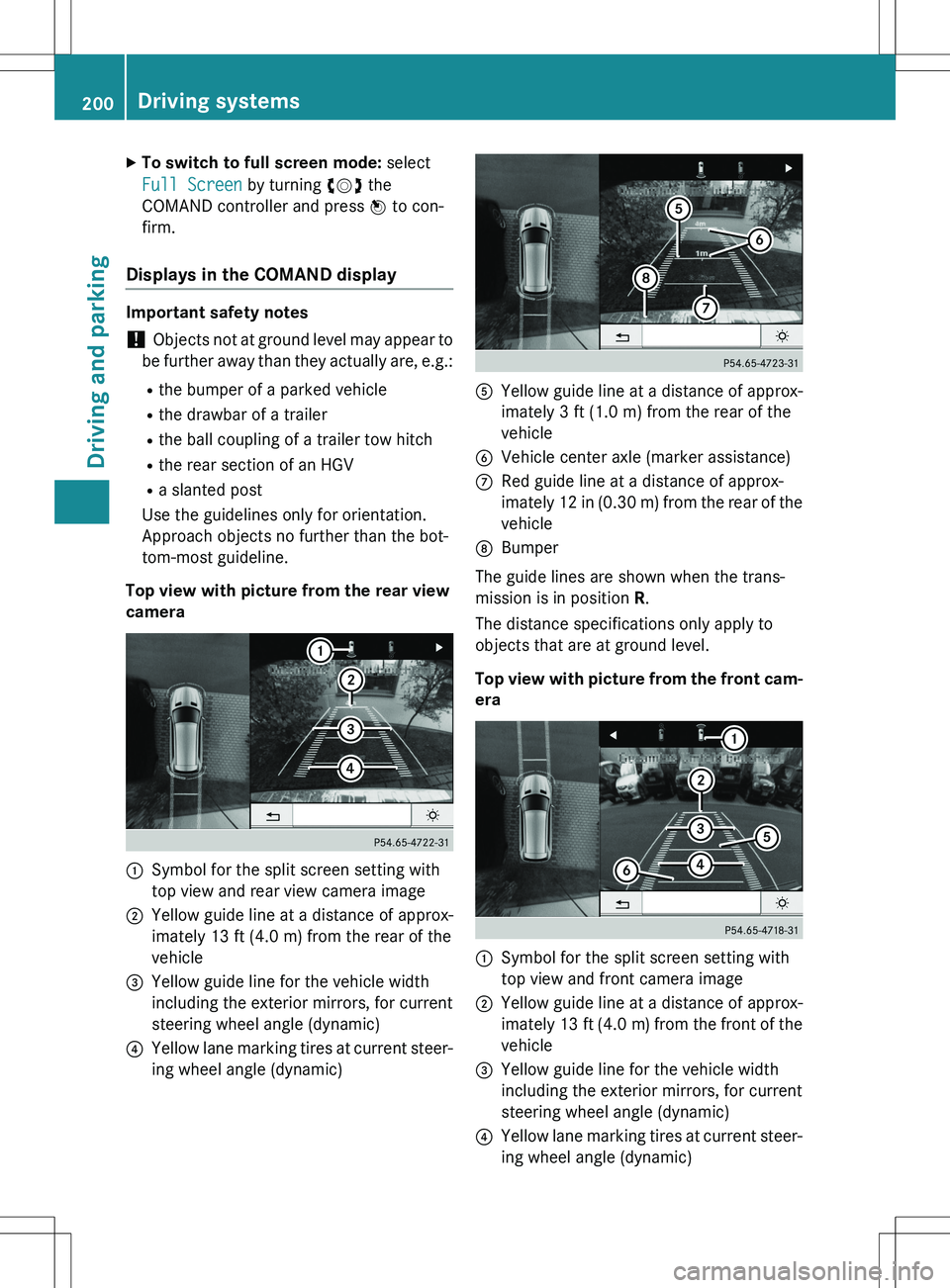
Top view with picture from the rear view
camera
:Symbol for the split screen setting with
top view and rear view camera image
;Yellow guide line at a distance of approx-
imately 13 ft (4.0 m) from the rear of the
vehicle
=Yellow guide line for the vehicle width
including the exterior mirrors, for current
steering wheel angle (dynamic)
?Yellow lane marking tires at current steer-
ing wheel angle (dynamic)
AYellow guide line at a distance of approx-
imately 3 ft (1.0 m) from the rear of the
vehicle
BVehicle center axle (marker assistance)
CRed guide line at a distance of approx-
imately 12 in (0.30 m) from the rear of the
vehicle
DBumper
The guide lines are shown when the trans-
mission is in position R.
The distance specifications only apply to
objects that are at ground level.
Top view with picture from the front cam- era
:Symbol for the split screen setting with
top view and front camera image
;Yellow guide line at a distance of approx-
imately 13 ft (4.0 m) from the front of the
vehicle
=Yellow guide line for the vehicle width
including the exterior mirrors, for current
steering wheel angle (dynamic)
?Yellow lane marking tires at current steer-
ing wheel angle (dynamic)
200Driving systems
Driving and parking
Page 204 of 386
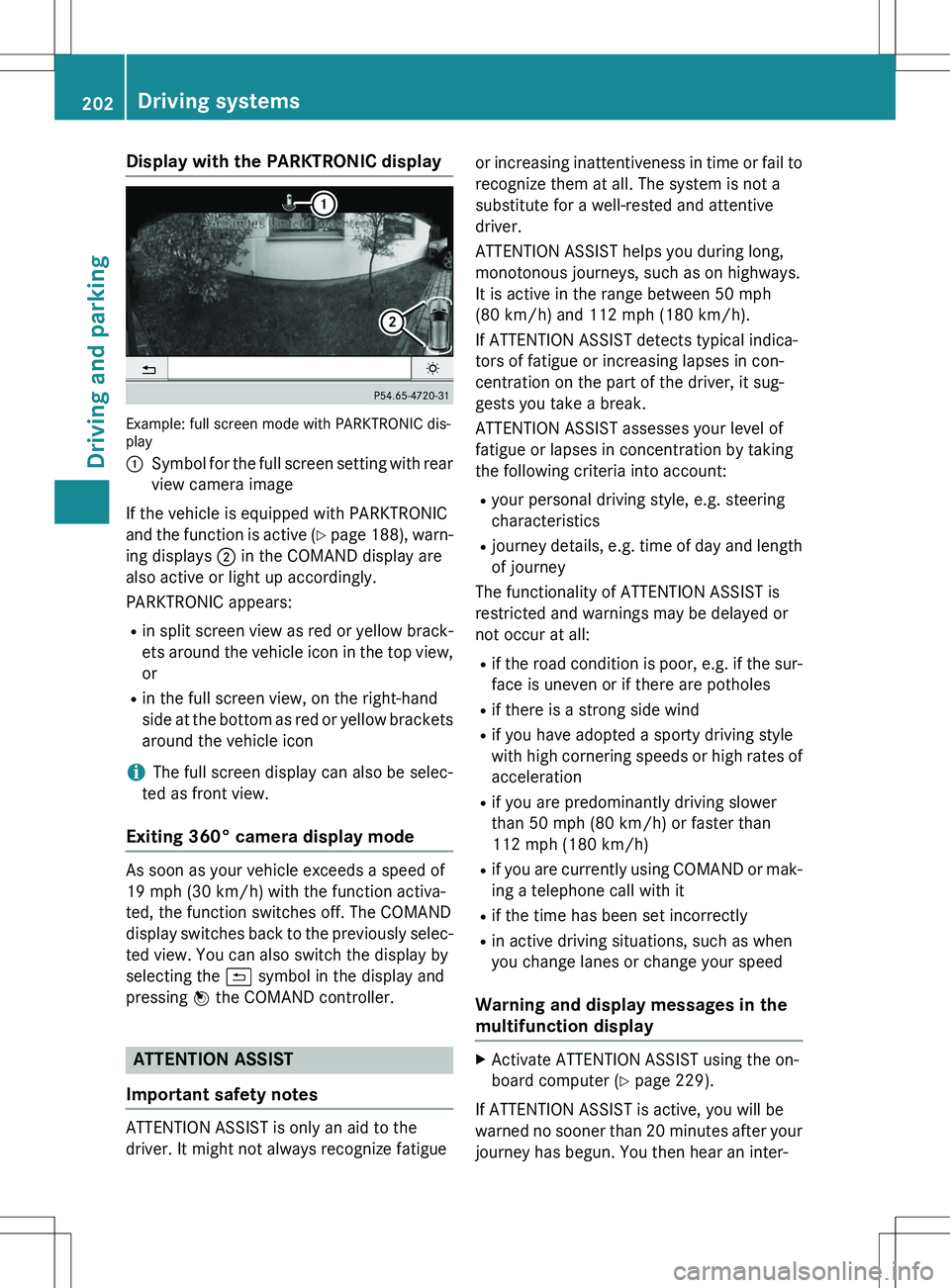
Display with the PARKTRONIC display
Example: full screen mode with PARKTRONIC dis-
play :
Symbol for the full screen setting with rear
view camera image
If the vehicle is equipped with PARKTRONIC
and the function is active ( Y page 188), warn-
ing displays ; in the COMAND display are
also active or light up accordingly.
PARKTRONIC appears:
R in split screen view as red or yellow brack-
ets around the vehicle icon in the top view, or
R in the full screen view, on the right-hand
side at the bottom as red or yellow brackets
around the vehicle icon
iThe full screen display can also be selec-
ted as front view.
Exiting 360° camera display mode
As soon as your vehicle exceeds a speed of
19 mph (30 km/h) with the function activa-
ted, the function switches off. The COMAND
display switches back to the previously selec- ted view. You can also switch the display by
selecting the & symbol in the display and
pressing W the COMAND controller.
ATTENTION ASSIST
Important safety notes
ATTENTION ASSIST is only an aid to the
driver. It might not always recognize fatigue or increasing inattentiveness in time or fail to
recognize them at all. The system is not a
substitute for a well-rested and attentive
driver.
ATTENTION ASSIST helps you during long,
monotonous journeys, such as on highways.
It is active in the range between 50 mph
(80 km/h) and 112 mph (180 km/h).
If ATTENTION ASSIST detects typical indica-
tors of fatigue or increasing lapses in con-
centration on the part of the driver, it sug-
gests you take a break.
ATTENTION ASSIST assesses your level of
fatigue or lapses in concentration by taking
the following criteria into account: R your personal driving style, e.g. steering
characteristics
R journey details, e.g. time of day and length
of journey
The functionality of ATTENTION ASSIST is
restricted and warnings may be delayed or
not occur at all:
R if the road condition is poor, e.g. if the sur-
face is uneven or if there are potholes
R if there is a strong side wind
R if you have adopted a sporty driving style
with high cornering speeds or high rates of
acceleration
R if you are predominantly driving slower
than 50 mph (80 km/h) or faster than
112 mph (180 km/h)
R if you are currently using COMAND or mak-
ing a telephone call with it
R if the time has been set incorrectly
R in active driving situations, such as when
you change lanes or change your speed
Warning and display messages in the
multifunction display
XActivate ATTENTION ASSIST using the on-
board computer ( Y page 229).
If ATTENTION ASSIST is active, you will be
warned no sooner than 20 minutes after your journey has begun. You then hear an inter-
202Driving systems
Driving and parking
Page 212 of 386
Active Lane Keeping Assist
General notes
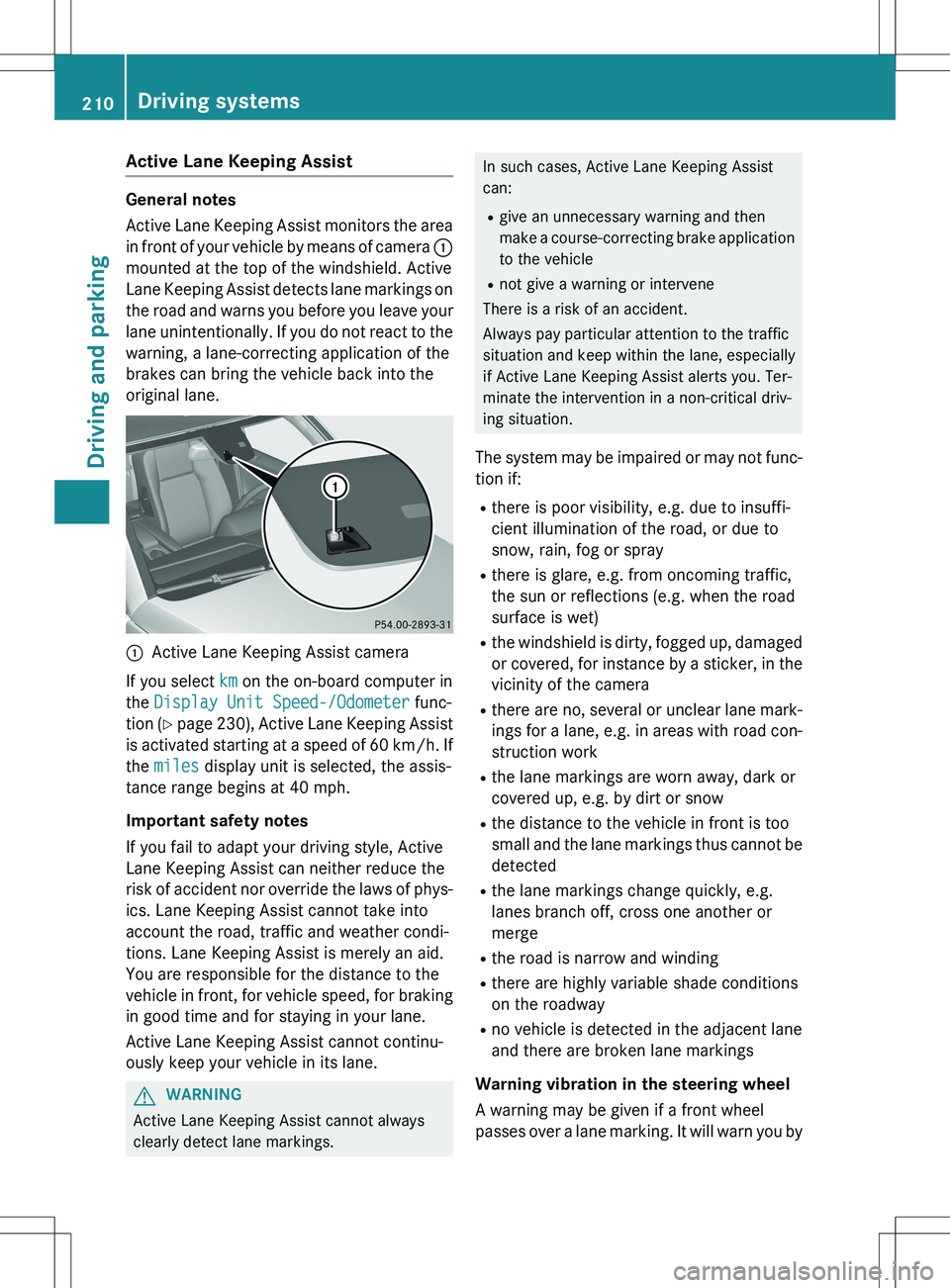
Active Lane Keeping Assist monitors the area
in front of your vehicle by means of camera :
mounted at the top of the windshield. Active
Lane Keeping Assist detects lane markings on
the road and warns you before you leave your
lane unintentionally. If you do not react to the
warning, a lane-correcting application of the
brakes can bring the vehicle back into the
original lane.
:Active Lane Keeping Assist camera
If you select
km on the on-board computer in
the
Display Unit Speed-/Odometer func-
tion ( Y page 230), Active Lane Keeping Assist
is activated starting at a speed of 60 km/h. If
the
miles display unit is selected, the assis-
tance range begins at 40 mph.
Important safety notes
If you fail to adapt your driving style, Active
Lane Keeping Assist can neither reduce the
risk of accident nor override the laws of phys-
ics. Lane Keeping Assist cannot take into
account the road, traffic and weather condi-
tions. Lane Keeping Assist is merely an aid.
You are responsible for the distance to the
vehicle in front, for vehicle speed, for braking in good time and for staying in your lane.
Active Lane Keeping Assist cannot continu-
ously keep your vehicle in its lane.
GWARNING
Active Lane Keeping Assist cannot always
clearly detect lane markings.
In such cases, Active Lane Keeping Assist
can:
R give an unnecessary warning and then
make a course-correcting brake application
to the vehicle
R not give a warning or intervene
There is a risk of an accident.
Always pay particular attention to the traffic
situation and keep within the lane, especially
if Active Lane Keeping Assist alerts you. Ter-
minate the intervention in a non-critical driv-
ing situation.
The system may be impaired or may not func-
tion if:
R there is poor visibility, e.g. due to insuffi-
cient illumination of the road, or due to
snow, rain, fog or spray
R there is glare, e.g. from oncoming traffic,
the sun or reflections (e.g. when the road
surface is wet)
R the windshield is dirty, fogged up, damaged
or covered, for instance by a sticker, in the
vicinity of the camera
R there are no, several or unclear lane mark-
ings for a lane, e.g. in areas with road con- struction work
R the lane markings are worn away, dark or
covered up, e.g. by dirt or snow
R the distance to the vehicle in front is too
small and the lane markings thus cannot be
detected
R the lane markings change quickly, e.g.
lanes branch off, cross one another or
merge
R the road is narrow and winding
R there are highly variable shade conditions
on the roadway
R no vehicle is detected in the adjacent lane
and there are broken lane markings
Warning vibration in the steering wheel
A warning may be given if a front wheel
passes over a lane marking. It will warn you by
210Driving systems
Driving and parking
Page 213 of 386
means of intermittent vibration in the steer-
ing wheel for up to 1.5 seconds.
In order that you are warned only when nec-
essary and in good time if you cross the lanemarking, the system recognizes certain con-
ditions and warns you accordingly.
The warning vibration occurs earlier if:
R you approach the outer lane marking on a
bend.
R the road has very wide lanes, e.g. a high-
way.
R the system recognizes solid lane markings.
The warning vibration occurs later if:
R the road has narrow lanes.
R you cut the corner on a bend.
Lane-correcting brake application
GWARNING
A lane-correcting brake application cannot
always bring the vehicle back into the original lane. There is a risk of an accident.
Always steer, brake or accelerate yourself,
especially if Active Lane Keeping Assist warns
you or makes a lane-correcting brake appli-
cation.
GWARNING
Active Lane Keeping Assist does not detect
traffic conditions or road users. In very rare
cases, the system may make an inappropriatebrake application, e.g. after intentionally driv-
ing over a solid lane marking. There is a risk of an accident.
An inappropriate brake application may be
interrupted at any time if you steer slightly in
the opposite direction. Always make sure that
there is sufficient distance on the side for
other traffic or obstacles.
If you leave your lane, under certain circum-
stances the vehicle will brake briefly on one
side. This is meant to assist you in bringing
the vehicle back to the original lane. This function is available in the range between
40 mph and 120 mph (60 km/h and
200 km/h).
A lane-correcting brake application can only
be made after driving over a solid, recogniz-
able lane marking. Before this, a warning
must be given by means of intermittent vibra-
tion in the steering wheel. In addition, a lane
with lane markings on both sides must be
recognized. The brake application also
slightly reduces vehicle speed.
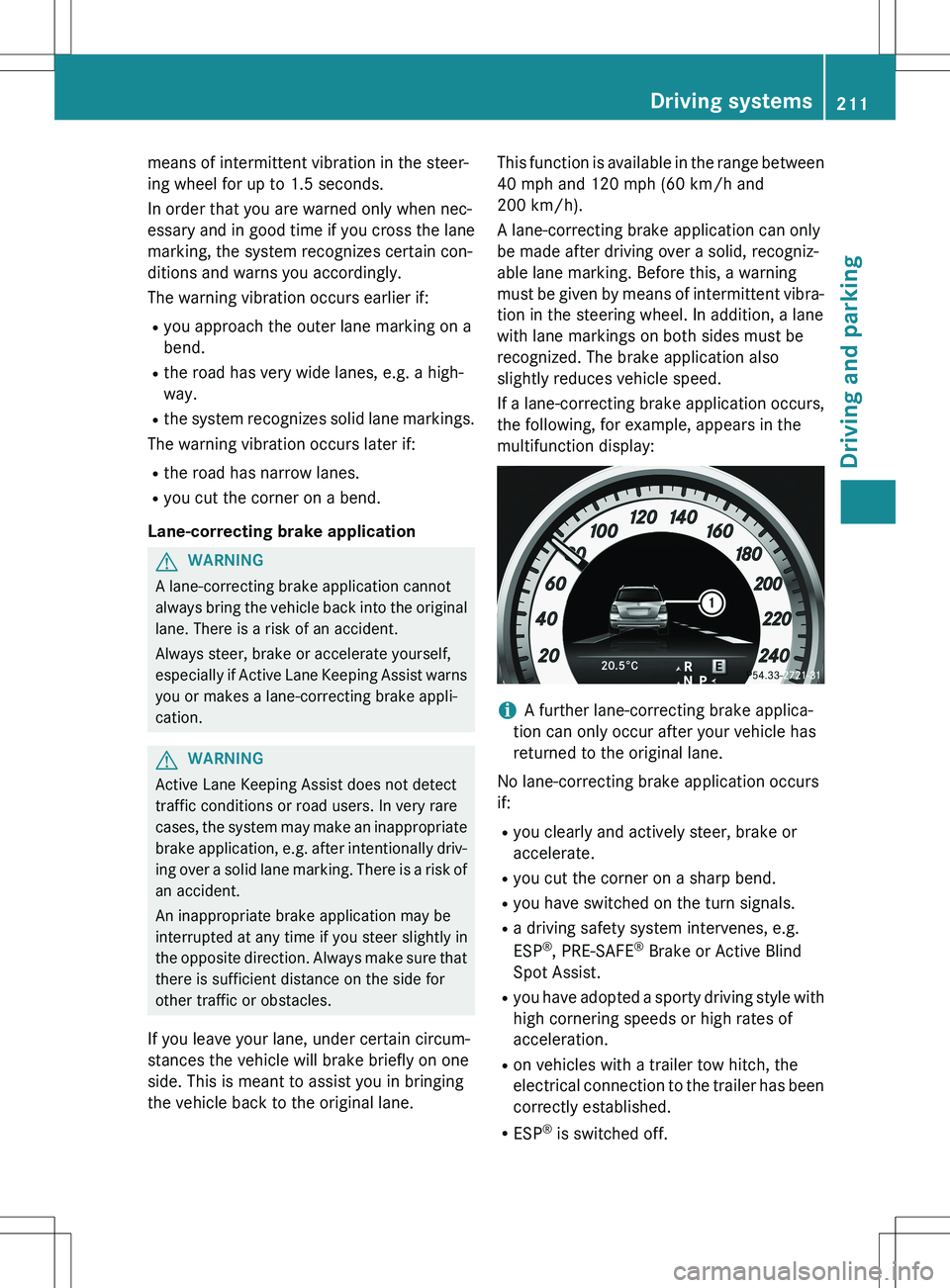
If a lane-correcting brake application occurs,
the following, for example, appears in the
multifunction display:
iA further lane-correcting brake applica-
tion can only occur after your vehicle has
returned to the original lane.
No lane-correcting brake application occurs
if: R you clearly and actively steer, brake or
accelerate.
R you cut the corner on a sharp bend.
R you have switched on the turn signals.
R a driving safety system intervenes, e.g.
ESP ®
, PRE-SAFE ®
Brake or Active Blind
Spot Assist.
R you have adopted a sporty driving style with
high cornering speeds or high rates of
acceleration.
R on vehicles with a trailer tow hitch, the
electrical connection to the trailer has been
correctly established.
R ESP ®
is switched off.
Driving systems211
Driving and parking
Z