warning MERCEDES-BENZ GLS 2018 Owners Manual
[x] Cancel search | Manufacturer: MERCEDES-BENZ, Model Year: 2018, Model line: GLS, Model: MERCEDES-BENZ GLS 2018Pages: 398, PDF Size: 5.73 MB
Page 242 of 398
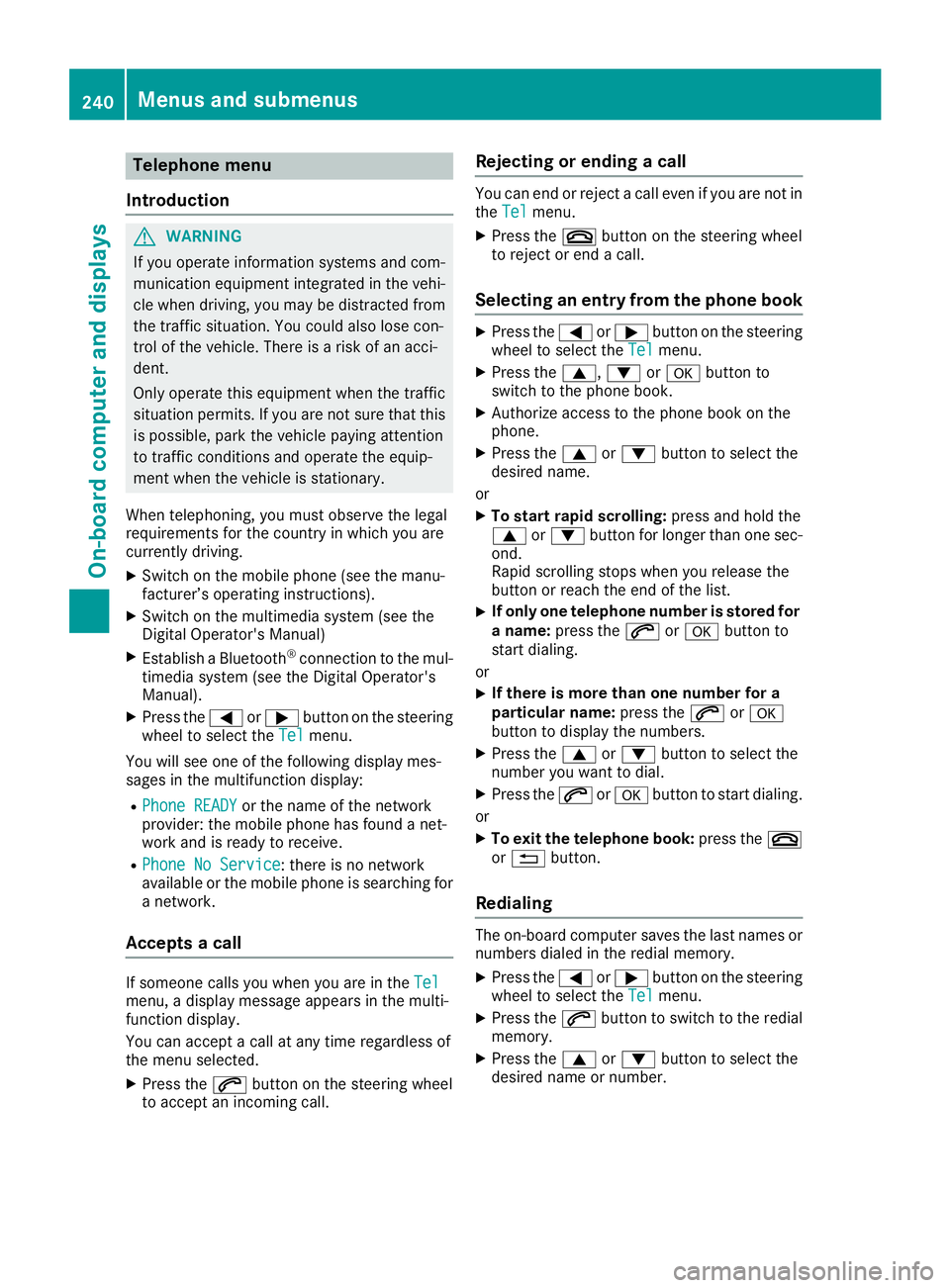
Telephone menu
Introduction
G WARNING
If you operate information systems and com-
munication equipment integrated in the vehi-
cle when driving, you may be distracted from
the traffic situation. You could also lose con-
trol of the vehicle. There is a risk of an acci-
dent.
Only operate this equipment when the traffic
situation permits. If you are not sure that this
is possible, park the vehicle paying attention
to traffic conditions and operate the equip-
ment when the vehicle is stationary.
When telephoning, you must observe the legal
requirements for the country in which you are
currently driving. X
Switch on the mobile phone (see the manu-
facturer’s operating instructions). X
Switch on the multimedia system (see the
Digital Operator's Manual) X
Establish a Bluetooth ®
connection to the mul-
timedia system (see the Digital Operator's
Manual). X
Press the Y or e button on the steering
wheel to select the Tel menu.
You will see one of the following display mes-
sages in the multifunction display: R
Phone READY or the name of the network
provider: the mobile phone has found a net-
work and is ready to receive. R
Phone No Service : there is no network
available or the mobile phone is searching for
a network.
Accepts a call
If someone calls you when you are in the Tel
menu, a display message appears in the multi-
function display.
You can accept a call at any time regardless of
the menu selected. X
Press the a button on the steering wheel
to accept an incoming call. Rejecting or ending a call You can end or reject a call even if you are not in
the Tel menu. X
Press the v button on the steering wheel
to reject or end a call.
Selecting an entry from the phone book X
Press the Y or e button on the steering
wheel to select the Tel menu.X
Press the c , d or v button to
switch to the phone book. X
Authorize access to the phone book on the
phone. X
Press the c or d button to select the
desired name.
or X
To start rapid scrolling: press and hold the
c or d button for longer than one sec-
ond.
Rapid scrolling stops when you release the
button or reach the end of the list. X
If only one telephone number is stored for
a name: press the a or v button to
start dialing.
or X
If there is more than one number for a
particular name: press the a or v
button to display the numbers. X
Press the c or d button to select the
number you want to dial. X
Press the a or v button to start dialing.
or X
To exit the telephone book: press the v
or 8 button.
Redialing The on-board computer saves the last names or
numbers dialed in the redial memory. X
Press the Y or e button on the steering
wheel to select the Tel menu.X
Press the a button to switch to the redial
memory. X
Press the c or d button to select the
desired name or number.240
Menus and submenus
On-board computer and displays
Page 246 of 398
R
Highway mode R
Active light function R
Cornering light function R
Extended range fog lamps R
Off-road lights
Further information on the Intelligent Light Sys-
tem ( Y
page 117).
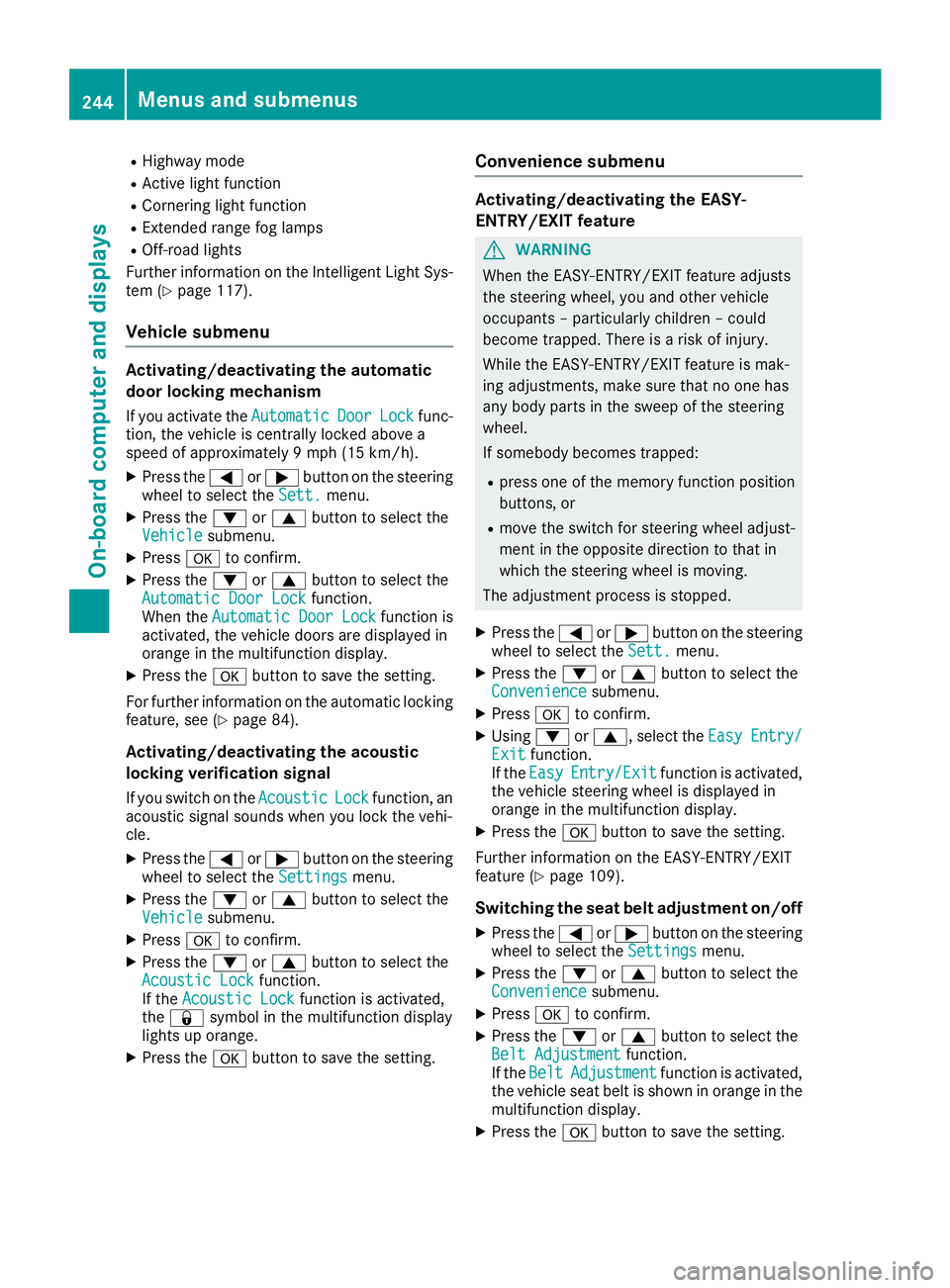
Vehicle submenu Activating/deactivating the automatic
door locking mechanism If you activate the Automatic Door Lock func-
tion, the vehicle is centrally locked above a
speed of approximately 9 mph (15 km/h). X
Press the Y or e button on the steering
wheel to select the Sett. menu.X
Press the d or c button to select the
Vehicle submenu.X
Press v to confirm.X
Press the d or c button to select the
Automatic Door Lock function.
When the Automatic Door Lock function is
activated, the vehicle doors are displayed in
orange in the multifunction display. X
Press the v button to save the setting.
For further information on the automatic locking
feature, see ( Y
page 84).
Activating/deactivating the acoustic
locking verification signal If you switch on the Acoustic Lock function, an
acoustic signal sounds when you lock the vehi-
cle. X
Press the Y or e button on the steering
wheel to select the Settings menu.X
Press the d or c button to select the
Vehicle submenu.X
Press v to confirm.X
Press the d or c button to select the
Acoustic Lock function.
If the Acoustic Lock function is activated,
the 7 symbol in the multifunction display
lights up orange. X
Press the v button to save the setting. Convenience submenu Activating/deactivating the EASY-
ENTRY/EXIT feature
G WARNING
When the EASY-ENTRY/EXIT feature adjusts
the steering wheel, you and other vehicle
occupants – particularly children – could
become trapped. There is a risk of injury.
While the EASY-ENTRY/EXIT feature is mak-
ing adjustments, make sure that no one has
any body parts in the sweep of the steering
wheel.
If somebody becomes trapped: R
press one of the memory function position
buttons, or R
move the switch for steering wheel adjust-
ment in the opposite direction to that in
which the steering wheel is moving.
The adjustment process is stopped. X
Press the Y or e button on the steering
wheel to select the Sett. menu.X
Press the d or c button to select the
Convenience submenu. X
Press v to confirm. X
Using d or c , select the Easy Entry/
Exit function.
If the Easy Entry/Exit function is activated,
the vehicle steering wheel is displayed in
orange in the multifunction display. X
Press the v button to save the setting.
Further information on the EASY-ENTRY/EXIT
feature ( Y
page 109).
Switching the seat belt adjustment on/off X
Press the Y or e button on the steering
wheel to select the Settings menu.X
Press the d or c button to select the
Convenience submenu. X
Press v to confirm. X
Press the d or c button to select the
Belt Adjustment function.
If the Belt Adjustment function is activated,
the vehicle seat belt is shown in orange in the
multifunction display. X
Press the v button to save the setting.244
Menus and submenus
On-board computer and displays
Page 254 of 398
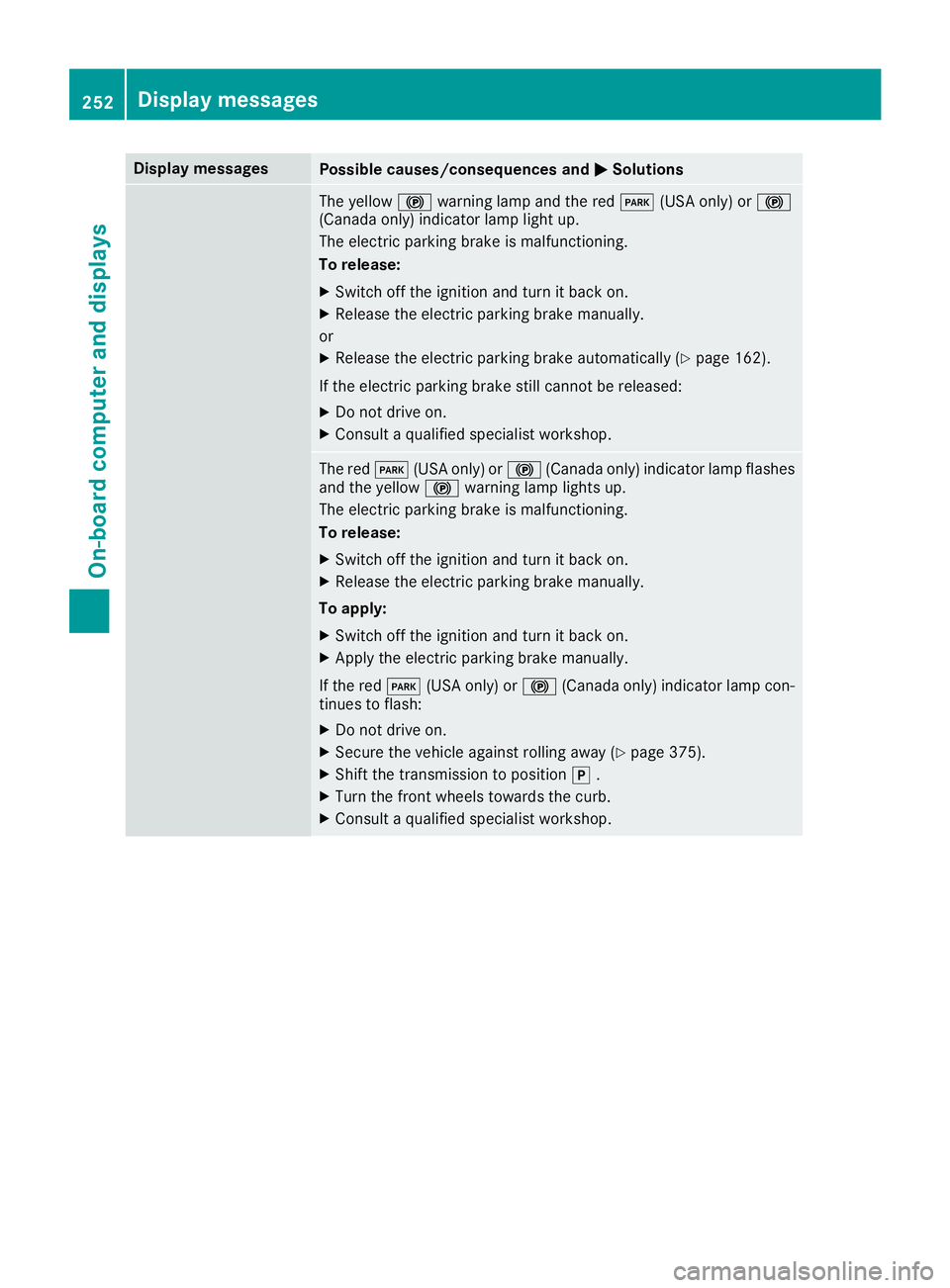
Display messages
Possible causes/consequences and P Solutions
The yellow $ warning lamp and th e red I (US A only) or $
(Canada only) indicator lamp ligh t up.
The electric parking brak e is malfunctioning .
To release: X
Switc h off th e ignition and tur n it bac k on .X
Releas e th e electric parking brak e manually.
or X
Releas e th e electric parking brak e automatically ( Y
page 162).
If th e electric parking brak e still canno t be released:X
Do no t drive on .X
Consult a qualified specialist workshop .
The red I (US A only) or $ (Canada only) indicator lamp flashes
and th e yellow $ warning lamp lights up.
The electric parking brak e is malfunctioning .
To release: X
Switc h off th e ignition and tur n it bac k on .X
Releas e th e electric parking brak e manually.
To apply : X
Switc h off th e ignition and tur n it bac k on .X
Apply th e electric parking brak e manually.
If th e red I (US A only) or $ (Canada only) indicator lamp con-
tinue s to flash: X
Do no t drive on .X
Secur e th e vehicl e against rollin g away ( Y
page 375).X
Shift th e transmission to position ] .X
Turn th e fron t wheels toward s th e curb.X
Consult a qualified specialist workshop .252
Display messages
On-board computer and displays
Page 255 of 398
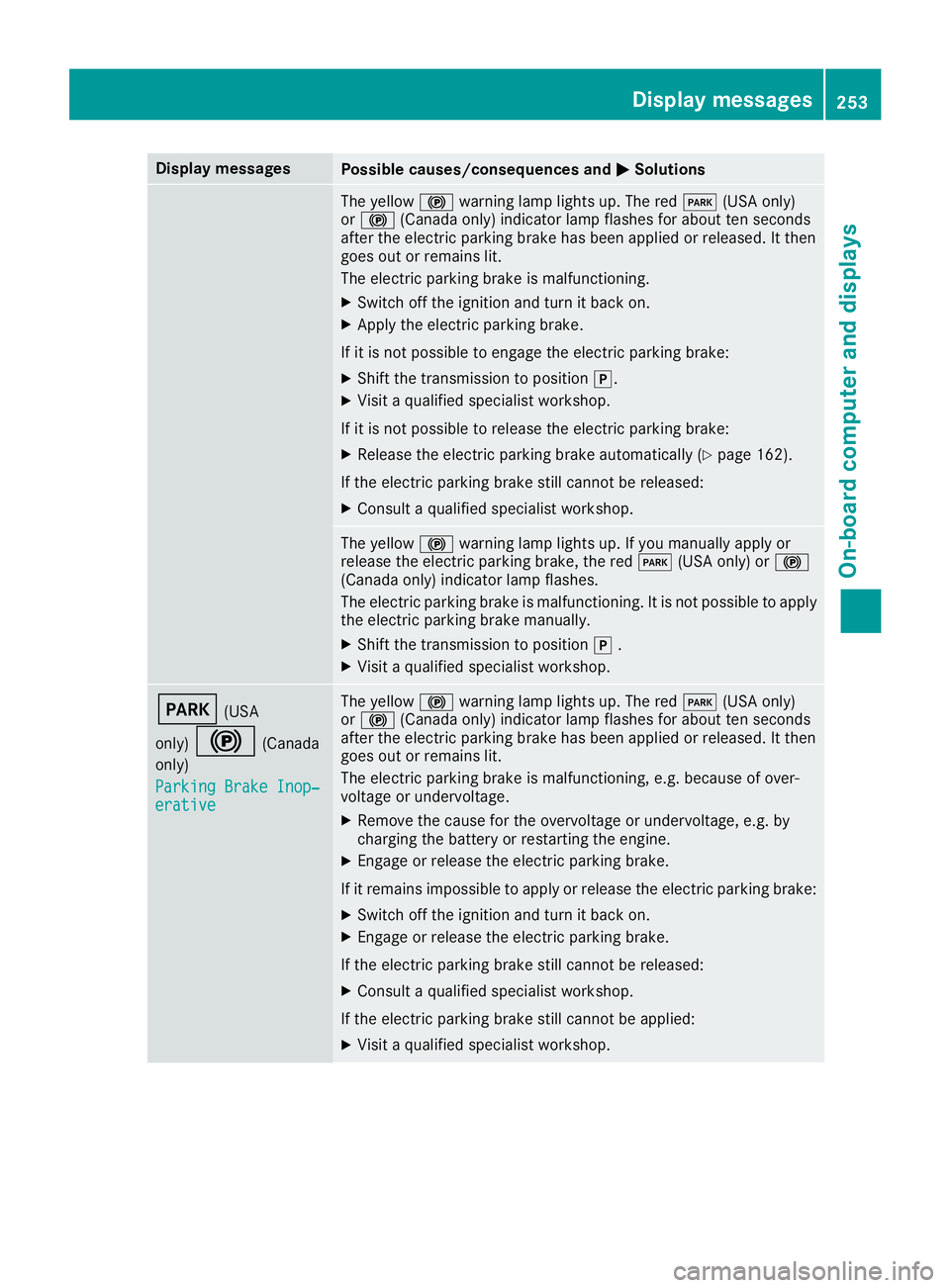
Display messages
Possible causes/consequences and P Solutions
The yellow $ warning lamp lights up. The red I (US A only)
or $ (Canada only) indicator lamp flashes for about te n seconds
after th e electric parking brak e has been applie d or released. It then
goe s out or remain s lit .
The electric parking brak e is malfunctioning .X
Switc h off th e ignition and tur n it bac k on .X
Apply th e electric parking brake.
If it is no t possibl e to engage th e electric parking brake:X
Shift th e transmission to position ] .X
Visit a qualified specialist workshop .
If it is no t possibl e to release th e electric parking brake:X
Releas e th e electric parking brak e automatically ( Y
page 162).
If th e electric parking brak e still canno t be released:X
Consult a qualified specialist workshop .
The yellow $ warning lamp lights up. If you manually apply or
release th e electric parking brake, th e red I (US A only) or $
(Canada only) indicator lamp flashes .
The electric parking brak e is malfunctioning . It is no t possibl e to apply
th e electric parking brak e manually.X
Shift th e transmission to position ] .X
Visit a qualified specialist workshop .
I (US A
only)
$ (Canada
only)
Parkin g Brake Inop‐
erativ e The yellow $ warning lamp lights up. The red I (US A only)
or $ (Canada only) indicator lamp flashes for about te n seconds
after th e electric parking brak e has been applie d or released. It then
goe s out or remain s lit .
The electric parking brak e is malfunctioning , e.g. because of over-
voltag e or undervoltage. X
Remove th e caus e for th e overvoltage or undervoltage, e.g. by
charging th e battery or restarting th e engine.X
Engage or release th e electric parking brake.
If it remain s impossible to apply or release th e electric parking brake:X
Switc h off th e ignition and tur n it bac k on .X
Engage or release th e electric parking brake.
If th e electric parking brak e still canno t be released:X
Consult a qualified specialist workshop .
If th e electric parking brak e still canno t be applied:X
Visit a qualified specialist workshop .Display messages 25 3
On-board computer and displays Z
Page 256 of 398
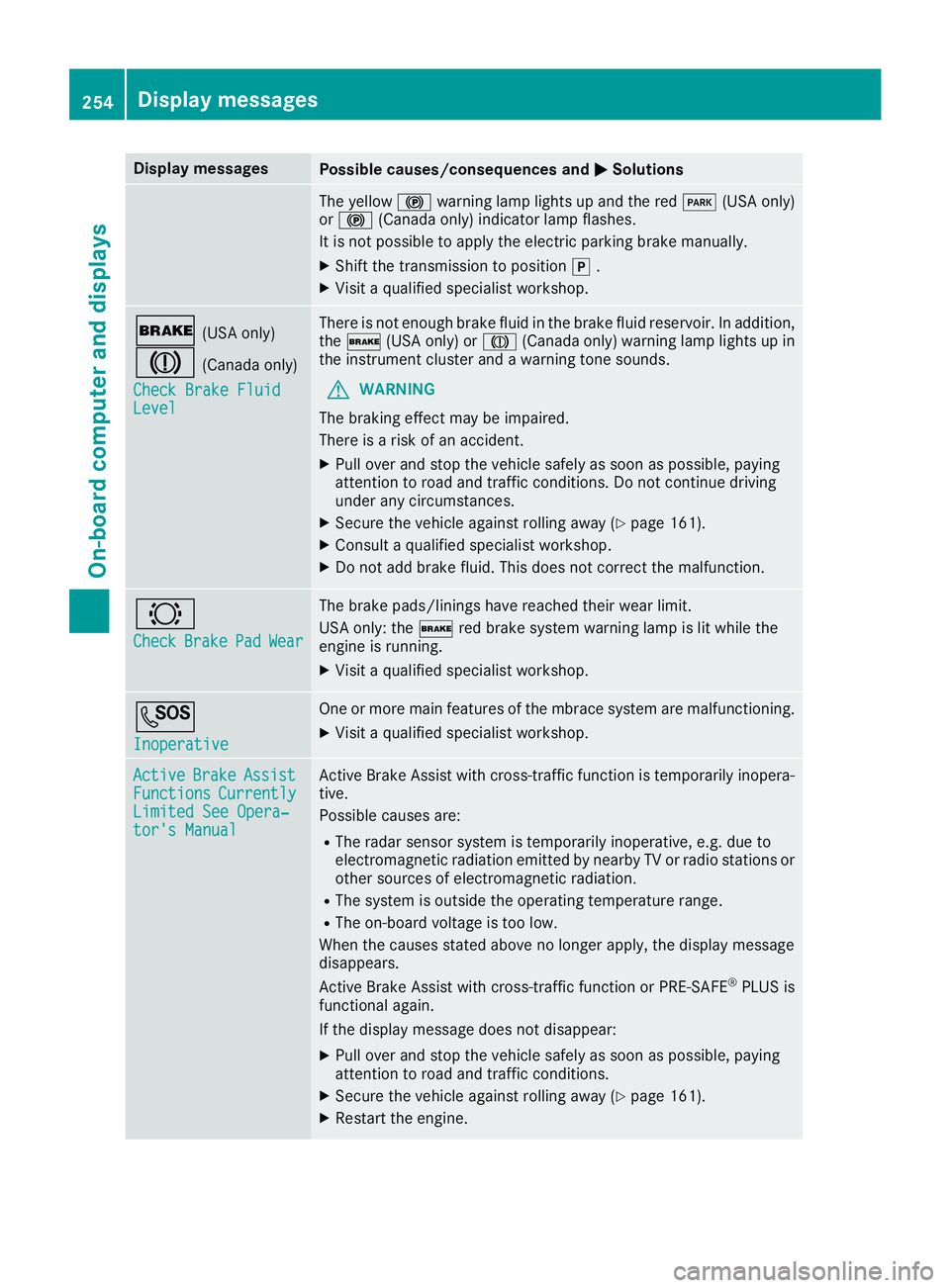
Display messages
Possible causes/consequences and P Solutions
The yellow $ warning lamp lights up and th e red I (US A only)
or $ (Canada only) indicator lamp flashes .
It is no t possibl e to apply th e electric parking brak e manually.X
Shift th e transmission to position ] .X
Visit a qualified specialist workshop .
' (US A only)
M (Canada only)
Check Brake Fluid
Level There is no t enough brak e flui d in th e brak e flui d reservoir . In addition ,
th e ' (US A only) or M (Canada only) warning lamp lights up in
th e instrumen t cluste r and a warning tone sounds.
G WARNIN G
The braking effec t may be impaired.
There is a ris k of an accident.X
Pull ove r and stop th e vehicl e safely as soo n as possible, payin g
attention to roa d and traffic conditions. Do no t continu e drivin g
under any circumstances. X
Secur e th e vehicl e against rollin g away ( Y
page 161).X
Consult a qualified specialist workshop .X
Do no t add brak e fluid . This does no t correc t th e malfunction .
& Check Brake Pad Wea r The brak e pads/linings hav e reached their wear limit.
US A only: th e ' red brak e system warning lamp is lit while th e
engin e is running. X
Visit a qualified specialist workshop .
S Inoperative On e or mor e main features of th e mbrace system are malfunctioning .X
Visit a qualified specialist workshop .
Active Brake Assist
Functions Currently
Limite d See Opera‐
tor's Manual Active Brake Assis t wit h cross-traffic function is temporarily inopera-
tive.
Possibl e causes are: R
The radar sensor system is temporarily inoperative, e.g. due to
electromagneti c radiation emitted by nearby TV or radi o station s or
other source s of electromagneti c radiation .R
The system is outside th e operating temperature range.R
The on-boar d voltag e is to o low.
Whe n th e causes state d abov e no longer apply, th e display message
disappears.
Active Brake Assis t wit h cross-traffic function or PRE ‑ S AF E ®
PLU S is
functional again .
If th e display message does no t disappear :X
Pull ove r and stop th e vehicl e safely as soo n as possible, payin g
attention to roa d and traffic conditions.X
Secur e th e vehicl e against rollin g away ( Y
page 161).X
Restart th e engine.254
Display messages
On-board computer and displays
Page 258 of 398
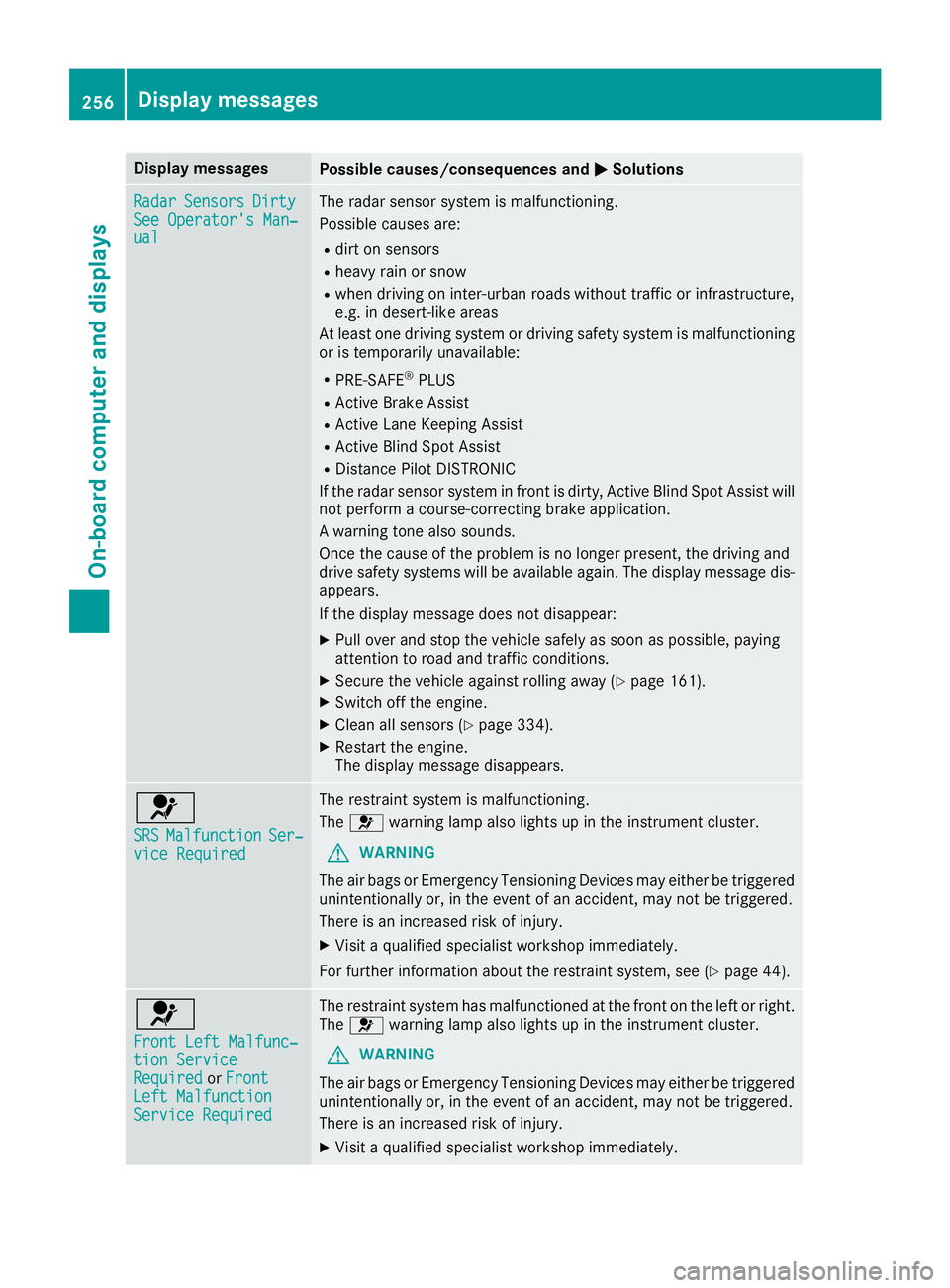
Display messages
Possible causes/consequences and P Solutions
Radar Sensor s Dirty
See Operator' s Man ‐
ual The radar sensor system is malfunctioning .
Possibl e causes are: R
dir t on sensor sR
heav y rain or snow R
when drivin g on inter-urban roads without traffic or infrastructure,
e.g. in desert-like area s
At least on e drivin g system or drivin g safet y system is malfunctioning
or is temporarily unavailable :R
PRE-SAF E ®
PLU SR
Active Brake Assis tR
Active Lan e Keepin g Assis tR
Active Blind Spot Assis tR
Distanc e Pilo t DISTRONI C
If th e radar sensor system in fron t is dirty, Active Blind Spot Assis t will
no t perfor m a course-correcting brak e application .
A warning tone also sounds.
Once th e caus e of th e problem is no longer present, th e drivin g and
drive safet y systems will be available again . The display message dis-
appears.
If th e display message does no t disappear :X
Pull ove r and stop th e vehicl e safely as soo n as possible, payin g
attention to roa d and traffic conditions.X
Secur e th e vehicl e against rollin g away ( Y
page 161).X
Switc h off th e engine.X
Clean all sensor s ( Y
page 334).X
Restart th e engine.
The display message disappears.
u SRS Malfunction Ser ‐
vic e Required The restrain t system is malfunctioning .
The u warning lamp also lights up in th e instrumen t cluster.
G WARNIN G
The air bags or Emergency Tensioning Devices may either be triggered
unintentionally or, in th e event of an accident, may no t be triggered .
There is an increased ris k of injury.X
Visit a qualified specialist workshop immediately.
Fo r further information about th e restrain t system, see ( Y
page 44) .
u Front Lef t Malfunc‐
tio n Servic e
Required or Front
Lef t Malfunction
Servic e Required The restrain t system has malfunctioned at th e fron t on th e lef t or right .
The u warning lamp also lights up in th e instrumen t cluster.
G WARNIN G
The air bags or Emergency Tensioning Devices may either be triggered
unintentionally or, in th e event of an accident, may no t be triggered .
There is an increased ris k of injury.X
Visit a qualified specialist workshop immediately.256
Display messages
On-board computer and displays
Page 259 of 398
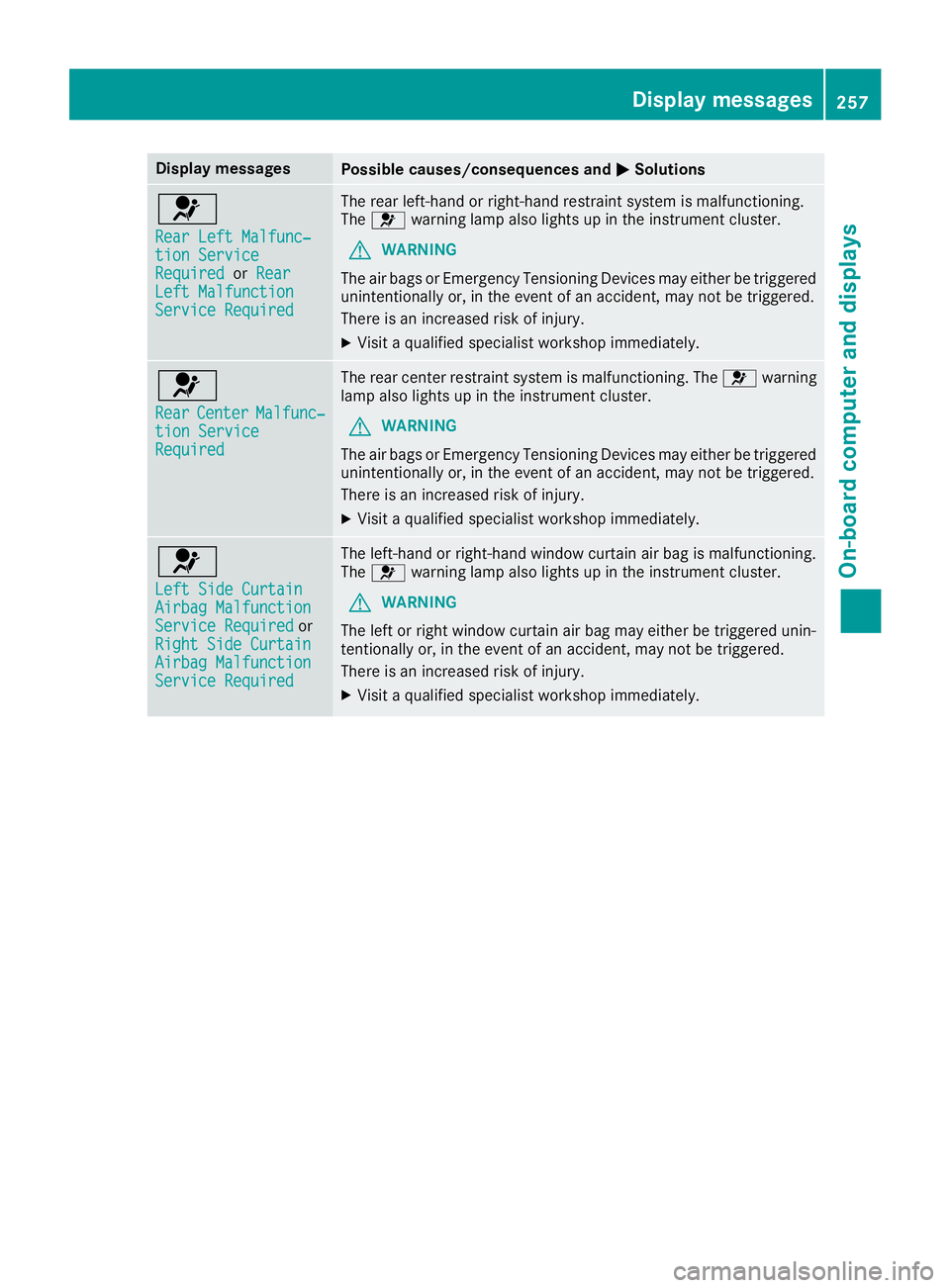
Display messages
Possible causes/consequences and P Solutions
u Rea r Lef t Malfunc‐
tio n Servic e
Required or Rea r
Lef t Malfunction
Servic e Required The rear left-han d or right-hand restrain t system is malfunctioning .
The u warning lamp also lights up in th e instrumen t cluster.
G WARNIN G
The air bags or Emergency Tensioning Devices may either be triggered
unintentionally or, in th e event of an accident, may no t be triggered .
There is an increased ris k of injury.X
Visit a qualified specialist workshop immediately.
u Rea r Center Malfunc‐
tio n Servic e
Required The rear center restrain t system is malfunctioning . The u warning
lamp also lights up in th e instrumen t cluster.
G WARNIN G
The air bags or Emergency Tensioning Devices may either be triggered
unintentionally or, in th e event of an accident, may no t be triggered .
There is an increased ris k of injury.X
Visit a qualified specialist workshop immediately.
u Lef t Sid e Curtai n
Airbag Malfunction
Servic e Required or
Right Sid e Curtai n
Airbag Malfunction
Servic e Required The left-han d or right-hand window curtai n air bag is malfunctioning .
The u warning lamp also lights up in th e instrumen t cluster.
G WARNIN G
The lef t or right window curtai n air bag may either be triggered unin-
tentionally or, in th e event of an accident, may no t be triggered .
There is an increased ris k of injury.X
Visit a qualified specialist workshop immediately. Display messages 25 7
On-board computer and displays Z
Page 262 of 398
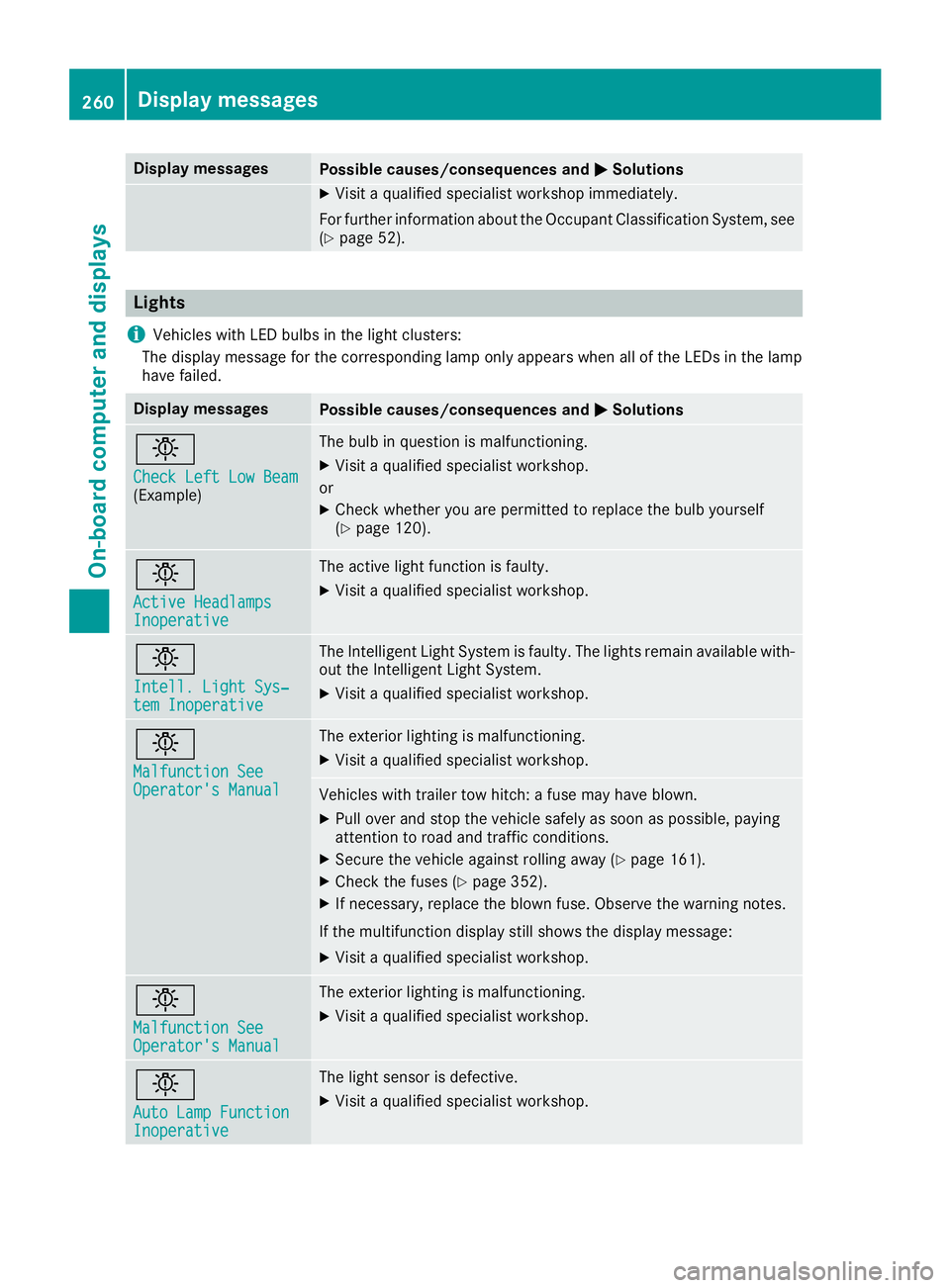
Display messages
Possible causes/consequences and P SolutionsX
Visit a qualified specialist workshop immediately.
Fo r further information about th e Occupant Classification System, see
( Y
page 52).
Lights
i Vehicles wit h LE D bulbs in th e ligh t clusters :
The display message for th e correspondin g lamp only appear s when all of th e LEDs in th e lamp
hav e failed.
Display messages
Possible causes/consequences and P Solutions
I Check Lef t Low Bea m
(Example) The bulb in question is malfunctioning .X
Visit a qualified specialist workshop .
or X
Chec k whether you are permitte d to replace th e bulb yourself
( Y
page 120).
I Active Headlamps
Inoperative The active ligh t function is faulty.X
Visit a qualified specialist workshop .
I Intell . Light Sys ‐
tem Inoperative The Intelligent Light Syste m is faulty. The lights remain available with-
out th e Intelligent Light System. X
Visit a qualified specialist workshop .
I Malfunction See
Operator' s Manual The exterio r lighting is malfunctioning .X
Visit a qualified specialist workshop .
Vehicles wit h trailer to w hitch : a fus e may hav e blown .X
Pull ove r and stop th e vehicl e safely as soo n as possible, payin g
attention to roa d and traffic conditions.X
Secur e th e vehicl e against rollin g away ( Y
page 161).X
Chec k th e fuses ( Y
page 352).X
If necessary, replace th e blown fuse. Observ e th e warning notes.
If th e multifunction display still shows th e display message :X
Visit a qualified specialist workshop .
I Malfunction See
Operator' s Manual The exterio r lighting is malfunctioning .X
Visit a qualified specialist workshop .
I Aut o Lam p Function
Inoperative The ligh t sensor is defective. X
Visit a qualified specialist workshop .260
Display messages
On-board computer and displays
Page 263 of 398
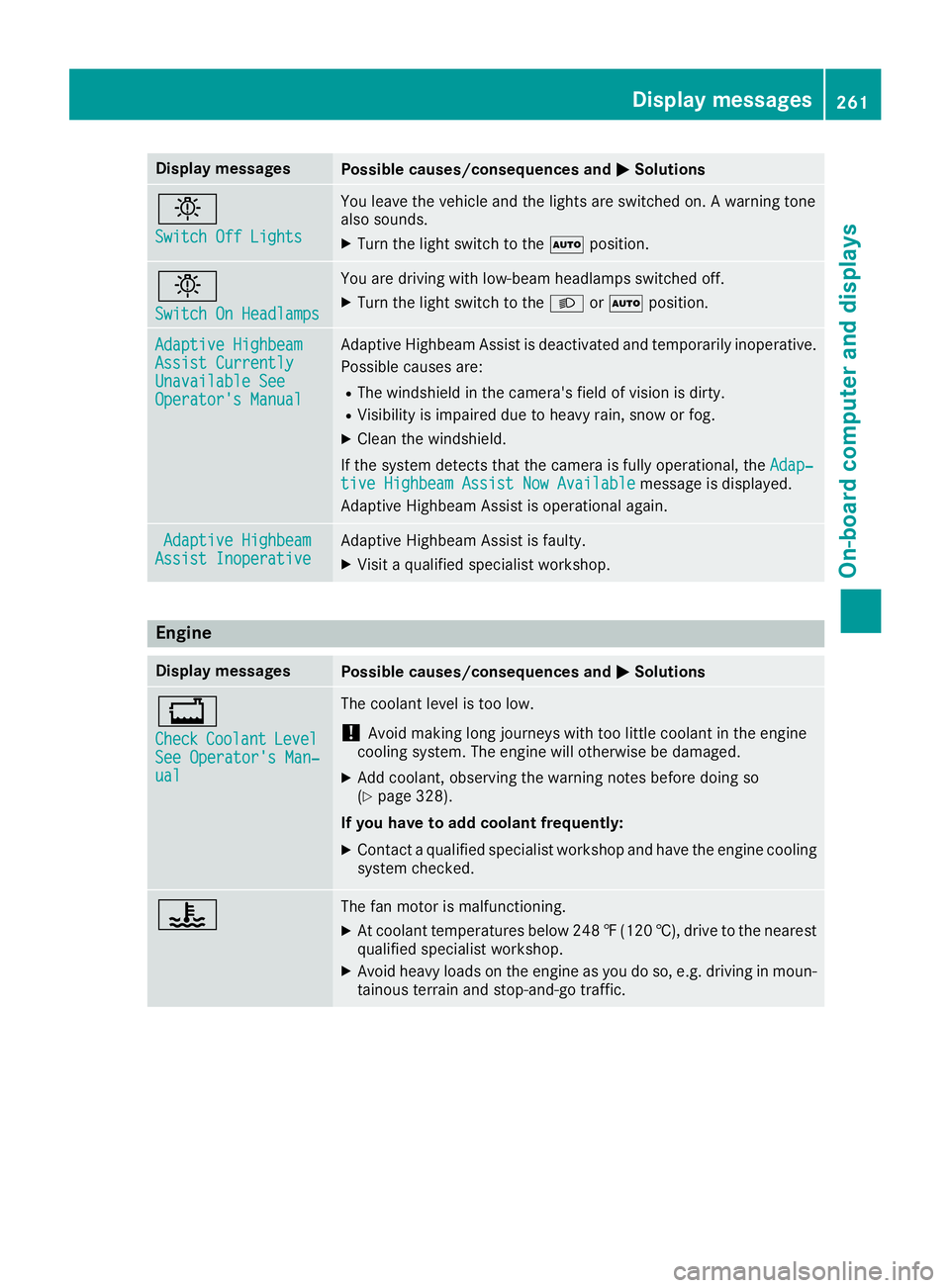
Display messages
Possible causes/consequences and P Solutions
I Switch Off Lights You leav e th e vehicl e and th e lights are switched on . A warning tone
also sounds. X
Turn th e ligh t switch to th e X position .
I Switch On Headlamps You are drivin g wit h low-beam headlamp s switched off .X
Turn th e ligh t switch to th e X or X position .
Adaptive Highbeam
Assist Currently
Unavailable See
Operator' s Manual Adaptive Highbea m Assis t is deactivated and temporarily inoperative.
Possibl e causes are: R
The windshield in th e camera' s field of vision is dirty.R
Visibilit y is impaire d due to heav y rain , snow or fog .X
Clean th e windshield.
If th e system detects that th e camera is full y operational, th e Adap‐
tiv e Highbeam Assist Now Available message is displayed.
Adaptive Highbea m Assis t is operational again .
Adaptive Highbeam
Assist Inoperative Adaptive Highbea m Assis t is faulty.X
Visit a qualified specialist workshop .
Engine Display messages
Possible causes/consequences and P Solutions
Page 265 of 398
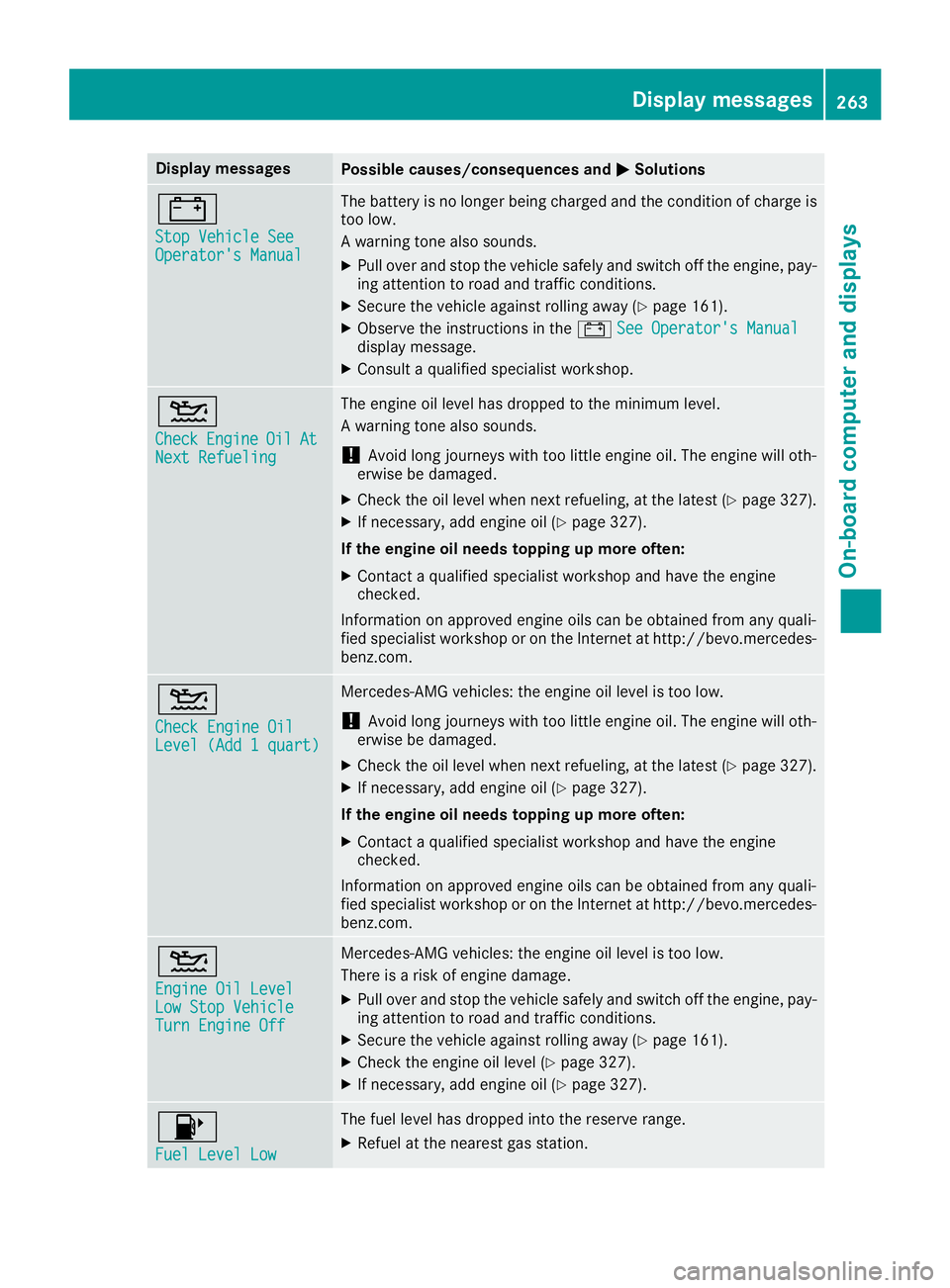
Display messages
Possible causes/consequences and P Solutions
= Sto p Vehicl e See
Operator' s Manual The battery is no longer bein g charged and th e condition of charg e is
to o low.
A warning tone also sounds. X
Pull ove r and stop th e vehicl e safely and switch off th e engine, pay-
ing attention to roa d and traffic conditions.X
Secur e th e vehicl e against rollin g away ( Y
page 161).X
Observ e th e instruction s in th e = See Operator' s Manual
display message .X
Consult a qualified specialist workshop .