display MERCEDES-BENZ GLS 2019 Owners Manual
[x] Cancel search | Manufacturer: MERCEDES-BENZ, Model Year: 2019, Model line: GLS, Model: MERCEDES-BENZ GLS 2019Pages: 398, PDF Size: 7.3 MB
Page 222 of 398
Messages in the multifunction display
If a gear change process has not been successful, the following messages may be displayed in the
multifunction display: Display messages
Possible causes/consequences and
0050
0050Solutions LOW RANGE Max.
LOW RANGE Max.
Speed 24 mph Speed 24 mph You have been driving faster than 24 mph (40 km/h). Additionally, the
indicator lamp on the button in the center console is flashing.
X Slow down to change gear. LOW RANGE Shift to
LOW RANGE Shift to
Position N Briefly Position N Briefly The transmission is in position
005Band you are driving at below
40 km/h.
X To shift gear, shift the transmission to position 005C.LOW RANGE Shifting
LOW RANGE Shifting
Canceled Please Canceled Please
Reactivate Reactivate The gear change process was not carried out.
X Ensure that all gear change conditions are fulfilled and carry out the
gear change process again. LOW RANGE Stop
LOW RANGE Stop
Apply Parking Brake Apply Parking Brake A warning tone also sounds. The gear change process has not been
completed. LOW RANGE is in the neutral position. There is no con-
nection between the engine and the drive wheels.
! Do not drive any further. You could otherwise damage the vehi-
cle's drive train.
X Stop the vehicle. Take into account the road and traffic conditions
when doing this.
X Apply the electric parking brake (Y page 159).
X Carry out the gear change process again.
If the gear change process has been carried out, the LOW RANGE LOW RANGE
stop apply parking brake
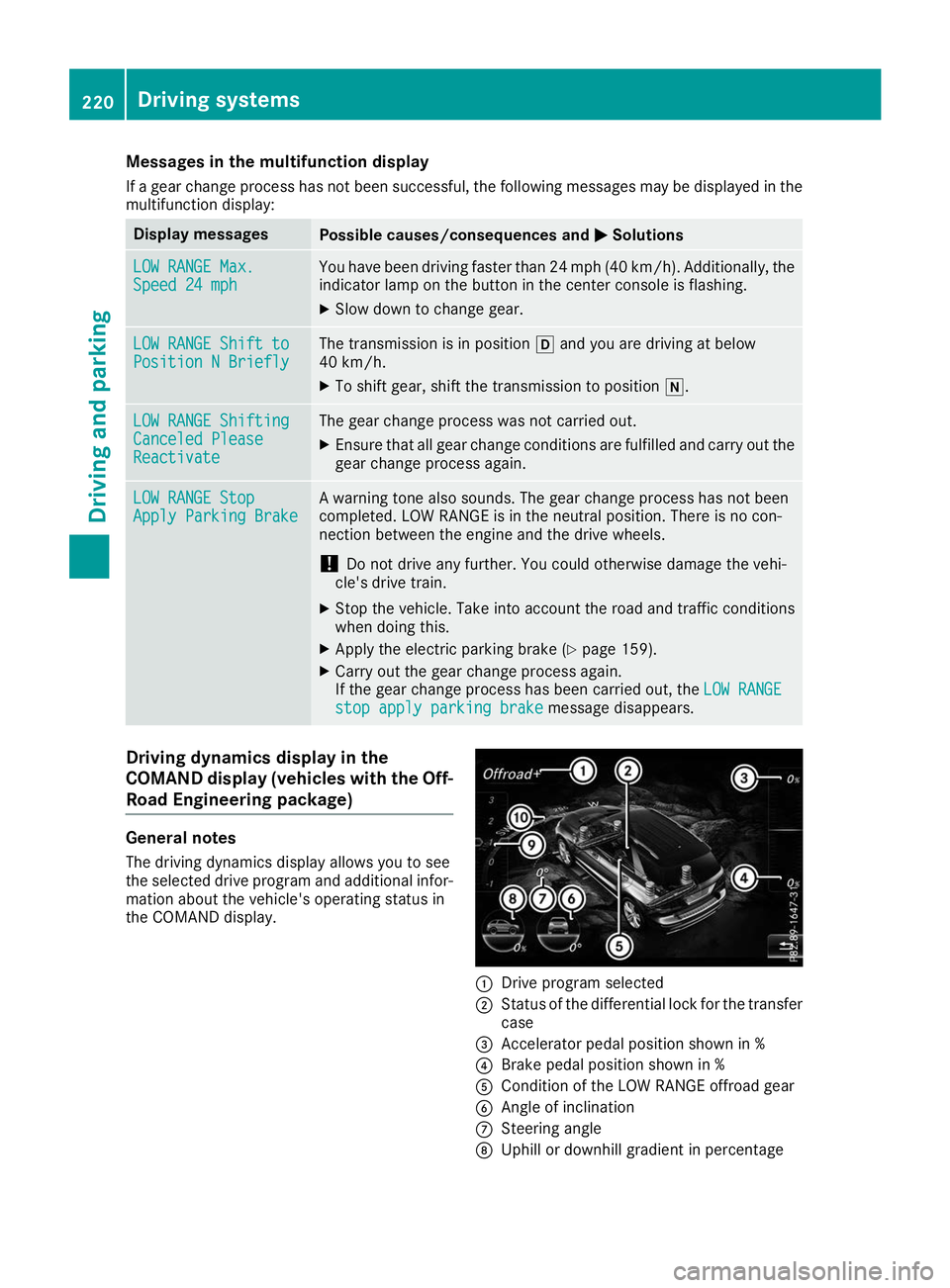
stop apply parking brake message disappears.Driving dynamics display in the
COMAND display (vehicles with the Off-
Road Engineering package) General notes
The driving dynamics display allows you to see
the selected drive program and additional infor-
mation about the vehicle's operating status in
the COMAND display. 0043
Drive program selected
0044 Status of the differential lock for the transfer
case
0087 Accelerator pedal position shown in %
0085 Brake pedal position shown in %
0083 Condition of the LOW RANGE offroad gear
0084 Angle of inclination
006B Steering angle
006C Uphill or downhill gradient in percentage 220
Driving systemsDriving and parking
Page 223 of 398
006D
Level control
006E Compass with angle scale
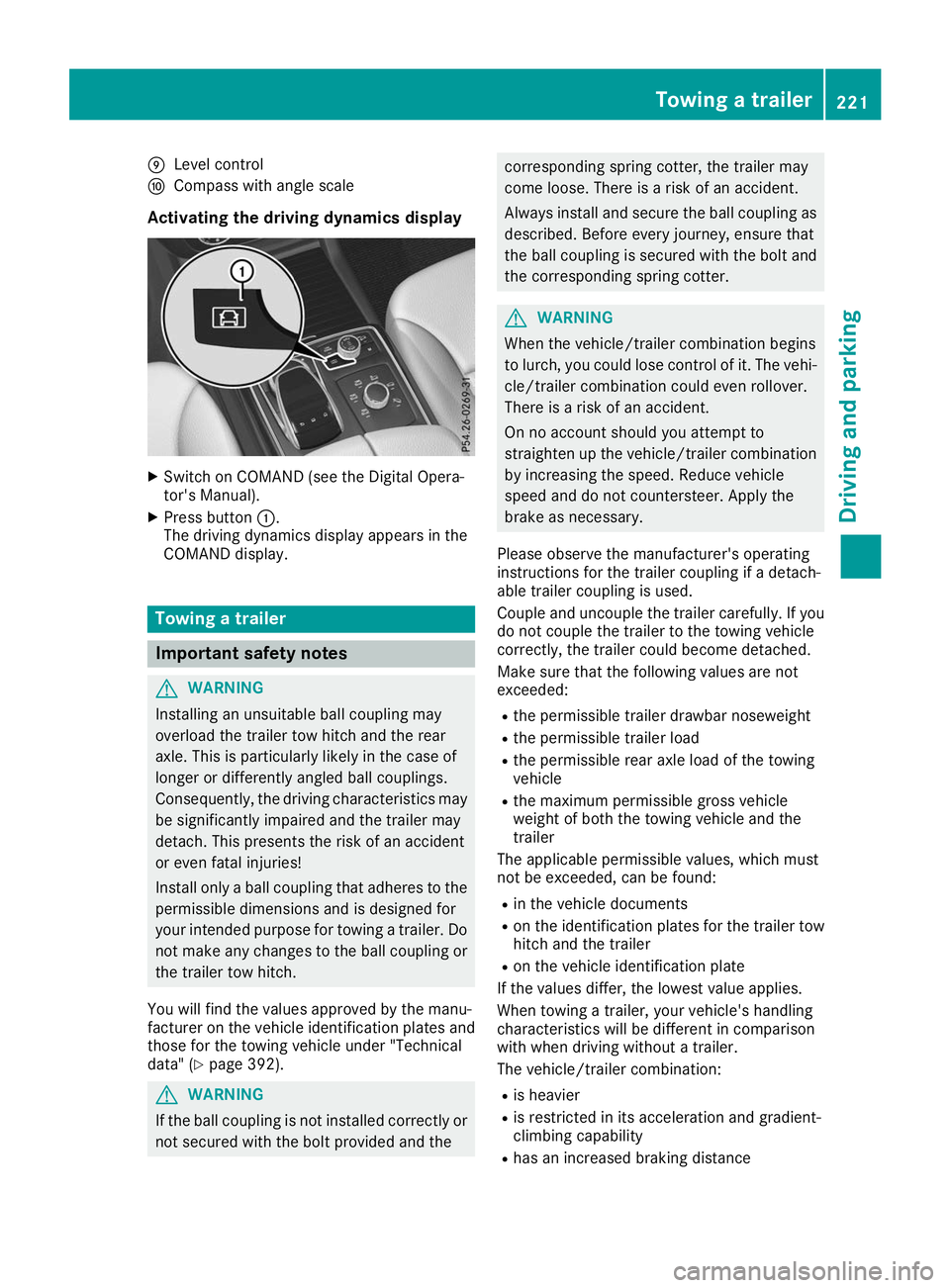
Activating the driving dynamics display X
Switch on COMAND (see the Digital Opera-
tor's Manual).
X Press button 0043.
The driving dynamics display appears in the
COMAND display. Towing a trailer
Important safety notes
G
WARNING
Installing an unsuitable ball coupling may
overload the trailer tow hitch and the rear
axle. This is particularly likely in the case of
longer or differently angled ball couplings.
Consequently, the driving characteristics may
be significantly impaired and the trailer may
detach. This presents the risk of an accident
or even fatal injuries!
Install only a ball coupling that adheres to the permissible dimensions and is designed for
your intended purpose for towing a trailer. Do
not make any changes to the ball coupling or the trailer tow hitch.
You will find the values approved by the manu-
facturer on the vehicle identification plates and
those for the towing vehicle under "Technical
data" (Y page 392). G
WARNING
If the ball coupling is not installed correctly or not secured with the bolt provided and the corresponding spring cotter, the trailer may
come loose. There is a risk of an accident.
Always install and secure the ball coupling as
described. Before every journey, ensure that
the ball coupling is secured with the bolt and
the corresponding spring cotter. G
WARNING
When the vehicle/trailer combination begins
to lurch, you could lose control of it. The vehi- cle/trailer combination could even rollover.
There is a risk of an accident.
On no account should you attempt to
straighten up the vehicle/trailer combination
by increasing the speed. Reduce vehicle
speed and do not countersteer. Apply the
brake as necessary.
Please observe the manufacturer's operating
instructions for the trailer coupling if a detach-
able trailer coupling is used.
Couple and uncouple the trailer carefully. If you do not couple the trailer to the towing vehicle
correctly, the trailer could become detached.
Make sure that the following values are not
exceeded:
R the permissible trailer drawbar noseweight
R the permissible trailer load
R the permissible rear axle load of the towing
vehicle
R the maximum permissible gross vehicle
weight of both the towing vehicle and the
trailer
The applicable permissible values, which must
not be exceeded, can be found:
R in the vehicle documents
R on the identification plates for the trailer tow
hitch and the trailer
R on the vehicle identification plate
If the values differ, the lowest value applies.
When towing a trailer, your vehicle's handling
characteristics will be different in comparison
with when driving without a trailer.
The vehicle/trailer combination:
R is heavier
R is restricted in its acceleration and gradient-
climbing capability
R has an increased braking distance Towing a trailer
221Driving and parking Z
Page 232 of 398
Important safety notes
G
WARNING
If you operate information systems and com-
munication equipment integrated in the vehi- cle when driving, you may be distracted from
the traffic situation. You could also lose con-
trol of the vehicle. There is a risk of an acci-
dent.
Only operate this equipment when the traffic
situation permits. If you are not sure that this
is possible, park the vehicle paying attention
to traffic conditions and operate the equip-
ment when the vehicle is stationary.
You must observe the legal requirements for the country in which you are currently driving whenoperating the on-board computer. G
WARNING
If the instrument cluster has failed or mal-
functioned, you may not recognize function
restrictions in systems relevant to safety. The operating safety of your vehicle may be
impaired. There is a risk of an accident.
Drive on carefully. Have the vehicle checked
at a qualified specialist workshop immedi-
ately.
If the operating safety of your vehicle is
impaired, pull over as soon as it is safe to do so.
Contact a qualified specialist workshop.
The on-board computer only shows messages or warnings from certain systems in the multifunc-tion display. You should therefore make sure
your vehicle is operating safely at all times.
For an overview, see the instrument panel illus-
tration (Y page 37). Displays and operation
Instrument cluster lighting
The lighting in the instrument cluster, in the dis-
plays and the controls in the vehicle interior can be adjusted using the brightness control knob.
The brightness control knob is located on the
bottom left of the instrument cluster
(Y page 37). X
Turn the brightness control knob clockwise or
counter-clockwise.
If you turn the light switch to 0058,0060or
0058, the brightness is dependent upon the
brightness of the ambient light.
i The light sensor in the instrument cluster
automatically controls the brightness of the
multifunction display.
In daylight, the displays in the instrument
cluster are not illuminated. Speedometer with segments
The segments in the speedometer indicate
which speed range is available.
R Cruise control activated (Y page 171):
The segments light up from the stored speed to the maximum speed.
R Active Distance Assist DISTRONIC activated
(Y page 172):
One or two segments in the set speed range
light up.
R Active Distance Assist DISTRONIC detects a
vehicle in front moving more slowly than the
stored speed:
The segments between the speed of the vehi- cle in front and the stored speed light up. Tachometer
! Do not drive in the overrevving range, as this
could damage the engine.
The red band in the tachometer indicates the
engine's overrevving range.
The fuel supply is interrupted to protect the
engine when the red band is reached. Outside temperature display
You should pay special attention to road condi-
tions when temperatures are around freezing
point.
Bear in mind that the outside temperature dis-
play indicates the temperature measured and
does not record the road temperature.
The outside temperature display is in the multi-
function display (Y page 232).230
Displays and operationOn-board computer and displays
Page 233 of 398
There is a short delay before a change in outside
temperature appears in the multifunction dis-
play. Coolant temperature gauge
G
WARNING
Opening the hood when the engine is over-
heated or when there is a fire in the engine
compartment could expose you to hot gases
or other service products. There is a risk of
injury.
Let an overheated engine cool down before
opening the hood. If there is a fire in the
engine compartment, keep the hood closed
and contact the fire department.
! If the coolant temperature is too high, a dis-
play message is shown.
If the coolant temperature display is in the
area marked in red, do not continue driving.
Otherwise, the engine will be damaged.
The coolant temperature gauge is in the instru-
ment cluster on the right-hand side (Y page 37).
Under normal operating conditions and with the specified coolant level, the coolant temperature gauge may rise to the red marking. Operating the on-board computer
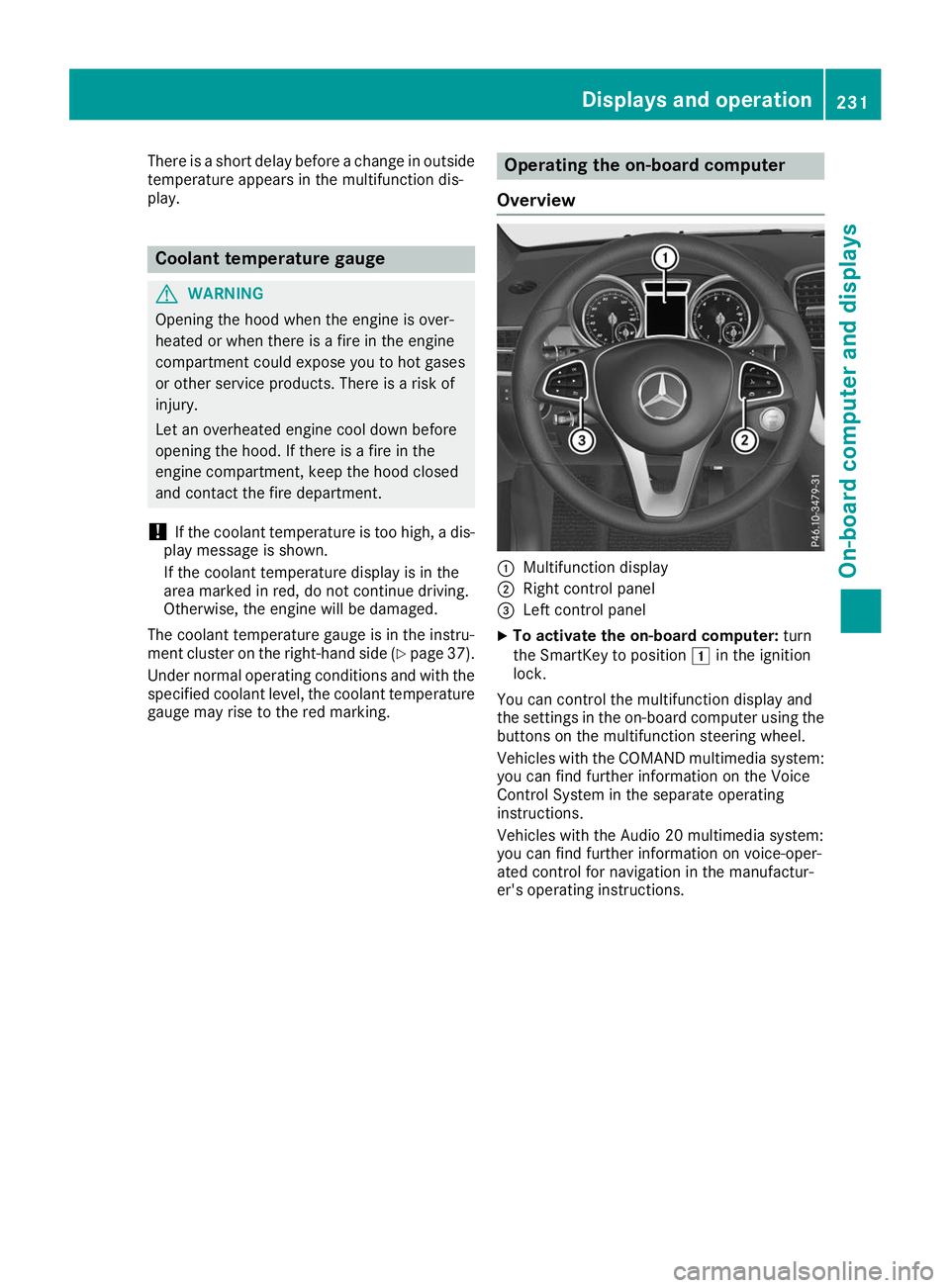
Overview 0043
Multifunction display
0044 Right control panel
0087 Left control panel
X To activate the on-board computer: turn
the SmartKey to position 0047in the ignition
lock.
You can control the multifunction display and
the settings in the on-board computer using the buttons on the multifunction steering wheel.
Vehicles with the COMAND multimedia system: you can find further information on the Voice
Control System in the separate operating
instructions.
Vehicles with the Audio 20 multimedia system:
you can find further information on voice-oper-
ated control for navigation in the manufactur-
er's operating instructions. Displays and operation
231On-board computer and displays Z
Page 234 of 398
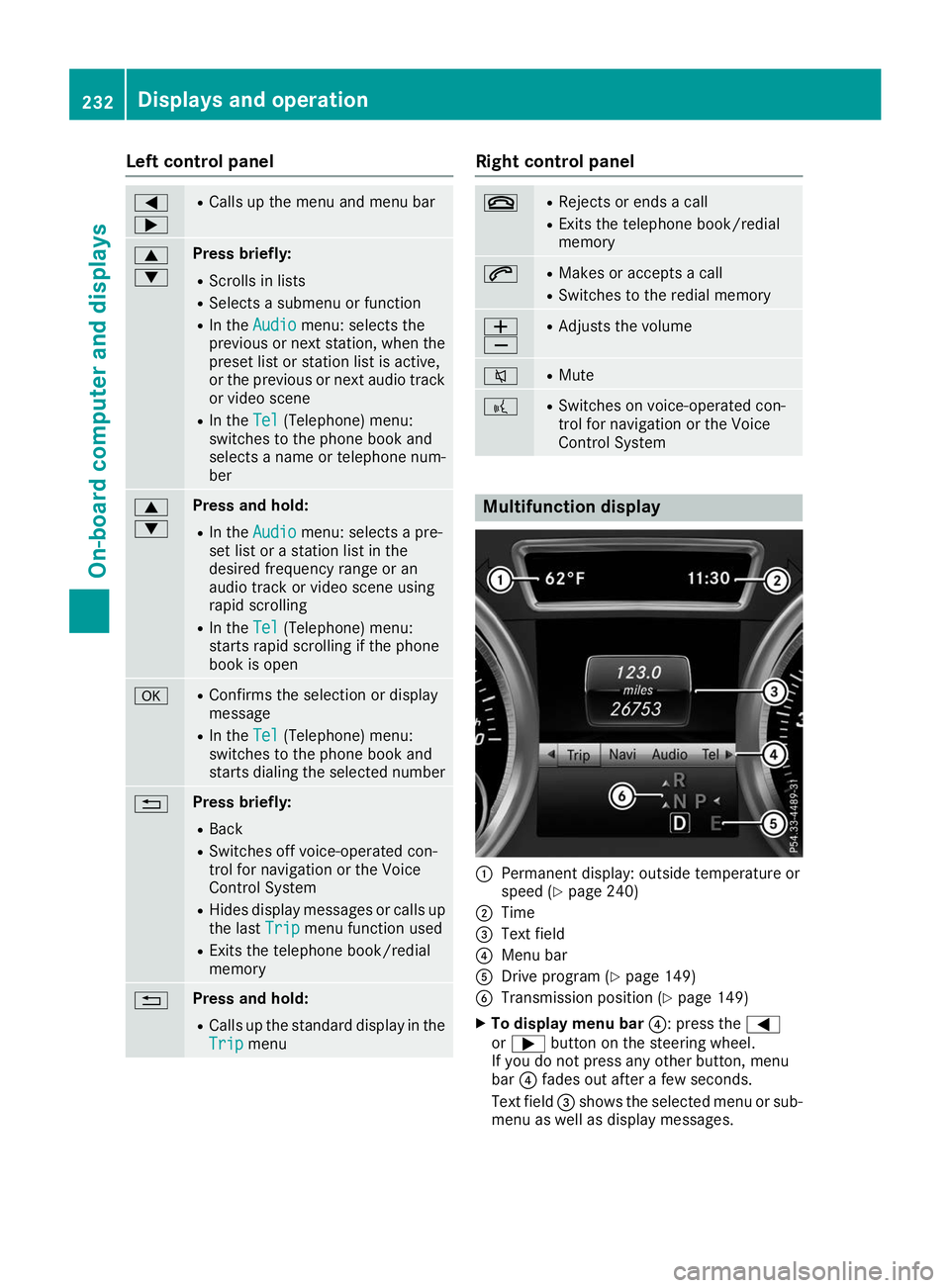
Left control panel
0059
0065 R
Calls up the menu and menu bar 0063
0064 Press briefly:
R Scrolls in lists
R Selects a submenu or function
R In the Audio Audio menu: selects the
previous or next station, when the
preset list or station list is active,
or the previous or next audio track
or video scene
R In the Tel
Tel(Telephone) menu:
switches to the phone book and
selects a name or telephone num-
ber 0063
0064 Press and hold:
R
In the Audio Audio menu: selects a pre-
set list or a station list in the
desired frequency range or an
audio track or video scene using
rapid scrolling
R In the Tel Tel(Telephone) menu:
starts rapid scrolling if the phone
book is open 0076 R
Confirms the selection or display
message
R In the Tel
Tel(Telephone) menu:
switches to the phone book and
starts dialing the selected number 0038 Press briefly:
R Back
R Switches off voice-operated con-
trol for navigation or the Voice
Control System
R Hides display messages or calls up
the last Trip Tripmenu function used
R Exits the telephone book/redial
memory 0038 Press and hold:
R
Calls up the standard display in the
Trip Trip menu Right control panel
0076 R
Rejects or ends a call
R Exits the telephone book/redial
memory 0061 R
Makes or accepts a call
R Switches to the redial memory 0081
0082 R
Adjusts the volume 0063 R
Mute 0059 R
Switches on voice-operated con-
trol for navigation or the Voice
Control System Multifunction display
0043
Permanent display: outside temperature or
speed (Y page 240)
0044 Time
0087 Text field
0085 Menu bar
0083 Drive program (Y page 149)
0084 Transmission position (Y page 149)
X To display menu bar 0085: press the0059
or 0065 button on the steering wheel.
If you do not press any other button, menu
bar 0085fades out after a few seconds.
Text field 0087shows the selected menu or sub-
menu as well as display messages. 232
Displays and operationOn-board computer and displays
Page 235 of 398
i
Set the time using the multimedia system;
see the Digital Operator's Manual.
Possible displays in the multifunction dis-
play:
R 0097Gearshift recommendation, when shifting
manually (Y page 152)
R 005D Active Parking Assist (Y page 192)
R CRUISE
CRUISE Cruise control (Y page 171)
R 00CE Adaptive Highbeam Assist
(Y page 118)
R 00D6 ECO start/stop function (Y page 144)
R 00D9 HOLD function (Y page 183)
R 004F Active Distance Assist DISTRONIC
Active Steering Assist (Y page 238)
R DSR DSR Downhill Speed Regulation
(Y page 215) Menus and submenus
Menu overview
Press the 0059or0065 button on the steering
wheel to call up the menu bar and select a menu.
Operating the on-board computer (Y page 231).
Depending on the equipment installed in the
vehicle, you can call up the following menus:
R Trip
Trip menu (Y page 233)
R Navi
Navi menu (navigation instructions)
(Y page 234)
R Audio
Audio menu (Y page 236)
R Tel
Tel menu (telephone) (Y page 237)
R DriveAssist
DriveAssist menu (assistance)
(Y page 238)
R Serv.
Serv. menu (Y page 239)
R Sett.
Sett. menu (settings) (Y page 240)
R ON&OFFROAD
ON&OFFROAD menu (Ypage 242)
R AMG
AMG menu (Mercedes-AMG vehicles)
(Y page 242) Trip menu
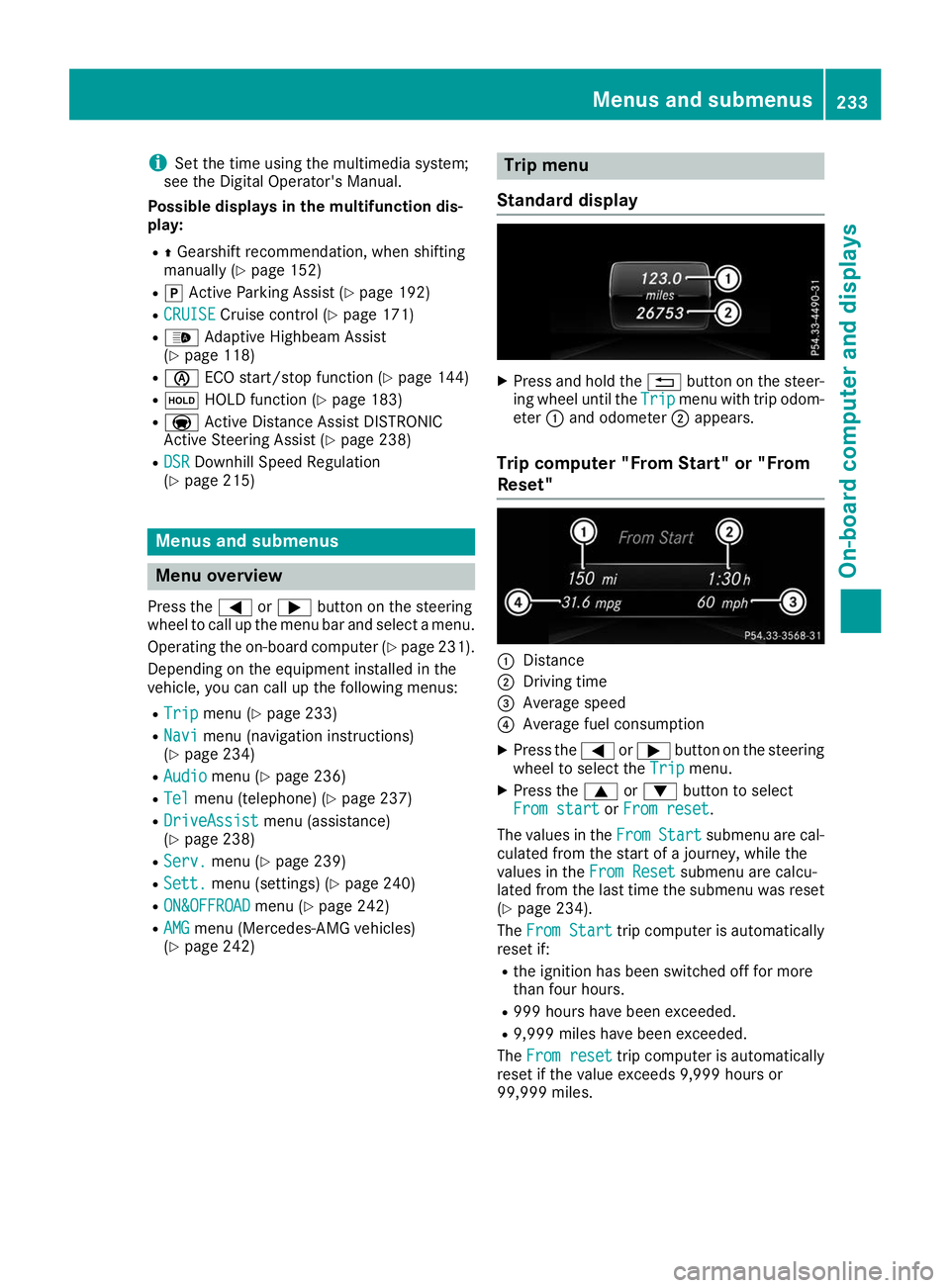
Standard display X
Press and hold the 0038button on the steer-
ing wheel until the Trip
Tripmenu with trip odom-
eter 0043and odometer 0044appears.
Trip computer "From Start" or "From
Reset" 0043
Distance
0044 Driving time
0087 Average speed
0085 Average fuel consumption
X Press the 0059or0065 button on the steering
wheel to select the Trip
Tripmenu.
X Press the 0063or0064 button to select
From start
From start orFrom reset
From reset.
The values in the From
FromStart
Start submenu are cal-
culated from the start of a journey, while the
values in the From Reset From Resetsubmenu are calcu-
lated from the last time the submenu was reset
(Y page 234).
The From Start
From Start trip computer is automatically
reset if:
R the ignition has been switched off for more
than four hours.
R 999 hours have been exceeded.
R 9,999 miles have been exceeded.
The From reset From reset trip computer is automatically
reset if the value exceeds 9,999 hours or
99,999 miles. Menus and submenus
233On-board computer and displays Z
Page 236 of 398
ECO display
The ECO display is not available for Mercedes-
AMG vehicles.
X Press the 0059or0065 button on the steering
wheel to select the Trip
Trip menu.
X Press the 0063or0064 button to select ECO
ECO
DISPLAY
DISPLAY.
If the ignition remains switched off for longer
than four hours, the ECO display will be auto-
matically reset.
For more information on the ECO display, see
(Y page 162).
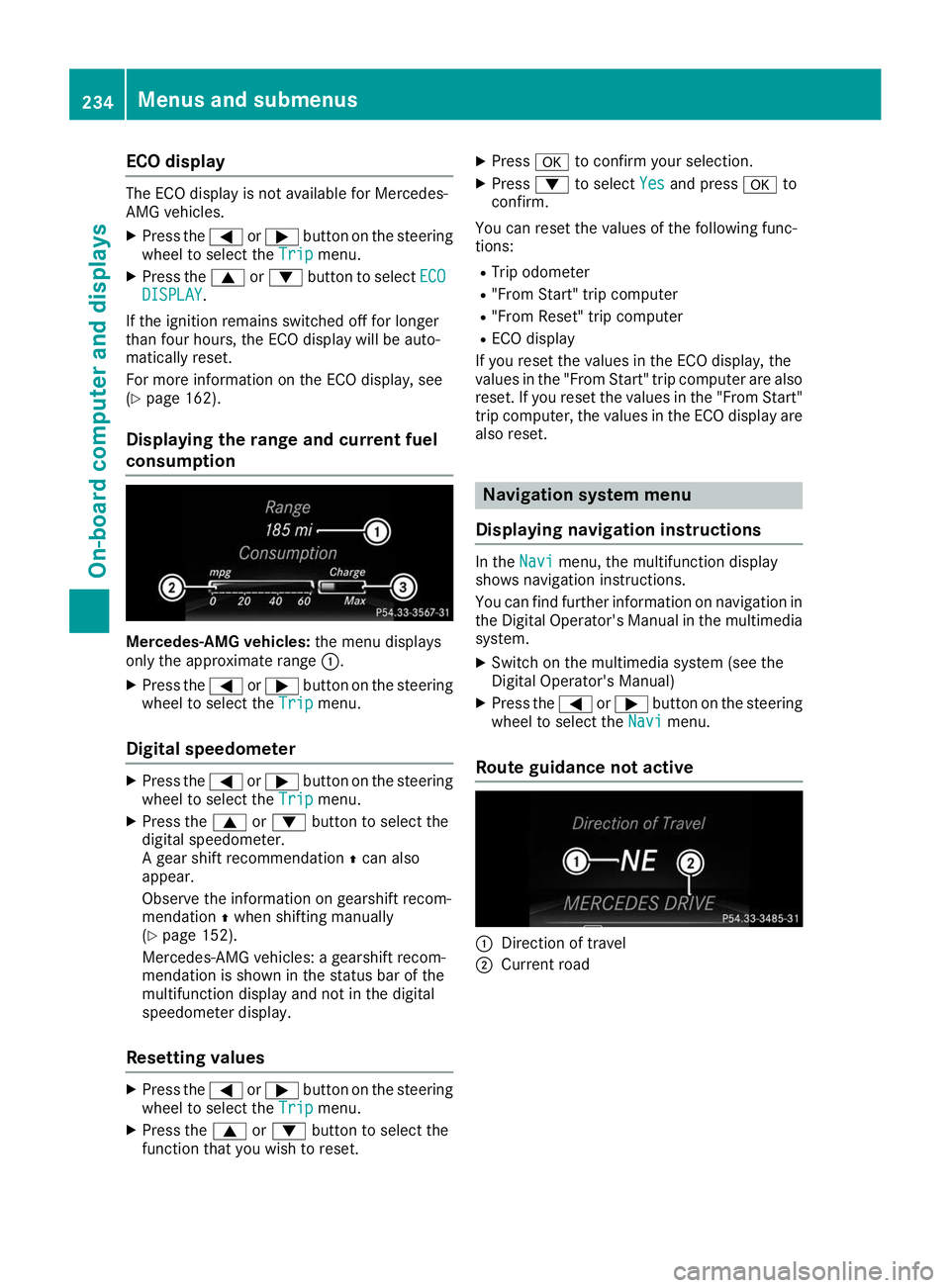
Displaying the range and current fuel
consumption Mercedes-AMG vehicles:
the menu displays
only the approximate range 0043.
X Press the 0059or0065 button on the steering
wheel to select the Trip
Trip menu.
Digital speedometer X
Press the 0059or0065 button on the steering
wheel to select the Trip
Trip menu.
X Press the 0063or0064 button to select the
digital speedometer.
A gear shift recommendation 0097can also
appear.
Observe the information on gearshift recom-
mendation 0097when shifting manually
(Y page 152).
Mercedes-AMG vehicles: a gearshift recom-
mendation is shown in the status bar of the
multifunction display and not in the digital
speedometer display.
Resetting values X
Press the 0059or0065 button on the steering
wheel to select the Trip
Trip menu.
X Press the 0063or0064 button to select the
function that you wish to reset. X
Press 0076to confirm your selection.
X Press 0064to select Yes
Yes and press 0076to
confirm.
You can reset the values of the following func-
tions: R Trip odometer
R "From Start" trip computer
R "From Reset" trip computer
R ECO display
If you reset the values in the ECO display, the
values in the "From Start" trip computer are also reset. If you reset the values in the "From Start"trip computer, the values in the ECO display are
also reset. Navigation system menu
Displaying navigation instructions In the
Navi Navimenu, the multifunction display
shows navigation instructions.
You can find further information on navigation in
the Digital Operator's Manual in the multimedia system.
X Switch on the multimedia system (see the
Digital Operator's Manual)
X Press the 0059or0065 button on the steering
wheel to select the Navi Navimenu.
Route guidance not active 0043
Direction of travel
0044 Current road 234
Menus and submenusOn-board computer and displays
Page 237 of 398
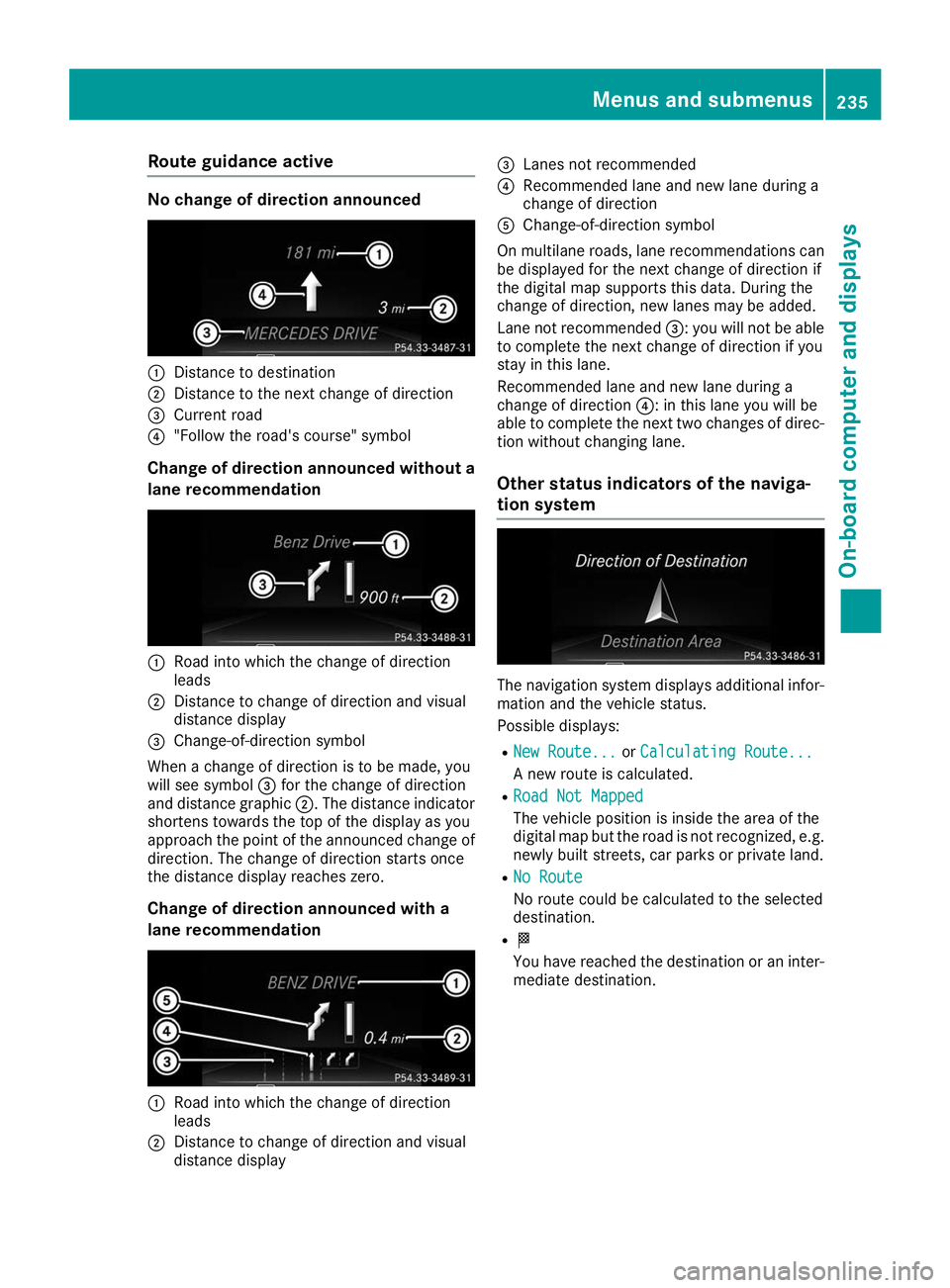
Route guidance active
No change of direction announced
0043
Distance to destination
0044 Distance to the next change of direction
0087 Current road
0085 "Follow the road's course" symbol
Change of direction announced without a lane recommendation 0043
Road into which the change of direction
leads
0044 Distance to change of direction and visual
distance display
0087 Change-of-direction symbol
When a change of direction is to be made, you
will see symbol 0087for the change of direction
and distance graphic 0044. The distance indicator
shortens towards the top of the display as you
approach the point of the announced change of
direction. The change of direction starts once
the distance display reaches zero.
Change of direction announced with a
lane recommendation 0043
Road into which the change of direction
leads
0044 Distance to change of direction and visual
distance display 0087
Lanes not recommended
0085 Recommended lane and new lane during a
change of direction
0083 Change-of-direction symbol
On multilane roads, lane recommendations can be displayed for the next change of direction if
the digital map supports this data. During the
change of direction, new lanes may be added.
Lane not recommended 0087: you will not be able
to complete the next change of direction if you
stay in this lane.
Recommended lane and new lane during a
change of direction 0085: in this lane you will be
able to complete the next two changes of direc-
tion without changing lane.
Other status indicators of the naviga-
tion system The navigation system displays additional infor-
mation and the vehicle status.
Possible displays:
R New Route... New Route... orCalculating Route...
Calculating Route...
A new route is calculated.
R Road Not Mapped
Road Not Mapped
The vehicle position is inside the area of the
digital map but the road is not recognized, e.g.
newly built streets, car parks or private land.
R No Route
No Route
No route could be calculated to the selected
destination.
R 004B
You have reached the destination or an inter-
mediate destination. Menus and submenus
235On-board computer and displays Z
Page 238 of 398
Audio menu
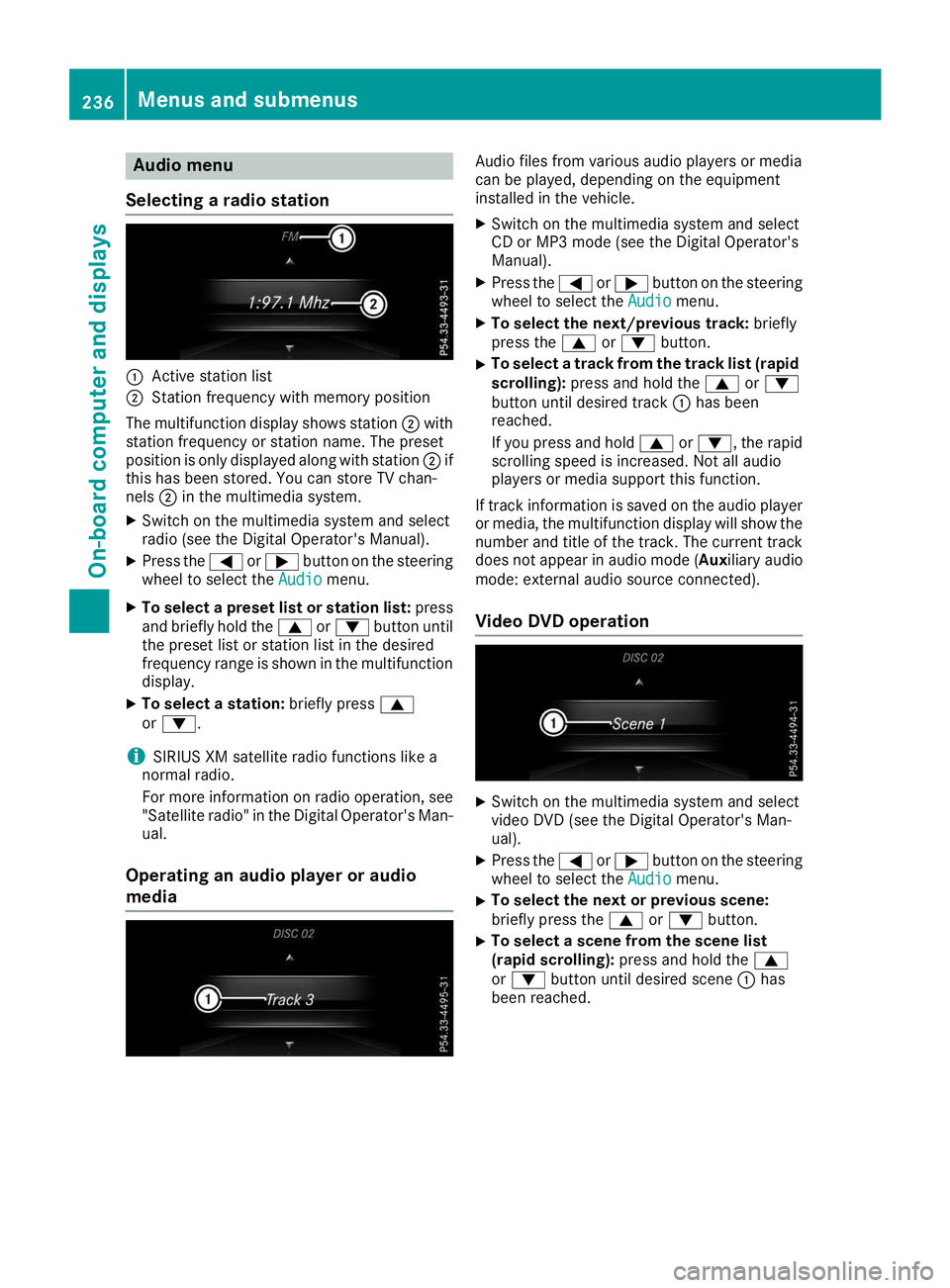
Selecting a radio station 0043
Active station list
0044 Station frequency with memory position
The multifunction display shows station 0044with
station frequency or station name. The preset
position is only displayed along with station 0044if
this has been stored. You can store TV chan-
nels 0044in the multimedia system.
X Switch on the multimedia system and select
radio (see the Digital Operator's Manual).
X Press the 0059or0065 button on the steering
wheel to select the Audio Audiomenu.
X To select a preset list or station list: press
and briefly hold the 0063or0064 button until
the preset list or station list in the desired
frequency range is shown in the multifunction
display.
X To select a station: briefly press0063
or 0064.
i SIRIUS XM satellite radio functions like a
normal radio.
For more information on radio operation, see "Satellite radio" in the Digital Operator's Man-
ual.
Operating an audio player or audio
media Audio files from various audio players or media
can be played, depending on the equipment
installed in the vehicle.
X Switch on the multimedia system and select
CD or MP3 mode (see the Digital Operator's
Manual).
X Press the 0059or0065 button on the steering
wheel to select the Audio Audiomenu.
X To select the next/previous track: briefly
press the 0063or0064 button.
X To select a track from the track list (rapid
scrolling): press and hold the 0063or0064
button until desired track 0043has been
reached.
If you press and hold 0063or0064, the rapid
scrolling speed is increased. Not all audio
players or media support this function.
If track information is saved on the audio player
or media, the multifunction display will show the number and title of the track. The current track
does not appear in audio mode ( Auxiliary audio
mode: external audio source connected).
Video DVD operation X
Switch on the multimedia system and select
video DVD (see the Digital Operator's Man-
ual).
X Press the 0059or0065 button on the steering
wheel to select the Audio Audiomenu.
X To select the next or previous scene:
briefly press the
0063or0064 button.
X To select a scene from the scene list
(rapid scrolling):
press and hold the 0063
or 0064 button until desired scene 0043has
been reached. 236
Menus and sub
menusOn-board computer and displays
Page 239 of 398
Telephone menu
Introduction G
WARNING
If you operate information systems and com-
munication equipment integrated in the vehi- cle when driving, you may be distracted from
the traffic situation. You could also lose con-
trol of the vehicle. There is a risk of an acci-
dent.
Only operate this equipment when the traffic
situation permits. If you are not sure that this
is possible, park the vehicle paying attention
to traffic conditions and operate the equip-
ment when the vehicle is stationary.
When telephoning, you must observe the legal
requirements for the country in which you are
currently driving.
X Switch on the mobile phone (see the manu-
facturer’s operating instructions).
X Switch on the multimedia system (see the
Digital Operator's Manual)
X Establish a Bluetooth ®
connection to the mul-
timedia system (see the Digital Operator's
Manual).
X Press the 0059or0065 button on the steering
wheel to select the Tel Telmenu.
You will see one of the following display mes-
sages in the multifunction display:
R Phone READY Phone READY or the name of the network
provider: the mobile phone has found a net-
work and is ready to receive.
R Phone No Service
Phone No Service: there is no network
available or the mobile phone is searching for
a network.
Accepting a call If someone calls you when you are in the
Tel
Tel
menu, a display message appears in the multi-
function display.
You can accept a call at any time regardless of
the menu selected.
X Press the 0061button on the steering wheel
to accept an incoming call. Rejecting or ending a call You can end or reject a call even if you are not in
the Tel Tel menu.
X Press the 0076button on the steering wheel
to reject or end a call.
Selecting an entry from the phone book X
Press the 0059or0065 button on the steering
wheel to select the Tel
Telmenu.
X Press the 0063,0064or0076 button to
switch to the phone book.
X Authorize access to the phone book on the
phone.
X Press the 0063or0064 button to select the
desired name.
or
X To start rapid scrolling: press and hold the
0063 or0064 button for longer than one sec-
ond.
Rapid scrolling stops when you release the
button or reach the end of the list.
X If only one telephone number is stored for
a name: press the 0061or0076 button to
start dialing.
or X If there is more than one number for a
particular name:
press the0061or0076
button to display the numbers.
X Press the 0063or0064 button to select the
number you want to dial.
X Press the 0061or0076 button to start dialing.
or
X To exit the telephone book: press the0076
or 0038 button.
Redialing The on-board computer saves the last names or
numbers dialed in the redial memory.
X Press the 0059or0065 button on the steering
wheel to select the Tel Telmenu.
X Press the 0061button to switch to the redial
memory.
X Press the 0063or0064 button to select the
desired name or number. Menus and submenus
237On-board computer and displays Z