climate settings MERCEDES-BENZ GLS 2019 User Guide
[x] Cancel search | Manufacturer: MERCEDES-BENZ, Model Year: 2019, Model line: GLS, Model: MERCEDES-BENZ GLS 2019Pages: 398, PDF Size: 7.3 MB
Page 139 of 398
0043
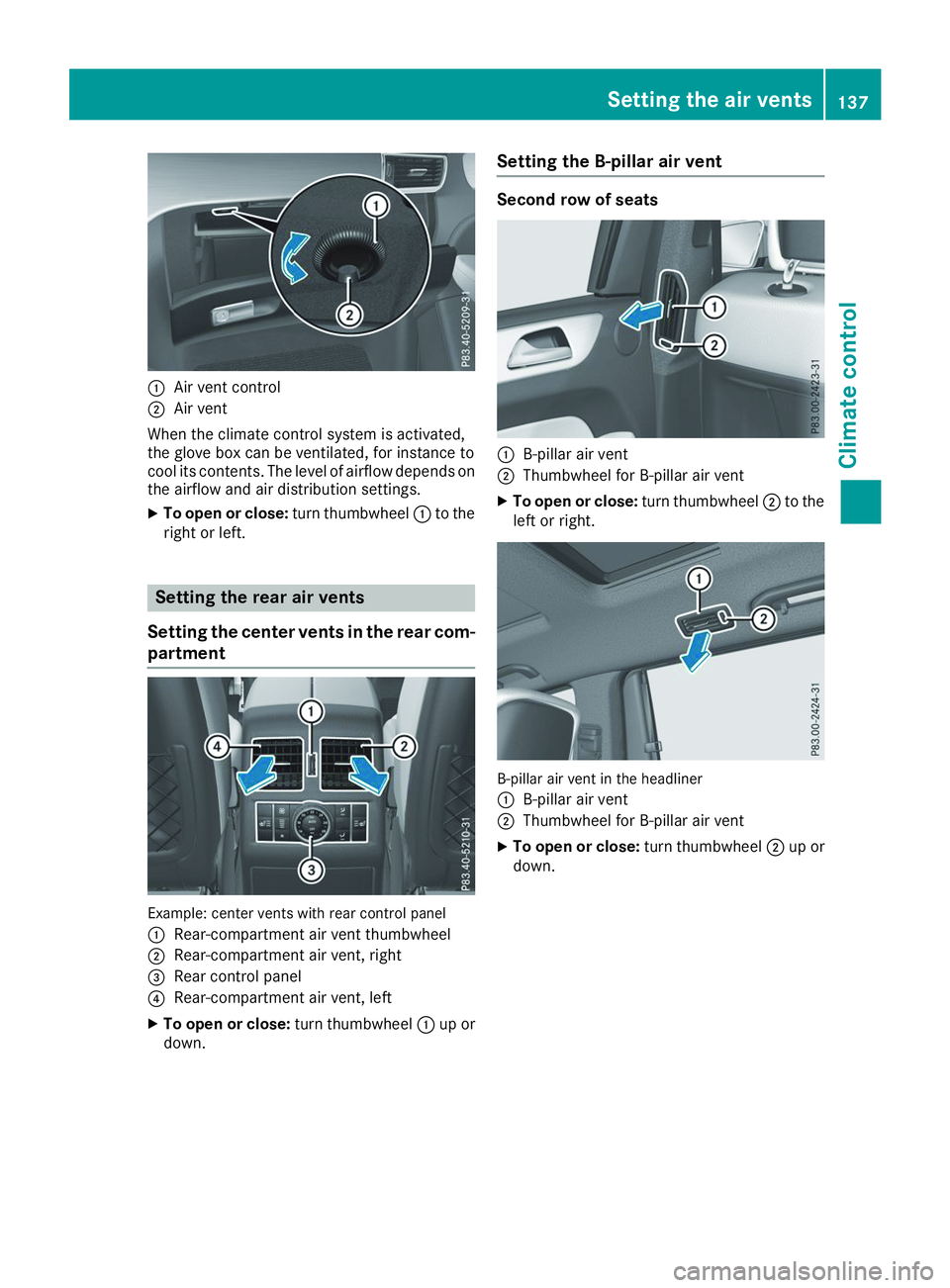
Air vent control
0044 Air vent
When the climate control system is activated,
the glove box can be ventilated, for instance to
cool its contents. The level of airflow depends on the airflow and air distribution settings.
X To open or close: turn thumbwheel0043to the
right or left. Setting the rear air vents
Setting the center vents in the rear com-
partment Example: center vents with rear control panel
0043
Rear-compartment air vent thumbwheel
0044 Rear-compartment air vent, right
0087 Rear control panel
0085 Rear-compartment air vent, left
X To open or close: turn thumbwheel0043up or
down. Setting the B-pillar air vent Second row of seats
0043
B-pillar air vent
0044 Thumbwheel for B-pillar air vent
X To open or close: turn thumbwheel0044to the
left or right. B-pillar air vent in the headliner
0043
B-pillar air vent
0044 Thumbwheel for B-pillar air vent
X To open or close: turn thumbwheel0044up or
down. Setting the air vents
137Climate control Z
Page 291 of 398
Favorites button
You can assign predefined functions using the
007D favorites button and call them up by press-
ing the button (Y page 289). Favorites
Calling up and exiting favorites X
To call up: press the007Dbutton on the con-
troller.
X Select a favorite, e.g. Vehicle
Vehicle.
The favorites are displayed.
X To exit: press the 007Dbutton again.
Adding favorites Adding predefined favorites
X
Press the 007Dbutton.
X COMAND: slide6the controller.
X Audio 20: slide5or6 the controller.
The menu bar is displayed.
X Select Reassign
Reassign.
The categories are displayed.
X Select a category.
The favorites are displayed.
X Select a favorite.
X COMAND: to add the favorite to the desired
position, turn and press the controller.
If a favorite has already been added at this
position, it will be overwritten.
X Audio 20: to add the favorite to the desired
position, turn, slide 5or6 and press the
controller.
If a favorite has already been added at this
position, it will be overwritten.
Adding your own favorites
You can add climate control as a favorite, for
example. X Select Vehicle
Vehicle007BVehicle Settings Vehicle Settings.
X Press and hold the 007Dbutton until the
favorites are displayed.
X Add a favorite to the desired position.
If a favorite has already been added at this
position, it will be overwritten. Navigation mode
Important safety notes G
WARNING
If you operate information systems and com-
munication equipment integrated in the vehi- cle when driving, you may be distracted from
the traffic situation. You could also lose con-
trol of the vehicle. There is a risk of an acci-
dent.
Only operate this equipment when the traffic
situation permits. If you are not sure that this
is possible, park the vehicle paying attention
to traffic conditions and operate the equip-
ment when the vehicle is stationary.
You must observe the legal requirements for the country in which you are currently driving whenoperating the navigation system.
General notes Among other things, correct functioning of the
navigation system depends on GPS reception. In
certain situations, GPS reception may be
impaired, there may be interference or there
may be no reception at all, e.g. in tunnels or
parking garages.
Audio 20 is equipped with Garmin ®
MAP PILOT
(see the manufacturer's operating instructions).
The Garmin ®
MAP PILOT operating instructions
are stored on the SD card as a PDF file. The SD card box contains a quick guide.
The following descriptions apply to navigation
with COMAND. Further information can be
found in the Digital Operator's Manual.
Selecting a route type and route options Multimedia system:
X Select Navi
Navi007BNavigation Navigation.
The map shows the vehicle's current position.
X Slide 6the controller.
X Select Options
Options007BRoute Settings Route Settings.
Notes for route types:
R Eco Route Eco Route
R Dynamic Traffic Route
Dynamic Traffic Route Operating system
289Multimedia system Z