display MERCEDES-BENZ GLS SUV 2018 COMAND Manual
[x] Cancel search | Manufacturer: MERCEDES-BENZ, Model Year: 2018, Model line: GLS SUV, Model: MERCEDES-BENZ GLS SUV 2018Pages: 194, PDF Size: 4.5 MB
Page 14 of 194
Text message settings ...................112
Text messages (SMS) .................... 111
Toggling ...........................................9 7
Using the telephone .........................9 5
Voice recognition .............................9 8
Writing e-mails ...............................1 15
Writing text messages ................... 114
Telephone number
Entering ...........................................9 5
Text messages (SMS)
Calling the sender .......................... 116
Calling up the settings menu ......... 112
Configuring the text messages
displayed ....................................... 112
Deleting ......................................... 117
Displaying details ........................... 114
Downloading manually ................... 113
Editing text templates .................... 116
Inbox .............................................. 113
Reading .......................................... 113
Reading aloud ................................ 114
Settings ......................................... 112
Storing the sender as a new
address book entry ........................ 116
Using a phone number in the text .. 116
Using text templates ...................... 116
Writing ........................................... 114
Time
Setting the format ............................ 35
Setting the time manually ................ 35
Setting the time zone ....................... 34
Setting the time/date format .......... 35
Switching automatic time on/off ..... 34
Touchpad
Calling up quick access for audio .... 23
Changing the audio source .............. 27
Changing the input language for
handwriting recognition ................... 26
Changing the station/music
track ................................................ 26
Character suggestions ..................... 25
Deleting characters ......................... 25
Entering a space .............................. 25
Entering characters ......................... 25
Gesture control ................................ 22
Handwriting recognition ................... 24
Operating the touchpad ................... 22
Overview .......................................... 22 Quick access for Audio .................... 26
Switching ......................................... 22
Switching
inpu
t line ......................... 25
Track information .............................. 185
Traffic jam function ............................. 74
Traffic reports
Calling up a list ................................ 76
Real-time traffic report .................... 77
U
Updating the digital map .................... 86
USB audio mode
Selecting a track ............................ 146
USB devices
Connecting to the Media Inter-
face ............................................... 145
V
VehicleData acquisition ............................... 15
Vehicle settings
Calling up ......................................... 43
Video
see Video DVD
Video DVD
Changing the picture format .......... 158
Control option ................................ 157
DVD functions ............................... 159
DVD menu ..................................... 159
DVD's control menu ...................... 158
Full-screen mode ........................... 158
Function restrictions ...................... 157
Menu options ................................. 158
Notes on discs ............................... 156
Operation ....................................... 156
Overview ........................................ 157
Pause function ............................... 160
Picture settings .............................. 158
Playing conditions .......................... 156
Safety notes .................................. 156
Selecting a scene/chapter ............ 160
Stop function ................................. 160
Switching to ................................... 157
Video menu ................................... 159
Voice Control System
Settings ........................................... 36
12Index
Page 15 of 194
Volume, adjustingNavigation messages ....................... 27
W
Weather map (SIRIUS)Activating/deactivating display
levels ............................................. 172
Calling up ....................................... 171
Legend ........................................... 174
Moving ........................................... 171
Showing/hiding the menu ............. 171
Time stamp .................................... 174
Weather memory (SIRIUS)
Selecting an area ........................... 171
Storing an area .............................. 171
Web browser
Entering a web address ................. 127
Wi-Fi
Changing the SSID name (USA) ....... 38
Connecting the device (Canada) ...... 39
Connecting the device (USA) ........... 37
General notes (Canada) ................... 39
General notes (USA) ........................ 37
Generating a new security key
(USA) ............................................... 38
Overview (Canada) ........................... 37
Overview (USA) ................................ 36
WiFi
Activating (Canada) .......................... 37
Activating (USA) ............................... 37
Connecting a device via WPS PBC(CANADA) ........................................ 39
Connecting a device via WPS PBC
(USA) ............................................... 38
Connecting a device via WPS PIN
(CANADA) ........................................ 39
Connecting a device via WPS PIN
(USA) ............................................... 37
Selecting a hotspot .......................... 39
Index13
Page 16 of 194
Operating safety
Important safety notes
GWARNING
If you operate information systems and com-
munication equipment integrated in the vehi-
cle while driving, you will be distracted from
traffic conditions. You could also lose control
of the vehicle. There is a risk of an accident.
Only operate the equipment when the traffic
situation permits. If you are not sure that this
is possible, park the vehicle paying attention
to traffic conditions and operate the equip-
ment when the vehicle is stationary.
You must observe the legal requirements for the
country in which you are currently driving when
operating the multimedia system.
The multimedia system calculates the route to
the destination without taking account of the
following, for example:
Rtraffic lights
Rstop and yield signs
Rmerging lanes
Rparking or stopping in a no parking/no stop-
ping zone
Rother road and traffic rules and regulations
Rnarrow bridges
The multimedia system can give incorrect navi-
gation commands if the actual street/traffic sit-
uation does not correspond with the digital
map's data. Digital maps do not cover all areas
nor all routes in an area. For example, a route
may have been diverted or the direction of a one-
way street may have changed.
For this reason, you must always observe road
and traffic rules and regulations during your
journey. Road and traffic rules and regulations
always have priority over the system's driving
recommendations.
Navigation announcements are intended to
direct you while driving without diverting your
attention from the road and driving.
Please always use this feature instead of con-
sulting the map display for directions. Looking
at the icons or map display can distract you from
traffic conditions and driving, and increase the
risk of an accident. Bear in mind that at a speed of only 30 mph
(approximately 50 km/
h), your vehicle covers a
distance of 44 feet (approximately 14 m) every
second.
This equipment complies with FCC radiation
exposure limits set forth for uncontrolled equip-
ment and meet s t
he FCC radio frequency (RF)
Exposure Guidelines in Supplement C to OET65.
This equipment has very low levels of RF energy
that is deemed to comply without maximum
permissive exposure evaluation (MPE). How-
ever, it is recommended to install it at a distance
of at least 8 inches (approx. 20 cm) between the
radiation source and a person's body (not
including limbs such as hands, wrists, feet and
legs).
GWARNING
Modifications to electronic components, their software as well as wiring can impair their
function and/or the function of other net-
worked components. In particular, systems
relevant to safety could also be affected. As a
result, these may no longer function as inten-
ded and/or jeopardize the operating safety of
the vehicle. There is an increased risk of an
accident and injury.
Never tamper with the wiring as well as elec-
tronic components or their software. You
should have all work to electrical and elec-
tronic equipment carried out at a qualified
specialist workshop.
Declarations of conformity
Vehicle components which receive
and/or transmit radio waves
USA only: The wireless devices of this vehicle
comply with Part 15 of the FCC Rules. Operation
is subject to the following two conditions:
1) These devices may not cause interference,
and
2) These devices must accept any interference,
including interference that may cause undesired
operation of the device.
Changes or modifications not expressly
approved by the party responsible for compli-
ance could void the user's authority to operate
the equipment.
14Introduction
Page 20 of 194
Overview
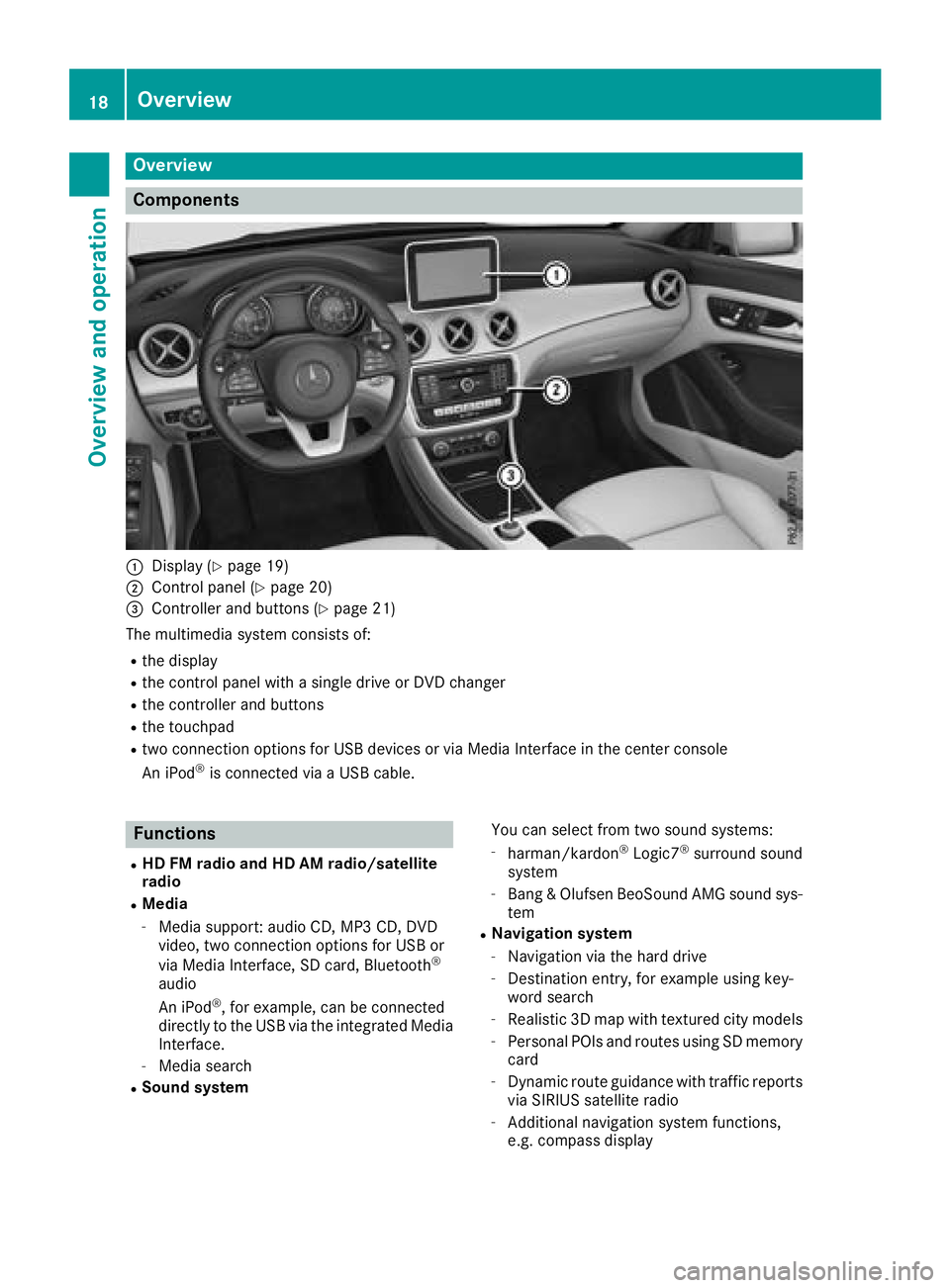
Components
:Display (Ypage 19)
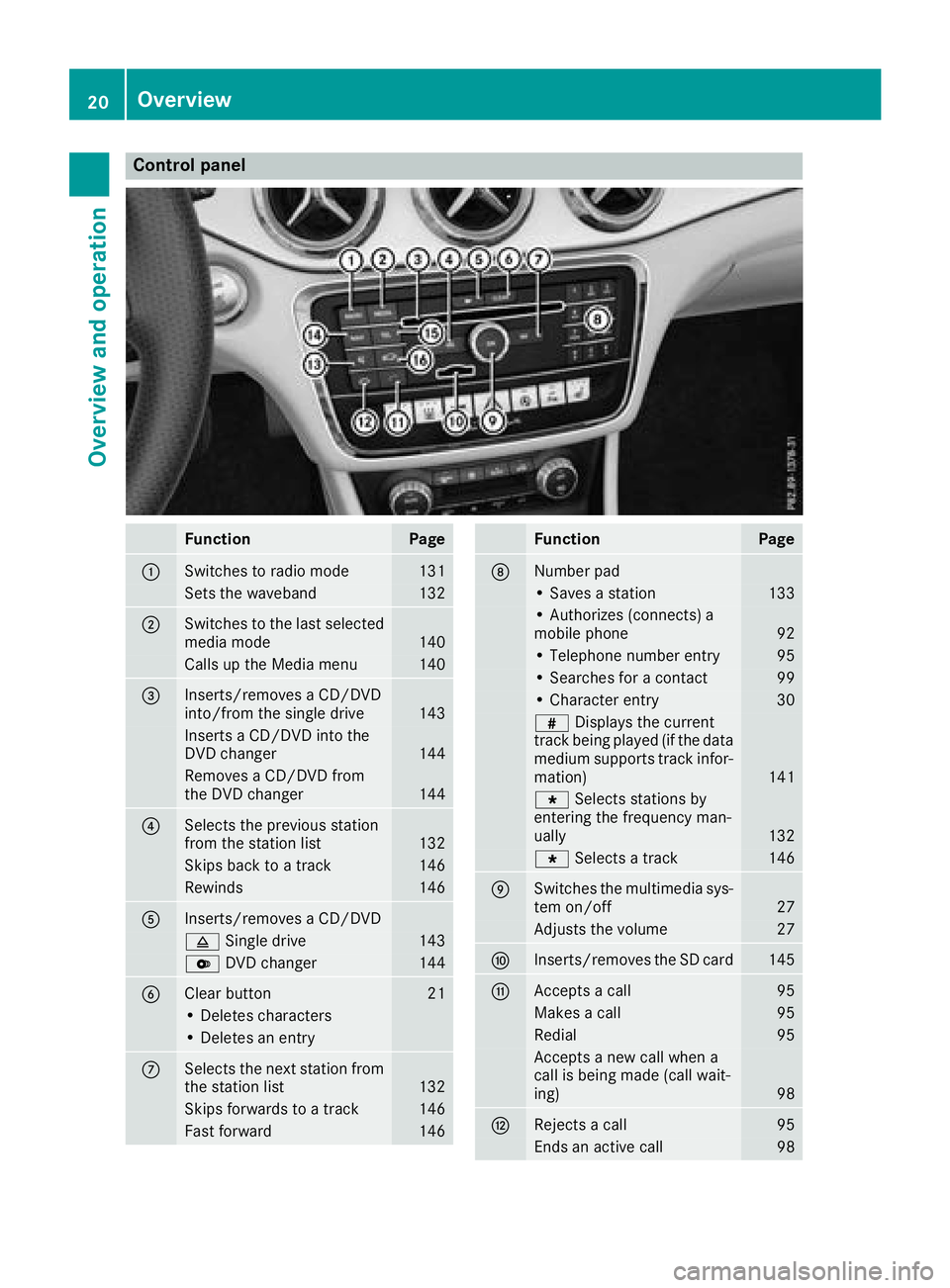
;Control panel (Ypage 20)
=Controller and buttons (Ypage 21)
The multimedia system consists of:
Rthe display
Rthe control panel with a single drive or DVD changer
Rthe controller and buttons
Rthe touchpad
Rtwo connection options for USB devices or via Media Interface in the center console
An iPod®is connected via a USB cable.
Functions
RHD FM radio and HD AM radio/satellite
radio
RMedia
-Media support: audio CD, MP3 CD, DVD
video, two connection options for USB or
via Media Interface, SD card, Bluetooth
®
audio
An iPod®, for example, can be connected
directly to the USB via the integrated Media
Interface.
-Media search
RSound system You can select from two sound systems:
-harman/kardon®Logic7®surround sound
system
-Bang & Olufsen BeoSound AMG sound sys-
tem
RNavigation system
-Navigation via the hard drive
-Destination entry, for example using key-
word search
-Realistic 3D map with textured city models
-Personal POIs and routes using SD memory
card
-Dynamic route guidance with traffic reports
via SIRIUS satellite radio
-Additional navigation system functions,
e.g. compass display
18Overview
Overview and operation
Page 21 of 194
RCommunication
-Messaging functions (text messages, e-
mail)
-Address book
-Internet browser
-Mercedes-Benz Apps with online search,
destination and route download, Facebook,
stock prices, news and much more
-Mercedes-Benz Mobile Website
-Wi-Fi interface for the connection of a
smartphone to the multimedia system
-Wi-Fi hotspot functionality to connect a
tablet PC or laptop in order to enable
access to the Internet using the customer's
mobile phone
RSIRIUS Weather
-Weather data as an information chart (cur-
rent forecast, 5-day preview, detailed infor-
mation)
-Weather data on the weather map, e.g. rain
radar data, storm characteristics and the
track of tropical cyclones (hurricanes, tor-
nadoes)
RVehicle functions
-Vehicle settings, e.g. fuel consumption
-Ionization
-360° camera
-Rear view camera
-Seat functions
-DYNAMIC SELECT (individual drive pro-
gram)
-Driving dynamics display in the multimedia
system for vehicles with the Off-Road Engi-neering package (see the vehicle Opera-
tor's Manual)
RFavorites button
-Fast access to favorites functions using the
favorites button on the controller
Display
General notes
!Do not use the space in front of the display
for storage. Objects placed here could dam-
age the display or impair its function. Avoid
any direct contact with the display surface.
Pressure on the display surface may result in
impairments to the display, which could be
irreversible. Wearing polarized sunglasses may impair your
ability to read the display.
The display has an automatic temperature-con-
trolled switch-off feature. The brightness is
automatically reduced if the temperature is too
high. The display may then temporarily switch
off completely.
Overview
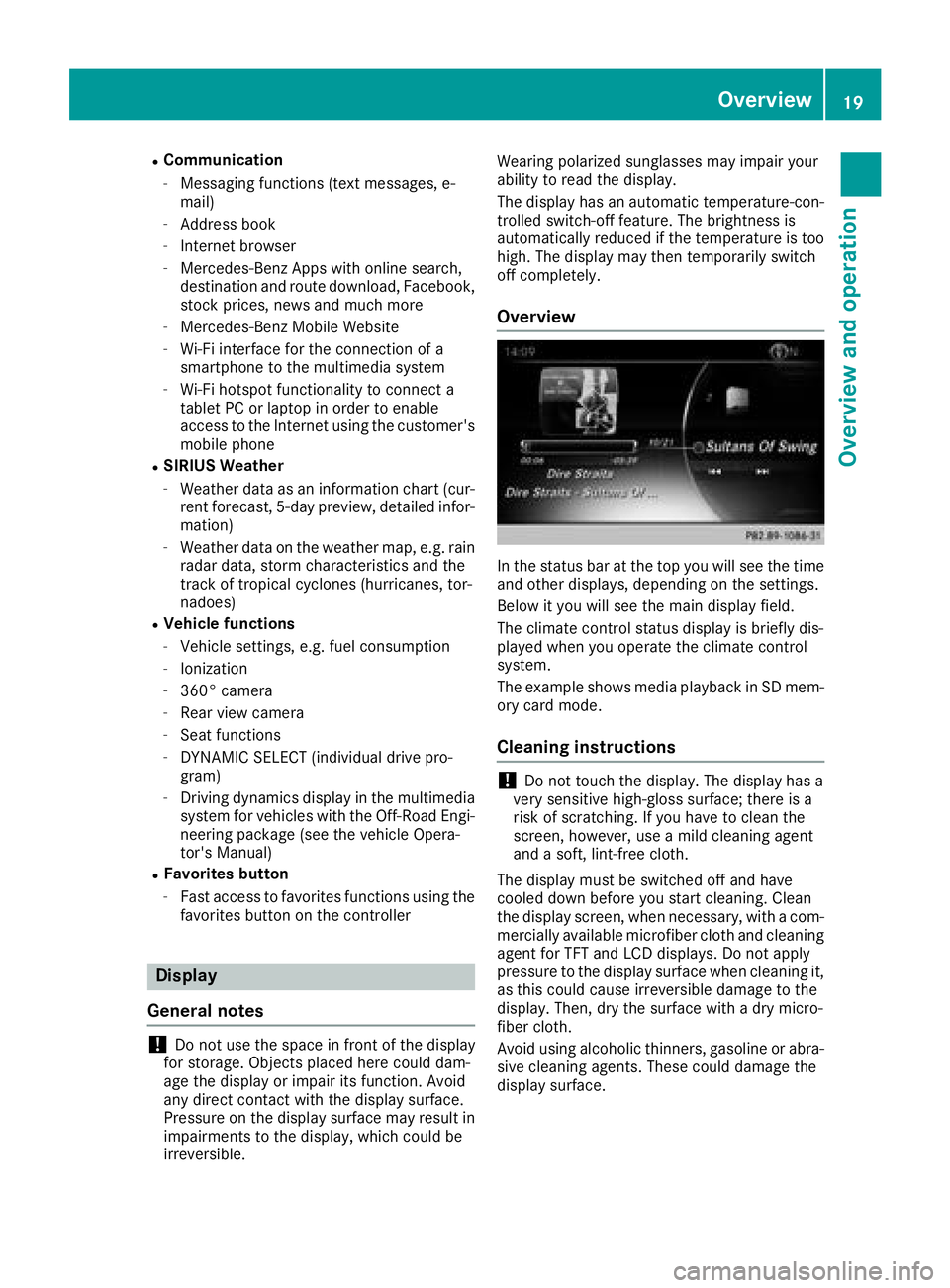
In the status bar at the top you will see the time
and other displays, depending on the settings.
Below it you will see the main display field.
The climate control status display is briefly dis-
played when you operate the climate control
system.
The example shows media playback in SD mem-
ory card mode.
Cleaning instructions
!Do not touch the display. The display has a
very sensitive high-gloss surface; there is a
risk of scratching. If you have to clean the
screen, however, use a mild cleaning agent
and a soft, lint-free cloth.
The display must be switched off and have
cooled down before you start cleaning. Clean
the display screen, when necessary, with a com-
mercially available microfiber cloth and cleaning
agent for TFT and LCD displays. Do not apply
pressure to the display surface when cleaning it,
as this could cause irreversible damage to the
display. Then, dry the surface with a dry micro-
fiber cloth.
Avoid using alcoholic thinners, gasoline or abra-
sive cleaning agents. These could damage the
display surface.
Overview19
Overview and operation
Page 22 of 194
Control panel
FunctionPage
:Switches to radio mode131
Sets the waveband132
;Switches to the last selected
media mode140
Calls up the Media menu140
=Inserts/removes a CD/DVD
into/from the single drive143
Inserts a CD/DVD into the
DVD changer144
Removes a CD/DVD from
the DVD changer144
?Selects the previous station
from the station list132
Skips back to a track146
Rewinds146
AInserts/removes a CD/DVD
8Single drive143
VDVD changer144
BClear button21
• Deletes characters
• Deletes an entry
CSelects the next station from
the station list132
Skips forwards to a track146
Fast forward146
FunctionPage
DNumber pad
• Saves a station133
• Authorizes (connects) a
mobile phone92
• Telephone number entry95
• Searches for a contact99
• Character entry30
zDisplays the current
track being played (if the data
medium supports track infor-
mation)
141
g Selects stations by
entering the frequency man-
ually
132
g Selects a track146
ESwitches the multimedia sys-
tem on/off27
Adjusts the volume27
FInserts/removes the SD card145
GAccepts a call95
Makes a call95
Redial95
Accepts a new call when a
call is being made (call wait-
ing)
98
HRejects a call95
Ends an active call98
20Overview
Overview and operation
Page 23 of 194
FunctionPage
ISwitches the mute function
on/off27
Switches off navigation
announcements27
JSwitches to navigation mode52
Calls up the navigation sys-
tem menu86
FunctionPage
KCalls up the telephone menu90
LCalls up vehicle settings43
Buttons and controller
Overview
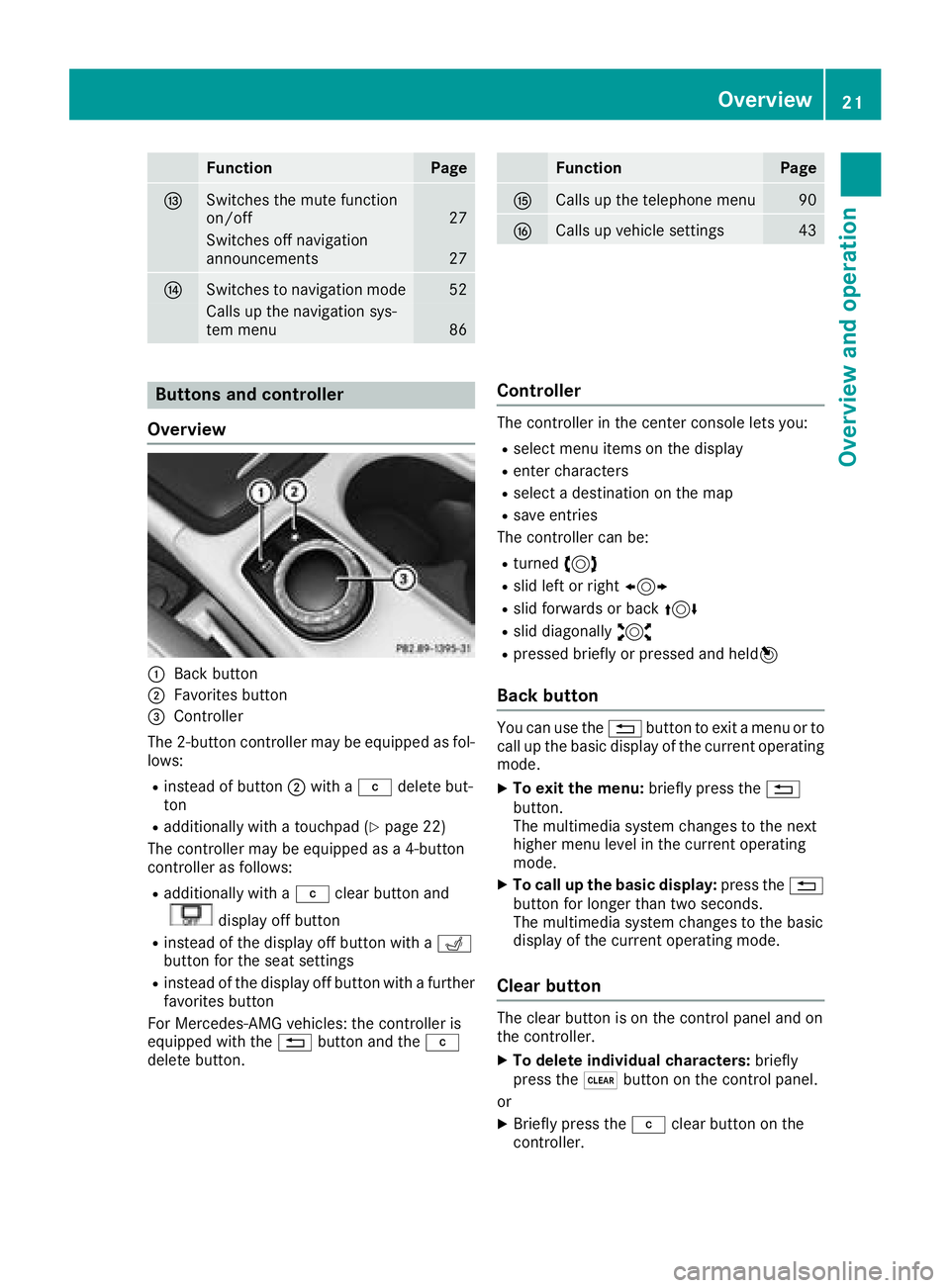
:Back button
;Favorites button
=Controller
The 2-button controller may be equipped as fol-
lows:
Rinstead of button ;with a jdelete but-
ton
Radditionally with a touchpad (Ypage 22)
The controller may be equipped as a 4-button
controller as follows:
Radditionally with a jclear button and
display off button
Rinstead of the display off button with a T
button for the seat settings
Rinstead of the display off button with a further favorites button
For Mercedes-AMG vehicles: the controller is
equipped with the %button and the j
delete button.
Controller
The controller in the center console lets you:
Rselect menu items on the display
Renter characters
Rselect a destination on the map
Rsave entries
The controller can be:
Rturned 3
Rslid left or right 1
Rslid forwards or back 4
Rslid diagonally2
Rpressed briefly or pressed and held 7
Back button
You can use the%button to exit a menu or to
call up the basic display of the current operating
mode.
XTo exit the menu: briefly press the%
button.
The multimedia system changes to the next
higher menu level in the current operating
mode.
XTo call up the basic display: press the%
button for longer than two seconds.
The multimedia system changes to the basic
display of the current operating mode.
Clear button
The clear button is on the control panel and on
the controller.
XTo delete individual characters: briefly
press the $button on the control panel.
or
XBriefly press the jclear button on the
controller.
Overview21
Overview and operation
Page 24 of 194
XTo delete an entire entry:press and hold the
$ button on the control panel.
or
XPress and hold the jclear button on the
controller.
Favorites button
You can assign predefined functions using the
g favorites button and call them up by press-
ing the button (
Ypage 40).
Display off button
You can switch off the display using thebutton.
Seat button
If the controller is equipped with the Tbut-
ton, you can call up the menu for the seat set-
tings (
Ypage 45).
Touchpad
Touchpad overview
!
Do not use any sharp objects on the touch-
pad. This could damage the touchpad.
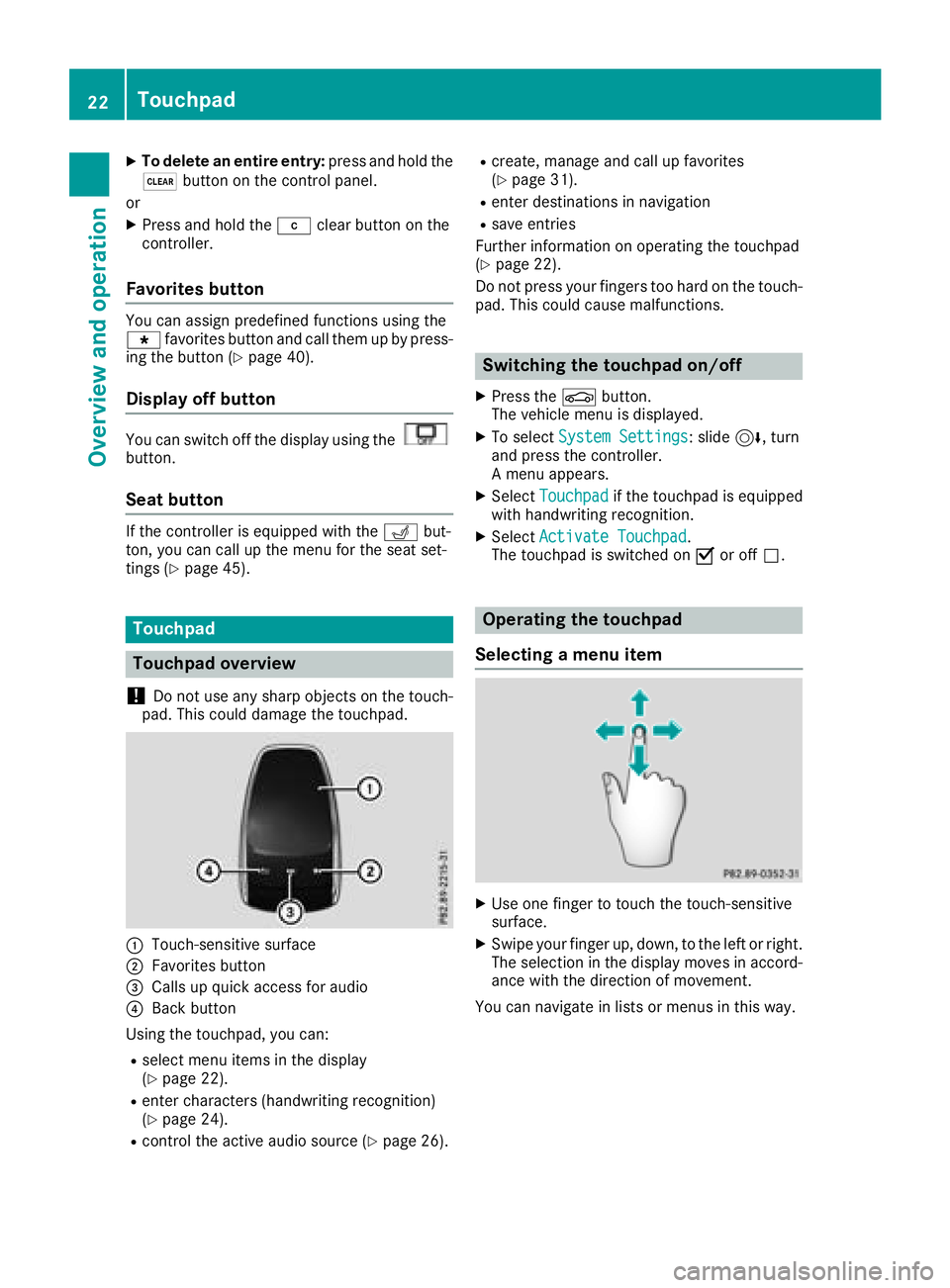
:Touch-sensitive surface
;Favorites button
=Calls up quick access for audio
?Back button
Using the touchpad, you can:
Rselect menu items in the display
(Ypage 22).
Renter characters (handwriting recognition)
(Ypage 24).
Rcontrol the active audio source (Ypage 26).
Rcreate, manage and call up favorites
(Ypage 31).
Renter destinations in navigation
Rsave entries
Further information on operating the touchpad
(
Ypage 22).
Do not press your fingers too hard on the touch-
pad. This could cause malfunctions.
Switching the touchpad on/off
XPress the Øbutton.
The vehicle menu is displayed.
XTo select System Settings: slide6, turn
and press the controller.
A menu appears.
XSelect Touchpadif the touchpad is equipped
with handwriting recognition.
XSelect Activate Touchpad.
The touchpad is switched on Oor off ª.
Operating the touchpad
Selecting a menu item
XUse one finger to touch the touch-sensitive
surface.
XSwipe your finger up, down, to the left or right.
The selection in the display moves in accord- ance with the direction of movement.
You can navigate in lists or menus in this way.
22Touchpad
Overview and operation
Page 25 of 194
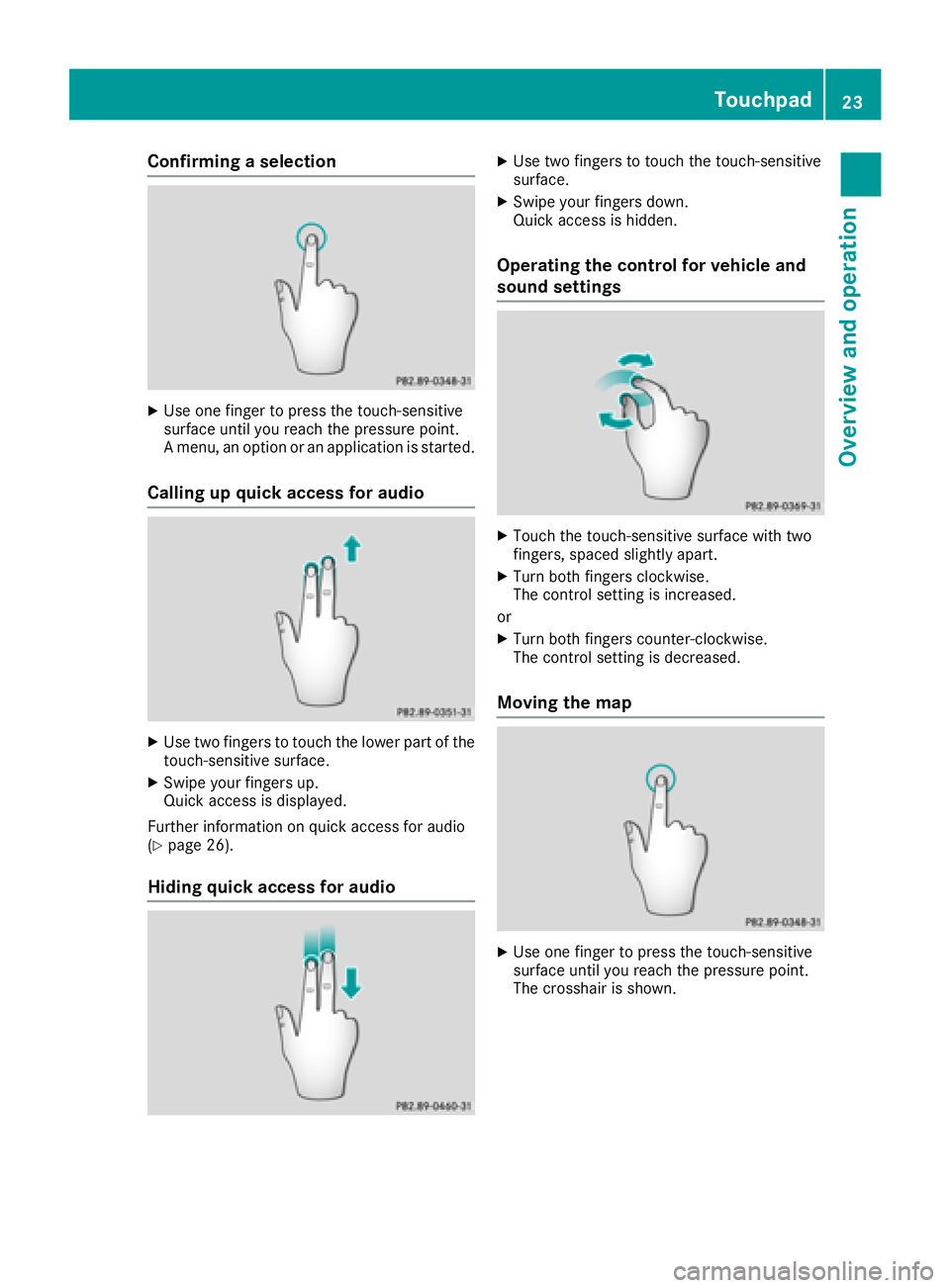
Confirming a selection
XUse one finger to press the touch-sensitive
surface until you reach the pressure point.
A menu, an option or an application is started.
Calling up quick access for audio
XUse two fingers to touch the lower part of the
touch-sensitive surface.
XSwipe your fingers up.
Quick access is displayed.
Further information on quick access for audio
(
Ypage 26).
Hiding quick access for audio
XUse two fingers to touch the touch-sensitive
surface.
XSwipe your fingers down.
Quick access is hidden.
Operating the control for vehicle and
sound settings
XTouch the touch-sensitive surface with two
fingers, spaced slightly apart.
XTurn both fingers clockwise.
The control setting is increased.
or
XTurn both fingers counter-clockwise.
The control setting is decreased.
Moving the map
XUse one finger to press the touch-sensitive
surface until you reach the pressure point.
The crosshair is shown.
Touchpad23
Overview and operation
Page 26 of 194
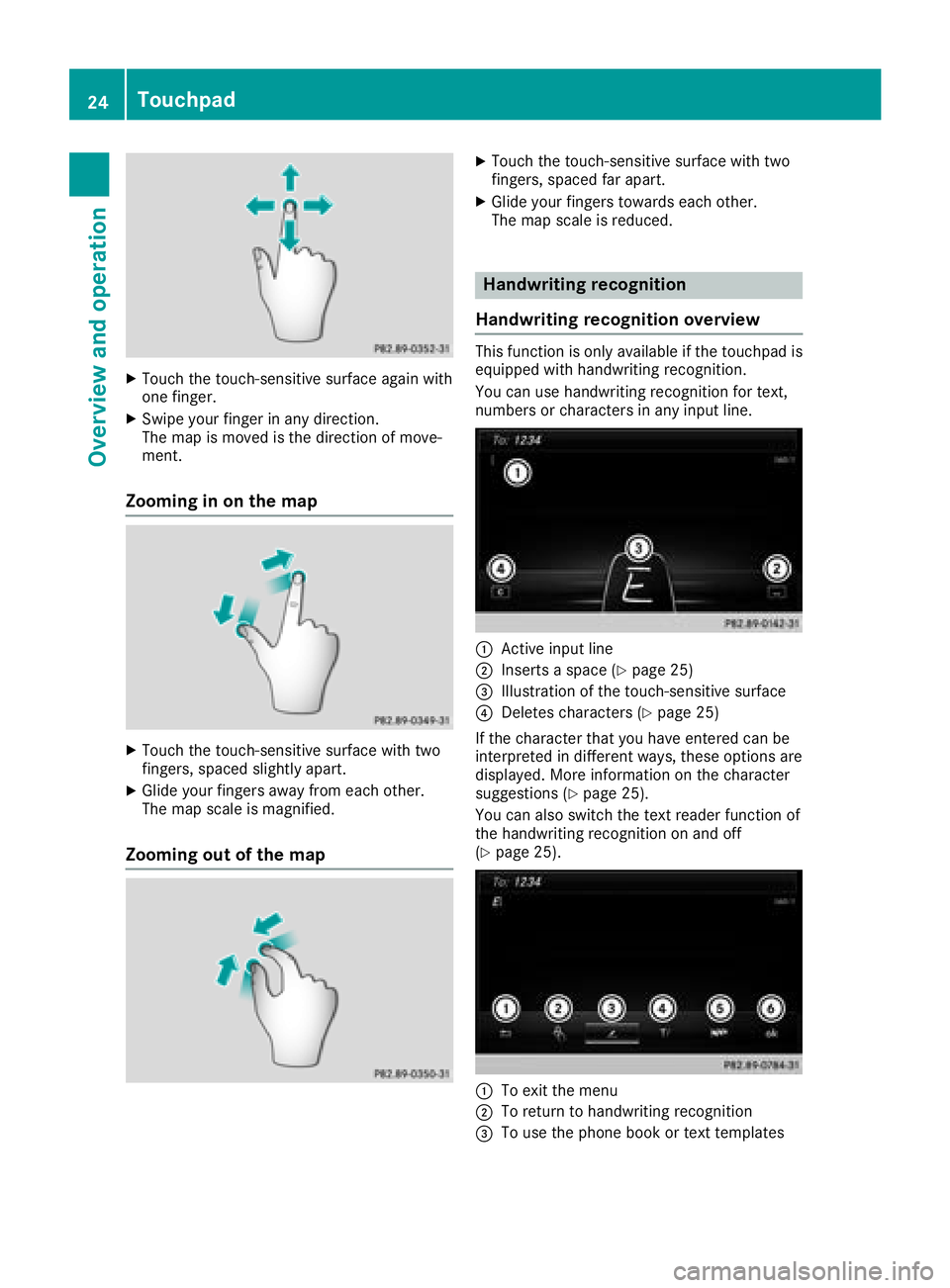
XTouch the touch-sensitive surface again with
one finger.
XSwipe your finger in any direction.
The map is moved is the direction of move-
ment.
Zooming in on the map
XTouch the touch-sensitive surface with two
fingers, spaced slightly apart.
XGlide your fingers away from each other.
The map scale is magnified.
Zooming out of the map
XTouch the touch-sensitive surface with two
fingers, spaced far apart.
XGlide your fingers towards each other.
The map scale is reduced.
Handwriting recognition
Handwriting recognition overview
This function is only available if the touchpad is equipped with handwriting recognition.
You can use handwriting recognition for text,
numbers or characters in any input line.
:Active input line
;Inserts a space (Ypage 25)
=Illustration of the touch-sensitive surface
?Deletes characters (Ypage 25)
If the character that you have entered can be
interpreted in different ways, these options are
displayed. More information on the character
suggestions (
Ypage 25).
You can also switch the text reader function of
the handwriting recognition on and off
(
Ypage 25).
:To exit the menu
;To return to handwriting recognition
=To use the phone book or text templates
24Touchpad
Overview and operation