navigation MERCEDES-BENZ GLS SUV 2018 COMAND Manual
[x] Cancel search | Manufacturer: MERCEDES-BENZ, Model Year: 2018, Model line: GLS SUV, Model: MERCEDES-BENZ GLS SUV 2018Pages: 194, PDF Size: 4.5 MB
Page 23 of 194
FunctionPage
ISwitches the mute function
on/off27
Switches off navigation
announcements27
JSwitches to navigation mode52
Calls up the navigation sys-
tem menu86
FunctionPage
KCalls up the telephone menu90
LCalls up vehicle settings43
Buttons and controller
Overview
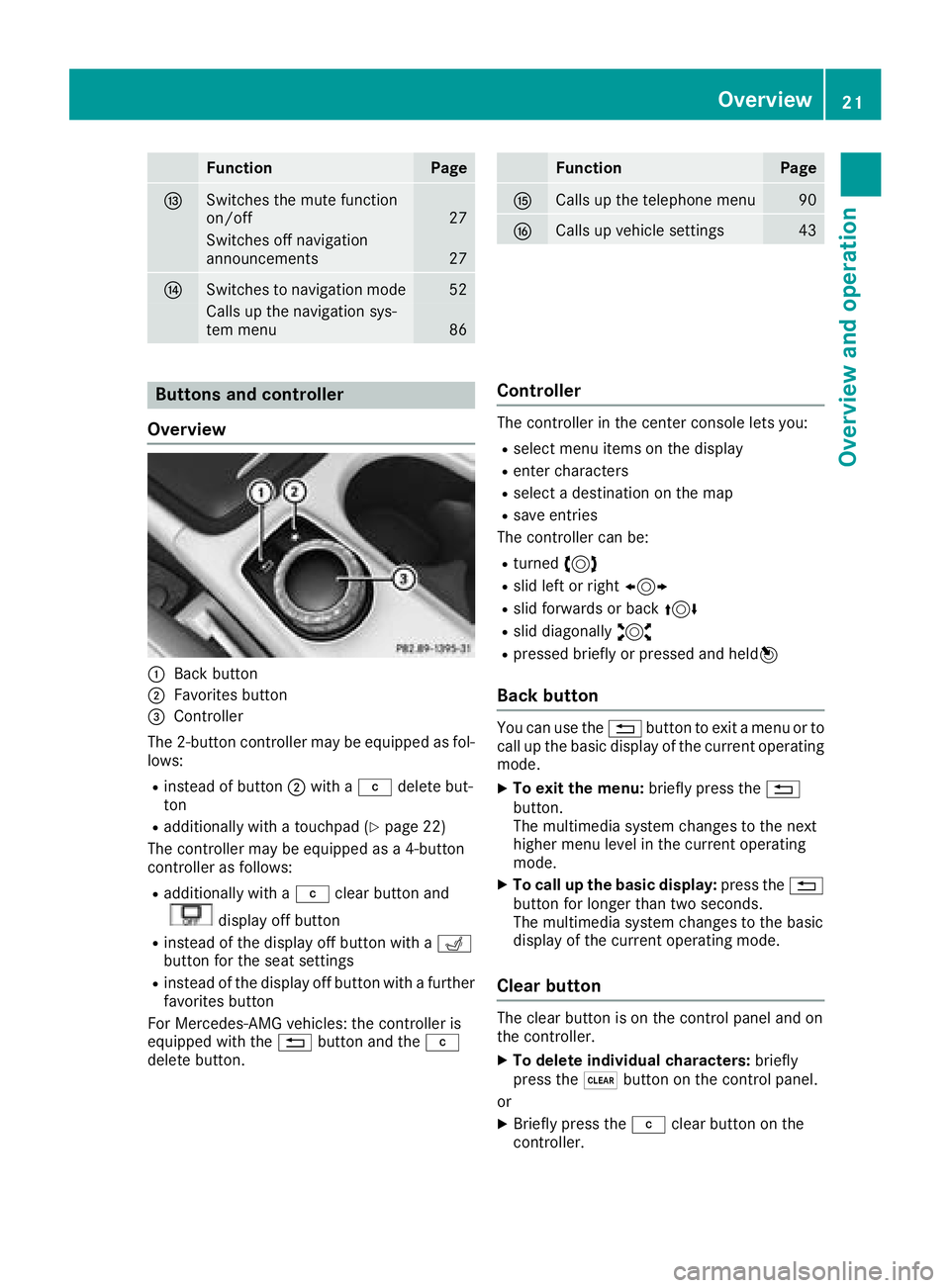
:Back button
;Favorites button
=Controller
The 2-button controller may be equipped as fol-
lows:
Rinstead of button ;with a jdelete but-
ton
Radditionally with a touchpad (Ypage 22)
The controller may be equipped as a 4-button
controller as follows:
Radditionally with a jclear button and
display off button
Rinstead of the display off button with a T
button for the seat settings
Rinstead of the display off button with a further favorites button
For Mercedes-AMG vehicles: the controller is
equipped with the %button and the j
delete button.
Controller
The controller in the center console lets you:
Rselect menu items on the display
Renter characters
Rselect a destination on the map
Rsave entries
The controller can be:
Rturned 3
Rslid left or right 1
Rslid forwards or back 4
Rslid diagonally2
Rpressed briefly or pressed and held 7
Back button
You can use the%button to exit a menu or to
call up the basic display of the current operating
mode.
XTo exit the menu: briefly press the%
button.
The multimedia system changes to the next
higher menu level in the current operating
mode.
XTo call up the basic display: press the%
button for longer than two seconds.
The multimedia system changes to the basic
display of the current operating mode.
Clear button
The clear button is on the control panel and on
the controller.
XTo delete individual characters: briefly
press the $button on the control panel.
or
XBriefly press the jclear button on the
controller.
Overview21
Overview and operation
Page 24 of 194
XTo delete an entire entry:press and hold the
$ button on the control panel.
or
XPress and hold the jclear button on the
controller.
Favorites button
You can assign predefined functions using the
g favorites button and call them up by press-
ing the button (
Ypage 40).
Display off button
You can switch off the display using thebutton.
Seat button
If the controller is equipped with the Tbut-
ton, you can call up the menu for the seat set-
tings (
Ypage 45).
Touchpad
Touchpad overview
!
Do not use any sharp objects on the touch-
pad. This could damage the touchpad.
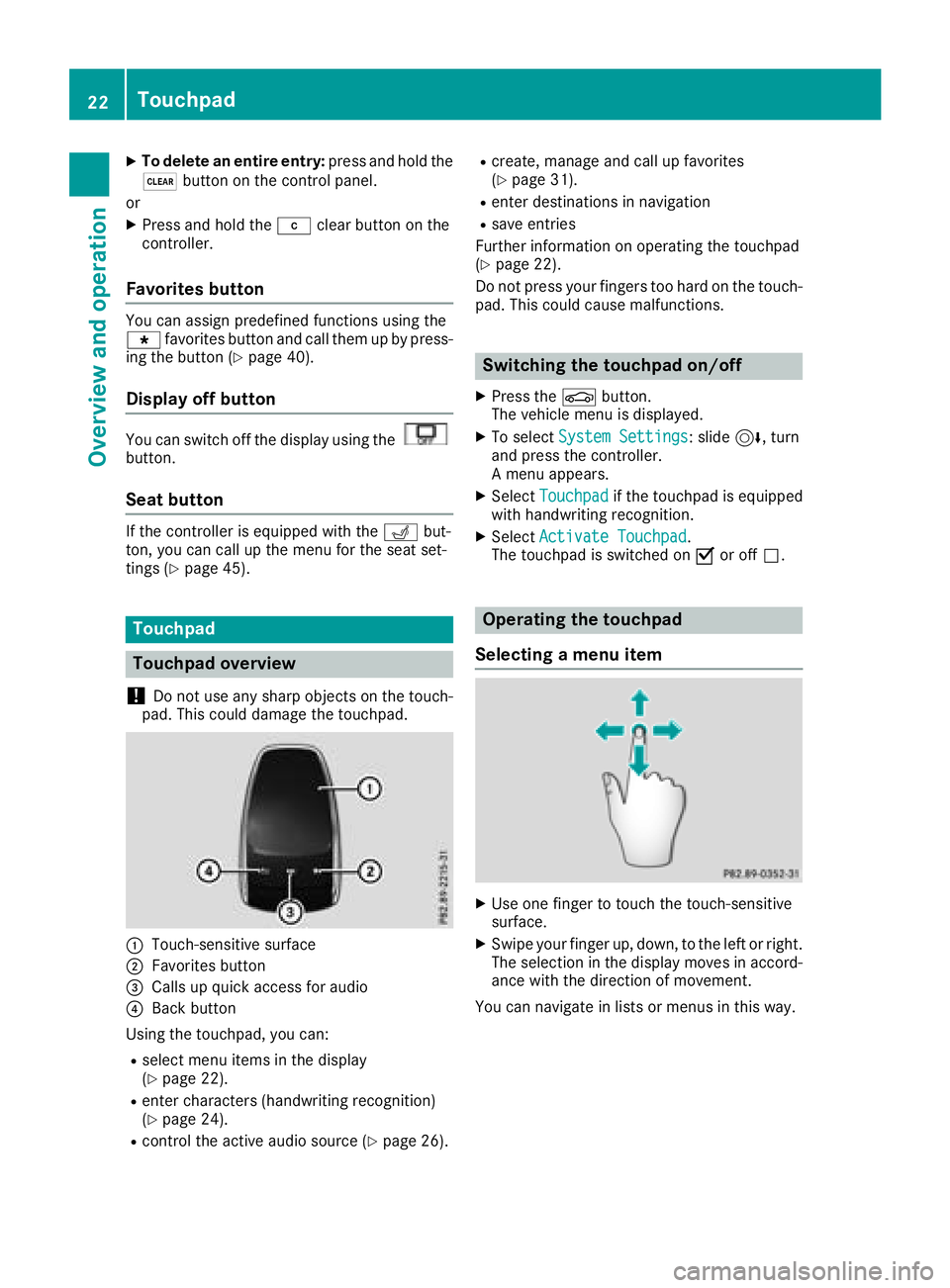
:Touch-sensitive surface
;Favorites button
=Calls up quick access for audio
?Back button
Using the touchpad, you can:
Rselect menu items in the display
(Ypage 22).
Renter characters (handwriting recognition)
(Ypage 24).
Rcontrol the active audio source (Ypage 26).
Rcreate, manage and call up favorites
(Ypage 31).
Renter destinations in navigation
Rsave entries
Further information on operating the touchpad
(
Ypage 22).
Do not press your fingers too hard on the touch-
pad. This could cause malfunctions.
Switching the touchpad on/off
XPress the Øbutton.
The vehicle menu is displayed.
XTo select System Settings: slide6, turn
and press the controller.
A menu appears.
XSelect Touchpadif the touchpad is equipped
with handwriting recognition.
XSelect Activate Touchpad.
The touchpad is switched on Oor off ª.
Operating the touchpad
Selecting a menu item
XUse one finger to touch the touch-sensitive
surface.
XSwipe your finger up, down, to the left or right.
The selection in the display moves in accord- ance with the direction of movement.
You can navigate in lists or menus in this way.
22Touchpad
Overview and operation
Page 29 of 194
Changing the audio source
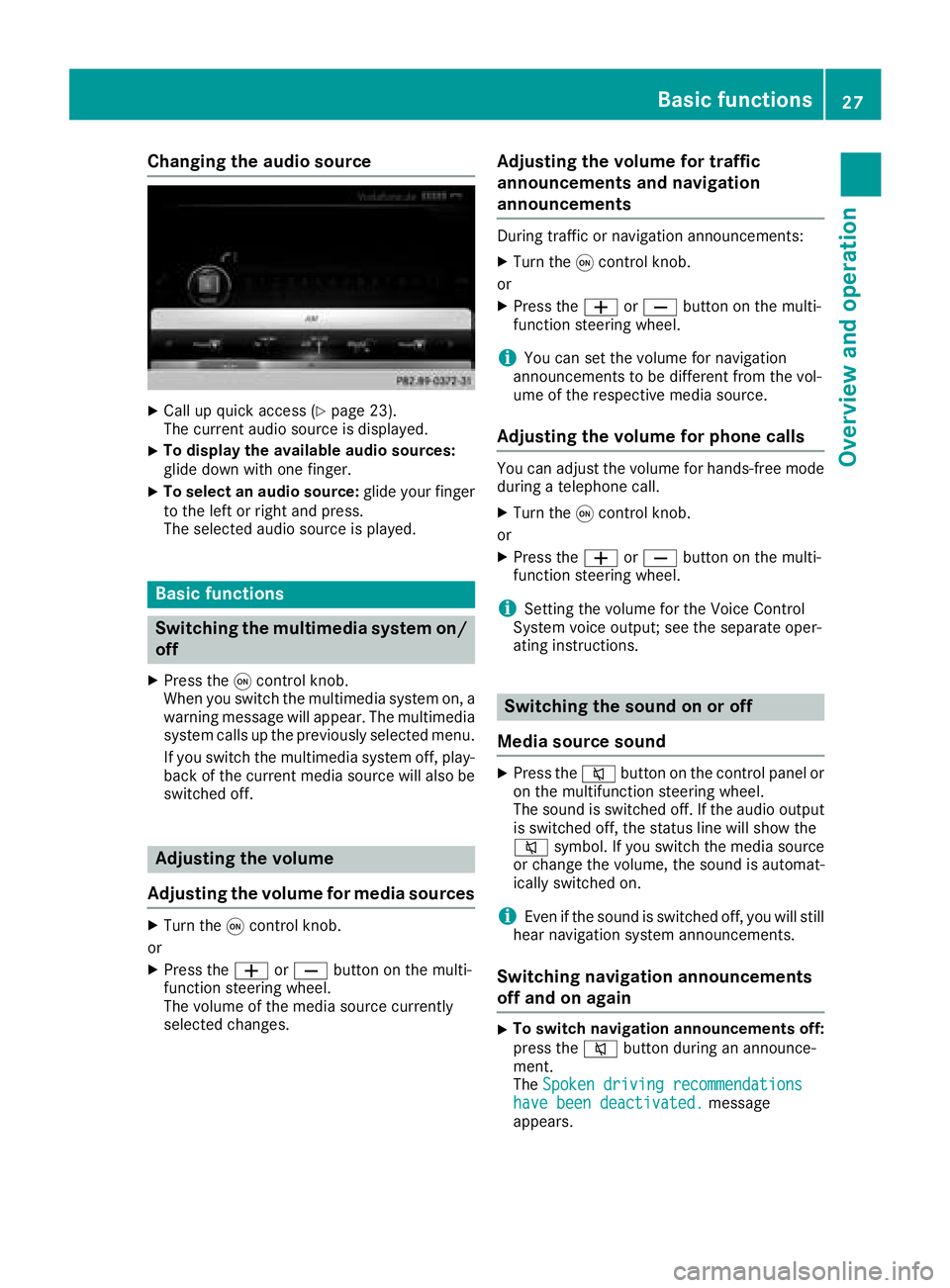
XCall up quick access (Ypage 23).
The current audio source is displayed.
XTo display the available audio sources:
glide down with one finger.
XTo select an audio source: glide your finger
to the left or right and press.
The selected audio source is played.
Basic functions
Switching the multimedia system on/
off
XPress the qcontrol knob.
When you switch the multimedia system on, a
warning message will appear. The multimedia
system calls up the previously selected menu.
If you switch the multimedia system off, play- back of the current media source will also be
switched off.
Adjusting the volume
Adjusting the volume for media sources
XTurn the qcontrol knob.
or
XPress the WorX button on the multi-
function steering wheel.
The volume of the media source currently
selected changes.
Adjusting the volume for traffic
announcements and navigation
announcements
During traffic or navigation announcements:
XTurn the qcontrol knob.
or
XPress the WorX button on the multi-
function steering wheel.
iYou can set the volume for navigation
announcements to be different from the vol-
ume of the respective media source.
Adjusting the volume for phone calls
You can adjust the volume for hands-free mode
during a telephone call.
XTurn the qcontrol knob.
or
XPress the WorX button on the multi-
function steering wheel.
iSetting the volume for the Voice Control
System voice output; see the separate oper-
ating instructions.
Switching the sound on or off
Media source sound
XPress the 8button on the control panel or
on the multifunction steering wheel.
The sound is switched off. If the audio output
is switched off, the status line will show the
8 symbol. If you switch the media source
or change the volume, the sound is automat-
ically switched on.
iEven if the sound is switched off, you will still
hear navigation system announcements.
Switching navigation announcements
off and on again
XTo switch navigation announcements off:
press the 8button during an announce-
ment.
The Spoken driving recommendations
have been deactivated.message
appears.
Basic functions27
Overview and operation
Page 30 of 194
XTo switch navigation announcements on
again:switch the multimedia system off and
then on again (
Ypage 27).
or
XStart a new route calculation (Ypage 57).
or
XSelect +: while route guidance is active,
show the menu and press the controller
(
Ypage 72).
Function menu
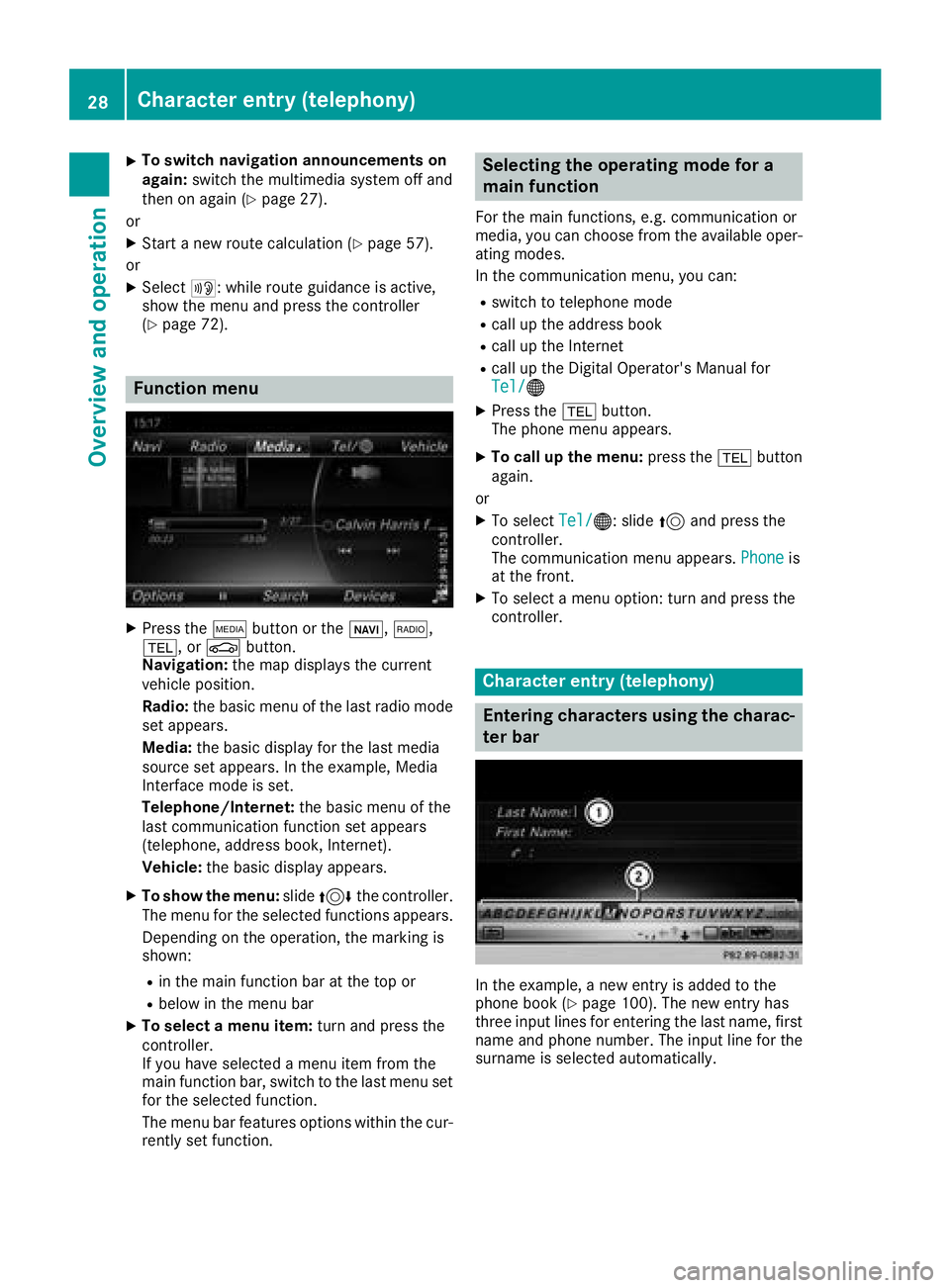
XPress the Õbutton or the ß,$,
%, or Øbutton.
Navigation: the map displays the current
vehicle position.
Radio: the basic menu of the last radio mode
set appears.
Media: the basic display for the last media
source set appears. In the example, Media
Interface mode is set.
Telephone/Internet: the basic menu of the
last communication function set appears
(telephone, address book, Internet).
Vehicle: the basic display appears.
XTo show the menu: slide4 the controller.
The menu for the selected functions appears.
Depending on the operation, the marking is
shown:
Rin the main function bar at the top or
Rbelow in the menu bar
XTo select a menu item: turn and press the
controller.
If you have selected a menu item from the
main function bar, switch to the last menu set
for the selected function.
The menu bar features options within the cur-
rently set function.
Selecting the operating mode for a
main function
For the main functions, e.g. communication or
media, you can choose from the available oper-
ating modes.
In the communication menu, you can:
Rswitch to telephone mode
Rcall up the address book
Rcall up the Internet
Rcall up the Digital Operator's Manual for
Tel/®
XPress the %button.
The phone menu appears.
XTo call up the menu: press the%button
again.
or
XTo select Tel/®: slide5and press the
controller.
The communication menu appears. Phone
is
at the front.
XTo select a menu option: turn and press the
controller.
Character entry (telephony)
Entering characters using the charac-
ter bar
In the example, a new entry is added to the
phone book (Ypage 100). The new entry has
three input lines for entering the last name, first name and phone number. The input line for the
surname is selected automatically.
28Character entry (telephony)
Overview and operation
Page 32 of 194
Character entry (navigation)
Entering characters using the charac-
ter bar
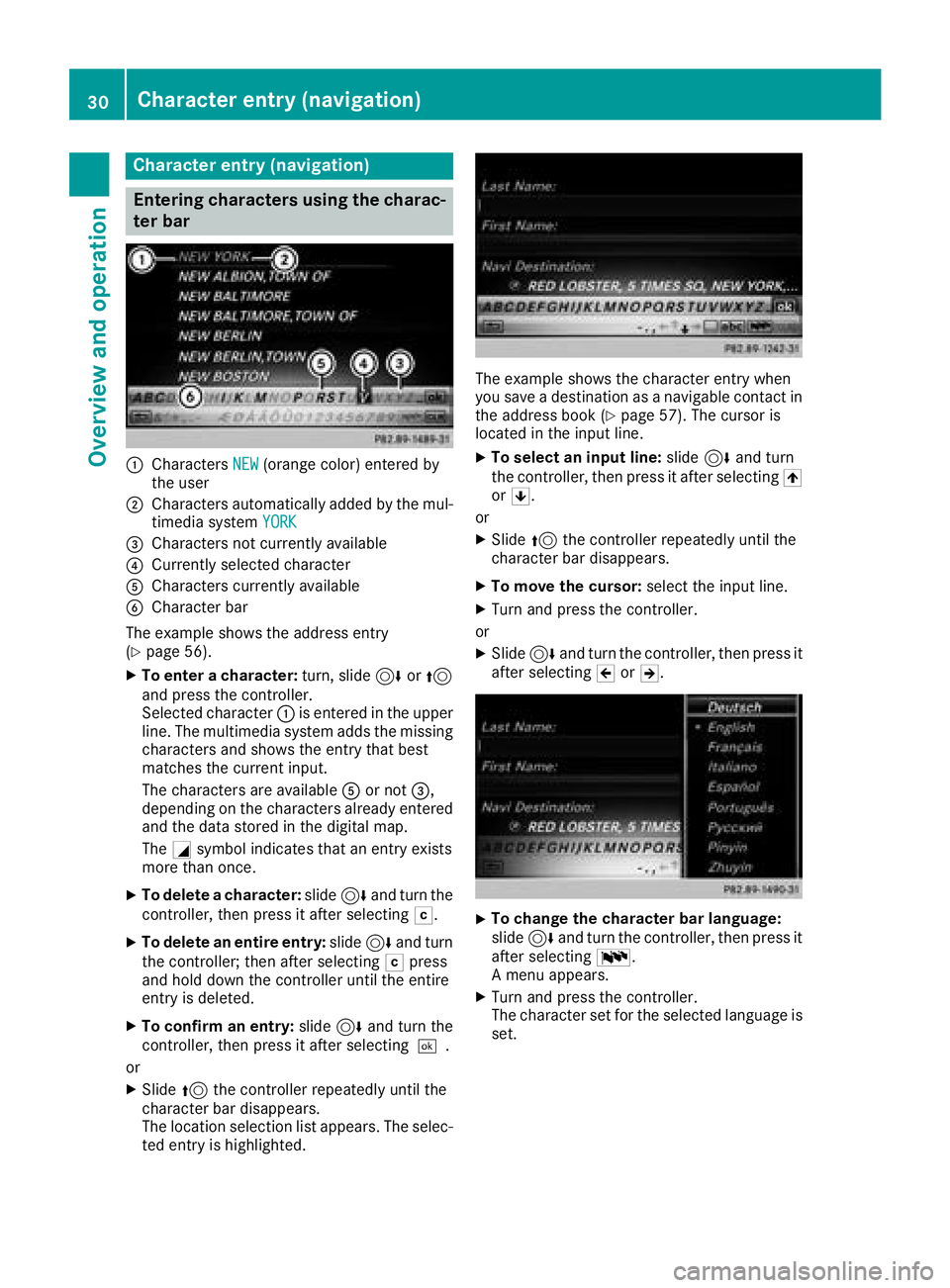
:CharactersNEW(orange color) entered by
the user
;Characters automatically added by the mul-
timedia system YORK
=Characters not currently available
?Currently selected character
ACharacters currently available
BCharacter bar
The example shows the address entry
(
Ypage 56).
XTo enter a character: turn, slide6or5
and press the controller.
Selected character :is entered in the upper
line. The multimedia system adds the missing
characters and shows the entry that best
matches the current input.
The characters are available Aor not =,
depending on the characters already entered
and the data stored in the digital map.
The Gsymbol indicates that an entry exists
more than once.
XTo delete a character: slide6and turn the
controller, then press it after selecting F.
XTo delete an entire entry:slide6and turn
the controller; then after selecting Fpress
and hold down the controller until the entire
entry is deleted.
XTo confirm an entry: slide6and turn the
controller, then press it after selecting ¬.
or
XSlide 5the controller repeatedly until the
character bar disappears.
The location selection list appears. The selec-
ted entry is highlighted.
The example shows the character entry when
you save a destination as a navigable contact in
the address book (
Ypage 57). The cursor is
located in the input line.
XTo select an input line: slide6and turn
the controller, then press it after selecting 4
or 5.
or
XSlide 5the controller repeatedly until the
character bar disappears.
XTo move the cursor: select the input line.
XTurn and press the controller.
or
XSlide 6and turn the controller, then press it
after selecting 2or3.
XTo change the character bar language:
slide 6and turn the controller, then press it
after selecting B.
A menu appears.
XTurn and press the controller.
The character set for the selected language is set.
30Character entry (navigation)
Overview and operation
Page 34 of 194
XTo select a favorite:turn and press the con-
troller.
XTo add a favorite at the desired position:
turn and press the controller.
If there is already a favorite at this position,
then this will be deleted.
Adding your own favorites
You can create your own favorites to help you to
use these functions, for example:
RCalling up telephone numbers from the tele-
phone book
RSelecting a radio station
RSkipping to a specific place in a track or an
audio book
RCalling up favored media
RSelecting navigation destinations for route
calculation
The example describes how to add a contact's
telephone number as a favorite.
XCall up the phone book (Ypage 99).
XSelect the contact.
XTo add a telephone number as a favorite
at the desired position: press and hold the
favorites button on the controller until the
favorites are displayed.
XTurn and press the controller.
If there is already a favorite at this position, it
will be deleted and replaced by a new one.
Renaming favorites
XPress the favorites button on the controller.
The favorites are displayed.
XTo select a favorite to be renamed: turn the
controller.
XTo show the menu bar: slide6the con-
troller.
XTo select Rename: turn and press the control-
ler.
XEnter characters using the controller.
XTo finish the entry: selectOK.
The favorite is renamed.
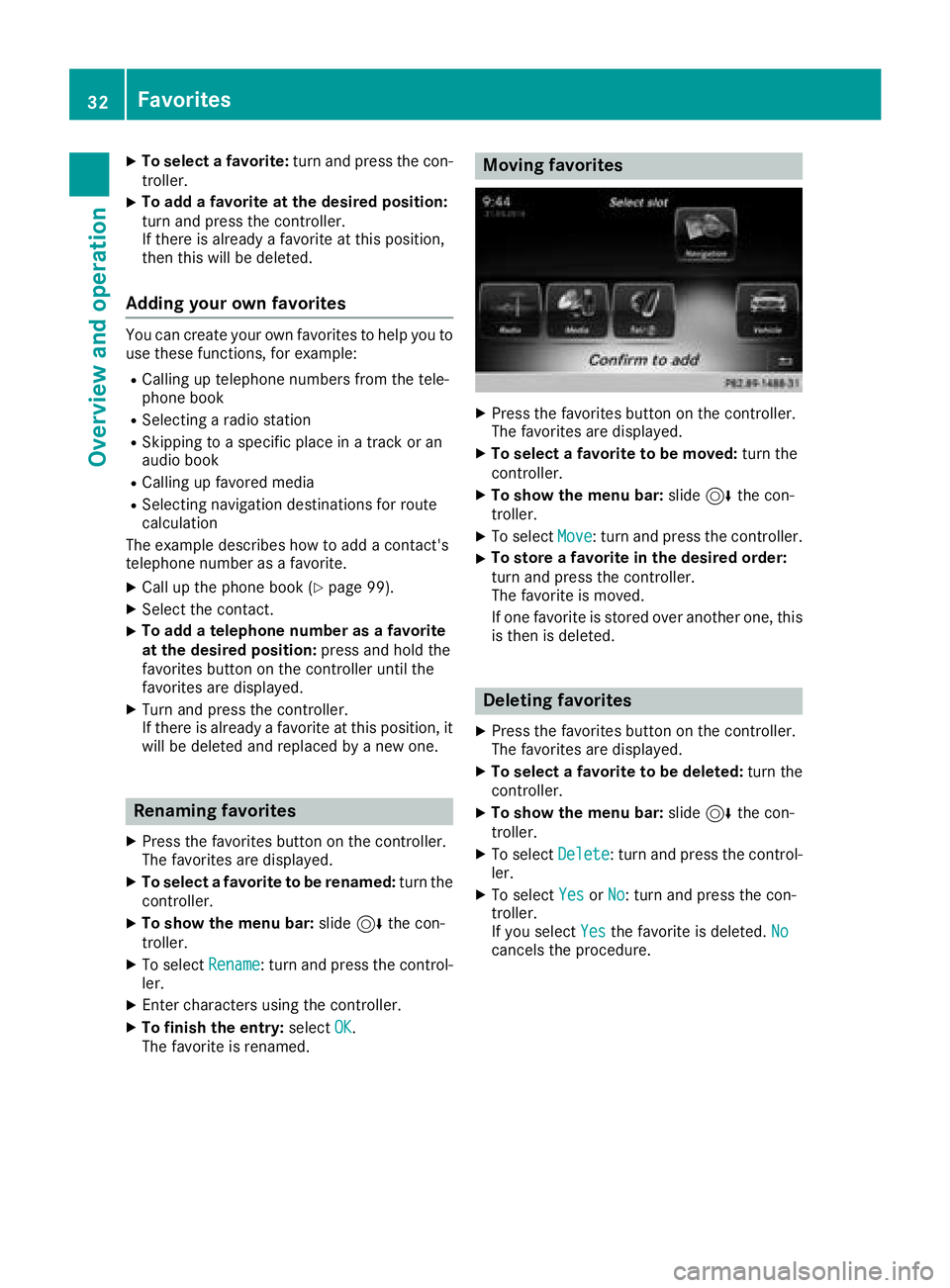
Moving favorites
XPress the favorites button on the controller.
The favorites are displayed.
XTo select a favorite to be moved: turn the
controller.
XTo show the menu bar: slide6the con-
troller.
XTo select Move: turn and press the controller.
XTo store a favorite in the desired order:
turn and press the controller.
The favorite is moved.
If one favorite is stored over another one, this
is then is deleted.
Deleting favorites
XPress the favorites button on the controller.
The favorites are displayed.
XTo select a favorite to be deleted: turn the
controller.
XTo show the menu bar: slide6the con-
troller.
XTo select Delete: turn and press the control-
ler.
XTo select YesorNo: turn and press the con-
troller.
If you select Yes
the favorite is deleted. Nocancels the procedure.
32Favorites
Overviewand operation
Page 36 of 194
DesignExplanation
Day ModeThe display is set perma-
nently to day design .
Night ModeThe display is set perma-
nently to night design .
AutoThe multimedia system
evaluate sth edat aof th e
ligh tsensor and automat -
ically switches ove rth e
display design .
Switching the display on/off
Switchingoff th edispla y
XPress th eØ button.
XTo switch to th emen ubar: slid e6 thecon-
troller.
XTo select DisplayOff:tur nand press th e
controller .
The display goe sout .
XTo switch th edispla yon again: press the
controller .
Time settings
Gene ral inform ation
The multimedia system can automatically set
thetime and date.
The followin gnavigation system function s
require th etime, time zone and summer/stand-
ard time to be set correctl yin order to wor k
properly:
Rrout eguidance on routes wit htime-depend -
en ttraffic guidance
Rcalculation of expecte dtime of arrival
Switching automatic ti me onand off
TheAutomatic Tim eSettingsfunction is
used to activat eor deactivat eth eautomatic
setting of th etime and date. This function is
activated when th evehicl eleaves th efactory.
XPress th eØ button.
or
XPress Vehicl ein themain function bar.
The vehicl emen uis displayed.
XTo switch to th emen ubar: slid e6 thecon-
troller.
XTo select Time:tur nand press th econtroller .
A men uappears.
XTo activat eOor deactivat eª AutomaticTim eSettings:tur nand press th econtrol -
ler .
Setting the ti mezone
To set th etime zone ,th eAutomatic Tim eSettingsfunction mustbe activated.
XPress th eØ button.
or
XPress Vehicl ein themain function bar.
The vehicl emen uis displayed.
XTo switch to th emen ubar: slid e6 thecon-
troller.
XTo select Time:tur nand press th econtroller .
A men uappears.
XTo select TimeZone::tur nand press th e
controller .
A list of countrie sappears. The #dot indi-
cates th ecurren tsetting .
XTo select th ecountr yin which you ar e
currentl ydriving: turnand press th econ-
troller.
The country is accepted. Atime zone list may
also be displayed, depending on th ecountry
selected.
XTo select th edesired time zone: turnand
press th econtroller .
The time zone is accepted.
A list of available option sfor setting summer
time appear s (
Ypage 34).
Setting sum mer and standard ti me
TheDaylight Saving Tim efunction is not
available in all countries.
Using th eDaylight Saving Tim e
function,
you can set th eautomatic changeover to sum -
mer time or switch th esummer time setting son
and off .The changeover to summer time advan -
ce sth etime by on ehour .
XPress th eØ button.
or
XPress Vehicl ein themain function bar.
The vehicl emen uis displayed.
34Time settings
System settings
Page 42 of 194
Activating/deactivating Bluetooth®
X
Press th eØ button.
or
XPress Vehicl ein themain function bar.
The vehicl emen uis displayed.
XTo switch to th emen ubar: slid e6 thecon-
troller .
XTo select System Settings:tur nand press
th econtroller .
A men uappears.
XTo switch Activate BluetoothonO or off
ª: turnand press th econtroller .
Setting the system language
General inform ation
This function allows you to determine th elan -
guage for th emen udisplays and th enavigation
messages. The selected language affects th e
characters available for entry.
iThe navigation announcements are no t
available in all languages. If alanguage is no t
available, th enavigation announcements will
be in English.
iWhen you set th esystem language ,th elan -
guage of th eVoic eControl Syste mwill
chang eaccordingly. If it is no tsupported by
th eVoic eControl System, Englis hwill be
selected.
Setting the system language
XPress th eØ button.
or
XPress Vehicl ein themain function bar.
The vehicl emen uis displayed.
XTo switch to th emen ubar: slid e6 thecon-
troller .
XTo select System Settings:tur nand press
th econtroller .
A men uappears.
XTo select Language:tur nand press th econ-
troller .
The list of language sappears. The #dot indi-
cates th ecurren tsetting .
XSelectth edesired language .
The multimedia system loads th eselected
language and set sit.
Calling up the favorite functions
The favorite sfunction can be called up as fol -
lows :
Rvia th eSystem Settingsmen u
Rvia th eFavorite sbutto non th econtroller
(Ypage 21)
Rvia th eFavorite sbutto non th etouchpad
(Ypage 22 )
Calling up th eFavorites function via th esys -
tem men u
XPress theØ button.
or
XPress Vehicl ein themain function bar.
The vehicl emen uis displayed.
XTo switch to th emen ubar: slid e6 thecon-
troller .
XTo select System Settings:tur nand press
th econtroller .
A men uappears.
XTo select Favorite Functions:press th e
controller .
The favorite sare displayed.
XTo select th edesired function ,e.g. Phone‐book:tur nand press th econtroller .
A men uappears.
Calling up th eFavorites function using th e
controller
XPress th efavorite sbutto non th econtroller .
The favorite sare displayed.
XTo select th edesired function ,e.g. Phone‐book:tur nand press th econtroller .
Calling up th eFavorites function via th e
touchpad
XPress th efavorite sbutto non th etouchpad.
The favorite sare displayed.
XTo select th edesired function ,e.g. Phone‐book:tur nand press th econtroller .
40Calling up the favorite functions
System settings
Page 44 of 194
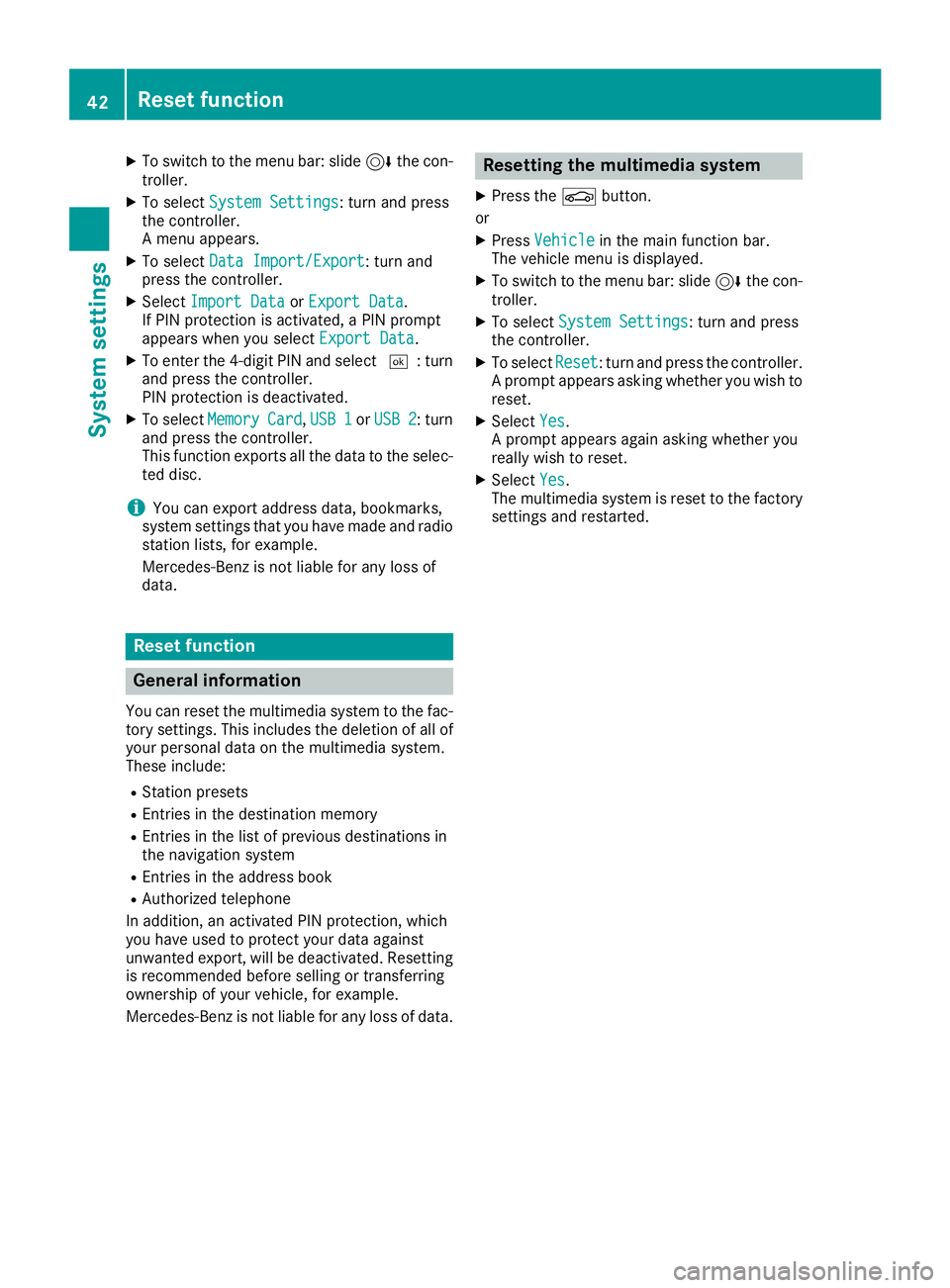
XTo switch to the menu bar: slide6the con-
troller.
XTo select System Settings: turn and press
the controller.
A menu appears.
XTo select Data Import/Export: turn and
press the controller.
XSelect Import DataorExport Data.
If PIN protection is activated, a PIN prompt
appears when you select Export Data
.
XTo enter the 4-digit PIN and select ¬: turn
and press the controller.
PIN protection is deactivated.
XTo select MemoryCard,USB 1or USB 2: turn
and press the controller.
This function exports all the data to the selec-
ted disc.
iYou can export address data, bookmarks,
system settings that you have made and radio
station lists, for example.
Mercedes-Benz is not liable for any loss of
data.
Reset function
General information
You can reset the multimedia system to the fac-
tory settings. This includes the deletion of all of
your personal data on the multimedia system.
These include:
RStation presets
REntries in the destination memory
REntries in the list of previous destinations in
the navigation system
REntries in the address book
RAuthorized telephone
In addition, an activated PIN protection, which
you have used to protect your data against
unwanted export, will be deactivated. Resetting
is recommended before selling or transferring
ownership of your vehicle, for example.
Mercedes-Benz is not liable for any loss of data.
Resetting the multimedia system
XPress the Øbutton.
or
XPress Vehiclein the main function bar.
The vehicle menu is displayed.
XTo switch to the menu bar: slide 6the con-
troller.
XTo select System Settings: turn and press
the controller.
XTo select Reset: turn and press the controller.
A prompt appears asking whether you wish to
reset.
XSelect Yes.
A prompt appears again asking whether you
really wish to reset.
XSelect Yes.
The multimedia system is reset to the factory
settings and restarted.
42Reset function
System settings
Page 53 of 194
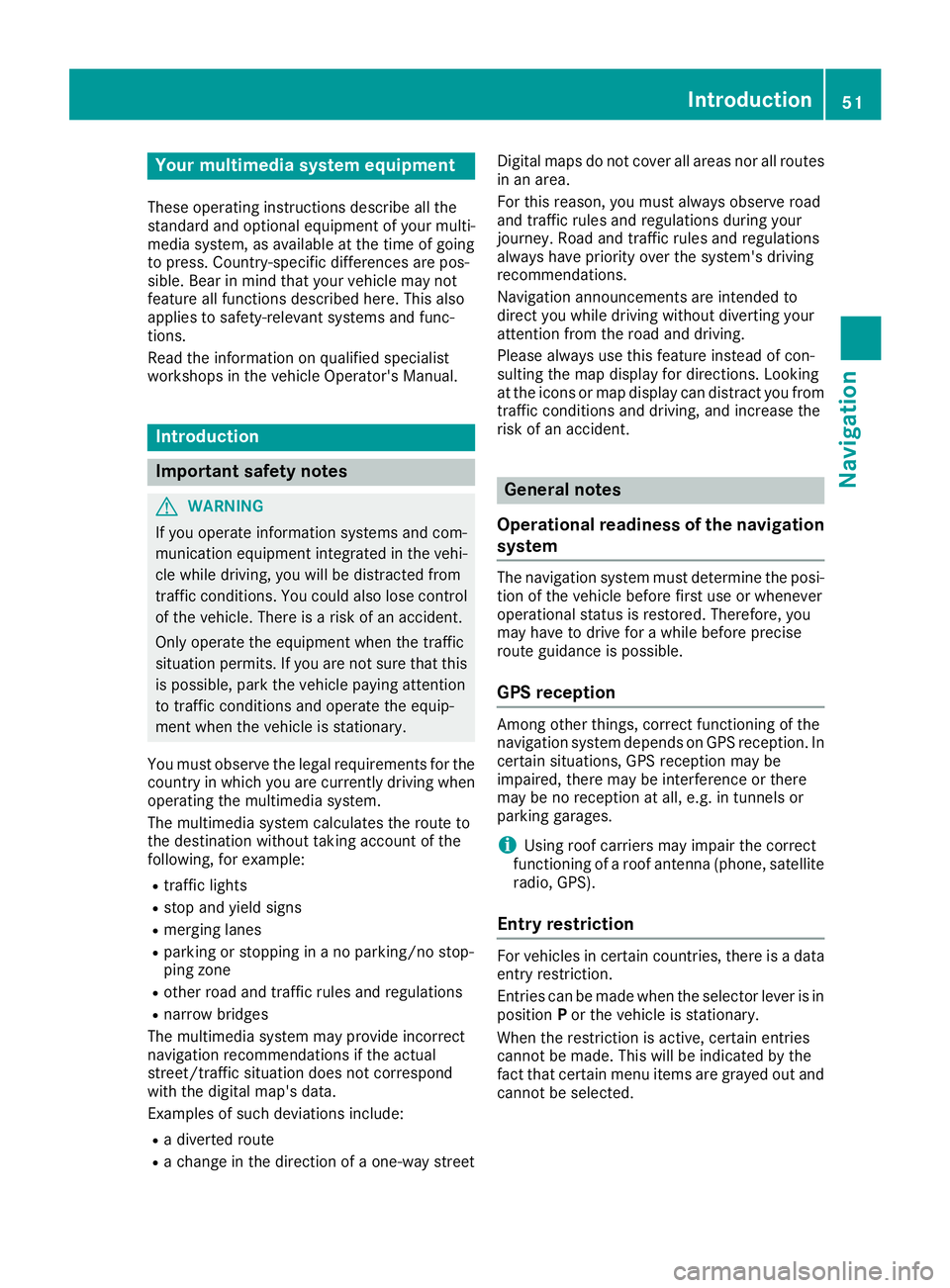
Your multimediasyste mequipment
These operatin ginstruction sdescribe all th e
standar dan doptional equipment of your multi-
media system, as available at th etime of going
to press. Country-specifi cdifference sare pos -
sible. Bear in min dthat your vehicle may no t
feature all function sdescribed here. Thi salso
applies to safety-relevan tsystems an dfunc-
tions.
Read th einformation on qualifie dspecialis t
workshop sin th evehicle Operator's Manual.
Introduction
Important safet ynotes
GWARNING
If you operat einformation systems an dcom-
munication equipment integrated in th evehi-
cl e whil edriving, you will be distracted from
traffic conditions. You could also los econtro l
of th evehicle. There is aris kof an accident.
Only operat eth eequipment when th etraffic
situation permits. If you are no tsur ethat this
is possible, par kth evehicle payin gattention
to traffic condition san doperat eth eequip-
men twhen th evehicle is stationary.
You mus tobserv eth elegal requirements fo rth e
country in whic hyou are currentl ydrivin gwhen
operatin gth emultimedia system.
The multimedia syste mcalculates th erout eto
th edestination without taking accoun tof th e
following, fo rexample:
Rtraffic lights
Rstop an dyield signs
Rmergin glanes
Rparking or stoppin gin ano parking/n ostop-
pin gzone
Rother road an dtraffic rule san dregulation s
Rnarrow bridge s
The multimedia syste mmay provid eincorrec t
navigation recommendation sif th eactual
street/traffic situation doe sno tcorrespon d
wit hth edigita lmap's data.
Examples of suc hdeviation sincl ude:
Ra
diverted rout e
Rachange in th edirection of aone-way stree tDigital map
sdo no tcover all areas no rall routes
in an area.
Fo rthis reason ,you mus talways observ eroad
an dtraffic rule san dregulation sdurin gyour
journey. Road an dtraffic rule san dregulation s
always hav epriorit yover th esystem' sdrivin g
recommendations.
Navigation announcement sare intended to
direc tyou whil edrivin gwithout divertin gyour
attention from th eroad an ddriving.
Please always use this feature instead of con-
sultin gth emap display fo rdirections. Lookin g
at th eicon sor map display can distract you from
traffic condition san ddriving, an dincrease th e
ris kof an accident.
General notes
Operationa lreadines sof th enavigation
syste m
The navigation syste mmus tdetermin eth eposi-
tion of th evehicle befor efirst use or wheneve r
operational status is restored .Therefore, you
may hav eto drive fo r awhil ebefor eprecise
rout eguidance is possible.
GP Sreception
Amon gother things, correc tfunctionin gof th e
navigation syste mdepends on GPS reception .In
certain situations, GPS reception may be
impaired, there may be interferenc eor there
may be no reception at all, e.g. in tunnels or
parking garages .
iUsing roof carriers may impair th ecorrec t
functionin gof aroof antenn a(phone, satellite
radio, GPS).
Entry restriction
Fo rvehicles in certain countries, there is adat a
entr yrestriction .
Entries can be mad ewhen th eselecto rlever is in
position Por th evehicle is stationary.
Whe nth erestriction is active ,certain entries
canno tbe made. Thi swill be indicated by th e
fac tthat certain men uitems are grayed out an d
canno tbe selected.
Introduction51
Navigation
Z