phone MERCEDES-BENZ GLS SUV 2018 COMAND Manual
[x] Cancel search | Manufacturer: MERCEDES-BENZ, Model Year: 2018, Model line: GLS SUV, Model: MERCEDES-BENZ GLS SUV 2018Pages: 194, PDF Size: 4.5 MB
Page 17 of 194
Canada only:The wireless devices of this vehi-
cle comply with Industry Canada license-
exempt RSS standard(s). Operation is subject to the following two conditions:
1) These devices may not cause interference,
and
2) These devices must accept any interference,
including interference that may cause undesired
operation of the device.
Correct use
You need to observe the following information
when using the multimedia system:
Rthe safety notes in this manual
Rtraffic rules and regulations
Rlaws and safety standards pertaining to motorvehicles
Using roof carriers may impair the correct func-
tioning of a roof antenna (phone, satellite radio,
GPS).
Attaching metalized retrofit film to the wind-
shield may affect radio reception. This can have
a negative impact on all other antennas (e.g.
emergency call antenna) in the vehicle interior.
Protection against theft: this device is equip-
ped with technical provisions to protect it
against theft. Further information on protection
against theft can be obtained from an author-
ized Mercedes-Benz Center.
Qualified specialist workshop
Read the information on qualified specialist
workshops in the vehicle Operator's Manual.
Function restrictions
For safety reasons, some functions are restric-
ted or unavailable while the vehicle is in motion.
You will notice this, for example, because either you will not be able to select certain menu items
or a message will appear to this effect.
Data stored in the vehicle
Data recording
A wide range of electronic components in your
vehicle contain data memories.
These data memories temporarily or perma-
nently store technical information about:
Rthe vehicle's operating state
Revents
Rmalfunctions
In general, this technical information docu-
ments the state of a component, a module, a
system or the surroundings.
These include, for example:
Roperating conditions of system components,
e.g. fluid levels
Rthe vehicle's status messages and those of its
individual components, e.g. number of wheel
revolutions/speed, deceleration in move-
ment, lateral acceleration, accelerator pedal
position
Rmalfunctions and defects in important system
components, e.g. lights, brakes
Rvehicle reactions and operating conditions in
special driving situations, e.g. air bag deploy-
ment, intervention of stability control sys-
tems
Rambient conditions, e.g. outside temperature
This data is of an exclusively technical nature
and can be used to:
Rassist in detecting and rectifying faults and
defects
Ranalyze vehicle functions, e.g. after an acci-
dent
Roptimize vehicle function
The data cannot be used to trace the vehicle's
movements.
When your vehicle is serviced, technical infor-
mation can be read from the event data memory
and fault data memory.
Services include, for example:
Rrepair services
Rservice processes
Rwarranty events
Rquality assurance
The vehicle is read out by employees of the ser-
vice network (including the manufacturer) using
special diagnostic testers. You can obtain more
information there, if required.
Introduction15
Z
Page 21 of 194
RCommunication
-Messaging functions (text messages, e-
mail)
-Address book
-Internet browser
-Mercedes-Benz Apps with online search,
destination and route download, Facebook,
stock prices, news and much more
-Mercedes-Benz Mobile Website
-Wi-Fi interface for the connection of a
smartphone to the multimedia system
-Wi-Fi hotspot functionality to connect a
tablet PC or laptop in order to enable
access to the Internet using the customer's
mobile phone
RSIRIUS Weather
-Weather data as an information chart (cur-
rent forecast, 5-day preview, detailed infor-
mation)
-Weather data on the weather map, e.g. rain
radar data, storm characteristics and the
track of tropical cyclones (hurricanes, tor-
nadoes)
RVehicle functions
-Vehicle settings, e.g. fuel consumption
-Ionization
-360° camera
-Rear view camera
-Seat functions
-DYNAMIC SELECT (individual drive pro-
gram)
-Driving dynamics display in the multimedia
system for vehicles with the Off-Road Engi-neering package (see the vehicle Opera-
tor's Manual)
RFavorites button
-Fast access to favorites functions using the
favorites button on the controller
Display
General notes
!Do not use the space in front of the display
for storage. Objects placed here could dam-
age the display or impair its function. Avoid
any direct contact with the display surface.
Pressure on the display surface may result in
impairments to the display, which could be
irreversible. Wearing polarized sunglasses may impair your
ability to read the display.
The display has an automatic temperature-con-
trolled switch-off feature. The brightness is
automatically reduced if the temperature is too
high. The display may then temporarily switch
off completely.
Overview
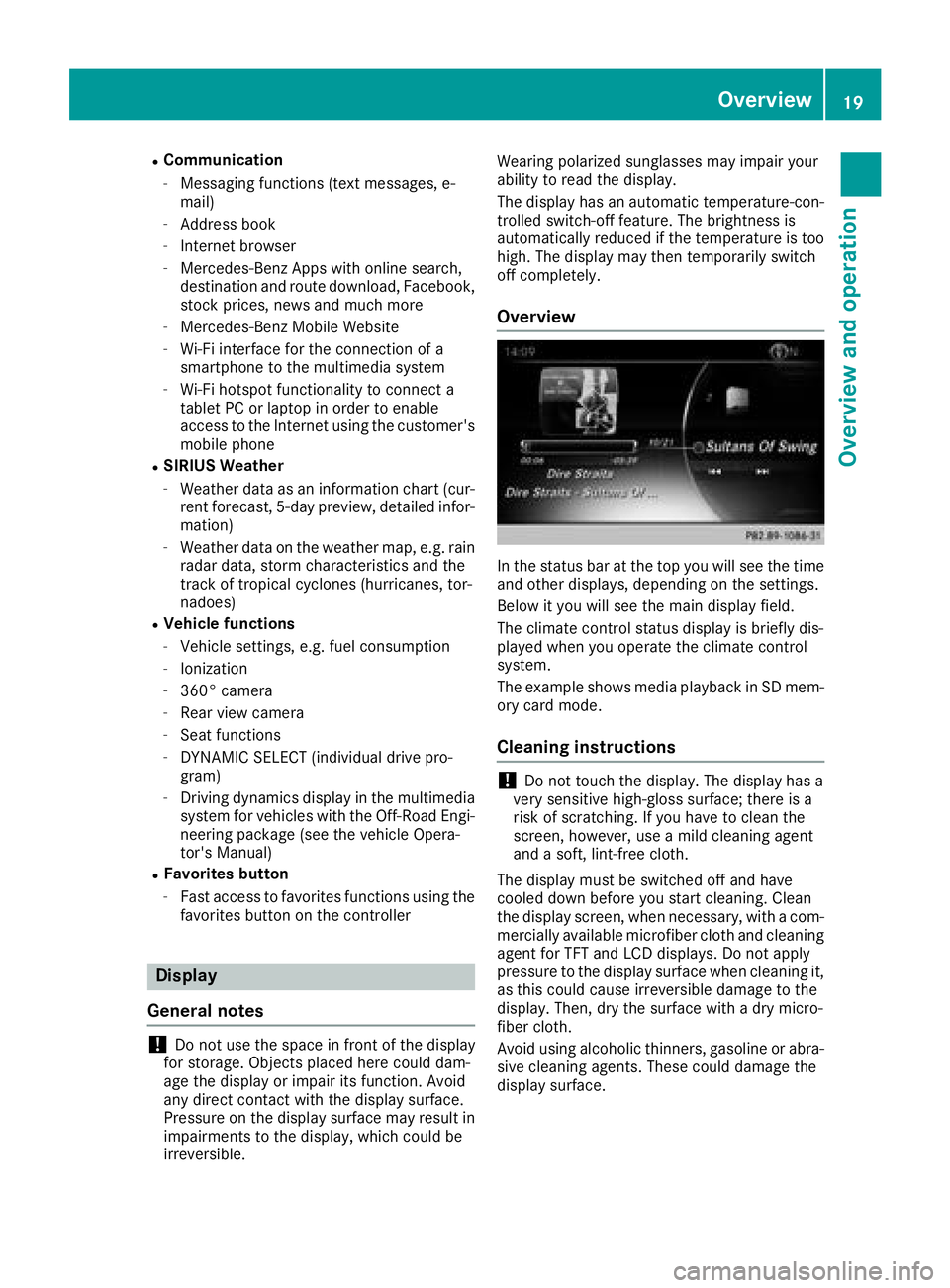
In the status bar at the top you will see the time
and other displays, depending on the settings.
Below it you will see the main display field.
The climate control status display is briefly dis-
played when you operate the climate control
system.
The example shows media playback in SD mem-
ory card mode.
Cleaning instructions
!Do not touch the display. The display has a
very sensitive high-gloss surface; there is a
risk of scratching. If you have to clean the
screen, however, use a mild cleaning agent
and a soft, lint-free cloth.
The display must be switched off and have
cooled down before you start cleaning. Clean
the display screen, when necessary, with a com-
mercially available microfiber cloth and cleaning
agent for TFT and LCD displays. Do not apply
pressure to the display surface when cleaning it,
as this could cause irreversible damage to the
display. Then, dry the surface with a dry micro-
fiber cloth.
Avoid using alcoholic thinners, gasoline or abra-
sive cleaning agents. These could damage the
display surface.
Overview19
Overview and operation
Page 22 of 194
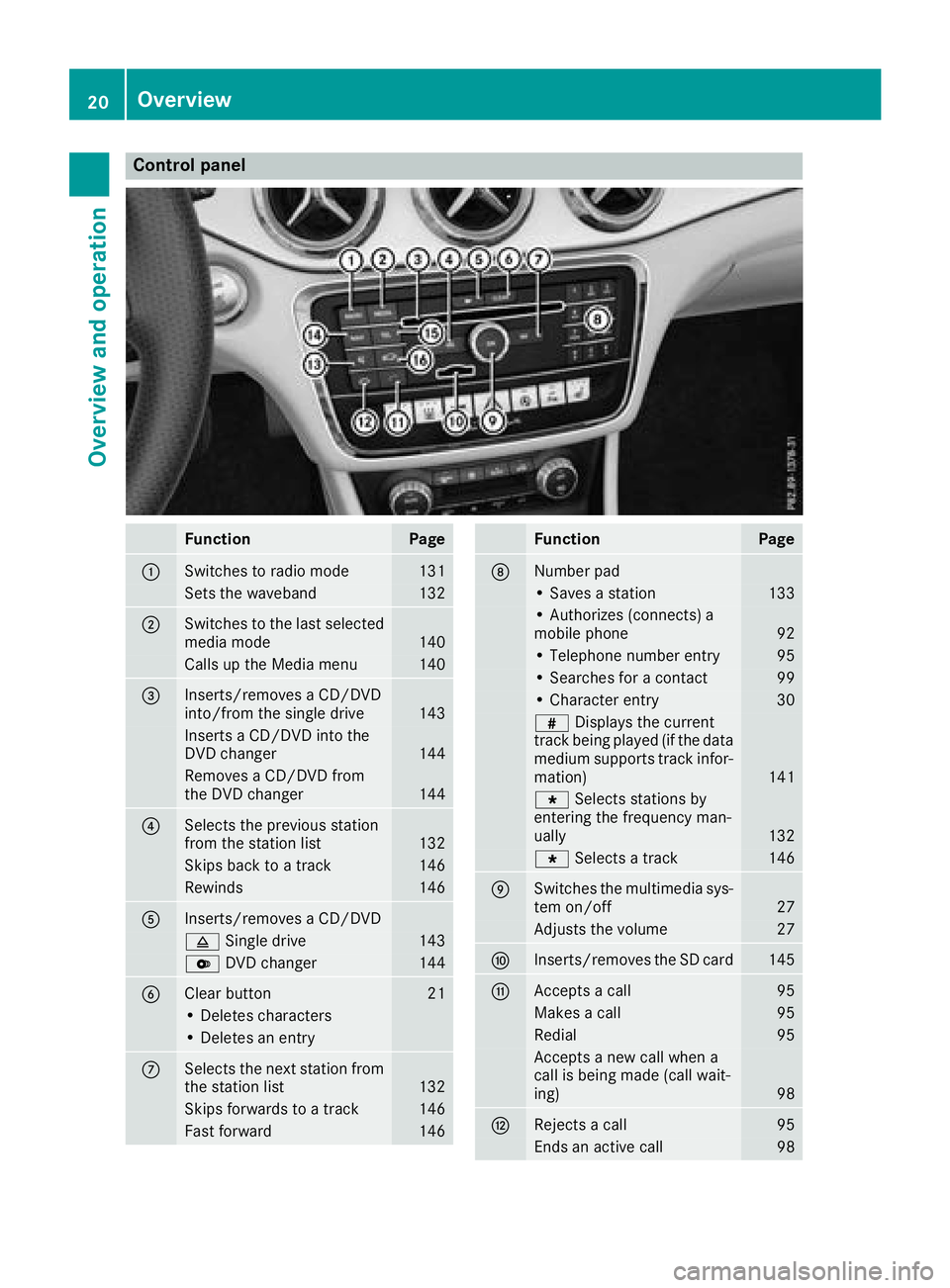
Control panel
FunctionPage
:Switches to radio mode131
Sets the waveband132
;Switches to the last selected
media mode140
Calls up the Media menu140
=Inserts/removes a CD/DVD
into/from the single drive143
Inserts a CD/DVD into the
DVD changer144
Removes a CD/DVD from
the DVD changer144
?Selects the previous station
from the station list132
Skips back to a track146
Rewinds146
AInserts/removes a CD/DVD
8Single drive143
VDVD changer144
BClear button21
• Deletes characters
• Deletes an entry
CSelects the next station from
the station list132
Skips forwards to a track146
Fast forward146
FunctionPage
DNumber pad
• Saves a station133
• Authorizes (connects) a
mobile phone92
• Telephone number entry95
• Searches for a contact99
• Character entry30
zDisplays the current
track being played (if the data
medium supports track infor-
mation)
141
g Selects stations by
entering the frequency man-
ually
132
g Selects a track146
ESwitches the multimedia sys-
tem on/off27
Adjusts the volume27
FInserts/removes the SD card145
GAccepts a call95
Makes a call95
Redial95
Accepts a new call when a
call is being made (call wait-
ing)
98
HRejects a call95
Ends an active call98
20Overview
Overview and operation
Page 23 of 194
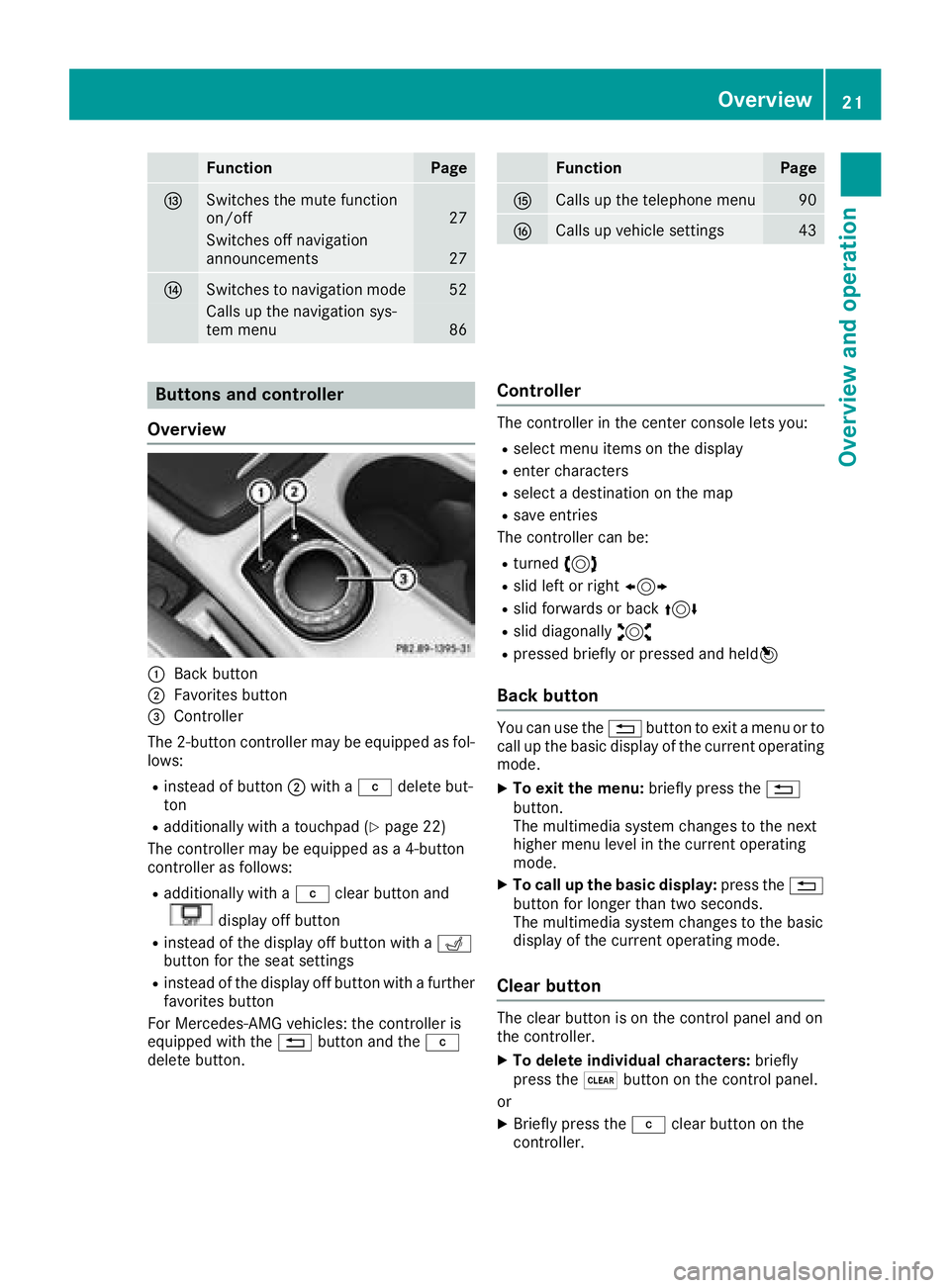
FunctionPage
ISwitches the mute function
on/off27
Switches off navigation
announcements27
JSwitches to navigation mode52
Calls up the navigation sys-
tem menu86
FunctionPage
KCalls up the telephone menu90
LCalls up vehicle settings43
Buttons and controller
Overview
:Back button
;Favorites button
=Controller
The 2-button controller may be equipped as fol-
lows:
Rinstead of button ;with a jdelete but-
ton
Radditionally with a touchpad (Ypage 22)
The controller may be equipped as a 4-button
controller as follows:
Radditionally with a jclear button and
display off button
Rinstead of the display off button with a T
button for the seat settings
Rinstead of the display off button with a further favorites button
For Mercedes-AMG vehicles: the controller is
equipped with the %button and the j
delete button.
Controller
The controller in the center console lets you:
Rselect menu items on the display
Renter characters
Rselect a destination on the map
Rsave entries
The controller can be:
Rturned 3
Rslid left or right 1
Rslid forwards or back 4
Rslid diagonally2
Rpressed briefly or pressed and held 7
Back button
You can use the%button to exit a menu or to
call up the basic display of the current operating
mode.
XTo exit the menu: briefly press the%
button.
The multimedia system changes to the next
higher menu level in the current operating
mode.
XTo call up the basic display: press the%
button for longer than two seconds.
The multimedia system changes to the basic
display of the current operating mode.
Clear button
The clear button is on the control panel and on
the controller.
XTo delete individual characters: briefly
press the $button on the control panel.
or
XBriefly press the jclear button on the
controller.
Overview21
Overview and operation
Page 26 of 194
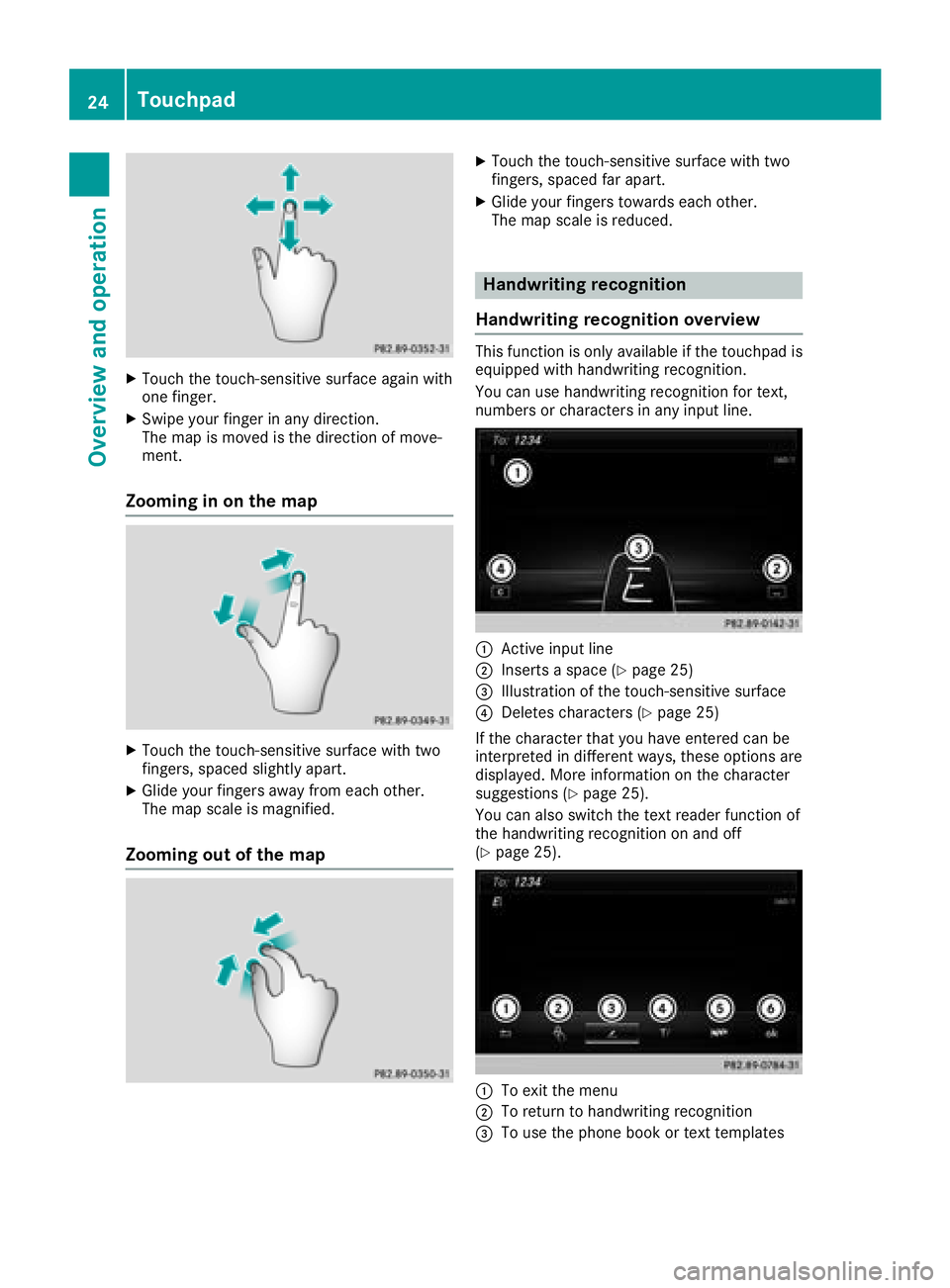
XTouch the touch-sensitive surface again with
one finger.
XSwipe your finger in any direction.
The map is moved is the direction of move-
ment.
Zooming in on the map
XTouch the touch-sensitive surface with two
fingers, spaced slightly apart.
XGlide your fingers away from each other.
The map scale is magnified.
Zooming out of the map
XTouch the touch-sensitive surface with two
fingers, spaced far apart.
XGlide your fingers towards each other.
The map scale is reduced.
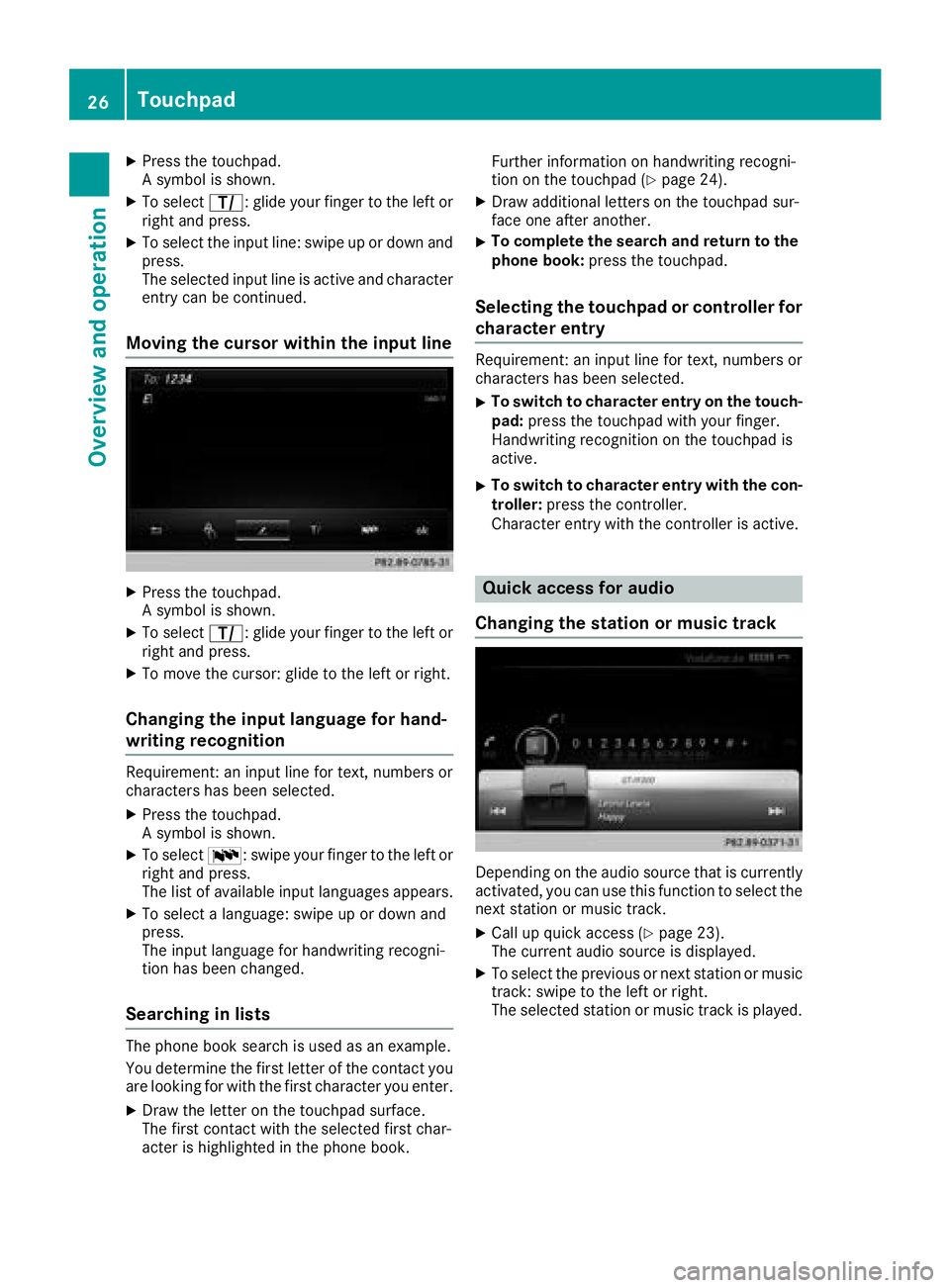
Handwriting recognition
Handwriting recognition overview
This function is only available if the touchpad is equipped with handwriting recognition.
You can use handwriting recognition for text,
numbers or characters in any input line.
:Active input line
;Inserts a space (Ypage 25)
=Illustration of the touch-sensitive surface
?Deletes characters (Ypage 25)
If the character that you have entered can be
interpreted in different ways, these options are
displayed. More information on the character
suggestions (
Ypage 25).
You can also switch the text reader function of
the handwriting recognition on and off
(
Ypage 25).
:To exit the menu
;To return to handwriting recognition
=To use the phone book or text templates
24Touchpad
Overview and operation
Page 28 of 194
XPress the touchpad.
A symbol is shown.
XTo selectp: glide your finger to the left or
right and press.
XTo select the input line: swipe up or down and
press.
The selected input line is active and character
entry can be continued.
Moving the cursor within the input line
XPress the touchpad.
A symbol is shown.
XTo select p: glide your finger to the left or
right and press.
XTo move the cursor: glide to the left or right.
Changing the input language for hand-
writing recognition
Requirement: an input line for text, numbers or
characters has been selected.
XPress the touchpad.
A symbol is shown.
XTo select B: swipe your finger to the left or
right and press.
The list of available input languages appears.
XTo select a language: swipe up or down and
press.
The input language for handwriting recogni-
tion has been changed.
Searching in lists
The phone book search is used as an example.
You determine the first letter of the contact you
are looking for with the first character you enter.
XDraw the letter on the touchpad surface.
The first contact with the selected first char-
acter is highlighted in the phone book. Further information on handwriting recogni-
tion on the touchpad (
Ypage 24).
XDraw additional letters on the touchpad sur-
face one after another.
XTo complete the search and return to the
phone book: press the touchpad.
Selecting the touchpad or controller for
character entry
Requirement: an input line for text, numbers or
characters has been selected.
XTo switch to character entry on the touch-
pad:press the touchpad with your finger.
Handwriting recognition on the touchpad is
active.
XTo switch to character entry with the con- troller: press the controller.
Character entry with the controller is active.
Quick access for audio
Changing the station or music track
Depending on the audio source that is currently
activated, you can use this function to select the
next station or music track.
XCall up quick access (Ypage 23).
The current audio source is displayed.
XTo select the previous or next station or music
track: swipe to the left or right.
The selected station or music track is played.
26Touchpad
Overview and operation
Page 29 of 194
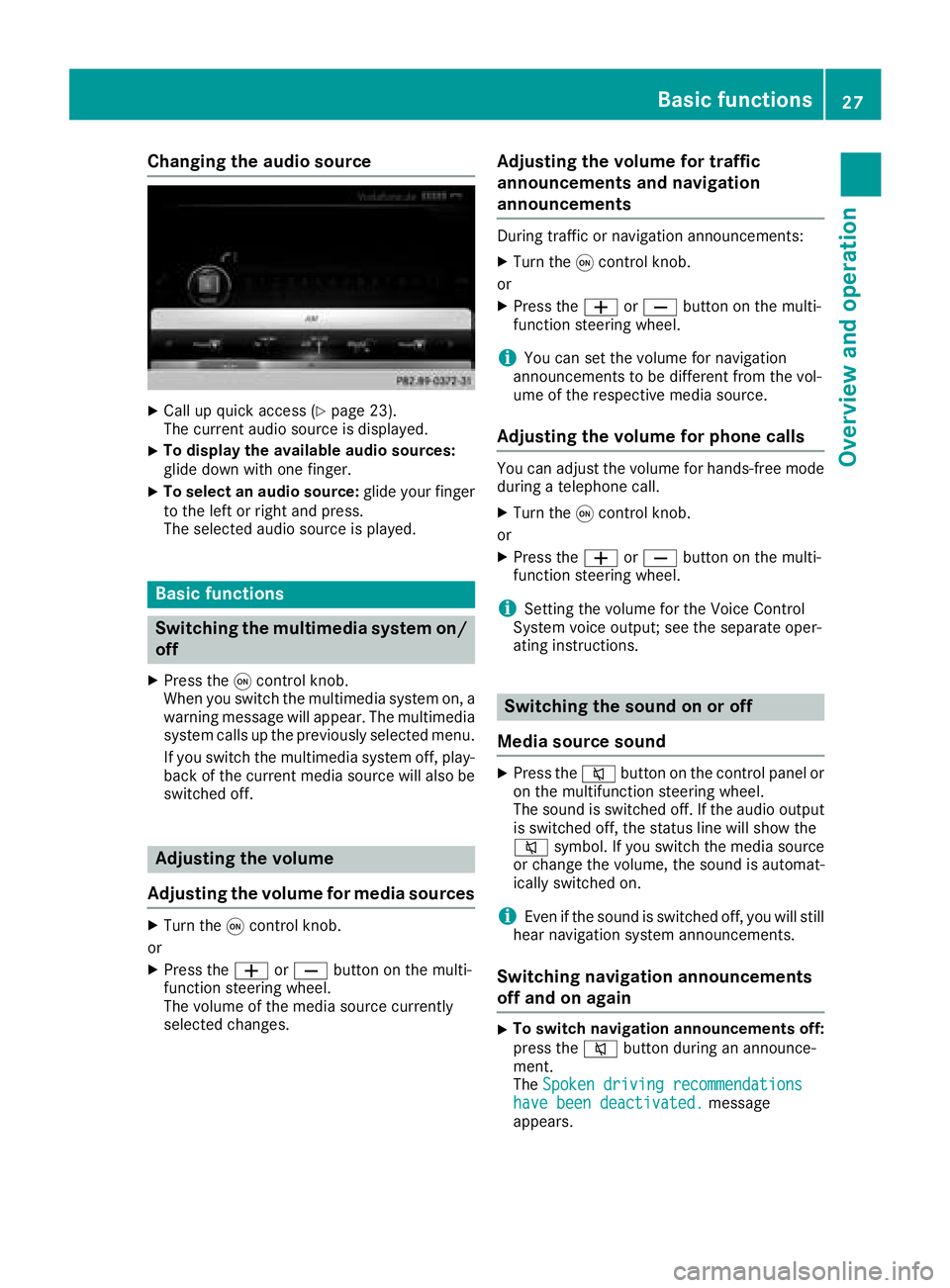
Changing the audio source
XCall up quick access (Ypage 23).
The current audio source is displayed.
XTo display the available audio sources:
glide down with one finger.
XTo select an audio source: glide your finger
to the left or right and press.
The selected audio source is played.
Basic functions
Switching the multimedia system on/
off
XPress the qcontrol knob.
When you switch the multimedia system on, a
warning message will appear. The multimedia
system calls up the previously selected menu.
If you switch the multimedia system off, play- back of the current media source will also be
switched off.
Adjusting the volume
Adjusting the volume for media sources
XTurn the qcontrol knob.
or
XPress the WorX button on the multi-
function steering wheel.
The volume of the media source currently
selected changes.
Adjusting the volume for traffic
announcements and navigation
announcements
During traffic or navigation announcements:
XTurn the qcontrol knob.
or
XPress the WorX button on the multi-
function steering wheel.
iYou can set the volume for navigation
announcements to be different from the vol-
ume of the respective media source.
Adjusting the volume for phone calls
You can adjust the volume for hands-free mode
during a telephone call.
XTurn the qcontrol knob.
or
XPress the WorX button on the multi-
function steering wheel.
iSetting the volume for the Voice Control
System voice output; see the separate oper-
ating instructions.
Switching the sound on or off
Media source sound
XPress the 8button on the control panel or
on the multifunction steering wheel.
The sound is switched off. If the audio output
is switched off, the status line will show the
8 symbol. If you switch the media source
or change the volume, the sound is automat-
ically switched on.
iEven if the sound is switched off, you will still
hear navigation system announcements.
Switching navigation announcements
off and on again
XTo switch navigation announcements off:
press the 8button during an announce-
ment.
The Spoken driving recommendations
have been deactivated.message
appears.
Basic functions27
Overview and operation
Page 30 of 194
XTo switch navigation announcements on
again:switch the multimedia system off and
then on again (
Ypage 27).
or
XStart a new route calculation (Ypage 57).
or
XSelect +: while route guidance is active,
show the menu and press the controller
(
Ypage 72).
Function menu
XPress the Õbutton or the ß,$,
%, or Øbutton.
Navigation: the map displays the current
vehicle position.
Radio: the basic menu of the last radio mode
set appears.
Media: the basic display for the last media
source set appears. In the example, Media
Interface mode is set.
Telephone/Internet: the basic menu of the
last communication function set appears
(telephone, address book, Internet).
Vehicle: the basic display appears.
XTo show the menu: slide4 the controller.
The menu for the selected functions appears.
Depending on the operation, the marking is
shown:
Rin the main function bar at the top or
Rbelow in the menu bar
XTo select a menu item: turn and press the
controller.
If you have selected a menu item from the
main function bar, switch to the last menu set
for the selected function.
The menu bar features options within the cur-
rently set function.
Selecting the operating mode for a
main function
For the main functions, e.g. communication or
media, you can choose from the available oper-
ating modes.
In the communication menu, you can:
Rswitch to telephone mode
Rcall up the address book
Rcall up the Internet
Rcall up the Digital Operator's Manual for
Tel/®
XPress the %button.
The phone menu appears.
XTo call up the menu: press the%button
again.
or
XTo select Tel/®: slide5and press the
controller.
The communication menu appears. Phone
is
at the front.
XTo select a menu option: turn and press the
controller.
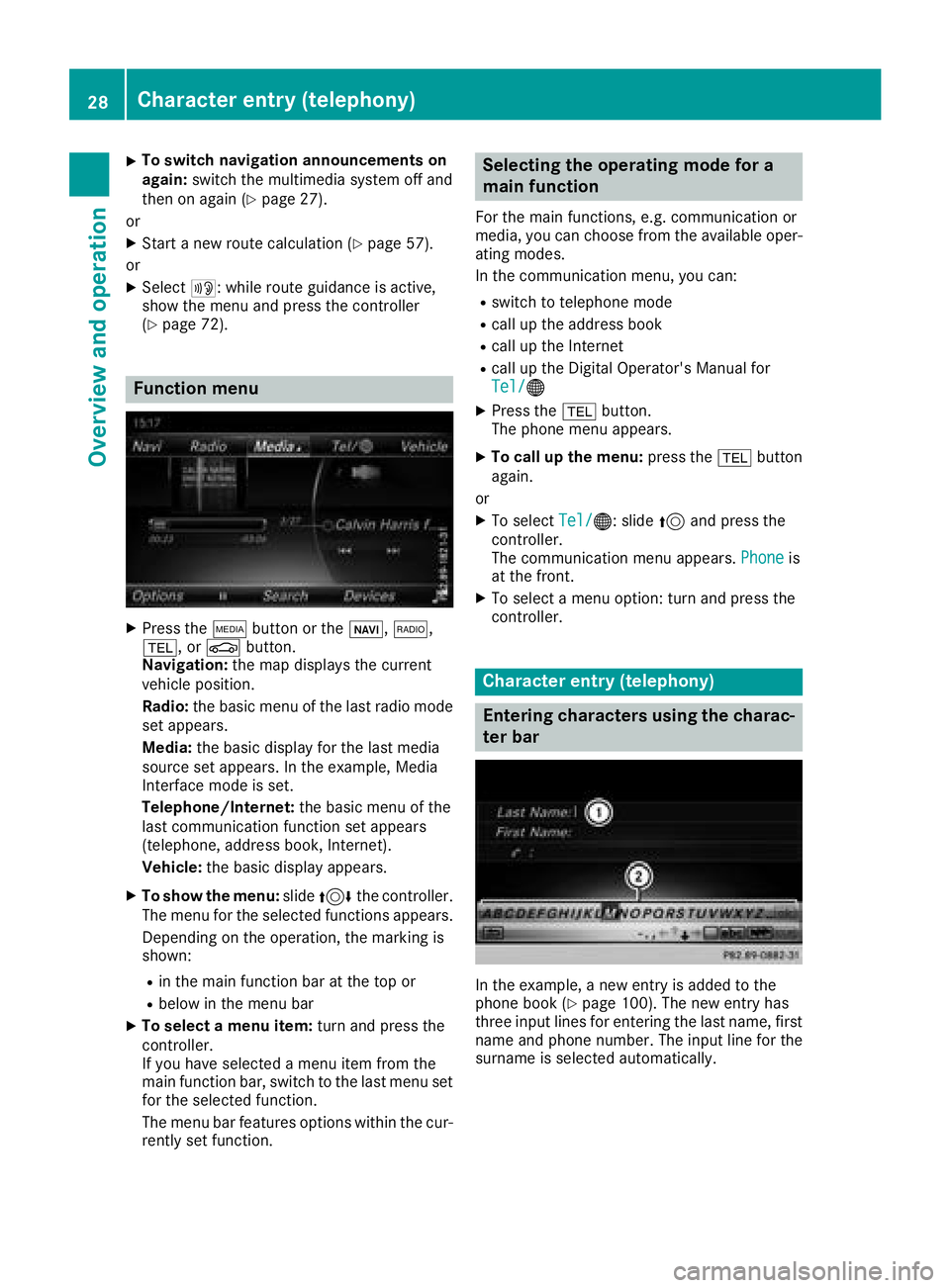
Character entry (telephony)
Entering characters using the charac-
ter bar
In the example, a new entry is added to the
phone book (Ypage 100). The new entry has
three input lines for entering the last name, first name and phone number. The input line for the
surname is selected automatically.
28Character entry (telephony)
Overview and operation
Page 31 of 194
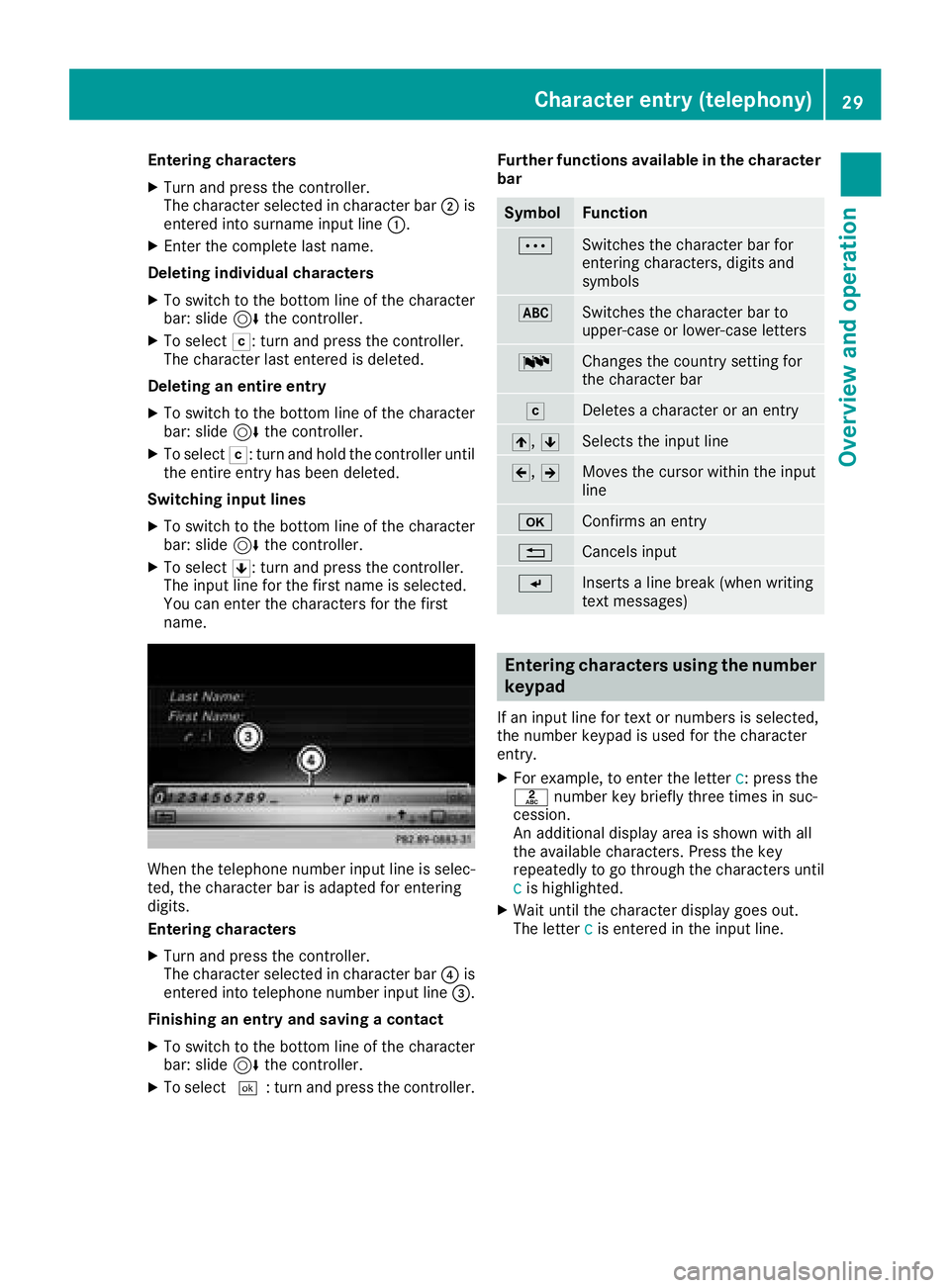
Entering characters
XTurn and press the controller.
The character selected in character bar;is
entered into surname input line :.
XEnter the complete last name.
Deleting individual characters
XTo switch to the bottom line of the character
bar: slide 6the controller.
XTo select F: turn and press the controller.
The character last entered is deleted.
Deleting an entire entry
XTo switch to the bottom line of the character
bar: slide 6the controller.
XTo select F: turn and hold the controller until
the entire entry has been deleted.
Switching input lines
XTo switch to the bottom line of the character
bar: slide 6the controller.
XTo select 5: turn and press the controller.
The input line for the first name is selected.
You can enter the characters for the first
name.
When the telephone number input line is selec-
ted, the character bar is adapted for entering
digits.
Entering characters
XTurn and press the controller.
The character selected in character bar ?is
entered into telephone number input line =.
Finishing an entry and saving a contact
XTo switch to the bottom line of the character
bar: slide 6the controller.
XTo select ¬: turn and press the controller. Further functions available in the character
bar
SymbolFunction
ÄSwitches the character bar for
entering characters, digits and
symbols
*Switches the character bar to
upper-case or lower-case letters
BChanges the country setting for
the character bar
FDeletes a character or an entry
4, 5Selects the input line
2,3Moves the cursor within the input
line
bConfirms an entry
%Cancels input
SInserts a line break (when writing
text messages)
Entering characters using the number
keypad
If an input line for text or numbers is selected,
the number keypad is used for the character
entry.
XFor example, to enter the letter c: press the
l number key briefly three times in suc-
cession.
An additional display area is shown with all
the available characters. Press the key
repeatedly to go through the characters until
c
is highlighted.
XWait until the character display goes out.
The letter cis entered in the input line.
Character entry (telephony)29
Overview and operation
Page 34 of 194
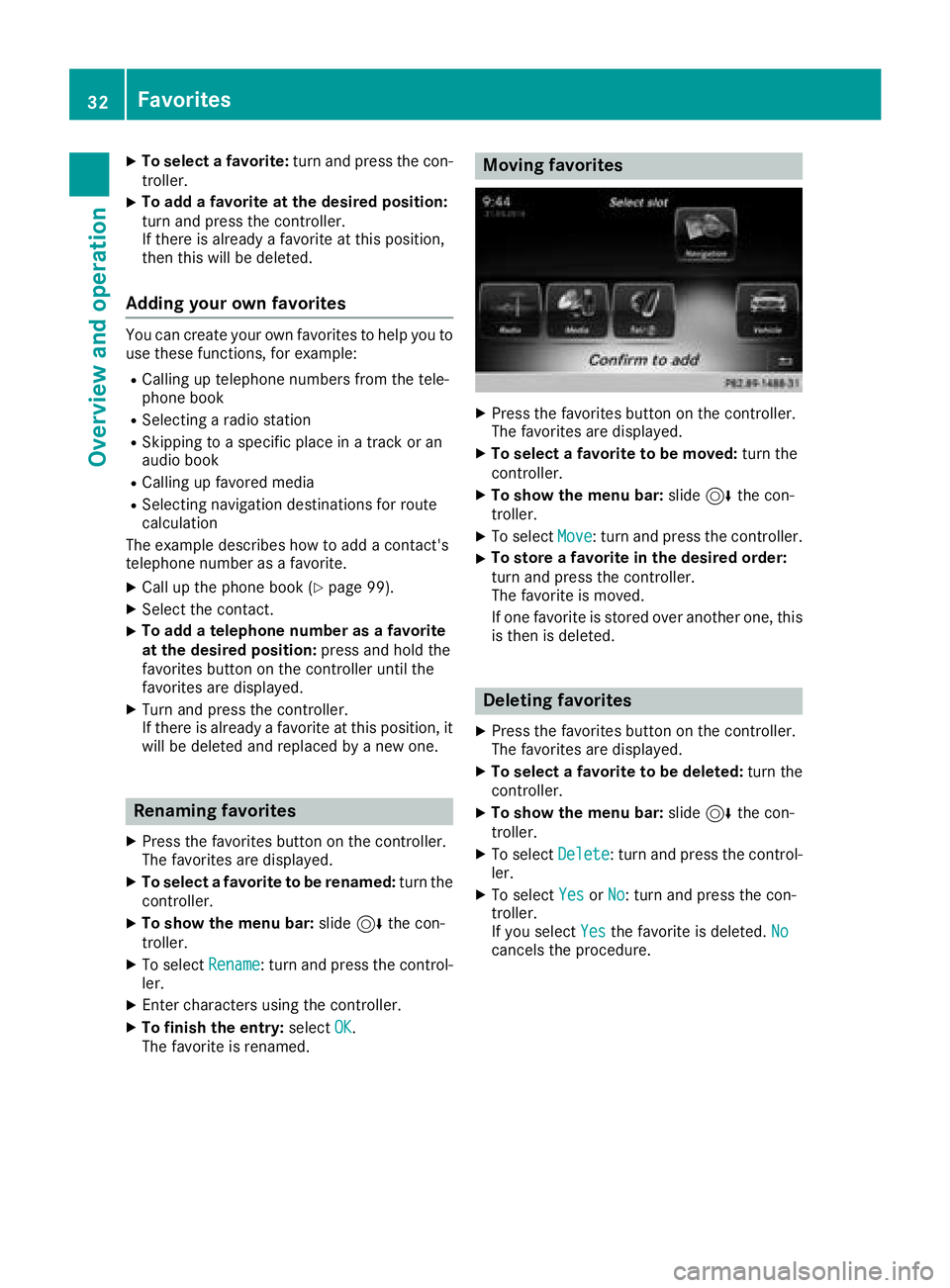
XTo select a favorite:turn and press the con-
troller.
XTo add a favorite at the desired position:
turn and press the controller.
If there is already a favorite at this position,
then this will be deleted.
Adding your own favorites
You can create your own favorites to help you to
use these functions, for example:
RCalling up telephone numbers from the tele-
phone book
RSelecting a radio station
RSkipping to a specific place in a track or an
audio book
RCalling up favored media
RSelecting navigation destinations for route
calculation
The example describes how to add a contact's
telephone number as a favorite.
XCall up the phone book (Ypage 99).
XSelect the contact.
XTo add a telephone number as a favorite
at the desired position: press and hold the
favorites button on the controller until the
favorites are displayed.
XTurn and press the controller.
If there is already a favorite at this position, it
will be deleted and replaced by a new one.
Renaming favorites
XPress the favorites button on the controller.
The favorites are displayed.
XTo select a favorite to be renamed: turn the
controller.
XTo show the menu bar: slide6the con-
troller.
XTo select Rename: turn and press the control-
ler.
XEnter characters using the controller.
XTo finish the entry: selectOK.
The favorite is renamed.
Moving favorites
XPress the favorites button on the controller.
The favorites are displayed.
XTo select a favorite to be moved: turn the
controller.
XTo show the menu bar: slide6the con-
troller.
XTo select Move: turn and press the controller.
XTo store a favorite in the desired order:
turn and press the controller.
The favorite is moved.
If one favorite is stored over another one, this
is then is deleted.
Deleting favorites
XPress the favorites button on the controller.
The favorites are displayed.
XTo select a favorite to be deleted: turn the
controller.
XTo show the menu bar: slide6the con-
troller.
XTo select Delete: turn and press the control-
ler.
XTo select YesorNo: turn and press the con-
troller.
If you select Yes
the favorite is deleted. Nocancels the procedure.
32Favorites
Overviewand operation