light MERCEDES-BENZ GLS SUV 2018 COMAND Manual
[x] Cancel search | Manufacturer: MERCEDES-BENZ, Model Year: 2018, Model line: GLS SUV, Model: MERCEDES-BENZ GLS SUV 2018Pages: 194, PDF Size: 4.5 MB
Page 66 of 194
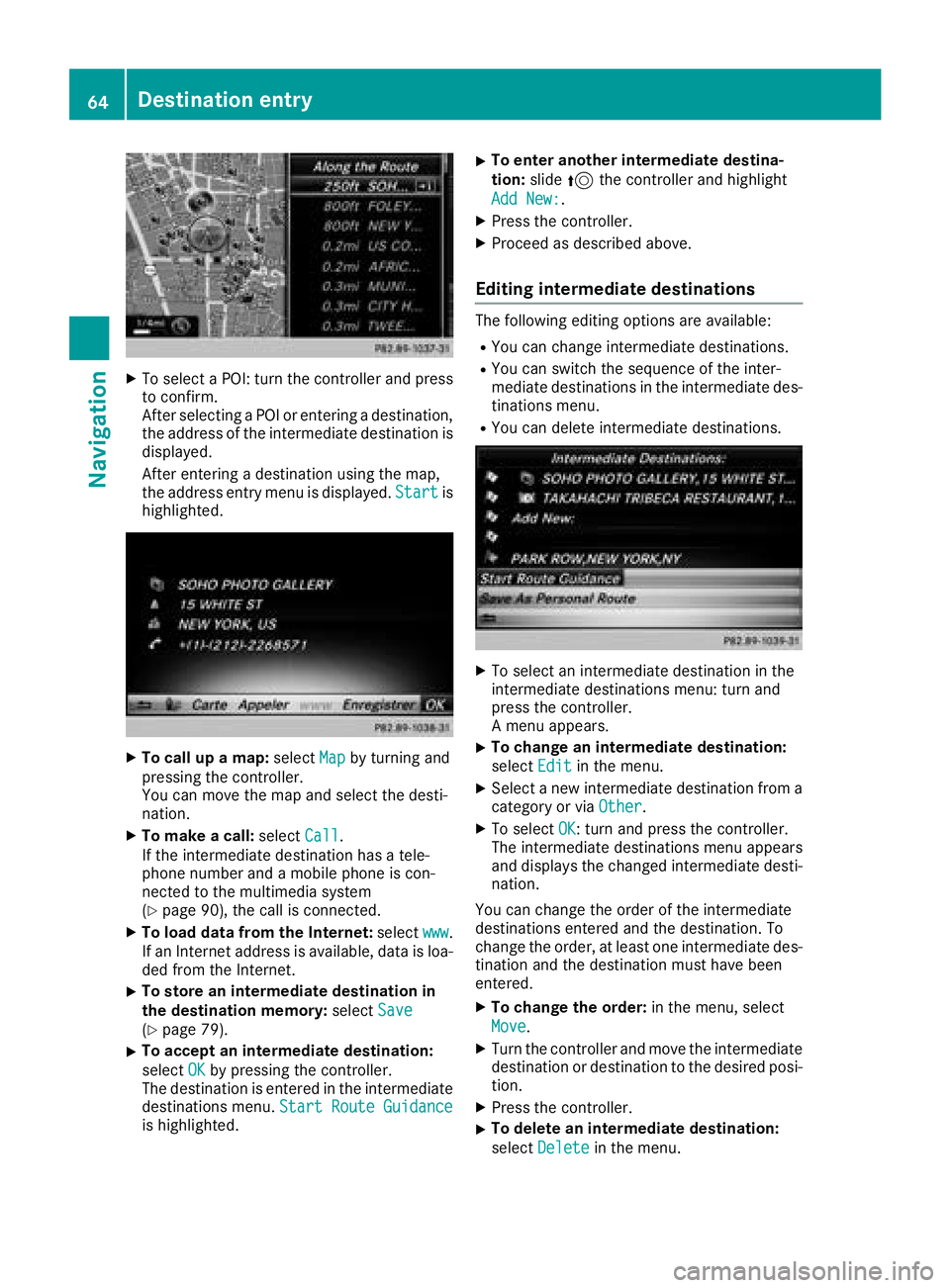
XTo select a POI: turn the controller and pressto confirm.
After selecting a POI or entering a destination,
the address of the intermediate destination is
displayed.
After entering a destination using the map,
the address entry menu is displayed. Start
is
highlighted.
XTo call up a map: selectMapby turning and
pressing the controller.
You can move the map and select the desti-
nation.
XTo make a call: selectCall.
If the intermediate destination has a tele-
phone number and a mobile phone is con-
nected to the multimedia system
(
Ypage 90), the call is connected.
XTo load data from the Internet: selectwww.
If an Internet address is available, data is loa- ded from the Internet.
XTo store an intermediate destination in
the destination memory: selectSave
(Ypage 79).
XTo accept an intermediate destination:
selectOK
by pressing the controller.
The destination is entered in the intermediate
destinations menu. Start Route Guidance
is highlighted.
XTo enter another intermediate destina-
tion:slide5the controller and highlight
Add New:
.
XPress the controller.
XProceed as described above.
Editing intermediate destinations
The following editing options are available:
RYou can change intermediate destinations.
RYou can switch the sequence of the inter-
mediate destinations in the intermediate des-
tinations menu.
RYou can delete intermediate destinations.
XTo select an intermediate destination in the
intermediate destinations menu: turn and
press the controller.
A menu appears.
XTo change an intermediate destination:
select Edit
in the menu.
XSelect a new intermediate destination from a
category or via Other.
XTo selectOK: turn and press the controller.
The intermediate destinations menu appears
and displays the changed intermediate desti-
nation.
You can change the order of the intermediate
destinations entered and the destination. To
change the order, at least one intermediate des- tination and the destination must have been
entered.
XTo change the order: in the menu, select
Move
.
XTurn the controller and move the intermediate
destination or destination to the desired posi-
tion.
XPress the controller.
XTo delete an intermediate destination:
select Delete
in the menu.
64Destination entry
Navigation
Page 68 of 194
Personal POIs and routes
General notes
The use of personal POIs for displaying traffic
surveillance equipment is not permitted in everycountry. Please observe the country-specific
regulations and always drive at a suitable speed.
Personal POIs are filed in categories:
RNot Classified
Standard entry for personal POIs
RMercedes-Benz Apps
Personal POIs (destinations, routes) that you
have imported via the online functions
RCategories which you have created yourself,
e.g. on your PC
Personal routes are not categorized.
Settings for personal POIs
Displaying on the map
Requirements: an SD card with personal POIs is
inserted (Ypage 145).
All personal POIs of the selected category are
displayed on the map with a corresponding sym-
bol.
If the "Alert when approaching" function
(
Ypage 66) is activated, the symbols are dis-
played up to a map scale of 2 km (2 mi).
XTo switch to navigation mode: press the
ß button.
XTo show the menu: slide6the controller.
XTo select Options: turn and press the con-
troller.
XSelect Personal POIs.
XSelectDisplay on the Map.
The menu displays the categories available on
the SD card.
XTo select a category: turn the controller and
press to confirm.
All personal POIs in the selected category are
displayed Oor not displayed ª, depending
on the previous status.
Alert when approaching
Requirements: an SD card with personal POIs is
inserted (Ypage 145). If the vehicle is approaching a personal POI and
the functions are enabled, the personal POI is
highlighted on the map and an audible signal
sounds.
For this purpose, both the corresponding func-
tion
Approaching POI Cue
and the category
containing the personal POI must be activated.
XTo switch to navigation mode: press the
ß button.
XTo show the menu: slide6the controller.
XTo select Options: turn and press the con-
troller.
XSelect Personal POIs.
XSelectApproaching POI Cue.
The menu displays the categories available on
the SD card.
XSelect AudibleorOptical.
The function is switched on Oor off ª,
depending on the previous status.
XTo select a category: turn the controller and
press to confirm.
The function is switched on Oor off ª, for
all personal POIs of this category, depending
on the previous setting.
Saving personal POIs and routes
General notes
Personal POIs and routes are geodata which are
saved in open GPX format (GPS Exchange for-
mat) on the SD card.
Personal POI from current vehicle posi-
tion or crosshair position
XInsert the SD memory card (Ypage 145).
XTo switch to navigation mode: press the
ß button.
XWhen the map is displayed, press the con-
troller until a message appears.
The current vehicle position is saved to the
Not Classified
category on the SD card
and also stored in the "Last destinations"
memory (
Ypage 80).
If the "Move map" function is selected
(
Ypage 52), the crosshair position is saved.
iIf no SD card is inserted, the personal POI
will only be stored in the "Last destinations"
memory.
66Personal POIs and routes
Navigation
Page 71 of 194
XTo selectDestination: turn and press the
controller.
XSelect From Memory Card.
XSelectPersonal Routes.
Previously recorded routes are displayed.
XTo select a route: turn and press the control-
ler.
The map appears with a menu. The recorded
route is shown on the map in blue.
XTo start route calculation: selectStart.
XTo change the name and symbol: select
Edit
.
XSelect Change NameorEdit Icon.
XTo change name: enter character (Ypage 30).
XTo change symbol: select a symbol.
The symbol is saved.
Route guidance
General notes
Always observe the traffic regulations when
driving. Road and traffic rules and regulations
always have priority over system driving recom-
mendations.
The multimedia system calculates the route to
the destination without taking account of the
following, for example:
Rtraffic lights
Rstop and yield signs
Rparking or stopping restrictions
Rroad narrowing
Rtemporary traffic rules and regulations
The multimedia system may give differing navi-
gation commands if the actual street/traffic sit-
uation does not correspond with the digital
map's data. For example, if the road layout or
the direction of a one-way street has been
changed.
Route guidance begins once a route has been
calculated (
Ypage 57).
The multimedia system guides you to your des-
tination by means of navigation announcements
in the form of audible navigation announce-
ments and route guidance displays.
Navigation messages guide you during the jour-
ney without distracting you from traffic condi-
tions or driving. Please always use this feature
instead of consulting the map display for direc- tions. The symbols or the map display could dis-
tract you from traffic conditions and driving.
The route guidance displays can be seen if nav-
igation mode is switched on.
If you do not follow the navigation announce-
ments or if you leave the calculated route, the
multimedia system automatically calculates a
new route to the destination.
If the digital map contains the corresponding
information, the following applies:
RDuring route guidance, the multimedia sys-
tem tries to avoid roads with restricted
access. These include, for example, roads
which are closed to through-traffic.
RRoads that have time restrictions (e.g. closed
on Sundays and public holidays) are consid-
ered for route guidance on days when they are
open. For this purpose, the relevant times
must be correctly stored in the database.
Change of direction
Overview
Changes of direction have three phases:
RPreparation phase
RAnnouncement phase
RChange-of-direction phase
Changes in direction are also shown in the mul-
tifunction display of the instrument cluster (see
the vehicle Operator's Manual).
Preparation phase
The multimedia system prepares you for the
upcoming driving maneuver, e.g. with the
announcement "Prepare to turn right". You see
the full-screen map.
Route guidance69
Navigation
Z
Page 72 of 194
Announcement phase
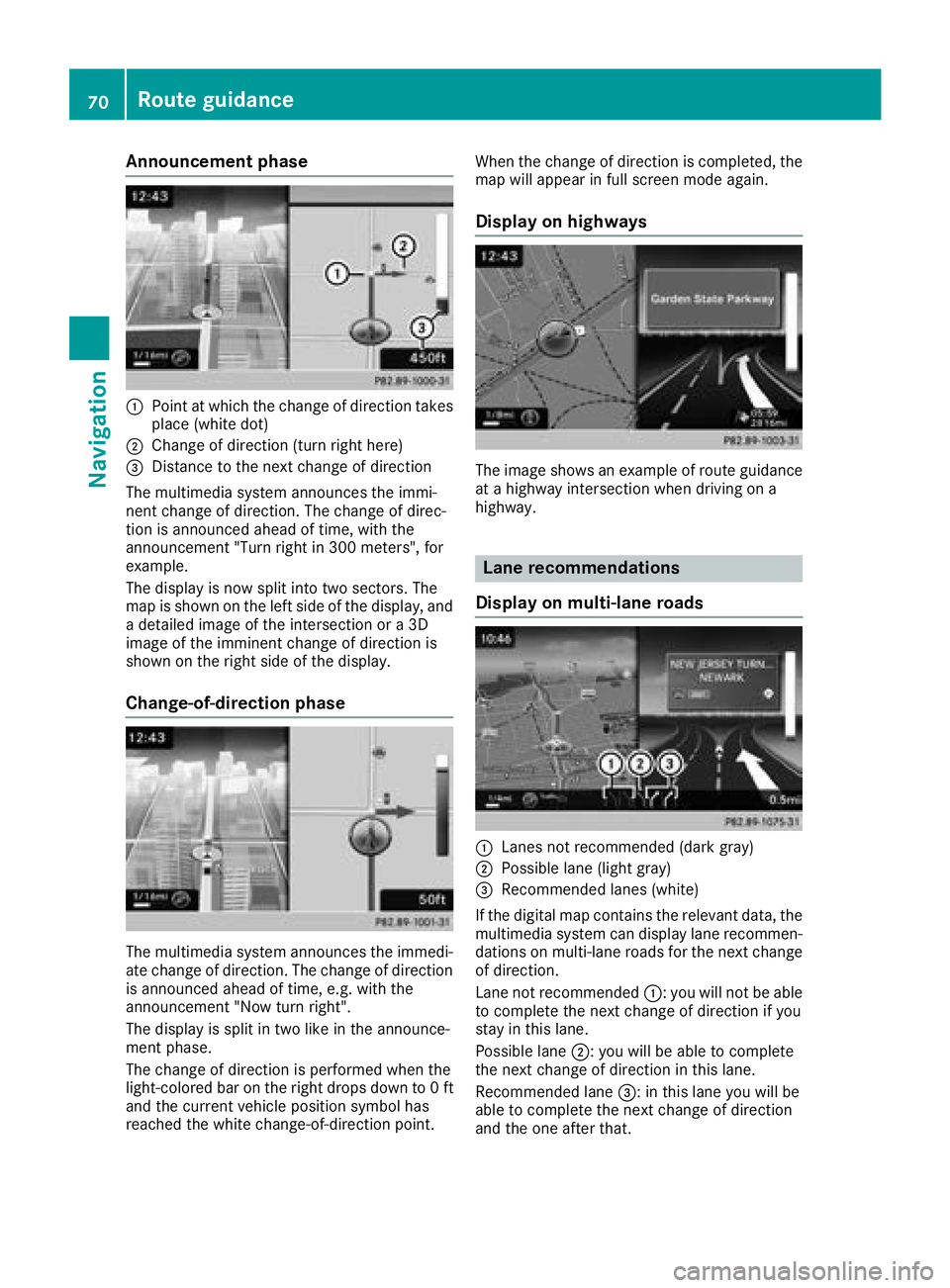
:Pointat whic hth echang eof direction takes
plac e(whit edot )
;Change of direction (turn right here)
=Distanc eto th enext chang eof direction
The multimedia system announce sth eimmi-
nent chang eof direction .The chang eof direc -
tion is announce dahead of time, wit hth e
announcemen t"Turn right in 30 0meters", for
example.
The display is no wspli tint otwo sectors. The
map is shown on th elef tside of th edisplay, and
a detailed imag eof th eintersection or a3D
imag eof th eimminent chang eof direction is
shown on th eright side of th edisplay.
Change-of-directi onphase
The multimedia system announce sth eimmedi-
ate chang eof direction .The chang eof direction
is announce dahead of time, e.g. wit hth e
announcemen t"Now tur nright".
The display is spli tin two lik ein th eannounce -
men tphase.
The chang eof direction is performed when th e
light-colored bar on th eright drops down to 0ft
and th ecurren tvehicl eposition symbol has
reached th ewhit echange-of-direction point. When th
echang eof direction is completed, th e
map will appear in full scree nmod eagain .
Display onhighways
The imag eshows an exampl eof rout eguidance
at ahighway intersection when drivin gon a
highway.
Lane rec ommendations
Display on multi-lane roads
:Lanes no trecommended (dar kgray)
;Possibl elan e(ligh tgray)
=Recommended lanes (white)
If th edigital map contain sth erelevan tdata, th e
multimedia system can display lan erecommen -
dation son multi-lane road sfor th enext chang e
of direction .
Lan eno trecommended ::you will no tbe able
to complete th enext chang eof direction if you
stay in this lane.
Possibl elan e;: you will be able to complete
th enext chang eof direction in this lane.
Recommended lan e=: in this lan eyou will be
able to complete th enext chang eof direction
and th eon eafter that.
70Route guidance
Navigation
Page 73 of 194
Lane recommendations are also shown in the
multifunction display of the instrument cluster
(see the vehicle Operator's Manual).
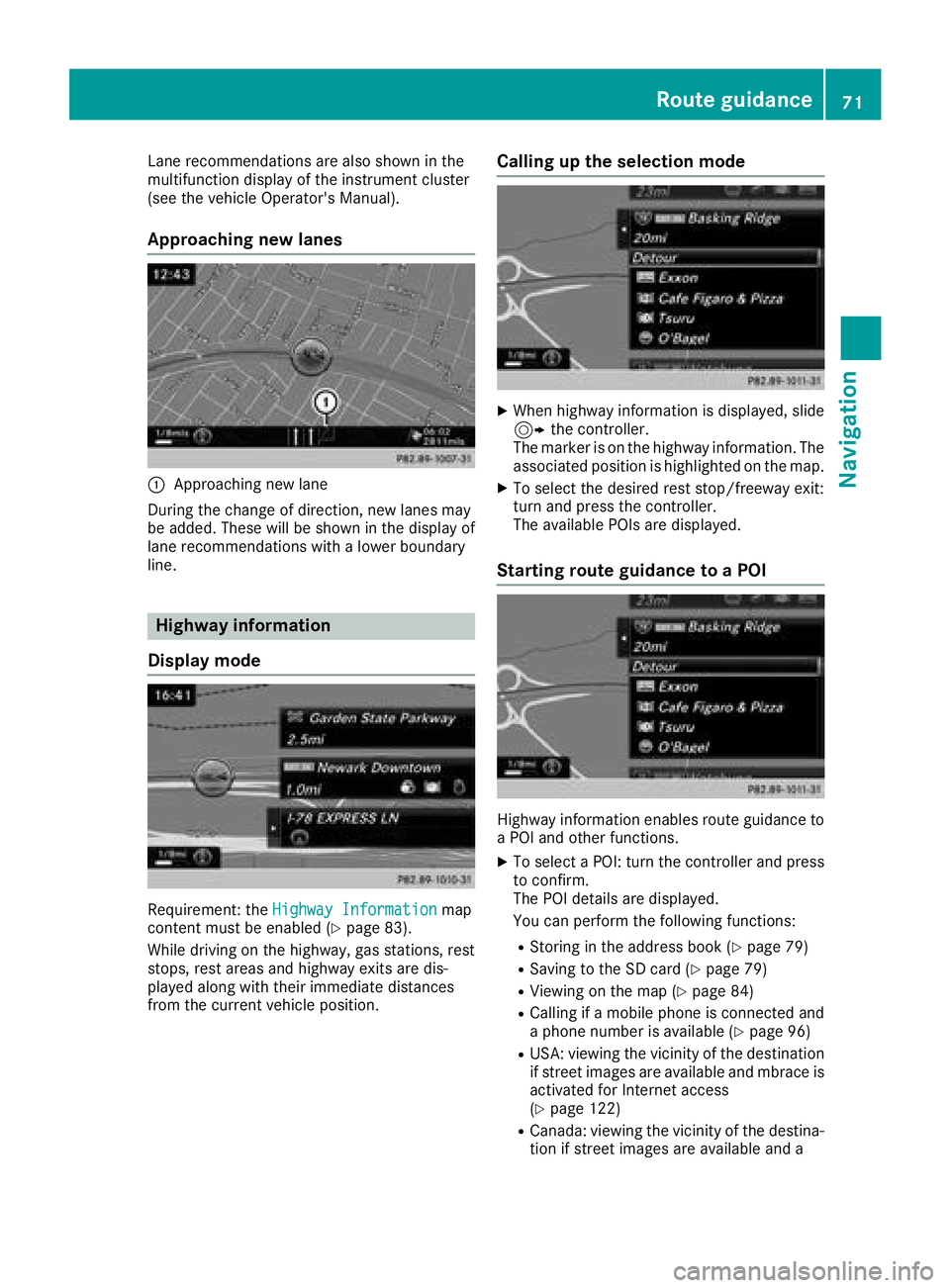
Approaching new lanes
:Approaching new lane
During the change of direction, new lanes may
be added. These will be shown in the display of
lane recommendations with a lower boundary
line.
Highway information
Display mode
Requirement: the Highway Informationmap
content must be enabled (Ypage 83).
While driving on the highway, gas stations, rest
stops, rest areas and highway exits are dis-
played along with their immediate distances
from the current vehicle position.
Calling up the selection mode
XWhen highway information is displayed, slide 9 the controller.
The marker is on the highway information. The
associated position is highlighted on the map.
XTo select the desired rest stop/freeway exit:
turn and press the controller.
The available POIs are displayed.
Starting route guidance to a POI
Highway information enables route guidance to
a POI and other functions.
XTo select a POI: turn the controller and press to confirm.
The POI details are displayed.
You can perform the following functions:
RStoring in the address book (Ypage 79)
RSaving to the SD card (Ypage 79)
RViewing on the map (Ypage 84)
RCalling if a mobile phone is connected and
a phone number is available (Ypage 96)
RUSA: viewing the vicinity of the destination
if street images are available and mbrace is
activated for Internet access
(
Ypage 122)
RCanada: viewing the vicinity of the destina- tion if street images are available and a
Route guidance71
Navigation
Z
Page 79 of 194
XTo selectTraffic Symbol Information:
turn and press the controller.
The map appears and shows the available
traffic information as icons. The first traffic
information is highlighted.
XTo highlight additional traffic symbols, select
Nextor Previous.
XTo move the map: selectMap.
You can move the map to enable further traf-
fic information to be displayed.
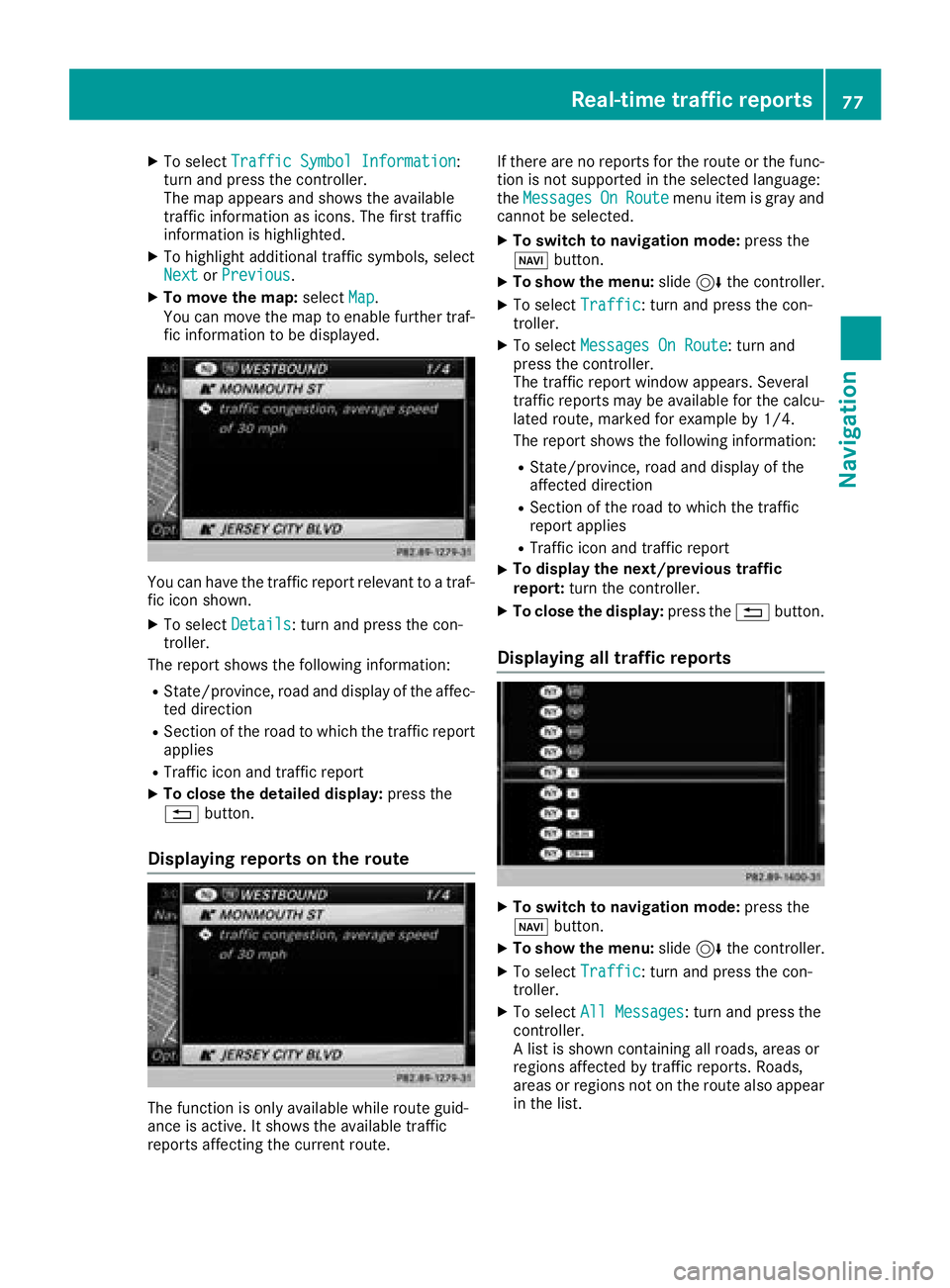
You can have the traffic report relevant to a traf-
fic icon shown.
XTo select Details: turn and press the con-
troller.
The report shows the following information:
RState/province, road and display of the affec-
ted direction
RSection of the road to which the traffic report applies
RTraffic icon and traffic report
XTo close the detailed display: press the
% button.
Displaying reports on the route
The function is only available while route guid-
ance is active. It shows the available traffic
reports affecting the current route. If there are no reports for the route or the func-
tion is not supported in the selected language:
the
Messages
OnRoutemenu item is gray and
cannot be selected.
XTo switch to navigation mode: press the
Ø button.
XTo show the menu: slide6the controller.
XTo select Traffic: turn and press the con-
troller.
XTo select Messages On Route: turn and
press the controller.
The traffic report window appears. Several
traffic reports may be available for the calcu-
lated route, marked for example by 1/4.
The report shows the following information:
RState/province, road and display of the
affected direction
RSection of the road to which the traffic
report applies
RTraffic icon and traffic report
XTo display the next/previous traffic
report: turn the controller.
XTo close the display: press the%button.
Displaying all traffic reports
XTo switch to navigation mode: press the
Ø button.
XTo show the menu: slide6the controller.
XTo select Traffic: turn and press the con-
troller.
XTo select All Messages: turn and press the
controller.
A list is shown containing all roads, areas or
regions affected by traffic reports. Roads,
areas or regions not on the route also appear
in the list.
Real-time traffic reports77
Navigation
Z
Page 82 of 194
XEnter a surname and first name. Character
entry (Ypage 30).
XSelectOK.
The Saving Successfulmessage appears.
The destination is saved to the SD card.
Saving the current vehicle position
Using the map
XTo switch to navigation mode: press the
ß button.
XWhen the map is shown, press and hold the
COMAND controller until you hear a tone.
The current vehicle position is saved to the
"Last destinations" memory.
If an SD card is inserted, the current vehicle
position will also be saved in the Not Clas‐
sifiedcategory.
Using the menu
XTo switch to navigation mode: press the
ß button.
XTo show the menu: slide6the controller.
XTo select Position: turn and press the con-
troller.
XSelect Save.
XStore the destination in the address book
(Ypage 79).
XSave the destination to the SD card
(Ypage 79).
Saving the crosshair position
XTo switch to navigation mode: press the
ß button.
XTo display the crosshair: press the control-
ler.
XMove the map to the desired position
(Ypage 52).
XTo show the menu: press the controller.
XTo selectPosition: turn and press the con-
troller.
XSelect Save.
The current crosshair position is saved to the
"Last destinations" memory. If an SD card is inserted, the current crosshair
position will also be saved in the
Not Clas‐
sifiedcategory.
Editing the last destinations
XTo switch to navigation mode: press the
ß button.
XTo show the menu: slide6the controller.
XTo select Destination: turn and press the
controller.
XSelect From Last Destinations.
The "Last destinations" memory appears.
XTo save the destination: select the destina-
tion.
The destination address appears.
XStore the destination in the address book
(Ypage 79).
XSave the destination to the SD card
(Ypage 79).
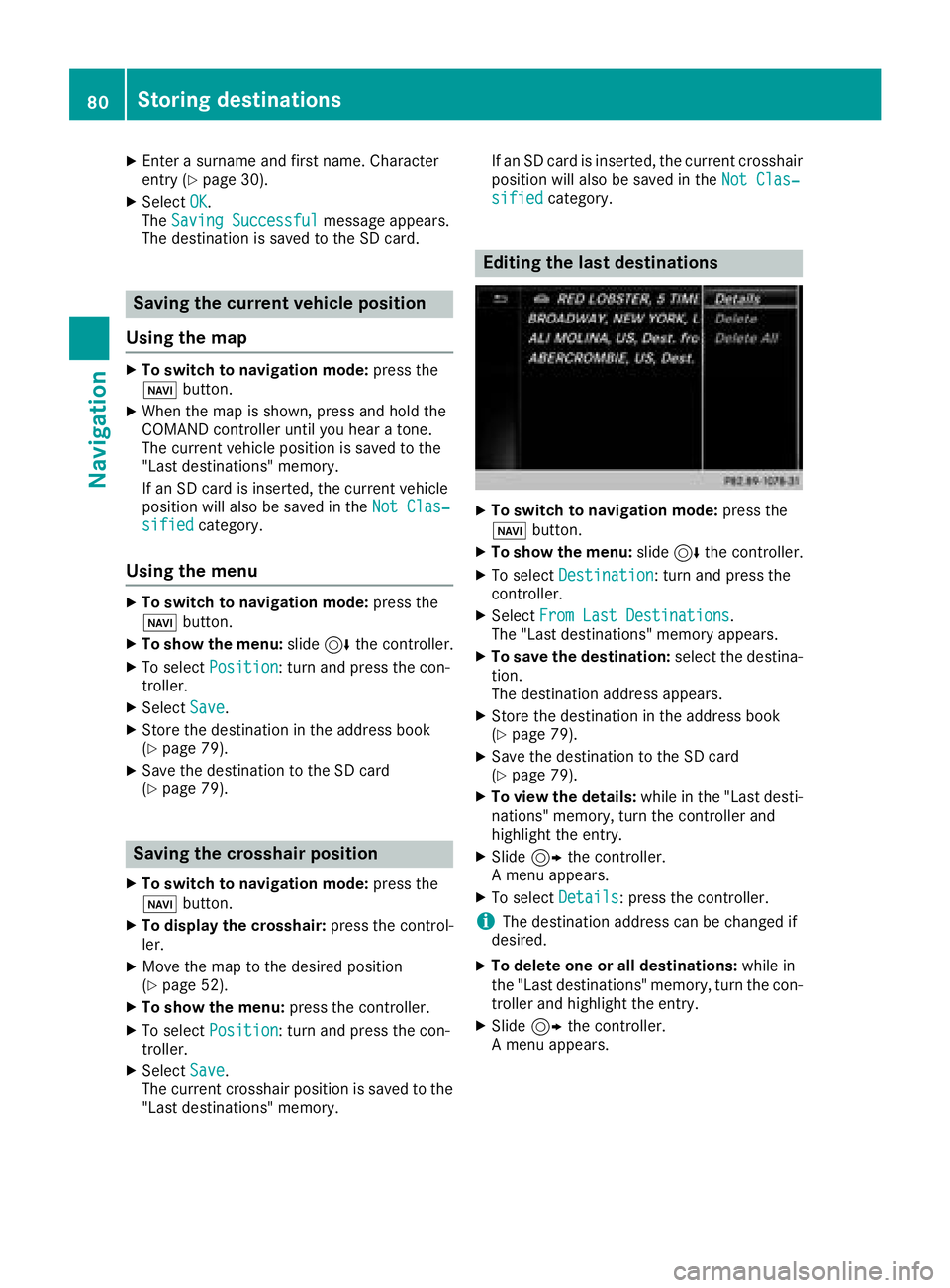
XTo view the details: while in the "Last desti-
nations" memory, turn the controller and
highlight the entry.
XSlide 9the controller.
A menu appears.
XTo select Details: press the controller.
iThe destination address can be changed if
desired.
XTo delete one or all destinations: while in
the "Last destinations" memory, turn the con- troller and highlight the entry.
XSlide 9the controller.
A menu appears.
80Storing destinations
Navigation
Page 88 of 194
SIRIUS XM service
Displaying SIRIUS XM service informa-
tion
You can display the SIRIUS XM service informa-
tion.
XTo switch to navigation mode: press the
Ø button.
XTo show the menu: slide6the controller.
XTo select Traffic: turn and press the con-
troller.
XSelect SIRIUS Service.
The provider's phone number (SIRIUS XM)
and the serial number of your service module
are displayed.
Registering the SIRIUS XM service
XCall the provider telephone number shown on
the multimedia system display.
iYou can also have the satellite service acti-
vated online. To do so, visit the SIRIUS XM
Radio website at http://www.sirius.com
(USA).
Once the connection has been established:
XFollow the service employee's instructions.
The activation process may take up to ten
minutes.
If registration is not included when purchasing
the system, your credit card details will be
required to activate your account.
Updating the digital map
Introduction
The digital maps generated by the map software
become outdated in the same way as conven-
tional road maps. Optimal route guidance can
only be provided by the navigation system in
conjunction with the most up-to-date map soft-
ware.
Information about new versions of the digital
map can be obtained from an authorized
Mercedes-Benz Center. You can have the digital
map updated there using a data medium, or you
can update it yourself.
Carrying out a manual update
You can carry out the update yourself.
The update process may take some time (up to
45 minutes), depending on the size of the digital
map. The update will be completed more quickly
if the vehicle is stationary. If you begin the
update while the vehicle is stationary and the
starter battery has insufficient power, the mul-
timedia system may switch off automatically.
This protects the battery. In order to prevent
this, a suitable power supply to the vehicle must
be maintained.
Navigation functions
Calling up the navigation system
menu
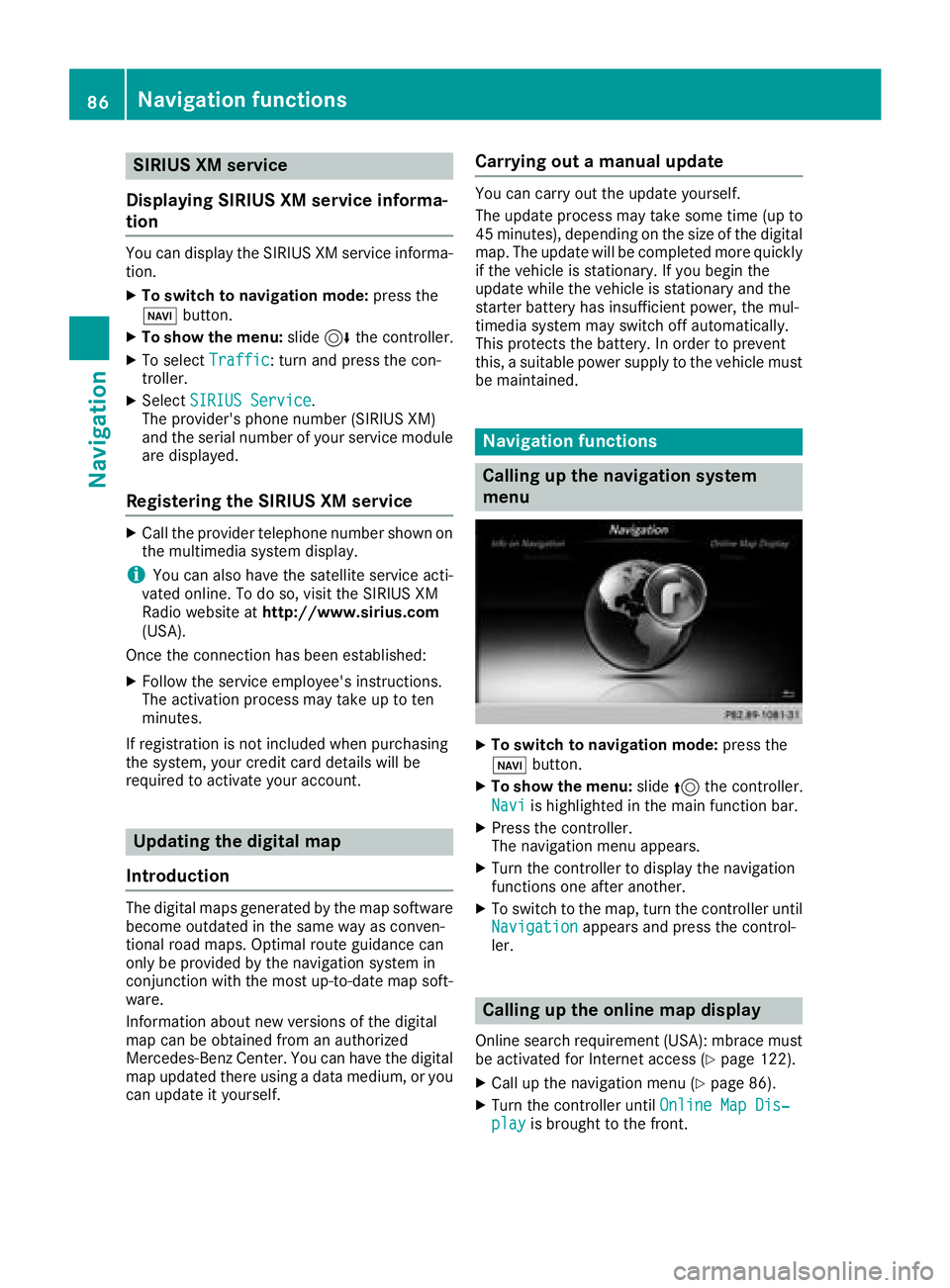
XTo switch to navigation mode: press the
ß button.
XTo show the menu: slide5the controller.
Navi
is highlighted in the main function bar.
XPress the controller.
The navigation menu appears.
XTurn the controller to display the navigation
functions one after another.
XTo switch to the map, turn the controller until
Navigationappears and press the control-
ler.
Calling up the online map display
Online search requirement (USA): mbrace must
be activated for Internet access (Ypage 122).
XCall up the navigation menu (Ypage 86).
XTurn the controller until Online Map Dis‐playis brought to the front.
86Navigation functions
Navigation
Page 96 of 194
Only one mobile phone can be connected at any
one time for telephony. The currently connected
mobile phone is indicated by the#dot in the
device list.
iYou can only switch to another authorized
mobile phone if you are not currently making
a call.
De-authorizing (disconnecting) a
mobile phone
Mercedes-Benz USA, LLC recommends de-
authorization in the multimedia system as well
as on the mobile phone. Subsequent authoriza-
tion may otherwise fail.
XTo call up the telephone menu: press the
% button.
XTo switch to the menu bar: slide 6the con-
troller.
XTo select Conn. Device: turn and press the
controller.
The device list is displayed.
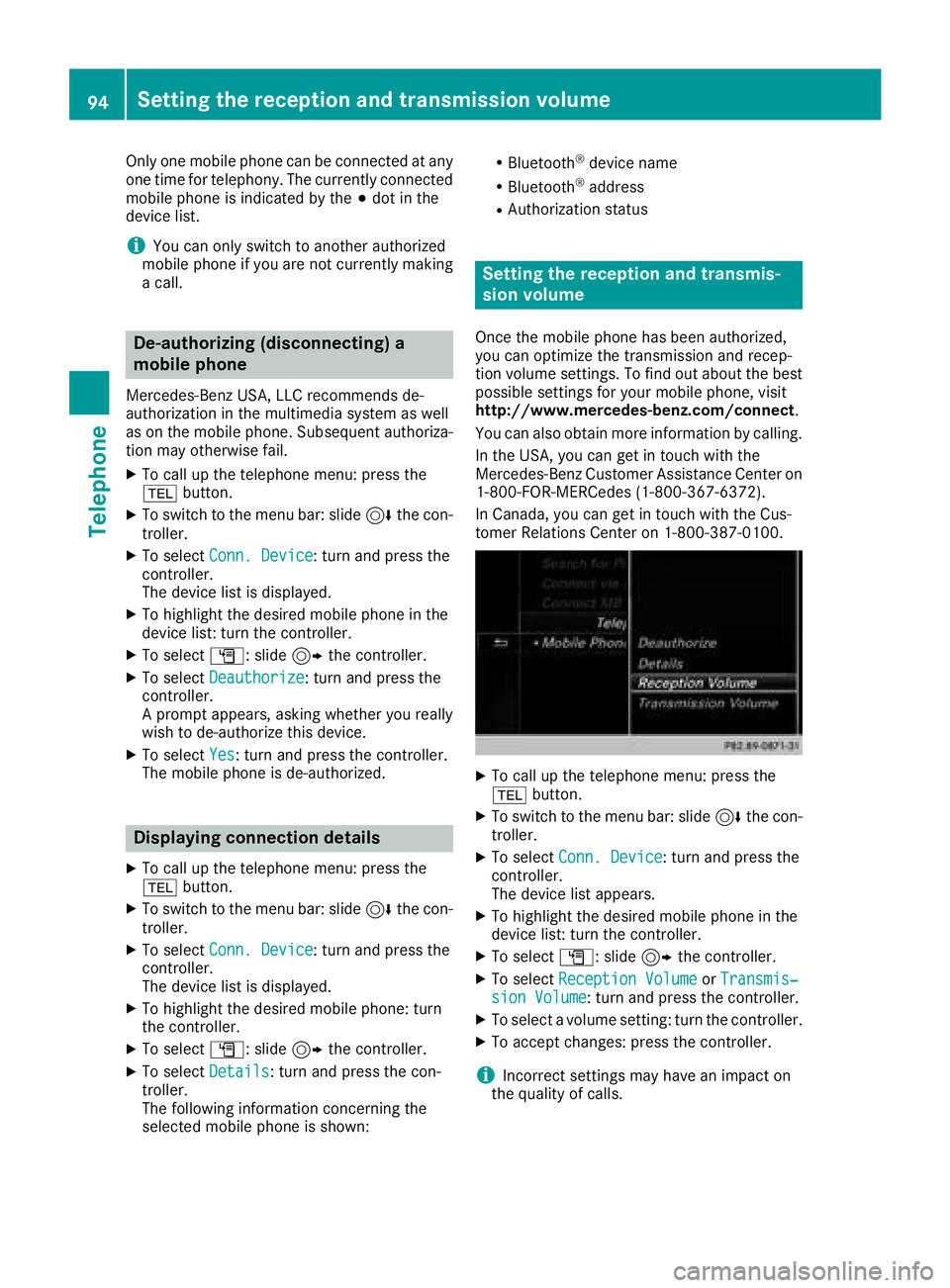
XTo highlight the desired mobile phone in the
device list: turn the controller.
XTo select G: slide 9the controller.
XTo select Deauthorize: turn and press the
controller.
A prompt appears, asking whether you really
wish to de-authorize this device.
XTo select Yes: turn and press the controller.
The mobile phone is de-authorized.
Displaying connection details
XTo call up the telephone menu: press the
% button.
XTo switch to the menu bar: slide 6the con-
troller.
XTo select Conn. Device: turn and press the
controller.
The device list is displayed.
XTo highlight the desired mobile phone: turn
the controller.
XTo select G: slide 9the controller.
XTo select Details: turn and press the con-
troller.
The following information concerning the
selected mobile phone is shown:
RBluetooth®device name
RBluetooth®address
RAuthorization status
Setting the reception and transmis-
sion volume
Once the mobile phone has been authorized,
you can optimize the transmission and recep-
tion volume settings. To find out about the best
possible settings for your mobile phone, visit
http://www.mercedes-benz.com/connect .
You can also obtain more information by calling.
In the USA, you can get in touch with the
Mercedes-Benz Customer Assistance Center on
1-800-FOR-MERCedes (1-800-367-6372).
In Canada, you can get in touch with the Cus-
tomer Relations Center on 1-800-387-0100.
XTo call up the telephone menu: press the
% button.
XTo switch to the menu bar: slide 6the con-
troller.
XTo select Conn. Device: turn and press the
controller.
The device list appears.
XTo highlight the desired mobile phone in the
device list: turn the controller.
XTo select G: slide 9the controller.
XTo select Reception VolumeorTransmis‐sion Volume: turn and press the controller.
XTo select a volume setting: turn the controller.
XTo accept changes: press the controller.
iIncorrect settings may have an impact on
the quality of calls.
94Setting the reception and transmission volume
Telephone
Page 98 of 194
Selecting and placing a call using the multifunc-
tion steering wheel (see vehicle Operator's Man-ual)
Further information about ending a call
(
Ypage 98).
Using speed dial
Option 1
XTo call up the telephone menu: press the
% button.
XTo highlight a number from the character bar:
turn the controller.
XPress the controller for longer than two sec-
onds.
The telephone menu displays the selected
entry. The number is dialed.
Option 2
XTo call up the telephone menu: press the
% button.
XTo switch to the menu bar: slide 6the con-
troller.
XTo select Call Lists: turn and press the
controller.
XTo select Speed Dial Preset List: turn
and press the controller.
The speed dial list is displayed.
XTo select an entry and make a call: turn and
press the controller.
The telephone menu displays the selected
entry. The number is dialed.
Further information on setting up speed dial
(
Ypage 110).
Further information about ending a call
(
Ypage 98).
Functions available during a call
Overview
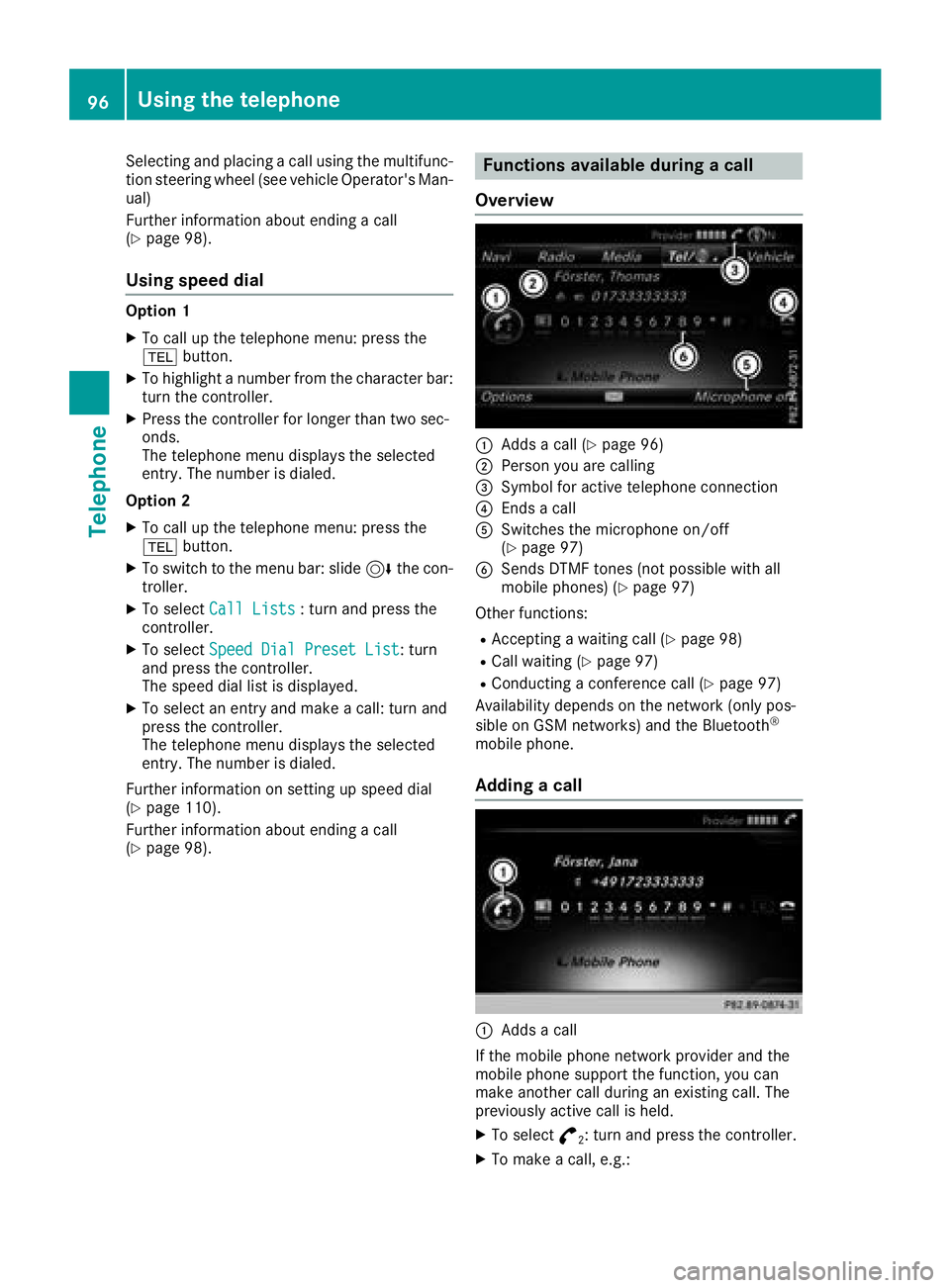
:Adds a call (Ypage 96)
;Person you are calling
=Symbol for active telephone connection
?Ends a call
ASwitches the microphone on/off
(Ypage 97)
BSends DTMF tones (not possible with all
mobile phones) (Ypage 97)
Other functions:
RAccepting a waiting call (Ypage 98)
RCall waiting (Ypage 97)
RConducting a conference call (Ypage 97)
Availability depends on the network (only pos-
sible on GSM networks) and the Bluetooth
®
mobile phone.
Adding a call
:Adds a call
If the mobile phone network provider and the
mobile phone support the function, you can
make another call during an existing call. The
previously active call is held.
XTo select °2: turn and press the controller.
XTo make a call, e.g.:
96Using the telephone
Telephone