reset MERCEDES-BENZ GLS SUV 2018 COMAND Manual
[x] Cancel search | Manufacturer: MERCEDES-BENZ, Model Year: 2018, Model line: GLS SUV, Model: MERCEDES-BENZ GLS SUV 2018Pages: 194, PDF Size: 4.5 MB
Page 4 of 194
Index....................................................... 4
Introduction......................................... 14
Operating safety .................................... 14
Data stored in the vehicle ...................... 15
Information on copyright ...................... .17
Your multimedia system equipment ...... 17
Overview and operation .....................18
Overview ................................................ 18
Touchpad .............................................. .22
Basic functions ...................................... 27
Character entry (telephony) ................... 28
Character entry (navigation) .................. 30
Favorites ................................................ 31
System settings .................................. 33
Your multimedia system equipment ...... 33
Important safety notes .......................... 33
Display settings ..................................... 33
Time settings .........................................3 4
Text reader settings ...............................3 6
Voice Control System settings ............... 36
Wi-Fi ...................................................... 36
Bluetooth
®settings ............................... 39
Setting the system language .................4 0
Callin g up the favorite functions ............ 40
Im porting/exporting data ...................... 41
Reset function ...................................... .42
Vehicle functions ................................ 43
Your multimedia system equipment ...... 43
Important safety notes .......................... 43
Vehicle settings ..................................... 43
Seats ..................................................... 45
360° camera ......................................... 46
Rear view camera .................................. 47
DYNAMIC SELECT .................................. 48
Driving dynamics ................................... 50
Navigation ........................................... 51
Your multimedia system equipment ...... 51
Introduction ........................................... 51
Basic settings ........................................ 53 Destination entry ................................... 55
Personal POIs and routes ...................... 66
Route guidance ...................................... 69
Real-time traffic reports ......................... 75
Storing destinations ............................... 79
Map functions ........................................ 81
Navigation functions .............................. 86
Problems with the navigation system .... 87
Telephone
............................................ 89
Your multimedia system equipment ...... 89
Important safety notes .......................... 89
General notes ........................................ 89
Telephone menu overview ..................... 90
Connecting/disconnecting a mobile
phone .................................................... 90
Setting the reception and transmis-
sion volume ........................................... 94
Using the telephone .............................. 95
Mobile phone voice recognition ............. 98
Phone book ........................................... 99
Address book ...................................... 102
Importing contacts .............................. 107
Call lists ............................................... 109
Speed dial lists .................................... 110
Messages (text messages and e-
mails) ................................................... 111
Dictation function ................................ 117
Apple CarPlay™ ................................... 118
Android Auto™ .................................... 119
Online and Internet functions ..........122
Your multimedia system equipment .... 122
Important safety notes ........................ 122
General notes ...................................... 122
Conditions for access .......................... 122
Setting up an Internet connection
(Canada) .............................................. 123
Establishing/ending the connection .... 125
Mercedes-Benz Apps ........................... 126
Web browser ....................................... 127
Radio .................................................. 131
Your multimedia system equipment .... 131
Switching on the radio ......................... 131
Overview .............................................. 131
2Contents
Page 8 of 194
Destination (navigation)Enterin g adestination usin gth e
map ................................................ .62
Entering a point of interest .............. 60
Entering using geo-coordinates ....... 65
Entering using Mercedes-Benz
Apps ................................................ 65
Keyword search ............................... 58
Saving .............................................. 79
Selecting an address book con-
tact as a destination ........................ 60
Selecting from the list of last des-
tinations ........................................... 59
Dialing a number (telephone) ............. 95
Display
Selecting the design ........................ 33
Switching on/off .............................. 34
Displaying energy consumption
and generated electrical energy
(COMAND) ............................................ 44
Driving Dynamics
Displaying ........................................ 50
DVD
Inserting/loading (DVD changer) ... 144
Inserting/loading (Rear Seat
Entertainment System) .................. 183
Notes on discs ............................... 143
Removing/ejecting (DVD
changer) ........................................ 144
Removing/ejecting (Rear Seat
Entertainment System) .................. 183
DVD video
Rear Seat Entertainment System ... 186
DYNAMIC SELECT
Configuration via the DYNAMIC
SELECT controller ............................ 48
Configuring individual drive pro-
gram ................................................ 48
Configuring using the DYNAMIC
SELECT button ................................. 48
Displaying engine data ..................... 48
Setting options ................................ 49
E
E-mailAnswering ...................................... 115
Calling up the settings menu ......... 112 Changing the name of the e-mail
account .......................................... 112
Configuring an e-mail account ....... 112
Configuring the e-mails displayed .. 112
Deactivating the e-mail function .... 112
Deleting ......................................... 117
Displaying details ........................... 114
Downloading e-mails manually ...... 113
Editing text templates .................... 116
Forwarding ..................................... 116
Inbox .............................................. 113
Reading .......................................... 113
Settings ......................................... 112
Storing the sender as a new entry
in the address book ....................... 117
Using a phone number in the text .. 116
Using text templates ...................... 116
Writing ........................................... 115
Entering the address (example) ......... 56
Entering the city .................................. 56
F
Factory setting (reset function) ......... 42
Favorites
Adding ............................................. 31
Adding (predefined) ......................... 31
Adding (your own) ............................ 32
Deleting ........................................... 32
Displaying and calling up ................. 31
Moving ............................................. 32
Overview .......................................... 31
Renaming ......................................... 32
Favorites (Internet) ........................... 129
Favorites button .................................. 40
Fuel consumption (COMAND) ............ 44
G
GPS reception...................................... 51
Gracenote®Media Database ............ 147
H
Handwriting recognition
Switching text reader function
on/off .............................................. 25
Touchpad ......................................... 24
6Index
Page 11 of 194
Manually setting the access data
of the mobile phone network pro-
vider ..............................................124
Mercedes-Benz Apps ..................... 126
Selecting the access data of the
mobile phone network provider ..... 123
Setting up an Internet connection .. 123
Web browser .................................. 127
P
Pause function
Video DVD ..................................... 160
Personal POIs and routes
Alert when approaching (personal
POI) ..................................................6 6
Editing .............................................. 67
Importing via Mercedes-Benz
Apps ................................................ 67
Recording the route .........................6 8
Saving .............................................. 66
Selecting .......................................... 67
Settings for personal POIs ............... 66
Phone book
Adding a new contact .................... 100
Adding information to a contact .... 101
Automatically importing contacts
from the mobile phone .................. 101
Calling up ......................................... 99
Deleting a contact ......................... 102
Displaying the details of an entry ... 100
Entering characters ......................... 28
Saving a contact ............................ 102
Searching for a contact ................... 99
Symbol overview .............................. 99
Phone call
Dialing .............................................. 95
Picture viewer
Changing view ............................... 161
Displaying pictures ........................ 160
Exiting the picture viewer .............. 161
POI (navigation)
Category .......................................... 61
Defining the position for the POI
search .............................................. 60
Entering ........................................... 60
Selecting .......................................... 62
Previous destinations (navigation) .... 80
R
Radio
Activating/deactivating the sta-
tion presets display ....................... 132
Deleting a station .......................... 133
Displaying information ................... 134
Displaying station information ....... 134
Displaying the artist and track ....... 134
Overview ........................................ 131
Setting the waveband .................... 132
Sound settings (balance, bass,
treble) ............................................ 134
Storing stations ............................. 133
Switching on .................................. 131
Tagging music tracks (download-
ing/purchasing tracks from the
iTunes Store
®) ............................... 134
Radio station
Storing ........................................... 133
Read-aloud function
Automatic ........................................ 78
Read-aloud function for e-mails ....... 114
Reading out
Traffic reports on the route .............. 78
Real-time traffic reports ..................... 75
Rear Seat Entertainment System
Active COMAND source ................. 190
Adjusting sound settings ............... 181
Adjusting the brightness ................ 181
Adjusting the color ........................ 181
Adjusting the contrast ................... 181
AUX mode ...................................... 191
CD/DVD audio and MP3 mode ...... 182
Changing the batteries .................. 179
Changing the picture format .......... 182
Control menu ................................. 186
Cordless headphones .................... 178
DVD video mode ............................ 186
Multiple users ................................ 181
Operating with the headphones ..... 180
Picture settings .............................. 181
System settings ............................. 182
Using the main loudspeaker .......... 181
Rear view camera
Displaying the image ........................ 47
Opening the camera cover for
cleaning (COMAND) ......................... 47
Index9
Page 12 of 194
Switching on/off (COMAND) ........... 47
Rear-compartment screens .............. 176
Receiving vCards ............................... 108
Redialing (telephone) .......................... 95
Remote control
Button lighting ............................... 177
Changing batteries ........................ 180
Rear Seat Entertainment System ... 177
Reserve fuel level
Switching the function on/off in
COMAND ......................................... 54
Resetting (factory settings) ............... 42
Route (navigation)
Selecting an alternative route .......... 73
Setting route options (avoiding:
highways, toll roads, tunnels, fer-
ries) ................................................. 53
Setting the route type (short
route, fast route, dynamic route or
economic route) ............................... 53
Starting calculation .......................... 57
Route guidance
Continue .......................................... 73
Freeway information ........................ 71
General notes .................................. 69
Lane recommendations ................... 70
Off-road ........................................... 75
Traffic reports .................................. 75
S
Safety notesAudio CD and MP3 mode ............... 141
Using the telephone ......................... 89
Satellite radio
Displaying information ................... 138
Overview ........................................ 136
Presets menu view ......................... 137
Registering .................................... 135
Switching to ................................... 135
SatRadio
Channel list updates ...................... 139
Memory functions .......................... 137
Music and sports alerts ................. 137
Notes ............................................. 134
Selecting a category ...................... 136
Selecting a channel ....................... 136
Tagging music tracks ..................... 138 Screen
Selecting for the remote control .... 177
SD card
Inserting ........................................ 145
Inserting/removing ........................ 145
Removing ....................................... 145
Seat cushion
Adjusting (COMAND) ....................... 45
Seats
Active multicontour seat
(COMAND) ....................................... 45
Adjusting the lumbar support
(COMAND) ....................................... 45
Balance (seat heating) ..................... 46
Massage function (COMAND) .......... 45
Massage programs (COMAND) ........ 45
Resetting settings ............................ 46
Seat functions (COMAND) ............... 45
Selecting for adjustment
(COMAND) ....................................... 45
Setting the driving dynamics
(COMAND) ....................................... 45
Selecting stations
Radio ............................................. 132
Sending DTMF tones ........................... 97
Setting access data
Online and Internet ........................ 123
Setting the audio format
Rear Seat Entertainment System ... 188
Setting the language
COMAND ......................................... 40
Rear Seat Entertainment System ... 188
Setting the night design ..................... 33
Setting the text reader speed ............ 36
Setting the volume
Telephone calls ................................ 27
Settings
Sound settings ............................... 162
Short message
see Text messages (SMS)
SIRIUS weather display
5-day forecast ................................ 168
Daily forecast ................................. 168
Detail information .......................... 169
Information chart ........................... 168
Se
lecting a location for the
weather forecast ............................ 169
Switching on/off ........................... 168
10Index
Page 13 of 194
Weather map ................................. 171
SIRIUS weather map
Storm Guide ..................................1 75
Storm Watch Box ........................... 175
Sound
Switching on/off .............................. 27
Sound settings
Balance/fader ............................... 162
Calling up the sound menu ............ 162
Equalizer ........................................ 162
Speed dial
Deleting ......................................... 111
Setting up ...................................... 110
State/province
Selecting .......................................... 56
Station presets (radio)
Deleting marked stations ...............1 33
Stop function
Video DVD ..................................... 160
Storing stations
Radio ............................................. 133
Switching between summer time
and standard time ............................... 34
Switching on media mode
Using the Media button ................. 140
Via the device list .......................... 141
Via the main function bar ............... 140
Via the number keypad .................. 141
System settings
Bluetooth
®....................................... 39
Date ................................................. 34
Importing/exporting data ................ 41
Language ......................................... 40
Text reader speed ............................ 36
Time ................................................. 34
Time zone ........................................ 34
Voice Control System ...................... 36
T
Telephone
Accepting a call (COMAND) ............. 95
Adding a call .................................... 96
Adjusting the volume for calls .......... 27
Apple CarPlay™ ............................. 118
Authorizing a mobile phone (con-
necting) ............................................ 92
Call lists ......................................... 109 Call waiting ...................................... 98
Calls with several participants ......... 97
Conference calls .............................. 97
Connecting a mobile phone (gen-
eral information) .............................. 90
De-authorizing (disconnecting) a
mobile phone ................................... 94
Deleting a speed dial preset .......... 111
Deleting messages ........................ 117
Dictation function for text mes-
sages and e-mails .......................... 117
Displaying Bluetooth
®connection
details .............................................. 94
Downloading messages manually .. 113
E-mail ............................................. 111
E-mail requirements ....................... 111
E-mail settings ............................... 112
Ending an active call ........................ 98
Entering a number ........................... 95
Entering phone numbers .................. 95
Establishing the connection from
the mobile phone ............................. 93
Function restrictions ........................ 90
Functions available during a call ...... 96
General notes .................................. 89
Incoming call during an existing
call ................................................... 98
Making a call .................................... 95
Message conditions ....................... 111
Message settings ........................... 112
Operating options ............................ 89
Phone book ...................................... 99
Reading messages ......................... 113
Reception and transmission vol-
ume ................................................. 94
Reconnecting a mobile phone
automatically ................................... 93
Rejecting a call (COMAND) .............. 95
Safety notes ..................................... 89
Sending DTMF tones ........................ 97
Setting up a speed dial .................. 110
Switching between calls (call wait-
ing) .................................................. 97
Switching between mobi
le
phones ............................................. 93
Switching the microphone on/off .... 97
Telephone menu overview ............... 90
Text message conditions ............... 111
Index11
Page 43 of 194
Exiting the Favorites function
XPress the Favorites button again.
or
XPress the %button.
Further information on the Favorites function
(
Ypage 31).
Importing/exporting data
General notes
!
Never remove the stick or card when writing
data to the USB stick or the memory card. You
may otherwise lose data.
Using this function you can do the following with
your personal data:
Rtransfer your data from one multimedia sys-
tem to another multimedia system
The transfer may be limited or not possible,
depending on the vehicle's equipment.
Rmake a backup copy of your personal data
(export data) and load it again (import data)
Rprotect your data from unwanted export by
activating a pin prompt (presetting: deactiva- ted ª)
You can either use an SD card or a USB storage
device (e.g. a USB stick) as temporary storage.
Please remember that the NFTS file system is
not supported. The FAT32 file system is recom-
mended.
Further information on importing and exporting data can be obtained at a qualified specialist
workshop.
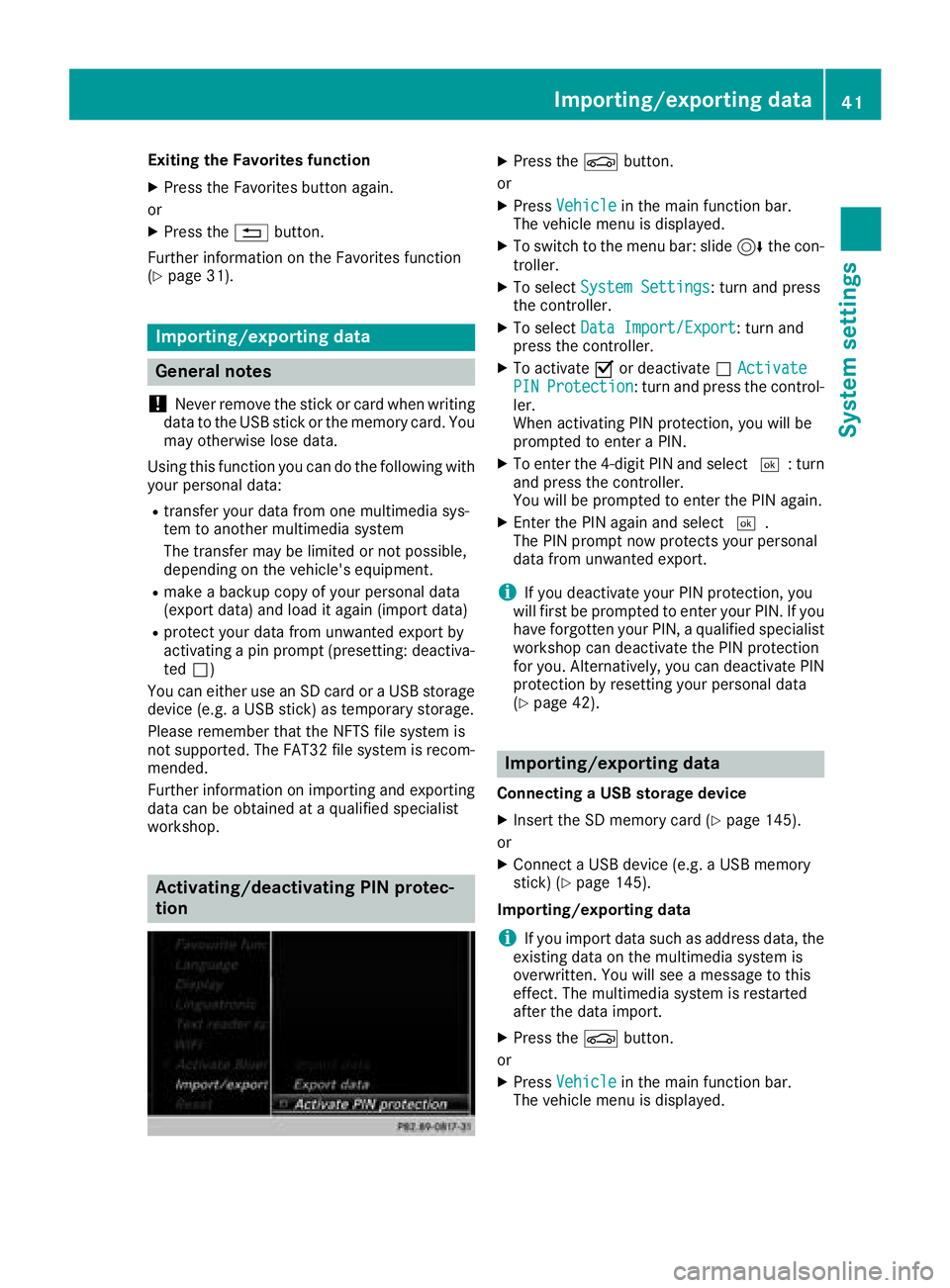
Activating/deactivating PIN protec-
tion
XPress the Øbutton.
or
XPress Vehiclein the main function bar.
The vehicle menu is displayed.
XTo switch to the menu bar: slide 6the con-
troller.
XTo select System Settings: turn and press
the controller.
XTo select Data Import/Export: turn and
press the controller.
XTo activate Oor deactivate ªActivatePINProtection: turn and press the control-
ler.
When activating PIN protection, you will be
prompted to enter a PIN.
XTo enter the 4-digit PIN and select ¬: turn
and press the controller.
You will be prompted to enter the PIN again.
XEnter the PIN again and select ¬.
The PIN prompt now protects your personal
data from unwanted export.
iIf you deactivate your PIN protection, you
will first be prompted to enter your PIN. If you
have forgotten your PIN, a qualified specialist
workshop can deactivate the PIN protection
for you. Alternatively, you can deactivate PIN
protection by resetting your personal data
(
Ypage 42).
Importing/exporting data
Connecting a USB storage device
XInsert the SD memory card (Ypage 145).
or
XConnect a USB device (e.g. a USB memory
stick) (Ypage 145).
Importing/exporting data
iIf you import data such as address data, the
existing data on the multimedia system is
overwritten. You will see a message to this
effect. The multimedia system is restarted
after the data import.
XPress the Øbutton.
or
XPress Vehiclein the main function bar.
The vehicle menu is displayed.
Importing/exporting data41
System settings
Z
Page 44 of 194
XTo switch to the menu bar: slide6the con-
troller.
XTo select System Settings: turn and press
the controller.
A menu appears.
XTo select Data Import/Export: turn and
press the controller.
XSelect Import DataorExport Data.
If PIN protection is activated, a PIN prompt
appears when you select Export Data
.
XTo enter the 4-digit PIN and select ¬: turn
and press the controller.
PIN protection is deactivated.
XTo select MemoryCard,USB 1or USB 2: turn
and press the controller.
This function exports all the data to the selec-
ted disc.
iYou can export address data, bookmarks,
system settings that you have made and radio
station lists, for example.
Mercedes-Benz is not liable for any loss of
data.
Reset function
General information
You can reset the multimedia system to the fac-
tory settings. This includes the deletion of all of
your personal data on the multimedia system.
These include:
RStation presets
REntries in the destination memory
REntries in the list of previous destinations in
the navigation system
REntries in the address book
RAuthorized telephone
In addition, an activated PIN protection, which
you have used to protect your data against
unwanted export, will be deactivated. Resetting
is recommended before selling or transferring
ownership of your vehicle, for example.
Mercedes-Benz is not liable for any loss of data.
Resetting the multimedia system
XPress the Øbutton.
or
XPress Vehiclein the main function bar.
The vehicle menu is displayed.
XTo switch to the menu bar: slide 6the con-
troller.
XTo select System Settings: turn and press
the controller.
XTo select Reset: turn and press the controller.
A prompt appears asking whether you wish to
reset.
XSelect Yes.
A prompt appears again asking whether you
really wish to reset.
XSelect Yes.
The multimedia system is reset to the factory
settings and restarted.
42Reset function
System settings
Page 48 of 194
Massage the entire back, rising waves, sooth-
ing downward movements
RActivating Massage
Mobilizing massage and rising and descend-
ing dynamic waves
RClassic Massage
Single and twin waves moving upwards
across the entire back
RMobilizing Massage
Mobilization via stronger single and twin
waves moving upwards across the entire back
Selecting a massage program
XCall up the seat functions (Ypage 45).
XTo selectMassage: turn and press the con-
troller.
XTo select a seat: slide 1the controller.
XTo select massage programs: turn and press
the controller.
The massage program runs for approximately
15 to 25 minutes, depending on the setting.
XTo exit the menu: press the%button.
Seat heating balance
The balance function controls the distribution of
heat for the seat backrest and seat cushion.
The balance function influences the currently
set heating level of the seat heating (see the
vehicle Operator's Manual).
XCall up the seat functions (Ypage 45).
XTo select Seat Heating Balance: turn and
press the controller.
XTo select a seat: slide 1the controller.
XTo change the setting: turn the controller.
You will see the changes you have made in the
settings display.
The settings represent the following:
R0— the backrest and seat cushion are evenly
heated according to the setting selected with
the seat heating button.
R1to 3increasing — the heat output to the seat
cushion is reduced one level at a time.
R1to 3decreasing — the heat output for the
backrest is reduced one level at a time.
XTo exit the menu: press the%button.
Resetting all adjustments
XCall up the seat functions (Ypage 45).
XSelect a seat.
XTo select Reset: turn and press the controller.
XTo select a seat: slide 1the controller.
XTo reset: press the controller.
A prompt appears.
XTo select YesorNo: turn and press the con-
troller.
If you select No
the process is canceled.
After selecting Yes
all seat adjustments are
reset to the default values (factory setting).
360° camera
General notes
The 360° camera covers the immediate sur-
roundings of the vehicle and assists you, for
instance when parking or at exits with reduced
visibility.
The 360° camera is only an aid. It is not a
replacement for your attention to your immedi-
ate surroundings. You are always responsible
for safe maneuvering and parking. Make sure
that no persons or animals are in the maneu-
vering range.
Further information on the 360°camera can be
found in the vehicle Operator's Manual.
Displaying the 360° camera image
The 360° camera image can be displayed if:
Ryour vehicle is equipped with a 360° camera
Rthe 360°Camerafunction is switched on (see
the vehicle Operator's Manual)
XPress Vehiclein the main function bar.
The vehicle menu is displayed.
XSelect 360° Camera.
The 360° camera image appears in split-
screen mode.
You will see the previous view on the display if,
when the function is switched on:
Rturn the SmartKey to position 1in the igni-
tion lock
Ryou select transmission position P
Rwhen you are driving at moderate speeds
46360° camera
Vehicle functions
Page 98 of 194
Selecting and placing a call using the multifunc-
tion steering wheel (see vehicle Operator's Man-ual)
Further information about ending a call
(
Ypage 98).
Using speed dial
Option 1
XTo call up the telephone menu: press the
% button.
XTo highlight a number from the character bar:
turn the controller.
XPress the controller for longer than two sec-
onds.
The telephone menu displays the selected
entry. The number is dialed.
Option 2
XTo call up the telephone menu: press the
% button.
XTo switch to the menu bar: slide 6the con-
troller.
XTo select Call Lists: turn and press the
controller.
XTo select Speed Dial Preset List: turn
and press the controller.
The speed dial list is displayed.
XTo select an entry and make a call: turn and
press the controller.
The telephone menu displays the selected
entry. The number is dialed.
Further information on setting up speed dial
(
Ypage 110).
Further information about ending a call
(
Ypage 98).
Functions available during a call
Overview
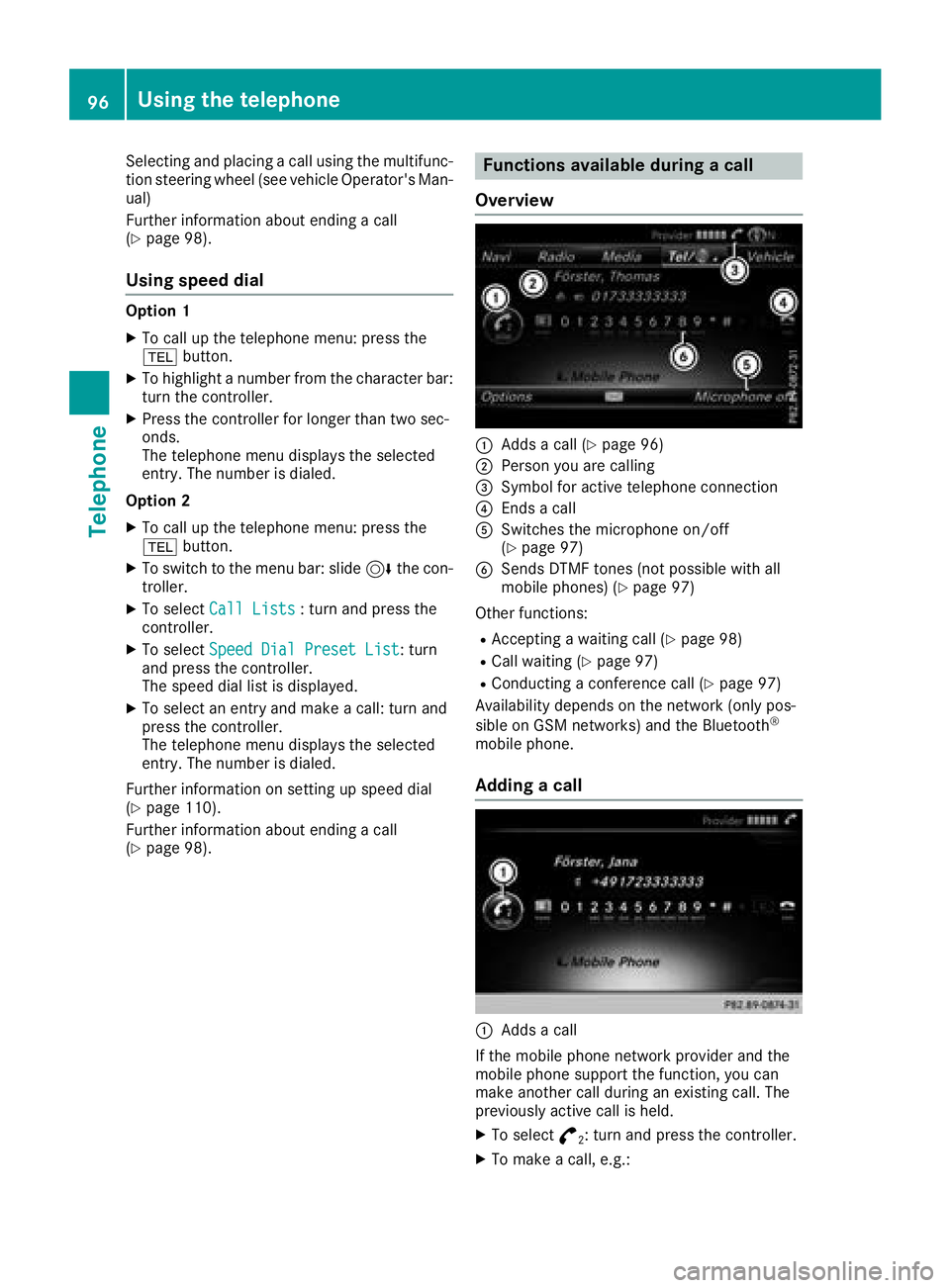
:Adds a call (Ypage 96)
;Person you are calling
=Symbol for active telephone connection
?Ends a call
ASwitches the microphone on/off
(Ypage 97)
BSends DTMF tones (not possible with all
mobile phones) (Ypage 97)
Other functions:
RAccepting a waiting call (Ypage 98)
RCall waiting (Ypage 97)
RConducting a conference call (Ypage 97)
Availability depends on the network (only pos-
sible on GSM networks) and the Bluetooth
®
mobile phone.
Adding a call
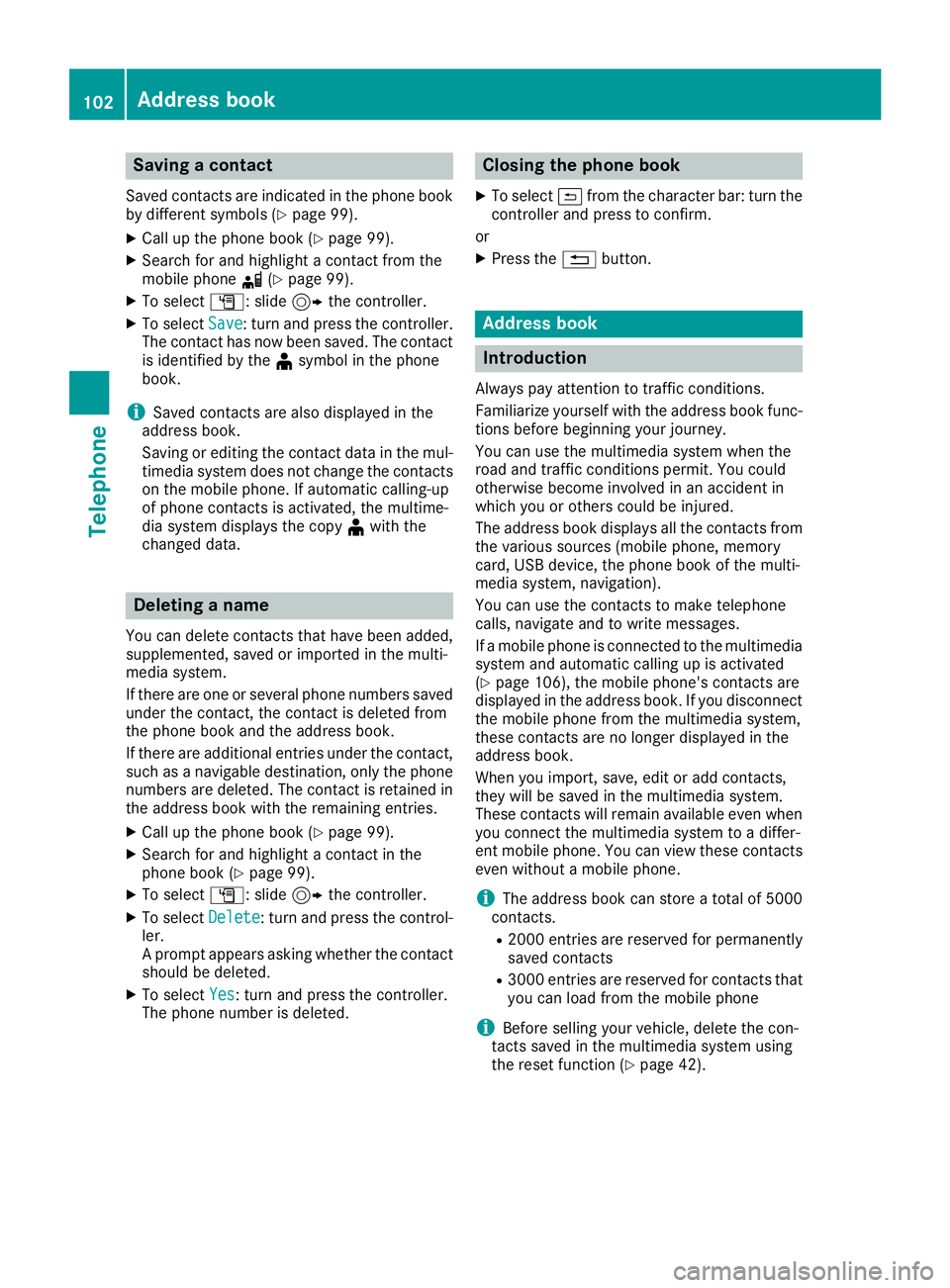
:Adds a call
If the mobile phone network provider and the
mobile phone support the function, you can
make another call during an existing call. The
previously active call is held.
XTo select °2: turn and press the controller.
XTo make a call, e.g.:
96Using the telephone
Telephone
Page 104 of 194
Saving a contact
Saved contacts are indicated in the phone book
by different symbols (Ypage 99).
XCall up the phone book (Ypage 99).
XSearch for and highlight a contact from the
mobile phoned(Ypage 99).
XTo select G: slide 9the controller.
XTo select Save: turn and press the controller.
The contact has now been saved. The contact
is identified by the ¥symbol in the phone
book.
iSaved contacts are also displayed in the
address book.
Saving or editing the contact data in the mul-
timedia system does not change the contacts
on the mobile phone. If automatic calling-up
of phone contacts is activated, the multime-
dia system displays the copy ¥with the
changed data.
Deleting a name
You can delete contacts that have been added,
supplemented, saved or imported in the multi-
media system.
If there are one or several phone numbers saved under the contact, the contact is deleted from
the phone book and the address book.
If there are additional entries under the contact,
such as a navigable destination, only the phone
numbers are deleted. The contact is retained in the address book with the remaining entries.
XCall up the phone book (Ypage 99).
XSearch for and highlight a contact in the
phone book (Ypage 99).
XTo select G: slide 9the controller.
XTo select Delete: turn and press the control-
ler.
A prompt appears asking whether the contact
should be deleted.
XTo select Yes: turn and press the controller.
The phone number is deleted.
Closing the phone book
XTo select &from the character bar: turn the
controller and press to confirm.
or
XPress the %button.
Address book
Introduction
Always pay attention to traffic conditions.
Familiarize yourself with the address book func-
tions before beginning your journey.
You can use the multimedia system when the
road and traffic conditions permit. You could
otherwise become involved in an accident in
which you or others could be injured.
The address book displays all the contacts from
the various sources (mobile phone, memory
card, USB device, the phone book of the multi-
media system, navigation).
You can use the contacts to make telephone
calls, navigate and to write messages.
If a mobile phone is connected to the multimedia
system and automatic calling up is activated
(
Ypage 106), the mobile phone's contacts are
displayed in the address book. If you disconnect
the mobile phone from the multimedia system,
these contacts are no longer displayed in the
address book.
When you import, save, edit or add contacts,
they will be saved in the multimedia system.
These contacts will remain available even when
you connect the multimedia system to a differ-
ent mobile phone. You can view these contacts
even without a mobile phone.
iThe address book can store a total of 5000
contacts.
R2000 entries are reserved for permanently
saved contacts
R3000 entries are reserved for contacts that
you can load from the mobile phone
iBefore selling your vehicle, delete the con-
tacts saved in the multimedia system using
the reset function (
Ypage 42).
102Address book
Telephone