navigation MERCEDES-BENZ GLS SUV 2020 Owner's Manual
[x] Cancel search | Manufacturer: MERCEDES-BENZ, Model Year: 2020, Model line: GLS SUV, Model: MERCEDES-BENZ GLS SUV 2020Pages: 549, PDF Size: 9.9 MB
Page 329 of 549
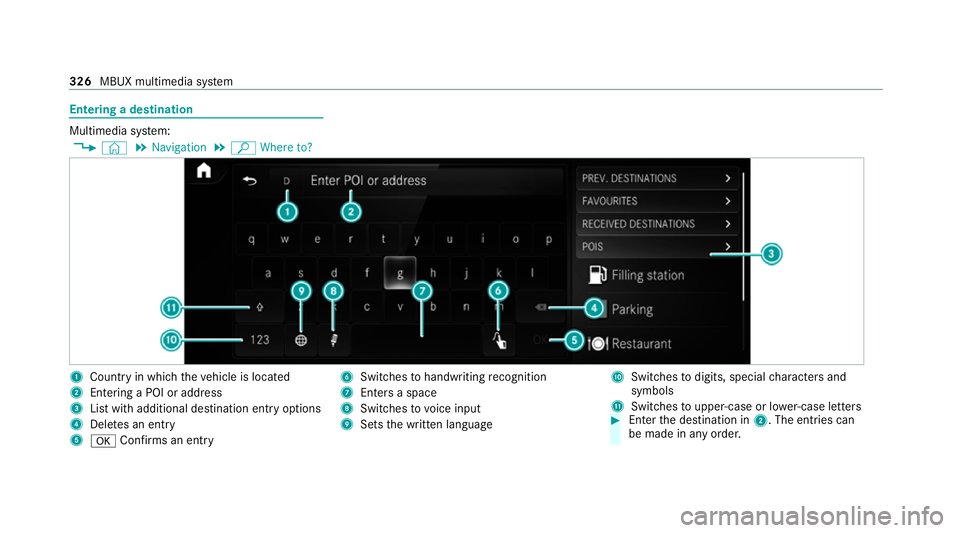
Entering a destination
Multimedia sy
stem:
4 © 5
Navigation 5
ª Where to? 1
Country in which theve hicle is located
2 Entering a POI or address
3 List with additional destination entry options
4 Dele tes an entry
5 a Confirms an entry 6
Switches tohandwriting recognition
7 Enters a space
8 Switches tovoice input
9 Sets the written language A
Switches todigits, special characters and
symbols
B Swit ches toupper-case or lo wer-case letters #
Enter the destination in 2. The entries can
be made in any order. 326
MBUX multimedia sy stem
Page 330 of 549
The
following ent ries can be made, forex ample:
R Town, stre et, house number
R Street,to wn
R Postcode
R POI name or POI catego ry, e.g. Parking
R Contact name #
Select a sear chresult in list 3. #
Calculate thero ute (/ page 327).
% You can find fur ther information about desti‐
nation entry , e.g. 3wordaddresses, in the
Digital Owner's Manual.
Changing country #
Select the count ryindicator in 1. #
Enterth e count ryindicator. #
Select the count ryin3.
Using online sear ch
Destination entry uses online map services. If
th e on-board sear chfinds no suitable de stina‐
tions or if youch ange countries, the online
sear chisavailable. Fo
rth e destination you can en ter an addre ss, a
POI or a 3 wordaddress. #
Select country indicator 1. #
Select the pr ovider forth e online service
from the count ries list.
or #
Ifth e on-board sear chdelivers no results,
enter the destination in input line 2. #
Select the destination in the list.
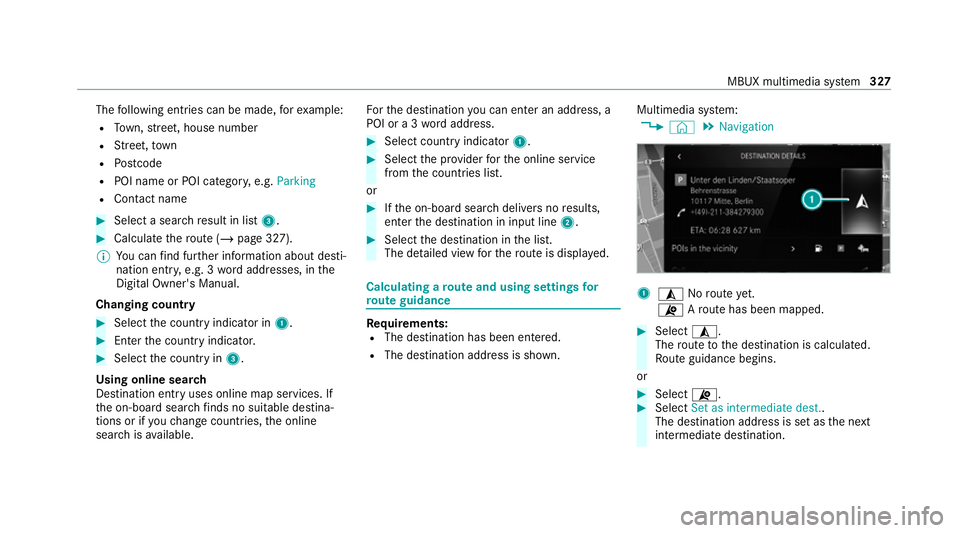
The de tailed view forth ero ute is displ ayed. Calculating a
route and using settings for
ro ute guidance Re
quirements:
R The destination has been entered.
R The destination address is shown. Multimedia sy
stem:
4 © 5
Navigation 1
¥ Noroute yet.
¦ Aro ute has been mapped. #
Select ¥.
The route tothe destination is calculated.
Ro ute guidance begins.
or #
Select ¦. #
Select Set as intermediate dest..
The destination address is set as the next
intermediate destination. MBUX multimedia sy
stem 327
Page 331 of 549
or
#
Select Start new route guidance.
The destination address is set as the new
destination. The pr evious destination and the
intermediate destinations are dele ted. Ro ute
guidance tothe new destination begins.
Selecting route settings #
Select Z. #
Select Advanced . #
Select Route. #
Select thero ute type. #
Take traf fic information into consideration
wi th Dynamic route guidance r.#
Select route options with Avoid options.#
Activate Suggest alternative route.
Alternati veroutes are calculated forev ery
ro ute. #
Activate Activate commuter route .
If th ere qu irements are met, the multimedia
sy stem automatically de tects that theve hicle
is on a commuter route. Route guidance
begins without voice output. Ac
tivating route guidance with augmented
re ality #
During route guidance, tap on the camera
symbol on the media displa y.
The camera image will be shown ins tead of
th e navigation map before a turning manoeu‐
vre and will show additional information. #
Toreturn tothe navigation map: tapon
th e camera symbol again.
Displaying additional information in the cam‐
era ima ge #
Select Z. #
Select Advanced . #
Select Augmented Reality. #
Activate Street names andHouse numbers.
During route guidance, stre et names and
house numbe rsare shown in the camera
image. Using map functions
Multimedia sy
stem:
4 © 5
Navigation
Setting the map scale #
Tozoom in: tap twice quickly with one finger
on the media displa y. #
Tozoom out: tap with two fingers on the
media displa y.
Moving the map #
Moveone finger in any di rection on the
to uchsc reen. #
Toreset the map tothe cur rent vehicle
position: press\briefly.
Selecting map orientation #
Tapre peatedly on theÄ compass symbol
on the map.
The view changes in the sequence 3D,2D
heading up to2D north up .
Switching mo torw ay information on/off #
Select Z. 328
MBUX multimedia sy stem
Page 332 of 549
#
Switch Motorway information on or off.Using se
rvices Re
quirements:
R There is an Internet connection.
R Mercedes me connect is available.
R You ha veset up a user account in the
Mercedes me Portal.
R The vehicle is connected toa user account
and you ha veaccep tedth e conditions of use
fo rth e service.
Fu rther information can be found at:
https://www.mercedes.me
R The service is available and has been activa‐
te d.
Multimedia sy stem:
4 © 5
Navigation
Displaying the traf fic situation with Live Traf‐
fi c Information #
Select Z. #
Activate Traffic. #
Select Advanced . #
Select View. #
Select Map elements. #
Switch on Traffic incidents ,Free-flowing traf-
fic and Delay.
If traf fic information has been recei ved, then
tra ffic incidents such as roadwor ks,ro ad
bloc ks, local area reports (e.g. fog) and warn‐
ing messages are displa yed.
The tra ffic delay is displa yedfo rth e cur rent
ro ute. Traf fic del ays lasting one minute or
longer are take n into conside ration.
Displ aying hazard warnings with Car-to-X-
Communication
If hazard warnings are available these can be
shown as symbols on the map. The display
depends on the settings forth eTraffic andTraf-
fic incidents options. #
Set the options.
If Traffic is switched off and Traffic incidents
is switched on, the symbols are shown on
th e prospective route. Displaying
weather information and other
map contents #
Select Z. #
Select Advanced . #
Select View. #
Select Map elements. #
Scroll up and show theONLINE MAP CON-
TENTS categor y. #
Switch on a service, e.g. Weather.
Cu rrent weather information is displa yed on
th e navigation map, e.g. temp erature or
cloud co ver. MBUX multimedia sy
stem 329
Page 345 of 549
Apps
for Smartphone Integration
R Mercedes-Benz Link (implementation of the
function using the Mercedes-Benz Link con‐
trol box)
R Apple CarPlay ®
R Android Auto
Yo u can start Smartphone In tegr ation using the
Mercedes me & Apps menu.
Yo u can end Smartphone In tegration bydiscon‐
necting the connecting cable between the
mobile phone and multimedia sy stem.
% Mercedes-Benz recommends disconnecting
th e connecting cable only when theve hicle
is stationar y.
Overview of transfer redve hicle data
When using Smartphone Integration, cer tain
ve hicle data is transfer redto the mobile phone.
This enables youto getth e best out of selected
mobile phone services. Vehicle data is not
directly accessible.
The following sy stem information is transmit ted:
R Software release of the multimedia sy stem R
System ID (anonymised)
The transfer of this data is used toalter how
con tent is displ ayed tocor respond tothe driving
situation.
The following position data is transmitte d:
R Coordinates
R Speed
R Compass direction
R Acceleration di rection
This da tais used bythe mobile phone to
impr ovethe accuracy of the navigation (e.g. for
continuation in a tunnel). Mercedes-Benz eme
rgency call sy stem Information on
available emer gency call sys‐
te ms Tw
o types of emer gency call sy stem are availa‐
ble to yo u intheve hicle:
R Mercedes-Benz emer gency call sy stem
R 112 emergency call sy stem (EU eCall) The Mercedes-Benz emer
gency call sy stem is
not available in all countries. You can find more
information on there gional availability of eCall
at: https://www.mercedes-benz-mobile.com/
ex tra/ecall/
The following applies for bo themer gency call
sy stems:
R The transfer of specific data is requ ired for
th e intended function of bo themer gency call
sy stems. This will be explained in the "Data
transfer" section (/ page 345).
R Both emer gency call sy stems are included as
st andard equipment in your vehicle and are
activated at thefa ctor y.
R The use of bo themer gency call sy stems is
exe mpt from charge s.
R Both emer gency call sy stems only function in
areas in which the mobile phone network
pr ov iders of fer mobile phone co verage.
Fo r bo thsystems, insuf ficient network co ver‐
age from the mobile phone network pr ovid‐
ers can result in an emer gency call not being
transmitted. 342
MBUX multimedia sy stem
Page 356 of 549
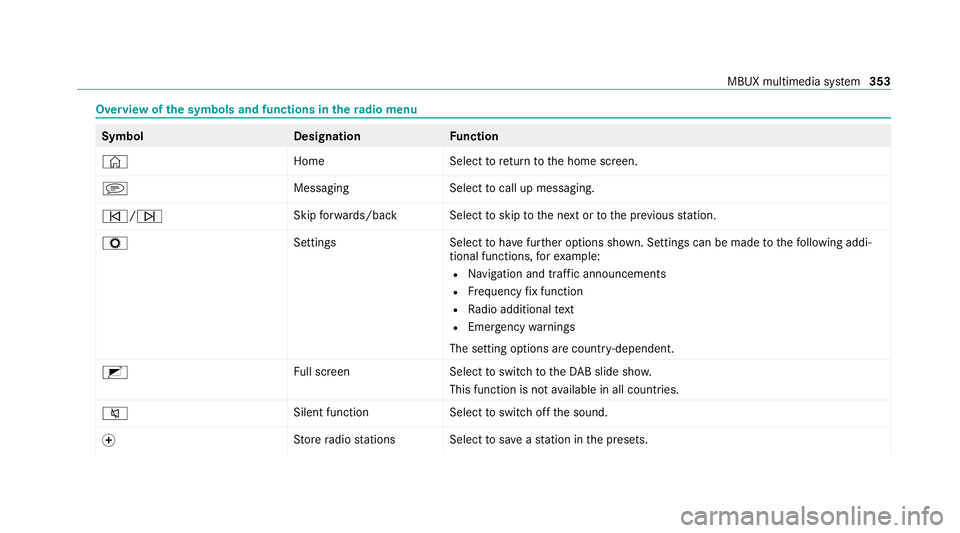
Overview of
the symbols and functions in thera dio menu Symbo
lD esignationFunction
© HomeSelecttoreturn tothe home screen.
j MessagingSelecttocall up messaging.
û/ü Skip
forw ards/bac kS electtoskip tothe next or tothe pr evious station.
Z SettingsS electtohave further options shown. Settings can be made tothefo llowing addi‐
tional functions, forex ample:
R Navigation and traf fic announcements
R Frequency fix function
R Radio additional text
R Emergency warnings
The setting options are countr y-dependent.
2 Full screen Selecttoswitch totheDA B slide sho w.
This function is not available in all countries.
8 Silent function
Selecttoswitch off the sound.
f St
ore radio stations Select tosave ast ation in the presets. MBUX multimedia sy
stem 353