CD changer MERCEDES-BENZ M-Class 2010 W219 Comand Manual
[x] Cancel search | Manufacturer: MERCEDES-BENZ, Model Year: 2010, Model line: M-Class, Model: MERCEDES-BENZ M-Class 2010 W219Pages: 224, PDF Size: 7 MB
Page 137 of 224
iIf you eject a disc while another is being
played, the DVD changer interrupts
playback. Playback will continue once the
disc has been ejected completely.
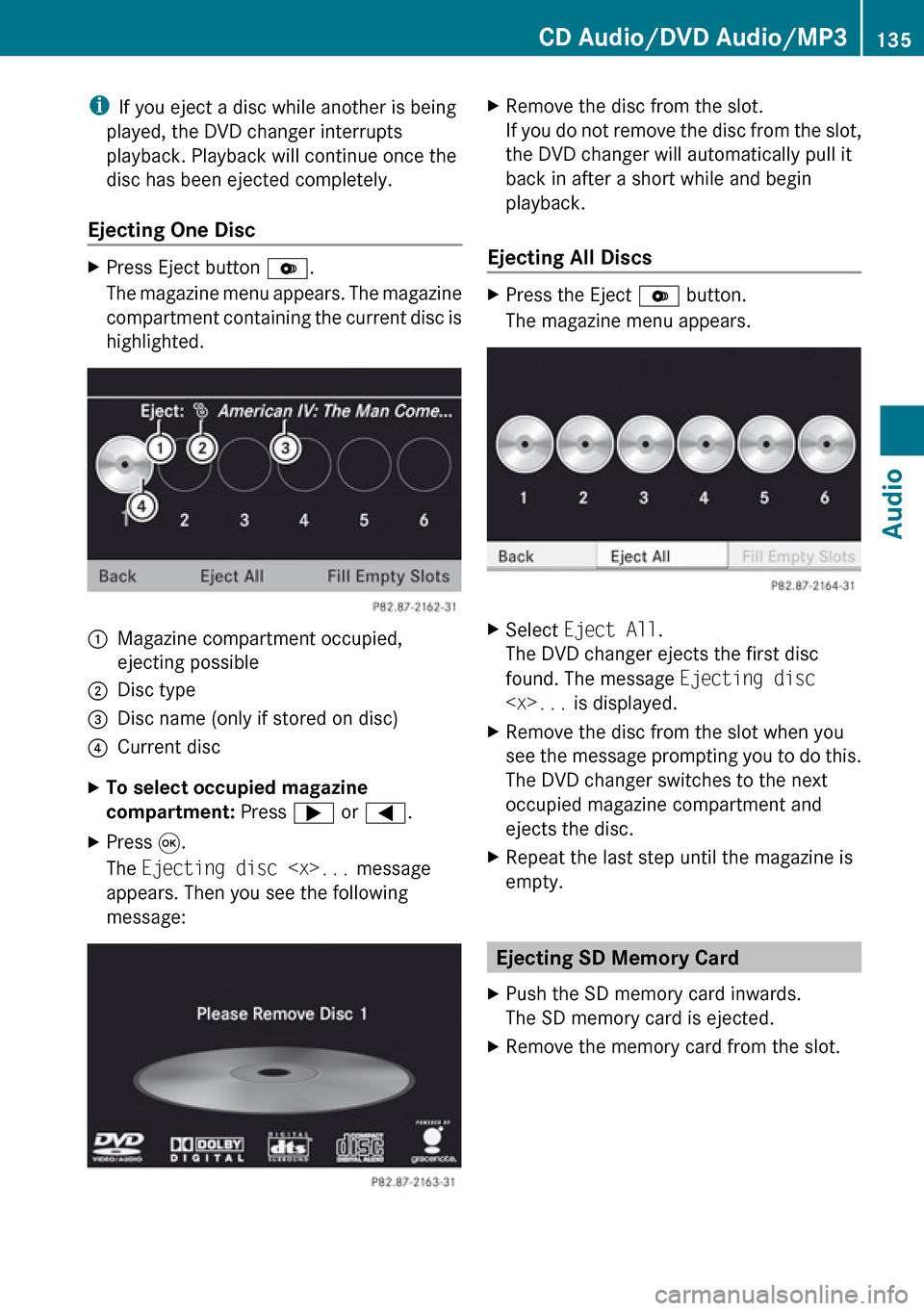
Ejecting One DiscXPress Eject button V.
The magazine menu appears. The magazine
compartment containing the current disc is
highlighted.1Magazine compartment occupied,
ejecting possible2Disc type3Disc name (only if stored on disc)4Current discXTo select occupied magazine
compartment: Press ; or = .XPress 9.
The Ejecting disc
appears. Then you see the following
message:XRemove the disc from the slot.
If you do not remove the disc from the slot,
the DVD changer will automatically pull it
back in after a short while and begin
playback.
Ejecting All Discs
XPress the Eject V button.
The magazine menu appears.XSelect Eject All .
The DVD changer ejects the first disc
found. The message Ejecting disc
see the message prompting you to do this.
The DVD changer switches to the next
occupied magazine compartment and
ejects the disc.XRepeat the last step until the magazine is
empty.
Ejecting SD Memory Card
XPush the SD memory card inwards.
The SD memory card is ejected.XRemove the memory card from the slot.CD Audio/DVD Audio/MP3135AudioZ
Page 138 of 224
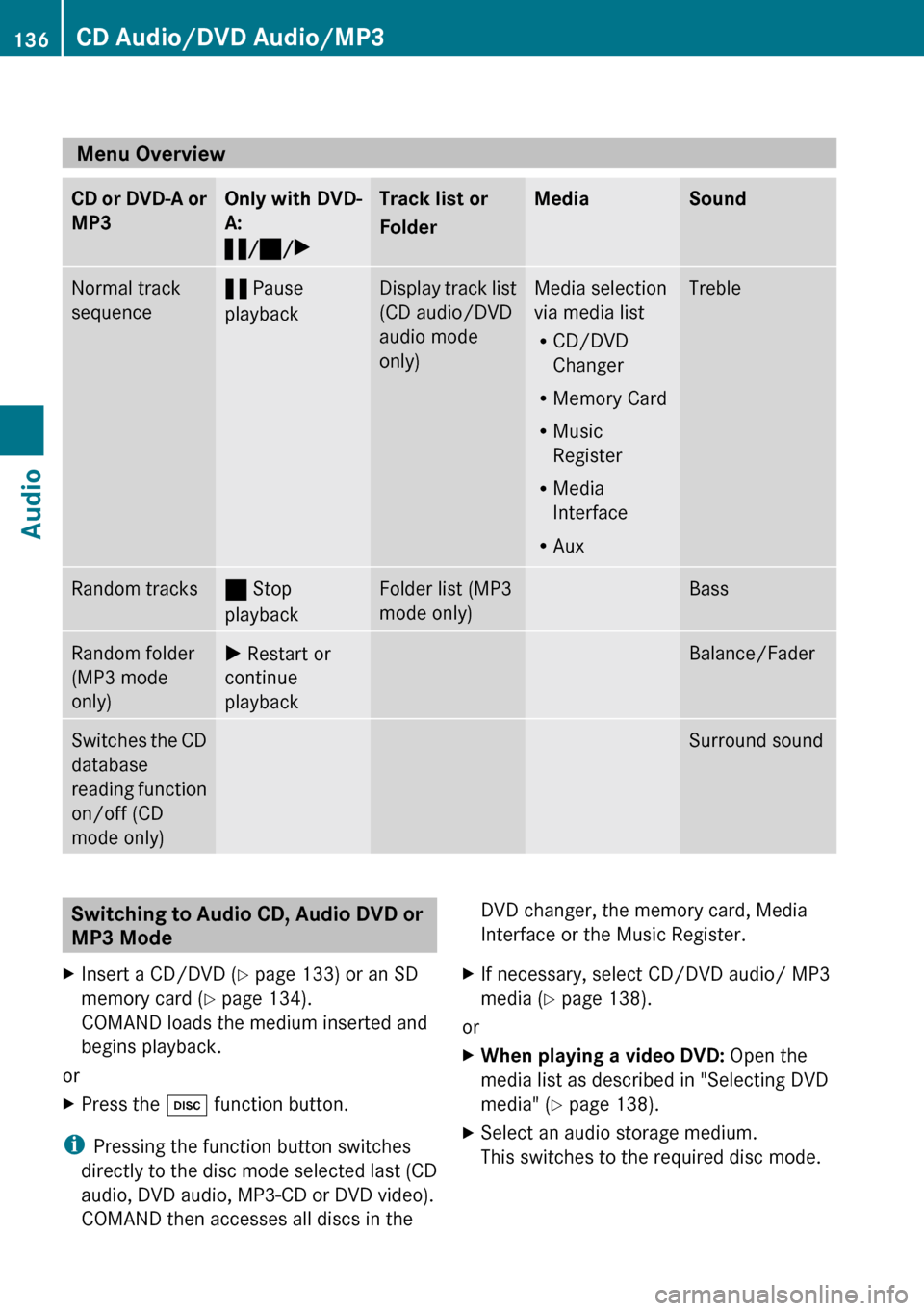
Menu Overview
CD or DVD-A or
MP3Only with DVD-
A:
« /± /XTrack list or
FolderMediaSoundNormal track
sequence« Pause
playbackDisplay track list
(CD audio/DVD
audio mode
only)Media selection
via media list
R CD/DVD
Changer
R Memory Card
R Music
Register
R Media
Interface
R AuxTrebleRandom tracks± Stop
playbackFolder list (MP3
mode only)BassRandom folder
(MP3 mode
only)X Restart or
continue
playbackBalance/FaderSwitches the CD
database
reading function
on/off (CD
mode only)Surround soundSwitching to Audio CD, Audio DVD or
MP3 Mode XInsert a CD/DVD ( Y page 133) or an SD
memory card ( Y page 134).
COMAND loads the medium inserted and
begins playback.
or
XPress the h function button.
i
Pressing the function button switches
directly to the disc mode selected last (CD
audio, DVD audio, MP3-CD or DVD video).
COMAND then accesses all discs in the
DVD changer, the memory card, Media
Interface or the Music Register.XIf necessary, select CD/DVD audio/ MP3
media ( Y page 138).
or
XWhen playing a video DVD: Open the
media list as described in "Selecting DVD
media" ( Y page 138).XSelect an audio storage medium.
This switches to the required disc mode.136CD Audio/DVD Audio/MP3Audio
Page 139 of 224
From Another Main FunctionXSelect Audio£Audio £Disc or
Memory Card or Music Register in the
audio menu display.
i If the desired mode is also the last active
mode, you only need to select Audio.
Within the Audio Function
XSelect Audio£Disc or Memory card in
the audio menu display.
i Disc accesses audio discs in the DVD
changer, Memory Card selects the slot for
the SD memory card, Music Register
selects the Music Register, Media
Interface selects an external device..
XSelect CD/audio DVD/MP3 as required
( Y page 138).
The desired disc mode is activated.
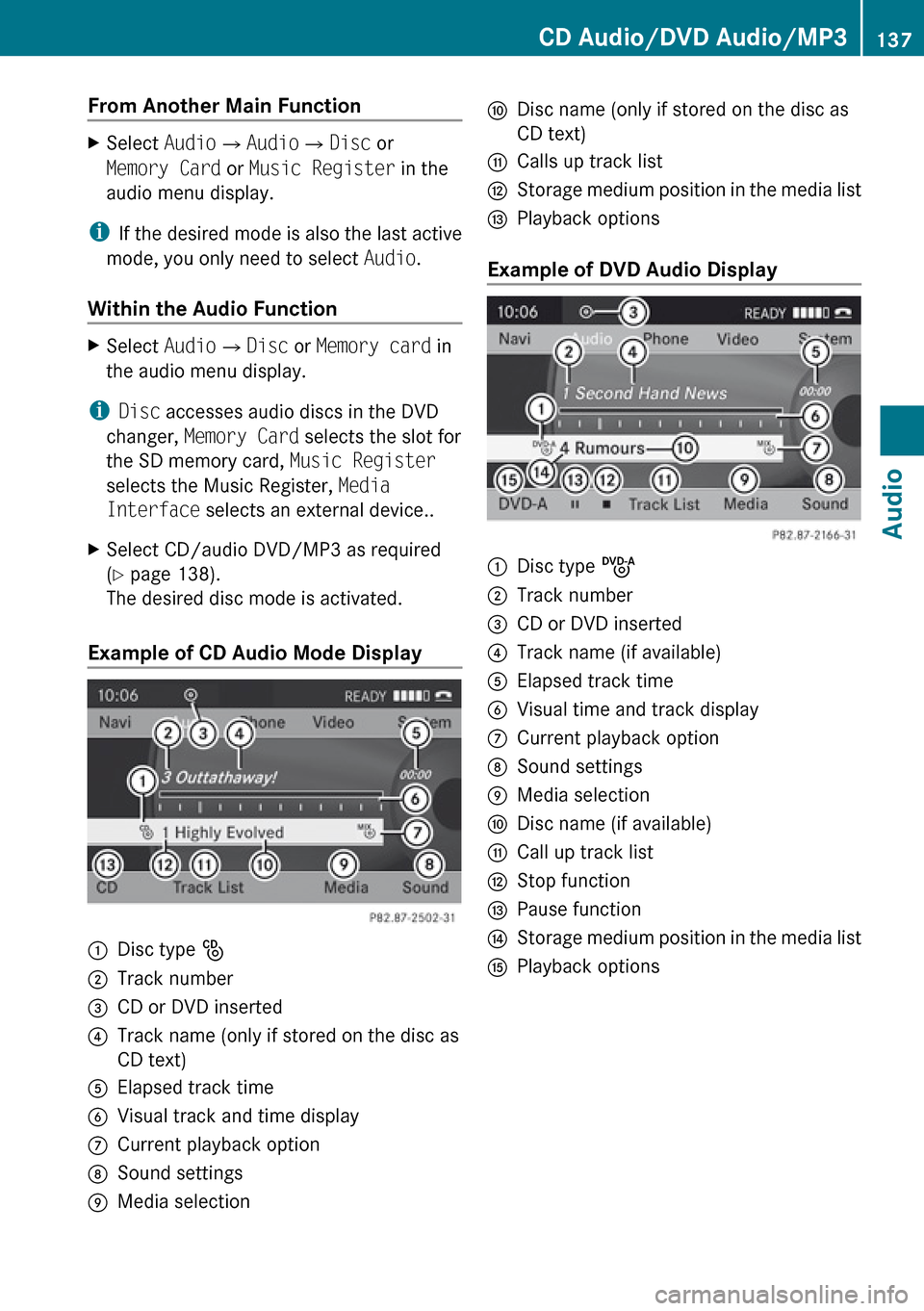
Example of CD Audio Mode Display
1Disc type _2Track number3CD or DVD inserted4Track name (only if stored on the disc as
CD text)5Elapsed track time6Visual track and time display7Current playback option8Sound settings9Media selectionaDisc name (only if stored on the disc as
CD text)bCalls up track listcStorage medium position in the media listdPlayback options
Example of DVD Audio Display
1Disc type ü2Track number3CD or DVD inserted4Track name (if available)5Elapsed track time6Visual time and track display7Current playback option8Sound settings9Media selectionaDisc name (if available)bCall up track listcStop functiondPause functioneStorage medium position in the media listKPlayback optionsCD Audio/DVD Audio/MP3137AudioZ
Page 141 of 224
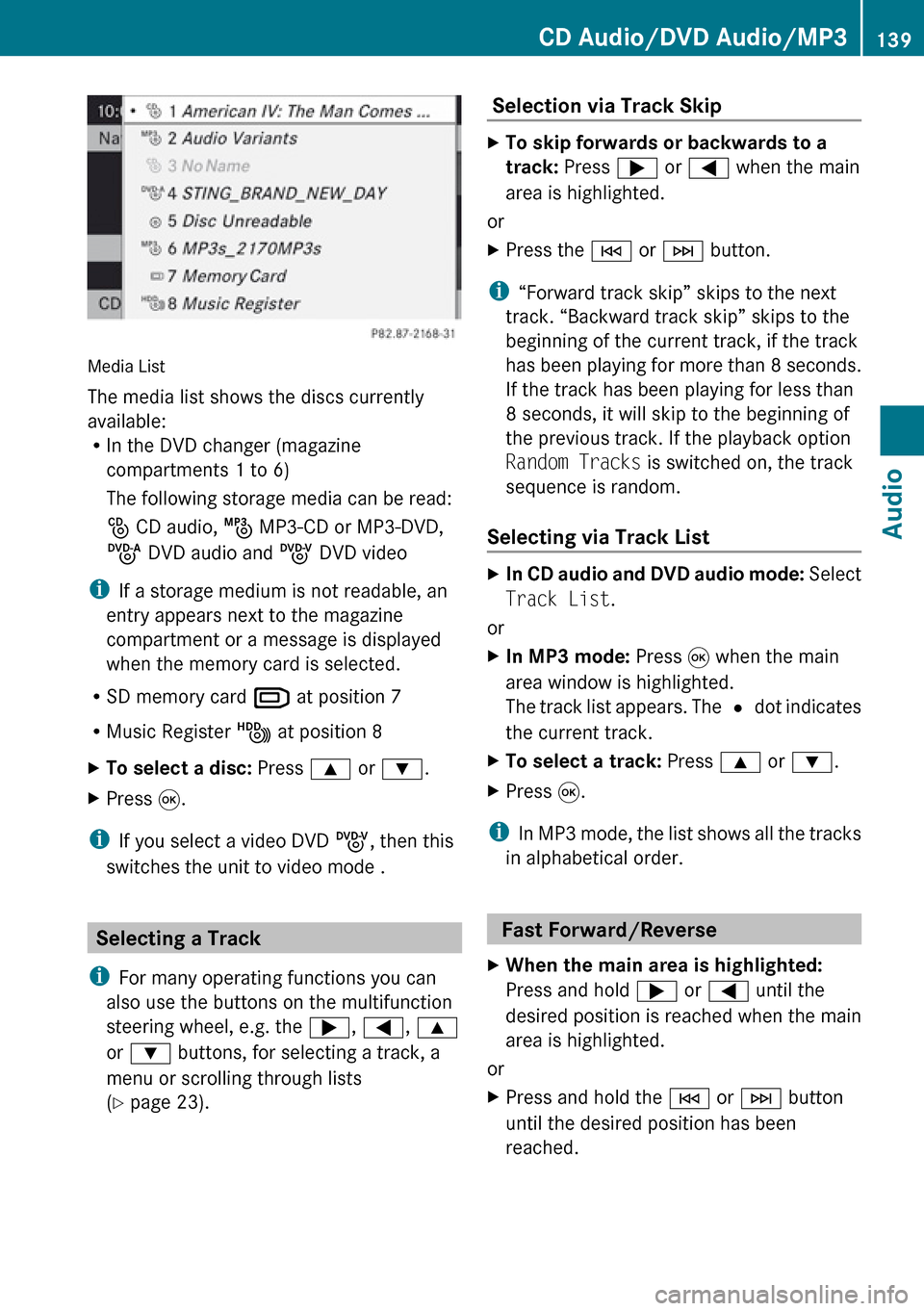
Media List
The media list shows the discs currently
available:
R In the DVD changer (magazine
compartments 1 to 6)
The following storage media can be read:
_ CD audio, þ MP3-CD or MP3-DVD,
ü DVD audio and ý DVD video
i If a storage medium is not readable, an
entry appears next to the magazine
compartment or a message is displayed
when the memory card is selected.
R SD memory card º at position 7
R Music Register Ñ at position 8
XTo select a disc: Press 9 or : .XPress 9.
i
If you select a video DVD ý, then this
switches the unit to video mode .
Selecting a Track
i For many operating functions you can
also use the buttons on the multifunction
steering wheel, e.g. the ;, = , 9
or : buttons, for selecting a track, a
menu or scrolling through lists
( Y page 23).
Selection via Track Skip XTo skip forwards or backwards to a
track: Press ; or = when the main
area is highlighted.
or
XPress the E or F button.
i
“Forward track skip” skips to the next
track. “Backward track skip” skips to the
beginning of the current track, if the track
has been playing for more than 8 seconds.
If the track has been playing for less than
8 seconds, it will skip to the beginning of
the previous track. If the playback option
Random Tracks is switched on, the track
sequence is random.
Selecting via Track List
XIn CD audio and DVD audio mode: Select
Track List .
or
XIn MP3 mode: Press 9 when the main
area window is highlighted.
The track list appears. The R dot indicates
the current track.XTo select a track: Press 9 or : .XPress 9.
i
In MP3 mode, the list shows all the tracks
in alphabetical order.
Fast Forward/Reverse
XWhen the main area is highlighted:
Press and hold ; or = until the
desired position is reached when the main
area is highlighted.
or
XPress and hold the E or F button
until the desired position has been
reached.CD Audio/DVD Audio/MP3139AudioZ
Page 158 of 224
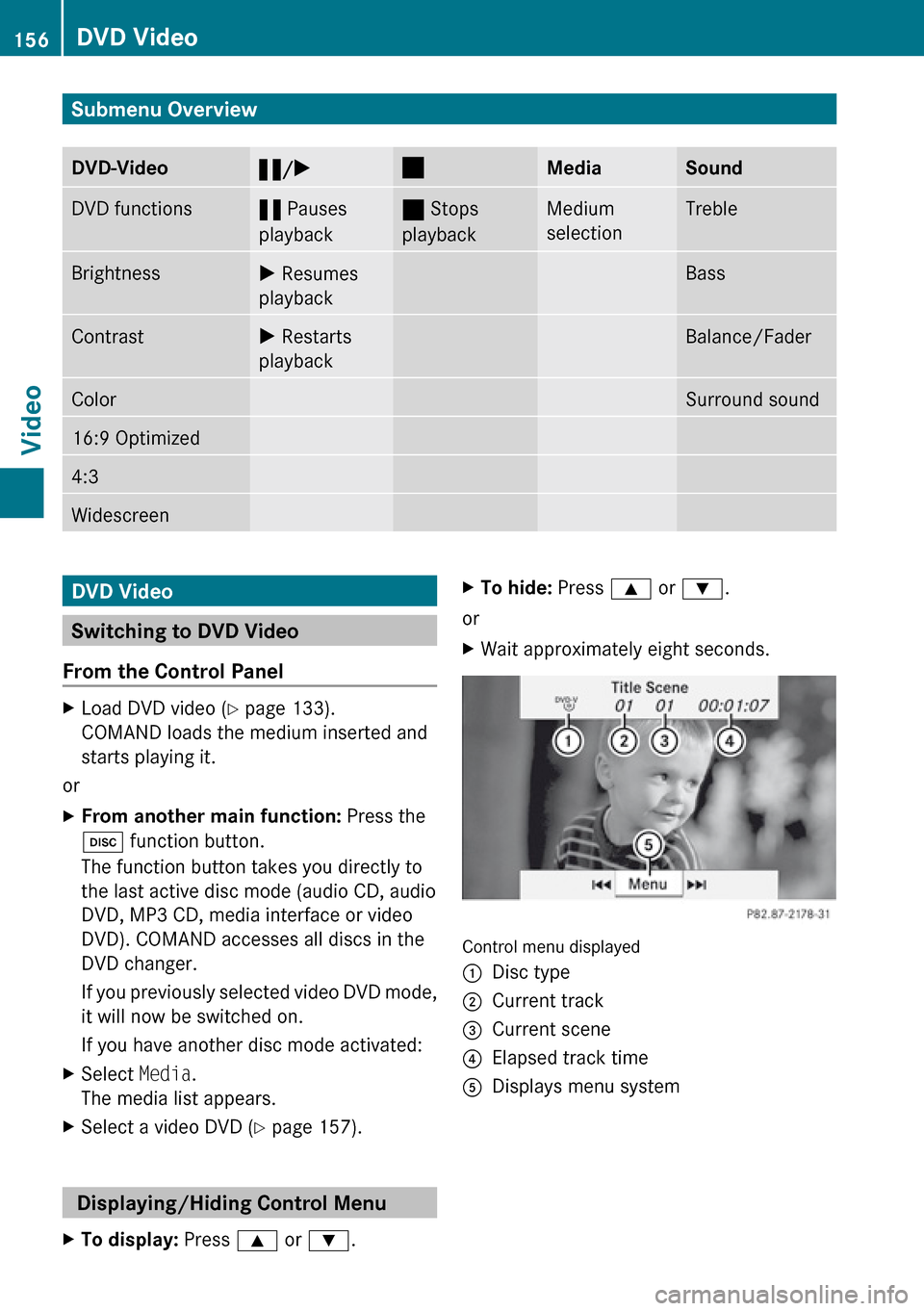
Submenu OverviewDVD-Video«/X±MediaSoundDVD functions« Pauses
playback± Stops
playbackMedium
selectionTrebleBrightnessX Resumes
playbackBassContrastX Restarts
playbackBalance/FaderColorSurround sound16:9 Optimized4:3WidescreenDVD Video
Switching to DVD Video
From the Control Panel
XLoad DVD video ( Y page 133).
COMAND loads the medium inserted and
starts playing it.
or
XFrom another main function: Press the
h function button.
The function button takes you directly to
the last active disc mode (audio CD, audio
DVD, MP3 CD, media interface or video
DVD). COMAND accesses all discs in the
DVD changer.
If you previously selected video DVD mode,
it will now be switched on.
If you have another disc mode activated:XSelect Media.
The media list appears.XSelect a video DVD ( Y page 157).
Displaying/Hiding Control Menu
XTo display: Press 9 or : .XTo hide: Press 9 or : .
or
XWait approximately eight seconds.
Control menu displayed
1Disc type2Current track3Current scene4Elapsed track time5Displays menu system156DVD VideoVideo
Page 185 of 224
Overview ............................................ 184
Phone ................................................. 187
Navigation ......................................... 189
Address Book .................................... 197
Radio and Satellite Radio .................201
DVD Changer ..................................... 204
External Equipment (Aux) ................205
Command List ................................... 205
Troubleshooting ................................ 212183Voice Control
Page 186 of 224
Overview
Operating Safety
GWarning!
Please devote your attention first and
foremost to the traffic situation you are in.
While the system permits hands-free phone
operation, attention to traffic may be diverted
not only by physical operation of a phone, but
also by the distraction of a phone
conversation while driving. As such, for safety
reasons, we encourage the driver to stop the
vehicle in a safe place before answering or
placing a phone call.
For safety reasons, you should only select a
destination when the vehicle is stationary.
While the navigation system provides
directional assistance, the driver must remain
focused on safe driving behavior, especially
pay attention to traffic and street signs, and
should utilize the system’s audio cues while
driving.
The navigation system does not supply any
information on stop signs, yield signs, traffic
regulations or traffic safety rules. Their
observance always remains in the driver’s
personal responsibility. DVD maps do not
cover all areas nor all routes within an area.
Traffic regulations always have priority over
any route recommendations given.
Bear in mind that at a speed of just 30 mph
(approximately 50 km/h), your vehicle is
covering a distance of 44 feet (approximately
14 m) every second.
GWarning
Navigation announcements are intended to
direct you while driving without diverting your
attention from the road and driving.
Please always use this feature instead of
consulting the map display for directions.
Consulting the symbols or map display for
directions may cause you to divert your
attention from driving and increase your risk
of an accident.
GWarning!
Please do not use the Voice Control System
in an emergency, as the tone of your voice
may change in a stressful situation. This could
cause a delay in completing your phone call
in a timely manner. This could distract you in
an emergency situation and cause you to be
involved in an accident.
Vehicle Equipment
i This Operator’s Manual describes all
features, standard or optional, potentially
available for your vehicle at the time of
purchase. Please be aware that your
vehicle might not be equipped with all
features described in this manual.
Symbols Only Used in this Chapter
The following symbols indicate:
sthat you have to say somethingtthat there is a voice output from the
voice controluthat the system shows information on
the display.
Usage
You can use the voice control system to
operate the following systems depending on
the equipment in your vehicle:
R Phone
R Navigation
R Address book
R Audio (radio, satellite radio, DVD changer,
memory card, music register)
Say the commands without pausing between
individual words. If you enter a command that
does not exist or is incorrect, the voice
control system asks you for a new command
with “Please repeat” or “Please repeat your
184OverviewVoice Control
Page 206 of 224
XVehicles with Voice Control buttons on
the Multi-function Steering Wheel: Press
the ? button.
or
XVehicles with Lever for Voice Control:
Pull the Voice Control lever toward you.
The station to be deleted is selected. The
system reads out the selected station
again.tDo you want to delete 'Favorite
station'?sYestStation deleteduThe system deletes the station and
reads out the remaining entries in the
station list.
orsNo
The system continues to read out the list of
stations.
DVD Changer
GWarning
Please devote your attention first and
foremost to the traffic situation you are in.
Before your journey, please familiarize
yourself with the disc functions.
Only use the Voice Control System when road
and traffic conditions permit you to do so.
Otherwise you could be involved in an
accident in which you or others could be
injured.
Operation
You can use voice control to:
R select a CD/DVD
R select a track
R select a directory in MP3 operation
R select a group in Audio DVD operation
i On the command “Next/previous CD/
DVD”, the DVD changer changes from one
CD/ DVD to the next, skipping any empty
compartments. If you select an empty
compartment with the “CD/DVD 1 to CD/
DVD 6” command, the current
compartment remains selected and the
system responds with “No audio CD”.
To select the CD application: XVehicles with Voice Control buttons on
the Multi-function Steering Wheel: Press
the ? button.
or
XVehicles with Lever for Voice Control:
Pull the Voice Control lever toward you.XSay one of the following commands:
R “CD player/CD changer”
R “DVD audio”
R “DVD video”
R “MP3”XVehicles with Voice Control buttons on
the Multi-function Steering Wheel: Press
the ? button.
or
XVehicles with Lever for Voice Control:
Pull the Voice Control lever toward you.XGive one of the CD or DVD commands
explained below.
Commands
“Help CD”/“Help DVD”/“Help MP3”
With the commands:
R “Help CD”
R “Help DVD audio”
R “Help DVD video”
R “Help MP3”
you can have all the commands for the CD,
DVD or MP3 read out.
204DVD ChangerVoice Control
Page 207 of 224
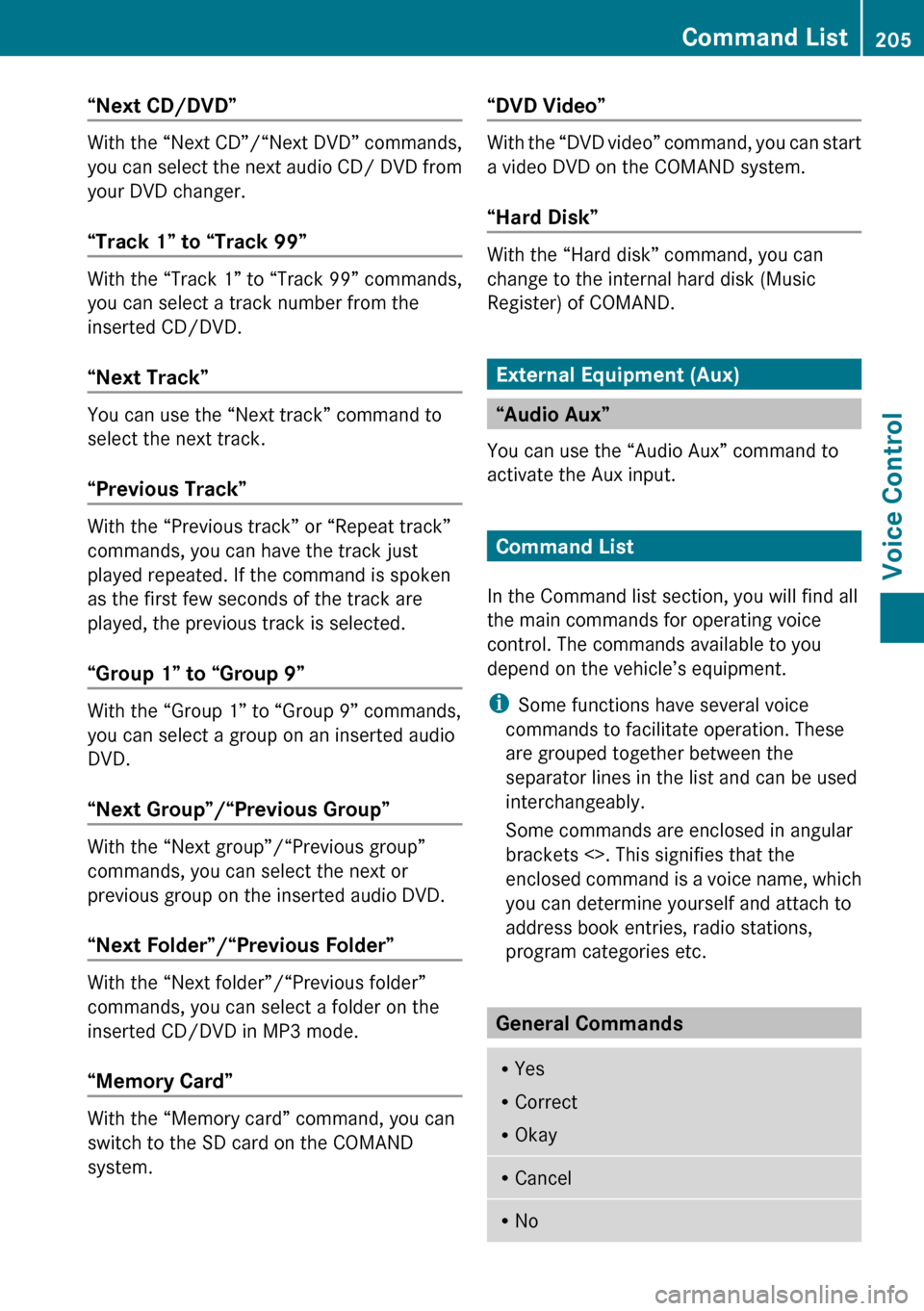
“Next CD/DVD”
With the “Next CD”/“Next DVD” commands,
you can select the next audio CD/ DVD from
your DVD changer.
“Track 1” to “Track 99”
With the “Track 1” to “Track 99” commands,
you can select a track number from the
inserted CD/DVD.
“Next Track”
You can use the “Next track” command to
select the next track.
“Previous Track”
With the “Previous track” or “Repeat track”
commands, you can have the track just
played repeated. If the command is spoken
as the first few seconds of the track are
played, the previous track is selected.
“Group 1” to “Group 9”
With the “Group 1” to “Group 9” commands,
you can select a group on an inserted audio
DVD.
“Next Group”/“Previous Group”
With the “Next group”/“Previous group”
commands, you can select the next or
previous group on the inserted audio DVD.
“Next Folder”/“Previous Folder”
With the “Next folder”/“Previous folder”
commands, you can select a folder on the
inserted CD/DVD in MP3 mode.
“Memory Card”
With the “Memory card” command, you can
switch to the SD card on the COMAND
system.
“DVD Video”
With the “DVD video” command, you can start
a video DVD on the COMAND system.
“Hard Disk”
With the “Hard disk” command, you can
change to the internal hard disk (Music
Register) of COMAND.
External Equipment (Aux)
“Audio Aux”
You can use the “Audio Aux” command to
activate the Aux input.
Command List
In the Command list section, you will find all
the main commands for operating voice
control. The commands available to you
depend on the vehicle’s equipment.
i Some functions have several voice
commands to facilitate operation. These
are grouped together between the
separator lines in the list and can be used
interchangeably.
Some commands are enclosed in angular
brackets <>. This signifies that the
enclosed command is a voice name, which
you can determine yourself and attach to
address book entries, radio stations,
program categories etc.
General Commands
R Yes
R Correct
R OkayRCancelRNoCommand List205Voice ControlZ
Page 208 of 224
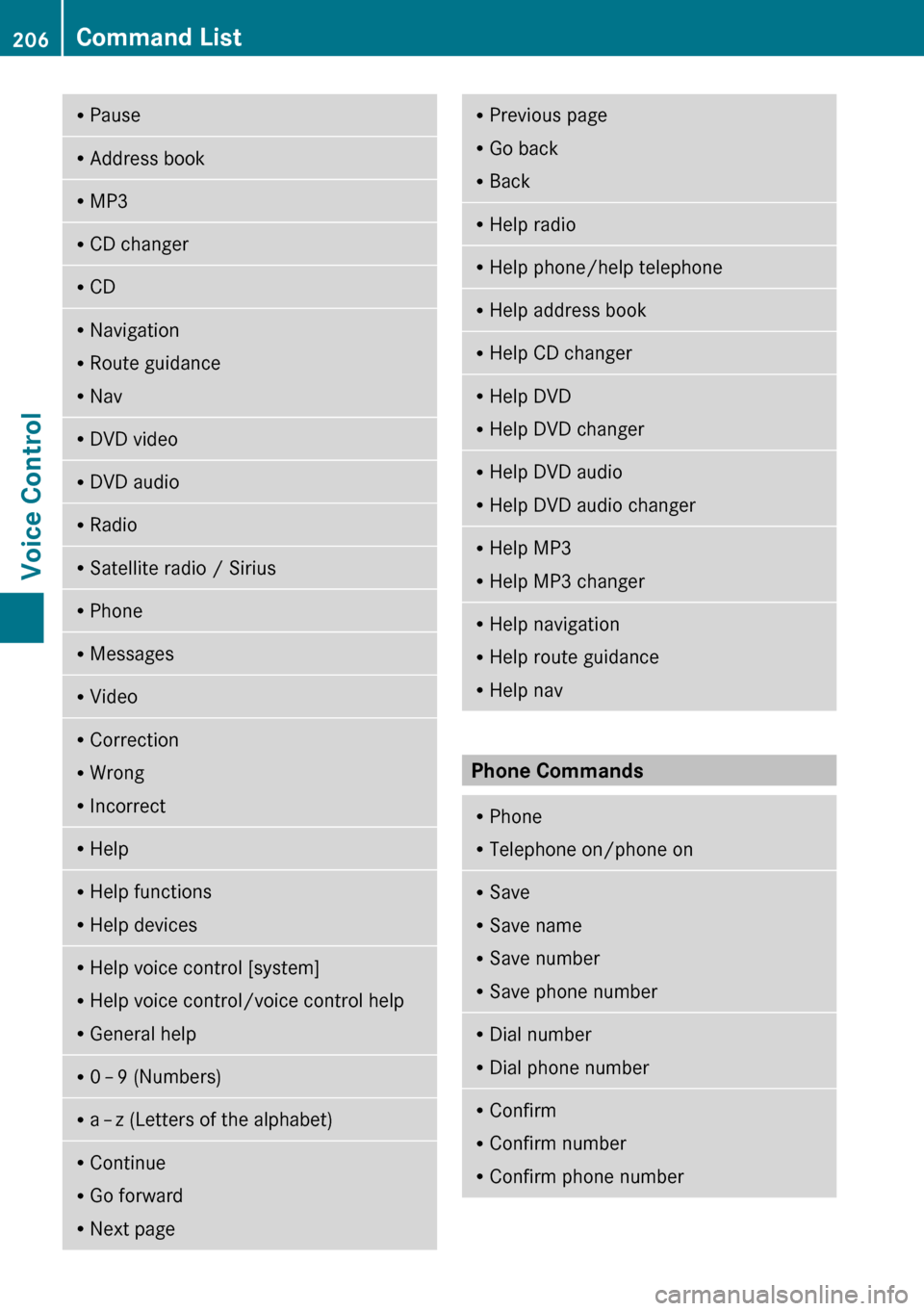
RPauseRAddress bookRMP3RCD changerRCDRNavigation
R Route guidance
R NavRDVD videoRDVD audioRRadioRSatellite radio / SiriusRPhoneRMessagesRVideoRCorrection
R Wrong
R IncorrectRHelpRHelp functions
R Help devicesRHelp voice control [system]
R Help voice control/voice control help
R General helpR0 – 9 (Numbers)R
a – z (Letters of the alphabet)R
Continue
R Go forward
R Next pageRPrevious page
R Go back
R BackRHelp radioRHelp phone/help telephoneRHelp address bookRHelp CD changerRHelp DVD
R Help DVD changerRHelp DVD audio
R Help DVD audio changerRHelp MP3
R Help MP3 changerRHelp navigation
R Help route guidance
R Help nav
Phone Commands
R
Phone
R Telephone on/phone onRSave
R Save name
R Save number
R Save phone numberRDial number
R Dial phone numberRConfirm
R Confirm number
R Confirm phone number206Command ListVoice Control