lock MERCEDES-BENZ M-Class 2010 W219 Comand Manual
[x] Cancel search | Manufacturer: MERCEDES-BENZ, Model Year: 2010, Model line: M-Class, Model: MERCEDES-BENZ M-Class 2010 W219Pages: 224, PDF Size: 7 MB
Page 82 of 224
Route Guidance
General Notes
GWarning
COMAND calculates the route to the
destination without taking into account the
following, for example:
R Traffic lights
R Stop and right-of-way signs
R Lane merging
R Parking or stopping prohibited areas
R Other road and traffic rules and regulations
R Narrow bridges
COMAND may give incorrect navigation
commands if the data in the digital map does
not correspond with the actual road/ traffic
situation. For example, if the traffic routing
has been changed or the direction of a one-
way road has been reversed.
For this reason, you must always observe
applicable road and traffic rules and
regulations during your journey. Road and
traffic rules and regulations always have
priority over the navigation commands
generated by the system.
COMAND guides you to the destination by
means of driving recommendations in the
form of navigation announcements or route
guidance displays.
i The route guidance displays only appear
if the display has been switched to
navigation mode.
If, for some reason, you do not follow the
navigation announcements or if you leave the
calculated route, COMAND automatically
calculates a new route to the destination.
If the map data contains corresponding
information during route guidance, COMAND
tries to avoid roads with limited passability,
e.g. roads that are blocked for through-traffic
and are for residents only.
Driving Maneuver
Driving maneuvers are given in three phases:
R Preparation phase
R Announcement phase
R Maneuver phase
Preparation Phase
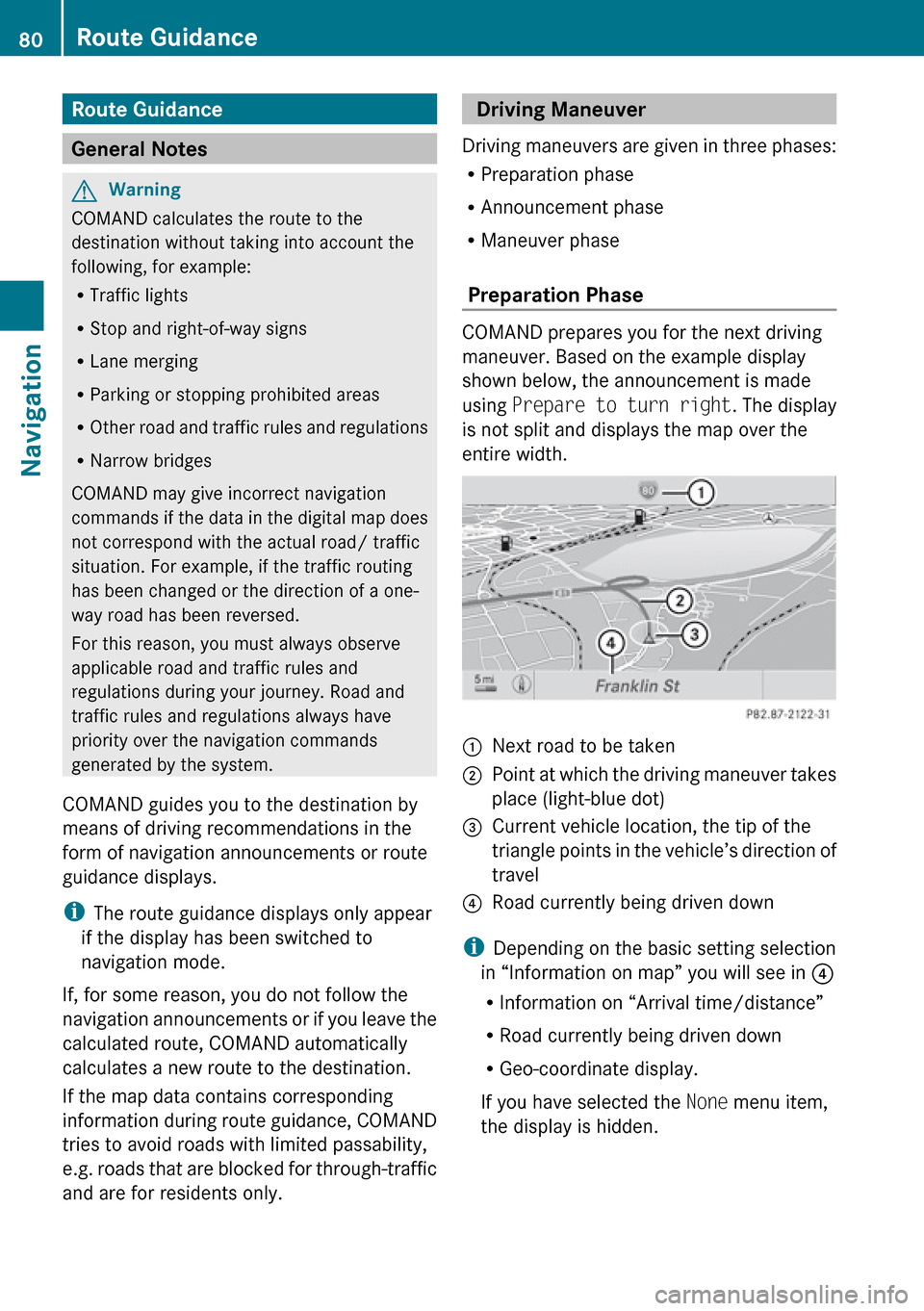
COMAND prepares you for the next driving
maneuver. Based on the example display
shown below, the announcement is made
using Prepare to turn right . The display
is not split and displays the map over the
entire width.
1Next road to be taken2Point at which the driving maneuver takes
place (light-blue dot)3Current vehicle location, the tip of the
triangle points in the vehicle’s direction of
travel4Road currently being driven down
i Depending on the basic setting selection
in “Information on map” you will see in 4
R Information on “Arrival time/distance”
R Road currently being driven down
R Geo-coordinate display.
If you have selected the None menu item,
the display is hidden.
80Route GuidanceNavigation
Page 87 of 224
XTo set the volume of the
announcements: Set the volume during
the automatic announcement ( Y page 32).
or
XCall up an announcement manually using
Navi £6 and adjust the volume.
Audio Fadeout
The Audio Fadeout function, if activated,
lowers the volume of the current audio source
when a navigation announcement is issued.
As soon as the navigation announcement has
ended, the audio source will be played with
the previous volume ( Y page 61).
Canceling Route Guidance
XIn the map display with the menu system
displayed ( Y page 53) select Destination
£ Cancel Route Guidance .
Resuming Route Guidance
XSelect Destination £Continue Route
Guidance in map view with the menu
system displayed.
COMAND calculates the route.
Detour Function
i The Detour function blocks a route
segment ahead. You can set the length of
the block. COMAND calculates a detour
route if possible.
XSelect Route£Detour in map view with
the menu system displayed ( Y page 53).XTo set the length of block: Select
Longer or Shorter repeatedly until the
required length is set.
The blocked segment is highlighted in red/
white on the map. Shown at the top of the
display is the length of the blockedsegment and the route segment to which
the block goes.XTo cancel the function: Select Back.XTo start route calculation: Select Start,
see also ( Y page 69).XTo change a block: Select Navi£Route
£ Detour £Change .XThen set length of block.XTo delete block: Select Navi£Route
£ Detour £Delete .
i
If a block already exists, the message
Detour Already Set is displayed. You
can then change or delete this.
Alternative Route
i You can have other routes calculated for
the original route guidance using the
Alternative Route function.
XIn the map display with the menu system
displayed ( Y page 53) select Route
£ Alternative Route .
The display is split into two halves. On the
left is the map, which displays one or more
alternative routes between the start and
the destination. The current route is
highlighted in dark blue, other alternative
routes are light blue (day mode). If the
display is in night mode, the representation
is inverse.
The right side of the display shows
information on the active alternative route,
e.g. length of the segment and the
estimated time of arrival.XTo select next or previous alternative
route: Select Next or Previous .
The selected route is now highlighted in
dark blue.XTo return to the original route guidance:
Select Back.XTo start route guidance with the
selected alternative route guidance:
Select Start.Route Guidance85NavigationZ
Page 90 of 224
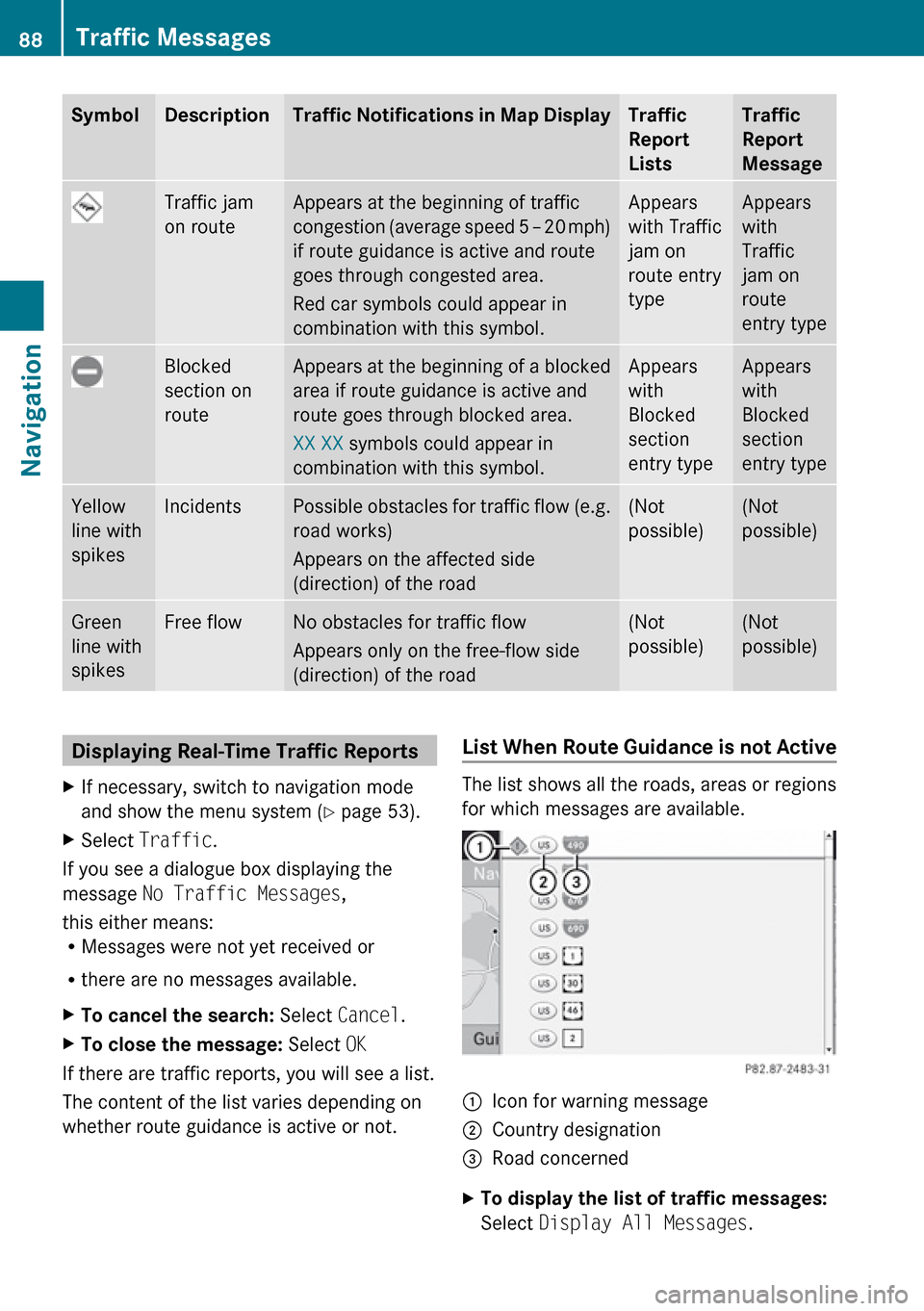
SymbolDescriptionTraffic Notifications in Map DisplayTraffic
Report
ListsTraffic
Report
MessageTraffic jam
on routeAppears at the beginning of traffic
congestion (average speed 5 – 20 mph)
if route guidance is active and route
goes through congested area.
Red car symbols could appear in
combination with this symbol.Appears
with Traffic
jam on
route entry
typeAppears
with
Traffic
jam on
route
entry typeBlocked
section on
routeAppears at the beginning of a blocked
area if route guidance is active and
route goes through blocked area.
XX XX symbols could appear in
combination with this symbol.Appears
with
Blocked
section
entry typeAppears
with
Blocked
section
entry typeYellow
line with
spikesIncidentsPossible obstacles for traffic flow (e.g.
road works)
Appears on the affected side
(direction) of the road(Not
possible)(Not
possible)Green
line with
spikesFree flowNo obstacles for traffic flow
Appears only on the free-flow side
(direction) of the road(Not
possible)(Not
possible)Displaying Real-Time Traffic ReportsXIf necessary, switch to navigation mode
and show the menu system ( Y page 53).XSelect Traffic .
If you see a dialogue box displaying the
message No Traffic Messages ,
this either means:
R Messages were not yet received or
R there are no messages available.
XTo cancel the search: Select Cancel .XTo close the message: Select OK
If there are traffic reports, you will see a list.
The content of the list varies depending on
whether route guidance is active or not.
List When Route Guidance is not Active
The list shows all the roads, areas or regions
for which messages are available.
1Icon for warning message2Country designation3Road concernedXTo display the list of traffic messages:
Select Display All Messages .88Traffic MessagesNavigation
Page 177 of 224
(Y page 132)and on the MP3 format
( Y page 130).
For Safety Instructions refer to section “CD/
DVD Audio and MP3 Operation” .
For special notes on DVDs and DVD playback
conditions refer to chapter “Video”
( Y page 156).
Functional Restrictions
Depending on the DVD, it is possible that
certain functions or actions described in this
section will be temporarily blocked or may not
function at all. As soon as you try to activate
these functions or actions, you will see icon
7 in the display.
Loading and Ejecting DVDs
XProceed as described in the "Audio CD/
DVD and MP3 mode" section .
Switching to DVD mode
XLoad a DVD Video disk.
The rear-seat entertainment system loads
the inserted disk.
The DVD is played according to the
playback options:
Either the film is started automatically or
the DVD menu appears that is stored on the
disk. In the latter case you must start the
film manually.XSelect Disc using the remote control.
DVD mode is activated.
The video DVD meets the playback
criteria: Either the film is started
automatically or the DVD menu appears
that is stored on the disk. In the latter case
you must start the film manually.XTo do so, select the corresponding menu
item in the DVD menu ( Y page 177).
i
If Disc operation was selected last, the
disk is played automatically after loading.
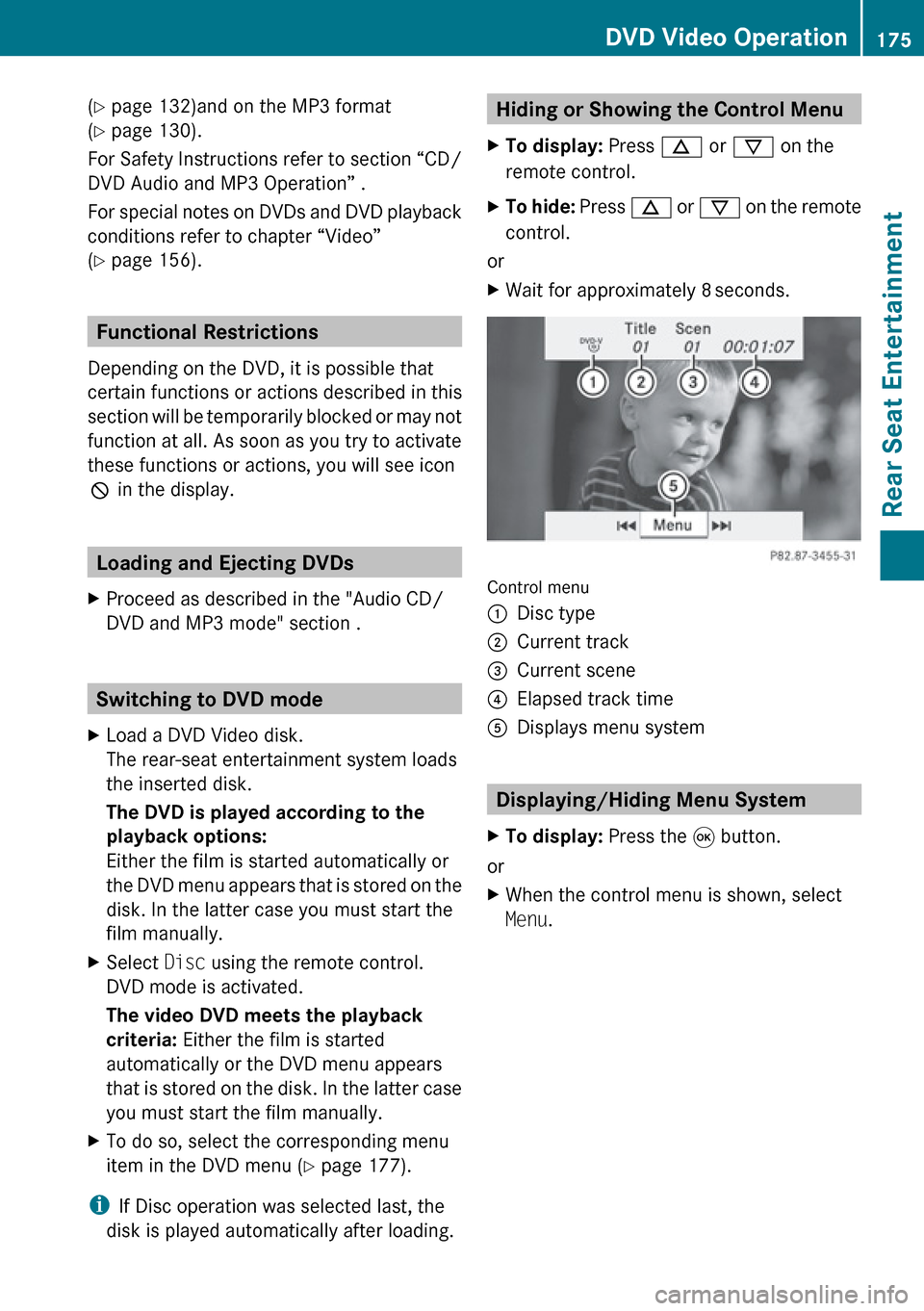
Hiding or Showing the Control Menu XTo display: Press n or ý on the
remote control.XTo hide: Press n or ý on the remote
control.
or
XWait for approximately 8 seconds.
Control menu
1Disc type2Current track3Current scene4Elapsed track time5Displays menu system
Displaying/Hiding Menu System
XTo display: Press the 9 button.
or
XWhen the control menu is shown, select
Menu .DVD Video Operation175Rear Seat EntertainmentZ
Page 189 of 224
iUsing individualization, you can fine-tune
voice control to your own voice and thus
improve voice recognition. The process of
individualization is described in chapter
“System Settings” ( Y page 41).
i If you use individualization, it may impair
recognition of other users. Switch off
individualization if it makes recognition of
other users worse.
Phone
GWarning
Some jurisdictions prohibit the driver from
using a cellular telephone while driving.
Whether or not prohibited by law, for safety
reasons, the driver should not use the cellular
telephone while the vehicle is in motion. Stop
the vehicle in a safe location before placing or
answering a call.
If you nonetheless choose to use the mobile
phone while driving, please use the handsfree
feature and be sure to pay attention to the
traffic situation at all times. Use the mobile
phone only when road, weather and traffic
conditions permit. Otherwise, you may not be
able to observe traffic conditions and could
endanger yourself and others.
Bear in mind that at a speed of just 30 mph
(approximately 50 km/h), your vehicle is
covering a distance of 44 feet (approximately
14 m) every second.
Operation
You can use voice control to:
R place a call by using your voice to input a
phone number
R store names and numbers in the address
book
R dial a number from the address book
R dial a number from the call list “Latest
calls”
R listen to the phone book
R retrieve and manage your voice mail and
recorded announcement services
R redial
Voice control recognizes whether:
R your phone is switched on
R your phone is connected via Bluetooth ®
R the car phone is registered with the
relevant mobile phone network
R it is possible to dial
If it is not possible to dial, voice control issues
a message to this effect.
i You can still operate your phone using the
keypad.
Commands
“Phone”
Use the “Phone” command to select the
phone application. Use this command if you
wish the digits entered to be shown on the
display.
“Help Phone”
Voice control has an extensive help function.
Using the “Help Phone” command, you can
have all the essential commands for the
phone read out .
“Dial number”
You can use the “Dial number” command to
dial a phone number.
The digits 0 to 9 and the word “Plus” are
permitted.
“ Plus” replaces the international dialing code,
e.g. “00”.
Say the phone number in the form of a
continuous string of individual digits or as
blocks of digits, e.g. three to five digits.
Voice control repeats the digits it recognizes
after each block of digits (with a pause of
Phone187Voice ControlZ
Page 190 of 224
about half a second between each block of
digits) and waits for you to continue speaking.
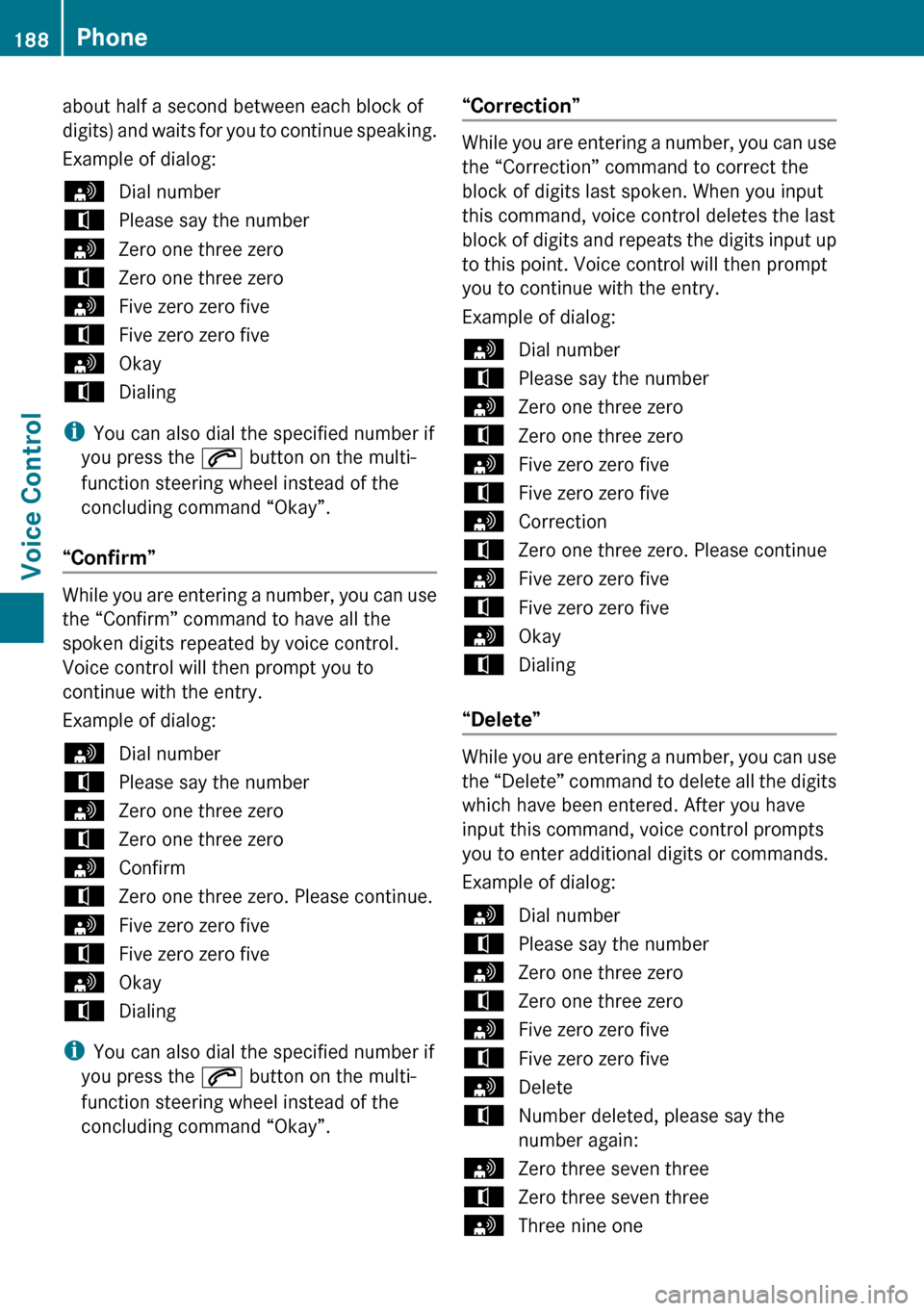
Example of dialog:sDial numbertPlease say the numbersZero one three zerotZero one three zerosFive zero zero fivetFive zero zero fivesOkaytDialing
i You can also dial the specified number if
you press the 6 button on the multi-
function steering wheel instead of the
concluding command “Okay”.
“Confirm”
While you are entering a number, you can use
the “Confirm” command to have all the
spoken digits repeated by voice control.
Voice control will then prompt you to
continue with the entry.
Example of dialog:
sDial numbertPlease say the numbersZero one three zerotZero one three zerosConfirmtZero one three zero. Please continue.sFive zero zero fivetFive zero zero fivesOkaytDialing
i You can also dial the specified number if
you press the 6 button on the multi-
function steering wheel instead of the
concluding command “Okay”.
“Correction”
While you are entering a number, you can use
the “Correction” command to correct the
block of digits last spoken. When you input
this command, voice control deletes the last
block of digits and repeats the digits input up
to this point. Voice control will then prompt
you to continue with the entry.
Example of dialog:
sDial numbertPlease say the numbersZero one three zerotZero one three zerosFive zero zero fivetFive zero zero fivesCorrectiontZero one three zero. Please continuesFive zero zero fivetFive zero zero fivesOkaytDialing
“Delete”
While you are entering a number, you can use
the “Delete” command to delete all the digits
which have been entered. After you have
input this command, voice control prompts
you to enter additional digits or commands.
Example of dialog:
sDial numbertPlease say the numbersZero one three zerotZero one three zerosFive zero zero fivetFive zero zero fivesDeletetNumber deleted, please say the
number again:sZero three seven threetZero three seven threesThree nine one188PhoneVoice Control
Page 200 of 224
RThe name entries, e.g. last name and first
name, are in the right fields.
R Do not use abbreviations or acronyms.
R Avoid unnecessary spaces in names.
R Do not use special characters.
You can improve voice recognition by saving
a speaker-dependent voice tag for address
book entries.
Use a speaker-dependent voice tag:
R for names which are difficult to pronounce
R to distinguish names which sound similar
R for names which are not pronounced as
they are written
Voice control can store up to 50 of these
address book entries by means of a speaker-
dependent voice tag.
Operation
You can use voice control at any time to:
R save a name
R select a name
R delete a name
R list the address book
R delete the address book
R open the address book
R open an entry from the address book
R list the phone book
R list the destination memory
To open the address book:
XVehicles with Voice Control buttons on
the Multi-function Steering Wheel: Press
the ? button.
or
XVehicles with Lever for Voice Control:
Pull the Voice Control lever toward you.XGive the “Address book” command.XVehicles with Voice Control buttons on
the Multi-function Steering Wheel: Press
the ? button.
or
XVehicles with Lever for Voice Control:
Pull the Voice Control lever toward you.XGive one of the address book commands
explained below.
Commands
“Address Book”
XTo open the address book: Say the
command “Address book”.
“Help Address Book”
XUsing the “Help address book” command,
you can have all the essential commands
for the address book read out.
“Save Name”
Use the “Save name” command to save a
phone number with a voice tag for a specific
speaker. Use this command for a name which
is complicated or which is pronounced
differently as it is spelled, for example,
because it is a foreign name. When you have
given the command “Save Name”, voice
control prompts you to enter a phone
number.
i This function is only possible if a mobile
phone is connected to COMAND.
The digits 0 to 9 and the word “Plus” are
permitted.
“ Plus” replaces the international dialing code,
e.g. “00”.
Say the phone number in the form of a
continuous string of digits or as blocks of
digits, e.g. three to five digits.
Voice control repeats the digits it recognizes
after each block of digits (with a pause of
198Address BookVoice Control
Page 201 of 224
about half a second between each block of
digits) and waits for you to continue speaking.
When you have given the command “Okay”,
voice control prompts you two or three times
to say the name. When repeating the name,
make sure that you pronounce it in exactly
the same way as you did the first time.
Otherwise, the name cannot be saved and
voice control aborts the saving procedure.
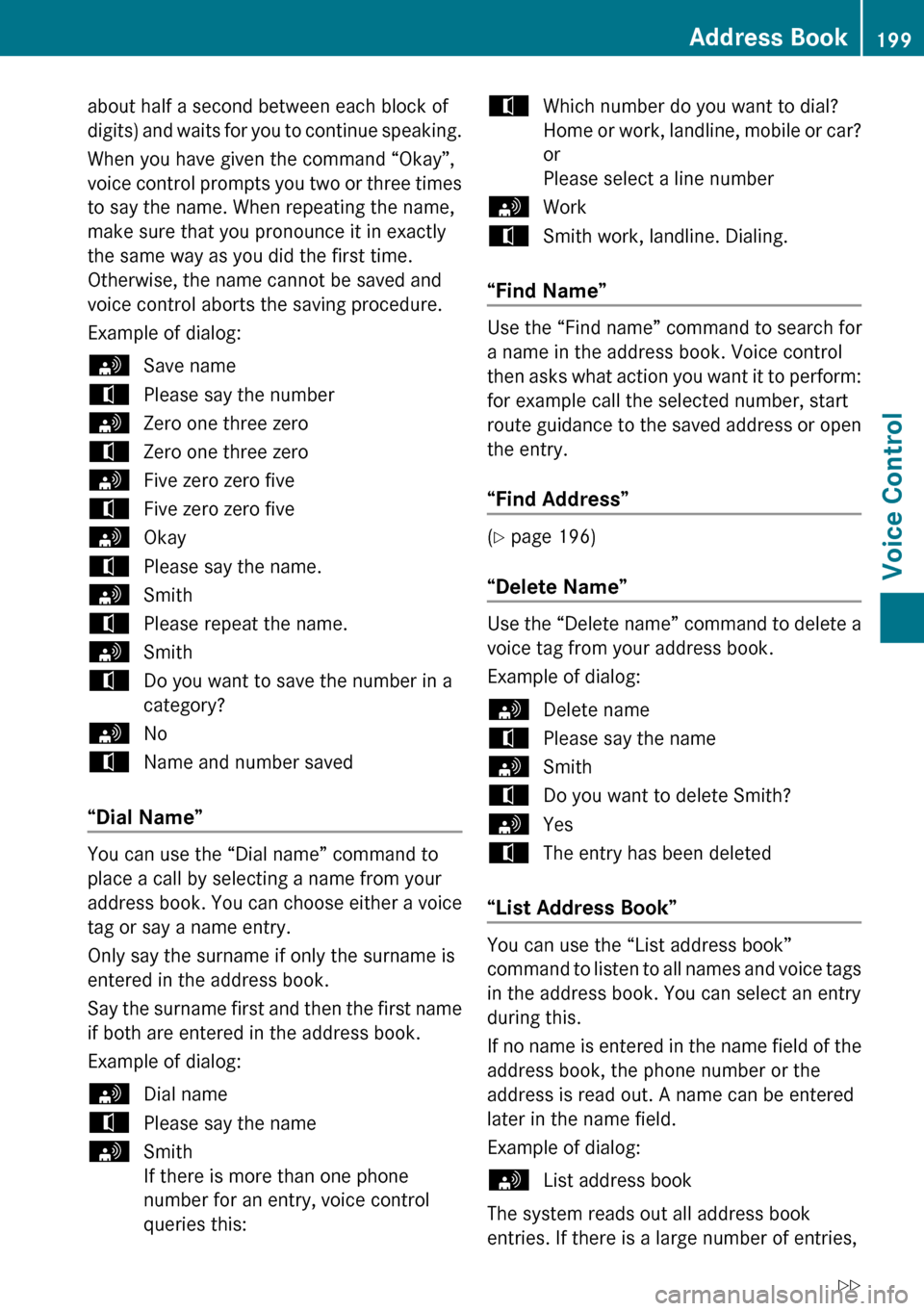
Example of dialog:sSave nametPlease say the numbersZero one three zerotZero one three zerosFive zero zero fivetFive zero zero fivesOkaytPlease say the name.sSmithtPlease repeat the name.sSmithtDo you want to save the number in a
category?sNotName and number saved
“Dial Name”
You can use the “Dial name” command to
place a call by selecting a name from your
address book. You can choose either a voice
tag or say a name entry.
Only say the surname if only the surname is
entered in the address book.
Say the surname first and then the first name
if both are entered in the address book.
Example of dialog:
sDial nametPlease say the namesSmith
If there is more than one phone
number for an entry, voice control
queries this:tWhich number do you want to dial?
Home or work, landline, mobile or car?
or
Please select a line numbersWorktSmith work, landline. Dialing.
“Find Name”
Use the “Find name” command to search for
a name in the address book. Voice control
then asks what action you want it to perform:
for example call the selected number, start
route guidance to the saved address or open
the entry.
“Find Address”
( Y page 196)
“Delete Name”
Use the “Delete name” command to delete a
voice tag from your address book.
Example of dialog:
sDelete nametPlease say the namesSmithtDo you want to delete Smith?sYestThe entry has been deleted
“List Address Book”
You can use the “List address book”
command to listen to all names and voice tags
in the address book. You can select an entry
during this.
If no name is entered in the name field of the
address book, the phone number or the
address is read out. A name can be entered
later in the name field.
Example of dialog:
sList address book
The system reads out all address book
entries. If there is a large number of entries,
Address Book199Voice ControlZ