COMAND MERCEDES-BENZ M-Class 2015 W166 Comand Manual
[x] Cancel search | Manufacturer: MERCEDES-BENZ, Model Year: 2015, Model line: M-Class, Model: MERCEDES-BENZ M-Class 2015 W166Pages: 270, PDF Size: 5.82 MB
Page 235 of 270
play pictures with a resolution of up to 20
megapixels. Data medium Supported picture
formats
CD/DVD with pic-
ture files bmp, jpeg, jpg, png
USB devices (sticks,
hard drives)
SD memory card bmp, jpeg, jpg, png
Calling up a category list
X Select a data medium with pictures (e.g. a
memory card):
R in the Audio menu (Y page 186)
R in the media list (Y page 198)
X Select Search Search in the basic display by slid-
ing 00520064 and turning 00790052007Athe COMAND
controller and press 0098to confirm.
The category list appears (Y page 204).Displaying pictures
X Select (Y page 204) Photos
Photosin the category
list by turning 00790052007Athe COMAND controller
and press 0098to confirm.
A folder directory appears.
X Select a folder with photos and press 0098to
confirm.
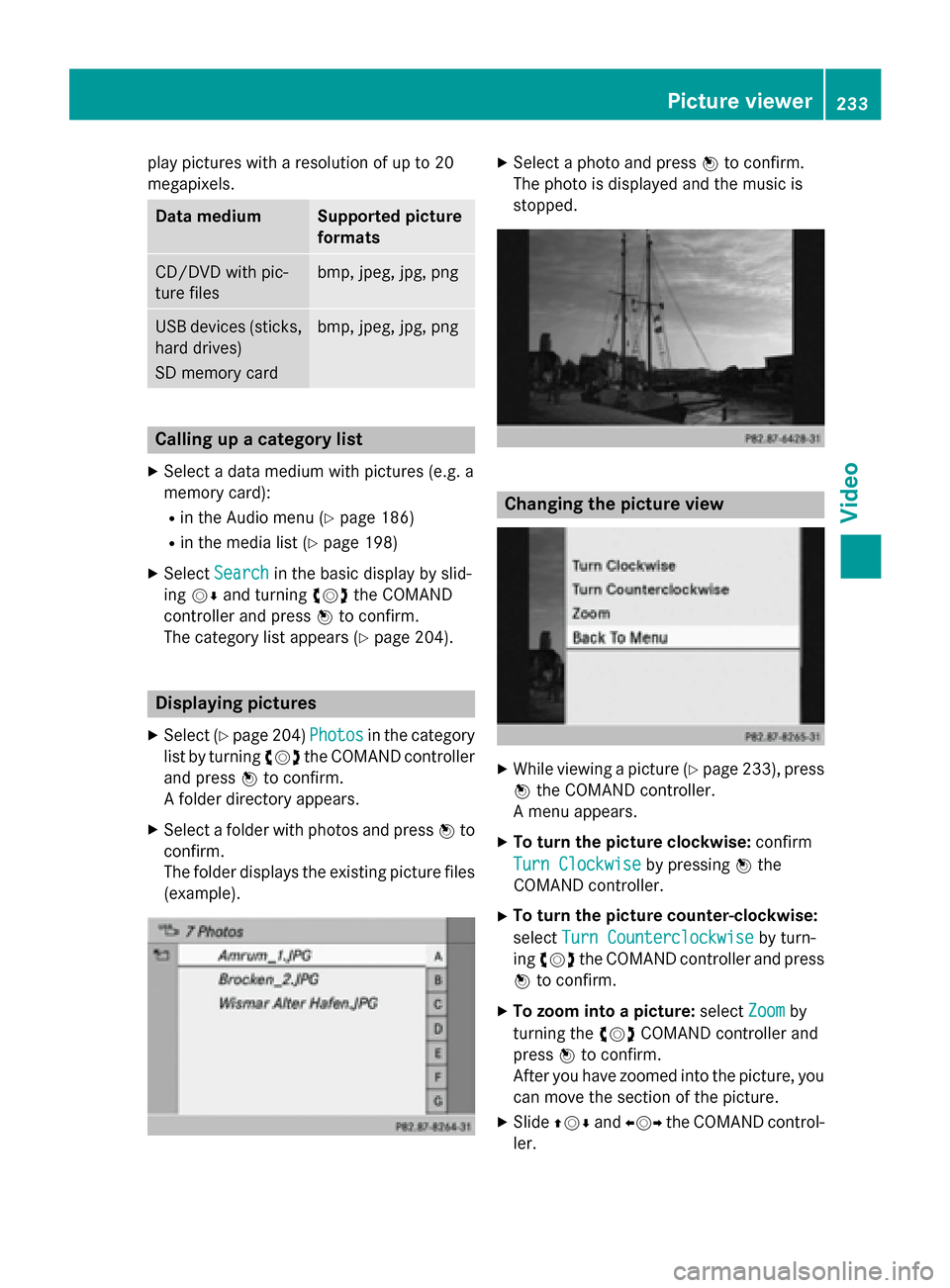
The folder displays the existing picture files (example). X
Select a photo and press 0098to confirm.
The photo is displayed and the music is
stopped. Changing the picture view
X
While viewing a picture (Y page 233), press
0098 the COMAND controller.
A menu appears.
X To turn the picture clockwise: confirm
Turn Clockwise Turn Clockwise by pressing0098the
COMAND controller.
X To turn the picture counter-clockwise:
select Turn Counterclockwise
Turn Counterclockwise by turn-
ing 00790052007A the COMAND controller and press
0098 to confirm.
X To zoom into a picture: selectZoom
Zoomby
turning the 00790052007ACOMAND controller and
press 0098to confirm.
After you have zoomed into the picture, you
can move the section of the picture.
X Slide 009700520064 and009500520096 the COMAND control-
ler. Picture viewer
233Video Z
Page 236 of 270

X
To revert to the original size: press0098the
COMAND controller.
or
X Press the 003Dbutton. Exiting the picture viewer
X Select Back
BackTo
ToMenu
Menu in the menu by turn-
ing 00790052007A the COMAND controller and press
0098 to confirm. 234
Picture viewerVideo
Page 237 of 270

Your COMAND equipment
................236
Overview ............................................ 236
Basic functions ................................. 241
System settings ................................ 243
CD/audio DVD and MP3 mode ........244
Video DVD mode ............................... 247
Operation with an active COMAND source ................................................ 252
AUX mode .......................................... 254 235Rea
r Seat Entertainment System
Page 238 of 270
Your COMAND equipment
These operating instructions describe all the
standard and optional equipment for your
COMAND system, as available at the time of
going to print. Country-specific differences
are possible. Please note that your
COMAND system may not be equipped with
all the features described. Overview
Important safety notes
G
WARNING
The CD/DVD drive is a class 1 laser product. If you open the housing of the CD/DVD drive,
there is a risk of exposure to invisible laser
radiation. This laser radiation could damage
your retina. There is a risk of injury.
Never open the housing. Always have main-
tenance and repair work carried out at a quali- fied specialist workshop. G
WARNING
If objects such as headphones/headsets or
external audio/video sources are not secured in the passenger compartment, they can be
flung around and hit vehicle occupants. There
is a risk of injury, for example in the event of
sudden braking or a sudden change in direc-
tion.
Always stow these items or similar objects
carefully so that they cannot be flung around, for example in a lockable vehicle stowage
compartment. equipment
Observe that a range of Rear Seat Entertain-
ment Systems are available for Mercedes-
Benz vehicles. In this Operator's Manual, the
Rear Seat Entertainment System Code 864 is
used for illustration purposes. If you have a
different Rear Seat Entertainment System in your vehicle, please refer to the separate prin-
ted operating instructions . Components
The Rear Seat Entertainment System
includes:
R two screens for the rear behind the front-
seat head restraints
R two remote controls
R a CD/DVD drive
R AUX jacks on both screens (AUX display)
and on the CD/DVD drive (AUX drive)
R two sets of cordless headphones 236
OverviewRea
r Seat Entertainment System
Page 243 of 270
X
To open the battery compartment:
remove battery compartment cover 0087on
the back of the remote control.
X To do so, press down retaining lug 0044and
take off battery compartment cover 0087.
X Remove discharged batteries 0083from the
tray.
X Insert the new batteries. Observe the polar-
ity markings on the batteries and battery
compartment when doing so.
Left-hand battery: the positive pole (+)
must face upwards.
Right-hand battery: the positive pole (+)
must face downwards.
X To close the battery compartment:
insert battery compartment cover 0087start-
ing with retaining lugs 0085into the battery
compartment and allow catch tab 0044to
engage in place.
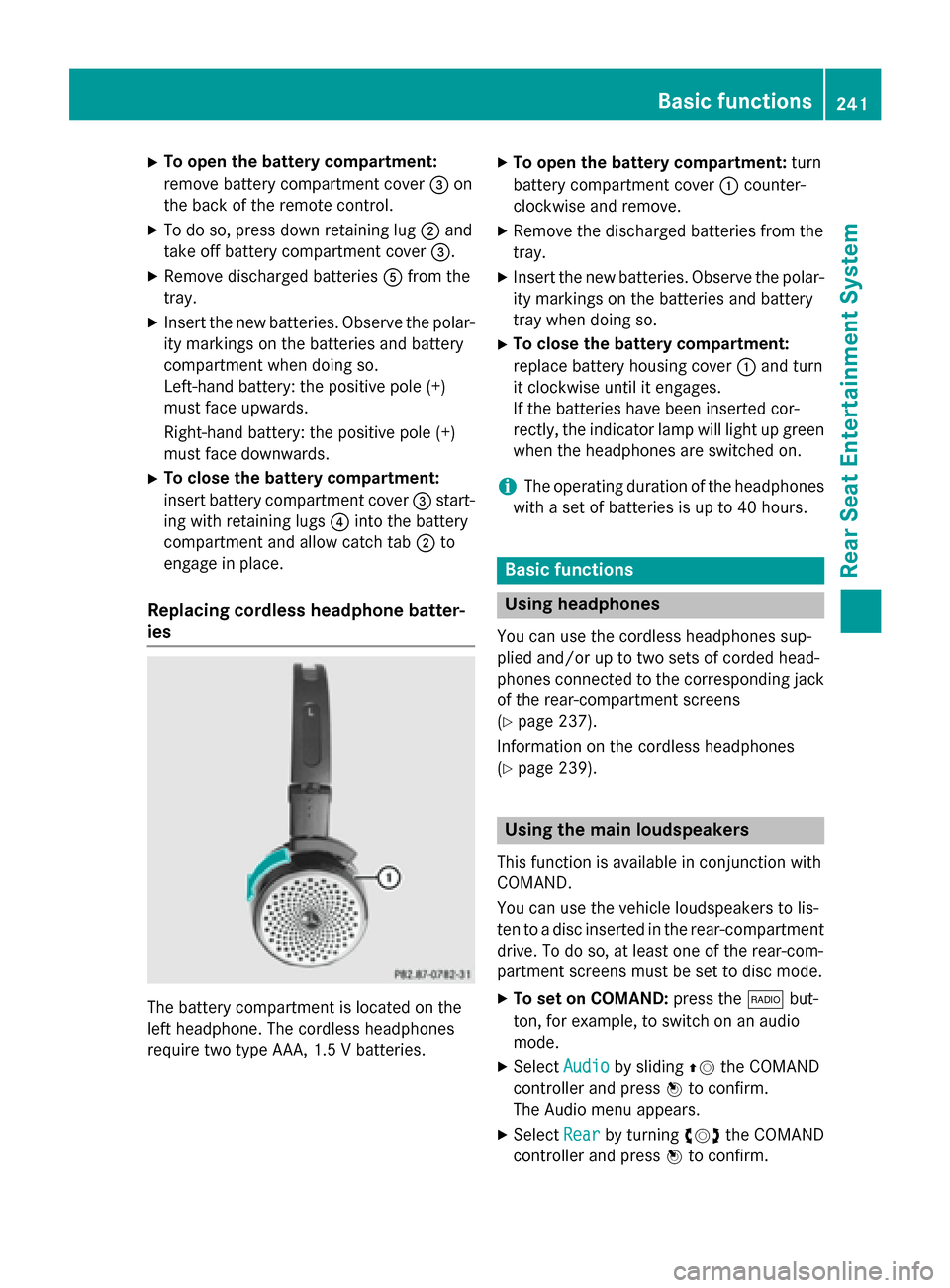
Replacing cordless headphone batter-
ies The battery compartment is located on the
left headphone. The cordless headphones
require two type AAA, 1.5 V batteries. X
To open the battery compartment: turn
battery compartment cover 0043counter-
clockwise and remove.
X Remove the discharged batteries from the
tray.
X Insert the new batteries. Observe the polar-
ity markings on the batteries and battery
tray when doing so.
X To close the battery compartment:
replace battery housing cover 0043and turn
it clockwise until it engages.
If the batteries have been inserted cor-
rectly, the indicator lamp will light up green
when the headphones are switched on.
i The operating duration of the headphones
with a set of batteries is up to 40 hours. Basic functions
Using headphones
You can use the cordless headphones sup-
plied and/or up to two sets of corded head-
phones connected to the corresponding jack
of the rear-compartment screens
(Y page 237).
Information on the cordless headphones
(Y page 239). Using the main loudspeakers
This function is available in conjunction with
COMAND.
You can use the vehicle loudspeakers to lis-
ten to a disc inserted in the rear-compartment drive. To do so, at least one of the rear-com-
partment screens must be set to disc mode.
X To set on COMAND: press the002Abut-
ton, for example, to switch on an audio
mode.
X Select Audio Audioby sliding 00970052the COMAND
controller and press 0098to confirm.
The Audio menu appears.
X Select Rear
Rear by turning 00790052007Athe COMAND
controller and press 0098to confirm. Basic functions
241Rear Seat Entertainment System Z
Page 250 of 270
radiation. This laser radiation could damage
your retina. There is a risk of injury.
Never open the housing. Always have main-
tenance and repair work carried out at a quali- fied specialist workshop. General notes
DVD playback conditions Playback problems may occur when playing
copied discs. There is a large variety of discs, DVD authoring software, writing software and writers available. This variety means that
there is no guarantee that the Rear Seat
Entertainment System will be able to play
video DVDs that you have copied yourself.
Further information can be found under video
(Y page 227). Information regarding
COMAND also applies to the Rear Seat Enter- tainment System.
Function restrictions Depending on the DVD, it is possible that cer-
tain functions or actions described in this
section will be temporarily blocked or may not
function at all. As soon as you try to activate
these functions or actions, you will see the 0047
symbol in the display. Switching to video DVD mode
X Insert a video DVD (Y page 244).
The Rear Seat Entertainment System loads the disc.
If disc mode was the last mode selected, it
will now be active.
If it was not, switch on video DVD mode as described in the following instruction.
X Select Disc Discin the menu using the
006300590065 buttons on the remote
control and confirm by pressing the 008B
button.
If the video DVD fulfills the playback crite-
ria, the film either starts automatically or the menu stored on the DVD appears. If the
DVD menu appears, you must start the film
manually.
X Select the corresponding menu item in the
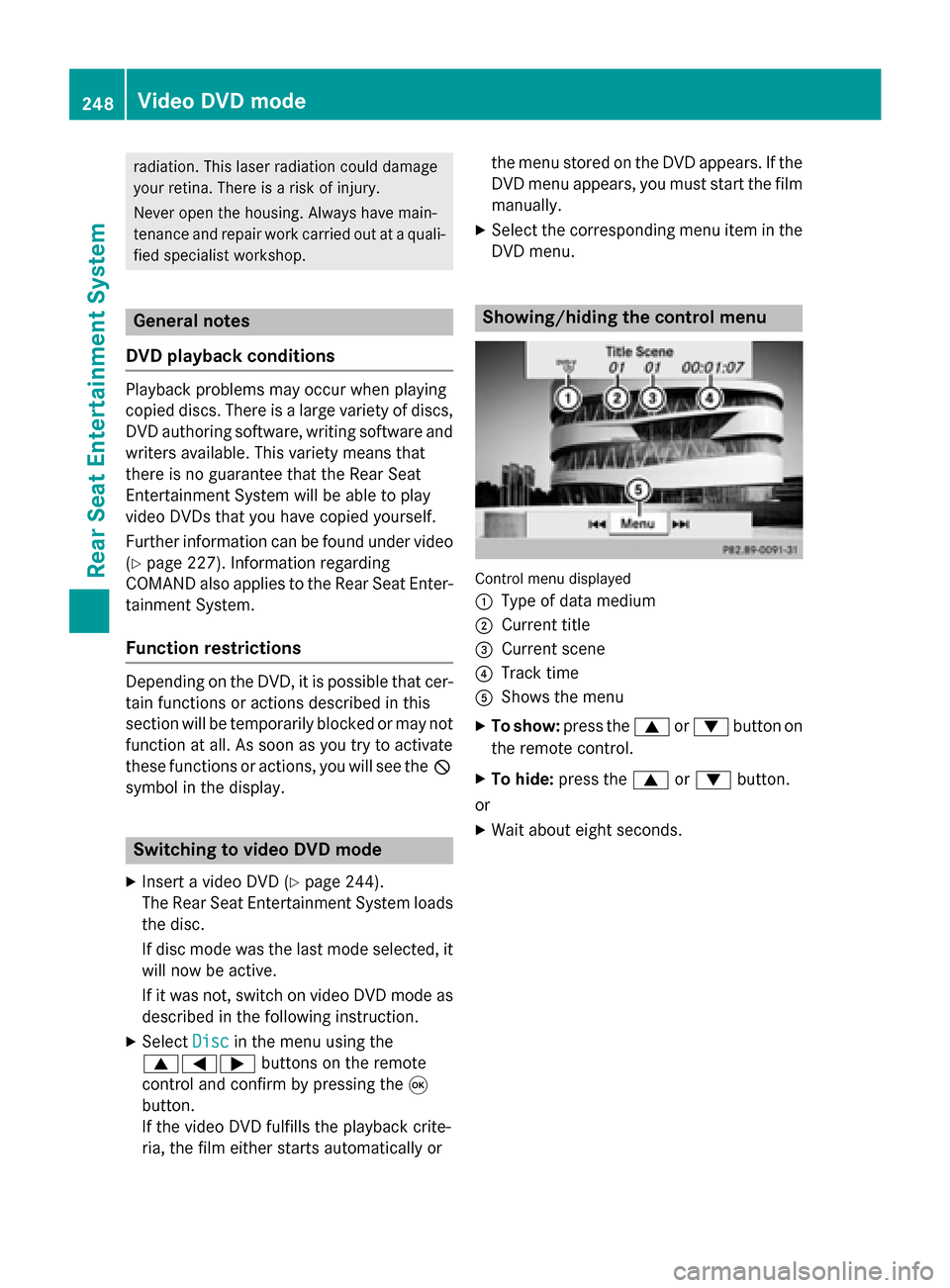
DVD menu. Showing/hiding the control menu
Control menu displayed
0043
Type of data medium
0044 Current title
0087 Current scene
0085 Track time
0083 Shows the menu
X To show: press the0063or0064 button on
the remote control.
X To hide: press the 0063or0064 button.
or
X Wait about eight seconds. 248
Video DVD modeRear Seat Entertainment System
Page 253 of 270

Selecting menu items in the DVD menu
X
Select a menu item using the
0063006400590065 buttons on the
remote control and press the 008Bbutton to
confirm.
A menu appears.
X Confirm Select Selectby pressing the 008Bbutton.
The Rear Seat Entertainment System car-
ries out the action or shows a submenu.
X If available, additional options can now be
selected.
The Rear Seat Entertainment System then
switches back to the DVD menu.
i Menu items which cannot be selected are
shown in gray.
i Depending on the DVD, the menu items:
Back
Back (to (tothe
themovie)
movie), Play
Play,Stop
Stop,0048,
0049 orGo
Go Up
Upmay either not function at all
or may not function at certain points in the
DVD menu. To indicate this, the 0047symbol
appears in the display.
Stopping a film or skipping to the begin- ning or end of a scene X
Select any menu item from the DVD menu.
The menu appears.
X To stop the film: select theStop
Stop menu
item and press the 008Bbutton on the remote
control to confirm. X
To skip to the end of a scene: select the
0049 menu item and press the 008Bbutton to
confirm.
X To skip to the beginning of a scene:
select the 0048menu item and press the
008B button to confirm.
Moving up one level in the DVD menu X
Show the DVD menu.
X Press the 0038back button on the remote
control or select the corresponding menu
item in the DVD menu.
or
X Select any menu item in the DVD menu and
press 0098the COMAND controller to con-
firm.
X Select Go Up Go Upand press 0098to confirm.
Back to the film X
Press the 003Dbutton repeatedly until you
see the movie.
or
X Select any menu item in the DVD menu and
press 008Bto confirm.
X Select the Back (to the movie)
Back (to the movie) menu
item in the menu and press the 008Bbutton to
confirm. Setting the audio format
This function is not available on all DVDs. If it
is available, you can set the audio language or the audio format. The number of settings is
determined by the DVD content. It may also
be possible to access the settings from the
DVD menu.
X Press the 008Bbutton on the remote control
and show the menu.
X Select DVD-Video
DVD-Video and press the 008Bbutton
on the remote control to confirm.
X Select DVD Functions DVD Functions and press the008B
button to confirm. Video DVD mode
251Rear Seat Entertainment System Z
Page 254 of 270
X
Select Audio Language
Audio Language and press the008B
button to confirm.
A menu appears after a short while. The 0036
dot in front of an entry indicates the cur-
rently selected language.
X Select a language using the 00630064but-
tons and press the 008Bbutton to confirm.
X To exit the menu: press the0059or0065
button. Subtitles and camera angle
These functions are not available on all DVDs.
The number of subtitle languages and camera
angles available depends on the content of
the DVD. It may also be possible to access the settings from the DVD menu.
X Press the 008Bbutton on the remote control
and show the menu.
X Select DVD-Video DVD-Video and press the 008Bbutton
on the remote control to confirm.
X Select DVD Functions
DVD Functions and press the008B
button to confirm.
X Select Subtitles
Subtitles orCamera Angle
Camera Angle and
press the 008Bbutton to confirm.
In both cases, a menu appears after a few
seconds. The 0036dot in front of an entry
indicates the current setting.
X Select a setting using the 00630064but-
tons and press the 008Bbutton to confirm.
X To exit the menu: press the0059or0065
button. Interactive content
DVDs can also contain interactive content
(e.g. a video game). In a video game, you may be able to influence events by selecting and
triggering actions. The type and number of
actions depend on the DVD.
X Select an action using the
006300650064 buttons on the remote control and press the
008Bbutton to
execute it.
A menu appears and the first entry, Select Select,
is highlighted.
X Press the 008Bbutton. Operation with an active COMAND
source
Switching the function on/off in
COMAND
You can transfer an audio or video source
selected in COMAND to the Rear Seat Enter-
tainment System. If you subsequently switch
modes in COMAND, the new source will not
be transmitted to the Rear Seat Entertain-
ment System.
X To switch on the function in COMAND:
switch to the desired audio mode in
COMAND, e.g. CD mode (Y page 197), or
show the menu in video DVD mode
(Y page 228).
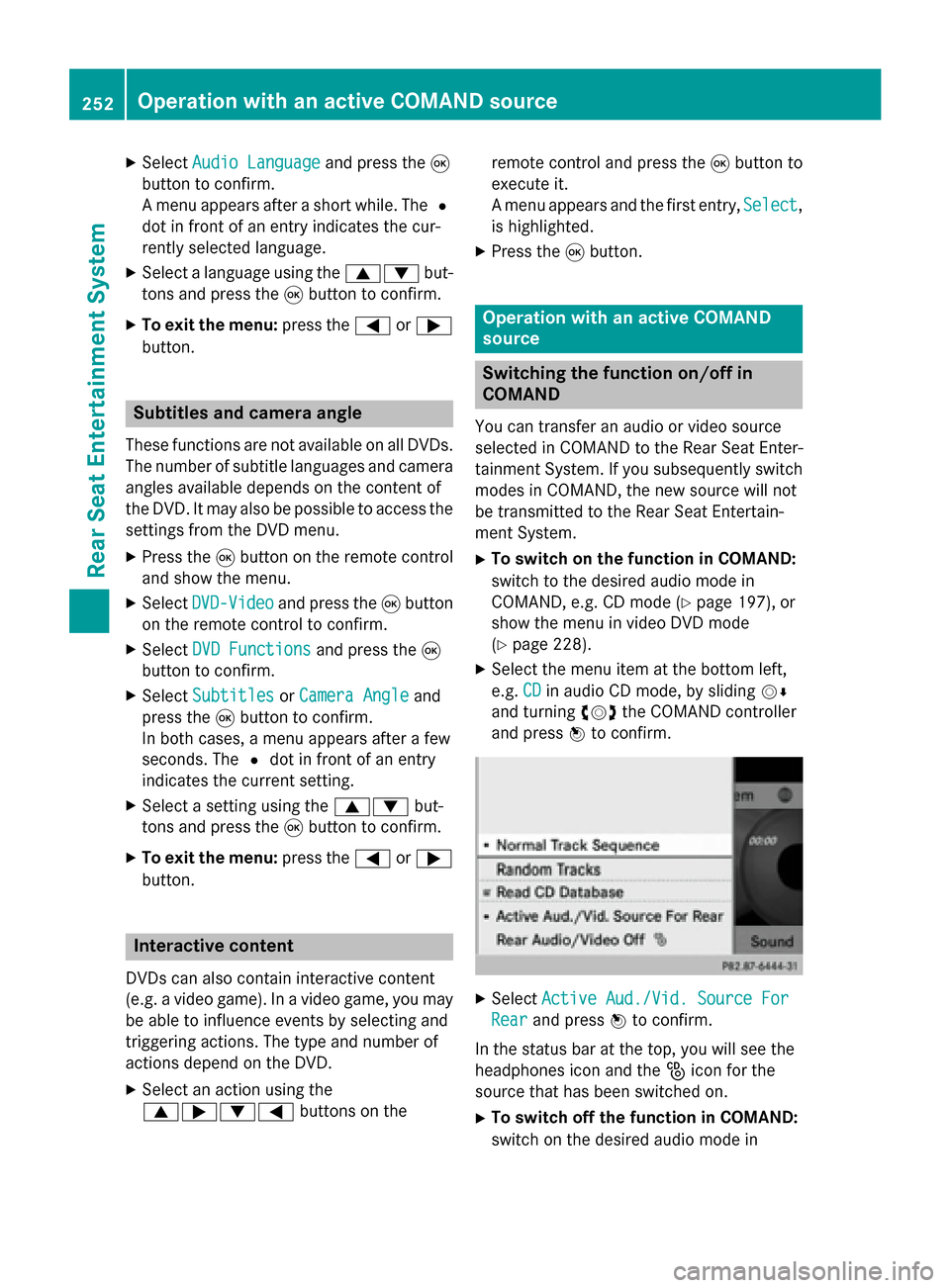
X Select the menu item at the bottom left,
e.g. CD CDin audio CD mode, by sliding 00520064
and turning 00790052007Athe COMAND controller
and press 0098to confirm. X
Select Active Aud./Vid. Source For
Active Aud./Vid. Source For
Rear
Rear and press 0098to confirm.
In the status bar at the top, you will see the
headphones icon and the _icon for the
source that has been switched on.
X To switch off the function in COMAND:
switch on the desired audio mode in 252
Operation with an active COMAND sourceRear Seat Entertainment System
Page 255 of 270

COMAND or show the menu in video DVD
mode.
X Select the menu item at the bottom left,
e.g. CD
CD in audio CD mode, by sliding 00520064
and turning 00790052007Athe COMAND controller
and press 0098to confirm.
X Select Rear Audio/Video Off Rear Audio/Video Off _and
press 0098the COMAND controller to con-
firm. Selecting an active COMAND source
on the rear-compartment screen
Loading the active COMAND source X
Select COMAND COMAND using the 006300590065
buttons on the remote control and press 008B
to confirm.
The audio or video source selected in
COMAND is loaded in the Rear Seat Enter- tainment System.
When the loading process is complete, the
audio or video source is set in the Rear Seat
Entertainment System.
If Rear Audio/Video Off
Rear Audio/Video Off is activated in
COMAND, the COMAND is off or there COMAND is off or there
is no active COMAND source
is no active COMAND source message
appears. Audio CD mode X
To select by skipping to a track: press
the 0059 or0065 button.
or X Press the 0048or0049 button.
The skip forward function skips to the next track.
If the elapsed track time has exceeded 8
seconds, the function skips back to the
beginning of the track.
If the elapsed track time is less than 8 sec- onds, the function skips back to the begin-
ning of the previous track.
Additional setting option:
R Adjusting the sound settings (Y page 242)
Audio DVD mode X
To skip to the next/previous group:
press the 0064button on the remote con-
trol.
X To select 004E004F : highlight using the
0059 or0065 button and press 008B.
Additional setting option: R Adjusting the sound settings (Y page 242)
MP3 mode X
To select a track by skipping to a track:
press the 0059or0065 button on the
remote control.
or
X Press the 0048or0049 button.
The skip forward function skips to the next track.
If the elapsed track time has exceeded 8
seconds, the function skips back to the
beginning of the track.
If the elapsed track time is less than 8 sec- onds, the function skips back to the begin-
ning of the previous track. Operation with an active COMAND source
253Rear Seat Entertainment System Z
Page 259 of 270

Your COMAND equipment
................258
Introduction ...................................... 258
Switching the SIRIUS Weather dis- play on/off ........................................ 258
Displaying detailed information ......259
Selecting the area for the weather
forecast ............................................. 259
Memory functions .............................261
Weather map ..................................... 262 257SIRIUS Wea
ther