display MERCEDES-BENZ METRIS 2016 MY16 Audio Manual
[x] Cancel search | Manufacturer: MERCEDES-BENZ, Model Year: 2016, Model line: METRIS, Model: MERCEDES-BENZ METRIS 2016Pages: 54, PDF Size: 1.33 MB
Page 2 of 54
Publication details
Internet
Further information about Mercedes-Benz
vehicles and about Daimler AG can be found
on the following websites:
http://www.mercedes-benz.com
http://www.mbusa.com (USA only)
http://www.mercedes-benz.ca (Canada
only)
Editorial office
You are welcome to forward any queries or
suggestions you may have regarding this
Operator's Manual to the technical documen-
tation team at the address on the inside of the
front cover.
©Mercedes-Benz USA, LLC
©Mercedes-Benz Canada, Inc.
Mercedes-Benz USA, LLC and Mercedes-
Benz Canada Inc. are Daimler companies.
Not to be reprinted, translated, or otherwise
reproduced, in whole or in part, without writ-
ten permission.
Vehicle manufacturer
Daimler AG
Mercedesstraße 137
70327 Stuttgart
Germany
Symbols
GWARNING
Warning notes make you aware of dangers
which could pose a threat to your health or
life, or to the health and life of others.
HEnvironmental note
Environmental notes provide you with infor-
mation on environmentally aware actions or
disposal.
!Notes on material damage alert you to
dangers that could lead to damage to your
vehicle.
iThese symbols indicate useful instruc-
tions or further information that could be
helpful to you.
X This symbol designates an instruc-
tion you must follow.
X Several consecutive symbols indi-
cate an instruction with several
steps.
(Y page) This symbol tells you where you
can find further information on a
topic.
YY This symbol indicates a warning or
an instruction that is continued on
the next page.
Display
This text indicates a message on
the display.
Vehicle distributor
Mercedes-Benz USA, LLC
One Mercedes Drive
Montvale, NJ 07645-0350
www.mbusa.com
www.mbsprinterusa.com
Customer Assistance Center:
1-877-762-8267
Mercedes-Benz Canada, Inc.
98 Vanderhoof Avenue
Toronto, ON M4G 4C9
www.mercedes-benz.ca
Customer Relations Department:
1-800-387-0100
Mercedes-Benz USA, LLC and Mercedes-
Benz Canada Inc. are Daimler companies.
Canada only: "Authorized Sprinter Dealer" is
defined as an authorized Mercedes-Benz
Sprinter Dealer.
As at 02.02.2015
Page 6 of 54
1, 2, 3 ...
911 emergency call.............................30
A
Audio fadeout ...................................... 20
Authorized Mercedes-Benz Center
see Qualified specialist workshop
AUX function
Connecting a device ........................ 47
Im portant safety notes .................... 38
In creasing the volume ...................... 48
Se lecting .......................................... 47
B
Balance
Setting ............................................ .20
Basic functions .................................... 14
Bass
Setting ............................................. 20
Becker
®MAP PILOT
see Navigation
Bluetooth
®
Activating/deactivating ................... 21
Conditions ....................................... 20
Connecting another mobile
phone .............................................. 24
De-authorizing (de-registering) a
device .............................................. 25
Displaying details ............................. 24
Pairing a mobile phone .................... 21
Playing an MP3 ................................ 46
Selecting a playback option ............. 46
Selecting a track .............................. 46
Settings ........................................... 20
Starting and stopping playback ....... 46
Unpairing ......................................... 25
Bluetooth
®Audio ................................. 45
Connecting an audio device ............. 21
Connecting another audio device .... 24
Increasing the volume ...................... 47
Interrupting playback ....................... 46
Pairing an audio device .................... 22
Pairing an audio device (external) .... 23
Reconnecting an audio device ......... 24
Selecting .......................................... 45
Unpairing an audio device ................ 25
C
Call Accepting ......................................... 30
Ending .............................................. 30
Making ............................................. 31
Rejecting .......................................... 31
Call lists
Calling up an entry ........................... 34
Call waiting
Accepting ......................................... 33
Calling .................................................. 31
Using Bluetooth
®............................. 30
Changing folders ................................. 43
Cleaning ................................................. 8
Copyright ................................................ 8
Correct use ............................................ 7
D
Day design........................................... 18
Declarations of conformity ................... 7
Deleting
Call lists ........................................... 35
Display
On-board computer ......................... 14
Overview .......................................... 11
Selecting the design ........................ 18
Setting the brightness ..................... 18
Switching on/off .............................. 19
E
Equipment .............................................. 7
Example of operation .......................... 12
External devices .................................. 47
F
Factory settings.................................. 26
Fader
Setting ............................................. 20
Fast forward/rewind .......................... 43
Frequencies
Adjusting for radio stations .............. 38
Frequency input
Manual ............................................. 38
4Index
Page 7 of 54
G
GPS reception...................................... 28
H
Hands-free system
Switching on/off .............................. 32
L
LanguageSetting ............................................. 25
M
Media InterfaceSupported file formats .....................5 0
Metadata
Displaying ........................................ 44
Mobile phone
Connecting ...................................... 21
Disconnecting .................................. 25
Displaying Bluetooth
®details .......... 24
Pairing ....................................... 21, 22
Pairing (external) .............................. 23
Reconnecting ................................... 23
Selecting .......................................... 30
MP3
Changing folders .............................. 43
Selecting a track .............................. 42
Mute function ...................................... 14
N
Navigation
Becker®MAP PILOT ......................... 28
GPS reception .................................. 28
Switching to ..................................... 28
Night design ........................................ 18
O
On-board computer
Overview .......................................... 14
Operating safety ....................................7
Overview of controls ........................... 10
P
Pairing............................................ 21, 22
Phone book .......................................... 34
Calling an entry ................................ 35
Calling up ......................................... 35
Deleting an entry ............................. 36
Displaying details ............................. 35
Phone call
Dialing ............................................. .31
Playback options ................................. 44
Playlists
Playing back .....................................4 3
Protection against theft ........................ 8
Q
Qualified specialist workshop .............. 8
R
Radio
Calling up stored stations ................3 9
Entering a frequency ........................ 38
Searching for a station ..................... 38
Selecting .......................................... 38
Setting a station .............................. 38
Setting stations manually ................ 38
Station list ....................................... 39
Storing stations ............................... 39
Storing stations automatically ......... 39
Storing stations manually ................ 39
Switching wavebands ...................... 40
Rear view camera
Operation ......................................... 14
Redial .................................................... 32
Reset .................................................... 26
Resetting
Factory settings ............................... 26
S
SD functionDisplaying metadata ........................ 44
Displaying track information ............ 45
Important safety notes .................... 40
Inserting a memory card .................. 40
Selecting .......................................... 41
Selecting a track .............................. 42
Index5
Page 8 of 54
Selecting playback options .............. 44
Switching folders ............................. 43
SD memory card
Ejecting ............................................ 41
Inserting .......................................... 40
Selecting active partition ................... 44
Setting
Stations ........................................... 38
Volume ............................................ 14
Settings
Adjusting the display ....................... 18
Brightness ........................................ 18
Display design ................................. 18
Language ......................................... 25
Sound settings ................................. 19
Time format ..................................... 18
Specialist workshop .............................. 8
Speed dial
Calling a number .............................. 36
Station list ............................................ 39
Station search ..................................... 38
Stations
Calling up ......................................... 39
Selecting .......................................... 38
Setting manually .............................. 38
Storing ............................................. 39
Storing automatically ....................... 39
Storing manually .............................. 39
Steering wheel with buttons
Overview .......................................... 13
Switching on/off ................................. 14
Switching wavebands (radio) ............. 40
T
Telephone
911 emergency call ......................... 30
Accepting/ending a call ................... 30
Entering phone numbers .................. 31
Important safety notes .................... 30
Making a call .................................... 31
Making a call from a call list ............ 34
Redialing .......................................... 32
Rejecting a call ................................ 31
Rejecting or accepting a waiting
call ................................................... 33
Selecting .......................................... 30 Setting the reception and trans-
mission volume ................................ 33
Switching hands-free system on/
off .................................................... 32
Telephone book
Editing an entry ................................ 36
Time
Setting the format ............................ 18
Tone settings
Balance and fader ............................ 20
Treble and bass ............................... 20
Track
Selecting by skipping to a track ....... 42
Selecting by track number ............... 42
Selecting from a track list ................ 42
Track information ................................ 45
Track list .............................................. 42
Treble
Setting ............................................. 20
U
Unpairing ............................................. 25
USB (Audio)
Connecting a device ........................ 41
Displaying metadata ........................ 44
Displaying track information ............ 45
File structure ................................... 50
Requirements .................................. 50
Selecting .......................................... 41
Selecting a track .............................. 42
Selecting playback options .............. 44
Switching folders ............................. 43
V
VolumeSetting ............................................. 14
6Index
Page 10 of 54
1. These devices may not cause interfer-
ence, and
2. These devices must accept any interfer-
ence, including interference that may
cause undesired operation of the device.
Information on copyright
Registered trademarks
Bluetooth®technology is the standard for
short-range wireless data transmission of up
to approximately 10 meters.
Bluetooth
®is a registered trademark of Blue-
tooth Special Interest Group (SIG) Inc.
An SD memory card is a digital storage
medium.
SD memory cards carry the logo displayed
above. This logo is a registered trademark of
SanDisk Corporation.
Qualified specialist workshops
Always have all work on or modifications to
electronic components carried out at a quali-
fied specialist workshop. This workshop has
the necessary specialist knowledge and tools
to carry out the work required. In particular,
work relevant to safety or on safety-related
systems must be carried out at a qualified
specialist workshop. An authorized Mercedes-Benz Center is a
qualified specialist workshop.
Protection against theft
This device is equipped with technical provi-
sions to protect it against theft.
Further information on protection against
theft can be obtained from an authorized
Mercedes-Benz Center.
Cleaning
To clean, use a slightly damp cloth. The cloth
must be soft and lint-free. For stubborn dirt,
you can use a mild cleaning agent. In partic-
ular, do not clean the display with alcohol,
acid or an abrasive cleaning agent.
8Introduction
Page 11 of 54
Operating system................................ 10
Overview of operation with steer-
ing wheel buttons ............................... 13
Display overview of the on-board
computer ............................................. 14
Basic functions .................................... 14
9
At a glance
Page 12 of 54
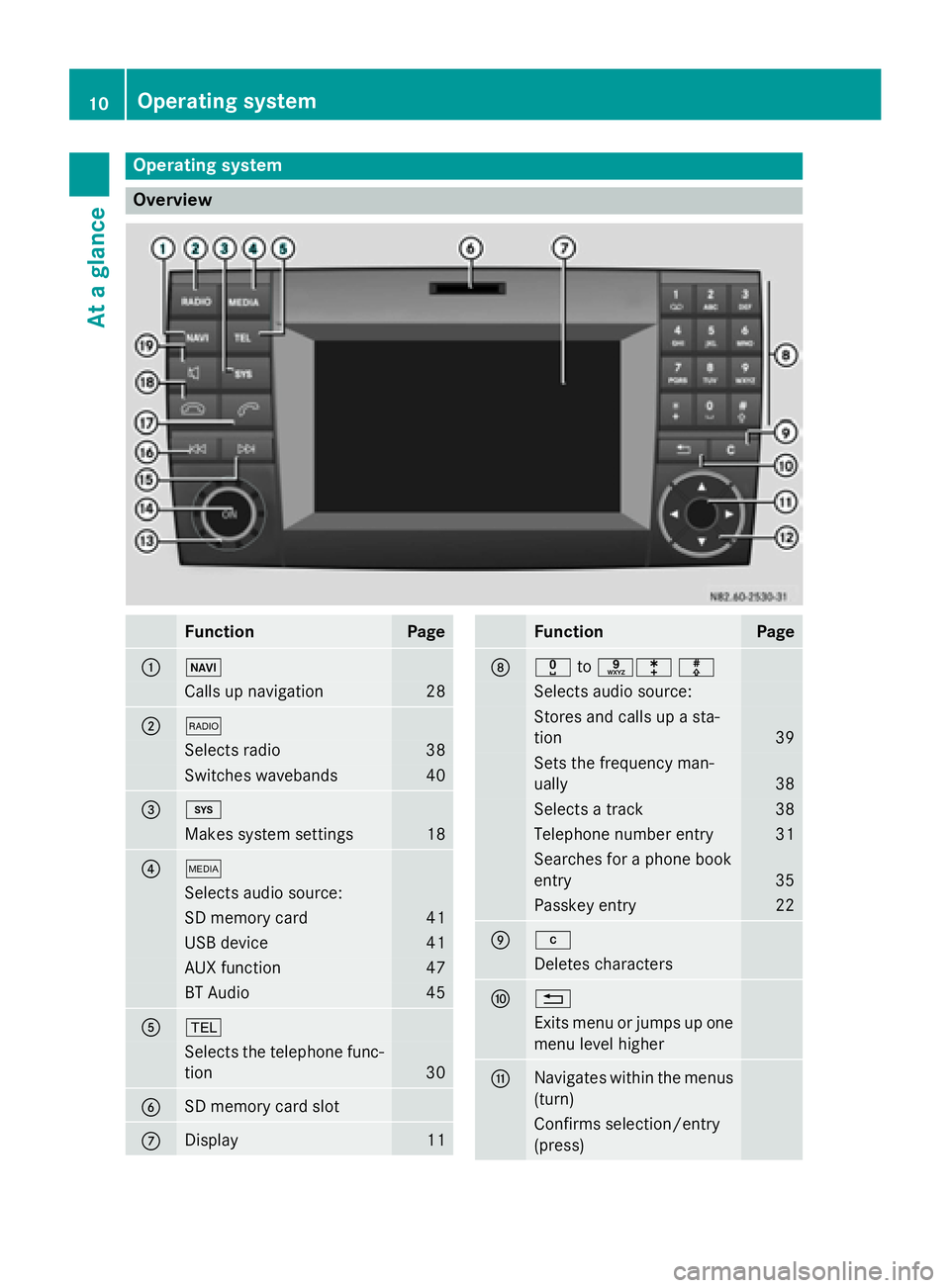
Operating system
Overview
FunctionPage
:Ø
Calls up navigation28
;$
Selects radio38
Switches wavebands40
=i
Makes system settings18
?Õ
Selects audio source:
SD memory card41
USB device41
AUX function47
BT Audio45
A%
Selects the telephone func-
tion
30
BSD memory card slot
CDisplay11
FunctionPage
Dxtoslm
Selects audio source:
Stores and calls up a sta-
tion
39
Sets the frequency man-
ually
38
Selects a track38
Telephone number entry31
Searches for a phone book
entry
35
Passkey entry22
Ej
Deletes characters
F%
Exits menu or jumps up one
menu level higher
GNavigates within the menus
(turn)
Confirms selection/entry
(press)
10Operating system
At a glance
Page 13 of 54
FunctionPage
H9:=;
Navigates within the menus
Station search38
Skip42
Fast forward/rewind43
Io
Sets the volume14
Jq
Switches on/off14
KF
Station search38
Skips forward42
Fast forward43
LE
Station search38
Skips back42
Rewind43
FunctionPage
M6
Accepts a call30
Makes a call31
Redials32
Accepts a waiting call33
N~
Ends a call30
Rejects a call31
Rejects a waiting call33
O8
Mutes audio source14
Pauses SD memory
card/USB device
Switches the hands-free
system on/off
32
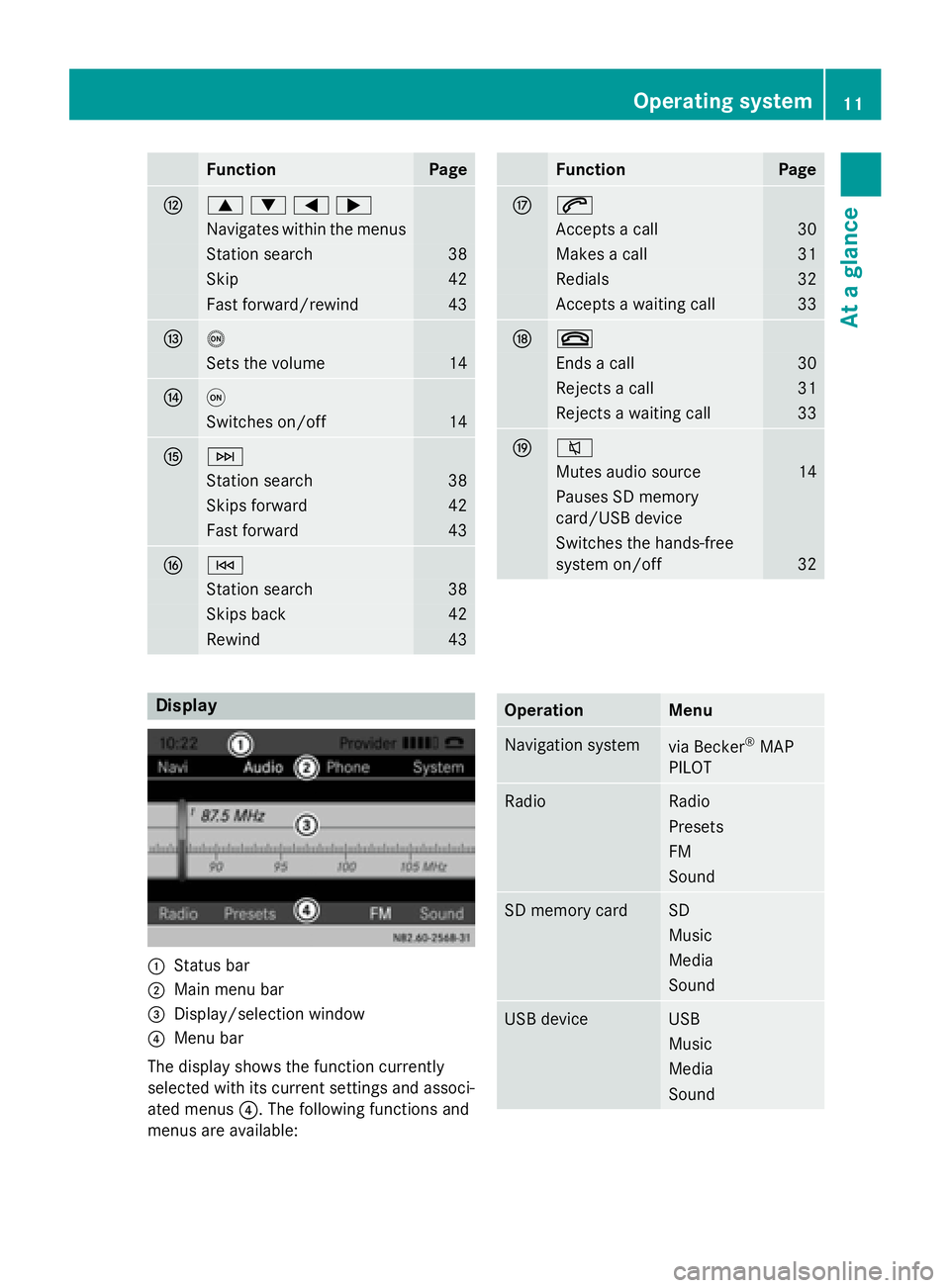
Display
:Status bar
;Main menu bar
=Display/selection window
?Menu bar
The display shows the function currently
selected with its current settings and associ-
ated menus ?. The following functions and
menus are available:
OperationMenu
Navigation systemvia Becker®MAP
PILOT
RadioRadio
Presets
FM
Sound
SD memory cardSD
Music
Media
Sound
USB deviceUSB
Music
Media
Sound
Operating system11
At a glance
Page 14 of 54
OperationMenu
AUXAUX
Volume
Sound
BT AudioBT Audio
Media
Sound
TelephoneTelephone
Call lists
SystemSettings
Display off
Entry routines
Control knob
Use the control knob to navigate in the
menus.
MovementOperation
TurnSelects menus and entries
PressConfirms the selection
Buttons and their functions
In addition to the control knob, you can also
operate Audio 15 with the following buttons:
ButtonOperation
%Jumps back one menu level
When route guidance is
active: jumps to main menu
jDeletes last character
entered
When route guidance is
active: cancels route guid-
ance
9Selects the previous line in
the menu
ButtonOperation
:Selects the next line in the
menu
;Jumps one entry to the right
Jumps back to the main
menu
Shows other editing
options/menus
=Jumps one entry to the left
Jumps up one menu level
higher
Hides other editing
options/menus
iWhen route guidance is active, all other
buttons for navigation are inoperative.
Example of operation
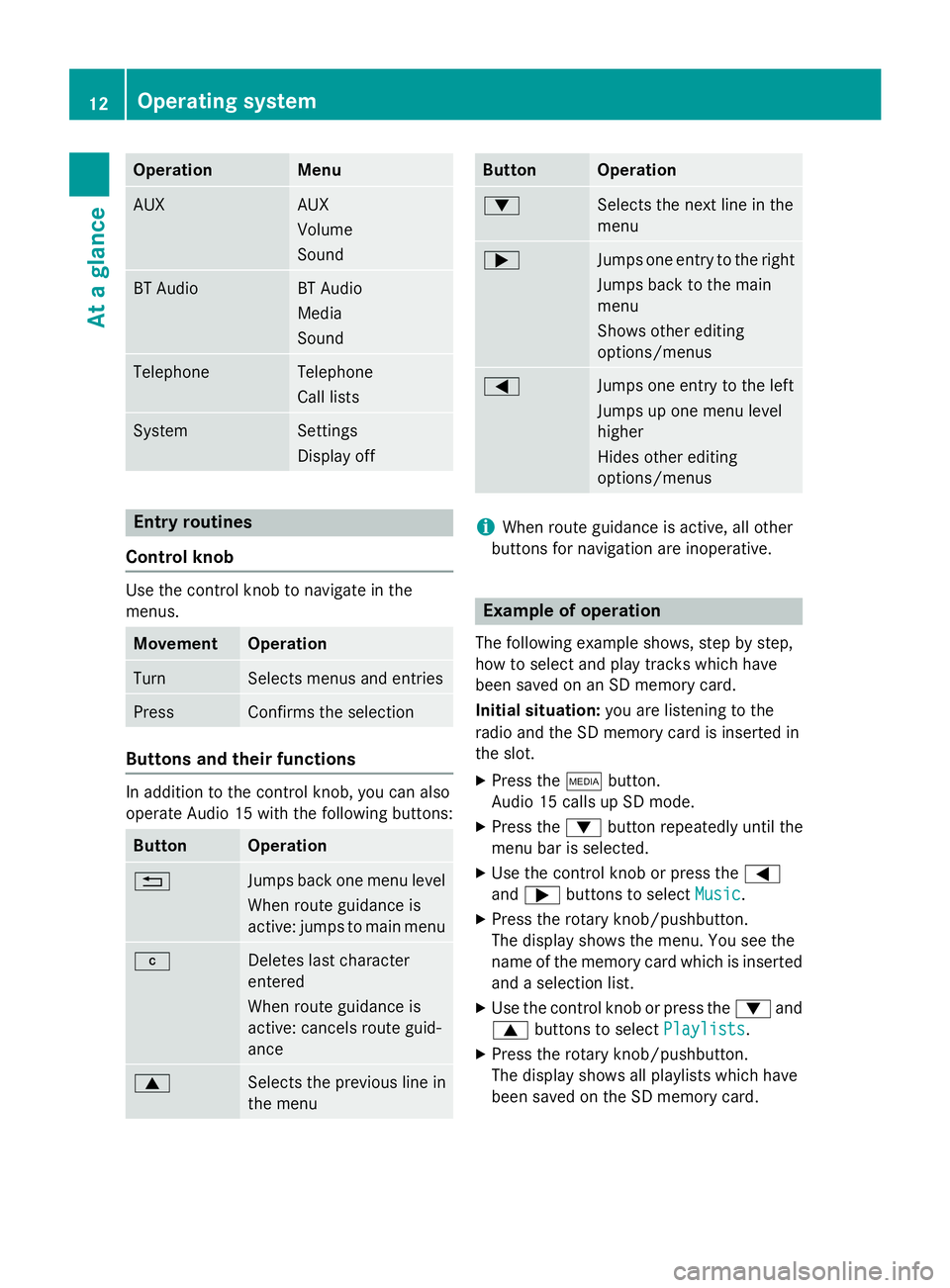
The following example shows, step by step,
how to select and play tracks which have
been saved on an SD memory card.
Initial situation: you are listening to the
radio and the SD memory card is inserted in
the slot.
XPress the Õbutton.
Audio 15 calls up SD mode.
XPress the :button repeatedly until the
menu bar is selected.
XUse the control knob or press the =
and ; buttons to select Music
.
XPress the rotary knob/pushbutton.
The display shows the menu. You see the
name of the memory card which is inserted
and a selection list.
XUse the control knob or press the :and
9 buttons to select Playlists
.
XPress the rotary knob/pushbutton.
The display shows all playlists which have
been saved on the SD memory card.
12Operating system
At a glance
Page 15 of 54
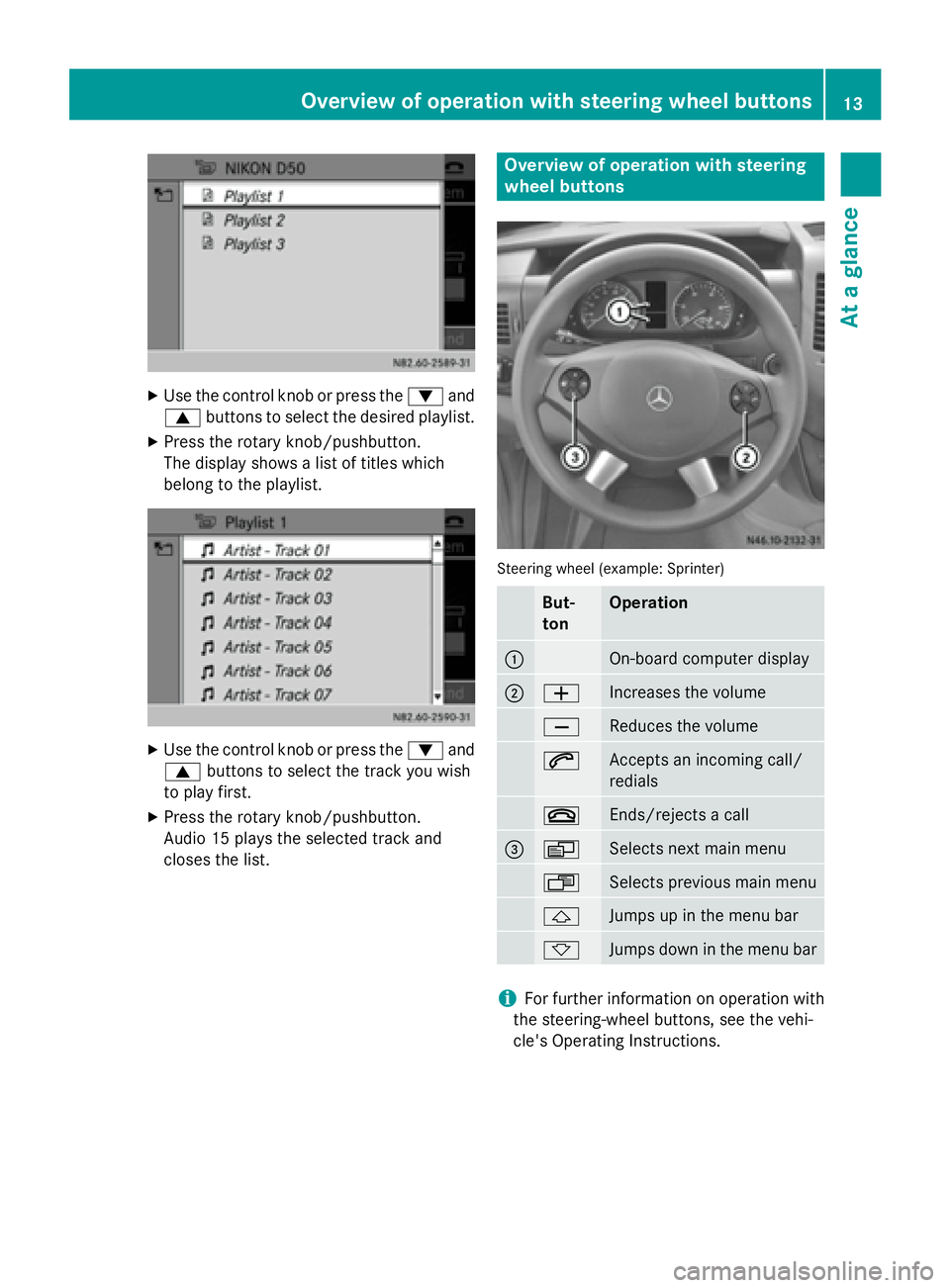
XUse the control knob or press the:and
9 buttons to select the desired playlist.
XPress the rotary knob/pushbutton.
The display shows a list of titles which
belong to the playlist.
XUse the control knob or press the :and
9 buttons to select the track you wish
to play first.
XPress the rotary knob/pushbutton.
Audio 15 plays the selected track and
closes the list.
Overview of operation with steering
wheel buttons
Steering wheel (example: Sprinter)
But-
tonOperation
:On-board computer display
;WIncreases the volume
XReduces the volume
6Accepts an incoming call/
redials
~Ends/rejects a call
=VSelects next main menu
USelects previous main menu
&Jumps up in the menu bar
*Jumps down in the menu bar
iFor further information on operation with
the steering-wheel buttons, see the vehi-
cle's Operating Instructions.
Overview of operation with steering wheel buttons13
At a glance